 73a3d980ca
## 🧢 Overview This PR migrates the AutoGPT Platform frontend from [yarn 1](https://classic.yarnpkg.com/lang/en/) to [pnpm](https://pnpm.io/) using **corepack** for automatic package manager management. **yarn1** is not longer maintained and a bit old, moving to **pnpm** we get: - ⚡ Significantly faster install times, - 💾 Better disk space efficiency, - 🛠️ Better community support and maintenance, - 💆🏽♂️ Config swap very easy ## 🏗️ Changes ### Package Management Migration - updated [corepack](https://github.com/nodejs/corepack) to use [pnpm](https://pnpm.io/) - Deleted `yarn.lock` and generated new `pnpm-lock.yaml` - Updated `.gitignore` ### Documentation Updates - `frontend/README.md`: - added comprehensive tech stack overview with links - updated all commands to use pnpm - added corepack setup instructions - and included migration disclaimer for yarn users - `backend/README.md`: - Updated installation instructions to use pnpm with corepack - `AGENTS.md`: - Updated testing commands from yarn to pnpm ### CI/CD & Infrastructure - **GitHub Workflows** : - updated all jobs to use pnpm with corepack enable - cleaned FE Playwright test workflow to avoid Sentry noise - **Dockerfile**: - updated to use pnpm with corepack, changed lock file reference, and updated cache mount path ### 📋 Checklist #### For code changes: - [x] I have clearly listed my changes in the PR description - [x] I have made a test plan - [x] I have tested my changes according to the test plan: **Test Plan:** > assuming you are on the `frontend` folder - [x] Clean installation works: `rm -rf node_modules && corepack enable && pnpm install` - [x] Development server starts correctly: `pnpm dev` - [x] Build process works: `pnpm build` - [x] Linting and formatting work: `pnpm lint` and `pnpm format` - [x] Type checking works: `pnpm type-check` - [x] Tests run successfully: `pnpm test` - [x] Storybook starts correctly: `pnpm storybook` - [x] Docker build succeeds with new pnpm configuration - [x] GitHub Actions workflow passes with pnpm commands #### For configuration changes: - [x] `.env.example` is updated or already compatible with my changes - [x] `docker-compose.yml` is updated or already compatible with my changes - [x] I have included a list of my configuration changes in the PR description (under **Changes**)
3.0 KiB
Running Ollama with AutoGPT
Important
: Ollama integration is only available when self-hosting the AutoGPT platform. It cannot be used with the cloud-hosted version.
Follow these steps to set up and run Ollama with the AutoGPT platform.
Prerequisites
- Make sure you have gone through and completed the AutoGPT Setup steps, if not please do so before continuing with this guide.
- Before starting, ensure you have Ollama installed on your machine.
Setup Steps
1. Launch Ollama
Open a new terminal and execute:
ollama run llama3.2
Note
: This will download the llama3.2 model and start the service. Keep this terminal running in the background.
2. Start the Backend
Open a new terminal and navigate to the autogpt_platform directory:
cd autogpt_platform
docker compose up -d --build
3. Start the Frontend
Open a new terminal and navigate to the frontend directory:
cd autogpt_platform/frontend
corepack enable
pnpm i
pnpm dev
Then visit http://localhost:3000 to see the frontend running, after registering an account/logging in, navigate to the build page at http://localhost:3000/build
4. Using Ollama with AutoGPT
Now that both Ollama and the AutoGPT platform are running we can move onto using Ollama with AutoGPT:
-
Add an AI Text Generator block to your workspace (it can work with any AI LLM block but for this example will be using the AI Text Generator block):

-
In the "LLM Model" dropdown, select "llama3.2" (This is the model we downloaded earlier)

-
Now we need to add some prompts then save and then run the graph:
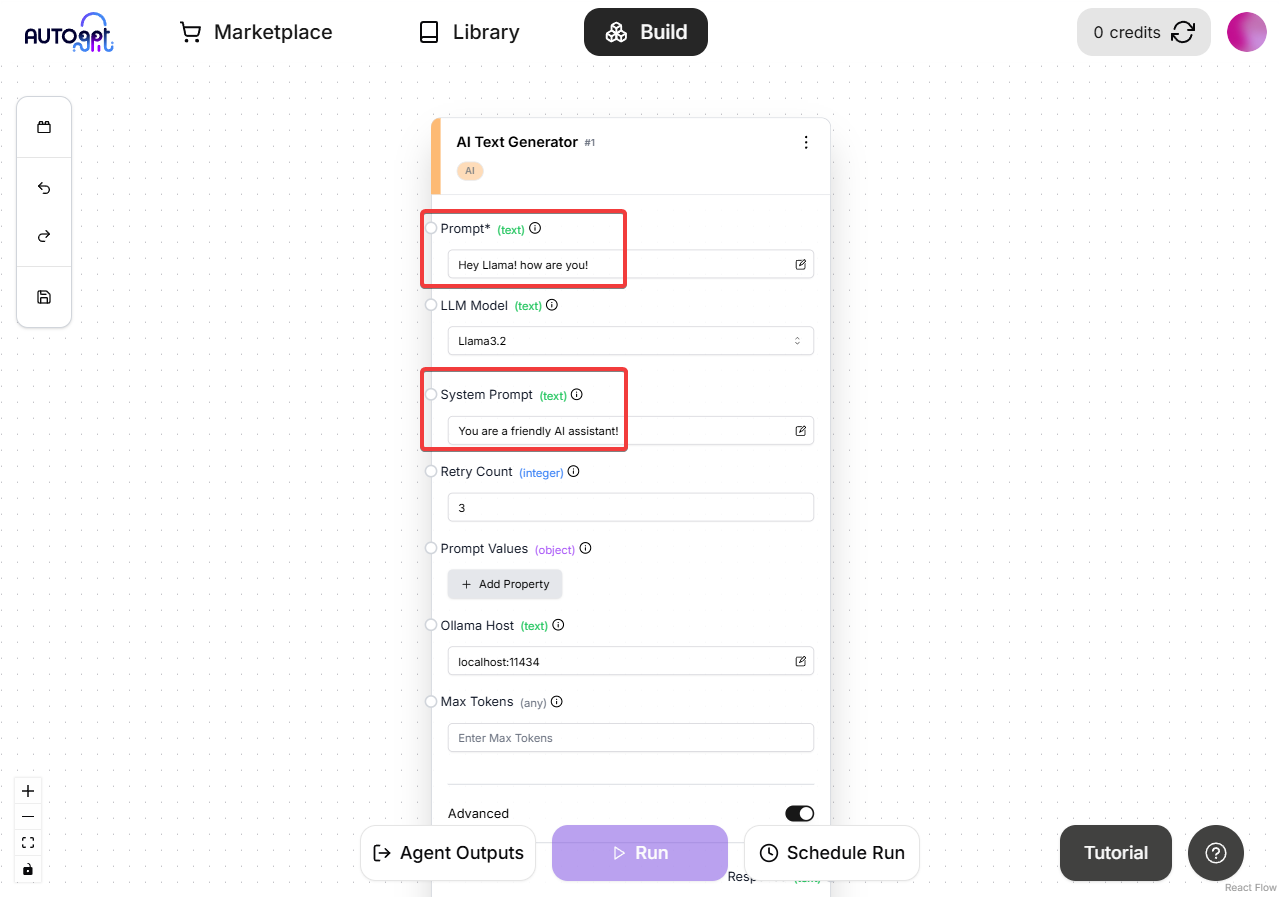


That's it! You've successfully setup the AutoGPT platform and made a LLM call to Ollama.

Using Ollama on a Remote Server with AutoGPT
For running Ollama on a remote server, simply make sure the Ollama server is running and is accessible from other devices on your network/remotely through the port 11434, then you can use the same steps above but you need to add the Ollama servers IP address to the "Ollama Host" field in the block settings like so:

Troubleshooting
If you encounter any issues, verify that:
- Ollama is properly installed and running
- All terminals remain open during operation
- Docker is running before starting the backend
For common errors:
- Connection Refused: Make sure Ollama is running and the host address is correct (also make sure the port is correct, its default is 11434)
- Model Not Found: Try running
ollama pull llama3.2manually first - Docker Issues: Ensure Docker daemon is running with
docker ps