
5.1 KiB
myst
| myst | ||||||
|---|---|---|---|---|---|---|
|
:orphan:
AMD RDNA2 system optimization
Workstation workloads
Workstation workloads, much like those for HPC, have a unique set of requirements: a blend of both graphics and compute, certification, stability and others.
The document covers specific software requirements and processes needed to use these GPUs for Single Root I/O Virtualization (SR-IOV) and machine learning tasks.
The main purpose of this document is to help users utilize the RDNA™ 2 GPUs to their full potential.
   :header-rows: 1
   :stub-columns: 1

   * - System Guide

     - Architecture reference

     - White papers

   * - [System settings](#system-settings)

     - [AMD RDNA 2 instruction set architecture](https://www.amd.com/system/files/TechDocs/rdna2-shader-instruction-set-architecture.pdf)

     - [RDNA 2 architecture](https://www.amd.com/system/files/documents/rdna2-explained-radeon-pro-W6000.pdf)
System settings
This chapter reviews system settings that are required to configure the system
for ROCm virtualization on RDNA2-based AMD Radeon™ PRO GPUs. Installing ROCm on
Bare Metal follows the routine ROCm
{doc}installation procedure<rocm-install-on-linux:install/install-methods/package-manager-index>.
To enable ROCm virtualization on V620, one has to setup Single Root I/O
Virtualization (SR-IOV) in the BIOS via setting found in the following
({ref}bios-settings). A tested configuration can be followed in
({ref}os-settings).
:::{attention} SR-IOV is supported on V620 and unsupported on W6800. :::
(bios-settings)=
System BIOS settings
:header-rows: 1
:name: v620-bios

*
  - Advanced / North Bridge Configuration
  - IOMMU
  - Enabled
  - Input-output Memory Management Unit
*
  - Advanced / North Bridge Configuration
  - ACS Enable
  - Enabled
  - Access Control Service
*
  - Advanced / PCIe/PCI/PnP Configuration
  - SR-IOV Support
  - Enabled
  - Single Root I/O Virtualization
*
  - Advanced / ACPI settings
  - PCI AER Support
  - Enabled
  - Advanced Error Reporting
To set up the host, update SBIOS to version 1.2a.
(os-settings)=
Operating system settings
:header-rows: 1
:name: v620-prereq

*
  - Server
  - [SMC 4124](https://www.supermicro.com/en/Aplus/system/4U/4124/AS-4124GS-TNR.cfm) [AS -4124GS-TNR]
*
  - Host OS
  - Ubuntu 20.04.3 LTS
*
  - Host Kernel
  - 5.4.0-97-generic
*
  - CPU
  - AMD EPYC 7552 48-Core Processor
*
  - GPU
  - RDNA2 V620 (D603GLXE)
*
  - SBIOS
  - Version SMC_r_1.2a
*
  - VBIOS
  - 113-D603GLXE-077
*
  - Guest OS 1
  - Ubuntu 20.04.5 LTS
*
  - Guest OS 2
  - RHEL 9.0
*
  - GIM Driver
  - gim-dkms_1.0.0.1234577_all
*
  - VM CPU Cores
  - 32
*
  - VM RAM
  - 64 GB
Install the following Kernel-based Virtual Machine (KVM) Hypervisor packages:
sudo apt-get -y install qemu-kvm qemu-utils  bridge-utils virt-manager  gir1.2-spiceclientgtk*  gir1.2-spice-client-gtk* libvirt-daemon-system dnsmasq-base
sudo virsh net-start default /*to enable Virtual network by default
Enable input-output memory management unit (IOMMU) in GRUB settings by adding the following line to /etc/default/grub:
GRUB_CMDLINE_LINUX_DEFAULT="quiet splash" for AMD CPU
Update grub and reboot
sudo update=grub
sudo reboot
Install the GPU-IOV Module (GIM, where IOV is I/O Virtualization) driver and follow the steps below.z
sudo dpkg -i <gim_driver>
sudo reboot
# Load Host Driver to Create 1VF
sudo modprobe gim vf_num=1
# Note: If GIM driver loaded successfully, we could see "gim info:(gim_init:213) *****Running GIM*****" in dmesg
lspci -d 1002:
Which should output something like:
01:00.0 PCI bridge: Advanced Micro Devices, Inc. [AMD/ATI] Device 1478
02:00.0 PCI bridge: Advanced Micro Devices, Inc. [AMD/ATI] Device 1479
03:00.0 Display controller: Advanced Micro Devices, Inc. [AMD/ATI] Device 73a1
03:02.0 Display controller: Advanced Micro Devices, Inc. [AMD/ATI] Device 73ae → VF
Guest OS installation
First, assign GPU virtual function (VF) to VM using the following steps.
-
Shut down the VM.
-
Run
virt-manager -
In the Virtual Machine Manager GUI, select the VM and click Open.

-
In the VM GUI, go to Show Virtual Hardware Details > Add Hardware to configure hardware.

-
Go to Add Hardware > PCI Host Device > VF and click Finish.
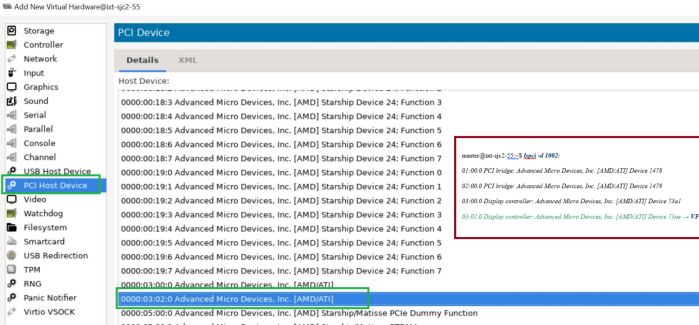


Then start the VM.
Finally install ROCm on the virtual machine (VM). For detailed instructions,
refer to the {doc}Linux install guide<rocm-install-on-linux:install/install-methods/package-manager-index>.