# Cloud Projects
> Cloud Projects are individual instances of Directus, managed within a Team. Community, Standard, and Enterprise tier
> Projects are available, with each offering different options for infrastructure, configuration, and professional
> services.
[[toc]]
A Cloud Project is a Directus Instance, the [Infrastructure](/cloud/glossary/#infrastructure) it runs on, as well as all
its [data and file assets](/cloud/glossary/#asset-storage). All Cloud Projects come
[quota-free](/cloud/glossary/#quotas) and include all [Cloud Exclusives](/cloud/glossary/#cloud-exclusives). See
[Support Options](/cloud/glossary/#support-options) to find out how to get help on your Project.
There are 3 different Project tiers on Directus Cloud: [Community](#create-a-community-project),
[Standard](#create-a-standard-project), and [Enterprise](#create-an-enterprise-project). A side-by-side comparison of
what is included in each tier can be found on the [Pricing Page](https://directus.io/pricing/).
See the [Overview](/cloud/overview) to learn how Accounts, Teams and Projects interrelate.
## View a Team's Projects

All of a Team's Projects are listed on the Projects Page. For each Project, the following information and shortcuts are
provided. On Project creation, the provisioning progress will be displayed until fully complete. The icon on the far
left indicates whether it is online, [offline](/cloud/glossary/#system-status) or [paused](#resume-a-community-project).
Next to this, the Project Name and Project Slug are given. On the right, the Project tier is displayed, followed by
shortcuts which allow you to edit edit and launch access the Project. To view
a Team's Projects, follow the steps below.
1. Open the Team Menu in the Dashboard Header and select the desired Team.
2. Click **"Projects"**.
## Create a Community Project

The Community tier offers a completely free Directus Project, perfect to spin-up hobby projects, demo Directus Cloud,
test a proof of concept or any other non-production activity. Community Projects come with the following configurations.
- **Project Name** — Custom. _This can be changed at any time with no impact on the Project_.
- **Project URL** — Random URL: `aa3i82.directus.app`. _This cannot be changed_.
- [Datacenter Region](/cloud/glossary/#datacenter-regions) — `United States, East`.
- [Node Type](/cloud/glossary/#node-types) — Community Node.
- [Load Balancing](/cloud/glossary/#load-balancing) — One Active Node.
- [Auto-Scaling](/cloud/glossary/#auto-scaling) — Not Available.
- **Starting Template** — Create an Empty Project or a Demo Project with dummy data.
To create a Community Project, follow the steps below.
1. Open the Team Menu in the Dashboard Header and select the desired Team.
2. Click **"Projects"**.
3. Click **"Create Project"**.
4. Set the Project Name.
5. Select the Community tier.
6. Scroll to the bottom of the screen and choose a Starting Template.
7. Click **"Create Project"**.
:::tip Project Name
The Project Name displays within Directus Cloud. This can be changed at any time and is purely for organizational
purposes, it has no impact on the Project itself.
:::
:::tip Standard Tier
Need a production-ready Project that can scale as needed?\
Create a [Standard Project](#create-a-standard-project).
:::
## Create a Standard Project

The Standard tier is perfect for most production-ready use cases. These Projects come with custom URLs, daily
[backups](/cloud/glossary/#backups), and better Nodes that can be scaled up and down as needed.
Standard Projects come with the following configuration options.
- **Project Name** — Custom. _This can be changed at any time with no impact on the Project_.
- **Project URL** — Custom URL: `your-custom-url.directus.app`. _This cannot be changed_.
- [Datacenter Region](/cloud/glossary/#datacenter-regions) — `United States, East` or `Europe, Frankfurt`.
- [Node Type](/cloud/glossary/#node-types) — General Purpose or Performance Tier Nodes.
- [Load Balancing](/cloud/glossary/#load-balancing) — 1-6 Active Nodes.
- [Auto-Scaling](/cloud/glossary/#auto-scaling) — 0-5 Standby Nodes.
To create a Standard Project, follow the steps below.
1. Open the Team Menu in the Dashboard Header and select the desired Team.
2. Click **"Projects"**.
3. Click the Team you wish to create a Project under.
4. Click **"Create Project"**.
5. Set the Project Name as desired.
6. Select the Standard tier.
7. Set the configuration options as desired.
8. Click **"Proceed to Checkout"**. You will be taken to a checkout page.
9. Enter payment information and hit **"Subscribe"**.
:::tip Enterprise Tier
Need even more power, scale, customization and support?\
Upgrade to an [Enterprise Project](#create-an-enterprise-project).
:::
## Create an Enterprise Project
Enterprise tier offers power and scale to meet any Project's needs, 19
[Datacenter regions](/cloud/glossary/#datacenter-regions), upgraded [support options](/cloud/glossary/#support-options),
and much more.
:::tip Ready to to go Enterprise?
[Contact Sales](https://directus.io/contact/)
:::
## Access a Project
At some point, you will want to login and access the actual managed Project. You can go the Project's URL directly.
There also are two ways to access a Project from within the Cloud Dashboard. To access a Project from the Cloud
Dashboard, follow the steps below.
1. Open the Team Menu in the Dashboard Header and click the desired Team.
2. Click **"Projects"** to enter the Projects Page.\
From here, there are two ways to access a Project:
#### From the Projects Page
3. Click launch on the desired Project. Your Project login page will open in a new tab.
#### From Project Monitor Page
3. Click a Project to enter its Project Monitor Page.
4. Click **"Open Project"**. Your Project login page will open in a new tab.
## Monitor a Project
Graphs on the Project Monitor Page display daily Project information over the last month. The four graphs on this page
may help inform Node configuration decisions.
- **Combined Node Usage**\
Total load placed on all Nodes. If CPU or memory are overloaded, the Node could crash! High usage is a sign it is time
to scale up.
- **Horizontal Scaling**\
Number of Standby Nodes activated. If one or more Standy Nodes are frequently activated, it may be time to add more Active
Nodes.
- **API Requests**\
Number of API requests. This provides basic insight into traffic cycles, including overall volatility. If there are huge
spikes in traffic, it may be wise to configure more Standby Nodes.
- **API Bandwidth**\
The read/write bandwidth. If bandwidth is high, it may be beneficial to vertically-scale with Performance Tier or Enterprise
Nodes in order to better handle the larger volume of data.
To access the Project Monitor Page, follow the steps below.
1. Open the Team Menu in the Dashboard Header and click the desired Team.
2. Click **"Projects"** to enter the Projects Page.
3. Click the Project to enter the Project Monitor Page.
## Manage a Community Project

On Community Projects, the only option available is to change the Project's Name. To manage a Community Project, follow
the steps below.
1. Open the Team Menu in the Dashboard Header and click the desired Team.
2. Click **"Projects"** to enter the Projects Page.
3. Click the Project to enter the Project Monitor Page.
4. Click **"Edit"** to enter the Project Details Page.
5. Change Project Name as desired.
6. Click **"Update Project"**.
## Manage a Standard Project

On Standard Projects, it is possible to change the Project Name as well as reconfigure the
[Node Type](/cloud/glossary/#node-types), number of [Active Nodes](/cloud/glossary/#active-nodes) and number of
[Standby Nodes](/cloud/glossary/#standby-nodes).
1. Open the Team Menu in the Dashboard Header and click the desired Team.
2. Click **"Projects"** to enter the Projects Page.
3. Click the Project to enter the Project Monitor Page.
4. Click **"Edit"** to enter the Project Details Page.
5. Make changes as desired.
6. Click **"Update Project"**.
## Manage an Enterprise Project
Each Enterprise Project is customized, and as such, cannot be managed from the Cloud Dashboard. The Project will be
managed in tandem with the Directus Core Team.
:::tip Ready to to go Enterprise?
[Contact Sales](https://directus.io/contact/)
:::
## Resume a Community Project
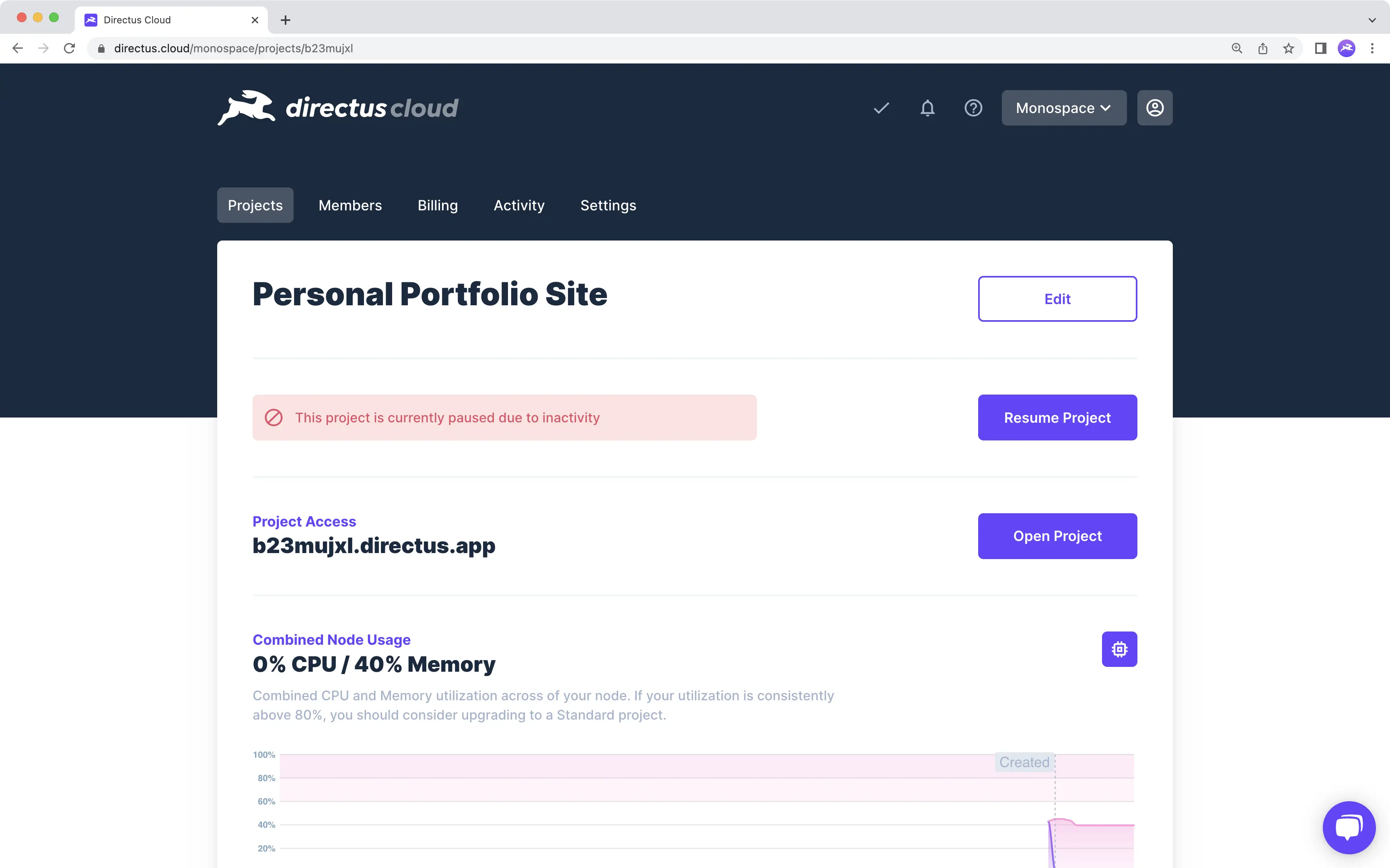
If there is no app activity for 3 days on a Community Project, the [Infrastructure](/cloud/glossary/#infrastructure)
gets paused. Projects which remain paused for a certain duration will be automatically deleted, see details in
[Cloud Policies](https://directus.io/cloud-policies/#). To avoid deletion, you must manually resume the Project within
the Cloud Dashboard. Once paused, requests to the app will not resume the Project. To resume a paused Community Project,
follow the steps below.
1. Open the Team Menu in the Dashboard Header and click the desired Team.
2. Click **"Projects"** to enter the Projects Page.
3. Click the paused Project to enter the Project Monitor Page.
4. Click **"Resume Project"**.
## Destroy a Project

Destroying a Directus Cloud Project completely removes all its data, assets, settings, and Users from our platform. To
destroy a Directus Cloud Project, follow these steps:
1. Open the Team Menu in the Dashboard Header and click the desired Team.
2. Click **"Projects"** to enter the Projects Page.
3. Click the Project you wish to delete.
4. Scroll to the bottom of the page and toggle local_fire_department.
5. Type in the Project Name.
6. Click **"Destroy Project"**.
::: danger
This action will break any external apps connecting to the Project's API or linking to Project files. This action is
permanent and irreversible. **Directus Cloud is not responsible for data or files lost due to this action!**
:::