
3.0 KiB
Triggers
Triggers allow you to activate Flows on just about any conceivable internal or external event, including any in-app activities, incoming webhooks, cron jobs, Operations in other Flows, or the manual click of a button in the Directus App.
:::tip Before You Begin
Please be sure to read the documentation on Flows.
:::
Event Hook
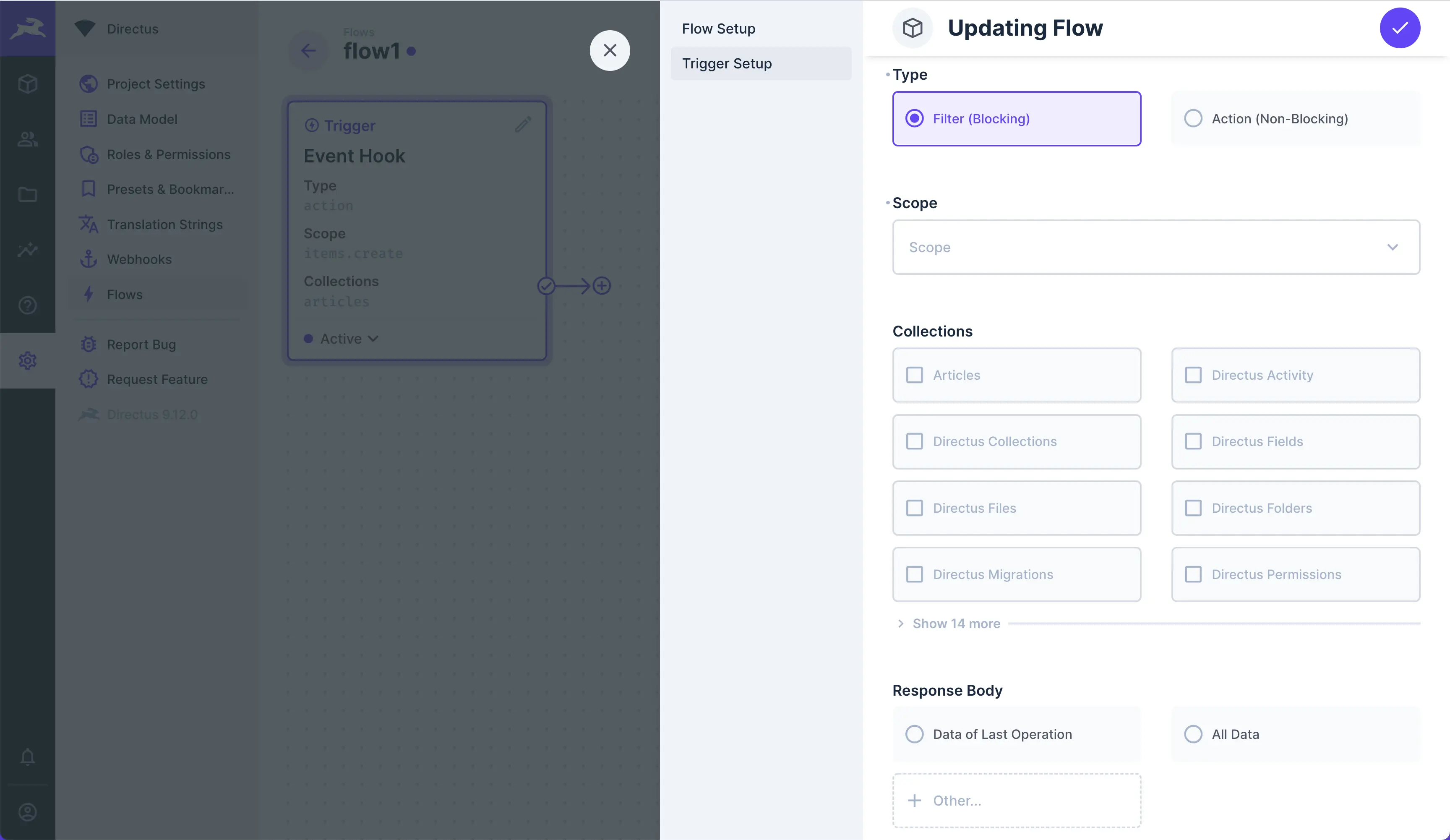
Event Hooks are triggered by platform or data events. The logic is based on Custom API Hooks.
- Type — Choose the type of Event Hook:
- Filter (Blocking) — Fires "blocking" right before the database transaction is committed, allowing you to tweak the payload or even outright prevent completion.
- Action (Non-Blocking) — Does not block anything. Therefore, this is mostly useful for doing things in response to an event, without slowing down the API.
- Scope — Set the specific events which trip this Trigger.
- Collections — Set the Collections which trip this Trigger.
- Response Body — Send Data of last Operation, all Flow Object data, or Flow key.
Webhook

Triggered by an incoming HTTP request to: /flows/trigger/:this-webhook-trigger-id.
- Method — Choose to make a GET, POST, PATCH, DELETE or other request from the dropdown.
- Asynchronous — Toggle whether or not the Trigger responds asynchronously.
- Response Body — Choose to send Data of last Operation, all Flow Object data, or some other key from the Flow object.
Schedule

This Trigger allows you to create Data at scheduled intervals, via 6-point cron job syntax.
- Interval — Set the cron job interval to schedule when the Flow triggers.
Another Flow

This Trigger executes a Flow via the Trigger Flow Operation, allowing you to chain Flows together.
- Response Body — Select data to return in the response to Trigger Flow.
Manual

Triggers on manual click of a button. Based on your Location configuration, a Flows menu will appear in the Sidebar of the Collection Page and/or Item Page. This will contain a button which starts the Flow when clicked.
- Collections — Choose the Collection(s) to add in this Button on to.
- Location — Choose to add the button into the Item Page, Collection Page, or both.
- Asynchronous — Toggle whether or not the Flow executes asynchronously.