
4.5 KiB
gspt


In a very experimental stage.
Building
$ git clone https://github.com/aditya-K2/gspt.git
$ cd gspt
$ go build -v
Installing
$ sudo install -D gspt -t "/usr/bin/"
You can merge them into a one liner
git clone https://github.com/aditya-K2/gspt && cd gspt && GOFLAGS="-buildmode=pie -trimpath -mod=readonly -modcacherw" go build -v && sudo install -D gspt -t "/usr/bin/"
Please Note
- You will need Spotify Premium to use
gspt. gsptuses the Web API from Spotify, which doesn't handle streaming itself. So you'll need either an official Spotify client open or a lighter weight alternative such as spotifyd.- Images are rendered using the Xorg child windows. Currently there is no support for Wayland.
Setup
How to Generate an API Key from Spotify Dashboard
If you want to use Spotify's API to create applications that interact with their music streaming service, you will need an API key. Here's how you can generate one from the Spotify Dashboard:
-
Go to the Spotify Developer Dashboard and log in with your Spotify account credentials.
-
Click on the "Create an App" button to create a new application.
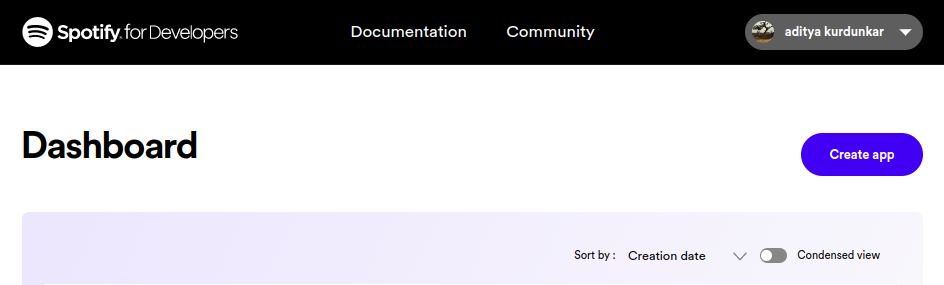
-
Give your application a name and description, and agree to the terms of service. In the
Redirect URIsection addhttp://localhost:8080/callbackas a callback URL. This is necessary for the OAuth 2.0 authentication flow to work. Click on "Create" to proceed.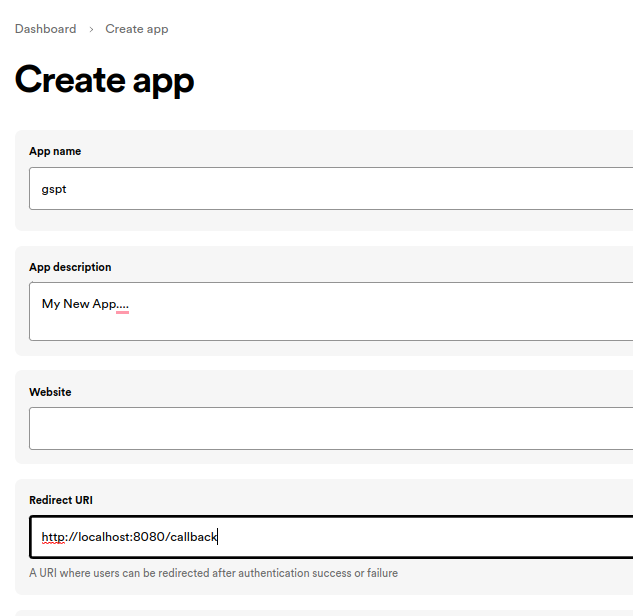
-
On the next page, you'll see the details of your newly created application. In the Settings Look for the section labeled "Client ID" and click on the "Show Client Secret" button.
-
You will now see your Client ID and Client Secret. You will need both of these to use the Spotify API in
gspt


$ export SPOTIFY_ID= # client id
$ export SPOTIFY_SECRET= # client secret
- After this you can just run
gspt. And follow the link that it generates, and Login.
$ gspt
Key bindings
dOpens the device menu to choose a device from1,2,3Switch between the viewsEnter- Selects an entry?SearchvToggle Visual Mode (Only works in some views)aAdd to Playlist (Only works in some views)Ctrl-Pstarts playing the entry under the cursor in some views (PlaylistNavigator, Albums, etc.)
Config Options
Config file can be defined at $HOME/.config/gspt/config.yaml
Note: Configuration is live updated when you make a change
Following Options are configurable
# Following are the default values
cache_dir: $XDG_CACHE_HOME # Path to where the cached images should be stored.
redraw_interval: 500
additional_padding_x : 12
additional_padding_y : 16
image_width_extra_x : -1.5
image_width_extra_y : -3.75
colors:
    artist:
        fg: pink
        bg: ""
        bold: false
        italic: false
    album:
        fg: green
        bg: ""
        bold: false
        italic: false
    track:
        fg: blue
        bg: ""
        bold: false
        italic: false
    genre:
        fg: darkCyan
        bg: ""
        bold: true
        italic: false
    timestamp:
        fg: red
        bg: ""
        bold: false
        italic: true
    pbar_artist:
        fg: blue
        bg: ""
        bold: true
        italic: false
    pbar_track:
        fg: green
        bg: ""
        bold: true
        italic: true
    playlist_nav:
        fg: coral
        bg: ""
        bold: false
        italic: false
    nav:
        fg: papayawhip
        bg: ""
        bold: false
        italic: false
    context_menu:
        fg: turquoise
        bg: ""
        bold: true
        italic: false
Roadmap
- Multiple Image rendering backends
- Sixel
- tview Images
- Kitty Images
- Rounded Corners
- Customisable UI
- Wayland Support for Image rendering
- Queue Support
- Key Mappings