mirror of
https://github.com/Infisical/infisical.git
synced 2026-01-10 07:58:15 -05:00

96 lines
3.1 KiB
Plaintext
96 lines
3.1 KiB
Plaintext
---
|
|
title: 'Developing'
|
|
description: 'This guide will help you set up and run Infisical in development mode.'
|
|
---
|
|
|
|
## Clone the repo
|
|
|
|
```bash
|
|
# change location to the path you want Infisical to be installed
|
|
cd ~
|
|
|
|
# clone the repo and cd to Infisical dir
|
|
git clone https://github.com/Infisical/infisical
|
|
cd infisical
|
|
```
|
|
|
|
## Set up environment variables
|
|
|
|
Before running the docker-compose we have to generate the .env file with the environment variables, you can create your own file or start with the
|
|
`.env.example` as an example guide.
|
|
|
|
Mandatory variables in the `.env` file:
|
|
|
|
1. Keys and JWT variables
|
|
|
|

|
|
|
|
The `.env.example` has these variables empty, you can self generate the `JWT and ENCRYPTION_KEY` with this [32-byte random hex strings generator](https://www.browserling.com/tools/random-hex).
|
|
|
|
For the `PRIVATE_KEY and PUBLIC_KEY` you can use the ones shown in the screenshot:
|
|
|
|
```
|
|
PRIVATE_KEY='oGVv5rThrpZ7WLgQW27chY1cXngr4wLQIZnGfSKgHPk='
|
|
PUBLIC_KEY='ldr6JaC7AY+tun3omGLdE4SWpkJbtVBOI54KfUP53Xc='
|
|
```
|
|
|
|
2. Mongo variables and site URL
|
|
|
|

|
|
|
|
These variables are used to connect the MongoDB and set the URL for the localhost.
|
|
|
|
For development, you can use `root` for the `MONGO_USERNAME` and `example` for the `MONGO_PASSWORD` as shown in the screenshot.
|
|
|
|
Take into account that if you use your own `MONGO_USERNAME` and `MONGO_PASSWORD`, you also have to change the `MONGO_URL` with the form of `MONGO_USERNAME:MONGO_PASSWORD` after the `//` part of the URL.
|
|
|
|
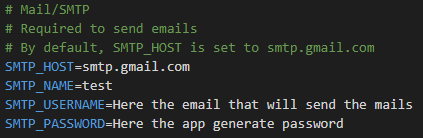
3. Mail SMTP service variables
|
|
|
|
|
|
|
|
If you want to receive actual emails (e.g. you want to test how the email message will look like), take note of the following.
|
|
|
|
For the `SMTP_USERNAME` variable, you will need an email with 2-steps-verification.
|
|
|
|
For the `SMTP_PASSWORD` variable, you will need to [generate an app password](https://support.google.com/mail/answer/185833?hl=en) with the email you used in the `SMTP_USERNAME` variable.
|
|
|
|
Otherwise, a local SMTP server (MailHog) is available for testing purposes. Set the following values to use this:
|
|
|
|
```
|
|
SMTP_HOST=smtp-server
|
|
SMTP_PORT=1025
|
|
SMTP_NAME=<whatever you like>
|
|
SMTP_USERNAME=team@infisical.com
|
|
SMTP_PASSWORD=
|
|
```
|
|
|
|
Make sure to leave the `SMTP_PASSWORD` blank so the backend will be able to connect to MailHog
|
|
|
|
You can browse `http://localhost:8025/` to browse email messages sent by the backend.
|
|
|
|
With these environment variables, you will be ready to run the docker-compose.
|
|
|
|
## Docker for development
|
|
|
|
```bash
|
|
# build and start the services
|
|
docker-compose -f docker-compose.dev.yml up --build --force-recreate
|
|
```
|
|
|
|
Then browse http://localhost:8080
|
|
|
|
```bash
|
|
# To stop environment use Control+C (on Mac) CTRL+C (on Win) or
|
|
docker-compose -f docker-compose.dev.yml down
|
|
# start services
|
|
docker-compose -f docker-compose.dev.yml up
|
|
```
|
|
|
|
The docker-compose development environment consists of:
|
|
|
|
- nginx
|
|
- frontend
|
|
- backend
|
|
- mongo
|
|
- mongo-express
|