
40 KiB
Command Line
Documentation of the various command line options of the Meteor tool.
The following are some of the more commonly used commands in the meteor
command-line tool. This is just an overview and does not mention every command
or every option to every command; for more details, use the meteor help
command.
meteor help
Get help on meteor command line usage.
meteor help
Lists the common meteor commands.
meteor help <command>
Prints detailed help about the specific command.
meteor run
Run a meteor development server in the current project.
meteor run
::: tip
This is the default command. Simply running meteor is the same as meteor run.
:::
Features
- Automatically detects and applies changes to your application's source files
- No Internet connection required
- Accesses the application at localhost:3000 by default
- Searches upward from the current directory for the root directory of a Meteor project
Options
| Option | Description |
|---|---|
--port, -p <port> |
Port to listen on (default: 3000). Also uses port N+1 and a port specified by --app-port. Specify as --port=host:port to bind to a specific interface |
--open, -o |
Opens a browser window when the app starts |
--inspect[-brk][=<port>] |
Enable server-side debugging via debugging clients. With --inspect-brk, pauses at startup (default port: 9229) |
--mobile-server <url> |
Location where mobile builds connect (defaults to local IP and port). Can include URL scheme (e.g., https://example.com:443) |
--cordova-server-port <port> |
Local port where Cordova will serve content |
--production |
Simulate production mode. Minify and bundle CSS and JS files |
--raw-logs |
Run without parsing logs from stdout and stderr |
--settings, -s <file> |
Set optional data for Meteor.settings on the server |
--release <version> |
Specify the release of Meteor to use |
--verbose |
Print all output from builds logs |
--no-lint |
Don't run linters used by the app on every rebuild |
--no-release-check |
Don't run the release updater to check for new releases |
--allow-incompatible-update |
Allow packages to be upgraded or downgraded to potentially incompatible versions |
--extra-packages <packages> |
Run with additional packages (comma separated, e.g., "package-name1, package-name2@1.2.3") |
--exclude-archs <archs> |
Don't create bundles for certain web architectures (comma separated, e.g., "web.browser.legacy, web.cordova") |
Node.js Options
To pass additional options to Node.js, use the SERVER_NODE_OPTIONS environment variable:
Windows PowerShell:
$env:SERVER_NODE_OPTIONS = '--inspect' | meteor run
Linux/macOS:
SERVER_NODE_OPTIONS=--inspect-brk meteor run
Port Configuration Example
meteor run --port 4000
This command:
- Runs the development server on
http://localhost:4000 - Runs the development MongoDB instance on
mongodb://localhost:4001
::: info
The development server always uses port N+1 for the default MongoDB instance, where N is the application port.
:::
meteor debug
Run the project with the server process suspended for debugging.
::: warning Deprecation Notice
The meteor debug command has been superseded by the more flexible --inspect and --inspect-brk command-line flags, which work with run, test, and test-packages commands.
:::
Modern Debugging Approach
# Debug server with auto-attachment
meteor run --inspect

# Debug server and pause at start
meteor run --inspect-brk
Command Usage
meteor debug [--debug-port <port>]
How It Works
- Server process suspends just before the first statement of server code execution
- Debugger listens for incoming connections on port 5858 by default
- Use
--debug-port <port>to specify a different port
Setting Breakpoints
- Use the
debuggerkeyword in your code - Set breakpoints through the debugging client's UI (e.g., in the "Sources" tab)
Debugging Clients
You can use either:
- Web-based Node Inspector
- Command-line debugger
::: details Node Inspector Console Bug
Due to a bug in node-inspector, pressing "Enter" after a command in the Node Inspector Console may not successfully send the command to the server.
Workarounds:
- Use Safari browser
- Use
meteor shellto interact with the server console - Apply the hot-patch available in this comment :::
Differences from Node.js Flags
The Meteor --inspect and --inspect-brk flags work similarly to Node.js flags with two key differences:
- They affect the server process spawned by the build process, not the build process itself
- The
--inspect-brkflag pauses execution after server code has loaded but before it begins to execute
Alternative Approach
The same debugging functionality can be achieved by adding the --debug-port <port> option to other Meteor commands:
meteor run --debug-port 5858
meteor test-packages --debug-port 5858
meteor profile
Run a performance profile for your Meteor application to analyze build and bundling performance.
meteor profile [<meteor-run-options>...]
::: info Availability This command is available from Meteor 3.2 and newer. :::
Usage
This command monitors the bundler process and tracks key performance metrics to help analyze build and bundling performance.
Options
| Option | Description |
|---|---|
--size |
Monitor both bundle runtime and size |
--size-only |
Monitor only the bundle size |
--build |
Monitor build time |
::: info
All other options from meteor run are also supported (e.g., --settings, --exclude-archs).
If you use the --build option, it also accepts meteor build flags (e.g. --mobile-settings, --architecture).
:::
Environment Variables
| Variable | Description | Default |
|---|---|---|
METEOR_IDLE_TIMEOUT=<seconds> |
Set a timeout for profiling | 90 seconds |
METEOR_CLIENT_ENTRYPOINT=<path> |
Set a custom client entrypoint | From package.json |
METEOR_SERVER_ENTRYPOINT=<path> |
Set a custom server entrypoint | From package.json |
METEOR_LOG_DIR=<path> |
Set a custom log directory | Default log directory |
::: tip
The default timeout (90s) is usually enough for each build step to complete. If you encounter errors due to early exits, increase the METEOR_IDLE_TIMEOUT value.
:::
Example Usage
# Basic profile
meteor profile

# Monitor bundle size only
meteor profile --size-only

# Monitor build time
meteor profile --build

# Profile with custom settings and timeout
METEOR_IDLE_TIMEOUT=120 meteor profile --settings settings.json

# Profile with custom entrypoints
METEOR_CLIENT_ENTRYPOINT=client/main.js METEOR_SERVER_ENTRYPOINT=server/main.js meteor profile
::: details Customizing the Profiling Process
You can pass any option that works with meteor run to customize the profiling process. This allows you to profile your application under specific conditions that match your deployment environment. The same applies to the --build option, which matches meteor build options.
:::
meteor create app-name
Create a new Meteor project in a directory called app-name.
meteor create [options] app-name
::: tip Default Behavior
Without any flags, meteor create app-name generates a React project.
:::
::: tip Interactive Wizard
If you run meteor create without arguments, Meteor will launch an interactive wizard that guides you through selecting your project name and application type:
  ~ What is the name/path of your app?
  ~ Which skeleton do you want to use?
  Blaze     # To create an app using Blaze
  Full      # To create a more complete scaffolded app
  Minimal   # To create an app with as few Meteor packages as possible
  React     # To create a basic React-based app
  Typescript # To create an app using TypeScript and React
  Vue       # To create a basic Vue3-based app
  Svelte    # To create a basic Svelte app
  Tailwind # To create an app using React and Tailwind
  Chakra-ui # To create an app Chakra UI and React
  Solid # To create a basic Solid app
  Apollo # To create a basic Apollo + React app
  Bare # To create an empty app
:::
Basic Options
| Option | Description |
|---|---|
--from <url> |
Clone a Meteor project from a URL |
--example <name> |
Use a specific example template |
--list |
Show list of available examples |
--release <version> |
Specify Meteor version (e.g., --release 2.8) |
--prototype |
Include autopublish and insecure packages for rapid prototyping (not for production) |
Application Types
| Option | Description | Tutorial / Example |
|---|---|---|
--react |
Create a React app (default) | Meteor 3 with React, Meteor 2 with React |
--vue |
Vue 3 + Tailwind CSS + Vite | Meteor 3 with Vue, Meteor 2 with Vue |
--svelte |
Svelte | Meteor 2 with Svelte |
--blaze |
Basic Blaze app | Meteor 2 with Blaze |
--solid |
Solid + Vite | Meteor 2 with Solid Example |
--apollo |
React + Apollo (GraphQL) | Meteor 2 with GraphQL |
--typescript |
React + TypeScript | TypeScript Guide |
--tailwind |
React + Tailwind CSS | - |
--chakra-ui |
React + Chakra UI | Simple Tasks Example |
Project Structure Options
| Option | Description |
|---|---|
--minimal |
Create with minimal Meteor packages |
--bare |
Create an empty app (Blaze + MongoDB) |
--full |
Create a fully scaffolded app with imports-based structure (Blaze + MongoDB) |
--package |
Create a new package instead of an application |
::: warning Prototype Mode
The --prototype option adds packages that make development faster but shouldn't be used in production. See the security checklist.
:::
Included Packages
React App (--react or default)
NPM packages:
@babel/runtime,meteor-node-stubs,react,react-dom
Meteor packages:
meteor-base,mobile-experience,mongo,reactive-var,standard-minifier-css,standard-minifier-js,es5-shim,ecmascript,typescript,shell-server,hot-module-replacement,static-html,react-meteor-data
Apollo (GraphQL) App (--apollo)
NPM packages:
@apollo/client,@apollo/server,@babel/runtime,graphqlmeteor-node-stubs,react,react-dom
Meteor packages:
meteor-base,mobile-experience,mongo,reactive-var,standard-minifier-css,standard-minifier-js,es5-shim,ecmascript,typescript,shell-server,hot-module-replacement,static-html,apollo,compat:graphql
Blaze App (--blaze)
NPM packages:
@babel/runtime,meteor-node-stubs,jquery
Meteor packages:
meteor-base,mobile-experience,mongo,blaze-html-templates,jquery,reactive-var,tracker,standard-minifier-css,standard-minifier-js,es5-shim,ecmascript,typescript,shell-server,hot-module-replacement,blaze-hot
Vue App (--vue)
NPM packages:
@babel/runtime,meteor-node-stubs,vue,vue-meteor-tracker,vue-router,@types/meteor,@vitejs/plugin-vue,autoprefixer,meteor-vite,postcss,tailwindcss,vite
Meteor packages:
meteor-base,mobile-experience,mongo,reactive-var,standard-minifier-css,standard-minifier-js,es5-shim,ecmascript,typescript,shell-server,hot-module-replacement,static-html,jorgenvatle:vite
Minimal App (--minimal)
NPM packages:
@babel/runtime,meteor-node-stubs
Meteor packages:
meteor,standard-minifier-css,standard-minifier-js,es5-shim,ecmascript,typescript,shell-server,static-html,webapp,ddp,server-render,hot-module-replacement
::: tip File Structure To learn more about the recommended file structure for Meteor apps, check the Meteor Guide. :::
meteor generate {meteorgenerate}
meteor generate is a command to generate boilerplate for your current project. meteor generate receives a name as a parameter, and generates files containing code to create a Collection with that name, Methods to perform basic CRUD operations on that Collection, and a Subscription to read its data with reactivity from the client.
If you run meteor generate without arguments, it will ask you for a name, and name the auto-generated Collection accordingly. It will also ask if you do want Methods for your API and Publications to be generated as well.
Important to note: By default, the generator will generate JavaScript code. If you have a
tsconfig.jsonfile in your project, it will generate TypeScript code instead.
Example:
meteor generate customer
Running the command above will generate the following code in /imports/api:
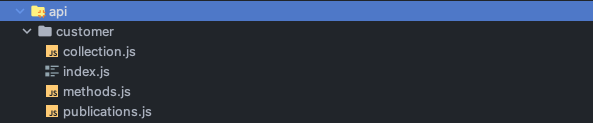
That will have the following code:
collection.js {meteorgenerate-collection.js}
import { Mongo } from 'meteor/mongo';

export const CustomerCollection = new Mongo.Collection('customer');
methods.js {meteorgenerate-methods.js}
import { Meteor } from 'meteor/meteor';
import { check } from 'meteor/check';
import { CustomerCollection } from './collection';

export async function create(data) {
  return CustomerCollection.insertAsync({ ...data });
}

export async function update(_id, data) {
  check(_id, String);
  return CustomerCollection.updateAsync(_id, { ...data });
}

export async function remove(_id) {
  check(_id, String);
  return CustomerCollection.removeAsync(_id);
}

export async function findById(_id) {
  check(_id, String);
  return CustomerCollection.findOneAsync(_id);
}

Meteor.methods({
  'Customer.create': create,
  'Customer.update': update,
  'Customer.remove': remove,
  'Customer.find': findById
});
publication.js {meteorgenerate-publication.js}
import { Meteor } from 'meteor/meteor';
import { CustomerCollection } from './collection';

Meteor.publish('allCustomers', function publishCustomers() {
  return CustomerCollection.find({});
});
index.js {meteorgenerate-index.js}
export * from './collection';
export * from './methods';
export * from './publications';
path option {meteorgenerate-path}
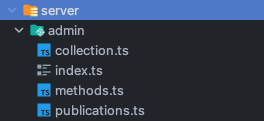
If you want the generated files to be placed in a specific directory, you can use the --path option to tell meteor generate where to place the new files. In the example below, meteor generate will create a collection called another-customer and place the collection.ts, methods.ts, publications.ts and index.ts files inside the server/admin directory. In this example, we will assume the user has a tsconfig.json file in their project folder, and generate TypeScript instead.
meteor generate another-customer --path=server/admin
It will generate our files in the server/admin folder:
collection.ts {meteorgenerate-collection.ts}
import { Mongo } from 'meteor/mongo';

export type AnotherCustomer = {
  _id?: string;
  name: string;
  createdAt: Date;
}

export const AnotherCustomerCollection = new Mongo.Collection<AnotherCustomer>('another-customer');
methods.ts {meteorgenerate-methods.ts}
import { Meteor } from 'meteor/meteor';
import { Mongo } from 'meteor/mongo';
import { check } from 'meteor/check';
import { AnotherCustomer, AnotherCustomerCollection } from './collection';

export async function create(data: AnotherCustomer) {
  return AnotherCustomerCollection.insertAsync({ ...data });
}

export async function update(_id: string, data: Mongo.Modifier<AnotherCustomer>) {
  check(_id, String);
  return AnotherCustomerCollection.updateAsync(_id, { ...data });
}

export async function remove(_id: string) {
  check(_id, String);
  return AnotherCustomerCollection.removeAsync(_id);
}

export async function findById(_id: string) {
  check(_id, String);
  return AnotherCustomerCollection.findOneAsync(_id);
}

Meteor.methods({
  'AnotherCustomer.create': create,
  'AnotherCustomer.update': update,
  'AnotherCustomer.remove': remove,
  'AnotherCustomer.find': findById
});
publications.ts {meteorgenerate-publications.ts}
import { Meteor } from 'meteor/meteor';
import { AnotherCustomerCollection } from './collection';

Meteor.publish('allAnotherCustomers', function publishAnotherCustomers() {
  return AnotherCustomerCollection.find({});
});
index.ts {meteorgenerate-index.ts}
export * from './collection';
export * from './methods';
export * from './publications';
Using the Wizard {meteorgenerate-wizard}
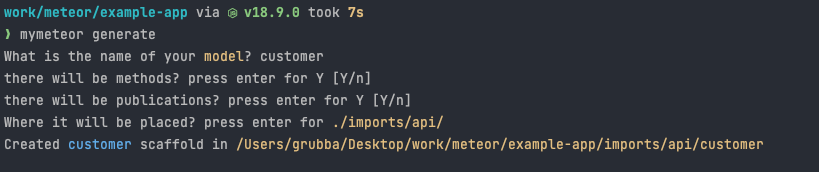
Running meteor-generate without arguments will start a little wizard in your terminal, which will ask you the name of your Collection, and whether you want Methods and Publications to be generated as well.
meteor generate
Using your own template {meteorgenerate-templating}
You may customize the output of meteor generate by providing a directory with a "template". A template directory is just a folder provide by you with .js/.ts files, which are copied over.
To use an user-provided template, you should pass in a template directory URL so that it can copy it with its changes.
--templatePath
meteor generate feed --templatePath=/scaffolds-ts

Note that this is not a full-blown CLI framework inside Meteor.
meteor generateis just a command for generating code that is common in Meteor projects. Check out Yargs, Inquirer or Commander for more information about CLI frameworks.
How to rename things? {meteorgenerate-template-rename}
In addition to your own template folder, you can pass a JavaScript file to meteor-generate to perform certain transformations in your template files. That file is just a normal .js file that should export two functions: transformName and transformContents, which are used to modify the file names and contents, respectively.
If you don't want to write such a file yourself, a few functions are provided out of the box to replace strings like $$name$$, $$PascalName$$ and $$camelName$$ in your template files. The internal Meteor template files (which is used when you don't pass a template folder through the --templatePath option) are implemented this way - they include those special strings which get replaced to generate your files.
These replacements come from this function from Meteor's CLI:
scaffoldName is a string with the name that you have passed as argument.
const transformName = (name) => {
    return name.replace(/\$\$name\$\$|\$\$PascalName\$\$|\$\$camelName\$\$/g, function (substring, args) {
      if (substring === '$$name$$') return scaffoldName;
      if (substring === '$$PascalName$$') return toPascalCase(scaffoldName);
      if (substring === '$$camelName$$') return toCamelCase(scaffoldName);
    })
  }
How to replace things in your own templates? {meteorgenerate-template-faq}
--replaceFn
If you do want to customize how your templates are generated, you can pass a .js file with the --replaceFn option, as described above. When you pass in given a .js file with an implementation for those two functions, Meteor will use your functions instead of the default ones.
example of a replacer file
export function transformFilename(scaffoldName, filename) {
  console.log(scaffoldName, filename);
  return filename;
}

export function transformContents(scaffoldName, fileContents, filename) {
  console.log(filename, fileContents);
  return contents;
}
If you run your command like this:
meteor generate feed --replaceFn=/fn/replace.js
It will generate files full of $$PascalCase$$ strings using the Meteor provided templates, ignoring the name provided by the user (feed). Since we aren't replacing them with anything in the example above, the Meteor template files are copied as they are.
A more real-world usage of this feature could be done with the following .js file:
const toPascalCase = (str) => {
  if(!str.includes('-')) return str.charAt(0).toUpperCase() + str.slice(1);
  else return str.split('-').map(toPascalCase).join('');
}
const toCamelCase = (str) => {
  if(!str.includes('-')) return str.charAt(0).toLowerCase() + str.slice(1);
  else return str.split('-').map(toPascalCase).join('');
}

const transformName = (scaffoldName, str) => {
    return str.replace(/\$\$name\$\$|\$\$PascalName\$\$|\$\$camelName\$\$/g, function (substring, args) {
      if (substring === '$$name$$') return scaffoldName;
      if (substring === '$$PascalName$$') return toPascalCase(scaffoldName);
      if (substring === '$$camelName$$') return toCamelCase(scaffoldName);
    })

}

export function transformFilename(scaffoldName, filename) {
  return transformName(scaffoldName, filename);
}

export function transformContents(scaffoldName, contents, fileName) {
  return transformName(scaffoldName, contents);
}
meteor login
Logs you in to your Meteor developer account.
Usage:
meteor login [--email]
Details:
- Prompts for your username and password
- Pass
--emailto log in by email address rather than by username - You can set
METEOR_SESSION_FILE=token.jsonbeforemeteor loginto generate a login session token, avoiding the need to share credentials with third-party service providers
meteor logout
Logs you out of your Meteor developer account.
Usage:
meteor logout
meteor whoami
Displays your currently logged-in username.
Usage:
meteor whoami
meteor deploy site
Deploys the project in your current directory to Galaxy.
Basic Deployment
meteor deploy your-app.meteorapp.com
Deployment Options
| Option | Description |
|---|---|
--delete, -D |
Permanently delete this deployment |
--debug |
Deploy in debug mode (don't minify, etc.) |
--settings, -s <file> |
Set optional data for Meteor.settings |
--free |
Deploy as a free app (with limitations) |
--mongo |
Create and connect to a free shared MongoDB database |
--plan <plan> |
Set app plan: professional, essentials, or free |
--container-size <size> |
Set container size: tiny, compact, standard, double, quad, octa, or dozen |
--owner |
Specify organization or user account to deploy to |
--cache-build |
Reuse the build if the git commit hash is the same |
--allow-incompatible-update |
Allow packages to be upgraded or downgraded to potentially incompatible versions |
--deploy-polling-timeout <ms> |
Time to wait for build/deploy (defaults to 15 minutes) |
--no-wait |
Exit after code upload instead of waiting for deploy to complete |
Free Deployment
Deploy a free app with MongoDB using:
meteor deploy your-app.meteorapp.com --free --mongo
::: tip Quick Start
The combination of --free and --mongo is the fastest way to deploy an app without any additional configuration.
:::
Free App Limitations
- Domain: Must use a Meteor domain (
.meteorapp.com,.au.meteorapp.com, or.eu.meteorapp.com) - Cold Start: App stops after 30 minutes of inactivity and restarts on next connection
- Resources: Limited to one Tiny container (not recommended for production use)
MongoDB Options
Shared MongoDB (Free)
The --mongo option creates a database in Galaxy's shared cluster:
- On first deploy, you'll receive your MongoDB URI in the console
- The URI is also visible in your app's version details in Galaxy
- You must create at least one document to fully instantiate the database
- The database can be accessed using any MongoDB client with the provided URI
::: warning Free shared MongoDB is not recommended for production applications. The shared cluster doesn't provide backups or restoration resources. :::
MongoDB Connection Settings
When connecting to the free MongoDB shared cluster using your own settings, include:
{
  "packages": {
    "mongo": {
      "options": {
        "tlsAllowInvalidCertificates": true
      }
    }
  }
}
::: details Why is this needed? This is necessary because the database provider doesn't have certificates installed on every machine. More about this option here. :::
Important Notes
- Settings persist between deployments unless explicitly changed
- Your project should be a git repository (commit hash is used to track code changes)
- Free apps and MongoDB shared hosting are not recommended for production use
- Meteor Software reserves the right to stop or remove applications that abuse the free plan
::: info Version Compatibility
--freeand--mongooptions were introduced in Meteor 2.0--planoption was introduced in Meteor 2.1--container-sizeoption was introduced in Meteor 2.4.1--cache-buildoption is available since Meteor 1.11 :::
meteor update
Updates your Meteor application while maintaining compatibility.
Usage:
meteor update
meteor update --patch
meteor update --release <release>
meteor update --packages-only
meteor update [packageName packageName2 ...]
meteor update --all-packages
Update Types:
| Command | Description |
|---|---|
meteor update |
Updates the Meteor release and compatible package versions |
meteor update --patch |
Updates to the latest patch release (recommended for bug fixes) |
meteor update --release <release> |
Updates to a specific Meteor release |
meteor update --packages-only |
Updates only packages, not the Meteor release |
meteor update [packageName ...] |
Updates specific named packages |
meteor update --all-packages |
Updates all packages including indirect dependencies |
Important Notes:
- Every project is pinned to a specific Meteor release
- By default, updates will not break compatibility between packages
- Patch releases contain minor, critical bug fixes and are highly recommended
- The
--releaseflag can override compatibility checks (may cause warnings) - The
--all-packagesoption will update all packages to their latest compatible versions, respecting dependency constraints
meteor add package
Adds packages to your Meteor project.
Usage:
meteor add [package1] [package2] ...
meteor add package@version
Version Constraints:
package@1.1.0- Version 1.1.0 or higher (but not 2.0.0+)package@=1.1.0- Exactly version 1.1.0package@=1.0.0 || =2.0.1- Either version 1.0.0 or 2.0.1 exactly
Notes:
- By convention, community packages include the maintainer's name (e.g.,
iron:router) - To remove a version constraint, run
meteor add packagewithout specifying a version
meteor remove package
Removes a package previously added to your Meteor project.
Usage:
meteor remove [package1] [package2] ...
Notes:
- For a list of currently used packages, run
meteor list - This removes the package entirely (to only remove version constraints, use
meteor add) - Transitive dependencies aren't automatically downgraded unless necessary
meteor list
Lists all packages added to your project, including versions and available updates.
Usage:
meteor list [flags]
Flags:
| Flag | Description |
|---|---|
--tree |
Outputs a tree showing package reference hierarchy |
--json |
Outputs an unformatted JSON string of package references |
--weak |
Shows weakly referenced dependencies (only with --tree or --json) |
--details |
Adds more package details (only with --json) |
meteor add-platform platform
Adds platforms to your Meteor project.
Usage:
meteor add-platform [platform1] [platform2] ...
Notes:
- Multiple platforms can be added with one command
- After adding, use
meteor run <platform>to run on that platform - Use
meteor buildto build for all added platforms
meteor remove-platform platform
Removes a previously added platform.
Usage:
meteor remove-platform [platform]
Notes:
- For a list of currently added platforms, use
meteor list-platforms
meteor list-platforms
Lists all platforms explicitly added to your project.
Usage:
meteor list-platforms
meteor ensure-cordova-dependencies
Checks if dependencies are installed, and installs them if necessary.
Usage:
meteor ensure-cordova-dependencies
meteor mongo
Opens a MongoDB shell on your local development database.
Usage:
meteor mongo
::: warning
For now, you must already have your application running locally with meteor run. This will be easier in the future.
:::
meteor reset
Resets the current project to a fresh state and clears the local cache.
Usage:
meteor reset [--db]
Flags:
--db- Also removes the local MongoDB database
::: warning
Reset with --db flag deletes your data! Make sure you do not have any information you care about in your local mongo database by running meteor mongo. From the mongo shell, use show collections and db.<collection>.find() to inspect your data.
:::
::: warning For now, you cannot run this while a development server is running. Quit all running meteor applications before running this. :::
meteor build {meteorbuild}
Package this project up for deployment. The output is a directory with several build artifacts:
- a tarball (.tar.gz) that includes everything necessary to run the application
server (see the
READMEin the tarball for details). Using the `--directory` option will produce a `bundle` directory instead of the tarball. - an unsigned
apkbundle and a project source if Android is targeted as a mobile platform - a directory with an Xcode project source if iOS is targeted as a mobile platform
You can use the application server bundle to host a Meteor application on your own server, instead of deploying to Galaxy. You will have to deal with logging, monitoring, backups, load-balancing, etc, all of which we handle for you if you use Galaxy.
The unsigned apk bundle and the outputted Xcode project can be used to deploy
your mobile apps to Android Play Store and Apple App Store.
By default, your application is bundled for your current architecture.
This may cause difficulties if your app contains binary code due to,
for example, npm packages. You can try to override that behavior
with the --architecture flag.
You can set optional data for the initial value of Meteor.settings
in your mobile application with the --mobile-settings flag. A new value for
Meteor.settings can be set later by the server as part of hot code push.
You can also specify which platforms you want to build with the --platforms flag.
Examples: --platforms=android, --platforms=ios, --platforms=web.browser.
meteor lint {meteorlint}
Run through the whole build process for the app and run all linters the app uses. Outputs all build errors or linting warnings to the standard output.
meteor search {meteorsearch}
Searches for Meteor packages and releases, whose names contain the specified regular expression.
meteor show {meteorshow}
Shows more information about a specific package or release: name, summary, the usernames of its maintainers, and, if specified, its homepage and git URL.
Get information on meteor recommended releases:
meteor show METEOR
Get information on all meteor releases (including intermediate releases)"
meteor show --show-all METEOR
meteor publish {meteorpublish}
Publishes your package. To publish, you must cd into the package directory, log
in with your Meteor Developer Account and run meteor publish. By convention,
published package names must begin with the maintainer's Meteor Developer
Account username and a colon, like so: iron:router.
To publish a package for the first time, use meteor publish --create.
Sometimes packages may contain binary code specific to an architecture (for
example, they may use an npm package). In that case, running publish will only
upload the build to the architecture that you were using to publish it. You can
use publish-for-arch to upload a build to a different architecture from a
different machine.
If you have already published a package but need to update it's metadata
(the content of Package.describe) or the README you can actually achieve this
via meteor publish --update.
meteor publish-for-arch {meteorpublishforarch}
Publishes a build of an existing package version from a different architecture.
Some packages contain code specific to an architecture. Running publish by
itself, will upload the build to the architecture that you were using to
publish. You need to run publish-for-arch from a different architecture to
upload a different build.
For example, let's say you published name:cool-binary-blob from a Mac. If you
want people to be able to use cool-binary-blob from Linux, you should log into a
Linux machine and then run
meteor publish-for-arch name:cool-binary-blob@version. It will notice that you
are on a linux machine, and that there is no Linux-compatible build for your package
and publish one.
Currently, the supported architectures for Meteor are 32-bit Linux, 64-bit Linux and Mac OS. Galaxy's servers run 64-bit Linux.
meteor publish-release {meteorpublishrelease}
Publishes a release of Meteor. Takes in a JSON configuration file.
Meteor releases are divided into tracks. While only MDG members can publish to
the default Meteor track, anyone can create a track of their own and publish to
it. Running meteor update without specifying the --release option will not
cause the user to switch tracks.
To publish to a release track for the first time, use the --create-track flag.
The JSON configuration file must contain the name of the release track
(track), the release version (version), various metadata, the packages
specified by the release as mapped to versions (packages), and the package &
version of the Meteor command-line tool (tool). Note that this means that
forks of the meteor tool can be published as packages and people can use them by
switching to a corresponding release. For more information, run
meteor help publish-release.
meteor test-packages {meteortestpackages}
Test Meteor packages, either by name, or by directory. Not specifying an
argument will run tests for all local packages. The results are displayed in an
app that runs at localhost:3000 by default. If you need to, you can pass the
--settings and --port arguments.
If you want to filter the tests by name, you can use --filter or -f
followed by the name of the test you want to run, it supports regex's.
meteor test-packages --filter myTestName
this command will run only the tests that have myTestName in their name.
Alternatively, you can use the TINYTEST_FILTER environment variable to filter:
TINYTEST_FILTER=myTestName meteor test-packages
Has the same effect as the previous command.
meteor admin {meteoradmin}
Catch-all for miscellaneous commands that require authorization to use.
Some example uses of meteor admin include adding and removing package
maintainers and setting a homepage for a package. It also includes various
helpful functions for managing a Meteor release. Run meteor help admin for
more information.
meteor shell {meteorshell}
When meteor shell is executed in an application directory where a server
is already running, it connects to the server and starts an interactive
shell for evaluating server-side code.
Multiple shells can be attached to the same server. If no server is
currently available, meteor shell will keep trying to connect until it
succeeds.
Exiting the shell does not terminate the server. If the server restarts
because a change was made in server code, or a fatal exception was
encountered, the shell will restart along with the server. This behavior
can be simulated by typing .reload in the shell.
The shell supports tab completion for global variables like Meteor,
Mongo, and Package. Try typing Meteor.is and then pressing tab.
The shell maintains a persistent history across sessions. Previously-run commands can be accessed by pressing the up arrow.
meteor npm {meteornpm}
The meteor npm command calls the
npm version bundled
with Meteor itself.
Additional parameters can be passed in the same way as the npm command
(e.g. meteor npm rebuild, meteor npm ls, etc.) and the
npm documentation should be consulted for the
full list of commands and for a better understanding of their usage.
For example, executing meteor npm install lodash --save would install lodash
from npm to your node_modules directory and save its usage in your
package.json file.
Using the meteor npm ... commands in place of traditional npm ... commands
is particularly important when using Node.js modules that have binary
dependencies that make native C calls (like bcrypt)
because doing so ensures that they are built using the same libraries.
Additionally, this access to the npm that comes with Meteor avoids the need to download and install npm separately.
meteor node {meteornode}
The meteor node command calls the
node version bundled with Meteor itself.
This is not to be confused with
meteor shell, which provides an almost identical experience but also gives you access to the "server" context of a Meteor application. Typically,meteor shellwill be preferred.
Additional parameters can be passed in the same way as the node command, and
the Node.js documentation
should be consulted for the full list of commands and for a better understanding
of their usage.
For example, executing meteor node will enter the Node.js
Read-Eval-Print-Loop (REPL)
interface and allow you to interactively run JavaScript and see the results.
Executing meteor node -e "console.log(process.versions)" would
run console.log(process.versions) in the version of node bundled with Meteor.