
Build and deploy AI agent workflows in minutes.




### Build Workflows with Ease
Design agent workflows visually on a canvas—connect agents, tools, and blocks, then run them instantly.
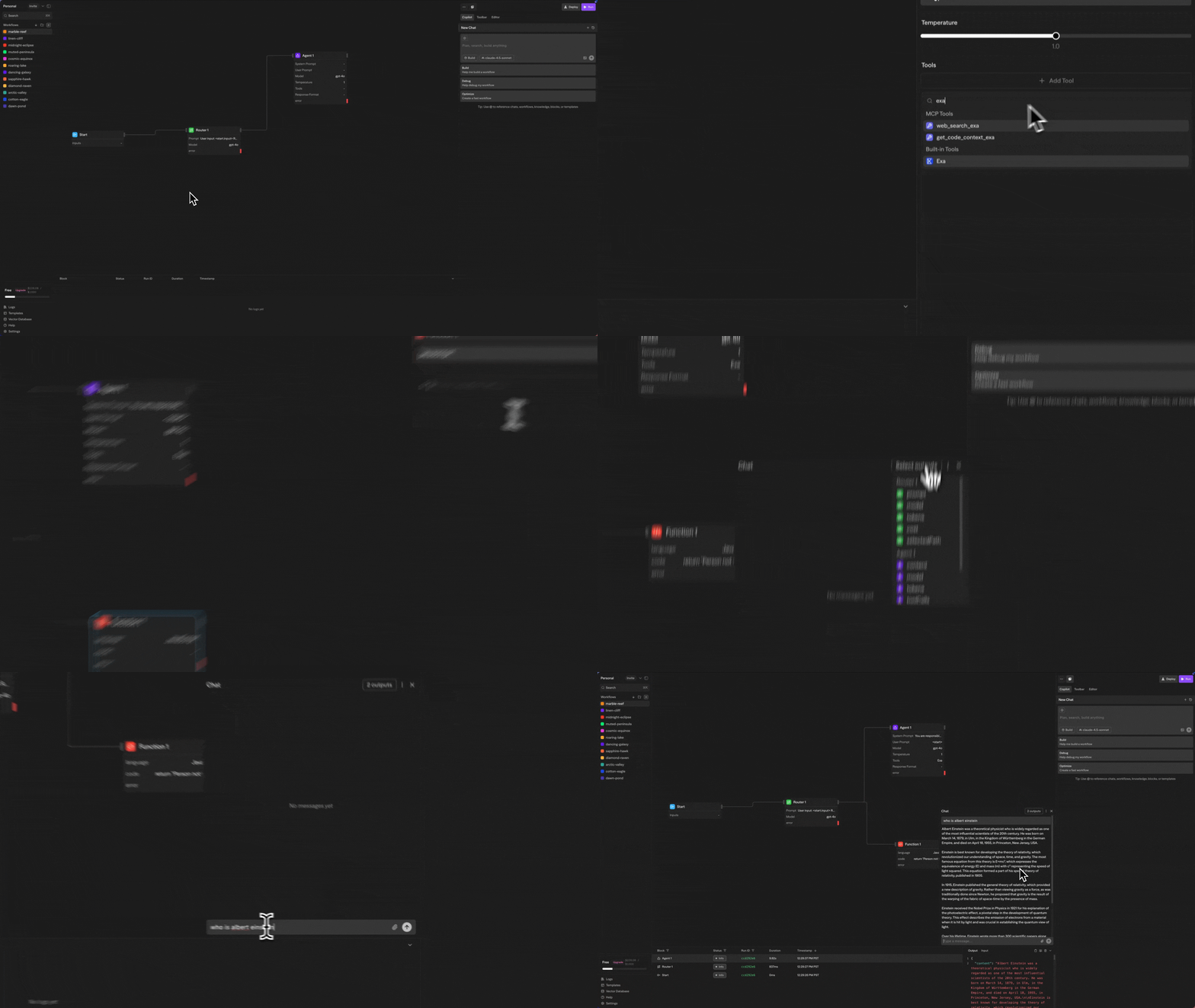
### Supercharge with Copilot
Leverage Copilot to generate nodes, fix errors, and iterate on flows directly from natural language.

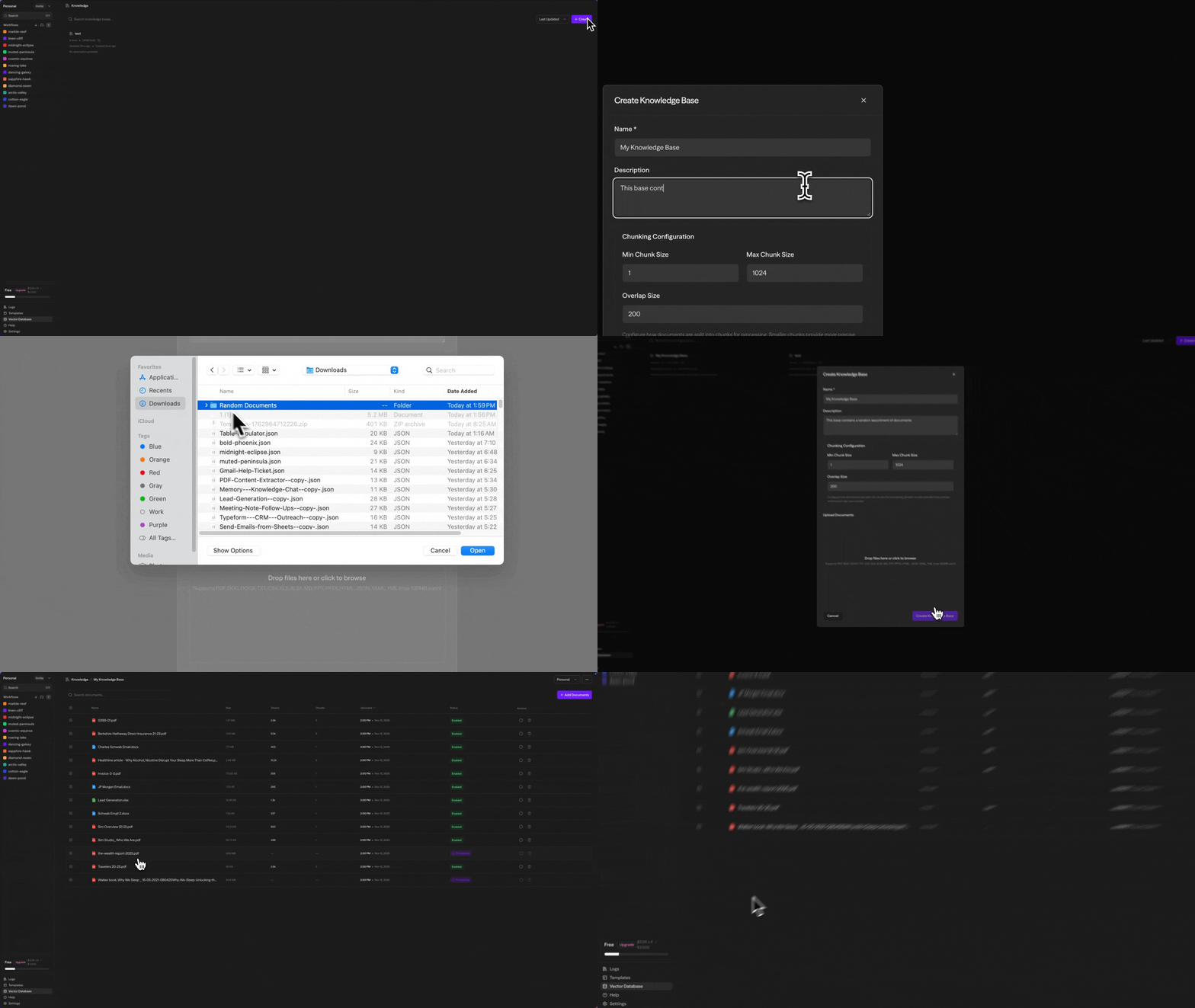
### Integrate Vector Databases
Upload documents to a vector store and let agents answer questions grounded in your specific content.
## Quickstart
### Cloud-hosted: [sim.ai](https://sim.ai)
 ### Self-hosted: NPM Package
```bash
npx simstudio
```
→ http://localhost:3000
#### Note
Docker must be installed and running on your machine.
#### Options
| Flag | Description |
|------|-------------|
| `-p, --port ` | Port to run Sim on (default `3000`) |
| `--no-pull` | Skip pulling latest Docker images |
### Self-hosted: Docker Compose
```bash
# Clone the repository
git clone https://github.com/simstudioai/sim.git
# Navigate to the project directory
cd sim
# Start Sim
docker compose -f docker-compose.prod.yml up -d
```
Access the application at [http://localhost:3000/](http://localhost:3000/)
#### Using Local Models with Ollama
Run Sim with local AI models using [Ollama](https://ollama.ai) - no external APIs required:
```bash
# Start with GPU support (automatically downloads gemma3:4b model)
docker compose -f docker-compose.ollama.yml --profile setup up -d
# For CPU-only systems:
docker compose -f docker-compose.ollama.yml --profile cpu --profile setup up -d
```
Wait for the model to download, then visit [http://localhost:3000](http://localhost:3000). Add more models with:
```bash
docker compose -f docker-compose.ollama.yml exec ollama ollama pull llama3.1:8b
```
#### Using an External Ollama Instance
If you already have Ollama running on your host machine (outside Docker), you need to configure the `OLLAMA_URL` to use `host.docker.internal` instead of `localhost`:
```bash
# Docker Desktop (macOS/Windows)
OLLAMA_URL=http://host.docker.internal:11434 docker compose -f docker-compose.prod.yml up -d
# Linux (add extra_hosts or use host IP)
docker compose -f docker-compose.prod.yml up -d # Then set OLLAMA_URL to your host's IP
```
**Why?** When running inside Docker, `localhost` refers to the container itself, not your host machine. `host.docker.internal` is a special DNS name that resolves to the host.
For Linux users, you can either:
- Use your host machine's actual IP address (e.g., `http://192.168.1.100:11434`)
- Add `extra_hosts: ["host.docker.internal:host-gateway"]` to the simstudio service in your compose file
#### Using vLLM
Sim also supports [vLLM](https://docs.vllm.ai/) for self-hosted models with OpenAI-compatible API:
```bash
# Set these environment variables
VLLM_BASE_URL=http://your-vllm-server:8000
VLLM_API_KEY=your_optional_api_key # Only if your vLLM instance requires auth
```
When running with Docker, use `host.docker.internal` if vLLM is on your host machine (same as Ollama above).
### Self-hosted: Dev Containers
1. Open VS Code with the [Remote - Containers extension](https://marketplace.visualstudio.com/items?itemName=ms-vscode-remote.remote-containers)
2. Open the project and click "Reopen in Container" when prompted
3. Run `bun run dev:full` in the terminal or use the `sim-start` alias
- This starts both the main application and the realtime socket server
### Self-hosted: Manual Setup
**Requirements:**
- [Bun](https://bun.sh/) runtime
- [Node.js](https://nodejs.org/) v20+ (required for sandboxed code execution)
- PostgreSQL 12+ with [pgvector extension](https://github.com/pgvector/pgvector) (required for AI embeddings)
**Note:** Sim uses vector embeddings for AI features like knowledge bases and semantic search, which requires the `pgvector` PostgreSQL extension.
1. Clone and install dependencies:
```bash
git clone https://github.com/simstudioai/sim.git
cd sim
bun install
```
2. Set up PostgreSQL with pgvector:
You need PostgreSQL with the `vector` extension for embedding support. Choose one option:
**Option A: Using Docker (Recommended)**
```bash
# Start PostgreSQL with pgvector extension
docker run --name simstudio-db \
-e POSTGRES_PASSWORD=your_password \
-e POSTGRES_DB=simstudio \
-p 5432:5432 -d \
pgvector/pgvector:pg17
```
**Option B: Manual Installation**
- Install PostgreSQL 12+ and the pgvector extension
- See [pgvector installation guide](https://github.com/pgvector/pgvector#installation)
3. Set up environment:
```bash
cd apps/sim
cp .env.example .env # Configure with required variables (DATABASE_URL, BETTER_AUTH_SECRET, BETTER_AUTH_URL)
```
Update your `.env` file with the database URL:
```bash
DATABASE_URL="postgresql://postgres:your_password@localhost:5432/simstudio"
```
4. Set up the database:
First, configure the database package environment:
```bash
cd packages/db
cp .env.example .env
```
Update your `packages/db/.env` file with the database URL:
```bash
DATABASE_URL="postgresql://postgres:your_password@localhost:5432/simstudio"
```
Then run the migrations:
```bash
cd packages/db # Required so drizzle picks correct .env file
bunx drizzle-kit migrate --config=./drizzle.config.ts
```
5. Start the development servers:
**Recommended approach - run both servers together (from project root):**
```bash
bun run dev:full
```
This starts both the main Next.js application and the realtime socket server required for full functionality.
**Alternative - run servers separately:**
Next.js app (from project root):
```bash
bun run dev
```
Realtime socket server (from `apps/sim` directory in a separate terminal):
```bash
cd apps/sim
bun run dev:sockets
```
## Copilot API Keys
Copilot is a Sim-managed service. To use Copilot on a self-hosted instance:
- Go to https://sim.ai → Settings → Copilot and generate a Copilot API key
- Set `COPILOT_API_KEY` environment variable in your self-hosted apps/sim/.env file to that value
## Environment Variables
Key environment variables for self-hosted deployments (see `apps/sim/.env.example` for full list):
| Variable | Required | Description |
|----------|----------|-------------|
| `DATABASE_URL` | Yes | PostgreSQL connection string with pgvector |
| `BETTER_AUTH_SECRET` | Yes | Auth secret (`openssl rand -hex 32`) |
| `BETTER_AUTH_URL` | Yes | Your app URL (e.g., `http://localhost:3000`) |
| `NEXT_PUBLIC_APP_URL` | Yes | Public app URL (same as above) |
| `ENCRYPTION_KEY` | Yes | Encryption key (`openssl rand -hex 32`) |
| `OLLAMA_URL` | No | Ollama server URL (default: `http://localhost:11434`) |
| `VLLM_BASE_URL` | No | vLLM server URL for self-hosted models |
| `COPILOT_API_KEY` | No | API key from sim.ai for Copilot features |
## Troubleshooting
### Ollama models not showing in dropdown (Docker)
If you're running Ollama on your host machine and Sim in Docker, change `OLLAMA_URL` from `localhost` to `host.docker.internal`:
```bash
OLLAMA_URL=http://host.docker.internal:11434 docker compose -f docker-compose.prod.yml up -d
```
See [Using an External Ollama Instance](#using-an-external-ollama-instance) for details.
### Database connection issues
Ensure PostgreSQL has the pgvector extension installed. When using Docker, wait for the database to be healthy before running migrations.
### Port conflicts
If ports 3000, 3002, or 5432 are in use, configure alternatives:
```bash
# Custom ports
NEXT_PUBLIC_APP_URL=http://localhost:3100 POSTGRES_PORT=5433 docker compose up -d
```
## Tech Stack
- **Framework**: [Next.js](https://nextjs.org/) (App Router)
- **Runtime**: [Bun](https://bun.sh/)
- **Database**: PostgreSQL with [Drizzle ORM](https://orm.drizzle.team)
- **Authentication**: [Better Auth](https://better-auth.com)
- **UI**: [Shadcn](https://ui.shadcn.com/), [Tailwind CSS](https://tailwindcss.com)
- **State Management**: [Zustand](https://zustand-demo.pmnd.rs/)
- **Flow Editor**: [ReactFlow](https://reactflow.dev/)
- **Docs**: [Fumadocs](https://fumadocs.vercel.app/)
- **Monorepo**: [Turborepo](https://turborepo.org/)
- **Realtime**: [Socket.io](https://socket.io/)
- **Background Jobs**: [Trigger.dev](https://trigger.dev/)
- **Remote Code Execution**: [E2B](https://www.e2b.dev/)
## Contributing
We welcome contributions! Please see our [Contributing Guide](.github/CONTRIBUTING.md) for details.
## License
This project is licensed under the Apache License 2.0 - see the [LICENSE](LICENSE) file for details.
### Self-hosted: NPM Package
```bash
npx simstudio
```
→ http://localhost:3000
#### Note
Docker must be installed and running on your machine.
#### Options
| Flag | Description |
|------|-------------|
| `-p, --port ` | Port to run Sim on (default `3000`) |
| `--no-pull` | Skip pulling latest Docker images |
### Self-hosted: Docker Compose
```bash
# Clone the repository
git clone https://github.com/simstudioai/sim.git
# Navigate to the project directory
cd sim
# Start Sim
docker compose -f docker-compose.prod.yml up -d
```
Access the application at [http://localhost:3000/](http://localhost:3000/)
#### Using Local Models with Ollama
Run Sim with local AI models using [Ollama](https://ollama.ai) - no external APIs required:
```bash
# Start with GPU support (automatically downloads gemma3:4b model)
docker compose -f docker-compose.ollama.yml --profile setup up -d
# For CPU-only systems:
docker compose -f docker-compose.ollama.yml --profile cpu --profile setup up -d
```
Wait for the model to download, then visit [http://localhost:3000](http://localhost:3000). Add more models with:
```bash
docker compose -f docker-compose.ollama.yml exec ollama ollama pull llama3.1:8b
```
#### Using an External Ollama Instance
If you already have Ollama running on your host machine (outside Docker), you need to configure the `OLLAMA_URL` to use `host.docker.internal` instead of `localhost`:
```bash
# Docker Desktop (macOS/Windows)
OLLAMA_URL=http://host.docker.internal:11434 docker compose -f docker-compose.prod.yml up -d
# Linux (add extra_hosts or use host IP)
docker compose -f docker-compose.prod.yml up -d # Then set OLLAMA_URL to your host's IP
```
**Why?** When running inside Docker, `localhost` refers to the container itself, not your host machine. `host.docker.internal` is a special DNS name that resolves to the host.
For Linux users, you can either:
- Use your host machine's actual IP address (e.g., `http://192.168.1.100:11434`)
- Add `extra_hosts: ["host.docker.internal:host-gateway"]` to the simstudio service in your compose file
#### Using vLLM
Sim also supports [vLLM](https://docs.vllm.ai/) for self-hosted models with OpenAI-compatible API:
```bash
# Set these environment variables
VLLM_BASE_URL=http://your-vllm-server:8000
VLLM_API_KEY=your_optional_api_key # Only if your vLLM instance requires auth
```
When running with Docker, use `host.docker.internal` if vLLM is on your host machine (same as Ollama above).
### Self-hosted: Dev Containers
1. Open VS Code with the [Remote - Containers extension](https://marketplace.visualstudio.com/items?itemName=ms-vscode-remote.remote-containers)
2. Open the project and click "Reopen in Container" when prompted
3. Run `bun run dev:full` in the terminal or use the `sim-start` alias
- This starts both the main application and the realtime socket server
### Self-hosted: Manual Setup
**Requirements:**
- [Bun](https://bun.sh/) runtime
- [Node.js](https://nodejs.org/) v20+ (required for sandboxed code execution)
- PostgreSQL 12+ with [pgvector extension](https://github.com/pgvector/pgvector) (required for AI embeddings)
**Note:** Sim uses vector embeddings for AI features like knowledge bases and semantic search, which requires the `pgvector` PostgreSQL extension.
1. Clone and install dependencies:
```bash
git clone https://github.com/simstudioai/sim.git
cd sim
bun install
```
2. Set up PostgreSQL with pgvector:
You need PostgreSQL with the `vector` extension for embedding support. Choose one option:
**Option A: Using Docker (Recommended)**
```bash
# Start PostgreSQL with pgvector extension
docker run --name simstudio-db \
-e POSTGRES_PASSWORD=your_password \
-e POSTGRES_DB=simstudio \
-p 5432:5432 -d \
pgvector/pgvector:pg17
```
**Option B: Manual Installation**
- Install PostgreSQL 12+ and the pgvector extension
- See [pgvector installation guide](https://github.com/pgvector/pgvector#installation)
3. Set up environment:
```bash
cd apps/sim
cp .env.example .env # Configure with required variables (DATABASE_URL, BETTER_AUTH_SECRET, BETTER_AUTH_URL)
```
Update your `.env` file with the database URL:
```bash
DATABASE_URL="postgresql://postgres:your_password@localhost:5432/simstudio"
```
4. Set up the database:
First, configure the database package environment:
```bash
cd packages/db
cp .env.example .env
```
Update your `packages/db/.env` file with the database URL:
```bash
DATABASE_URL="postgresql://postgres:your_password@localhost:5432/simstudio"
```
Then run the migrations:
```bash
cd packages/db # Required so drizzle picks correct .env file
bunx drizzle-kit migrate --config=./drizzle.config.ts
```
5. Start the development servers:
**Recommended approach - run both servers together (from project root):**
```bash
bun run dev:full
```
This starts both the main Next.js application and the realtime socket server required for full functionality.
**Alternative - run servers separately:**
Next.js app (from project root):
```bash
bun run dev
```
Realtime socket server (from `apps/sim` directory in a separate terminal):
```bash
cd apps/sim
bun run dev:sockets
```
## Copilot API Keys
Copilot is a Sim-managed service. To use Copilot on a self-hosted instance:
- Go to https://sim.ai → Settings → Copilot and generate a Copilot API key
- Set `COPILOT_API_KEY` environment variable in your self-hosted apps/sim/.env file to that value
## Environment Variables
Key environment variables for self-hosted deployments (see `apps/sim/.env.example` for full list):
| Variable | Required | Description |
|----------|----------|-------------|
| `DATABASE_URL` | Yes | PostgreSQL connection string with pgvector |
| `BETTER_AUTH_SECRET` | Yes | Auth secret (`openssl rand -hex 32`) |
| `BETTER_AUTH_URL` | Yes | Your app URL (e.g., `http://localhost:3000`) |
| `NEXT_PUBLIC_APP_URL` | Yes | Public app URL (same as above) |
| `ENCRYPTION_KEY` | Yes | Encryption key (`openssl rand -hex 32`) |
| `OLLAMA_URL` | No | Ollama server URL (default: `http://localhost:11434`) |
| `VLLM_BASE_URL` | No | vLLM server URL for self-hosted models |
| `COPILOT_API_KEY` | No | API key from sim.ai for Copilot features |
## Troubleshooting
### Ollama models not showing in dropdown (Docker)
If you're running Ollama on your host machine and Sim in Docker, change `OLLAMA_URL` from `localhost` to `host.docker.internal`:
```bash
OLLAMA_URL=http://host.docker.internal:11434 docker compose -f docker-compose.prod.yml up -d
```
See [Using an External Ollama Instance](#using-an-external-ollama-instance) for details.
### Database connection issues
Ensure PostgreSQL has the pgvector extension installed. When using Docker, wait for the database to be healthy before running migrations.
### Port conflicts
If ports 3000, 3002, or 5432 are in use, configure alternatives:
```bash
# Custom ports
NEXT_PUBLIC_APP_URL=http://localhost:3100 POSTGRES_PORT=5433 docker compose up -d
```
## Tech Stack
- **Framework**: [Next.js](https://nextjs.org/) (App Router)
- **Runtime**: [Bun](https://bun.sh/)
- **Database**: PostgreSQL with [Drizzle ORM](https://orm.drizzle.team)
- **Authentication**: [Better Auth](https://better-auth.com)
- **UI**: [Shadcn](https://ui.shadcn.com/), [Tailwind CSS](https://tailwindcss.com)
- **State Management**: [Zustand](https://zustand-demo.pmnd.rs/)
- **Flow Editor**: [ReactFlow](https://reactflow.dev/)
- **Docs**: [Fumadocs](https://fumadocs.vercel.app/)
- **Monorepo**: [Turborepo](https://turborepo.org/)
- **Realtime**: [Socket.io](https://socket.io/)
- **Background Jobs**: [Trigger.dev](https://trigger.dev/)
- **Remote Code Execution**: [E2B](https://www.e2b.dev/)
## Contributing
We welcome contributions! Please see our [Contributing Guide](.github/CONTRIBUTING.md) for details.
## License
This project is licensed under the Apache License 2.0 - see the [LICENSE](LICENSE) file for details.
Made with ❤️ by the Sim Team