mirror of
https://github.com/All-Hands-AI/OpenHands.git
synced 2026-04-29 03:00:45 -04:00
Compare commits
3 Commits
0.31.0
...
refactor-r
| Author | SHA1 | Date | |
|---|---|---|---|

|
2959abf4ba | ||
|
|
0125a5415f | ||
|
|
65de07299f |
1
.github/ISSUE_TEMPLATE/bug_template.yml
vendored
1
.github/ISSUE_TEMPLATE/bug_template.yml
vendored
@@ -30,7 +30,6 @@ body:
|
||||
description: How are you running OpenHands?
|
||||
options:
|
||||
- Docker command in README
|
||||
- GitHub resolver
|
||||
- Development workflow
|
||||
- app.all-hands.dev
|
||||
- Other
|
||||
|
||||
11
.github/dependabot.yml
vendored
11
.github/dependabot.yml
vendored
@@ -10,6 +10,12 @@ updates:
|
||||
pre-commit:
|
||||
patterns:
|
||||
- "pre-commit"
|
||||
llama:
|
||||
patterns:
|
||||
- "llama*"
|
||||
chromadb:
|
||||
patterns:
|
||||
- "chromadb"
|
||||
browsergym:
|
||||
patterns:
|
||||
- "browsergym*"
|
||||
@@ -64,8 +70,3 @@ updates:
|
||||
applies-to: "version-updates"
|
||||
patterns:
|
||||
- "*"
|
||||
|
||||
- package-ecosystem: "github-actions"
|
||||
directory: "/"
|
||||
schedule:
|
||||
interval: "weekly"
|
||||
|
||||
15
.github/pull_request_template.md
vendored
15
.github/pull_request_template.md
vendored
@@ -1,12 +1,11 @@
|
||||
- [ ] This change is worth documenting at https://docs.all-hands.dev/
|
||||
- [ ] Include this change in the Release Notes. If checked, you **must** provide an **end-user friendly** description for your change below
|
||||
**End-user friendly description of the problem this fixes or functionality that this introduces**
|
||||
|
||||
- [ ] Include this change in the Release Notes. If checked, you must provide an **end-user friendly** description for your change below
|
||||
|
||||
---
|
||||
**Give a summary of what the PR does, explaining any non-trivial design decisions**
|
||||
|
||||
**End-user friendly description of the problem this fixes or functionality that this introduces.**
|
||||
|
||||
|
||||
---
|
||||
**Give a summary of what the PR does, explaining any non-trivial design decisions.**
|
||||
|
||||
|
||||
---
|
||||
**Link of any specific issues this addresses.**
|
||||
**Link of any specific issues this addresses**
|
||||
|
||||
74
.github/scripts/check_version_consistency.py
vendored
74
.github/scripts/check_version_consistency.py
vendored
@@ -1,74 +0,0 @@
|
||||
#!/usr/bin/env python3
|
||||
import os
|
||||
import re
|
||||
import sys
|
||||
from typing import Set, Tuple
|
||||
|
||||
|
||||
def find_version_references(directory: str) -> Tuple[Set[str], Set[str]]:
|
||||
openhands_versions = set()
|
||||
runtime_versions = set()
|
||||
|
||||
version_pattern_openhands = re.compile(r'openhands:(\d{1})\.(\d{2})')
|
||||
version_pattern_runtime = re.compile(r'runtime:(\d{1})\.(\d{2})')
|
||||
|
||||
for root, _, files in os.walk(directory):
|
||||
# Skip .git directory and docs/build directory
|
||||
if '.git' in root or 'docs/build' in root:
|
||||
continue
|
||||
|
||||
for file in files:
|
||||
if file.endswith(
|
||||
('.md', '.yml', '.yaml', '.txt', '.html', '.py', '.js', '.ts')
|
||||
):
|
||||
file_path = os.path.join(root, file)
|
||||
try:
|
||||
with open(file_path, 'r', encoding='utf-8') as f:
|
||||
content = f.read()
|
||||
|
||||
# Find all openhands version references
|
||||
matches = version_pattern_openhands.findall(content)
|
||||
if matches:
|
||||
print(f'Found openhands version {matches} in {file_path}')
|
||||
openhands_versions.update(matches)
|
||||
|
||||
# Find all runtime version references
|
||||
matches = version_pattern_runtime.findall(content)
|
||||
if matches:
|
||||
print(f'Found runtime version {matches} in {file_path}')
|
||||
runtime_versions.update(matches)
|
||||
except Exception as e:
|
||||
print(f'Error reading {file_path}: {e}', file=sys.stderr)
|
||||
|
||||
return openhands_versions, runtime_versions
|
||||
|
||||
|
||||
def main():
|
||||
repo_root = os.path.abspath(os.path.join(os.path.dirname(__file__), '..', '..'))
|
||||
print(f'Checking version consistency in {repo_root}')
|
||||
openhands_versions, runtime_versions = find_version_references(repo_root)
|
||||
|
||||
print(f'Found openhands versions: {sorted(openhands_versions)}')
|
||||
print(f'Found runtime versions: {sorted(runtime_versions)}')
|
||||
|
||||
exit_code = 0
|
||||
|
||||
if len(openhands_versions) > 1:
|
||||
print('Error: Multiple openhands versions found:', file=sys.stderr)
|
||||
print('Found versions:', sorted(openhands_versions), file=sys.stderr)
|
||||
exit_code = 1
|
||||
elif len(openhands_versions) == 0:
|
||||
print('Warning: No openhands version references found', file=sys.stderr)
|
||||
|
||||
if len(runtime_versions) > 1:
|
||||
print('Error: Multiple runtime versions found:', file=sys.stderr)
|
||||
print('Found versions:', sorted(runtime_versions), file=sys.stderr)
|
||||
exit_code = 1
|
||||
elif len(runtime_versions) == 0:
|
||||
print('Warning: No runtime version references found', file=sys.stderr)
|
||||
|
||||
sys.exit(exit_code)
|
||||
|
||||
|
||||
if __name__ == '__main__':
|
||||
main()
|
||||
2
.github/workflows/clean-up.yml
vendored
2
.github/workflows/clean-up.yml
vendored
@@ -46,7 +46,7 @@ on:
|
||||
|
||||
jobs:
|
||||
del_runs:
|
||||
runs-on: blacksmith-4vcpu-ubuntu-2204
|
||||
runs-on: ubuntu-latest
|
||||
permissions:
|
||||
actions: write
|
||||
contents: read
|
||||
|
||||
10
.github/workflows/deploy-docs.yml
vendored
10
.github/workflows/deploy-docs.yml
vendored
@@ -24,20 +24,22 @@ jobs:
|
||||
build:
|
||||
if: github.repository == 'All-Hands-AI/OpenHands'
|
||||
name: Build Docusaurus
|
||||
runs-on: blacksmith-4vcpu-ubuntu-2204
|
||||
runs-on: ubuntu-latest
|
||||
steps:
|
||||
- uses: actions/checkout@v4
|
||||
with:
|
||||
fetch-depth: 0
|
||||
- uses: useblacksmith/setup-node@v5
|
||||
- uses: actions/setup-node@v4
|
||||
with:
|
||||
node-version: 18
|
||||
cache: npm
|
||||
cache-dependency-path: docs/package-lock.json
|
||||
- name: Set up Python
|
||||
uses: useblacksmith/setup-python@v6
|
||||
uses: actions/setup-python@v5
|
||||
with:
|
||||
python-version: '3.12'
|
||||
- name: Generate Python Docs
|
||||
run: rm -rf docs/modules/python && pip install pydoc-markdown && pydoc-markdown
|
||||
- name: Install dependencies
|
||||
run: cd docs && npm ci
|
||||
- name: Build website
|
||||
@@ -52,7 +54,7 @@ jobs:
|
||||
deploy:
|
||||
if: github.ref == 'refs/heads/main' && github.repository == 'All-Hands-AI/OpenHands'
|
||||
name: Deploy to GitHub Pages
|
||||
runs-on: blacksmith-4vcpu-ubuntu-2204
|
||||
runs-on: ubuntu-latest
|
||||
# This job only runs on "main" so only run one of these jobs at a time
|
||||
# otherwise it will fail if one is already running
|
||||
concurrency:
|
||||
|
||||
26
.github/workflows/dummy-agent-test.yml
vendored
26
.github/workflows/dummy-agent-test.yml
vendored
@@ -16,27 +16,35 @@ concurrency:
|
||||
|
||||
jobs:
|
||||
test:
|
||||
runs-on: blacksmith-4vcpu-ubuntu-2204
|
||||
runs-on: ubuntu-latest
|
||||
steps:
|
||||
- uses: actions/checkout@v4
|
||||
- name: Free Disk Space (Ubuntu)
|
||||
uses: jlumbroso/free-disk-space@main
|
||||
with:
|
||||
# this might remove tools that are actually needed,
|
||||
# if set to "true" but frees about 6 GB
|
||||
tool-cache: true
|
||||
# all of these default to true, but feel free to set to
|
||||
# "false" if necessary for your workflow
|
||||
android: true
|
||||
dotnet: true
|
||||
haskell: true
|
||||
large-packages: true
|
||||
docker-images: false
|
||||
swap-storage: true
|
||||
- name: Set up Docker Buildx
|
||||
id: buildx
|
||||
uses: docker/setup-buildx-action@v3
|
||||
- name: Install tmux
|
||||
run: sudo apt-get update && sudo apt-get install -y tmux
|
||||
- name: Setup Node.js
|
||||
uses: useblacksmith/setup-node@v5
|
||||
with:
|
||||
node-version: '22.x'
|
||||
- name: Install poetry via pipx
|
||||
run: pipx install poetry
|
||||
- name: Set up Python
|
||||
uses: useblacksmith/setup-python@v6
|
||||
uses: actions/setup-python@v5
|
||||
with:
|
||||
python-version: '3.12'
|
||||
cache: 'poetry'
|
||||
- name: Install Python dependencies using Poetry
|
||||
run: poetry install --without evaluation
|
||||
run: poetry install --without evaluation,llama-index
|
||||
- name: Build Environment
|
||||
run: make build
|
||||
- name: Run tests
|
||||
|
||||
137
.github/workflows/eval-runner.yml
vendored
Normal file
137
.github/workflows/eval-runner.yml
vendored
Normal file
@@ -0,0 +1,137 @@
|
||||
name: Run SWE-Bench Evaluation
|
||||
|
||||
on:
|
||||
pull_request:
|
||||
types: [labeled]
|
||||
workflow_dispatch:
|
||||
inputs:
|
||||
reason:
|
||||
description: "Reason for manual trigger"
|
||||
required: true
|
||||
default: ""
|
||||
|
||||
env:
|
||||
N_PROCESSES: 32 # Global configuration for number of parallel processes for evaluation
|
||||
|
||||
jobs:
|
||||
run-evaluation:
|
||||
if: github.event.label.name == 'eval-this' || github.event_name != 'pull_request'
|
||||
runs-on: ubuntu-latest
|
||||
permissions:
|
||||
contents: "read"
|
||||
id-token: "write"
|
||||
pull-requests: "write"
|
||||
issues: "write"
|
||||
strategy:
|
||||
matrix:
|
||||
python-version: ["3.12"]
|
||||
steps:
|
||||
- name: Checkout repository
|
||||
uses: actions/checkout@v4
|
||||
|
||||
- name: Install poetry via pipx
|
||||
run: pipx install poetry
|
||||
|
||||
- name: Set up Python
|
||||
uses: actions/setup-python@v5
|
||||
with:
|
||||
python-version: ${{ matrix.python-version }}
|
||||
cache: "poetry"
|
||||
|
||||
- name: Comment on PR if 'eval-this' label is present
|
||||
if: github.event_name == 'pull_request' && github.event.label.name == 'eval-this'
|
||||
uses: KeisukeYamashita/create-comment@v1
|
||||
with:
|
||||
unique: false
|
||||
comment: |
|
||||
Hi! I started running the evaluation on your PR. You will receive a comment with the results shortly.
|
||||
|
||||
- name: Install Python dependencies using Poetry
|
||||
run: poetry install
|
||||
|
||||
- name: Configure config.toml for evaluation
|
||||
env:
|
||||
DEEPSEEK_API_KEY: ${{ secrets.DEEPSEEK_LLM_API_KEY }}
|
||||
run: |
|
||||
echo "[llm.eval]" > config.toml
|
||||
echo "model = \"deepseek/deepseek-chat\"" >> config.toml
|
||||
echo "api_key = \"$DEEPSEEK_API_KEY\"" >> config.toml
|
||||
echo "temperature = 0.0" >> config.toml
|
||||
|
||||
- name: Run SWE-Bench evaluation
|
||||
env:
|
||||
ALLHANDS_API_KEY: ${{ secrets.ALLHANDS_EVAL_RUNTIME_API_KEY }}
|
||||
RUNTIME: remote
|
||||
SANDBOX_REMOTE_RUNTIME_API_URL: https://runtime.eval.all-hands.dev
|
||||
EVAL_DOCKER_IMAGE_PREFIX: us-central1-docker.pkg.dev/evaluation-092424/swe-bench-images
|
||||
|
||||
run: |
|
||||
poetry run ./evaluation/benchmarks/swe_bench/scripts/run_infer.sh llm.eval HEAD CodeActAgent 300 30 $N_PROCESSES "princeton-nlp/SWE-bench_Lite" test
|
||||
OUTPUT_FOLDER=$(find evaluation/evaluation_outputs/outputs/princeton-nlp__SWE-bench_Lite-test/CodeActAgent -name "deepseek-chat_maxiter_50_N_*-no-hint-run_1" -type d | head -n 1)
|
||||
echo "OUTPUT_FOLDER for SWE-bench evaluation: $OUTPUT_FOLDER"
|
||||
poetry run ./evaluation/benchmarks/swe_bench/scripts/eval_infer_remote.sh $OUTPUT_FOLDER/output.jsonl $N_PROCESSES "princeton-nlp/SWE-bench_Lite" test
|
||||
|
||||
poetry run ./evaluation/benchmarks/swe_bench/scripts/eval/summarize_outputs.py $OUTPUT_FOLDER/output.jsonl > summarize_outputs.log 2>&1
|
||||
echo "SWEBENCH_REPORT<<EOF" >> $GITHUB_ENV
|
||||
cat summarize_outputs.log >> $GITHUB_ENV
|
||||
echo "EOF" >> $GITHUB_ENV
|
||||
|
||||
- name: Create tar.gz of evaluation outputs
|
||||
run: |
|
||||
TIMESTAMP=$(date +'%y-%m-%d-%H-%M')
|
||||
tar -czvf evaluation_outputs_${TIMESTAMP}.tar.gz evaluation/evaluation_outputs/outputs
|
||||
|
||||
- name: Upload evaluation results as artifact
|
||||
uses: actions/upload-artifact@v4
|
||||
id: upload_results_artifact
|
||||
with:
|
||||
name: evaluation-outputs
|
||||
path: evaluation_outputs_*.tar.gz
|
||||
|
||||
- name: Get artifact URL
|
||||
run: echo "ARTIFACT_URL=${{ steps.upload_results_artifact.outputs.artifact-url }}" >> $GITHUB_ENV
|
||||
|
||||
- name: Authenticate to Google Cloud
|
||||
uses: 'google-github-actions/auth@v2'
|
||||
with:
|
||||
credentials_json: ${{ secrets.GCP_RESEARCH_OBJECT_CREATOR_SA_KEY }}
|
||||
|
||||
- name: Set timestamp and trigger reason
|
||||
run: |
|
||||
echo "TIMESTAMP=$(date +'%Y-%m-%d-%H-%M')" >> $GITHUB_ENV
|
||||
if [[ "${{ github.event_name }}" == "pull_request" ]]; then
|
||||
echo "TRIGGER_REASON=pr-${{ github.event.pull_request.number }}" >> $GITHUB_ENV
|
||||
elif [[ "${{ github.event_name }}" == "schedule" ]]; then
|
||||
echo "TRIGGER_REASON=schedule" >> $GITHUB_ENV
|
||||
else
|
||||
echo "TRIGGER_REASON=manual-${{ github.event.inputs.reason }}" >> $GITHUB_ENV
|
||||
fi
|
||||
|
||||
- name: Upload evaluation results to Google Cloud Storage
|
||||
uses: 'google-github-actions/upload-cloud-storage@v2'
|
||||
with:
|
||||
path: 'evaluation/evaluation_outputs/outputs'
|
||||
destination: 'openhands-oss-eval-results/${{ env.TIMESTAMP }}-${{ env.TRIGGER_REASON }}'
|
||||
|
||||
- name: Comment with evaluation results and artifact link
|
||||
id: create_comment
|
||||
uses: KeisukeYamashita/create-comment@v1
|
||||
with:
|
||||
number: ${{ github.event_name == 'pull_request' && github.event.pull_request.number || 4504 }}
|
||||
unique: false
|
||||
comment: |
|
||||
Trigger by: ${{ github.event_name == 'pull_request' && format('Pull Request (eval-this label on PR #{0})', github.event.pull_request.number) || github.event_name == 'schedule' && 'Daily Schedule' || format('Manual Trigger: {0}', github.event.inputs.reason) }}
|
||||
Commit: ${{ github.sha }}
|
||||
**SWE-Bench Evaluation Report**
|
||||
${{ env.SWEBENCH_REPORT }}
|
||||
---
|
||||
You can download the full evaluation outputs [here](${{ env.ARTIFACT_URL }}).
|
||||
|
||||
- name: Post to a Slack channel
|
||||
id: slack
|
||||
uses: slackapi/slack-github-action@v1.27.0
|
||||
with:
|
||||
channel-id: 'C07SVQSCR6F'
|
||||
slack-message: "*Evaluation Trigger:* ${{ github.event_name == 'pull_request' && format('Pull Request (eval-this label on PR #{0})', github.event.pull_request.number) || github.event_name == 'schedule' && 'Daily Schedule' || format('Manual Trigger: {0}', github.event.inputs.reason) }}\n\nLink to summary: [here](https://github.com/${{ github.repository }}/issues/${{ github.event_name == 'pull_request' && github.event.pull_request.number || 4504 }}#issuecomment-${{ steps.create_comment.outputs.comment-id }})"
|
||||
env:
|
||||
SLACK_BOT_TOKEN: ${{ secrets.EVAL_NOTIF_SLACK_BOT_TOKEN }}
|
||||
6
.github/workflows/fe-unit-tests.yml
vendored
6
.github/workflows/fe-unit-tests.yml
vendored
@@ -21,7 +21,7 @@ jobs:
|
||||
# Run frontend unit tests
|
||||
fe-test:
|
||||
name: FE Unit Tests
|
||||
runs-on: blacksmith-4vcpu-ubuntu-2204
|
||||
runs-on: ubuntu-latest
|
||||
strategy:
|
||||
matrix:
|
||||
node-version: [20, 22]
|
||||
@@ -30,7 +30,7 @@ jobs:
|
||||
- name: Checkout
|
||||
uses: actions/checkout@v4
|
||||
- name: Set up Node.js
|
||||
uses: useblacksmith/setup-node@v5
|
||||
uses: actions/setup-node@v4
|
||||
with:
|
||||
node-version: ${{ matrix.node-version }}
|
||||
- name: Install dependencies
|
||||
@@ -43,6 +43,6 @@ jobs:
|
||||
working-directory: ./frontend
|
||||
run: npm run test:coverage
|
||||
- name: Upload coverage to Codecov
|
||||
uses: codecov/codecov-action@v5
|
||||
uses: codecov/codecov-action@v4
|
||||
env:
|
||||
CODECOV_TOKEN: ${{ secrets.CODECOV_TOKEN }}
|
||||
|
||||
247
.github/workflows/ghcr-build.yml
vendored
247
.github/workflows/ghcr-build.yml
vendored
@@ -32,7 +32,7 @@ jobs:
|
||||
# Builds the OpenHands Docker images
|
||||
ghcr_build_app:
|
||||
name: Build App Image
|
||||
runs-on: blacksmith-4vcpu-ubuntu-2204
|
||||
runs-on: ubuntu-latest
|
||||
permissions:
|
||||
contents: read
|
||||
packages: write
|
||||
@@ -41,10 +41,22 @@ jobs:
|
||||
steps:
|
||||
- name: Checkout
|
||||
uses: actions/checkout@v4
|
||||
- name: Free Disk Space (Ubuntu)
|
||||
uses: jlumbroso/free-disk-space@main
|
||||
with:
|
||||
ref: ${{ github.event.pull_request.head.sha }}
|
||||
# this might remove tools that are actually needed,
|
||||
# if set to "true" but frees about 6 GB
|
||||
tool-cache: true
|
||||
# all of these default to true, but feel free to set to
|
||||
# "false" if necessary for your workflow
|
||||
android: true
|
||||
dotnet: true
|
||||
haskell: true
|
||||
large-packages: true
|
||||
docker-images: false
|
||||
swap-storage: true
|
||||
- name: Set up QEMU
|
||||
uses: docker/setup-qemu-action@v3.6.0
|
||||
uses: docker/setup-qemu-action@v3.0.0
|
||||
with:
|
||||
image: tonistiigi/binfmt:latest
|
||||
- name: Login to GHCR
|
||||
@@ -56,22 +68,22 @@ jobs:
|
||||
- name: Set up Docker Buildx
|
||||
id: buildx
|
||||
uses: docker/setup-buildx-action@v3
|
||||
- name: Lowercase Repository Owner
|
||||
run: |
|
||||
echo REPO_OWNER=$(echo ${{ github.repository_owner }} | tr '[:upper:]' '[:lower:]') >> $GITHUB_ENV
|
||||
- name: Build and push app image
|
||||
if: "!github.event.pull_request.head.repo.fork"
|
||||
run: |
|
||||
./containers/build.sh -i openhands -o ${{ env.REPO_OWNER }} --push
|
||||
./containers/build.sh -i openhands -o ${{ github.repository_owner }} --push
|
||||
- name: Build app image
|
||||
if: "github.event.pull_request.head.repo.fork"
|
||||
run: |
|
||||
./containers/build.sh -i openhands -o ${{ env.REPO_OWNER }} --load
|
||||
./containers/build.sh -i openhands -o ${{ github.repository_owner }} --load
|
||||
- name: Get hash in App Image
|
||||
id: get_hash_in_app_image
|
||||
run: |
|
||||
# Lowercase the repository owner
|
||||
export REPO_OWNER=${{ github.repository_owner }}
|
||||
REPO_OWNER=$(echo $REPO_OWNER | tr '[:upper:]' '[:lower:]')
|
||||
# Run the build script in the app image
|
||||
docker run -e SANDBOX_USER_ID=0 -v /var/run/docker.sock:/var/run/docker.sock ghcr.io/${{ env.REPO_OWNER }}/openhands:${{ env.RELEVANT_SHA }} /bin/bash -c "mkdir -p containers/runtime; python3 openhands/runtime/utils/runtime_build.py --base_image ${{ env.BASE_IMAGE_FOR_HASH_EQUIVALENCE_TEST }} --build_folder containers/runtime --force_rebuild" 2>&1 | tee docker-outputs.txt
|
||||
docker run -e SANDBOX_USER_ID=0 -v /var/run/docker.sock:/var/run/docker.sock ghcr.io/${REPO_OWNER}/openhands:${{ env.RELEVANT_SHA }} /bin/bash -c "mkdir -p containers/runtime; python3 openhands/runtime/utils/runtime_build.py --base_image ${{ env.BASE_IMAGE_FOR_HASH_EQUIVALENCE_TEST }} --build_folder containers/runtime --force_rebuild" 2>&1 | tee docker-outputs.txt
|
||||
# Get the hash from the build script
|
||||
hash_from_app_image=$(cat docker-outputs.txt | grep "Hash for docker build directory" | awk -F "): " '{print $2}' | uniq | head -n1)
|
||||
echo "hash_from_app_image=$hash_from_app_image" >> $GITHUB_OUTPUT
|
||||
@@ -80,7 +92,7 @@ jobs:
|
||||
# Builds the runtime Docker images
|
||||
ghcr_build_runtime:
|
||||
name: Build Image
|
||||
runs-on: blacksmith-4vcpu-ubuntu-2204
|
||||
runs-on: ubuntu-latest
|
||||
permissions:
|
||||
contents: read
|
||||
packages: write
|
||||
@@ -92,10 +104,22 @@ jobs:
|
||||
steps:
|
||||
- name: Checkout
|
||||
uses: actions/checkout@v4
|
||||
- name: Free Disk Space (Ubuntu)
|
||||
uses: jlumbroso/free-disk-space@main
|
||||
with:
|
||||
ref: ${{ github.event.pull_request.head.sha }}
|
||||
# this might remove tools that are actually needed,
|
||||
# if set to "true" but frees about 6 GB
|
||||
tool-cache: true
|
||||
# all of these default to true, but feel free to set to
|
||||
# "false" if necessary for your workflow
|
||||
android: true
|
||||
dotnet: true
|
||||
haskell: true
|
||||
large-packages: true
|
||||
docker-images: false
|
||||
swap-storage: true
|
||||
- name: Set up QEMU
|
||||
uses: docker/setup-qemu-action@v3.6.0
|
||||
uses: docker/setup-qemu-action@v3.0.0
|
||||
with:
|
||||
image: tonistiigi/binfmt:latest
|
||||
- name: Login to GHCR
|
||||
@@ -108,11 +132,11 @@ jobs:
|
||||
id: buildx
|
||||
uses: docker/setup-buildx-action@v3
|
||||
- name: Set up Python
|
||||
uses: useblacksmith/setup-python@v6
|
||||
uses: actions/setup-python@v5
|
||||
with:
|
||||
python-version: '3.12'
|
||||
- name: Cache Poetry dependencies
|
||||
uses: useblacksmith/cache@v5
|
||||
uses: actions/cache@v4
|
||||
with:
|
||||
path: |
|
||||
~/.cache/pypoetry
|
||||
@@ -126,19 +150,16 @@ jobs:
|
||||
run: make install-python-dependencies
|
||||
- name: Create source distribution and Dockerfile
|
||||
run: poetry run python3 openhands/runtime/utils/runtime_build.py --base_image ${{ matrix.base_image.image }} --build_folder containers/runtime --force_rebuild
|
||||
- name: Lowercase Repository Owner
|
||||
run: |
|
||||
echo REPO_OWNER=$(echo ${{ github.repository_owner }} | tr '[:upper:]' '[:lower:]') >> $GITHUB_ENV
|
||||
- name: Build and push runtime image ${{ matrix.base_image.image }}
|
||||
if: github.event.pull_request.head.repo.fork != true
|
||||
run: |
|
||||
./containers/build.sh -i runtime -o ${{ env.REPO_OWNER }} --push -t ${{ matrix.base_image.tag }}
|
||||
./containers/build.sh -i runtime -o ${{ github.repository_owner }} --push -t ${{ matrix.base_image.tag }}
|
||||
# Forked repos can't push to GHCR, so we need to upload the image as an artifact
|
||||
- name: Build runtime image ${{ matrix.base_image.image }} for fork
|
||||
if: github.event.pull_request.head.repo.fork
|
||||
uses: docker/build-push-action@v6
|
||||
with:
|
||||
tags: ghcr.io/${{ env.REPO_OWNER }}/runtime:${{ env.RELEVANT_SHA }}-${{ matrix.base_image.tag }}
|
||||
tags: ghcr.io/all-hands-ai/runtime:${{ env.RELEVANT_SHA }}-${{ matrix.base_image.tag }}
|
||||
outputs: type=docker,dest=/tmp/runtime-${{ matrix.base_image.tag }}.tar
|
||||
context: containers/runtime
|
||||
- name: Upload runtime image for fork
|
||||
@@ -150,7 +171,7 @@ jobs:
|
||||
|
||||
verify_hash_equivalence_in_runtime_and_app:
|
||||
name: Verify Hash Equivalence in Runtime and Docker images
|
||||
runs-on: blacksmith-4vcpu-ubuntu-2204
|
||||
runs-on: ubuntu-latest
|
||||
needs: [ghcr_build_runtime, ghcr_build_app]
|
||||
strategy:
|
||||
fail-fast: false
|
||||
@@ -158,10 +179,8 @@ jobs:
|
||||
base_image: ['nikolaik']
|
||||
steps:
|
||||
- uses: actions/checkout@v4
|
||||
with:
|
||||
ref: ${{ github.event.pull_request.head.sha }}
|
||||
- name: Cache Poetry dependencies
|
||||
uses: useblacksmith/cache@v5
|
||||
uses: actions/cache@v4
|
||||
with:
|
||||
path: |
|
||||
~/.cache/pypoetry
|
||||
@@ -170,7 +189,7 @@ jobs:
|
||||
restore-keys: |
|
||||
${{ runner.os }}-poetry-
|
||||
- name: Set up Python
|
||||
uses: useblacksmith/setup-python@v6
|
||||
uses: actions/setup-python@v5
|
||||
with:
|
||||
python-version: '3.12'
|
||||
- name: Install poetry via pipx
|
||||
@@ -200,17 +219,31 @@ jobs:
|
||||
exit 1
|
||||
fi
|
||||
|
||||
# Run unit tests with the Docker runtime Docker images as root
|
||||
# Run unit tests with the EventStream runtime Docker images as root
|
||||
test_runtime_root:
|
||||
name: RT Unit Tests (Root)
|
||||
needs: [ghcr_build_runtime]
|
||||
runs-on: blacksmith-4vcpu-ubuntu-2204
|
||||
runs-on: ubuntu-latest
|
||||
strategy:
|
||||
fail-fast: false
|
||||
matrix:
|
||||
base_image: ['nikolaik']
|
||||
steps:
|
||||
- uses: actions/checkout@v4
|
||||
- name: Free Disk Space (Ubuntu)
|
||||
uses: jlumbroso/free-disk-space@main
|
||||
with:
|
||||
# this might remove tools that are actually needed,
|
||||
# if set to "true" but frees about 6 GB
|
||||
tool-cache: true
|
||||
# all of these default to true, but feel free to set to
|
||||
# "false" if necessary for your workflow
|
||||
android: true
|
||||
dotnet: true
|
||||
haskell: true
|
||||
large-packages: true
|
||||
docker-images: false
|
||||
swap-storage: true
|
||||
- name: Set up Docker Buildx
|
||||
id: buildx
|
||||
uses: docker/setup-buildx-action@v3
|
||||
@@ -226,7 +259,7 @@ jobs:
|
||||
run: |
|
||||
docker load --input /tmp/runtime-${{ matrix.base_image }}.tar
|
||||
- name: Cache Poetry dependencies
|
||||
uses: useblacksmith/cache@v5
|
||||
uses: actions/cache@v4
|
||||
with:
|
||||
path: |
|
||||
~/.cache/pypoetry
|
||||
@@ -235,81 +268,13 @@ jobs:
|
||||
restore-keys: |
|
||||
${{ runner.os }}-poetry-
|
||||
- name: Set up Python
|
||||
uses: useblacksmith/setup-python@v6
|
||||
uses: actions/setup-python@v5
|
||||
with:
|
||||
python-version: '3.12'
|
||||
- name: Install poetry via pipx
|
||||
run: pipx install poetry
|
||||
- name: Install Python dependencies using Poetry
|
||||
run: make install-python-dependencies
|
||||
- name: Lowercase Repository Owner
|
||||
run: |
|
||||
echo REPO_OWNER=$(echo ${{ github.repository_owner }} | tr '[:upper:]' '[:lower:]') >> $GITHUB_ENV
|
||||
- name: Run docker runtime tests
|
||||
run: |
|
||||
# We install pytest-xdist in order to run tests across CPUs
|
||||
poetry run pip install pytest-xdist
|
||||
|
||||
# Install to be able to retry on failures for flaky tests
|
||||
poetry run pip install pytest-rerunfailures
|
||||
|
||||
image_name=ghcr.io/${{ env.REPO_OWNER }}/runtime:${{ env.RELEVANT_SHA }}-${{ matrix.base_image }}
|
||||
|
||||
TEST_RUNTIME=docker \
|
||||
SANDBOX_USER_ID=$(id -u) \
|
||||
SANDBOX_RUNTIME_CONTAINER_IMAGE=$image_name \
|
||||
TEST_IN_CI=true \
|
||||
RUN_AS_OPENHANDS=false \
|
||||
poetry run pytest -n 3 -raRs --reruns 2 --reruns-delay 5 --cov=openhands --cov-report=xml -s ./tests/runtime --ignore=tests/runtime/test_browsergym_envs.py
|
||||
- name: Upload coverage to Codecov
|
||||
uses: codecov/codecov-action@v5
|
||||
env:
|
||||
CODECOV_TOKEN: ${{ secrets.CODECOV_TOKEN }}
|
||||
|
||||
# Run unit tests with the Docker runtime Docker images as openhands user
|
||||
test_runtime_oh:
|
||||
name: RT Unit Tests (openhands)
|
||||
runs-on: blacksmith-4vcpu-ubuntu-2204
|
||||
needs: [ghcr_build_runtime]
|
||||
strategy:
|
||||
matrix:
|
||||
base_image: ['nikolaik']
|
||||
steps:
|
||||
- uses: actions/checkout@v4
|
||||
- name: Set up Docker Buildx
|
||||
id: buildx
|
||||
uses: docker/setup-buildx-action@v3
|
||||
# Forked repos can't push to GHCR, so we need to download the image as an artifact
|
||||
- name: Download runtime image for fork
|
||||
if: github.event.pull_request.head.repo.fork
|
||||
uses: actions/download-artifact@v4
|
||||
with:
|
||||
name: runtime-${{ matrix.base_image }}
|
||||
path: /tmp
|
||||
- name: Load runtime image for fork
|
||||
if: github.event.pull_request.head.repo.fork
|
||||
run: |
|
||||
docker load --input /tmp/runtime-${{ matrix.base_image }}.tar
|
||||
- name: Cache Poetry dependencies
|
||||
uses: useblacksmith/cache@v5
|
||||
with:
|
||||
path: |
|
||||
~/.cache/pypoetry
|
||||
~/.virtualenvs
|
||||
key: ${{ runner.os }}-poetry-${{ hashFiles('**/poetry.lock') }}
|
||||
restore-keys: |
|
||||
${{ runner.os }}-poetry-
|
||||
- name: Set up Python
|
||||
uses: useblacksmith/setup-python@v6
|
||||
with:
|
||||
python-version: '3.12'
|
||||
- name: Install poetry via pipx
|
||||
run: pipx install poetry
|
||||
- name: Install Python dependencies using Poetry
|
||||
run: make install-python-dependencies
|
||||
- name: Lowercase Repository Owner
|
||||
run: |
|
||||
echo REPO_OWNER=$(echo ${{ github.repository_owner }} | tr '[:upper:]' '[:lower:]') >> $GITHUB_ENV
|
||||
- name: Run runtime tests
|
||||
run: |
|
||||
# We install pytest-xdist in order to run tests across CPUs
|
||||
@@ -318,16 +283,94 @@ jobs:
|
||||
# Install to be able to retry on failures for flaky tests
|
||||
poetry run pip install pytest-rerunfailures
|
||||
|
||||
image_name=ghcr.io/${{ env.REPO_OWNER }}/runtime:${{ env.RELEVANT_SHA }}-${{ matrix.base_image }}
|
||||
image_name=ghcr.io/${{ github.repository_owner }}/runtime:${{ env.RELEVANT_SHA }}-${{ matrix.base_image }}
|
||||
image_name=$(echo $image_name | tr '[:upper:]' '[:lower:]')
|
||||
|
||||
TEST_RUNTIME=docker \
|
||||
TEST_RUNTIME=eventstream \
|
||||
SANDBOX_USER_ID=$(id -u) \
|
||||
SANDBOX_RUNTIME_CONTAINER_IMAGE=$image_name \
|
||||
TEST_IN_CI=true \
|
||||
RUN_AS_OPENHANDS=false \
|
||||
poetry run pytest -n 3 -raRs --reruns 2 --reruns-delay 5 --cov=openhands --cov-report=xml -s ./tests/runtime --ignore=tests/runtime/test_browsergym_envs.py
|
||||
- name: Upload coverage to Codecov
|
||||
uses: codecov/codecov-action@v4
|
||||
env:
|
||||
CODECOV_TOKEN: ${{ secrets.CODECOV_TOKEN }}
|
||||
|
||||
# Run unit tests with the EventStream runtime Docker images as openhands user
|
||||
test_runtime_oh:
|
||||
name: RT Unit Tests (openhands)
|
||||
runs-on: ubuntu-latest
|
||||
needs: [ghcr_build_runtime]
|
||||
strategy:
|
||||
matrix:
|
||||
base_image: ['nikolaik']
|
||||
steps:
|
||||
- uses: actions/checkout@v4
|
||||
- name: Free Disk Space (Ubuntu)
|
||||
uses: jlumbroso/free-disk-space@main
|
||||
with:
|
||||
# this might remove tools that are actually needed,
|
||||
# if set to "true" but frees about 6 GB
|
||||
tool-cache: true
|
||||
# all of these default to true, but feel free to set to
|
||||
# "false" if necessary for your workflow
|
||||
android: true
|
||||
dotnet: true
|
||||
haskell: true
|
||||
large-packages: true
|
||||
docker-images: false
|
||||
swap-storage: true
|
||||
- name: Set up Docker Buildx
|
||||
id: buildx
|
||||
uses: docker/setup-buildx-action@v3
|
||||
# Forked repos can't push to GHCR, so we need to download the image as an artifact
|
||||
- name: Download runtime image for fork
|
||||
if: github.event.pull_request.head.repo.fork
|
||||
uses: actions/download-artifact@v4
|
||||
with:
|
||||
name: runtime-${{ matrix.base_image }}
|
||||
path: /tmp
|
||||
- name: Load runtime image for fork
|
||||
if: github.event.pull_request.head.repo.fork
|
||||
run: |
|
||||
docker load --input /tmp/runtime-${{ matrix.base_image }}.tar
|
||||
- name: Cache Poetry dependencies
|
||||
uses: actions/cache@v4
|
||||
with:
|
||||
path: |
|
||||
~/.cache/pypoetry
|
||||
~/.virtualenvs
|
||||
key: ${{ runner.os }}-poetry-${{ hashFiles('**/poetry.lock') }}
|
||||
restore-keys: |
|
||||
${{ runner.os }}-poetry-
|
||||
- name: Set up Python
|
||||
uses: actions/setup-python@v5
|
||||
with:
|
||||
python-version: '3.12'
|
||||
- name: Install poetry via pipx
|
||||
run: pipx install poetry
|
||||
- name: Install Python dependencies using Poetry
|
||||
run: make install-python-dependencies
|
||||
- name: Run runtime tests
|
||||
run: |
|
||||
# We install pytest-xdist in order to run tests across CPUs
|
||||
poetry run pip install pytest-xdist
|
||||
|
||||
# Install to be able to retry on failures for flaky tests
|
||||
poetry run pip install pytest-rerunfailures
|
||||
|
||||
image_name=ghcr.io/${{ github.repository_owner }}/runtime:${{ env.RELEVANT_SHA }}-${{ matrix.base_image }}
|
||||
image_name=$(echo $image_name | tr '[:upper:]' '[:lower:]')
|
||||
|
||||
TEST_RUNTIME=eventstream \
|
||||
SANDBOX_USER_ID=$(id -u) \
|
||||
SANDBOX_RUNTIME_CONTAINER_IMAGE=$image_name \
|
||||
TEST_IN_CI=true \
|
||||
RUN_AS_OPENHANDS=true \
|
||||
poetry run pytest -n 3 -raRs --reruns 2 --reruns-delay 5 --cov=openhands --cov-report=xml -s ./tests/runtime --ignore=tests/runtime/test_browsergym_envs.py
|
||||
- name: Upload coverage to Codecov
|
||||
uses: codecov/codecov-action@v5
|
||||
uses: codecov/codecov-action@v4
|
||||
env:
|
||||
CODECOV_TOKEN: ${{ secrets.CODECOV_TOKEN }}
|
||||
|
||||
@@ -338,7 +381,7 @@ jobs:
|
||||
runtime_tests_check_success:
|
||||
name: All Runtime Tests Passed
|
||||
if: ${{ !cancelled() && !contains(needs.*.result, 'failure') && !contains(needs.*.result, 'cancelled') }}
|
||||
runs-on: blacksmith-4vcpu-ubuntu-2204
|
||||
runs-on: ubuntu-latest
|
||||
needs: [test_runtime_root, test_runtime_oh, verify_hash_equivalence_in_runtime_and_app]
|
||||
steps:
|
||||
- name: All tests passed
|
||||
@@ -347,7 +390,7 @@ jobs:
|
||||
runtime_tests_check_fail:
|
||||
name: All Runtime Tests Passed
|
||||
if: ${{ cancelled() || contains(needs.*.result, 'failure') || contains(needs.*.result, 'cancelled') }}
|
||||
runs-on: blacksmith-4vcpu-ubuntu-2204
|
||||
runs-on: ubuntu-latest
|
||||
needs: [test_runtime_root, test_runtime_oh, verify_hash_equivalence_in_runtime_and_app]
|
||||
steps:
|
||||
- name: Some tests failed
|
||||
@@ -358,7 +401,7 @@ jobs:
|
||||
name: Update PR Description
|
||||
if: github.event_name == 'pull_request' && !github.event.pull_request.head.repo.fork && github.actor != 'dependabot[bot]'
|
||||
needs: [ghcr_build_runtime]
|
||||
runs-on: blacksmith-4vcpu-ubuntu-2204
|
||||
runs-on: ubuntu-latest
|
||||
steps:
|
||||
- name: Checkout
|
||||
uses: actions/checkout@v4
|
||||
|
||||
53
.github/workflows/integration-runner.yml
vendored
53
.github/workflows/integration-runner.yml
vendored
@@ -18,7 +18,7 @@ env:
|
||||
jobs:
|
||||
run-integration-tests:
|
||||
if: github.event.label.name == 'integration-test' || github.event_name == 'workflow_dispatch' || github.event_name == 'schedule'
|
||||
runs-on: blacksmith-4vcpu-ubuntu-2204
|
||||
runs-on: ubuntu-latest
|
||||
permissions:
|
||||
contents: "read"
|
||||
id-token: "write"
|
||||
@@ -35,16 +35,11 @@ jobs:
|
||||
run: pipx install poetry
|
||||
|
||||
- name: Set up Python
|
||||
uses: useblacksmith/setup-python@v6
|
||||
uses: actions/setup-python@v5
|
||||
with:
|
||||
python-version: ${{ matrix.python-version }}
|
||||
cache: "poetry"
|
||||
|
||||
- name: Setup Node.js
|
||||
uses: useblacksmith/setup-node@v5
|
||||
with:
|
||||
node-version: '22.x'
|
||||
|
||||
- name: Comment on PR if 'integration-test' label is present
|
||||
if: github.event_name == 'pull_request' && github.event.label.name == 'integration-test'
|
||||
uses: KeisukeYamashita/create-comment@v1
|
||||
@@ -54,14 +49,13 @@ jobs:
|
||||
Hi! I started running the integration tests on your PR. You will receive a comment with the results shortly.
|
||||
|
||||
- name: Install Python dependencies using Poetry
|
||||
run: poetry install --without evaluation
|
||||
run: poetry install --without evaluation,llama-index
|
||||
|
||||
- name: Configure config.toml for testing with Haiku
|
||||
env:
|
||||
LLM_MODEL: "litellm_proxy/claude-3-5-haiku-20241022"
|
||||
LLM_API_KEY: ${{ secrets.LLM_API_KEY }}
|
||||
LLM_BASE_URL: ${{ secrets.LLM_BASE_URL }}
|
||||
MAX_ITERATIONS: 10
|
||||
run: |
|
||||
echo "[llm.eval]" > config.toml
|
||||
echo "model = \"$LLM_MODEL\"" >> config.toml
|
||||
@@ -76,7 +70,7 @@ jobs:
|
||||
env:
|
||||
SANDBOX_FORCE_REBUILD_RUNTIME: True
|
||||
run: |
|
||||
poetry run ./evaluation/integration_tests/scripts/run_infer.sh llm.eval HEAD CodeActAgent '' 10 $N_PROCESSES '' 'haiku_run'
|
||||
poetry run ./evaluation/integration_tests/scripts/run_infer.sh llm.eval HEAD CodeActAgent '' $N_PROCESSES '' 'haiku_run'
|
||||
|
||||
# get integration tests report
|
||||
REPORT_FILE_HAIKU=$(find evaluation/evaluation_outputs/outputs/integration_tests/CodeActAgent/*haiku*_maxiter_10_N* -name "report.md" -type f | head -n 1)
|
||||
@@ -94,7 +88,6 @@ jobs:
|
||||
LLM_MODEL: "litellm_proxy/deepseek-chat"
|
||||
LLM_API_KEY: ${{ secrets.LLM_API_KEY }}
|
||||
LLM_BASE_URL: ${{ secrets.LLM_BASE_URL }}
|
||||
MAX_ITERATIONS: 10
|
||||
run: |
|
||||
echo "[llm.eval]" > config.toml
|
||||
echo "model = \"$LLM_MODEL\"" >> config.toml
|
||||
@@ -106,7 +99,7 @@ jobs:
|
||||
env:
|
||||
SANDBOX_FORCE_REBUILD_RUNTIME: True
|
||||
run: |
|
||||
poetry run ./evaluation/integration_tests/scripts/run_infer.sh llm.eval HEAD CodeActAgent '' 10 $N_PROCESSES '' 'deepseek_run'
|
||||
poetry run ./evaluation/integration_tests/scripts/run_infer.sh llm.eval HEAD CodeActAgent '' $N_PROCESSES '' 'deepseek_run'
|
||||
|
||||
# get integration tests report
|
||||
REPORT_FILE_DEEPSEEK=$(find evaluation/evaluation_outputs/outputs/integration_tests/CodeActAgent/deepseek*_maxiter_10_N* -name "report.md" -type f | head -n 1)
|
||||
@@ -116,42 +109,11 @@ jobs:
|
||||
echo >> $GITHUB_ENV
|
||||
echo "EOF" >> $GITHUB_ENV
|
||||
|
||||
# -------------------------------------------------------------
|
||||
# Run VisualBrowsingAgent tests for DeepSeek, limited to t05 and t06
|
||||
- name: Wait a little bit (again)
|
||||
run: sleep 5
|
||||
|
||||
- name: Configure config.toml for testing VisualBrowsingAgent (DeepSeek)
|
||||
env:
|
||||
LLM_MODEL: "litellm_proxy/deepseek-chat"
|
||||
LLM_API_KEY: ${{ secrets.LLM_API_KEY }}
|
||||
LLM_BASE_URL: ${{ secrets.LLM_BASE_URL }}
|
||||
MAX_ITERATIONS: 15
|
||||
run: |
|
||||
echo "[llm.eval]" > config.toml
|
||||
echo "model = \"$LLM_MODEL\"" >> config.toml
|
||||
echo "api_key = \"$LLM_API_KEY\"" >> config.toml
|
||||
echo "base_url = \"$LLM_BASE_URL\"" >> config.toml
|
||||
echo "temperature = 0.0" >> config.toml
|
||||
- name: Run integration test evaluation for VisualBrowsingAgent (DeepSeek)
|
||||
env:
|
||||
SANDBOX_FORCE_REBUILD_RUNTIME: True
|
||||
run: |
|
||||
poetry run ./evaluation/integration_tests/scripts/run_infer.sh llm.eval HEAD VisualBrowsingAgent '' 15 $N_PROCESSES "t05_simple_browsing,t06_github_pr_browsing.py" 'visualbrowsing_deepseek_run'
|
||||
|
||||
# Find and export the visual browsing agent test results
|
||||
REPORT_FILE_VISUALBROWSING_DEEPSEEK=$(find evaluation/evaluation_outputs/outputs/integration_tests/VisualBrowsingAgent/deepseek*_maxiter_15_N* -name "report.md" -type f | head -n 1)
|
||||
echo "REPORT_FILE_VISUALBROWSING_DEEPSEEK: $REPORT_FILE_VISUALBROWSING_DEEPSEEK"
|
||||
echo "INTEGRATION_TEST_REPORT_VISUALBROWSING_DEEPSEEK<<EOF" >> $GITHUB_ENV
|
||||
cat $REPORT_FILE_VISUALBROWSING_DEEPSEEK >> $GITHUB_ENV
|
||||
echo >> $GITHUB_ENV
|
||||
echo "EOF" >> $GITHUB_ENV
|
||||
|
||||
- name: Create archive of evaluation outputs
|
||||
run: |
|
||||
TIMESTAMP=$(date +'%y-%m-%d-%H-%M')
|
||||
cd evaluation/evaluation_outputs/outputs # Change to the outputs directory
|
||||
tar -czvf ../../../integration_tests_${TIMESTAMP}.tar.gz integration_tests/CodeActAgent/* integration_tests/VisualBrowsingAgent/* # Only include the actual result directories
|
||||
tar -czvf ../../../integration_tests_${TIMESTAMP}.tar.gz integration_tests/CodeActAgent/* # Only include the actual result directories
|
||||
|
||||
- name: Upload evaluation results as artifact
|
||||
uses: actions/upload-artifact@v4
|
||||
@@ -193,7 +155,4 @@ jobs:
|
||||
DeepSeek LLM Test Results:
|
||||
${{ env.INTEGRATION_TEST_REPORT_DEEPSEEK }}
|
||||
---
|
||||
**Integration Tests Report VisualBrowsing (DeepSeek)**
|
||||
${{ env.INTEGRATION_TEST_REPORT_VISUALBROWSING_DEEPSEEK }}
|
||||
---
|
||||
Download testing outputs (includes both Haiku and DeepSeek results): [Download](${{ steps.upload_results_artifact.outputs.artifact-url }})
|
||||
|
||||
8
.github/workflows/lint-fix.yml
vendored
8
.github/workflows/lint-fix.yml
vendored
@@ -9,7 +9,7 @@ jobs:
|
||||
lint-fix-frontend:
|
||||
if: github.event.label.name == 'lint-fix'
|
||||
name: Fix frontend linting issues
|
||||
runs-on: blacksmith-4vcpu-ubuntu-2204
|
||||
runs-on: ubuntu-latest
|
||||
permissions:
|
||||
contents: write
|
||||
pull-requests: write
|
||||
@@ -22,7 +22,7 @@ jobs:
|
||||
token: ${{ secrets.GITHUB_TOKEN }}
|
||||
|
||||
- name: Install Node.js 20
|
||||
uses: useblacksmith/setup-node@v5
|
||||
uses: actions/setup-node@v4
|
||||
with:
|
||||
node-version: 20
|
||||
- name: Install frontend dependencies
|
||||
@@ -52,7 +52,7 @@ jobs:
|
||||
lint-fix-python:
|
||||
if: github.event.label.name == 'lint-fix'
|
||||
name: Fix Python linting issues
|
||||
runs-on: blacksmith-4vcpu-ubuntu-2204
|
||||
runs-on: ubuntu-latest
|
||||
permissions:
|
||||
contents: write
|
||||
pull-requests: write
|
||||
@@ -65,7 +65,7 @@ jobs:
|
||||
token: ${{ secrets.GITHUB_TOKEN }}
|
||||
|
||||
- name: Set up python
|
||||
uses: useblacksmith/setup-python@v6
|
||||
uses: actions/setup-python@v5
|
||||
with:
|
||||
python-version: 3.12
|
||||
cache: 'pip'
|
||||
|
||||
21
.github/workflows/lint.yml
vendored
21
.github/workflows/lint.yml
vendored
@@ -19,11 +19,11 @@ jobs:
|
||||
# Run lint on the frontend code
|
||||
lint-frontend:
|
||||
name: Lint frontend
|
||||
runs-on: blacksmith-4vcpu-ubuntu-2204
|
||||
runs-on: ubuntu-latest
|
||||
steps:
|
||||
- uses: actions/checkout@v4
|
||||
- name: Install Node.js 20
|
||||
uses: useblacksmith/setup-node@v5
|
||||
uses: actions/setup-node@v4
|
||||
with:
|
||||
node-version: 20
|
||||
- name: Install dependencies
|
||||
@@ -39,13 +39,13 @@ jobs:
|
||||
# Run lint on the python code
|
||||
lint-python:
|
||||
name: Lint python
|
||||
runs-on: blacksmith-4vcpu-ubuntu-2204
|
||||
runs-on: ubuntu-latest
|
||||
steps:
|
||||
- uses: actions/checkout@v4
|
||||
with:
|
||||
fetch-depth: 0
|
||||
- name: Set up python
|
||||
uses: useblacksmith/setup-python@v6
|
||||
uses: actions/setup-python@v5
|
||||
with:
|
||||
python-version: 3.12
|
||||
cache: 'pip'
|
||||
@@ -53,16 +53,3 @@ jobs:
|
||||
run: pip install pre-commit==3.7.0
|
||||
- name: Run pre-commit hooks
|
||||
run: pre-commit run --files openhands/**/* evaluation/**/* tests/**/* --show-diff-on-failure --config ./dev_config/python/.pre-commit-config.yaml
|
||||
|
||||
# Check version consistency across documentation
|
||||
check-version-consistency:
|
||||
name: Check version consistency
|
||||
runs-on: blacksmith-4vcpu-ubuntu-2204
|
||||
steps:
|
||||
- uses: actions/checkout@v4
|
||||
- name: Set up python
|
||||
uses: useblacksmith/setup-python@v6
|
||||
with:
|
||||
python-version: 3.12
|
||||
- name: Run version consistency check
|
||||
run: .github/scripts/check_version_consistency.py
|
||||
|
||||
68
.github/workflows/openhands-resolver.yml
vendored
68
.github/workflows/openhands-resolver.yml
vendored
@@ -20,10 +20,6 @@ on:
|
||||
required: false
|
||||
type: string
|
||||
default: "anthropic/claude-3-5-sonnet-20241022"
|
||||
LLM_API_VERSION:
|
||||
required: false
|
||||
type: string
|
||||
default: ""
|
||||
base_container_image:
|
||||
required: false
|
||||
type: string
|
||||
@@ -88,10 +84,8 @@ jobs:
|
||||
run: |
|
||||
python -m pip index versions openhands-ai > openhands_versions.txt
|
||||
OPENHANDS_VERSION=$(head -n 1 openhands_versions.txt | awk '{print $2}' | tr -d '()')
|
||||
|
||||
# Create a new requirements.txt locally within the workflow, ensuring no reference to the repo's file
|
||||
echo "openhands-ai==${OPENHANDS_VERSION}" > /tmp/requirements.txt
|
||||
cat /tmp/requirements.txt
|
||||
echo "openhands-ai==${OPENHANDS_VERSION}" >> requirements.txt
|
||||
cat requirements.txt
|
||||
|
||||
- name: Cache pip dependencies
|
||||
if: |
|
||||
@@ -106,19 +100,18 @@ jobs:
|
||||
contains(github.event.review.body, '@openhands-agent-exp')
|
||||
)
|
||||
)
|
||||
uses: actions/cache@v4
|
||||
uses: actions/cache@v3
|
||||
with:
|
||||
path: ${{ env.pythonLocation }}/lib/python3.12/site-packages/*
|
||||
key: ${{ runner.os }}-pip-openhands-resolver-${{ hashFiles('/tmp/requirements.txt') }}
|
||||
key: ${{ runner.os }}-pip-openhands-resolver-${{ hashFiles('requirements.txt') }}
|
||||
restore-keys: |
|
||||
${{ runner.os }}-pip-openhands-resolver-${{ hashFiles('/tmp/requirements.txt') }}
|
||||
${{ runner.os }}-pip-openhands-resolver-${{ hashFiles('requirements.txt') }}
|
||||
|
||||
- name: Check required environment variables
|
||||
env:
|
||||
LLM_MODEL: ${{ secrets.LLM_MODEL || inputs.LLM_MODEL }}
|
||||
LLM_API_KEY: ${{ secrets.LLM_API_KEY }}
|
||||
LLM_BASE_URL: ${{ secrets.LLM_BASE_URL }}
|
||||
LLM_API_VERSION: ${{ inputs.LLM_API_VERSION }}
|
||||
PAT_TOKEN: ${{ secrets.PAT_TOKEN }}
|
||||
PAT_USERNAME: ${{ secrets.PAT_USERNAME }}
|
||||
GITHUB_TOKEN: ${{ github.token }}
|
||||
@@ -145,15 +138,13 @@ jobs:
|
||||
fi
|
||||
|
||||
- name: Set environment variables
|
||||
env:
|
||||
REVIEW_BODY: ${{ github.event.review.body || '' }}
|
||||
run: |
|
||||
# Handle pull request events first
|
||||
if [ -n "${{ github.event.pull_request.number }}" ]; then
|
||||
echo "ISSUE_NUMBER=${{ github.event.pull_request.number }}" >> $GITHUB_ENV
|
||||
echo "ISSUE_TYPE=pr" >> $GITHUB_ENV
|
||||
# Handle pull request review events
|
||||
elif [ -n "$REVIEW_BODY" ]; then
|
||||
elif [ -n "${{ github.event.review.body }}" ]; then
|
||||
echo "ISSUE_NUMBER=${{ github.event.pull_request.number }}" >> $GITHUB_ENV
|
||||
echo "ISSUE_TYPE=pr" >> $GITHUB_ENV
|
||||
# Handle issue comment events that reference a PR
|
||||
@@ -166,7 +157,7 @@ jobs:
|
||||
echo "ISSUE_TYPE=issue" >> $GITHUB_ENV
|
||||
fi
|
||||
|
||||
if [ -n "$REVIEW_BODY" ]; then
|
||||
if [ -n "${{ github.event.review.body }}" ]; then
|
||||
echo "COMMENT_ID=${{ github.event.review.id || 'None' }}" >> $GITHUB_ENV
|
||||
else
|
||||
echo "COMMENT_ID=${{ github.event.comment.id || 'None' }}" >> $GITHUB_ENV
|
||||
@@ -177,7 +168,7 @@ jobs:
|
||||
echo "SANDBOX_ENV_BASE_CONTAINER_IMAGE=${{ inputs.base_container_image }}" >> $GITHUB_ENV
|
||||
|
||||
# Set branch variables
|
||||
echo "TARGET_BRANCH=${{ inputs.target_branch || 'main' }}" >> $GITHUB_ENV
|
||||
echo "TARGET_BRANCH=${{ inputs.target_branch }}" >> $GITHUB_ENV
|
||||
|
||||
- name: Comment on issue with start message
|
||||
uses: actions/github-script@v7
|
||||
@@ -193,19 +184,14 @@ jobs:
|
||||
});
|
||||
|
||||
- name: Install OpenHands
|
||||
id: install_openhands
|
||||
uses: actions/github-script@v7
|
||||
env:
|
||||
COMMENT_BODY: ${{ github.event.comment.body || '' }}
|
||||
REVIEW_BODY: ${{ github.event.review.body || '' }}
|
||||
LABEL_NAME: ${{ github.event.label.name || '' }}
|
||||
EVENT_NAME: ${{ github.event_name }}
|
||||
with:
|
||||
script: |
|
||||
const commentBody = process.env.COMMENT_BODY.trim();
|
||||
const reviewBody = process.env.REVIEW_BODY.trim();
|
||||
const labelName = process.env.LABEL_NAME.trim();
|
||||
const eventName = process.env.EVENT_NAME.trim();
|
||||
const commentBody = `${{ github.event.comment.body || '' }}`.trim();
|
||||
const reviewBody = `${{ github.event.review.body || '' }}`.trim();
|
||||
const labelName = `${{ github.event.label.name || '' }}`.trim();
|
||||
const eventName = `${{ github.event_name }}`.trim();
|
||||
|
||||
// Check conditions
|
||||
const isExperimentalLabel = labelName === "fix-me-experimental";
|
||||
const isIssueCommentExperimental =
|
||||
@@ -214,9 +200,6 @@ jobs:
|
||||
const isReviewCommentExperimental =
|
||||
eventName === "pull_request_review" && reviewBody.includes("@openhands-agent-exp");
|
||||
|
||||
// Set output variable
|
||||
core.setOutput('isExperimental', isExperimentalLabel || isIssueCommentExperimental || isReviewCommentExperimental);
|
||||
|
||||
// Perform package installation
|
||||
if (isExperimentalLabel || isIssueCommentExperimental || isReviewCommentExperimental) {
|
||||
console.log("Installing experimental OpenHands...");
|
||||
@@ -225,27 +208,24 @@ jobs:
|
||||
} else {
|
||||
console.log("Installing from requirements.txt...");
|
||||
await exec.exec("python -m pip install --upgrade pip");
|
||||
await exec.exec("pip install -r /tmp/requirements.txt");
|
||||
await exec.exec("pip install -r requirements.txt");
|
||||
}
|
||||
|
||||
- name: Attempt to resolve issue
|
||||
env:
|
||||
GITHUB_TOKEN: ${{ secrets.PAT_TOKEN || github.token }}
|
||||
GITHUB_USERNAME: ${{ secrets.PAT_USERNAME || 'openhands-agent' }}
|
||||
GIT_USERNAME: ${{ secrets.PAT_USERNAME || 'openhands-agent' }}
|
||||
LLM_MODEL: ${{ secrets.LLM_MODEL || inputs.LLM_MODEL }}
|
||||
LLM_API_KEY: ${{ secrets.LLM_API_KEY }}
|
||||
LLM_BASE_URL: ${{ secrets.LLM_BASE_URL }}
|
||||
LLM_API_VERSION: ${{ inputs.LLM_API_VERSION }}
|
||||
PYTHONPATH: ""
|
||||
run: |
|
||||
cd /tmp && python -m openhands.resolver.resolve_issue \
|
||||
--selected-repo ${{ github.repository }} \
|
||||
--repo ${{ github.repository }} \
|
||||
--issue-number ${{ env.ISSUE_NUMBER }} \
|
||||
--issue-type ${{ env.ISSUE_TYPE }} \
|
||||
--max-iterations ${{ env.MAX_ITERATIONS }} \
|
||||
--comment-id ${{ env.COMMENT_ID }} \
|
||||
--is-experimental ${{ steps.install_openhands.outputs.isExperimental }}
|
||||
--comment-id ${{ env.COMMENT_ID }}
|
||||
|
||||
- name: Check resolution result
|
||||
id: check_result
|
||||
@@ -269,17 +249,14 @@ jobs:
|
||||
env:
|
||||
GITHUB_TOKEN: ${{ secrets.PAT_TOKEN || github.token }}
|
||||
GITHUB_USERNAME: ${{ secrets.PAT_USERNAME || 'openhands-agent' }}
|
||||
GIT_USERNAME: ${{ secrets.PAT_USERNAME || 'openhands-agent' }}
|
||||
LLM_MODEL: ${{ secrets.LLM_MODEL || inputs.LLM_MODEL }}
|
||||
LLM_API_KEY: ${{ secrets.LLM_API_KEY }}
|
||||
LLM_BASE_URL: ${{ secrets.LLM_BASE_URL }}
|
||||
LLM_API_VERSION: ${{ inputs.LLM_API_VERSION }}
|
||||
PYTHONPATH: ""
|
||||
run: |
|
||||
if [ "${{ steps.check_result.outputs.RESOLUTION_SUCCESS }}" == "true" ]; then
|
||||
cd /tmp && python -m openhands.resolver.send_pull_request \
|
||||
--issue-number ${{ env.ISSUE_NUMBER }} \
|
||||
--target-branch ${{ env.TARGET_BRANCH }} \
|
||||
--pr-type draft \
|
||||
--reviewer ${{ github.actor }} | tee pr_result.txt && \
|
||||
grep "draft created" pr_result.txt | sed 's/.*\///g' > pr_number.txt
|
||||
@@ -297,12 +274,11 @@ jobs:
|
||||
if: always()
|
||||
env:
|
||||
AGENT_RESPONDED: ${{ env.AGENT_RESPONDED || 'false' }}
|
||||
ISSUE_NUMBER: ${{ env.ISSUE_NUMBER }}
|
||||
with:
|
||||
github-token: ${{ secrets.PAT_TOKEN || github.token }}
|
||||
script: |
|
||||
const fs = require('fs');
|
||||
const issueNumber = process.env.ISSUE_NUMBER;
|
||||
const issueNumber = ${{ env.ISSUE_NUMBER }};
|
||||
let logContent = '';
|
||||
|
||||
try {
|
||||
@@ -333,15 +309,13 @@ jobs:
|
||||
if: always() # Comment on issue even if the previous steps fail
|
||||
env:
|
||||
AGENT_RESPONDED: ${{ env.AGENT_RESPONDED || 'false' }}
|
||||
ISSUE_NUMBER: ${{ env.ISSUE_NUMBER }}
|
||||
RESOLUTION_SUCCESS: ${{ steps.check_result.outputs.RESOLUTION_SUCCESS }}
|
||||
with:
|
||||
github-token: ${{ secrets.PAT_TOKEN || github.token }}
|
||||
script: |
|
||||
const fs = require('fs');
|
||||
const path = require('path');
|
||||
const issueNumber = process.env.ISSUE_NUMBER;
|
||||
const success = process.env.RESOLUTION_SUCCESS === 'true';
|
||||
const issueNumber = ${{ env.ISSUE_NUMBER }};
|
||||
const success = ${{ steps.check_result.outputs.RESOLUTION_SUCCESS }};
|
||||
|
||||
let prNumber = '';
|
||||
let branchName = '';
|
||||
@@ -406,12 +380,10 @@ jobs:
|
||||
- name: Fallback Error Comment
|
||||
uses: actions/github-script@v7
|
||||
if: ${{ env.AGENT_RESPONDED == 'false' }} # Only run if no conditions were met in previous steps
|
||||
env:
|
||||
ISSUE_NUMBER: ${{ env.ISSUE_NUMBER }}
|
||||
with:
|
||||
github-token: ${{ secrets.PAT_TOKEN || github.token }}
|
||||
script: |
|
||||
const issueNumber = process.env.ISSUE_NUMBER;
|
||||
const issueNumber = ${{ env.ISSUE_NUMBER }};
|
||||
|
||||
github.rest.issues.createComment({
|
||||
issue_number: issueNumber,
|
||||
|
||||
96
.github/workflows/py-unit-tests-mac.yml
vendored
Normal file
96
.github/workflows/py-unit-tests-mac.yml
vendored
Normal file
@@ -0,0 +1,96 @@
|
||||
# Workflow that runs python unit tests on mac
|
||||
name: Run Python Unit Tests Mac
|
||||
|
||||
# This job is flaky so only run it nightly
|
||||
on:
|
||||
schedule:
|
||||
- cron: '0 0 * * *'
|
||||
|
||||
jobs:
|
||||
# Run python unit tests on macOS
|
||||
test-on-macos:
|
||||
name: Python Unit Tests on macOS
|
||||
runs-on: macos-14
|
||||
env:
|
||||
INSTALL_DOCKER: '1' # Set to '0' to skip Docker installation
|
||||
strategy:
|
||||
matrix:
|
||||
python-version: ['3.12']
|
||||
steps:
|
||||
- uses: actions/checkout@v4
|
||||
- name: Set up Python ${{ matrix.python-version }}
|
||||
uses: actions/setup-python@v5
|
||||
with:
|
||||
python-version: ${{ matrix.python-version }}
|
||||
- name: Cache Poetry dependencies
|
||||
uses: actions/cache@v4
|
||||
with:
|
||||
path: |
|
||||
~/.cache/pypoetry
|
||||
~/.virtualenvs
|
||||
key: ${{ runner.os }}-poetry-${{ hashFiles('**/poetry.lock') }}
|
||||
restore-keys: |
|
||||
${{ runner.os }}-poetry-
|
||||
- name: Install poetry via pipx
|
||||
run: pipx install poetry
|
||||
- name: Install Python dependencies using Poetry
|
||||
run: poetry install --without evaluation,llama-index
|
||||
- name: Install & Start Docker
|
||||
if: env.INSTALL_DOCKER == '1'
|
||||
run: |
|
||||
INSTANCE_NAME="colima-${GITHUB_RUN_ID}"
|
||||
|
||||
# Uninstall colima to upgrade to the latest version
|
||||
if brew list colima &>/dev/null; then
|
||||
brew uninstall colima
|
||||
# unlinking colima dependency: go
|
||||
brew uninstall go@1.21
|
||||
fi
|
||||
rm -rf ~/.colima ~/.lima
|
||||
brew install --HEAD colima
|
||||
brew install docker
|
||||
|
||||
start_colima() {
|
||||
# Find a free port in the range 10000-20000
|
||||
RANDOM_PORT=$((RANDOM % 10001 + 10000))
|
||||
|
||||
# Original line:
|
||||
if ! colima start --network-address --arch x86_64 --cpu=1 --memory=1 --verbose --ssh-port $RANDOM_PORT; then
|
||||
echo "Failed to start Colima."
|
||||
return 1
|
||||
fi
|
||||
return 0
|
||||
}
|
||||
|
||||
# Attempt to start Colima for 5 total attempts:
|
||||
ATTEMPT_LIMIT=5
|
||||
for ((i=1; i<=ATTEMPT_LIMIT; i++)); do
|
||||
|
||||
if start_colima; then
|
||||
echo "Colima started successfully."
|
||||
break
|
||||
else
|
||||
colima stop -f
|
||||
sleep 10
|
||||
colima delete -f
|
||||
if [ $i -eq $ATTEMPT_LIMIT ]; then
|
||||
exit 1
|
||||
fi
|
||||
sleep 10
|
||||
fi
|
||||
done
|
||||
|
||||
# For testcontainers to find the Colima socket
|
||||
# https://github.com/abiosoft/colima/blob/main/docs/FAQ.md#cannot-connect-to-the-docker-daemon-at-unixvarrundockersock-is-the-docker-daemon-running
|
||||
sudo ln -sf $HOME/.colima/default/docker.sock /var/run/docker.sock
|
||||
- name: Build Environment
|
||||
run: make build
|
||||
- name: Set up Docker Buildx
|
||||
id: buildx
|
||||
uses: docker/setup-buildx-action@v3
|
||||
- name: Run Tests
|
||||
run: poetry run pytest --forked --cov=openhands --cov-report=xml ./tests/unit --ignore=tests/unit/test_memory.py
|
||||
- name: Upload coverage to Codecov
|
||||
uses: codecov/codecov-action@v4
|
||||
env:
|
||||
CODECOV_TOKEN: ${{ secrets.CODECOV_TOKEN }}
|
||||
16
.github/workflows/py-unit-tests.yml
vendored
16
.github/workflows/py-unit-tests.yml
vendored
@@ -19,7 +19,7 @@ jobs:
|
||||
# Run python unit tests on Linux
|
||||
test-on-linux:
|
||||
name: Python Unit Tests on Linux
|
||||
runs-on: blacksmith-4vcpu-ubuntu-2204
|
||||
runs-on: ubuntu-latest
|
||||
env:
|
||||
INSTALL_DOCKER: '0' # Set to '0' to skip Docker installation
|
||||
strategy:
|
||||
@@ -30,26 +30,20 @@ jobs:
|
||||
- name: Set up Docker Buildx
|
||||
id: buildx
|
||||
uses: docker/setup-buildx-action@v3
|
||||
- name: Install tmux
|
||||
run: sudo apt-get update && sudo apt-get install -y tmux
|
||||
- name: Setup Node.js
|
||||
uses: useblacksmith/setup-node@v5
|
||||
with:
|
||||
node-version: '22.x'
|
||||
- name: Install poetry via pipx
|
||||
run: pipx install poetry
|
||||
- name: Set up Python
|
||||
uses: useblacksmith/setup-python@v6
|
||||
uses: actions/setup-python@v5
|
||||
with:
|
||||
python-version: ${{ matrix.python-version }}
|
||||
cache: 'poetry'
|
||||
- name: Install Python dependencies using Poetry
|
||||
run: poetry install --without evaluation
|
||||
run: poetry install --without evaluation,llama-index
|
||||
- name: Build Environment
|
||||
run: make build
|
||||
- name: Run Tests
|
||||
run: poetry run pytest --forked -n auto --cov=openhands --cov-report=xml -svv ./tests/unit
|
||||
run: poetry run pytest --forked -n auto --cov=openhands --cov-report=xml -svv ./tests/unit --ignore=tests/unit/test_memory.py
|
||||
- name: Upload coverage to Codecov
|
||||
uses: codecov/codecov-action@v5
|
||||
uses: codecov/codecov-action@v4
|
||||
env:
|
||||
CODECOV_TOKEN: ${{ secrets.CODECOV_TOKEN }}
|
||||
|
||||
4
.github/workflows/pypi-release.yml
vendored
4
.github/workflows/pypi-release.yml
vendored
@@ -12,10 +12,10 @@ on:
|
||||
|
||||
jobs:
|
||||
release:
|
||||
runs-on: blacksmith-4vcpu-ubuntu-2204
|
||||
runs-on: ubuntu-latest
|
||||
steps:
|
||||
- uses: actions/checkout@v4
|
||||
- uses: useblacksmith/setup-python@v6
|
||||
- uses: actions/setup-python@v5
|
||||
with:
|
||||
python-version: 3.12
|
||||
- name: Install Poetry
|
||||
|
||||
7
.github/workflows/run-eval.yml
vendored
7
.github/workflows/run-eval.yml
vendored
@@ -10,19 +10,18 @@ jobs:
|
||||
trigger-job:
|
||||
name: Trigger remote eval job
|
||||
if: ${{ github.event.label.name == 'run-eval-xs' || github.event.label.name == 'run-eval-s' || github.event.label.name == 'run-eval-m' }}
|
||||
runs-on: blacksmith-4vcpu-ubuntu-2204
|
||||
runs-on: ubuntu-latest
|
||||
|
||||
steps:
|
||||
- name: Checkout PR branch
|
||||
uses: actions/checkout@v4
|
||||
uses: actions/checkout@v3
|
||||
with:
|
||||
ref: ${{ github.head_ref }}
|
||||
|
||||
- name: Trigger remote job
|
||||
env:
|
||||
PR_BRANCH: ${{ github.head_ref }}
|
||||
run: |
|
||||
REPO_URL="https://github.com/${{ github.repository }}"
|
||||
PR_BRANCH="${{ github.head_ref }}"
|
||||
echo "Repository URL: $REPO_URL"
|
||||
echo "PR Branch: $PR_BRANCH"
|
||||
|
||||
|
||||
3
.github/workflows/stale.yml
vendored
3
.github/workflows/stale.yml
vendored
@@ -8,7 +8,7 @@ on:
|
||||
|
||||
jobs:
|
||||
stale:
|
||||
runs-on: blacksmith-4vcpu-ubuntu-2204
|
||||
runs-on: ubuntu-latest
|
||||
steps:
|
||||
- uses: actions/stale@v9
|
||||
with:
|
||||
@@ -19,4 +19,3 @@ jobs:
|
||||
close-issue-message: 'This issue was closed because it has been stalled for over 30 days with no activity.'
|
||||
close-pr-message: 'This PR was closed because it has been stalled for over 30 days with no activity.'
|
||||
days-before-close: 7
|
||||
operations-per-run: 150
|
||||
|
||||
@@ -1,172 +0,0 @@
|
||||
# OpenHands Glossary
|
||||
|
||||
### Agent
|
||||
The core AI entity in OpenHands that can perform software development tasks by interacting with tools, browsing the web, and modifying code.
|
||||
|
||||
#### Agent Controller
|
||||
A component that manages the agent's lifecycle, handles its state, and coordinates interactions between the agent and various tools.
|
||||
|
||||
#### Agent Delegation
|
||||
The ability of an agent to hand off specific tasks to other specialized agents for better task completion.
|
||||
|
||||
#### Agent Hub
|
||||
A central registry of different agent types and their capabilities, allowing for easy agent selection and instantiation.
|
||||
|
||||
#### Agent Skill
|
||||
A specific capability or function that an agent can perform, such as file manipulation, web browsing, or code editing.
|
||||
|
||||
#### Agent State
|
||||
The current context and status of an agent, including its memory, active tools, and ongoing tasks.
|
||||
|
||||
#### CodeAct Agent
|
||||
[A generalist agent in OpenHands](https://arxiv.org/abs/2407.16741) designed to perform tasks by editing and executing code.
|
||||
|
||||
### Browser
|
||||
A system for web-based interactions and tasks.
|
||||
|
||||
#### Browser Gym
|
||||
A testing and evaluation environment for browser-based agent interactions and tasks.
|
||||
|
||||
#### Web Browser Tool
|
||||
A tool that enables agents to interact with web pages and perform web-based tasks.
|
||||
|
||||
### Commands
|
||||
Terminal and execution related functionality.
|
||||
|
||||
#### Bash Session
|
||||
A persistent terminal session that maintains state and history for bash command execution.
|
||||
This uses tmux under the hood.
|
||||
|
||||
### Configuration
|
||||
System-wide settings and options.
|
||||
|
||||
#### Agent Configuration
|
||||
Settings that define an agent's behavior, capabilities, and limitations, including available tools and runtime settings.
|
||||
|
||||
#### Configuration Options
|
||||
Settings that control various aspects of OpenHands behavior, including runtime, security, and agent settings.
|
||||
|
||||
#### LLM Config
|
||||
Configuration settings for language models used by agents, including model selection and parameters.
|
||||
|
||||
#### LLM Draft Config
|
||||
Settings for draft mode operations with language models, typically used for faster, lower-quality responses.
|
||||
|
||||
#### Runtime Configuration
|
||||
Settings that define how the runtime environment should be set up and operated.
|
||||
|
||||
#### Security Options
|
||||
Configuration settings that control security features and restrictions.
|
||||
|
||||
### Conversation
|
||||
A sequence of interactions between a user and an agent, including messages, actions, and their results.
|
||||
|
||||
#### Conversation Info
|
||||
Metadata about a conversation, including its status, participants, and timeline.
|
||||
|
||||
#### Conversation Manager
|
||||
A component that handles the creation, storage, and retrieval of conversations.
|
||||
|
||||
#### Conversation Metadata
|
||||
Additional information about conversations, such as tags, timestamps, and related resources.
|
||||
|
||||
#### Conversation Status
|
||||
The current state of a conversation, including whether it's active, completed, or failed.
|
||||
|
||||
#### Conversation Store
|
||||
A storage system for maintaining conversation history and related data.
|
||||
|
||||
### Events
|
||||
|
||||
#### Event
|
||||
Every Conversation comprises a series of Events. Each Event is either an Action or an Observation.
|
||||
|
||||
#### Event Stream
|
||||
A continuous flow of events that represents the ongoing activities and interactions in the system.
|
||||
|
||||
#### Action
|
||||
A specific operation or command that an agent executes through available tools, such as running a command or editing a file.
|
||||
|
||||
#### Observation
|
||||
The response or result returned by a tool after an agent's action, providing feedback about the action's outcome.
|
||||
|
||||
### Interface
|
||||
Different ways to interact with OpenHands.
|
||||
|
||||
#### CLI Mode
|
||||
A command-line interface mode for interacting with OpenHands agents without a graphical interface.
|
||||
|
||||
#### GUI Mode
|
||||
A graphical user interface mode for interacting with OpenHands agents through a web interface.
|
||||
|
||||
#### Headless Mode
|
||||
A mode of operation where OpenHands runs without a user interface, suitable for automation and scripting.
|
||||
|
||||
### Agent Memory
|
||||
The system that decides which parts of the Event Stream (i.e. the conversation history) should be passed into each LLM prompt.
|
||||
|
||||
#### Memory Store
|
||||
A storage system for maintaining agent memory and context across sessions.
|
||||
|
||||
#### Condenser
|
||||
A component that processes and summarizes conversation history to maintain context while staying within token limits.
|
||||
|
||||
#### Truncation
|
||||
A very simple Condenser strategy. Reduces conversation history or content to stay within token limits.
|
||||
|
||||
### Microagent
|
||||
A specialized prompt that enhances OpenHands with domain-specific knowledge, repository-specific context, and task-specific workflows.
|
||||
|
||||
#### Microagent Registry
|
||||
A central repository of available microagents and their configurations.
|
||||
|
||||
#### Public Microagent
|
||||
A general-purpose microagent available to all OpenHands users, triggered by specific keywords.
|
||||
|
||||
#### Repository Microagent
|
||||
A type of microagent that provides repository-specific context and guidelines, stored in the `.openhands/microagents/` directory.
|
||||
|
||||
### Prompt
|
||||
Components for managing and processing prompts.
|
||||
|
||||
#### Prompt Caching
|
||||
A system for caching and reusing common prompts to improve performance.
|
||||
|
||||
#### Prompt Manager
|
||||
A component that handles the loading, processing, and management of prompts used by agents, including microagents.
|
||||
|
||||
#### Response Parsing
|
||||
The process of interpreting and structuring responses from language models and tools.
|
||||
|
||||
### Runtime
|
||||
The execution environment where agents perform their tasks, which can be local, remote, or containerized.
|
||||
|
||||
#### Action Execution Server
|
||||
A REST API that receives agent actions (e.g. bash commands, python code, browsing actions), executes them in the runtime environment, and returns the results.
|
||||
|
||||
#### Action Execution Client
|
||||
A component that handles the execution of actions in the runtime environment, managing the communication between the agent and the runtime.
|
||||
|
||||
#### Docker Runtime
|
||||
A containerized runtime environment that provides isolation and reproducibility for agent operations.
|
||||
|
||||
#### E2B Runtime
|
||||
A specialized runtime environment built on E2B for secure and isolated code execution.
|
||||
|
||||
#### Local Runtime
|
||||
A runtime environment that executes on the local machine, suitable for development and testing.
|
||||
|
||||
#### Modal Runtime
|
||||
A runtime environment built on Modal for scalable and distributed agent operations.
|
||||
|
||||
#### Remote Runtime
|
||||
A sandboxed environment that executes code and commands remotely, providing isolation and security for agent operations.
|
||||
|
||||
#### Runtime Builder
|
||||
A component that builds a Docker image for the Action Execution Server based on a user-specified base image.
|
||||
|
||||
### Security
|
||||
Security-related components and features.
|
||||
|
||||
#### Security Analyzer
|
||||
A component that checks agent actions for potential security risks.
|
||||
@@ -1,56 +0,0 @@
|
||||
---
|
||||
name: repo
|
||||
type: repo
|
||||
agent: CodeActAgent
|
||||
---
|
||||
This repository contains the code for OpenHands, an automated AI software engineer. It has a Python backend
|
||||
(in the `openhands` directory) and React frontend (in the `frontend` directory).
|
||||
|
||||
## General Setup:
|
||||
To set up the entire repo, including frontend and backend, run `make build`.
|
||||
You don't need to do this unless the user asks you to, or if you're trying to run the entire application.
|
||||
|
||||
IMPORTANT: Before making any changes to the codebase, ALWAYS run `make install-pre-commit-hooks` to ensure pre-commit hooks are properly installed.
|
||||
|
||||
Before pushing any changes, you MUST ensure that any lint errors or simple test errors have been fixed.
|
||||
|
||||
* If you've made changes to the backend, you should run `pre-commit run --all-files --config ./dev_config/python/.pre-commit-config.yaml`
|
||||
* If you've made changes to the frontend, you should run `cd frontend && npm run lint:fix && npm run build ; cd ..`
|
||||
|
||||
The pre-commit hooks MUST pass successfully before pushing any changes to the repository. This is a mandatory requirement to maintain code quality and consistency.
|
||||
|
||||
If either command fails, it may have automatically fixed some issues. You should fix any issues that weren't automatically fixed,
|
||||
then re-run the command to ensure it passes. Common issues include:
|
||||
- Mypy type errors
|
||||
- Ruff formatting issues
|
||||
- Trailing whitespace
|
||||
- Missing newlines at end of files
|
||||
|
||||
## Repository Structure
|
||||
Backend:
|
||||
- Located in the `openhands` directory
|
||||
- Testing:
|
||||
- All tests are in `tests/unit/test_*.py`
|
||||
- To test new code, run `poetry run pytest tests/unit/test_xxx.py` where `xxx` is the appropriate file for the current functionality
|
||||
- Write all tests with pytest
|
||||
|
||||
Frontend:
|
||||
- Located in the `frontend` directory
|
||||
- Prerequisites: A recent version of NodeJS / NPM
|
||||
- Setup: Run `npm install` in the frontend directory
|
||||
- Testing:
|
||||
- Run tests: `npm run test`
|
||||
- To run specific tests: `npm run test -- -t "TestName"`
|
||||
- Our test framework is vitest
|
||||
- Building:
|
||||
- Build for production: `npm run build`
|
||||
- Environment Variables:
|
||||
- Set in `frontend/.env` or as environment variables
|
||||
- Available variables: VITE_BACKEND_HOST, VITE_USE_TLS, VITE_INSECURE_SKIP_VERIFY, VITE_FRONTEND_PORT
|
||||
- Internationalization:
|
||||
- Generate i18n declaration file: `npm run make-i18n`
|
||||
|
||||
|
||||
## Template for Github Pull Request
|
||||
|
||||
If you are starting a pull request (PR), please follow the template in `.github/pull_request_template.md`.
|
||||
@@ -1,5 +0,0 @@
|
||||
#! /bin/bash
|
||||
|
||||
echo "Setting up the environment..."
|
||||
|
||||
python -m pip install pre-commit
|
||||
28
.openhands_instructions
Normal file
28
.openhands_instructions
Normal file
@@ -0,0 +1,28 @@
|
||||
OpenHands is an automated AI software engineer. It is a repo with a Python backend
|
||||
(in the `openhands` directory) and TypeScript frontend (in the `frontend` directory).
|
||||
|
||||
General Setup:
|
||||
- To set up the entire repo, including frontend and backend, run `make build`
|
||||
- To run linting and type-checking before finishing the job, run `poetry run pre-commit run --all-files --config ./dev_config/python/.pre-commit-config.yaml`
|
||||
|
||||
Backend:
|
||||
- Located in the `openhands` directory
|
||||
- Testing:
|
||||
- All tests are in `tests/unit/test_*.py`
|
||||
- To test new code, run `poetry run pytest tests/unit/test_xxx.py` where `xxx` is the appropriate file for the current functionality
|
||||
- Write all tests with pytest
|
||||
|
||||
Frontend:
|
||||
- Located in the `frontend` directory
|
||||
- Prerequisites: A recent version of NodeJS / NPM
|
||||
- Setup: Run `npm install` in the frontend directory
|
||||
- Testing:
|
||||
- Run tests: `npm run test`
|
||||
- To run specific tests: `npm run test -- -t "TestName"`
|
||||
- Building:
|
||||
- Build for production: `npm run build`
|
||||
- Environment Variables:
|
||||
- Set in `frontend/.env` or as environment variables
|
||||
- Available variables: VITE_BACKEND_HOST, VITE_USE_TLS, VITE_INSECURE_SKIP_VERIFY, VITE_FRONTEND_PORT
|
||||
- Internationalization:
|
||||
- Generate i18n declaration file: `npm run make-i18n`
|
||||
55
CITATION.cff
55
CITATION.cff
@@ -1,55 +0,0 @@
|
||||
cff-version: 1.2.0
|
||||
message: "If you use this software, please cite it using the following metadata."
|
||||
title: "OpenHands: An Open Platform for AI Software Developers as Generalist Agents"
|
||||
authors:
|
||||
- family-names: Wang
|
||||
given-names: Xingyao
|
||||
- family-names: Li
|
||||
given-names: Boxuan
|
||||
- family-names: Song
|
||||
given-names: Yufan
|
||||
- family-names: Xu
|
||||
given-names: Frank F.
|
||||
- family-names: Tang
|
||||
given-names: Xiangru
|
||||
- family-names: Zhuge
|
||||
given-names: Mingchen
|
||||
- family-names: Pan
|
||||
given-names: Jiayi
|
||||
- family-names: Song
|
||||
given-names: Yueqi
|
||||
- family-names: Li
|
||||
given-names: Bowen
|
||||
- family-names: Singh
|
||||
given-names: Jaskirat
|
||||
- family-names: Tran
|
||||
given-names: Hoang H.
|
||||
- family-names: Li
|
||||
given-names: Fuqiang
|
||||
- family-names: Ma
|
||||
given-names: Ren
|
||||
- family-names: Zheng
|
||||
given-names: Mingzhang
|
||||
- family-names: Qian
|
||||
given-names: Bill
|
||||
- family-names: Shao
|
||||
given-names: Yanjun
|
||||
- family-names: Muennighoff
|
||||
given-names: Niklas
|
||||
- family-names: Zhang
|
||||
given-names: Yizhe
|
||||
- family-names: Hui
|
||||
given-names: Binyuan
|
||||
- family-names: Lin
|
||||
given-names: Junyang
|
||||
- family-names: Brennan
|
||||
given-names: Robert
|
||||
- family-names: Peng
|
||||
given-names: Hao
|
||||
- family-names: Ji
|
||||
given-names: Heng
|
||||
- family-names: Neubig
|
||||
given-names: Graham
|
||||
year: 2024
|
||||
doi: "10.48550/arXiv.2407.16741"
|
||||
url: "https://arxiv.org/abs/2407.16741"
|
||||
@@ -18,24 +18,24 @@ diverse, inclusive, and healthy community.
|
||||
Examples of behavior that contributes to a positive environment for our
|
||||
community include:
|
||||
|
||||
* Demonstrating empathy and kindness toward other people.
|
||||
* Being respectful of differing opinions, viewpoints, and experiences.
|
||||
* Giving and gracefully accepting constructive feedback.
|
||||
* Demonstrating empathy and kindness toward other people
|
||||
* Being respectful of differing opinions, viewpoints, and experiences
|
||||
* Giving and gracefully accepting constructive feedback
|
||||
* Accepting responsibility and apologizing to those affected by our mistakes,
|
||||
and learning from the experience.
|
||||
and learning from the experience
|
||||
* Focusing on what is best not just for us as individuals, but for the overall
|
||||
community.
|
||||
community
|
||||
|
||||
Examples of unacceptable behavior include:
|
||||
|
||||
* The use of sexualized language or imagery, and sexual attention or advances of
|
||||
any kind.
|
||||
* Trolling, insulting or derogatory comments, and personal or political attacks.
|
||||
* Public or private harassment.
|
||||
any kind
|
||||
* Trolling, insulting or derogatory comments, and personal or political attacks
|
||||
* Public or private harassment
|
||||
* Publishing others' private information, such as a physical or email address,
|
||||
without their explicit permission.
|
||||
without their explicit permission
|
||||
* Other conduct which could reasonably be considered inappropriate in a
|
||||
professional setting.
|
||||
professional setting
|
||||
|
||||
## Enforcement Responsibilities
|
||||
|
||||
@@ -61,7 +61,7 @@ representative at an online or offline event.
|
||||
|
||||
Instances of abusive, harassing, or otherwise unacceptable behavior may be
|
||||
reported to the community leaders responsible for enforcement at
|
||||
contact@all-hands.dev.
|
||||
contact@all-hands.dev
|
||||
All complaints will be reviewed and investigated promptly and fairly.
|
||||
|
||||
All community leaders are obligated to respect the privacy and security of the
|
||||
@@ -113,20 +113,6 @@ individual, or aggression toward or disparagement of classes of individuals.
|
||||
**Consequence**: A permanent ban from any sort of public interaction within the
|
||||
community.
|
||||
|
||||
### Slack and Discord Etiquettes
|
||||
|
||||
These Slack and Discord etiquette guidelines are designed to foster an inclusive, respectful, and productive environment for all community members. By following these best practices, we ensure effective communication and collaboration while minimizing disruptions. Let’s work together to build a supportive and welcoming community!
|
||||
|
||||
- Communicate respectfully and professionally, avoiding sarcasm or harsh language, and remember that tone can be difficult to interpret in text.
|
||||
- Use threads for specific discussions to keep channels organized and easier to follow.
|
||||
- Tag others only when their input is critical or urgent, and use @here, @channel or @everyone sparingly to minimize disruptions.
|
||||
- Be patient, as open-source contributors and maintainers often have other commitments and may need time to respond.
|
||||
- Post questions or discussions in the most relevant channel (e.g., for [slack - #general](https://app.slack.com/client/T06P212QSEA/C06P5NCGSFP) for general topics, [slack - #questions](https://openhands-ai.slack.com/archives/C06U8UTKSAD) for queries/questions, [discord - #general](https://discord.com/channels/1222935860639563850/1222935861386018885)).
|
||||
- When asking for help or raising issues, include necessary details like links, screenshots, or clear explanations to provide context.
|
||||
- Keep discussions in public channels whenever possible to allow others to benefit from the conversation, unless the matter is sensitive or private.
|
||||
- Always adhere to [our standards](https://github.com/All-Hands-AI/OpenHands/blob/main/CODE_OF_CONDUCT.md#our-standards) to ensure a welcoming and collaborative environment.
|
||||
- If you choose to mute a channel, consider setting up alerts for topics that still interest you to stay engaged. For Slack, Go to Settings → Notifications → My Keywords to add specific keywords that will notify you when mentioned. For example, if you're here for discussions about LLMs, mute the channel if it’s too busy, but set notifications to alert you only when “LLMs” appears in messages. Also for Discord, go to the channel notifications and choose the option that best describes your need.
|
||||
|
||||
## Attribution
|
||||
|
||||
This Code of Conduct is adapted from the [Contributor Covenant][homepage],
|
||||
|
||||
@@ -11,11 +11,11 @@ To understand the codebase, please refer to the README in each module:
|
||||
- [agenthub](./openhands/agenthub/README.md)
|
||||
- [server](./openhands/server/README.md)
|
||||
|
||||
## Setting up Your Development Environment
|
||||
## Setting up your development environment
|
||||
|
||||
We have a separate doc [Development.md](https://github.com/All-Hands-AI/OpenHands/blob/main/Development.md) that tells you how to set up a development workflow.
|
||||
|
||||
## How Can I Contribute?
|
||||
## How can I contribute?
|
||||
|
||||
There are many ways that you can contribute:
|
||||
|
||||
@@ -23,7 +23,7 @@ There are many ways that you can contribute:
|
||||
2. **Send feedback** after each session by [clicking the thumbs-up thumbs-down buttons](https://docs.all-hands.dev/modules/usage/feedback), so we can see where things are working and failing, and also build an open dataset for training code agents.
|
||||
3. **Improve the Codebase** by sending [PRs](#sending-pull-requests-to-openhands) (see details below). In particular, we have some [good first issues](https://github.com/All-Hands-AI/OpenHands/labels/good%20first%20issue) that may be ones to start on.
|
||||
|
||||
## What Can I Build?
|
||||
## What can I build?
|
||||
Here are a few ways you can help improve the codebase.
|
||||
|
||||
#### UI/UX
|
||||
@@ -35,7 +35,7 @@ of the application, please open an issue first, or better, join the #frontend ch
|
||||
to gather consensus from our design team first.
|
||||
|
||||
#### Improving the agent
|
||||
Our main agent is the CodeAct agent. You can [see its prompts here](https://github.com/All-Hands-AI/OpenHands/tree/main/openhands/agenthub/codeact_agent).
|
||||
Our main agent is the CodeAct agent. You can [see its prompts here](https://github.com/All-Hands-AI/OpenHands/tree/main/openhands/agenthub/codeact_agent)
|
||||
|
||||
Changes to these prompts, and to the underlying behavior in Python, can have a huge impact on user experience.
|
||||
You can try modifying the prompts to see how they change the behavior of the agent as you use the app
|
||||
@@ -63,7 +63,7 @@ At the moment, we have two kinds of tests: [`unit`](./tests/unit) and [`integrat
|
||||
## Sending Pull Requests to OpenHands
|
||||
|
||||
You'll need to fork our repository to send us a Pull Request. You can learn more
|
||||
about how to fork a GitHub repo and open a PR with your changes in [this article](https://medium.com/swlh/forks-and-pull-requests-how-to-contribute-to-github-repos-8843fac34ce8).
|
||||
about how to fork a GitHub repo and open a PR with your changes in [this article](https://medium.com/swlh/forks-and-pull-requests-how-to-contribute-to-github-repos-8843fac34ce8)
|
||||
|
||||
### Pull Request title
|
||||
As described [here](https://github.com/commitizen/conventional-commit-types/blob/master/index.json), a valid PR title should begin with one of the following prefixes:
|
||||
@@ -103,7 +103,7 @@ Further, if you see an issue you like, please leave a "thumbs-up" or a comment,
|
||||
|
||||
### Making Pull Requests
|
||||
|
||||
We're generally happy to consider all pull requests with the evaluation process varying based on the type of change:
|
||||
We're generally happy to consider all [PRs](https://github.com/All-Hands-AI/OpenHands/pulls), with the evaluation process varying based on the type of change:
|
||||
|
||||
#### For Small Improvements
|
||||
|
||||
|
||||
@@ -1,26 +1,22 @@
|
||||
# Development Guide
|
||||
|
||||
This guide is for people working on OpenHands and editing the source code.
|
||||
If you wish to contribute your changes, check out the [CONTRIBUTING.md](https://github.com/All-Hands-AI/OpenHands/blob/main/CONTRIBUTING.md) on how to clone and setup the project initially before moving on.
|
||||
Otherwise, you can clone the OpenHands project directly.
|
||||
|
||||
## Start the Server for Development
|
||||
|
||||
## Start the server for development
|
||||
### 1. Requirements
|
||||
|
||||
- Linux, Mac OS, or [WSL on Windows](https://learn.microsoft.com/en-us/windows/wsl/install) [Ubuntu >= 22.04]
|
||||
- [Docker](https://docs.docker.com/engine/install/) (For those on MacOS, make sure to allow the default Docker socket to be used from advanced settings!)
|
||||
- [Python](https://www.python.org/downloads/) = 3.12
|
||||
- [NodeJS](https://nodejs.org/en/download/package-manager) >= 22.x
|
||||
- [Poetry](https://python-poetry.org/docs/#installing-with-the-official-installer) >= 1.8
|
||||
- OS-specific dependencies:
|
||||
* Linux, Mac OS, or [WSL on Windows](https://learn.microsoft.com/en-us/windows/wsl/install) [Ubuntu <= 22.04]
|
||||
* [Docker](https://docs.docker.com/engine/install/) (For those on MacOS, make sure to allow the default Docker socket to be used from advanced settings!)
|
||||
* [Python](https://www.python.org/downloads/) = 3.12
|
||||
* [NodeJS](https://nodejs.org/en/download/package-manager) >= 18.17.1
|
||||
* [Poetry](https://python-poetry.org/docs/#installing-with-the-official-installer) >= 1.8
|
||||
* OS-specific dependencies:
|
||||
- Ubuntu: build-essential => `sudo apt-get install build-essential`
|
||||
- WSL: netcat => `sudo apt-get install netcat`
|
||||
|
||||
Make sure you have all these dependencies installed before moving on to `make build`.
|
||||
|
||||
#### Develop without sudo access
|
||||
|
||||
If you want to develop without system admin/sudo access to upgrade/install `Python` and/or `NodeJs`, you can use `conda` or `mamba` to manage the packages for you:
|
||||
|
||||
```bash
|
||||
@@ -35,7 +31,6 @@ mamba install conda-forge::poetry
|
||||
```
|
||||
|
||||
### 2. Build and Setup The Environment
|
||||
|
||||
Begin by building the project which includes setting up the environment and installing dependencies. This step ensures that OpenHands is ready to run on your system:
|
||||
|
||||
```bash
|
||||
@@ -43,65 +38,54 @@ make build
|
||||
```
|
||||
|
||||
### 3. Configuring the Language Model
|
||||
|
||||
OpenHands supports a diverse array of Language Models (LMs) through the powerful [litellm](https://docs.litellm.ai) library.
|
||||
By default, we've chosen Claude Sonnet 3.5 as our go-to model, but the world is your oyster! You can unleash the
|
||||
potential of any other LM that piques your interest.
|
||||
|
||||
To configure the LM of your choice, run:
|
||||
|
||||
```bash
|
||||
make setup-config
|
||||
```
|
||||
```bash
|
||||
make setup-config
|
||||
```
|
||||
|
||||
This command will prompt you to enter the LLM API key, model name, and other variables ensuring that OpenHands is tailored to your specific needs. Note that the model name will apply only when you run headless. If you use the UI, please set the model in the UI.
|
||||
This command will prompt you to enter the LLM API key, model name, and other variables ensuring that OpenHands is tailored to your specific needs. Note that the model name will apply only when you run headless. If you use the UI, please set the model in the UI.
|
||||
|
||||
Note: If you have previously run OpenHands using the docker command, you may have already set some environmental variables in your terminal. The final configurations are set from highest to lowest priority:
|
||||
Environment variables > config.toml variables > default variables
|
||||
Note: If you have previously run OpenHands using the docker command, you may have already set some environmental variables in your terminal. The final configurations are set from highest to lowest priority:
|
||||
Environment variables > config.toml variables > default variables
|
||||
|
||||
**Note on Alternative Models:**
|
||||
See [our documentation](https://docs.all-hands.dev/modules/usage/llms) for recommended models.
|
||||
|
||||
### 4. Running the application
|
||||
|
||||
#### Option A: Run the Full Application
|
||||
|
||||
Once the setup is complete, this command starts both the backend and frontend servers, allowing you to interact with OpenHands:
|
||||
|
||||
Once the setup is complete, launching OpenHands is as simple as running a single command. This command starts both the backend and frontend servers seamlessly, allowing you to interact with OpenHands:
|
||||
```bash
|
||||
make run
|
||||
```
|
||||
|
||||
#### Option B: Individual Server Startup
|
||||
|
||||
- **Start the Backend Server:** If you prefer, you can start the backend server independently to focus on backend-related tasks or configurations.
|
||||
|
||||
```bash
|
||||
make start-backend
|
||||
```
|
||||
```bash
|
||||
make start-backend
|
||||
```
|
||||
|
||||
- **Start the Frontend Server:** Similarly, you can start the frontend server on its own to work on frontend-related components or interface enhancements.
|
||||
```bash
|
||||
make start-frontend
|
||||
```
|
||||
```bash
|
||||
make start-frontend
|
||||
```
|
||||
|
||||
### 6. LLM Debugging
|
||||
|
||||
If you encounter any issues with the Language Model (LM) or you're simply curious, export DEBUG=1 in the environment and restart the backend.
|
||||
OpenHands will log the prompts and responses in the logs/llm/CURRENT_DATE directory, allowing you to identify the causes.
|
||||
If you encounter any issues with the Language Model (LM) or you're simply curious, you can inspect the actual LLM prompts and responses. To do so, export DEBUG=1 in the environment and restart the backend.
|
||||
OpenHands will then log the prompts and responses in the logs/llm/CURRENT_DATE directory, allowing you to identify the causes.
|
||||
|
||||
### 7. Help
|
||||
|
||||
Need help or info on available targets and commands? Use the help command for all the guidance you need with OpenHands.
|
||||
|
||||
Need assistance or information on available targets and commands? The help command provides all the necessary guidance to ensure a smooth experience with OpenHands.
|
||||
```bash
|
||||
make help
|
||||
```
|
||||
```
|
||||
|
||||
### 8. Testing
|
||||
|
||||
To run tests, refer to the following:
|
||||
|
||||
#### Unit tests
|
||||
|
||||
```bash
|
||||
@@ -109,16 +93,14 @@ poetry run pytest ./tests/unit/test_*.py
|
||||
```
|
||||
|
||||
### 9. Add or update dependency
|
||||
|
||||
1. Add your dependency in `pyproject.toml` or use `poetry add xxx`.
|
||||
2. Update the poetry.lock file via `poetry lock --no-update`.
|
||||
1. Add your dependency in `pyproject.toml` or use `poetry add xxx`
|
||||
2. Update the poetry.lock file via `poetry lock --no-update`
|
||||
|
||||
### 9. Use existing Docker image
|
||||
|
||||
To reduce build time (e.g., if no changes were made to the client-runtime component), you can use an existing Docker container image by
|
||||
setting the SANDBOX_RUNTIME_CONTAINER_IMAGE environment variable to the desired Docker image.
|
||||
|
||||
Example: `export SANDBOX_RUNTIME_CONTAINER_IMAGE=ghcr.io/all-hands-ai/runtime:0.31-nikolaik`
|
||||
Example: `export SANDBOX_RUNTIME_CONTAINER_IMAGE=ghcr.io/all-hands-ai/runtime:0.16-nikolaik`
|
||||
|
||||
## Develop inside Docker container
|
||||
|
||||
@@ -128,7 +110,7 @@ TL;DR
|
||||
make docker-dev
|
||||
```
|
||||
|
||||
See more details [here](./containers/dev/README.md).
|
||||
See more details [here](./containers/dev/README.md)
|
||||
|
||||
If you are just interested in running `OpenHands` without installing all the required tools on your host.
|
||||
|
||||
@@ -144,20 +126,3 @@ cd ./containers/dev
|
||||
```
|
||||
|
||||
You do need [Docker](https://docs.docker.com/engine/install/) installed on your host though.
|
||||
|
||||
## Key Documentation Resources
|
||||
|
||||
Here's a guide to the important documentation files in the repository:
|
||||
|
||||
- [/README.md](./README.md): Main project overview, features, and basic setup instructions
|
||||
- [/Development.md](./Development.md) (this file): Comprehensive guide for developers working on OpenHands
|
||||
- [/CONTRIBUTING.md](./CONTRIBUTING.md): Guidelines for contributing to the project, including code style and PR process
|
||||
- [/docs/DOC_STYLE_GUIDE.md](./docs/DOC_STYLE_GUIDE.md): Standards for writing and maintaining project documentation
|
||||
- [/openhands/README.md](./openhands/README.md): Details about the backend Python implementation
|
||||
- [/frontend/README.md](./frontend/README.md): Frontend React application setup and development guide
|
||||
- [/containers/README.md](./containers/README.md): Information about Docker containers and deployment
|
||||
- [/tests/unit/README.md](./tests/unit/README.md): Guide to writing and running unit tests
|
||||
- [/evaluation/README.md](./evaluation/README.md): Documentation for the evaluation framework and benchmarks
|
||||
- [/microagents/README.md](./microagents/README.md): Information about the microagents architecture and implementation
|
||||
- [/openhands/server/README.md](./openhands/server/README.md): Server implementation details and API documentation
|
||||
- [/openhands/runtime/README.md](./openhands/runtime/README.md): Documentation for the runtime environment and execution model
|
||||
|
||||
@@ -2,31 +2,24 @@
|
||||
These are the procedures and guidelines on how issues are triaged in this repo by the maintainers.
|
||||
|
||||
## General
|
||||
* All issues must be tagged with **enhancement**, **bug** or **troubleshooting/help**.
|
||||
* Issues may be tagged with what it relates to (**agent quality**, **frontend**, **resolver**, etc.).
|
||||
* Most issues must be tagged with **enhancement** or **bug**
|
||||
* Issues may be tagged with what it relates to (**backend**, **frontend**, **agent quality**, etc.)
|
||||
|
||||
## Severity
|
||||
* **Low**: Minor issues or affecting single user.
|
||||
* **Medium**: Affecting multiple users.
|
||||
* **High**: High visibility issues or affecting many users.
|
||||
* **Critical**: Affecting all users or potential security issues.
|
||||
|
||||
## Effort
|
||||
* Issues may be estimated with effort required (**small effort**, **medium effort**, **large effort**).
|
||||
* Issues may be estimated with effort required (**small effort**, **medium effort**, **large effort**)
|
||||
|
||||
## Difficulty
|
||||
* Issues with low implementation difficulty may be tagged with **good first issue**.
|
||||
* Issues with low implementation difficulty may be tagged with **good first issue**
|
||||
|
||||
## Not Enough Information
|
||||
* User is asked to provide more information (logs, how to reproduce, etc.) when the issue is not clear.
|
||||
* If an issue is unclear and the author does not provide more information or respond to a request,
|
||||
the issue may be closed as **not planned** (Usually after a week).
|
||||
* If an issue is unclear and the author does not provide more information or respond to a request, the issue may be closed as **not planned** (Usually after a week).
|
||||
|
||||
## Multiple Requests/Fixes in One Issue
|
||||
* These issues will be narrowed down to one request/fix so the issue is more easily tracked and fixed.
|
||||
* Issues may be broken down into multiple issues if required.
|
||||
|
||||
## Stale and Auto Closures
|
||||
* In order to keep a maintainable backlog, issues that have no activity within 30 days are automatically marked as **Stale**.
|
||||
* If issues marked as **Stale** continue to have no activity for 7 more days, they will automatically be closed as not planned.
|
||||
* Issues may be reopened by maintainers if deemed important.
|
||||
|
||||
56
Makefile
56
Makefile
@@ -1,4 +1,4 @@
|
||||
SHELL=/usr/bin/env bash
|
||||
SHELL=/bin/bash
|
||||
# Makefile for OpenHands project
|
||||
|
||||
# Variables
|
||||
@@ -81,10 +81,10 @@ check-nodejs:
|
||||
@if command -v node > /dev/null; then \
|
||||
NODE_VERSION=$(shell node --version | sed -E 's/v//g'); \
|
||||
IFS='.' read -r -a NODE_VERSION_ARRAY <<< "$$NODE_VERSION"; \
|
||||
if [ "$${NODE_VERSION_ARRAY[0]}" -ge 22 ]; then \
|
||||
if [ "$${NODE_VERSION_ARRAY[0]}" -gt 18 ] || ([ "$${NODE_VERSION_ARRAY[0]}" -eq 18 ] && [ "$${NODE_VERSION_ARRAY[1]}" -gt 17 ]) || ([ "$${NODE_VERSION_ARRAY[0]}" -eq 18 ] && [ "$${NODE_VERSION_ARRAY[1]}" -eq 17 ] && [ "$${NODE_VERSION_ARRAY[2]}" -ge 1 ]); then \
|
||||
echo "$(BLUE)Node.js $$NODE_VERSION is already installed.$(RESET)"; \
|
||||
else \
|
||||
echo "$(RED)Node.js 22.x or later is required. Please install Node.js 22.x or later to continue.$(RESET)"; \
|
||||
echo "$(RED)Node.js 18.17.1 or later is required. Please install Node.js 18.17.1 or later to continue.$(RESET)"; \
|
||||
exit 1; \
|
||||
fi; \
|
||||
else \
|
||||
@@ -106,7 +106,7 @@ check-poetry:
|
||||
@if command -v poetry > /dev/null; then \
|
||||
POETRY_VERSION=$(shell poetry --version 2>&1 | sed -E 's/Poetry \(version ([0-9]+\.[0-9]+\.[0-9]+)\)/\1/'); \
|
||||
IFS='.' read -r -a POETRY_VERSION_ARRAY <<< "$$POETRY_VERSION"; \
|
||||
if [ $${POETRY_VERSION_ARRAY[0]} -gt 1 ] || ([ $${POETRY_VERSION_ARRAY[0]} -eq 1 ] && [ $${POETRY_VERSION_ARRAY[1]} -ge 8 ]); then \
|
||||
if [ $${POETRY_VERSION_ARRAY[0]} -ge 1 ] && [ $${POETRY_VERSION_ARRAY[1]} -ge 8 ]; then \
|
||||
echo "$(BLUE)$(shell poetry --version) is already installed.$(RESET)"; \
|
||||
else \
|
||||
echo "$(RED)Poetry 1.8 or later is required. You can install poetry by running the following command, then adding Poetry to your PATH:"; \
|
||||
@@ -133,7 +133,7 @@ install-python-dependencies:
|
||||
export HNSWLIB_NO_NATIVE=1; \
|
||||
poetry run pip install chroma-hnswlib; \
|
||||
fi
|
||||
@poetry install
|
||||
@poetry install --without llama-index
|
||||
@if [ -f "/etc/manjaro-release" ]; then \
|
||||
echo "$(BLUE)Detected Manjaro Linux. Installing Playwright dependencies...$(RESET)"; \
|
||||
poetry run pip install playwright; \
|
||||
@@ -190,19 +190,12 @@ build-frontend:
|
||||
# Start backend
|
||||
start-backend:
|
||||
@echo "$(YELLOW)Starting backend...$(RESET)"
|
||||
@poetry run uvicorn openhands.server.listen:app --host $(BACKEND_HOST) --port $(BACKEND_PORT) --reload --reload-exclude "./workspace"
|
||||
@poetry run uvicorn openhands.server.listen:app --host $(BACKEND_HOST) --port $(BACKEND_PORT) --reload --reload-exclude "$(shell pwd)/workspace"
|
||||
|
||||
# Start frontend
|
||||
start-frontend:
|
||||
@echo "$(YELLOW)Starting frontend...$(RESET)"
|
||||
@cd frontend && \
|
||||
if grep -qi microsoft /proc/version 2>/dev/null; then \
|
||||
echo "Detected WSL environment. Using 'dev_wsl'"; \
|
||||
SCRIPT=dev_wsl; \
|
||||
else \
|
||||
SCRIPT=dev; \
|
||||
fi; \
|
||||
VITE_BACKEND_HOST=$(BACKEND_HOST_PORT) VITE_FRONTEND_PORT=$(FRONTEND_PORT) npm run $$SCRIPT -- --port $(FRONTEND_PORT) --host $(BACKEND_HOST)
|
||||
@cd frontend && VITE_BACKEND_HOST=$(BACKEND_HOST_PORT) VITE_FRONTEND_PORT=$(FRONTEND_PORT) npm run dev -- --port $(FRONTEND_PORT) --host $(BACKEND_HOST)
|
||||
|
||||
# Common setup for running the app (non-callable)
|
||||
_run_setup:
|
||||
@@ -238,6 +231,12 @@ docker-run:
|
||||
docker compose up $(OPTIONS); \
|
||||
fi
|
||||
|
||||
# Run the app (WSL mode)
|
||||
run-wsl:
|
||||
@echo "$(YELLOW)Running the app in WSL mode...$(RESET)"
|
||||
@$(MAKE) -s _run_setup
|
||||
@cd frontend && echo "$(BLUE)Starting frontend with npm (WSL mode)...$(RESET)" && npm run dev_wsl -- --port $(FRONTEND_PORT)
|
||||
@echo "$(GREEN)Application started successfully in WSL mode.$(RESET)"
|
||||
|
||||
# Setup config.toml
|
||||
setup-config:
|
||||
@@ -266,6 +265,35 @@ setup-config-prompts:
|
||||
@read -p "Enter your LLM base URL [mostly used for local LLMs, leave blank if not needed - example: http://localhost:5001/v1/]: " llm_base_url; \
|
||||
if [[ ! -z "$$llm_base_url" ]]; then echo "base_url=\"$$llm_base_url\"" >> $(CONFIG_FILE).tmp; fi
|
||||
|
||||
@echo "Enter your LLM Embedding Model"; \
|
||||
echo "Choices are:"; \
|
||||
echo " - openai"; \
|
||||
echo " - azureopenai"; \
|
||||
echo " - Embeddings available only with OllamaEmbedding:"; \
|
||||
echo " - llama2"; \
|
||||
echo " - mxbai-embed-large"; \
|
||||
echo " - nomic-embed-text"; \
|
||||
echo " - all-minilm"; \
|
||||
echo " - stable-code"; \
|
||||
echo " - bge-m3"; \
|
||||
echo " - bge-large"; \
|
||||
echo " - paraphrase-multilingual"; \
|
||||
echo " - snowflake-arctic-embed"; \
|
||||
echo " - Leave blank to default to 'BAAI/bge-small-en-v1.5' via huggingface"; \
|
||||
read -p "> " llm_embedding_model; \
|
||||
echo "embedding_model=\"$$llm_embedding_model\"" >> $(CONFIG_FILE).tmp; \
|
||||
if [ "$$llm_embedding_model" = "llama2" ] || [ "$$llm_embedding_model" = "mxbai-embed-large" ] || [ "$$llm_embedding_model" = "nomic-embed-text" ] || [ "$$llm_embedding_model" = "all-minilm" ] || [ "$$llm_embedding_model" = "stable-code" ]; then \
|
||||
read -p "Enter the local model URL for the embedding model (will set llm.embedding_base_url): " llm_embedding_base_url; \
|
||||
echo "embedding_base_url=\"$$llm_embedding_base_url\"" >> $(CONFIG_FILE).tmp; \
|
||||
elif [ "$$llm_embedding_model" = "azureopenai" ]; then \
|
||||
read -p "Enter the Azure endpoint URL (will overwrite llm.base_url): " llm_base_url; \
|
||||
echo "base_url=\"$$llm_base_url\"" >> $(CONFIG_FILE).tmp; \
|
||||
read -p "Enter the Azure LLM Embedding Deployment Name: " llm_embedding_deployment_name; \
|
||||
echo "embedding_deployment_name=\"$$llm_embedding_deployment_name\"" >> $(CONFIG_FILE).tmp; \
|
||||
read -p "Enter the Azure API Version: " llm_api_version; \
|
||||
echo "api_version=\"$$llm_api_version\"" >> $(CONFIG_FILE).tmp; \
|
||||
fi
|
||||
|
||||
|
||||
# Develop in container
|
||||
docker-dev:
|
||||
|
||||
28
README.md
28
README.md
@@ -12,7 +12,7 @@
|
||||
<a href="https://codecov.io/github/All-Hands-AI/OpenHands?branch=main"><img alt="CodeCov" src="https://img.shields.io/codecov/c/github/All-Hands-AI/OpenHands?style=for-the-badge&color=blue"></a>
|
||||
<a href="https://github.com/All-Hands-AI/OpenHands/blob/main/LICENSE"><img src="https://img.shields.io/github/license/All-Hands-AI/OpenHands?style=for-the-badge&color=blue" alt="MIT License"></a>
|
||||
<br/>
|
||||
<a href="https://join.slack.com/t/openhands-ai/shared_invite/zt-2ngejmfw6-9gW4APWOC9XUp1n~SiQ6iw"><img src="https://img.shields.io/badge/Slack-Join%20Us-red?logo=slack&logoColor=white&style=for-the-badge" alt="Join our Slack community"></a>
|
||||
<a href="https://join.slack.com/t/openhands-ai/shared_invite/zt-2wkh4pklz-w~h_DVDtEe9H5kyQlcNxVw"><img src="https://img.shields.io/badge/Slack-Join%20Us-red?logo=slack&logoColor=white&style=for-the-badge" alt="Join our Slack community"></a>
|
||||
<a href="https://discord.gg/ESHStjSjD4"><img src="https://img.shields.io/badge/Discord-Join%20Us-purple?logo=discord&logoColor=white&style=for-the-badge" alt="Join our Discord community"></a>
|
||||
<a href="https://github.com/All-Hands-AI/OpenHands/blob/main/CREDITS.md"><img src="https://img.shields.io/badge/Project-Credits-blue?style=for-the-badge&color=FFE165&logo=github&logoColor=white" alt="Credits"></a>
|
||||
<br/>
|
||||
@@ -39,27 +39,23 @@ Learn more at [docs.all-hands.dev](https://docs.all-hands.dev), or jump to the [
|
||||
## ⚡ Quick Start
|
||||
|
||||
The easiest way to run OpenHands is in Docker.
|
||||
See the [Running OpenHands](https://docs.all-hands.dev/modules/usage/installation) guide for
|
||||
See the [Installation](https://docs.all-hands.dev/modules/usage/installation) guide for
|
||||
system requirements and more information.
|
||||
|
||||
```bash
|
||||
docker pull docker.all-hands.dev/all-hands-ai/runtime:0.31-nikolaik
|
||||
docker pull docker.all-hands.dev/all-hands-ai/runtime:0.16-nikolaik
|
||||
|
||||
docker run -it --rm --pull=always \
|
||||
-e SANDBOX_RUNTIME_CONTAINER_IMAGE=docker.all-hands.dev/all-hands-ai/runtime:0.31-nikolaik \
|
||||
-e SANDBOX_RUNTIME_CONTAINER_IMAGE=docker.all-hands.dev/all-hands-ai/runtime:0.16-nikolaik \
|
||||
-e LOG_ALL_EVENTS=true \
|
||||
-v /var/run/docker.sock:/var/run/docker.sock \
|
||||
-v ~/.openhands-state:/.openhands-state \
|
||||
-v ~/.openhands:/home/openhands/.openhands \
|
||||
-p 3000:3000 \
|
||||
--add-host host.docker.internal:host-gateway \
|
||||
--name openhands-app \
|
||||
docker.all-hands.dev/all-hands-ai/openhands:0.31
|
||||
docker.all-hands.dev/all-hands-ai/openhands:0.16
|
||||
```
|
||||
|
||||
> [!WARNING]
|
||||
> On a public network? See our [Hardened Docker Installation](https://docs.all-hands.dev/modules/usage/runtimes/docker#hardened-docker-installation) guide
|
||||
> to secure your deployment by restricting network binding and implementing additional security measures.
|
||||
|
||||
You'll find OpenHands running at [http://localhost:3000](http://localhost:3000)!
|
||||
|
||||
Finally, you'll need a model provider and API key.
|
||||
@@ -68,16 +64,16 @@ works best, but you have [many options](https://docs.all-hands.dev/modules/usage
|
||||
|
||||
---
|
||||
|
||||
You can also [connect OpenHands to your local filesystem](https://docs.all-hands.dev/modules/usage/runtimes/docker#connecting-to-your-filesystem),
|
||||
You can also [connect OpenHands to your local filesystem](https://docs.all-hands.dev/modules/usage/runtimes),
|
||||
run OpenHands in a scriptable [headless mode](https://docs.all-hands.dev/modules/usage/how-to/headless-mode),
|
||||
interact with it via a [friendly CLI](https://docs.all-hands.dev/modules/usage/how-to/cli-mode),
|
||||
or run it on tagged issues with [a github action](https://docs.all-hands.dev/modules/usage/how-to/github-action).
|
||||
or run it on tagged issues with [a github action](https://github.com/All-Hands-AI/OpenHands/blob/main/openhands/resolver/README.md).
|
||||
|
||||
Visit [Running OpenHands](https://docs.all-hands.dev/modules/usage/installation) for more information and setup instructions.
|
||||
Visit [Installation](https://docs.all-hands.dev/modules/usage/installation) for more information and setup instructions.
|
||||
|
||||
> [!CAUTION]
|
||||
> OpenHands is meant to be run by a single user on their local workstation.
|
||||
> It is not appropriate for multi-tenant deployments where multiple users share the same instance. There is no built-in isolation or scalability.
|
||||
> It is not appropriate for multi-tenant deployments, where multiple users share the same instance--there is no built-in isolation or scalability.
|
||||
>
|
||||
> If you're interested in running OpenHands in a multi-tenant environment, please
|
||||
> [get in touch with us](https://docs.google.com/forms/d/e/1FAIpQLSet3VbGaz8z32gW9Wm-Grl4jpt5WgMXPgJ4EDPVmCETCBpJtQ/viewform)
|
||||
@@ -90,7 +86,7 @@ Having issues? The [Troubleshooting Guide](https://docs.all-hands.dev/modules/us
|
||||
## 📖 Documentation
|
||||
|
||||
To learn more about the project, and for tips on using OpenHands,
|
||||
check out our [documentation](https://docs.all-hands.dev/modules/usage/getting-started).
|
||||
**check out our [documentation](https://docs.all-hands.dev/modules/usage/getting-started)**.
|
||||
|
||||
There you'll find resources on how to use different LLM providers,
|
||||
troubleshooting resources, and advanced configuration options.
|
||||
@@ -100,7 +96,7 @@ troubleshooting resources, and advanced configuration options.
|
||||
OpenHands is a community-driven project, and we welcome contributions from everyone. We do most of our communication
|
||||
through Slack, so this is the best place to start, but we also are happy to have you contact us on Discord or Github:
|
||||
|
||||
- [Join our Slack workspace](https://join.slack.com/t/openhands-ai/shared_invite/zt-2ngejmfw6-9gW4APWOC9XUp1n~SiQ6iw) - Here we talk about research, architecture, and future development.
|
||||
- [Join our Slack workspace](https://join.slack.com/t/openhands-ai/shared_invite/zt-2wkh4pklz-w~h_DVDtEe9H5kyQlcNxVw) - Here we talk about research, architecture, and future development.
|
||||
- [Join our Discord server](https://discord.gg/ESHStjSjD4) - This is a community-run server for general discussion, questions, and feedback.
|
||||
- [Read or post Github Issues](https://github.com/All-Hands-AI/OpenHands/issues) - Check out the issues we're working on, or add your own ideas.
|
||||
|
||||
|
||||
3
build.sh
3
build.sh
@@ -1,4 +1,5 @@
|
||||
#!/usr/bin/env bash
|
||||
#!/bin/bash
|
||||
set -e
|
||||
|
||||
cp pyproject.toml poetry.lock openhands
|
||||
poetry build -v
|
||||
|
||||
@@ -1,4 +1,4 @@
|
||||
|
||||
#
|
||||
services:
|
||||
openhands:
|
||||
build:
|
||||
@@ -7,8 +7,8 @@ services:
|
||||
image: openhands:latest
|
||||
container_name: openhands-app-${DATE:-}
|
||||
environment:
|
||||
- SANDBOX_RUNTIME_CONTAINER_IMAGE=${SANDBOX_RUNTIME_CONTAINER_IMAGE:-docker.all-hands.dev/all-hands-ai/runtime:0.31-nikolaik}
|
||||
#- SANDBOX_USER_ID=${SANDBOX_USER_ID:-1234} # enable this only if you want a specific non-root sandbox user but you will have to manually adjust permissions of openhands-state for this user
|
||||
- SANDBOX_RUNTIME_CONTAINER_IMAGE=${SANDBOX_RUNTIME_CONTAINER_IMAGE:-ghcr.io/all-hands-ai/runtime:0.16-nikolaik}
|
||||
- SANDBOX_USER_ID=${SANDBOX_USER_ID:-1234}
|
||||
- WORKSPACE_MOUNT_PATH=${WORKSPACE_BASE:-$PWD/workspace}
|
||||
ports:
|
||||
- "3000:3000"
|
||||
@@ -16,7 +16,6 @@ services:
|
||||
- "host.docker.internal:host-gateway"
|
||||
volumes:
|
||||
- /var/run/docker.sock:/var/run/docker.sock
|
||||
- ~/.openhands-state:/.openhands-state
|
||||
- ${WORKSPACE_BASE:-$PWD/workspace}:/opt/workspace_base
|
||||
pull_policy: build
|
||||
stdin_open: true
|
||||
@@ -17,39 +17,24 @@
|
||||
#modal_api_token_id = ""
|
||||
#modal_api_token_secret = ""
|
||||
|
||||
# API key for Daytona
|
||||
#daytona_api_key = ""
|
||||
|
||||
# Daytona Target
|
||||
#daytona_target = ""
|
||||
|
||||
# Base path for the workspace
|
||||
#workspace_base = "./workspace"
|
||||
workspace_base = "./workspace"
|
||||
|
||||
# Cache directory path
|
||||
#cache_dir = "/tmp/cache"
|
||||
|
||||
# Reasoning effort for o1 models (low, medium, high, or not set)
|
||||
#reasoning_effort = "medium"
|
||||
|
||||
# Debugging enabled
|
||||
#debug = false
|
||||
|
||||
# Disable color in terminal output
|
||||
#disable_color = false
|
||||
|
||||
# Enable saving and restoring the session when run from CLI
|
||||
#enable_cli_session = false
|
||||
|
||||
# Path to store trajectories, can be a folder or a file
|
||||
# If it's a folder, the session id will be used as the file name
|
||||
#save_trajectory_path="./trajectories"
|
||||
|
||||
# Whether to save screenshots in the trajectory
|
||||
# The screenshots are encoded and can make trajectory json files very large
|
||||
#save_screenshots_in_trajectory = false
|
||||
|
||||
# Path to replay a trajectory, must be a file path
|
||||
# If provided, trajectory will be loaded and replayed before the
|
||||
# agent responds to any user instruction
|
||||
#replay_trajectory_path = ""
|
||||
#trajectories_path="./trajectories"
|
||||
|
||||
# File store path
|
||||
#file_store_path = "/tmp/file_store"
|
||||
@@ -57,6 +42,9 @@
|
||||
# File store type
|
||||
#file_store = "memory"
|
||||
|
||||
# List of allowed file extensions for uploads
|
||||
#file_uploads_allowed_extensions = [".*"]
|
||||
|
||||
# Maximum file size for uploads, in megabytes
|
||||
#file_uploads_max_file_size_mb = 0
|
||||
|
||||
@@ -64,7 +52,7 @@
|
||||
#max_budget_per_task = 0.0
|
||||
|
||||
# Maximum number of iterations
|
||||
#max_iterations = 250
|
||||
#max_iterations = 100
|
||||
|
||||
# Path to mount the workspace in the sandbox
|
||||
#workspace_mount_path_in_sandbox = "/workspace"
|
||||
@@ -79,7 +67,7 @@
|
||||
#run_as_openhands = true
|
||||
|
||||
# Runtime environment
|
||||
#runtime = "docker"
|
||||
#runtime = "eventstream"
|
||||
|
||||
# Name of the default agent
|
||||
#default_agent = "CodeActAgent"
|
||||
@@ -93,17 +81,6 @@
|
||||
# List of allowed file extensions for uploads
|
||||
#file_uploads_allowed_extensions = [".*"]
|
||||
|
||||
# Whether to enable the default LLM summarizing condenser when no condenser is specified in config
|
||||
# When true, a LLMSummarizingCondenserConfig will be used as the default condenser
|
||||
# When false, a NoOpCondenserConfig (no summarization) will be used
|
||||
#enable_default_condenser = true
|
||||
|
||||
# Maximum number of concurrent conversations per user
|
||||
#max_concurrent_conversations = 3
|
||||
|
||||
# Maximum age of conversations in seconds before they are automatically closed
|
||||
#conversation_max_age_seconds = 864000 # 10 days
|
||||
|
||||
#################################### LLM #####################################
|
||||
# Configuration for LLM models (group name starts with 'llm')
|
||||
# use 'llm' for the default LLM config
|
||||
@@ -119,7 +96,7 @@
|
||||
#aws_secret_access_key = ""
|
||||
|
||||
# API key to use (For Headless / CLI only - In Web this is overridden by Session Init)
|
||||
api_key = ""
|
||||
api_key = "your-api-key"
|
||||
|
||||
# API base URL (For Headless / CLI only - In Web this is overridden by Session Init)
|
||||
#base_url = ""
|
||||
@@ -136,6 +113,15 @@ api_key = ""
|
||||
# Custom LLM provider
|
||||
#custom_llm_provider = ""
|
||||
|
||||
# Embedding API base URL
|
||||
#embedding_base_url = ""
|
||||
|
||||
# Embedding deployment name
|
||||
#embedding_deployment_name = ""
|
||||
|
||||
# Embedding model to use
|
||||
embedding_model = "local"
|
||||
|
||||
# Maximum number of characters in an observation's content
|
||||
#max_message_chars = 10000
|
||||
|
||||
@@ -194,16 +180,8 @@ model = "gpt-4o"
|
||||
# https://docs.litellm.ai/docs/completion/token_usage
|
||||
#custom_tokenizer = ""
|
||||
|
||||
# Whether to use native tool calling if supported by the model. Can be true, false, or None by default, which chooses the model's default behavior based on the evaluation.
|
||||
# ATTENTION: Based on evaluation, enabling native function calling may lead to worse results
|
||||
# in some scenarios. Use with caution and consider testing with your specific use case.
|
||||
# https://github.com/All-Hands-AI/OpenHands/pull/4711
|
||||
#native_tool_calling = None
|
||||
|
||||
|
||||
|
||||
[llm.gpt4o-mini]
|
||||
api_key = ""
|
||||
api_key = "your-api-key"
|
||||
model = "gpt-4o"
|
||||
|
||||
|
||||
@@ -214,29 +192,18 @@ model = "gpt-4o"
|
||||
# agent.CodeActAgent
|
||||
##############################################################################
|
||||
[agent]
|
||||
# Name of the micro agent to use for this agent
|
||||
#micro_agent_name = ""
|
||||
|
||||
# Whether the browsing tool is enabled
|
||||
codeact_enable_browsing = true
|
||||
# Memory enabled
|
||||
#memory_enabled = false
|
||||
|
||||
# Whether the LLM draft editor is enabled
|
||||
codeact_enable_llm_editor = false
|
||||
|
||||
# Whether the IPython tool is enabled
|
||||
codeact_enable_jupyter = true
|
||||
# Memory maximum threads
|
||||
#memory_max_threads = 3
|
||||
|
||||
# LLM config group to use
|
||||
#llm_config = 'your-llm-config-group'
|
||||
|
||||
# Whether to use prompt extension (e.g., microagent, repo/runtime info) at all
|
||||
#enable_prompt_extensions = true
|
||||
|
||||
# List of microagents to disable
|
||||
#disabled_microagents = []
|
||||
|
||||
# Whether history should be truncated to continue the session when hitting LLM context
|
||||
# length limit
|
||||
enable_history_truncation = true
|
||||
|
||||
[agent.RepoExplorerAgent]
|
||||
# Example: use a cheaper model for RepoExplorerAgent to reduce cost, especially
|
||||
# useful when an agent doesn't demand high quality but uses a lot of tokens
|
||||
@@ -258,7 +225,7 @@ llm_config = 'gpt3'
|
||||
# Use host network
|
||||
#use_host_network = false
|
||||
|
||||
# Runtime extra build args
|
||||
# runtime extra build args
|
||||
#runtime_extra_build_args = ["--network=host", "--add-host=host.docker.internal:host-gateway"]
|
||||
|
||||
# Enable auto linting after editing
|
||||
@@ -276,33 +243,6 @@ llm_config = 'gpt3'
|
||||
# BrowserGym environment to use for evaluation
|
||||
#browsergym_eval_env = ""
|
||||
|
||||
# Platform to use for building the runtime image (e.g., "linux/amd64")
|
||||
#platform = ""
|
||||
|
||||
# Force rebuild of runtime image even if it exists
|
||||
#force_rebuild_runtime = false
|
||||
|
||||
# Runtime container image to use (if not provided, will be built from base_container_image)
|
||||
#runtime_container_image = ""
|
||||
|
||||
# Keep runtime alive after session ends
|
||||
#keep_runtime_alive = false
|
||||
|
||||
# Pause closed runtimes instead of stopping them
|
||||
#pause_closed_runtimes = false
|
||||
|
||||
# Delay in seconds before closing idle runtimes
|
||||
#close_delay = 300
|
||||
|
||||
# Remove all containers when stopping the runtime
|
||||
#rm_all_containers = false
|
||||
|
||||
# Enable GPU support in the runtime
|
||||
#enable_gpu = false
|
||||
|
||||
# Additional Docker runtime kwargs
|
||||
#docker_runtime_kwargs = {}
|
||||
|
||||
#################################### Security ###################################
|
||||
# Configuration for security features
|
||||
##############################################################################
|
||||
@@ -314,72 +254,6 @@ llm_config = 'gpt3'
|
||||
# The security analyzer to use (For Headless / CLI only - In Web this is overridden by Session Init)
|
||||
#security_analyzer = ""
|
||||
|
||||
# Whether to enable security analyzer
|
||||
#enable_security_analyzer = false
|
||||
|
||||
#################################### Condenser #################################
|
||||
# Condensers control how conversation history is managed and compressed when
|
||||
# the context grows too large. Each agent uses one condenser configuration.
|
||||
##############################################################################
|
||||
[condenser]
|
||||
# The type of condenser to use. Available options:
|
||||
# - "noop": No condensing, keeps full history (default)
|
||||
# - "observation_masking": Keeps full event structure but masks older observations
|
||||
# - "recent": Keeps only recent events and discards older ones
|
||||
# - "llm": Uses an LLM to summarize conversation history
|
||||
# - "amortized": Intelligently forgets older events while preserving important context
|
||||
# - "llm_attention": Uses an LLM to prioritize most relevant context
|
||||
type = "noop"
|
||||
|
||||
# Examples for each condenser type (uncomment and modify as needed):
|
||||
|
||||
# 1. NoOp Condenser - No additional settings needed
|
||||
#type = "noop"
|
||||
|
||||
# 2. Observation Masking Condenser
|
||||
#type = "observation_masking"
|
||||
# Number of most-recent events where observations will not be masked
|
||||
#attention_window = 100
|
||||
|
||||
# 3. Recent Events Condenser
|
||||
#type = "recent"
|
||||
# Number of initial events to always keep (typically includes task description)
|
||||
#keep_first = 1
|
||||
# Maximum number of events to keep in history
|
||||
#max_events = 100
|
||||
|
||||
# 4. LLM Summarizing Condenser
|
||||
#type = "llm"
|
||||
# Reference to an LLM config to use for summarization
|
||||
#llm_config = "condenser"
|
||||
# Number of initial events to always keep (typically includes task description)
|
||||
#keep_first = 1
|
||||
# Maximum size of history before triggering summarization
|
||||
#max_size = 100
|
||||
|
||||
# 5. Amortized Forgetting Condenser
|
||||
#type = "amortized"
|
||||
# Number of initial events to always keep (typically includes task description)
|
||||
#keep_first = 1
|
||||
# Maximum size of history before triggering forgetting
|
||||
#max_size = 100
|
||||
|
||||
# 6. LLM Attention Condenser
|
||||
#type = "llm_attention"
|
||||
# Reference to an LLM config to use for attention scoring
|
||||
#llm_config = "condenser"
|
||||
# Number of initial events to always keep (typically includes task description)
|
||||
#keep_first = 1
|
||||
# Maximum size of history before triggering attention mechanism
|
||||
#max_size = 100
|
||||
|
||||
# Example of a custom LLM configuration for condensers that require an LLM
|
||||
# If not provided, it falls back to the default LLM
|
||||
#[llm.condenser]
|
||||
#model = "gpt-4o"
|
||||
#temperature = 0.1
|
||||
#max_tokens = 1024
|
||||
|
||||
#################################### Eval ####################################
|
||||
# Configuration for the evaluation, please refer to the specific evaluation
|
||||
# plugin for the available options
|
||||
|
||||
@@ -26,7 +26,7 @@ RUN apt-get update -y \
|
||||
|
||||
COPY ./pyproject.toml ./poetry.lock ./
|
||||
RUN touch README.md
|
||||
RUN export POETRY_CACHE_DIR && poetry install --without evaluation --no-root && rm -rf $POETRY_CACHE_DIR
|
||||
RUN export POETRY_CACHE_DIR && poetry install --without evaluation,llama-index --no-root && rm -rf $POETRY_CACHE_DIR
|
||||
|
||||
FROM python:3.12.3-slim AS openhands-app
|
||||
|
||||
@@ -43,13 +43,11 @@ ENV WORKSPACE_BASE=/opt/workspace_base
|
||||
ENV OPENHANDS_BUILD_VERSION=$OPENHANDS_BUILD_VERSION
|
||||
ENV SANDBOX_USER_ID=0
|
||||
ENV FILE_STORE=local
|
||||
ENV FILE_STORE_PATH=/.openhands-state
|
||||
RUN mkdir -p $FILE_STORE_PATH
|
||||
ENV FILE_STORE_PATH=~/.openhands
|
||||
RUN mkdir -p $WORKSPACE_BASE
|
||||
|
||||
RUN apt-get update -y \
|
||||
&& apt-get install -y curl ssh sudo \
|
||||
&& rm -rf /var/lib/apt/lists/*
|
||||
&& apt-get install -y curl ssh sudo
|
||||
|
||||
# Default is 1000, but OSX is often 501
|
||||
RUN sed -i 's/^UID_MIN.*/UID_MIN 499/' /etc/login.defs
|
||||
@@ -72,7 +70,6 @@ ENV VIRTUAL_ENV=/app/.venv \
|
||||
COPY --chown=openhands:app --chmod=770 --from=backend-builder ${VIRTUAL_ENV} ${VIRTUAL_ENV}
|
||||
RUN playwright install --with-deps chromium
|
||||
|
||||
COPY --chown=openhands:app --chmod=770 ./microagents ./microagents
|
||||
COPY --chown=openhands:app --chmod=770 ./openhands ./openhands
|
||||
COPY --chown=openhands:app --chmod=777 ./openhands/runtime/plugins ./openhands/runtime/plugins
|
||||
COPY --chown=openhands:app --chmod=770 ./openhands/agenthub ./openhands/agenthub
|
||||
|
||||
@@ -1,4 +1,4 @@
|
||||
#!/usr/bin/env bash
|
||||
#!/bin/bash
|
||||
set -eo pipefail
|
||||
|
||||
# Initialize variables with default values
|
||||
|
||||
@@ -11,7 +11,7 @@ services:
|
||||
- BACKEND_HOST=${BACKEND_HOST:-"0.0.0.0"}
|
||||
- SANDBOX_API_HOSTNAME=host.docker.internal
|
||||
#
|
||||
- SANDBOX_RUNTIME_CONTAINER_IMAGE=${SANDBOX_RUNTIME_CONTAINER_IMAGE:-ghcr.io/all-hands-ai/runtime:0.31-nikolaik}
|
||||
- SANDBOX_RUNTIME_CONTAINER_IMAGE=${SANDBOX_RUNTIME_CONTAINER_IMAGE:-ghcr.io/all-hands-ai/runtime:0.16-nikolaik}
|
||||
- SANDBOX_USER_ID=${SANDBOX_USER_ID:-1234}
|
||||
- WORKSPACE_MOUNT_PATH=${WORKSPACE_BASE:-$PWD/workspace}
|
||||
ports:
|
||||
|
||||
@@ -1,4 +1,4 @@
|
||||
#!/usr/bin/env bash
|
||||
#!/bin/bash
|
||||
set -o pipefail
|
||||
|
||||
function get_docker() {
|
||||
|
||||
@@ -6,7 +6,6 @@ select = [
|
||||
"I",
|
||||
"Q",
|
||||
"B",
|
||||
"ASYNC",
|
||||
]
|
||||
|
||||
ignore = [
|
||||
@@ -25,6 +24,3 @@ inline-quotes = "single"
|
||||
|
||||
[format]
|
||||
quote-style = "single"
|
||||
|
||||
[lint.flake8-bugbear]
|
||||
extend-immutable-calls = ["Depends", "fastapi.Depends", "fastapi.params.Depends"]
|
||||
|
||||
@@ -1,57 +0,0 @@
|
||||
# Documentation Style Guide
|
||||
|
||||
## General Writing Principles
|
||||
|
||||
- **Clarity & Conciseness**: Always prioritize clarity and brevity. Avoid unnecessary jargon or overly complex explanations.
|
||||
Keep sentences short and to the point.
|
||||
- **Gradual Complexity**: Start with the simplest, most basic setup, and then gradually introduce more advanced
|
||||
concepts and configurations.
|
||||
|
||||
## Formatting Guidelines
|
||||
|
||||
### Headers
|
||||
|
||||
Use **Title Case** for the first and second level headers.
|
||||
|
||||
Example:
|
||||
- **Basic Usage**
|
||||
- **Advanced Configuration Options**
|
||||
|
||||
### Lists
|
||||
|
||||
When listing items or options, use bullet points to enhance readability.
|
||||
|
||||
Example:
|
||||
- Option A
|
||||
- Option B
|
||||
- Option C
|
||||
|
||||
### Procedures
|
||||
|
||||
For instructions or processes that need to be followed in a specific order, use numbered steps.
|
||||
|
||||
Example:
|
||||
1. Step one: Do this.
|
||||
2. Step two: Complete this action.
|
||||
3. Step three: Verify the result.
|
||||
|
||||
### Code Blocks
|
||||
|
||||
* Use code blocks for multi-line inputs, outputs, commands and code samples.
|
||||
|
||||
Example:
|
||||
```bash
|
||||
docker run -it \
|
||||
-e THIS=this \
|
||||
-e THAT=that
|
||||
...
|
||||
```
|
||||
|
||||
|
||||
### Referring to UI Elements
|
||||
|
||||
When referencing UI elements, use ``.
|
||||
|
||||
Example:
|
||||
1. Toggle the `Advanced` option
|
||||
2. Enter your model in the `Custom Model` textbox.
|
||||
@@ -1,32 +1,21 @@
|
||||
# OpenHands Documentation
|
||||
# Website
|
||||
|
||||
This website is built using [Docusaurus](https://docusaurus.io/).
|
||||
|
||||
When published, the content will be published at https://docs.all-hands.dev/.
|
||||
This website is built using [Docusaurus](https://docusaurus.io/), a modern static website generator.
|
||||
|
||||
### Installation
|
||||
|
||||
```bash
|
||||
$ cd docs
|
||||
```
|
||||
$ yarn
|
||||
```
|
||||
|
||||
### Local Development
|
||||
|
||||
```
|
||||
$ yarn start # for the default English version
|
||||
$ yarn start
|
||||
```
|
||||
|
||||
This command starts a local development server and opens up a browser window. Most changes are reflected live without having to restart the server.
|
||||
|
||||
Alternatively, you can pass a `--locale` argument to render a specific language in dev mode as in:
|
||||
|
||||
```
|
||||
$ yarn start --locale pt-BR # for the Brazilian Portuguese version
|
||||
$ yarn start --locale fr # for the French version
|
||||
$ yarn start --locale zh-Hans # for the Chinese Han (simplified variant) version
|
||||
```
|
||||
|
||||
### Build
|
||||
|
||||
```
|
||||
@@ -35,26 +24,18 @@ $ yarn build
|
||||
|
||||
This command generates static content into the `build` directory and can be served using any static contents hosting service.
|
||||
|
||||
It compiles all languages.
|
||||
|
||||
### Deployment
|
||||
|
||||
Open a new pull request and - when it is merged - the [deploy-docs](.github/workflows/deploy-docs.yml) GH action will take care of everything else.
|
||||
Using SSH:
|
||||
|
||||
## Automatic Translations
|
||||
|
||||
Translations can be automatically updated when the original English content changes, this is done by the script [`translation_updater.py`](./translation_updater.py).
|
||||
|
||||
From the root of the repository, you can run the following:
|
||||
|
||||
```bash
|
||||
$ export ANTHROPIC_API_KEY=<your_api_key>
|
||||
$ poetry run python docs/translation_updater.py
|
||||
# ...
|
||||
# Change detected in docs/modules/usage/getting-started.mdx
|
||||
# translating... docs/modules/usage/getting-started.mdx pt-BR
|
||||
# translation done
|
||||
# ...
|
||||
```
|
||||
$ USE_SSH=true yarn deploy
|
||||
```
|
||||
|
||||
This process uses `claude-3-7-sonnet-20250219` as base model and each language consumes at least ~30k input tokens and ~35k output tokens.
|
||||
Not using SSH:
|
||||
|
||||
```
|
||||
$ GIT_USER=<Your GitHub username> yarn deploy
|
||||
```
|
||||
|
||||
If you are using GitHub pages for hosting, this command is a convenient way to build the website and push to the `gh-pages` branch.
|
||||
|
||||
@@ -1,30 +1,30 @@
|
||||
import type * as Preset from '@docusaurus/preset-classic';
|
||||
import type { Config } from '@docusaurus/types';
|
||||
import { themes as prismThemes } from 'prism-react-renderer';
|
||||
import type * as Preset from "@docusaurus/preset-classic";
|
||||
import type { Config } from "@docusaurus/types";
|
||||
import { themes as prismThemes } from "prism-react-renderer";
|
||||
|
||||
const config: Config = {
|
||||
title: 'OpenHands',
|
||||
tagline: 'Code Less, Make More',
|
||||
favicon: 'img/logo-square.png',
|
||||
title: "OpenHands",
|
||||
tagline: "Code Less, Make More",
|
||||
favicon: "img/logo-square.png",
|
||||
|
||||
// Set the production url of your site here
|
||||
url: 'https://docs.all-hands.dev',
|
||||
baseUrl: '/',
|
||||
url: "https://docs.all-hands.dev",
|
||||
baseUrl: "/",
|
||||
|
||||
// GitHub pages deployment config.
|
||||
organizationName: 'All-Hands-AI',
|
||||
projectName: 'OpenHands',
|
||||
organizationName: "All-Hands-AI",
|
||||
projectName: "OpenHands",
|
||||
trailingSlash: false,
|
||||
|
||||
onBrokenLinks: 'throw',
|
||||
onBrokenMarkdownLinks: 'warn',
|
||||
onBrokenLinks: "throw",
|
||||
onBrokenMarkdownLinks: "warn",
|
||||
|
||||
// Even if you don't use internationalization, you can use this field to set
|
||||
// useful metadata like html lang. For example, if your site is Chinese, you
|
||||
// may want to replace "en" with "zh-Hans".
|
||||
i18n: {
|
||||
defaultLocale: 'en',
|
||||
locales: ['en', 'fr', 'zh-Hans', 'ja', 'pt-BR'],
|
||||
locales: ['en', 'fr', 'zh-Hans'],
|
||||
localeConfigs: {
|
||||
en: {
|
||||
htmlLang: 'en-GB',
|
||||
@@ -38,56 +38,62 @@ const config: Config = {
|
||||
themes: ['@docusaurus/theme-mermaid'],
|
||||
presets: [
|
||||
[
|
||||
'classic',
|
||||
"classic",
|
||||
{
|
||||
docs: {
|
||||
path: 'modules',
|
||||
routeBasePath: 'modules',
|
||||
sidebarPath: './sidebars.ts',
|
||||
path: "modules",
|
||||
routeBasePath: "modules",
|
||||
sidebarPath: "./sidebars.ts",
|
||||
exclude: [
|
||||
// '**/_*.{js,jsx,ts,tsx,md,mdx}',
|
||||
// '**/_*/**',
|
||||
'**/*.test.{js,jsx,ts,tsx}',
|
||||
'**/__tests__/**',
|
||||
"**/*.test.{js,jsx,ts,tsx}",
|
||||
"**/__tests__/**",
|
||||
],
|
||||
},
|
||||
blog: {
|
||||
showReadingTime: true,
|
||||
},
|
||||
theme: {
|
||||
customCss: './src/css/custom.css',
|
||||
customCss: "./src/css/custom.css",
|
||||
},
|
||||
} satisfies Preset.Options,
|
||||
],
|
||||
],
|
||||
themeConfig: {
|
||||
image: 'img/docusaurus.png',
|
||||
image: "img/docusaurus.png",
|
||||
navbar: {
|
||||
title: 'OpenHands',
|
||||
title: "OpenHands",
|
||||
logo: {
|
||||
alt: 'OpenHands',
|
||||
src: 'img/logo.png',
|
||||
alt: "OpenHands",
|
||||
src: "img/logo.png",
|
||||
},
|
||||
items: [
|
||||
{
|
||||
type: 'docSidebar',
|
||||
sidebarId: 'docsSidebar',
|
||||
position: 'left',
|
||||
label: 'User Guides',
|
||||
type: "docSidebar",
|
||||
sidebarId: "docsSidebar",
|
||||
position: "left",
|
||||
label: "User Guides",
|
||||
},
|
||||
{
|
||||
type: "docSidebar",
|
||||
sidebarId: "apiSidebar",
|
||||
position: "left",
|
||||
label: "Python API",
|
||||
},
|
||||
{
|
||||
type: 'localeDropdown',
|
||||
position: 'left',
|
||||
},
|
||||
{
|
||||
href: 'https://all-hands.dev',
|
||||
label: 'Company',
|
||||
position: 'right',
|
||||
href: "https://all-hands.dev",
|
||||
label: "Company",
|
||||
position: "right",
|
||||
},
|
||||
{
|
||||
href: 'https://github.com/All-Hands-AI/OpenHands',
|
||||
label: 'GitHub',
|
||||
position: 'right',
|
||||
href: "https://github.com/All-Hands-AI/OpenHands",
|
||||
label: "GitHub",
|
||||
position: "right",
|
||||
},
|
||||
],
|
||||
},
|
||||
|
||||
@@ -402,26 +402,5 @@
|
||||
"theme.unlistedContent.message": {
|
||||
"message": "Cette page n'est pas répertoriée. Les moteurs de recherche ne l'indexeront pas, et seuls les utilisateurs ayant un lien direct peuvent y accéder.",
|
||||
"description": "The unlisted content banner message"
|
||||
},
|
||||
"Use AI to tackle the toil in your backlog. Our agents have all the same tools as a human developer: they can modify code, run commands, browse the web, call APIs, and yes-even copy code snippets from StackOverflow.": {
|
||||
"message": "Utilisez l'IA pour gérer les tâches répétitives de votre backlog. Nos agents disposent des mêmes outils qu'un développeur humain : ils peuvent modifier du code, exécuter des commandes, naviguer sur le web, appeler des API et même copier des extraits de code depuis StackOverflow."
|
||||
},
|
||||
"Get started with OpenHands.": {
|
||||
"message": "Commencer avec OpenHands"
|
||||
},
|
||||
"Most Popular Links": {
|
||||
"message": "Liens Populaires"
|
||||
},
|
||||
"Customizing OpenHands to a repository": {
|
||||
"message": "Personnaliser OpenHands pour un dépôt"
|
||||
},
|
||||
"Integrating OpenHands with Github": {
|
||||
"message": "Intégrer OpenHands avec Github"
|
||||
},
|
||||
"Recommended models to use": {
|
||||
"message": "Modèles recommandés"
|
||||
},
|
||||
"Connecting OpenHands to your filesystem": {
|
||||
"message": "Connecter OpenHands à votre système de fichiers"
|
||||
}
|
||||
}
|
||||
|
||||
@@ -14,197 +14,5 @@
|
||||
"sidebar.apiSidebar.category.Backend": {
|
||||
"message": "Backend",
|
||||
"description": "The label for category Backend in sidebar apiSidebar"
|
||||
},
|
||||
"sidebar.docsSidebar.category.User Guides": {
|
||||
"message": "Guides d'Utilisateur",
|
||||
"description": "The label for category User Guides in sidebar docsSidebar"
|
||||
},
|
||||
"sidebar.docsSidebar.category.Running OpenHands": {
|
||||
"message": "Exécution d'OpenHands",
|
||||
"description": "The label for category Running OpenHands in sidebar docsSidebar"
|
||||
},
|
||||
"sidebar.docsSidebar.category.Prompting": {
|
||||
"message": "Prompting",
|
||||
"description": "The label for category Prompting in sidebar docsSidebar"
|
||||
},
|
||||
"sidebar.docsSidebar.category.Architecture": {
|
||||
"message": "Architecture",
|
||||
"description": "The label for category Architecture in sidebar docsSidebar"
|
||||
},
|
||||
"sidebar.docsSidebar.doc.Running OpenHands": {
|
||||
"message": "Exécution d'OpenHands",
|
||||
"description": "The label for document Running OpenHands in sidebar docsSidebar"
|
||||
},
|
||||
"sidebar.docsSidebar.doc.Getting Started": {
|
||||
"message": "Commencer",
|
||||
"description": "The label for document Getting Started in sidebar docsSidebar"
|
||||
},
|
||||
"sidebar.docsSidebar.doc.Key Features": {
|
||||
"message": "Fonctionnalités Clés",
|
||||
"description": "The label for document Key Features in sidebar docsSidebar"
|
||||
},
|
||||
"sidebar.docsSidebar.category.Customization": {
|
||||
"message": "Personnalisation",
|
||||
"description": "The label for category Customization in sidebar docsSidebar"
|
||||
},
|
||||
"sidebar.docsSidebar.category.Usage Methods": {
|
||||
"message": "Méthodes d'Utilisation",
|
||||
"description": "The label for category Usage Methods in sidebar docsSidebar"
|
||||
},
|
||||
"sidebar.docsSidebar.category.Advanced Configuration": {
|
||||
"message": "Configuration Avancée",
|
||||
"description": "The label for category Advanced Configuration in sidebar docsSidebar"
|
||||
},
|
||||
"sidebar.docsSidebar.doc.Troubleshooting": {
|
||||
"message": "Dépannage",
|
||||
"description": "The label for document Troubleshooting in sidebar docsSidebar"
|
||||
},
|
||||
"sidebar.docsSidebar.doc.Feedback": {
|
||||
"message": "Retour d'Information",
|
||||
"description": "The label for document Feedback in sidebar docsSidebar"
|
||||
},
|
||||
"sidebar.docsSidebar.category.For OpenHands Developers": {
|
||||
"message": "Pour les Développeurs OpenHands",
|
||||
"description": "The label for category For OpenHands Developers in sidebar docsSidebar"
|
||||
},
|
||||
"sidebar.docsSidebar.doc.About": {
|
||||
"message": "À Propos",
|
||||
"description": "The label for document About in sidebar docsSidebar"
|
||||
},
|
||||
"sidebar.docsSidebar.doc.Best Practices": {
|
||||
"message": "Meilleures Pratiques",
|
||||
"description": "The label for document Best Practices in sidebar docsSidebar"
|
||||
},
|
||||
"sidebar.docsSidebar.category.Microagents": {
|
||||
"message": "Micro-agents",
|
||||
"description": "The label for category Microagents in sidebar docsSidebar"
|
||||
},
|
||||
"sidebar.docsSidebar.doc.Overview": {
|
||||
"message": "Aperçu",
|
||||
"description": "The label for document Overview in sidebar docsSidebar"
|
||||
},
|
||||
"sidebar.docsSidebar.doc.Repository": {
|
||||
"message": "Dépôt",
|
||||
"description": "The label for document Repository in sidebar docsSidebar"
|
||||
},
|
||||
"sidebar.docsSidebar.doc.Public": {
|
||||
"message": "Public",
|
||||
"description": "The label for document Public in sidebar docsSidebar"
|
||||
},
|
||||
"sidebar.docsSidebar.doc.Repository Customization": {
|
||||
"message": "Personnalisation du Dépôt",
|
||||
"description": "The label for document Repository Customization in sidebar docsSidebar"
|
||||
},
|
||||
"sidebar.docsSidebar.doc.GUI Mode": {
|
||||
"message": "Mode GUI",
|
||||
"description": "The label for document GUI Mode in sidebar docsSidebar"
|
||||
},
|
||||
"sidebar.docsSidebar.doc.CLI Mode": {
|
||||
"message": "Mode CLI",
|
||||
"description": "The label for document CLI Mode in sidebar docsSidebar"
|
||||
},
|
||||
"sidebar.docsSidebar.doc.Headless Mode": {
|
||||
"message": "Mode Sans Interface",
|
||||
"description": "The label for document Headless Mode in sidebar docsSidebar"
|
||||
},
|
||||
"sidebar.docsSidebar.doc.Github Action": {
|
||||
"message": "Action GitHub",
|
||||
"description": "The label for document Github Action in sidebar docsSidebar"
|
||||
},
|
||||
"sidebar.docsSidebar.category.Cloud": {
|
||||
"message": "Cloud",
|
||||
"description": "The label for category Cloud in sidebar docsSidebar"
|
||||
},
|
||||
"sidebar.docsSidebar.doc.Openhands Cloud": {
|
||||
"message": "OpenHands Cloud",
|
||||
"description": "The label for document Openhands Cloud in sidebar docsSidebar"
|
||||
},
|
||||
"sidebar.docsSidebar.doc.Cloud GitHub Resolver": {
|
||||
"message": "Résolveur GitHub Cloud",
|
||||
"description": "The label for document Cloud GitHub Resolver in sidebar docsSidebar"
|
||||
},
|
||||
"sidebar.docsSidebar.category.LLM Configuration": {
|
||||
"message": "Configuration LLM",
|
||||
"description": "The label for category LLM Configuration in sidebar docsSidebar"
|
||||
},
|
||||
"sidebar.docsSidebar.category.Providers": {
|
||||
"message": "Fournisseurs",
|
||||
"description": "The label for category Providers in sidebar docsSidebar"
|
||||
},
|
||||
"sidebar.docsSidebar.doc.Azure": {
|
||||
"message": "Azure",
|
||||
"description": "The label for document Azure in sidebar docsSidebar"
|
||||
},
|
||||
"sidebar.docsSidebar.doc.Google": {
|
||||
"message": "Google",
|
||||
"description": "The label for document Google in sidebar docsSidebar"
|
||||
},
|
||||
"sidebar.docsSidebar.doc.Groq": {
|
||||
"message": "Groq",
|
||||
"description": "The label for document Groq in sidebar docsSidebar"
|
||||
},
|
||||
"sidebar.docsSidebar.doc.LiteLLM Proxy": {
|
||||
"message": "Proxy LiteLLM",
|
||||
"description": "The label for document LiteLLM Proxy in sidebar docsSidebar"
|
||||
},
|
||||
"sidebar.docsSidebar.doc.OpenAI": {
|
||||
"message": "OpenAI",
|
||||
"description": "The label for document OpenAI in sidebar docsSidebar"
|
||||
},
|
||||
"sidebar.docsSidebar.doc.OpenRouter": {
|
||||
"message": "OpenRouter",
|
||||
"description": "The label for document OpenRouter in sidebar docsSidebar"
|
||||
},
|
||||
"sidebar.docsSidebar.category.Runtime Configuration": {
|
||||
"message": "Configuration d'Exécution",
|
||||
"description": "The label for category Runtime Configuration in sidebar docsSidebar"
|
||||
},
|
||||
"sidebar.docsSidebar.doc.Docker Runtime": {
|
||||
"message": "Environnement Docker",
|
||||
"description": "The label for document Docker Runtime in sidebar docsSidebar"
|
||||
},
|
||||
"sidebar.docsSidebar.doc.Remote Runtime": {
|
||||
"message": "Environnement Distant",
|
||||
"description": "The label for document Remote Runtime in sidebar docsSidebar"
|
||||
},
|
||||
"sidebar.docsSidebar.doc.Modal Runtime": {
|
||||
"message": "Environnement Modal",
|
||||
"description": "The label for document Modal Runtime in sidebar docsSidebar"
|
||||
},
|
||||
"sidebar.docsSidebar.doc.Daytona Runtime": {
|
||||
"message": "Environnement Daytona",
|
||||
"description": "The label for document Daytona Runtime in sidebar docsSidebar"
|
||||
},
|
||||
"sidebar.docsSidebar.doc.Local Runtime": {
|
||||
"message": "Environnement Local",
|
||||
"description": "The label for document Local Runtime in sidebar docsSidebar"
|
||||
},
|
||||
"sidebar.docsSidebar.doc.Configuration Options": {
|
||||
"message": "Options de Configuration",
|
||||
"description": "The label for document Configuration Options in sidebar docsSidebar"
|
||||
},
|
||||
"sidebar.docsSidebar.doc.Custom Sandbox": {
|
||||
"message": "Bac à Sable Personnalisé",
|
||||
"description": "The label for document Custom Sandbox in sidebar docsSidebar"
|
||||
},
|
||||
"sidebar.docsSidebar.doc.Development Overview": {
|
||||
"message": "Aperçu du Développement",
|
||||
"description": "The label for document Development Overview in sidebar docsSidebar"
|
||||
},
|
||||
"sidebar.docsSidebar.doc.Backend": {
|
||||
"message": "Backend",
|
||||
"description": "The label for document Backend in sidebar docsSidebar"
|
||||
},
|
||||
"sidebar.docsSidebar.doc.Runtime": {
|
||||
"message": "Environnement d'Exécution",
|
||||
"description": "The label for document Runtime in sidebar docsSidebar"
|
||||
},
|
||||
"sidebar.docsSidebar.doc.Debugging": {
|
||||
"message": "Débogage",
|
||||
"description": "The label for document Debugging in sidebar docsSidebar"
|
||||
},
|
||||
"sidebar.docsSidebar.doc.Evaluation": {
|
||||
"message": "Évaluation",
|
||||
"description": "The label for document Evaluation in sidebar docsSidebar"
|
||||
}
|
||||
}
|
||||
|
||||
@@ -1,21 +1,42 @@
|
||||
# 📚 Divers
|
||||
|
||||
|
||||
# À propos d'OpenHands
|
||||
|
||||
## Stratégie de recherche
|
||||
## ⭐️ Stratégie de recherche
|
||||
|
||||
La réplication complète d'applications de niveau production avec des LLM est une entreprise complexe. Notre stratégie implique :
|
||||
|
||||
1. **Recherche technique fondamentale :** Se concentrer sur la recherche fondamentale pour comprendre et améliorer les aspects techniques de la génération et de la gestion du code
|
||||
2. **Capacités spécialisées :** Améliorer l'efficacité des composants de base grâce à la curation des données, aux méthodes d'entraînement, et plus encore
|
||||
3. **Planification des tâches :** Développer des capacités pour la détection des bugs, la gestion des bases de code et l'optimisation
|
||||
1. **Recherche technique fondamentale :** Se concentrer sur la recherche fondamentale pour comprendre et améliorer les aspects techniques de la génération et de la gestion de code
|
||||
2. **Capacités spécialisées :** Améliorer l'efficacité des composants de base grâce à la curation de données, aux méthodes d'entraînement, etc.
|
||||
3. **Planification des tâches :** Développer des capacités de détection de bugs, de gestion de base de code et d'optimisation
|
||||
4. **Évaluation :** Établir des métriques d'évaluation complètes pour mieux comprendre et améliorer nos modèles
|
||||
|
||||
## Agent par défaut
|
||||
## 🚧 Agent par défaut
|
||||
|
||||
Notre Agent par défaut est actuellement le [CodeActAgent](agents), qui est capable de générer du code et de gérer des fichiers.
|
||||
|
||||
## Construit avec
|
||||
## 🤝 Comment contribuer
|
||||
|
||||
OpenHands est un projet communautaire et nous accueillons les contributions de tous. Que vous soyez développeur, chercheur ou simplement enthousiaste à l'idée de faire progresser le domaine de l'ingénierie logicielle avec l'IA, il existe de nombreuses façons de s'impliquer :
|
||||
|
||||
- **Contributions de code :** Aidez-nous à développer les fonctionnalités de base, l'interface frontend ou les solutions de sandboxing
|
||||
- **Recherche et évaluation :** Contribuez à notre compréhension des LLM dans l'ingénierie logicielle, participez à l'évaluation des modèles ou suggérez des améliorations
|
||||
- **Retours et tests :** Utilisez la boîte à outils OpenHands, signalez des bugs, suggérez des fonctionnalités ou donnez votre avis sur la facilité d'utilisation
|
||||
|
||||
Pour plus de détails, veuillez consulter [ce document](https://github.com/All-Hands-AI/OpenHands/blob/main/CONTRIBUTING.md).
|
||||
|
||||
## 🤖 Rejoignez notre communauté
|
||||
|
||||
Nous avons à la fois un espace de travail Slack pour la collaboration sur la construction d'OpenHands et un serveur Discord pour discuter de tout ce qui est lié, par exemple, à ce projet, LLM, agent, etc.
|
||||
|
||||
- [Espace de travail Slack](https://join.slack.com/t/openhands-ai/shared_invite/zt-2wkh4pklz-w~h_DVDtEe9H5kyQlcNxVw)
|
||||
- [Serveur Discord](https://discord.gg/ESHStjSjD4)
|
||||
|
||||
Si vous souhaitez contribuer, n'hésitez pas à rejoindre notre communauté. Simplifions ensemble l'ingénierie logicielle !
|
||||
|
||||
🐚 **Codez moins, faites plus avec OpenHands.**
|
||||
|
||||
[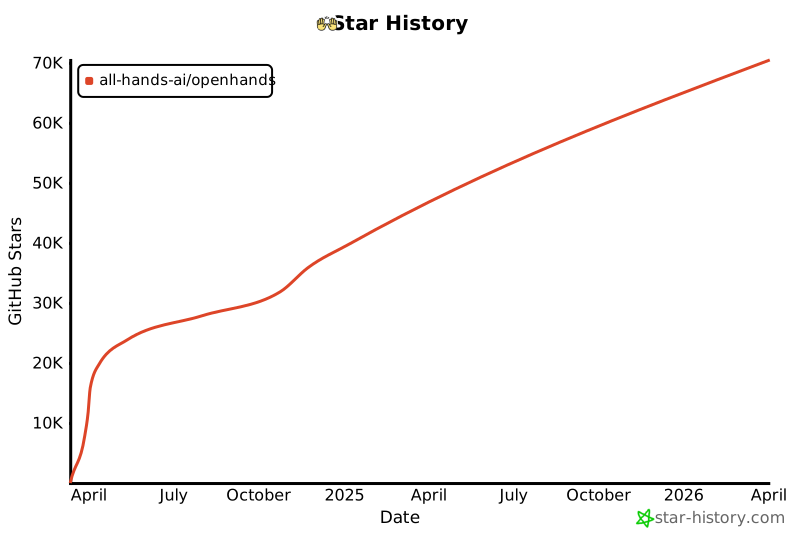](https://star-history.com/#All-Hands-AI/OpenHands&Date)
|
||||
|
||||
## 🛠️ Construit avec
|
||||
|
||||
OpenHands est construit en utilisant une combinaison de frameworks et de bibliothèques puissants, fournissant une base solide pour son développement. Voici les principales technologies utilisées dans le projet :
|
||||
|
||||
@@ -23,6 +44,6 @@ OpenHands est construit en utilisant une combinaison de frameworks et de bibliot
|
||||
|
||||
Veuillez noter que la sélection de ces technologies est en cours et que des technologies supplémentaires peuvent être ajoutées ou des technologies existantes peuvent être supprimées à mesure que le projet évolue. Nous nous efforçons d'adopter les outils les plus appropriés et les plus efficaces pour améliorer les capacités d'OpenHands.
|
||||
|
||||
## Licence
|
||||
## 📜 Licence
|
||||
|
||||
Distribué sous la [Licence](https://github.com/All-Hands-AI/OpenHands/blob/main/LICENSE) MIT.
|
||||
Distribué sous la licence MIT. Voir [notre licence](https://github.com/All-Hands-AI/OpenHands/blob/main/LICENSE) pour plus d'informations.
|
||||
|
||||
@@ -1,8 +1,8 @@
|
||||
|
||||
|
||||
# 📦 Runtime Docker
|
||||
# 📦 Runtime EventStream
|
||||
|
||||
Le Runtime Docker d'OpenHands est le composant principal qui permet l'exécution sécurisée et flexible des actions des agents d'IA.
|
||||
Le Runtime EventStream d'OpenHands est le composant principal qui permet l'exécution sécurisée et flexible des actions des agents d'IA.
|
||||
Il crée un environnement en bac à sable (sandbox) en utilisant Docker, où du code arbitraire peut être exécuté en toute sécurité sans risquer le système hôte.
|
||||
|
||||
## Pourquoi avons-nous besoin d'un runtime en bac à sable ?
|
||||
|
||||
@@ -1,387 +0,0 @@
|
||||
# Options de configuration
|
||||
|
||||
Ce guide détaille toutes les options de configuration disponibles pour OpenHands, vous aidant à personnaliser son comportement et à l'intégrer avec d'autres services.
|
||||
|
||||
:::note
|
||||
Si vous exécutez en [Mode GUI](https://docs.all-hands.dev/modules/usage/how-to/gui-mode), les paramètres disponibles dans l'interface utilisateur des paramètres auront toujours
|
||||
la priorité.
|
||||
:::
|
||||
|
||||
---
|
||||
|
||||
# Table des matières
|
||||
|
||||
1. [Configuration de base](#core-configuration)
|
||||
- [Clés API](#api-keys)
|
||||
- [Espace de travail](#workspace)
|
||||
- [Débogage et journalisation](#debugging-and-logging)
|
||||
- [Trajectoires](#trajectories)
|
||||
- [Stockage de fichiers](#file-store)
|
||||
- [Gestion des tâches](#task-management)
|
||||
- [Configuration du bac à sable](#sandbox-configuration)
|
||||
- [Divers](#miscellaneous)
|
||||
2. [Configuration LLM](#llm-configuration)
|
||||
- [Informations d'identification AWS](#aws-credentials)
|
||||
- [Configuration de l'API](#api-configuration)
|
||||
- [Fournisseur LLM personnalisé](#custom-llm-provider)
|
||||
- [Embeddings](#embeddings)
|
||||
- [Gestion des messages](#message-handling)
|
||||
- [Sélection du modèle](#model-selection)
|
||||
- [Nouvelles tentatives](#retrying)
|
||||
- [Options avancées](#advanced-options)
|
||||
3. [Configuration de l'agent](#agent-configuration)
|
||||
- [Configuration de la mémoire](#memory-configuration)
|
||||
- [Configuration LLM](#llm-configuration-1)
|
||||
- [Configuration de l'espace d'action](#actionspace-configuration)
|
||||
- [Utilisation du micro-agent](#microagent-usage)
|
||||
4. [Configuration du bac à sable](#sandbox-configuration-1)
|
||||
- [Exécution](#execution)
|
||||
- [Image de conteneur](#container-image)
|
||||
- [Mise en réseau](#networking)
|
||||
- [Linting et plugins](#linting-and-plugins)
|
||||
- [Dépendances et environnement](#dependencies-and-environment)
|
||||
- [Évaluation](#evaluation)
|
||||
5. [Configuration de sécurité](#security-configuration)
|
||||
- [Mode de confirmation](#confirmation-mode)
|
||||
- [Analyseur de sécurité](#security-analyzer)
|
||||
|
||||
---
|
||||
|
||||
## Configuration de base
|
||||
|
||||
Les options de configuration de base sont définies dans la section `[core]` du fichier `config.toml`.
|
||||
|
||||
**Clés API**
|
||||
- `e2b_api_key`
|
||||
- Type : `str`
|
||||
- Valeur par défaut : `""`
|
||||
- Description : Clé API pour E2B
|
||||
|
||||
- `modal_api_token_id`
|
||||
- Type : `str`
|
||||
- Valeur par défaut : `""`
|
||||
- Description : ID du jeton API pour Modal
|
||||
|
||||
- `modal_api_token_secret`
|
||||
- Type : `str`
|
||||
- Valeur par défaut : `""`
|
||||
- Description : Secret du jeton API pour Modal
|
||||
|
||||
**Espace de travail**
|
||||
- `workspace_base`
|
||||
- Type : `str`
|
||||
- Valeur par défaut : `"./workspace"`
|
||||
- Description : Chemin de base pour l'espace de travail
|
||||
|
||||
- `cache_dir`
|
||||
- Type : `str`
|
||||
- Valeur par défaut : `"/tmp/cache"`
|
||||
- Description : Chemin du répertoire de cache
|
||||
|
||||
**Débogage et journalisation**
|
||||
- `debug`
|
||||
- Type : `bool`
|
||||
- Valeur par défaut : `false`
|
||||
- Description : Activer le débogage
|
||||
|
||||
- `disable_color`
|
||||
- Type : `bool`
|
||||
- Valeur par défaut : `false`
|
||||
- Description : Désactiver la couleur dans la sortie du terminal
|
||||
|
||||
**Trajectoires**
|
||||
- `save_trajectory_path`
|
||||
- Type : `str`
|
||||
- Valeur par défaut : `"./trajectories"`
|
||||
- Description : Chemin pour stocker les trajectoires (peut être un dossier ou un fichier). Si c'est un dossier, les trajectoires seront enregistrées dans un fichier nommé avec l'ID de session et l'extension .json, dans ce dossier.
|
||||
|
||||
**Stockage de fichiers**
|
||||
- `file_store_path`
|
||||
- Type : `str`
|
||||
- Valeur par défaut : `"/tmp/file_store"`
|
||||
- Description : Chemin de stockage des fichiers
|
||||
|
||||
- `file_store`
|
||||
- Type : `str`
|
||||
- Valeur par défaut : `"memory"`
|
||||
- Description : Type de stockage de fichiers
|
||||
|
||||
- `file_uploads_allowed_extensions`
|
||||
- Type : `list of str`
|
||||
- Valeur par défaut : `[".*"]`
|
||||
- Description : Liste des extensions de fichiers autorisées pour les téléchargements
|
||||
|
||||
- `file_uploads_max_file_size_mb`
|
||||
- Type : `int`
|
||||
- Valeur par défaut : `0`
|
||||
- Description : Taille maximale des fichiers pour les téléchargements, en mégaoctets
|
||||
|
||||
- `file_uploads_restrict_file_types`
|
||||
- Type : `bool`
|
||||
- Valeur par défaut : `false`
|
||||
- Description : Restreindre les types de fichiers pour les téléchargements de fichiers
|
||||
|
||||
- `file_uploads_allowed_extensions`
|
||||
- Type : `list of str`
|
||||
- Valeur par défaut : `[".*"]`
|
||||
- Description : Liste des extensions de fichiers autorisées pour les téléchargements
|
||||
|
||||
**Gestion des tâches**
|
||||
- `max_budget_per_task`
|
||||
- Type : `float`
|
||||
- Valeur par défaut : `0.0`
|
||||
- Description : Budget maximal par tâche (0.0 signifie aucune limite)
|
||||
|
||||
- `max_iterations`
|
||||
- Type : `int`
|
||||
- Valeur par défaut : `100`
|
||||
- Description : Nombre maximal d'itérations
|
||||
|
||||
**Configuration du bac à sable**
|
||||
- `workspace_mount_path_in_sandbox`
|
||||
- Type : `str`
|
||||
- Valeur par défaut : `"/workspace"`
|
||||
- Description : Chemin de montage de l'espace de travail dans le bac à sable
|
||||
|
||||
- `workspace_mount_path`
|
||||
- Type : `str`
|
||||
- Valeur par défaut : `""`
|
||||
- Description : Chemin de montage de l'espace de travail
|
||||
|
||||
- `workspace_mount_rewrite`
|
||||
- Type : `str`
|
||||
- Valeur par défaut : `""`
|
||||
- Description : Chemin pour réécrire le chemin de montage de l'espace de travail. Vous pouvez généralement ignorer cela, cela fait référence à des cas spéciaux d'exécution à l'intérieur d'un autre conteneur.
|
||||
|
||||
**Divers**
|
||||
- `run_as_openhands`
|
||||
- Type : `bool`
|
||||
- Valeur par défaut : `true`
|
||||
- Description : Exécuter en tant qu'OpenHands
|
||||
|
||||
- `runtime`
|
||||
- Type : `str`
|
||||
- Valeur par défaut : `"docker"`
|
||||
- Description : Environnement d'exécution
|
||||
|
||||
- `default_agent`
|
||||
- Type : `str`
|
||||
- Valeur par défaut : `"CodeActAgent"`
|
||||
- Description : Nom de l'agent par défaut
|
||||
|
||||
- `jwt_secret`
|
||||
- Type : `str`
|
||||
- Valeur par défaut : `uuid.uuid4().hex`
|
||||
- Description : Secret JWT pour l'authentification. Veuillez le définir sur votre propre valeur.
|
||||
|
||||
## Configuration LLM
|
||||
|
||||
Les options de configuration LLM (Large Language Model) sont définies dans la section `[llm]` du fichier `config.toml`.
|
||||
|
||||
Pour les utiliser avec la commande docker, passez `-e LLM_<option>`. Exemple : `-e LLM_NUM_RETRIES`.
|
||||
|
||||
:::note
|
||||
Pour les configurations de développement, vous pouvez également définir des configurations LLM personnalisées. Voir [Configurations LLM personnalisées](./llms/custom-llm-configs) pour plus de détails.
|
||||
:::
|
||||
|
||||
**Informations d'identification AWS**
|
||||
- `aws_access_key_id`
|
||||
- Type : `str`
|
||||
- Valeur par défaut : `""`
|
||||
- Description : ID de clé d'accès AWS
|
||||
|
||||
- `aws_region_name`
|
||||
- Type : `str`
|
||||
- Valeur par défaut : `""`
|
||||
- Description : Nom de la région AWS
|
||||
|
||||
- `aws_secret_access_key`
|
||||
- Type : `str`
|
||||
- Valeur par défaut : `""`
|
||||
- Description : Clé d'accès secrète AWS
|
||||
|
||||
**Configuration de l'API**
|
||||
- `api_key`
|
||||
- Type : `str`
|
||||
- Valeur par défaut : `None`
|
||||
- Description : Clé API à utiliser
|
||||
|
||||
- `base_url`
|
||||
- Type : `str`
|
||||
- Valeur par défaut : `""`
|
||||
- Description : URL de base de l'API
|
||||
|
||||
- `api_version`
|
||||
- Type : `str`
|
||||
- Valeur par défaut : `""`
|
||||
- Description : Version de l'API
|
||||
|
||||
- `input_cost_per_token`
|
||||
- Type : `float`
|
||||
- Valeur par défaut : `0.0`
|
||||
- Description : Coût par jeton d'entrée
|
||||
|
||||
- `output_cost_per_token`
|
||||
- Type : `float`
|
||||
- Valeur par défaut : `0.0`
|
||||
- Description : Coût par jeton de sortie
|
||||
|
||||
**Fournisseur LLM personnalisé**
|
||||
- `custom_llm_provider`
|
||||
- Type : `str`
|
||||
- Valeur par défaut : `""`
|
||||
- Description : Fournisseur LLM personnalisé
|
||||
|
||||
**Embeddings**
|
||||
- `embedding_base_url`
|
||||
- Type : `str`
|
||||
- Valeur par défaut : `""`
|
||||
- Description : URL de base de l'API d'embedding
|
||||
|
||||
- `embedding_deployment_name`
|
||||
- Type : `str`
|
||||
- Valeur par défaut : `""`
|
||||
- Description : Nom du déploiement d'embedding
|
||||
|
||||
- `embedding_model`
|
||||
- Type : `str`
|
||||
- Valeur par défaut : `"local"`
|
||||
- Description : Modèle d'embedding à utiliser
|
||||
|
||||
**Gestion des messages**
|
||||
- `max_message_chars`
|
||||
- Type : `int`
|
||||
- Valeur par défaut : `30000`
|
||||
- Description : Le nombre maximum approximatif de caractères dans le contenu d'un événement inclus dans l'invite au LLM. Les observations plus grandes sont tronquées.
|
||||
|
||||
- `max_input_tokens`
|
||||
- Type : `int`
|
||||
- Valeur par défaut : `0`
|
||||
- Description : Nombre maximal de jetons d'entrée
|
||||
|
||||
- `max_output_tokens`
|
||||
- Type : `int`
|
||||
- Valeur par défaut : `0`
|
||||
- Description : Nombre maximal de jetons de sortie
|
||||
|
||||
**Sélection du modèle**
|
||||
- `model`
|
||||
- Type : `str`
|
||||
- Valeur par défaut : `"claude-3-5-sonnet-20241022"`
|
||||
- Description : Modèle à utiliser
|
||||
|
||||
**Nouvelles tentatives**
|
||||
- `num_retries`
|
||||
- Type : `int`
|
||||
- Valeur par défaut : `8`
|
||||
- Description : Nombre de nouvelles tentatives à effectuer
|
||||
|
||||
- `retry_max_wait`
|
||||
- Type : `int`
|
||||
- Valeur par défaut : `120`
|
||||
- Description : Temps d'attente maximal (en secondes) entre les tentatives de nouvelle tentative
|
||||
|
||||
- `retry_min_wait`
|
||||
- Type : `int`
|
||||
- Valeur par défaut : `15`
|
||||
- Description : Temps d'attente minimal (en secondes) entre les tentatives de nouvelle tentative
|
||||
|
||||
- `retry_multiplier`
|
||||
- Type : `float`
|
||||
- Valeur par défaut : `2.0`
|
||||
- Description : Multiplicateur pour le calcul du backoff exponentiel
|
||||
|
||||
**Options avancées**
|
||||
- `drop_params`
|
||||
- Type : `bool`
|
||||
- Valeur par défaut : `false`
|
||||
- Description : Supprimer tous les paramètres non mappés (non pris en charge) sans provoquer d'exception
|
||||
|
||||
- `caching_prompt`
|
||||
- Type : `bool`
|
||||
- Valeur par défaut : `true`
|
||||
- Description : Utiliser la fonctionnalité de mise en cache des invites si elle est fournie par le LLM et prise en charge
|
||||
|
||||
- `ollama_base_url`
|
||||
- Type : `str`
|
||||
- Valeur par défaut : `""`
|
||||
- Description : URL de base pour l'API OLLAMA
|
||||
|
||||
- `temperature`
|
||||
- Type : `float`
|
||||
- Valeur par défaut : `0.0`
|
||||
- Description : Température pour l'API
|
||||
|
||||
- `timeout`
|
||||
- Type : `int`
|
||||
- Valeur par défaut : `0`
|
||||
- Description : Délai d'expiration pour l'API
|
||||
|
||||
- `top_p`
|
||||
- Type : `float`
|
||||
- Valeur par défaut : `1.0`
|
||||
- Description : Top p pour l'API
|
||||
|
||||
- `disable_vision`
|
||||
- Type : `bool`
|
||||
- Valeur par défaut : `None`
|
||||
- Description : Si le modèle est capable de vision, cette option permet de désactiver le traitement des images (utile pour réduire les coûts)
|
||||
|
||||
## Configuration de l'agent
|
||||
|
||||
Les options de configuration de l'agent sont définies dans les sections `[agent]` et `[agent.<agent_name>]` du fichier `config.toml`.
|
||||
|
||||
**Configuration de la mémoire**
|
||||
- `memory_enabled`
|
||||
- Type : `bool`
|
||||
- Valeur par défaut : `false`
|
||||
- Description : Si la mémoire à long terme (embeddings) est activée
|
||||
|
||||
- `memory_max_threads`
|
||||
- Type : `int`
|
||||
- Valeur par défaut : `3`
|
||||
- Description : Le nombre maximum de threads indexant en même temps pour les embeddings
|
||||
|
||||
**Configuration LLM**
|
||||
- `llm_config`
|
||||
- Type : `str`
|
||||
- Valeur par défaut : `'your-llm-config-group'`
|
||||
- Description : Le nom de la configuration LLM à utiliser
|
||||
|
||||
**Configuration de l'espace d'action**
|
||||
- `function_calling`
|
||||
- Type : `bool`
|
||||
- Valeur par défaut : `true`
|
||||
- Description : Si l'appel de fonction est activé
|
||||
|
||||
- `codeact_enable_browsing`
|
||||
- Type : `bool`
|
||||
- Valeur par défaut : `false`
|
||||
- Description : Si le délégué de navigation est activé dans l'espace d'action (fonctionne uniquement avec l'appel de fonction)
|
||||
|
||||
- `codeact_enable_llm_editor`
|
||||
- Type : `bool`
|
||||
- Valeur par défaut : `false`
|
||||
- Description : Si l'éditeur LLM est activé dans l'espace d'action (fonctionne uniquement avec l'appel de fonction)
|
||||
|
||||
**Utilisation du micro-agent**
|
||||
- `enable_prompt_extensions`
|
||||
- Type : `bool`
|
||||
- Valeur par défaut : `true`
|
||||
- Description : Indique si l'utilisation des micro-agents est activée ou non
|
||||
|
||||
- `disabled_microagents`
|
||||
- Type : `list of str`
|
||||
- Valeur par défaut : `None`
|
||||
- Description : Liste des micro-agents à désactiver
|
||||
|
||||
### Exécution
|
||||
- `timeout`
|
||||
- Type : `int`
|
||||
- Valeur par défaut : `120`
|
||||
- Description : Délai d'expiration du bac à sable, en secondes
|
||||
|
||||
- `user_id`
|
||||
- Type : `int`
|
||||
- Valeur par défaut : `1000`
|
||||
- Description : ID de l'utilisateur du bac à sable
|
||||
@@ -42,11 +42,10 @@ Créez un fichier ```config.toml``` dans le répertoire OpenHands et entrez ces
|
||||
[core]
|
||||
workspace_base="./workspace"
|
||||
run_as_openhands=true
|
||||
[sandbox]
|
||||
base_container_image="image_personnalisée"
|
||||
sandbox_base_container_image="image_personnalisée"
|
||||
```
|
||||
|
||||
> Assurez-vous que ```base_container_image``` est défini sur le nom de votre image personnalisée précédente.
|
||||
> Assurez-vous que ```sandbox_base_container_image``` est défini sur le nom de votre image personnalisée précédente.
|
||||
|
||||
## Exécution
|
||||
|
||||
@@ -83,17 +82,20 @@ dockerfile_content = (
|
||||
## Dépannage / Erreurs
|
||||
|
||||
### Erreur: ```useradd: UID 1000 est non unique```
|
||||
Si vous voyez cette erreur dans la sortie de la console, il s'agit du fait que OpenHands essaie de créer le utilisateur openhands dans le sandbox avec un ID d'utilisateur de 1000, cependant cet ID d'utilisateur est déjà utilisé dans l'image (pour une raison inconnue). Pour résoudre ce problème, changez la valeur du champ user_id dans le fichier config.toml en une valeur différente:
|
||||
Si vous voyez cette erreur dans la sortie de la console, il s'agit du fait que OpenHands essaie de créer le utilisateur openhands dans le sandbox avec un ID d'utilisateur de 1000, cependant cet ID d'utilisateur est déjà utilisé dans l'image (pour une raison inconnue). Pour résoudre ce problème, changez la valeur du champ sandbox_user_id dans le fichier config.toml en une valeur différente:
|
||||
|
||||
```toml
|
||||
[core]
|
||||
workspace_base="./workspace"
|
||||
run_as_openhands=true
|
||||
[sandbox]
|
||||
base_container_image="image_personnalisée"
|
||||
user_id="1001"
|
||||
sandbox_base_container_image="image_personnalisée"
|
||||
sandbox_user_id="1001"
|
||||
```
|
||||
|
||||
### Erreurs de port d'utilisation
|
||||
|
||||
Si vous voyez un message d'erreur indiquant que le port est utilisé ou indisponible, essayez de supprimer toutes les containers docker en cours d'exécution (exécutez `docker ps` et `docker rm` des containers concernés) puis ré-exécutez ```make run```
|
||||
|
||||
## Discuter
|
||||
|
||||
Pour d'autres problèmes ou questions rejoignez le [Slack](https://join.slack.com/t/openhands-ai/shared_invite/zt-2wkh4pklz-w~h_DVDtEe9H5kyQlcNxVw) ou le [Discord](https://discord.gg/ESHStjSjD4) et demandez!
|
||||
|
||||
@@ -5,7 +5,7 @@
|
||||
Vous avez donc [installé OpenHands](./installation) et avez
|
||||
[configuré votre LLM](./installation#setup). Et maintenant ?
|
||||
|
||||
OpenHands peut vous aider à aborder une grande variété de tâches d'ingénierie. Mais la technologie
|
||||
OpenHands peut vous aider à vous attaquer à une grande variété de tâches d'ingénierie. Mais la technologie
|
||||
est encore nouvelle, et nous sommes loin d'avoir des agents capables de prendre en charge des tâches
|
||||
d'ingénierie vastes et compliquées sans aucune aide. Il est donc important de se faire une idée de ce que l'agent
|
||||
fait bien, et où il pourrait avoir besoin d'un coup de main.
|
||||
@@ -16,7 +16,7 @@ La première chose que vous voudrez peut-être essayer est un simple exemple "he
|
||||
Cela peut être plus compliqué qu'il n'y paraît !
|
||||
|
||||
Essayez de demander à l'agent :
|
||||
> Veuillez écrire un script bash hello.sh qui affiche "hello world!"
|
||||
> Please write a bash script hello.sh that prints "hello world!"
|
||||
|
||||
Vous devriez constater que l'agent non seulement écrit le script, mais définit également les
|
||||
permissions correctes et exécute le script pour vérifier la sortie.
|
||||
@@ -24,12 +24,12 @@ permissions correctes et exécute le script pour vérifier la sortie.
|
||||
Vous pouvez continuer à demander à l'agent d'affiner votre code. C'est une excellente façon de
|
||||
travailler avec les agents. Commencez simplement, et itérez.
|
||||
|
||||
> Veuillez modifier hello.sh pour qu'il accepte un nom comme premier argument, mais par défaut "world"
|
||||
> Please modify hello.sh so that it accepts a name as the first argument, but defaults to "world"
|
||||
|
||||
Vous pouvez également travailler dans n'importe quel langage dont vous avez besoin, bien que l'agent puisse avoir besoin de passer du
|
||||
Vous pouvez également travailler dans n'importe quel langage dont vous avez besoin, bien que l'agent puisse avoir besoin de passer un peu de
|
||||
temps à configurer son environnement !
|
||||
|
||||
> Veuillez convertir hello.sh en un script Ruby, et l'exécuter
|
||||
> Please convert hello.sh to a Ruby script, and run it
|
||||
|
||||
## Construire à partir de zéro
|
||||
|
||||
@@ -41,18 +41,18 @@ aussi précis que possible sur ce que vous voulez, sur la pile technologique à
|
||||
|
||||
Par exemple, nous pourrions construire une application TODO :
|
||||
|
||||
> Veuillez créer une application basique de liste de tâches en React. Elle devrait être uniquement frontend, et tout l'état
|
||||
> devrait être conservé dans localStorage.
|
||||
> Please build a basic TODO list app in React. It should be frontend-only, and all state
|
||||
> should be kept in localStorage.
|
||||
|
||||
Nous pouvons continuer à itérer sur l'application une fois le squelette en place :
|
||||
|
||||
> Veuillez permettre d'ajouter une date d'échéance optionnelle à chaque tâche
|
||||
> Please allow adding an optional due date to every task
|
||||
|
||||
Tout comme avec le développement normal, il est bon de commiter et de pousser votre code fréquemment.
|
||||
De cette façon, vous pouvez toujours revenir à un ancien état si l'agent dévie.
|
||||
Vous pouvez demander à l'agent de commiter et de pousser pour vous :
|
||||
|
||||
> Veuillez commiter les changements et les pousser sur une nouvelle branche appelée "feature/due-dates"
|
||||
> Please commit the changes and push them to a new branch called "feature/due-dates"
|
||||
|
||||
|
||||
## Ajouter du nouveau code
|
||||
@@ -61,18 +61,18 @@ OpenHands peut également faire un excellent travail en ajoutant du nouveau code
|
||||
|
||||
Par exemple, vous pouvez demander à OpenHands d'ajouter une nouvelle action GitHub à votre projet
|
||||
qui analyse votre code. OpenHands peut jeter un coup d'œil à votre base de code pour voir quel langage
|
||||
il doit utiliser, mais ensuite il peut simplement déposer un nouveau fichier dans `./github/workflows/lint.yml`
|
||||
il doit utiliser, mais ensuite il peut simplement déposer un nouveau fichier dans `./github/workflows/lint.yml`.
|
||||
|
||||
> Veuillez ajouter une action GitHub qui analyse le code dans ce dépôt
|
||||
> Please add a GitHub action that lints the code in this repository
|
||||
|
||||
Certaines tâches peuvent nécessiter un peu plus de contexte. Bien qu'OpenHands puisse utiliser `ls` et `grep`
|
||||
pour rechercher dans votre base de code, fournir le contexte à l'avance lui permet d'aller plus vite,
|
||||
et plus précisément. Et cela vous coûtera moins de tokens !
|
||||
|
||||
> Veuillez modifier ./backend/api/routes.js pour ajouter une nouvelle route qui renvoie une liste de toutes les tâches
|
||||
> Please modify ./backend/api/routes.js to add a new route that returns a list of all tasks
|
||||
|
||||
> Veuillez ajouter un nouveau composant React qui affiche une liste de Widgets dans le répertoire ./frontend/components.
|
||||
> Il devrait utiliser le composant Widget existant.
|
||||
> Please add a new React component that displays a list of Widgets to the ./frontend/components
|
||||
> directory. It should use the existing Widget component.
|
||||
|
||||
## Refactoring
|
||||
|
||||
@@ -80,34 +80,34 @@ OpenHands est excellent pour refactoriser du code existant, surtout par petits m
|
||||
Vous ne voulez probablement pas essayer de réarchitecturer toute votre base de code, mais diviser
|
||||
les longs fichiers et fonctions, renommer les variables, etc. ont tendance à très bien fonctionner.
|
||||
|
||||
> Veuillez renommer toutes les variables à une lettre dans ./app.go
|
||||
> Please rename all the single-letter variables in ./app.go
|
||||
|
||||
> Veuillez diviser la fonction `build_and_deploy_widgets` en deux fonctions, `build_widgets` et `deploy_widgets` dans widget.php
|
||||
> Please break the function `build_and_deploy_widgets` into two functions, `build_widgets` and `deploy_widgets` in widget.php
|
||||
|
||||
> Veuillez diviser ./api/routes.js en fichiers séparés pour chaque route
|
||||
> Please break ./api/routes.js into separate files for each route
|
||||
|
||||
## Corrections de bugs
|
||||
|
||||
OpenHands peut également vous aider à traquer et corriger des bugs dans votre code. Mais, comme tout
|
||||
développeur le sait, la correction de bugs peut être extrêmement délicate, et souvent OpenHands aura besoin de plus de contexte.
|
||||
Cela aide si vous avez diagnostiqué le bug, mais que vous voulez qu'OpenHands comprenne la logique.
|
||||
Cela aide si vous avez diagnostiqué le bug, mais que vous voulez qu'OpenHands trouve la logique.
|
||||
|
||||
> Actuellement, le champ email dans le point de terminaison `/subscribe` rejette les domaines .io. Veuillez corriger cela.
|
||||
> Currently the email field in the `/subscribe` endpoint is rejecting .io domains. Please fix this.
|
||||
|
||||
> La fonction `search_widgets` dans ./app.py effectue une recherche sensible à la casse. Veuillez la rendre insensible à la casse.
|
||||
> The `search_widgets` function in ./app.py is doing a case-sensitive search. Please make it case-insensitive.
|
||||
|
||||
Il est souvent utile de faire du développement piloté par les tests lors de la correction de bugs avec un agent.
|
||||
Vous pouvez demander à l'agent d'écrire un nouveau test, puis d'itérer jusqu'à ce qu'il corrige le bug :
|
||||
|
||||
> La fonction `hello` plante sur la chaîne vide. Veuillez écrire un test qui reproduit ce bug, puis corrigez le code pour qu'il passe.
|
||||
> The `hello` function crashes on the empty string. Please write a test that reproduces this bug, then fix the code so it passes.
|
||||
|
||||
## Plus
|
||||
|
||||
OpenHands est capable d'aider sur à peu près n'importe quelle tâche de codage. Mais il faut de la pratique
|
||||
OpenHands est capable d'aider sur à peu près n'importe quelle tâche de codage. Mais il faut un peu de pratique
|
||||
pour en tirer le meilleur parti. N'oubliez pas de :
|
||||
* Garder vos tâches petites
|
||||
* Être aussi précis que possible
|
||||
* Fournir autant de contexte que possible
|
||||
* Commiter et pousser fréquemment
|
||||
|
||||
Voir [Bonnes pratiques de prompting](./prompting/prompting-best-practices) pour plus de conseils sur la façon de tirer le meilleur parti d'OpenHands.
|
||||
Voir [Bonnes pratiques de prompting](./prompting-best-practices) pour plus de conseils sur la façon de tirer le meilleur parti d'OpenHands.
|
||||
|
||||
@@ -28,17 +28,16 @@ Vous devrez vous assurer de définir votre modèle, votre clé API et d'autres p
|
||||
|
||||
Pour exécuter OpenHands en mode CLI avec Docker, suivez ces étapes :
|
||||
|
||||
1. Définissez `WORKSPACE_BASE` sur le répertoire que vous voulez qu'OpenHands modifie :
|
||||
1. Définissez `WORKSPACE_BASE` sur le répertoire que vous souhaitez qu'OpenHands modifie :
|
||||
|
||||
```bash
|
||||
WORKSPACE_BASE=$(pwd)/workspace
|
||||
```
|
||||
|
||||
2. Définissez `LLM_MODEL` sur le modèle que vous voulez utiliser :
|
||||
2. Définissez `LLM_MODEL` sur le modèle que vous souhaitez utiliser :
|
||||
|
||||
```bash
|
||||
LLM_MODEL="anthropic/claude-3-5-sonnet-20241022"
|
||||
|
||||
```
|
||||
|
||||
3. Définissez `LLM_API_KEY` sur votre clé API :
|
||||
@@ -52,7 +51,6 @@ LLM_API_KEY="sk_test_12345"
|
||||
```bash
|
||||
docker run -it \
|
||||
--pull=always \
|
||||
-e SANDBOX_RUNTIME_CONTAINER_IMAGE=docker.all-hands.dev/all-hands-ai/runtime:0.31-nikolaik \
|
||||
-e SANDBOX_USER_ID=$(id -u) \
|
||||
-e WORKSPACE_MOUNT_PATH=$WORKSPACE_BASE \
|
||||
-e LLM_API_KEY=$LLM_API_KEY \
|
||||
@@ -61,7 +59,7 @@ docker run -it \
|
||||
-v /var/run/docker.sock:/var/run/docker.sock \
|
||||
--add-host host.docker.internal:host-gateway \
|
||||
--name openhands-app-$(date +%Y%m%d%H%M%S) \
|
||||
docker.all-hands.dev/all-hands-ai/openhands:0.31 \
|
||||
ghcr.io/all-hands-ai/openhands:0.11 \
|
||||
python -m openhands.core.cli
|
||||
```
|
||||
|
||||
@@ -74,7 +72,7 @@ Voici quelques exemples de commandes CLI et leurs sorties attendues :
|
||||
### Exemple 1 : Tâche simple
|
||||
|
||||
```bash
|
||||
How can I help? >> Écrivez un script Python qui affiche "Hello, World!"
|
||||
Comment puis-je vous aider ? >> Écrivez un script Python qui affiche "Hello, World!"
|
||||
```
|
||||
|
||||
Sortie attendue :
|
||||
@@ -88,7 +86,7 @@ Sortie attendue :
|
||||
### Exemple 2 : Commande Bash
|
||||
|
||||
```bash
|
||||
How can I help? >> Créez un répertoire nommé "test_dir"
|
||||
Comment puis-je vous aider ? >> Créez un répertoire nommé "test_dir"
|
||||
```
|
||||
|
||||
Sortie attendue :
|
||||
@@ -102,7 +100,7 @@ Sortie attendue :
|
||||
### Exemple 3 : Gestion des erreurs
|
||||
|
||||
```bash
|
||||
How can I help? >> Supprimez un fichier inexistant
|
||||
Comment puis-je vous aider ? >> Supprimez un fichier inexistant
|
||||
```
|
||||
|
||||
Sortie attendue :
|
||||
|
||||
@@ -4,7 +4,7 @@
|
||||
|
||||
Le sandbox est l'endroit où l'agent effectue ses tâches. Au lieu d'exécuter des commandes directement sur votre ordinateur (ce qui pourrait être risqué), l'agent les exécute à l'intérieur d'un conteneur Docker.
|
||||
|
||||
Le sandbox OpenHands par défaut (`python-nodejs:python3.12-nodejs22` de [nikolaik/python-nodejs](https://hub.docker.com/r/nikolaik/python-nodejs)) est livré avec certains paquets installés tels que Python et Node.js mais peut nécessiter l'installation d'autres logiciels par défaut.
|
||||
Le sandbox OpenHands par défaut (`python-nodejs:python3.12-nodejs22` de [nikolaik/python-nodejs](https://hub.docker.com/r/nikolaik/python-nodejs)) est livré avec certains paquets installés tels que Python et Node.js, mais peut nécessiter l'installation d'autres logiciels par défaut.
|
||||
|
||||
Vous avez deux options pour la personnalisation :
|
||||
|
||||
@@ -36,7 +36,7 @@ Cela produira une nouvelle image appelée `custom-image`, qui sera disponible da
|
||||
|
||||
> Notez que dans la configuration décrite dans ce document, OpenHands s'exécutera en tant qu'utilisateur "openhands" à l'intérieur du sandbox et donc tous les paquets installés via le docker file devraient être disponibles pour tous les utilisateurs du système, pas seulement root.
|
||||
|
||||
## Utilisation du Workflow de Développement
|
||||
## Utiliser le Workflow de Développement
|
||||
|
||||
### Configuration
|
||||
|
||||
@@ -44,19 +44,40 @@ Tout d'abord, assurez-vous de pouvoir exécuter OpenHands en suivant les instruc
|
||||
|
||||
### Spécifier l'Image de Base du Sandbox
|
||||
|
||||
Dans le fichier `config.toml` dans le répertoire OpenHands, définissez `base_container_image` sur l'image que vous souhaitez utiliser. Cela peut être une image que vous avez déjà extraite ou une que vous avez construite :
|
||||
Dans le fichier `config.toml` dans le répertoire OpenHands, définissez `sandbox_base_container_image` sur l'image que vous souhaitez utiliser. Cela peut être une image que vous avez déjà extraite ou une que vous avez construite :
|
||||
|
||||
```bash
|
||||
[core]
|
||||
...
|
||||
[sandbox]
|
||||
base_container_image="custom-image"
|
||||
sandbox_base_container_image="custom-image"
|
||||
```
|
||||
|
||||
### Exécution
|
||||
### Exécuter
|
||||
|
||||
Exécutez OpenHands en exécutant ```make run``` dans le répertoire de niveau supérieur.
|
||||
|
||||
## Explication Technique
|
||||
|
||||
Veuillez vous référer à la [section image docker personnalisée de la documentation d'exécution](https://docs.all-hands.dev/modules/usage/architecture/runtime#advanced-how-openhands-builds-and-maintains-od-runtime-images) pour plus de détails.
|
||||
|
||||
## Dépannage / Erreurs
|
||||
|
||||
### Erreur : ```useradd: UID 1000 is not unique```
|
||||
|
||||
Si vous voyez cette erreur dans la sortie de la console, c'est parce qu'OpenHands essaie de créer l'utilisateur openhands dans le sandbox avec un UID de 1000, mais cet UID est déjà utilisé dans l'image (pour une raison quelconque). Pour corriger cela, changez le champ sandbox_user_id dans le fichier config.toml à une valeur différente :
|
||||
|
||||
```toml
|
||||
[core]
|
||||
workspace_base="./workspace"
|
||||
run_as_openhands=true
|
||||
sandbox_base_container_image="custom_image"
|
||||
sandbox_user_id="1001"
|
||||
```
|
||||
|
||||
### Erreurs d'utilisation de port
|
||||
|
||||
Si vous voyez une erreur concernant un port déjà utilisé ou indisponible, essayez de supprimer tous les conteneurs Docker en cours d'exécution (exécutez `docker ps` et `docker rm` sur les conteneurs pertinents) puis réexécutez ```make run```.
|
||||
|
||||
## Discuter
|
||||
|
||||
Pour d'autres problèmes ou questions, rejoignez le [Slack](https://join.slack.com/t/openhands-ai/shared_invite/zt-2wkh4pklz-w~h_DVDtEe9H5kyQlcNxVw) ou le [Discord](https://discord.gg/ESHStjSjD4) et demandez !
|
||||
|
||||
@@ -15,6 +15,7 @@ Voici un exemple de fichier de configuration que vous pouvez utiliser pour défi
|
||||
[llm]
|
||||
# IMPORTANT : ajoutez votre clé API ici et définissez le modèle que vous souhaitez évaluer
|
||||
model = "claude-3-5-sonnet-20241022"
|
||||
|
||||
api_key = "sk-XXX"
|
||||
|
||||
[llm.eval_gpt4_1106_preview_llm]
|
||||
@@ -114,7 +115,7 @@ Pour créer un workflow d'évaluation pour votre benchmark, suivez ces étapes :
|
||||
def get_config(instance: pd.Series, metadata: EvalMetadata) -> AppConfig:
|
||||
config = AppConfig(
|
||||
default_agent=metadata.agent_class,
|
||||
runtime='docker',
|
||||
runtime='eventstream',
|
||||
max_iterations=metadata.max_iterations,
|
||||
sandbox=SandboxConfig(
|
||||
base_container_image='your_container_image',
|
||||
@@ -190,7 +191,7 @@ En suivant cette structure, vous pouvez créer un workflow d'évaluation robuste
|
||||
|
||||
## Comprendre la `user_response_fn`
|
||||
|
||||
La `user_response_fn` est un composant crucial dans le workflow d'évaluation d'OpenHands. Elle simule l'interaction de l'utilisateur avec l'agent, permettant des réponses automatisées pendant le processus d'évaluation. Cette fonction est particulièrement utile lorsque vous voulez fournir des réponses cohérentes et prédéfinies aux requêtes ou actions de l'agent.
|
||||
La `user_response_fn` est un composant crucial dans le workflow d'évaluation d'OpenHands. Elle simule l'interaction de l'utilisateur avec l'agent, permettant des réponses automatisées pendant le processus d'évaluation. Cette fonction est particulièrement utile lorsque vous souhaitez fournir des réponses cohérentes et prédéfinies aux requêtes ou actions de l'agent.
|
||||
|
||||
|
||||
### Workflow et interaction
|
||||
@@ -241,7 +242,7 @@ Dans ce workflow :
|
||||
- Les actions non exécutables (généralement lorsque l'agent veut communiquer ou demander des clarifications) sont gérées par la `user_response_fn`
|
||||
- L'agent traite ensuite le feedback, qu'il s'agisse d'une Observation du Runtime ou d'une réponse simulée de la `user_response_fn`
|
||||
|
||||
Cette approche permet une gestion automatisée des actions concrètes et des interactions utilisateur simulées, ce qui la rend adaptée aux scénarios d'évaluation où vous voulez tester la capacité de l'agent à accomplir des tâches avec une intervention humaine minimale.
|
||||
Cette approche permet une gestion automatisée des actions concrètes et des interactions utilisateur simulées, ce qui la rend adaptée aux scénarios d'évaluation où vous souhaitez tester la capacité de l'agent à effectuer des tâches avec une intervention humaine minimale.
|
||||
|
||||
### Exemple d'implémentation
|
||||
|
||||
@@ -263,7 +264,7 @@ def codeact_user_response(state: State | None) -> str:
|
||||
if isinstance(event, MessageAction) and event.source == 'user'
|
||||
]
|
||||
if len(user_msgs) >= 2:
|
||||
# faire savoir à l'agent qu'il peut abandonner quand il a essayé 3 fois
|
||||
# faire savoir à l'agent qu'il peut abandonner lorsqu'il a essayé 3 fois
|
||||
return (
|
||||
msg
|
||||
+ 'Si vous voulez abandonner, exécutez : <execute_bash> exit </execute_bash>.\n'
|
||||
@@ -277,4 +278,4 @@ Cette fonction fait ce qui suit :
|
||||
2. Vérifie combien de fois l'agent a tenté de communiquer avec l'utilisateur
|
||||
3. Si l'agent a fait plusieurs tentatives, il lui donne la possibilité d'abandonner
|
||||
|
||||
En utilisant cette fonction, vous pouvez assurer un comportement cohérent sur plusieurs exécutions d'évaluation et empêcher l'agent de rester bloqué en attendant une entrée humaine.
|
||||
En utilisant cette fonction, vous pouvez garantir un comportement cohérent sur plusieurs exécutions d'évaluation et empêcher l'agent de rester bloqué en attendant une entrée humaine.
|
||||
|
||||
@@ -6,46 +6,12 @@ Ce guide explique comment utiliser l'Action GitHub OpenHands, à la fois dans le
|
||||
|
||||
## Utilisation de l'Action dans le dépôt OpenHands
|
||||
|
||||
Pour utiliser l'Action GitHub OpenHands dans un dépôt, vous pouvez :
|
||||
Pour utiliser l'Action GitHub OpenHands dans le dépôt OpenHands, un mainteneur OpenHands peut :
|
||||
|
||||
1. Créer un ticket dans le dépôt.
|
||||
2. Ajouter l'étiquette `fix-me` au ticket ou laisser un commentaire sur le ticket commençant par `@openhands-agent`.
|
||||
|
||||
L'action se déclenchera automatiquement et tentera de résoudre le ticket.
|
||||
1. Créer une issue dans le dépôt.
|
||||
2. Ajouter le label `fix-me` à l'issue.
|
||||
3. L'action se déclenchera automatiquement et tentera de résoudre l'issue.
|
||||
|
||||
## Installation de l'Action dans un nouveau dépôt
|
||||
|
||||
Pour installer l'Action GitHub OpenHands dans votre propre dépôt, suivez le [README pour le Resolver OpenHands](https://github.com/All-Hands-AI/OpenHands/blob/main/openhands/resolver/README.md).
|
||||
|
||||
## Conseils d'utilisation
|
||||
|
||||
### Résolution itérative
|
||||
|
||||
1. Créez un ticket dans le dépôt.
|
||||
2. Ajoutez l'étiquette `fix-me` au ticket, ou laissez un commentaire commençant par `@openhands-agent`
|
||||
3. Examinez la tentative de résolution du ticket en vérifiant la pull request
|
||||
4. Faites un suivi avec des commentaires via des commentaires généraux, des commentaires de revue ou des commentaires de fil en ligne
|
||||
5. Ajoutez l'étiquette `fix-me` à la pull request, ou adressez un commentaire spécifique en commençant par `@openhands-agent`
|
||||
|
||||
### Étiquette versus Macro
|
||||
|
||||
- Étiquette (`fix-me`) : Demande à OpenHands de traiter le ticket ou la pull request dans son **intégralité**.
|
||||
- Macro (`@openhands-agent`) : Demande à OpenHands de ne considérer que la description du ticket/de la pull request et **le commentaire spécifique**.
|
||||
|
||||
## Paramètres avancés
|
||||
|
||||
### Ajouter des paramètres de dépôt personnalisés
|
||||
|
||||
Vous pouvez fournir des instructions personnalisées pour OpenHands en suivant le [README pour le resolver](https://github.com/All-Hands-AI/OpenHands/blob/main/openhands/resolver/README.md#providing-custom-instructions).
|
||||
|
||||
### Configurations personnalisées
|
||||
|
||||
Le resolver Github vérifiera automatiquement les [secrets de dépôt](https://docs.github.com/en/actions/security-for-github-actions/security-guides/using-secrets-in-github-actions?tool=webui#creating-secrets-for-a-repository) ou les [variables de dépôt](https://docs.github.com/en/actions/writing-workflows/choosing-what-your-workflow-does/store-information-in-variables#creating-configuration-variables-for-a-repository) valides pour personnaliser son comportement.
|
||||
Les options de personnalisation que vous pouvez définir sont :
|
||||
|
||||
| **Nom de l'attribut** | **Type** | **Objectif** | **Exemple** |
|
||||
|----------------------------------| -------- |-------------------------------------------------------------------------------------------------------------|------------------------------------------------------|
|
||||
| `LLM_MODEL` | Variable | Définir le LLM à utiliser avec OpenHands | `LLM_MODEL="anthropic/claude-3-5-sonnet-20241022"` |
|
||||
| `OPENHANDS_MAX_ITER` | Variable | Définir la limite maximale pour les itérations de l'agent | `OPENHANDS_MAX_ITER=10` |
|
||||
| `OPENHANDS_MACRO` | Variable | Personnaliser la macro par défaut pour invoquer le resolver | `OPENHANDS_MACRO=@resolveit` |
|
||||
| `OPENHANDS_BASE_CONTAINER_IMAGE` | Variable | Sandbox personnalisé ([en savoir plus](https://docs.all-hands.dev/modules/usage/how-to/custom-sandbox-guide))| `OPENHANDS_BASE_CONTAINER_IMAGE="custom_image"` |
|
||||
Pour installer l'Action GitHub OpenHands dans votre propre dépôt, suivez les [instructions dans le dépôt OpenHands Resolver](https://github.com/All-Hands-AI/OpenHands/blob/main/openhands/resolver/README.md).
|
||||
|
||||
@@ -8,7 +8,7 @@ OpenHands fournit un mode Interface Graphique (GUI) convivial pour interagir ave
|
||||
|
||||
## Installation et Configuration
|
||||
|
||||
1. Suivez les instructions du guide [Installation](../installation) pour installer OpenHands.
|
||||
1. Suivez les instructions du guide d'[Installation](../installation) pour installer OpenHands.
|
||||
|
||||
2. Après avoir exécuté la commande, accédez à OpenHands à l'adresse [http://localhost:3000](http://localhost:3000).
|
||||
|
||||
@@ -21,107 +21,33 @@ OpenHands fournit un mode Interface Graphique (GUI) convivial pour interagir ave
|
||||
3. Entrez la `Clé API` correspondante pour le fournisseur choisi.
|
||||
4. Cliquez sur "Enregistrer" pour appliquer les paramètres.
|
||||
|
||||
### Configuration du Jeton GitHub
|
||||
|
||||
OpenHands exporte automatiquement un `GITHUB_TOKEN` vers l'environnement shell s'il est disponible. Cela peut se produire de deux manières :
|
||||
|
||||
1. **Localement (OSS)** : L'utilisateur saisit directement son jeton GitHub
|
||||
2. **En ligne (SaaS)** : Le jeton est obtenu via l'authentification OAuth GitHub
|
||||
|
||||
#### Configuration d'un Jeton GitHub Local
|
||||
|
||||
1. **Générer un Personal Access Token (PAT)** :
|
||||
- Allez dans Paramètres GitHub > Paramètres développeur > Personal Access Tokens > Tokens (classique)
|
||||
- Cliquez sur "Générer un nouveau jeton (classique)"
|
||||
- Portées requises :
|
||||
- `repo` (Contrôle total des dépôts privés)
|
||||
- `workflow` (Mettre à jour les workflows GitHub Action)
|
||||
- `read:org` (Lire les données de l'organisation)
|
||||
|
||||
2. **Entrer le Jeton dans OpenHands** :
|
||||
- Cliquez sur le bouton Paramètres (icône d'engrenage) en haut à droite
|
||||
- Accédez à la section "GitHub"
|
||||
- Collez votre jeton dans le champ "Jeton GitHub"
|
||||
- Cliquez sur "Enregistrer" pour appliquer les modifications
|
||||
|
||||
#### Politiques de Jetons Organisationnels
|
||||
|
||||
Si vous travaillez avec des dépôts organisationnels, une configuration supplémentaire peut être nécessaire :
|
||||
|
||||
1. **Vérifier les Exigences de l'Organisation** :
|
||||
- Les administrateurs de l'organisation peuvent appliquer des politiques de jetons spécifiques
|
||||
- Certaines organisations exigent que les jetons soient créés avec SSO activé
|
||||
- Consultez les [paramètres de politique de jetons](https://docs.github.com/en/organizations/managing-programmatic-access-to-your-organization/setting-a-personal-access-token-policy-for-your-organization) de votre organisation
|
||||
|
||||
2. **Vérifier l'Accès à l'Organisation** :
|
||||
- Allez dans les paramètres de votre jeton sur GitHub
|
||||
- Recherchez l'organisation sous "Accès à l'organisation"
|
||||
- Si nécessaire, cliquez sur "Activer SSO" à côté de votre organisation
|
||||
- Terminez le processus d'autorisation SSO
|
||||
|
||||
#### Authentification OAuth (Mode En Ligne)
|
||||
|
||||
Lorsque vous utilisez OpenHands en mode en ligne, le flux OAuth GitHub :
|
||||
|
||||
1. Demande les autorisations suivantes :
|
||||
- Accès au dépôt (lecture/écriture)
|
||||
- Gestion des workflows
|
||||
- Accès en lecture à l'organisation
|
||||
|
||||
2. Étapes d'authentification :
|
||||
- Cliquez sur "Se connecter avec GitHub" lorsque vous y êtes invité
|
||||
- Examinez les autorisations demandées
|
||||
- Autorisez OpenHands à accéder à votre compte GitHub
|
||||
- Si vous utilisez une organisation, autorisez l'accès à l'organisation si vous y êtes invité
|
||||
|
||||
#### Dépannage
|
||||
|
||||
Problèmes courants et solutions :
|
||||
|
||||
1. **Jeton Non Reconnu** :
|
||||
- Assurez-vous que le jeton est correctement enregistré dans les paramètres
|
||||
- Vérifiez que le jeton n'a pas expiré
|
||||
- Vérifiez que le jeton a les portées requises
|
||||
- Essayez de régénérer le jeton
|
||||
|
||||
2. **Accès à l'Organisation Refusé** :
|
||||
- Vérifiez si SSO est requis mais non activé
|
||||
- Vérifiez l'appartenance à l'organisation
|
||||
- Contactez l'administrateur de l'organisation si les politiques de jetons bloquent l'accès
|
||||
|
||||
3. **Vérifier que le Jeton Fonctionne** :
|
||||
- L'application affichera une coche verte si le jeton est valide
|
||||
- Essayez d'accéder à un dépôt pour confirmer les autorisations
|
||||
- Vérifiez la console du navigateur pour tout message d'erreur
|
||||
- Utilisez le bouton "Tester la connexion" dans les paramètres s'il est disponible
|
||||
|
||||
### Paramètres Avancés
|
||||
|
||||
1. Basculez sur `Options Avancées` pour accéder aux paramètres supplémentaires.
|
||||
2. Utilisez la zone de texte `Modèle Personnalisé` pour saisir manuellement un modèle s'il ne figure pas dans la liste.
|
||||
3. Spécifiez une `URL de Base` si requis par votre fournisseur LLM.
|
||||
1. Activez `Options Avancées` pour accéder aux paramètres supplémentaires.
|
||||
2. Utilisez la zone de texte `Modèle Personnalisé` pour entrer manuellement un modèle s'il n'est pas dans la liste.
|
||||
3. Spécifiez une `URL de Base` si requise par votre fournisseur LLM.
|
||||
|
||||
### Interface Principale
|
||||
|
||||
L'interface principale se compose de plusieurs composants clés :
|
||||
L'interface principale se compose de plusieurs éléments clés :
|
||||
|
||||
1. **Fenêtre de Chat** : La zone centrale où vous pouvez voir l'historique de conversation avec l'assistant IA.
|
||||
2. **Zone de Saisie** : Située en bas de l'écran, utilisez-la pour taper vos messages ou commandes à l'IA.
|
||||
3. **Bouton Envoyer** : Cliquez dessus pour envoyer votre message à l'IA.
|
||||
4. **Bouton Paramètres** : Une icône d'engrenage qui ouvre la fenêtre modale des paramètres, vous permettant d'ajuster votre configuration à tout moment.
|
||||
5. **Panneau Espace de Travail** : Affiche les fichiers et dossiers de votre espace de travail, vous permettant de naviguer et de visualiser les fichiers, ou les commandes passées de l'agent ou l'historique de navigation web.
|
||||
5. **Panneau Espace de Travail** : Affiche les fichiers et dossiers de votre espace de travail, vous permettant de naviguer et visualiser les fichiers, ou l'historique des commandes passées de l'agent ou de navigation web.
|
||||
|
||||
### Interagir avec l'IA
|
||||
|
||||
1. Tapez votre question, demande ou description de tâche dans la zone de saisie.
|
||||
2. Cliquez sur le bouton d'envoi ou appuyez sur Entrée pour soumettre votre message.
|
||||
1. Tapez votre question, requête ou description de tâche dans la zone de saisie.
|
||||
2. Cliquez sur le bouton envoyer ou appuyez sur Entrée pour soumettre votre message.
|
||||
3. L'IA traitera votre saisie et fournira une réponse dans la fenêtre de chat.
|
||||
4. Vous pouvez poursuivre la conversation en posant des questions de suivi ou en fournissant des informations supplémentaires.
|
||||
|
||||
## Conseils pour une Utilisation Efficace
|
||||
|
||||
1. Soyez précis dans vos demandes pour obtenir les réponses les plus précises et utiles, comme décrit dans les [meilleures pratiques d'incitation](../prompting/prompting-best-practices).
|
||||
1. Soyez spécifique dans vos requêtes pour obtenir les réponses les plus précises et utiles, comme décrit dans les [meilleures pratiques d'invite](../prompting-best-practices).
|
||||
2. Utilisez le panneau d'espace de travail pour explorer la structure de votre projet.
|
||||
3. Utilisez l'un des modèles recommandés, comme décrit dans la section [LLMs](usage/llms/llms.md).
|
||||
|
||||
N'oubliez pas que le mode Interface Graphique d'OpenHands est conçu pour rendre votre interaction avec l'assistant IA aussi fluide et intuitive que possible. N'hésitez pas à explorer ses fonctionnalités pour maximiser votre productivité.
|
||||
N'oubliez pas, le mode Interface Graphique d'OpenHands est conçu pour rendre votre interaction avec l'assistant IA aussi fluide et intuitive que possible. N'hésitez pas à explorer ses fonctionnalités pour maximiser votre productivité.
|
||||
|
||||
@@ -5,7 +5,7 @@
|
||||
Vous pouvez exécuter OpenHands avec une seule commande, sans démarrer l'application web.
|
||||
Cela facilite l'écriture de scripts et l'automatisation des tâches avec OpenHands.
|
||||
|
||||
Ceci est différent du [Mode CLI](cli-mode), qui est interactif et mieux adapté au développement actif.
|
||||
Ceci est différent du [Mode CLI](cli-mode), qui est interactif et plus adapté au développement actif.
|
||||
|
||||
## Avec Python
|
||||
|
||||
@@ -32,7 +32,6 @@ WORKSPACE_BASE=$(pwd)/workspace
|
||||
|
||||
```bash
|
||||
LLM_MODEL="anthropic/claude-3-5-sonnet-20241022"
|
||||
|
||||
```
|
||||
|
||||
3. Définissez `LLM_API_KEY` sur votre clé API :
|
||||
@@ -46,16 +45,14 @@ LLM_API_KEY="sk_test_12345"
|
||||
```bash
|
||||
docker run -it \
|
||||
--pull=always \
|
||||
-e SANDBOX_RUNTIME_CONTAINER_IMAGE=docker.all-hands.dev/all-hands-ai/runtime:0.31-nikolaik \
|
||||
-e SANDBOX_USER_ID=$(id -u) \
|
||||
-e WORKSPACE_MOUNT_PATH=$WORKSPACE_BASE \
|
||||
-e LLM_API_KEY=$LLM_API_KEY \
|
||||
-e LLM_MODEL=$LLM_MODEL \
|
||||
-e LOG_ALL_EVENTS=true \
|
||||
-v $WORKSPACE_BASE:/opt/workspace_base \
|
||||
-v /var/run/docker.sock:/var/run/docker.sock \
|
||||
--add-host host.docker.internal:host-gateway \
|
||||
--name openhands-app-$(date +%Y%m%d%H%M%S) \
|
||||
docker.all-hands.dev/all-hands-ai/openhands:0.31 \
|
||||
python -m openhands.core.main -t "write a bash script that prints hi" --no-auto-continue
|
||||
ghcr.io/all-hands-ai/openhands:0.11 \
|
||||
python -m openhands.core.main -t "write a bash script that prints hi"
|
||||
```
|
||||
|
||||
@@ -1,18 +0,0 @@
|
||||
|
||||
|
||||
# Persistance des données de session
|
||||
|
||||
Avec l'installation standard, les données de session sont stockées en mémoire. Actuellement, si le service OpenHands est redémarré,
|
||||
les sessions précédentes deviennent invalides (un nouveau secret est généré) et ne sont donc pas récupérables.
|
||||
|
||||
## Comment persister les données de session
|
||||
|
||||
### Workflow de développement
|
||||
Dans le fichier `config.toml`, spécifiez ce qui suit :
|
||||
```
|
||||
[core]
|
||||
...
|
||||
file_store="local"
|
||||
file_store_path="/absolute/path/to/openhands/cache/directory"
|
||||
jwt_secret="secretpass"
|
||||
```
|
||||
@@ -1,8 +1,8 @@
|
||||
|
||||
|
||||
# Exécution d'OpenHands
|
||||
# Installation
|
||||
|
||||
## Configuration système requise
|
||||
## Configuration requise
|
||||
|
||||
* Docker version 26.0.0+ ou Docker Desktop 4.31.0+.
|
||||
* Vous devez utiliser Linux ou Mac OS.
|
||||
@@ -10,31 +10,39 @@
|
||||
|
||||
## Démarrer l'application
|
||||
|
||||
La façon la plus simple d'exécuter OpenHands est avec Docker.
|
||||
La façon la plus simple d'exécuter OpenHands est avec Docker. Vous pouvez modifier `WORKSPACE_BASE` ci-dessous pour pointer OpenHands vers
|
||||
du code existant que vous souhaitez modifier.
|
||||
|
||||
```bash
|
||||
docker pull docker.all-hands.dev/all-hands-ai/runtime:0.31-nikolaik
|
||||
export WORKSPACE_BASE=$(pwd)/workspace
|
||||
|
||||
docker run -it --rm --pull=always \
|
||||
-e SANDBOX_RUNTIME_CONTAINER_IMAGE=docker.all-hands.dev/all-hands-ai/runtime:0.31-nikolaik \
|
||||
-e LOG_ALL_EVENTS=true \
|
||||
docker pull ghcr.io/all-hands-ai/runtime:0.11-nikolaik
|
||||
|
||||
docker run -it --pull=always \
|
||||
-e SANDBOX_RUNTIME_CONTAINER_IMAGE=ghcr.io/all-hands-ai/runtime:0.11-nikolaik \
|
||||
-e SANDBOX_USER_ID=$(id -u) \
|
||||
-e WORKSPACE_MOUNT_PATH=$WORKSPACE_BASE \
|
||||
-v $WORKSPACE_BASE:/opt/workspace_base \
|
||||
-v /var/run/docker.sock:/var/run/docker.sock \
|
||||
-p 3000:3000 \
|
||||
--add-host host.docker.internal:host-gateway \
|
||||
--name openhands-app \
|
||||
docker.all-hands.dev/all-hands-ai/openhands:0.31
|
||||
--name openhands-app-$(date +%Y%m%d%H%M%S) \
|
||||
ghcr.io/all-hands-ai/openhands:0.11
|
||||
```
|
||||
|
||||
Vous pouvez également exécuter OpenHands en mode [headless scriptable](https://docs.all-hands.dev/modules/usage/how-to/headless-mode), en tant que [CLI interactive](https://docs.all-hands.dev/modules/usage/how-to/cli-mode), ou en utilisant l'[Action GitHub OpenHands](https://docs.all-hands.dev/modules/usage/how-to/github-action).
|
||||
Vous pouvez également exécuter OpenHands en mode [headless scriptable](https://docs.all-hands.dev/modules/usage/how-to/headless-mode), comme un [CLI interactif](https://docs.all-hands.dev/modules/usage/how-to/cli-mode), ou en utilisant l'[Action GitHub OpenHands](https://docs.all-hands.dev/modules/usage/how-to/github-action).
|
||||
|
||||
## Configuration
|
||||
|
||||
Après avoir exécuté la commande ci-dessus, vous trouverez OpenHands en cours d'exécution à l'adresse [http://localhost:3000](http://localhost:3000).
|
||||
|
||||
Au lancement d'OpenHands, vous verrez une fenêtre modale de paramètres. Vous **devez** sélectionner un `Fournisseur LLM` et un `Modèle LLM`, et entrer une `Clé API` correspondante.
|
||||
Ces paramètres peuvent être modifiés à tout moment en sélectionnant le bouton `Paramètres` (icône d'engrenage) dans l'interface utilisateur.
|
||||
L'agent aura accès au dossier `./workspace` pour effectuer son travail. Vous pouvez copier du code existant ici, ou modifier `WORKSPACE_BASE` dans la
|
||||
commande pour pointer vers un dossier existant.
|
||||
|
||||
Si le `Modèle LLM` requis n'existe pas dans la liste, vous pouvez activer les `Options avancées` et l'entrer manuellement avec le préfixe correct
|
||||
Au lancement d'OpenHands, vous verrez une fenêtre modale de paramètres. Vous **devez** sélectionner un `Fournisseur LLM` et un `Modèle LLM` et entrer une `Clé API` correspondante.
|
||||
Ceux-ci peuvent être modifiés à tout moment en sélectionnant le bouton `Paramètres` (icône d'engrenage) dans l'interface utilisateur.
|
||||
|
||||
Si le `Modèle LLM` requis n'existe pas dans la liste, vous pouvez activer les `Options avancées` et le saisir manuellement avec le préfixe correct
|
||||
dans la zone de texte `Modèle personnalisé`.
|
||||
Les `Options avancées` vous permettent également de spécifier une `URL de base` si nécessaire.
|
||||
|
||||
@@ -46,11 +54,11 @@ Les `Options avancées` vous permettent également de spécifier une `URL de bas
|
||||
## Versions
|
||||
|
||||
La commande ci-dessus récupère la version stable la plus récente d'OpenHands. Vous avez également d'autres options :
|
||||
- Pour une version spécifique, utilisez `docker.all-hands.dev/all-hands-ai/openhands:$VERSION`, en remplaçant $VERSION par le numéro de version.
|
||||
- Nous utilisons semver et publions des tags majeurs, mineurs et de patch. Ainsi, `0.9` pointera automatiquement vers la dernière version `0.9.x`, et `0` pointera vers la dernière version `0.x.x`.
|
||||
- Pour la version de développement la plus à jour, vous pouvez utiliser `docker.all-hands.dev/all-hands-ai/openhands:main`. Cette version est instable et n'est recommandée qu'à des fins de test ou de développement.
|
||||
- Pour une version spécifique, utilisez `ghcr.io/all-hands-ai/openhands:$VERSION`, en remplaçant $VERSION par le numéro de version.
|
||||
- Nous utilisons semver et publions des tags majeurs, mineurs et de correctifs. Ainsi, `0.9` pointera automatiquement vers la dernière version `0.9.x`, et `0` pointera vers la dernière version `0.x.x`.
|
||||
- Pour la version de développement la plus à jour, vous pouvez utiliser `ghcr.io/all-hands-ai/openhands:main`. Cette version est instable et n'est recommandée qu'à des fins de test ou de développement.
|
||||
|
||||
Vous pouvez choisir le tag qui convient le mieux à vos besoins en fonction des exigences de stabilité et des fonctionnalités souhaitées.
|
||||
Vous pouvez choisir le tag qui correspond le mieux à vos besoins en fonction des exigences de stabilité et des fonctionnalités souhaitées.
|
||||
|
||||
Pour le workflow de développement, consultez [Development.md](https://github.com/All-Hands-AI/OpenHands/blob/main/Development.md).
|
||||
|
||||
|
||||
@@ -42,7 +42,7 @@ Explorez le code source d'OpenHands sur [GitHub](https://github.com/All-Hands-AI
|
||||
/>
|
||||
</a>
|
||||
<br></br>
|
||||
<a href="https://join.slack.com/t/openhands-ai/shared_invite/zt-2ngejmfw6-9gW4APWOC9XUp1n~SiQ6iw">
|
||||
<a href="https://join.slack.com/t/openhands-ai/shared_invite/zt-2wkh4pklz-w~h_DVDtEe9H5kyQlcNxVw">
|
||||
<img
|
||||
src="https://img.shields.io/badge/Slack-Join%20Us-red?logo=slack&logoColor=white&style=for-the-badge"
|
||||
alt="Join our Slack community"
|
||||
|
||||
@@ -1,106 +0,0 @@
|
||||
# Configurations LLM personnalisées
|
||||
|
||||
OpenHands permet de définir plusieurs configurations LLM nommées dans votre fichier `config.toml`. Cette fonctionnalité vous permet d'utiliser différentes configurations LLM pour différents usages, comme utiliser un modèle moins coûteux pour les tâches qui ne nécessitent pas de réponses de haute qualité, ou utiliser différents modèles avec différents paramètres pour des agents spécifiques.
|
||||
|
||||
## Comment ça fonctionne
|
||||
|
||||
Les configurations LLM nommées sont définies dans le fichier `config.toml` en utilisant des sections qui commencent par `llm.`. Par exemple :
|
||||
|
||||
```toml
|
||||
# Configuration LLM par défaut
|
||||
[llm]
|
||||
model = "gpt-4"
|
||||
api_key = "votre-clé-api"
|
||||
temperature = 0.0
|
||||
|
||||
# Configuration LLM personnalisée pour un modèle moins coûteux
|
||||
[llm.gpt3]
|
||||
model = "gpt-3.5-turbo"
|
||||
api_key = "votre-clé-api"
|
||||
temperature = 0.2
|
||||
|
||||
# Une autre configuration personnalisée avec des paramètres différents
|
||||
[llm.haute-creativite]
|
||||
model = "gpt-4"
|
||||
api_key = "votre-clé-api"
|
||||
temperature = 0.8
|
||||
top_p = 0.9
|
||||
```
|
||||
|
||||
Chaque configuration nommée hérite de tous les paramètres de la section `[llm]` par défaut et peut remplacer n'importe lequel de ces paramètres. Vous pouvez définir autant de configurations personnalisées que nécessaire.
|
||||
|
||||
## Utilisation des configurations personnalisées
|
||||
|
||||
### Avec les agents
|
||||
|
||||
Vous pouvez spécifier quelle configuration LLM un agent doit utiliser en définissant le paramètre `llm_config` dans la section de configuration de l'agent :
|
||||
|
||||
```toml
|
||||
[agent.RepoExplorerAgent]
|
||||
# Utiliser la configuration GPT-3 moins coûteuse pour cet agent
|
||||
llm_config = 'gpt3'
|
||||
|
||||
[agent.CodeWriterAgent]
|
||||
# Utiliser la configuration haute créativité pour cet agent
|
||||
llm_config = 'haute-creativite'
|
||||
```
|
||||
|
||||
### Options de configuration
|
||||
|
||||
Chaque configuration LLM nommée prend en charge toutes les mêmes options que la configuration LLM par défaut. Celles-ci incluent :
|
||||
|
||||
- Sélection du modèle (`model`)
|
||||
- Configuration de l'API (`api_key`, `base_url`, etc.)
|
||||
- Paramètres du modèle (`temperature`, `top_p`, etc.)
|
||||
- Paramètres de nouvelle tentative (`num_retries`, `retry_multiplier`, etc.)
|
||||
- Limites de jetons (`max_input_tokens`, `max_output_tokens`)
|
||||
- Et toutes les autres options de configuration LLM
|
||||
|
||||
Pour une liste complète des options disponibles, consultez la section Configuration LLM dans la documentation des [Options de configuration](../configuration-options).
|
||||
|
||||
## Cas d'utilisation
|
||||
|
||||
Les configurations LLM personnalisées sont particulièrement utiles dans plusieurs scénarios :
|
||||
|
||||
- **Optimisation des coûts** : Utiliser des modèles moins coûteux pour les tâches qui ne nécessitent pas de réponses de haute qualité, comme l'exploration de dépôt ou les opérations simples sur les fichiers.
|
||||
- **Réglage spécifique aux tâches** : Configurer différentes valeurs de température et de top_p pour les tâches qui nécessitent différents niveaux de créativité ou de déterminisme.
|
||||
- **Différents fournisseurs** : Utiliser différents fournisseurs LLM ou points d'accès API pour différentes tâches.
|
||||
- **Tests et développement** : Basculer facilement entre différentes configurations de modèles pendant le développement et les tests.
|
||||
|
||||
## Exemple : Optimisation des coûts
|
||||
|
||||
Un exemple pratique d'utilisation des configurations LLM personnalisées pour optimiser les coûts :
|
||||
|
||||
```toml
|
||||
# Configuration par défaut utilisant GPT-4 pour des réponses de haute qualité
|
||||
[llm]
|
||||
model = "gpt-4"
|
||||
api_key = "votre-clé-api"
|
||||
temperature = 0.0
|
||||
|
||||
# Configuration moins coûteuse pour l'exploration de dépôt
|
||||
[llm.repo-explorer]
|
||||
model = "gpt-3.5-turbo"
|
||||
temperature = 0.2
|
||||
|
||||
# Configuration pour la génération de code
|
||||
[llm.code-gen]
|
||||
model = "gpt-4"
|
||||
temperature = 0.0
|
||||
max_output_tokens = 2000
|
||||
|
||||
[agent.RepoExplorerAgent]
|
||||
llm_config = 'repo-explorer'
|
||||
|
||||
[agent.CodeWriterAgent]
|
||||
llm_config = 'code-gen'
|
||||
```
|
||||
|
||||
Dans cet exemple :
|
||||
- L'exploration de dépôt utilise un modèle moins coûteux car il s'agit principalement de comprendre et de naviguer dans le code
|
||||
- La génération de code utilise GPT-4 avec une limite de jetons plus élevée pour générer des blocs de code plus importants
|
||||
- La configuration par défaut reste disponible pour les autres tâches
|
||||
|
||||
:::note
|
||||
Les configurations LLM personnalisées ne sont disponibles que lors de l'utilisation d'OpenHands en mode développement, via `main.py` ou `cli.py`. Lors de l'exécution via `docker run`, veuillez utiliser les options de configuration standard.
|
||||
:::
|
||||
@@ -1,22 +0,0 @@
|
||||
|
||||
|
||||
# Proxy LiteLLM
|
||||
|
||||
OpenHands prend en charge l'utilisation du [proxy LiteLLM](https://docs.litellm.ai/docs/proxy/quick_start) pour accéder à divers fournisseurs de LLM.
|
||||
|
||||
## Configuration
|
||||
|
||||
Pour utiliser le proxy LiteLLM avec OpenHands, vous devez :
|
||||
|
||||
1. Configurer un serveur proxy LiteLLM (voir la [documentation LiteLLM](https://docs.litellm.ai/docs/proxy/quick_start))
|
||||
2. Lors de l'exécution d'OpenHands, vous devrez définir les éléments suivants dans l'interface utilisateur d'OpenHands via les paramètres :
|
||||
* Activer les `Options avancées`
|
||||
* `Custom Model` au préfixe `litellm_proxy/` + le modèle que vous utiliserez (par exemple, `litellm_proxy/anthropic.claude-3-5-sonnet-20241022-v2:0`)
|
||||
* `Base URL` à l'URL de votre proxy LiteLLM (par exemple, `https://your-litellm-proxy.com`)
|
||||
* `API Key` à votre clé API du proxy LiteLLM
|
||||
|
||||
## Modèles pris en charge
|
||||
|
||||
Les modèles pris en charge dépendent de la configuration de votre proxy LiteLLM. OpenHands prend en charge tous les modèles que votre proxy LiteLLM est configuré pour gérer.
|
||||
|
||||
Reportez-vous à la configuration de votre proxy LiteLLM pour obtenir la liste des modèles disponibles et leurs noms.
|
||||
@@ -2,17 +2,17 @@
|
||||
|
||||
# 🤖 Backends LLM
|
||||
|
||||
OpenHands peut se connecter à n'importe quel LLM supporté par LiteLLM. Cependant, il nécessite un modèle puissant pour fonctionner.
|
||||
OpenHands peut se connecter à n'importe quel LLM pris en charge par LiteLLM. Cependant, il nécessite un modèle puissant pour fonctionner.
|
||||
|
||||
## Recommandations de modèles
|
||||
|
||||
Sur la base de nos évaluations des modèles de langage pour les tâches de codage (en utilisant le jeu de données SWE-bench), nous pouvons fournir quelques recommandations pour la sélection des modèles. Certaines analyses peuvent être trouvées dans [cet article de blog comparant les LLM](https://www.all-hands.dev/blog/evaluation-of-llms-as-coding-agents-on-swe-bench-at-30x-speed) et [cet article de blog avec des résultats plus récents](https://www.all-hands.dev/blog/openhands-codeact-21-an-open-state-of-the-art-software-development-agent).
|
||||
Sur la base d'une évaluation récente des modèles de langage pour les tâches de codage (en utilisant le jeu de données SWE-bench), nous pouvons fournir quelques recommandations pour la sélection des modèles. L'analyse complète se trouve dans [cet article de blog](https://www.all-hands.dev/blog/evaluation-of-llms-as-coding-agents-on-swe-bench-at-30x-speed).
|
||||
|
||||
Lors du choix d'un modèle, considérez à la fois la qualité des sorties et les coûts associés. Voici un résumé des résultats :
|
||||
Lors du choix d'un modèle, tenez compte à la fois de la qualité des sorties et des coûts associés. Voici un résumé des résultats :
|
||||
|
||||
- Claude 3.5 Sonnet est le meilleur de loin, atteignant un taux de résolution de 53% sur SWE-Bench Verified avec l'agent par défaut dans OpenHands.
|
||||
- GPT-4o est à la traîne, et o1-mini a en fait obtenu des performances légèrement inférieures à celles de GPT-4o. Nous avons analysé les résultats un peu, et brièvement, il semblait que o1 "réfléchissait trop" parfois, effectuant des tâches de configuration d'environnement supplémentaires alors qu'il aurait pu simplement aller de l'avant et terminer la tâche.
|
||||
- Enfin, les modèles ouverts les plus puissants étaient Llama 3.1 405 B et deepseek-v2.5, et ils ont obtenu des performances raisonnables, surpassant même certains des modèles fermés.
|
||||
- Claude 3.5 Sonnet est le meilleur d'une bonne marge, atteignant un taux de résolution de 27% avec l'agent par défaut dans OpenHands.
|
||||
- GPT-4o est à la traîne, et o1-mini a en fait obtenu des résultats légèrement inférieurs à ceux de GPT-4o. Nous avons analysé les résultats un peu, et brièvement, il semblait que o1 "réfléchissait trop" parfois, effectuant des tâches de configuration d'environnement supplémentaires alors qu'il aurait pu simplement aller de l'avant et terminer la tâche.
|
||||
- Enfin, les modèles ouverts les plus puissants étaient Llama 3.1 405 B et deepseek-v2.5, et ils ont obtenu des résultats raisonnables, surpassant même certains des modèles fermés.
|
||||
|
||||
Veuillez vous référer à [l'article complet](https://www.all-hands.dev/blog/evaluation-of-llms-as-coding-agents-on-swe-bench-at-30x-speed) pour plus de détails.
|
||||
|
||||
@@ -32,7 +32,7 @@ Si vous avez réussi à exécuter OpenHands avec des LLM spécifiques qui ne fig
|
||||
Pour une liste complète des fournisseurs et des modèles disponibles, veuillez consulter la [documentation litellm](https://docs.litellm.ai/docs/providers).
|
||||
|
||||
:::note
|
||||
La plupart des modèles locaux et open source actuels ne sont pas aussi puissants. Lors de l'utilisation de tels modèles, vous pouvez constater de longs temps d'attente entre les messages, des réponses médiocres ou des erreurs concernant du JSON mal formé. OpenHands ne peut être aussi puissant que les modèles qui le pilotent. Cependant, si vous en trouvez qui fonctionnent, veuillez les ajouter à la liste vérifiée ci-dessus.
|
||||
La plupart des modèles locaux et open source actuels ne sont pas aussi puissants. Lorsque vous utilisez de tels modèles, vous pouvez constater de longs temps d'attente entre les messages, des réponses médiocres ou des erreurs concernant du JSON malformé. OpenHands ne peut être aussi puissant que les modèles qui le pilotent. Cependant, si vous en trouvez qui fonctionnent, veuillez les ajouter à la liste vérifiée ci-dessus.
|
||||
:::
|
||||
|
||||
## Configuration LLM
|
||||
@@ -44,7 +44,7 @@ Les éléments suivants peuvent être définis dans l'interface utilisateur d'Op
|
||||
- `Clé API`
|
||||
- `URL de base` (via `Paramètres avancés`)
|
||||
|
||||
Il existe certains paramètres qui peuvent être nécessaires pour certains LLM/fournisseurs et qui ne peuvent pas être définis via l'interface utilisateur. Au lieu de cela, ils peuvent être définis via des variables d'environnement passées à la [commande docker run](/modules/usage/installation#start-the-app) en utilisant `-e` :
|
||||
Certains paramètres peuvent être nécessaires pour certains LLM/fournisseurs qui ne peuvent pas être définis via l'interface utilisateur. Au lieu de cela, ceux-ci peuvent être définis via des variables d'environnement passées à la [commande docker run](/modules/usage/installation#start-the-app) en utilisant `-e` :
|
||||
|
||||
- `LLM_API_VERSION`
|
||||
- `LLM_EMBEDDING_MODEL`
|
||||
@@ -58,7 +58,6 @@ Nous avons quelques guides pour exécuter OpenHands avec des fournisseurs de mod
|
||||
- [Azure](llms/azure-llms)
|
||||
- [Google](llms/google-llms)
|
||||
- [Groq](llms/groq)
|
||||
- [LiteLLM Proxy](llms/litellm-proxy)
|
||||
- [OpenAI](llms/openai-llms)
|
||||
- [OpenRouter](llms/openrouter)
|
||||
|
||||
|
||||
@@ -9,11 +9,11 @@ Lors de l'utilisation d'un LLM local, OpenHands peut avoir des fonctionnalités
|
||||
Assurez-vous que le serveur Ollama est opérationnel.
|
||||
Pour des instructions détaillées sur le démarrage, référez-vous à [ici](https://github.com/ollama/ollama).
|
||||
|
||||
Ce guide suppose que vous avez démarré ollama avec `ollama serve`. Si vous exécutez ollama différemment (par exemple dans docker), les instructions peuvent nécessiter des modifications. Veuillez noter que si vous utilisez WSL, la configuration par défaut d'ollama bloque les requêtes provenant des conteneurs docker. Voir [ici](#configuring-ollama-service-wsl-fr).
|
||||
Ce guide suppose que vous avez démarré ollama avec `ollama serve`. Si vous exécutez ollama différemment (par exemple, à l'intérieur de docker), les instructions peuvent nécessiter des modifications. Veuillez noter que si vous utilisez WSL, la configuration par défaut d'ollama bloque les requêtes provenant des conteneurs docker. Voir [ici](#configuring-ollama-service-wsl-fr).
|
||||
|
||||
## Récupérer les modèles
|
||||
|
||||
Les noms des modèles Ollama peuvent être trouvés [ici](https://ollama.com/library). Pour un petit exemple, vous pouvez utiliser le modèle `codellama:7b`. Les modèles plus gros auront généralement de meilleures performances.
|
||||
Les noms des modèles Ollama peuvent être trouvés [ici](https://ollama.com/library). Pour un petit exemple, vous pouvez utiliser le modèle `codellama:7b`. Les modèles plus grands auront généralement de meilleures performances.
|
||||
|
||||
```bash
|
||||
ollama pull codellama:7b
|
||||
@@ -36,29 +36,46 @@ Utilisez les instructions [ici](../getting-started) pour démarrer OpenHands en
|
||||
Mais lorsque vous exécutez `docker run`, vous devrez ajouter quelques arguments supplémentaires :
|
||||
|
||||
```bash
|
||||
docker run # ...
|
||||
--add-host host.docker.internal:host-gateway \
|
||||
-e LLM_OLLAMA_BASE_URL="http://host.docker.internal:11434" \
|
||||
# ...
|
||||
--add-host host.docker.internal:host-gateway \
|
||||
-e LLM_OLLAMA_BASE_URL="http://host.docker.internal:11434" \
|
||||
```
|
||||
|
||||
LLM_OLLAMA_BASE_URL est optionnel. Si vous le définissez, il sera utilisé pour afficher
|
||||
les modèles installés disponibles dans l'interface utilisateur.
|
||||
LLM_OLLAMA_BASE_URL est facultatif. Si vous le définissez, il sera utilisé pour afficher les modèles installés disponibles dans l'interface utilisateur.
|
||||
|
||||
Exemple :
|
||||
|
||||
```bash
|
||||
# Le répertoire que vous voulez qu'OpenHands modifie. DOIT être un chemin absolu !
|
||||
export WORKSPACE_BASE=$(pwd)/workspace
|
||||
|
||||
docker run \
|
||||
-it \
|
||||
--pull=always \
|
||||
--add-host host.docker.internal:host-gateway \
|
||||
-e SANDBOX_USER_ID=$(id -u) \
|
||||
-e LLM_OLLAMA_BASE_URL="http://host.docker.internal:11434" \
|
||||
-e WORKSPACE_MOUNT_PATH=$WORKSPACE_BASE \
|
||||
-v $WORKSPACE_BASE:/opt/workspace_base \
|
||||
-v /var/run/docker.sock:/var/run/docker.sock \
|
||||
-p 3000:3000 \
|
||||
ghcr.io/all-hands-ai/openhands:main
|
||||
```
|
||||
|
||||
Vous devriez maintenant pouvoir vous connecter à `http://localhost:3000/`
|
||||
|
||||
### Configurer l'application Web
|
||||
|
||||
Lors de l'exécution d'`openhands`, vous devrez définir les éléments suivants dans l'interface utilisateur d'OpenHands via les paramètres :
|
||||
- le modèle à "ollama/<nom-du-modèle>"
|
||||
- l'URL de base à `http://host.docker.internal:11434`
|
||||
- la clé API est optionnelle, vous pouvez utiliser n'importe quelle chaîne, comme `ollama`.
|
||||
- la clé API est facultative, vous pouvez utiliser n'importe quelle chaîne, comme `ollama`.
|
||||
|
||||
|
||||
## Exécuter OpenHands en mode développement
|
||||
|
||||
### Compiler à partir du code source
|
||||
### Construire à partir de la source
|
||||
|
||||
Utilisez les instructions dans [Development.md](https://github.com/All-Hands-AI/OpenHands/blob/main/Development.md) pour compiler OpenHands.
|
||||
Utilisez les instructions dans [Development.md](https://github.com/All-Hands-AI/OpenHands/blob/main/Development.md) pour construire OpenHands.
|
||||
Assurez-vous que `config.toml` est présent en exécutant `make setup-config` qui en créera un pour vous. Dans `config.toml`, entrez ce qui suit :
|
||||
|
||||
```
|
||||
@@ -77,7 +94,7 @@ Terminé ! Vous pouvez maintenant démarrer OpenHands avec : `make run`. Vous de
|
||||
|
||||
Dans l'interface utilisateur d'OpenHands, cliquez sur la roue des paramètres dans le coin inférieur gauche.
|
||||
Ensuite, dans le champ `Model`, entrez `ollama/codellama:7b`, ou le nom du modèle que vous avez récupéré précédemment.
|
||||
S'il n'apparaît pas dans la liste déroulante, activez `Advanced Settings` et tapez-le. Veuillez noter : vous avez besoin du nom du modèle tel qu'il est listé par `ollama list`, avec le préfixe `ollama/`.
|
||||
S'il n'apparaît pas dans le menu déroulant, activez `Advanced Settings` et tapez-le. Veuillez noter : vous avez besoin du nom du modèle tel qu'il est listé par `ollama list`, avec le préfixe `ollama/`.
|
||||
|
||||
Dans le champ API Key, entrez `ollama` ou n'importe quelle valeur, puisque vous n'avez pas besoin d'une clé particulière.
|
||||
|
||||
@@ -87,24 +104,24 @@ Et maintenant vous êtes prêt à démarrer !
|
||||
|
||||
## Configurer le service ollama (WSL) {#configuring-ollama-service-wsl-fr}
|
||||
|
||||
La configuration par défaut d'ollama dans WSL ne sert que localhost. Cela signifie que vous ne pouvez pas y accéder depuis un conteneur docker. Par ex. cela ne fonctionnera pas avec OpenHands. Testons d'abord qu'ollama fonctionne correctement.
|
||||
La configuration par défaut pour ollama dans WSL ne sert que localhost. Cela signifie que vous ne pouvez pas y accéder depuis un conteneur docker. Par ex. cela ne fonctionnera pas avec OpenHands. Testons d'abord qu'ollama fonctionne correctement.
|
||||
|
||||
```bash
|
||||
ollama list # obtenir la liste des modèles installés
|
||||
curl http://localhost:11434/api/generate -d '{"model":"[NOM]","prompt":"hi"}'
|
||||
#ex. curl http://localhost:11434/api/generate -d '{"model":"codellama:7b","prompt":"hi"}'
|
||||
#ex. curl http://localhost:11434/api/generate -d '{"model":"codellama","prompt":"hi"}' #le tag est optionnel s'il n'y en a qu'un
|
||||
#ex. curl http://localhost:11434/api/generate -d '{"model":"codellama","prompt":"hi"}' #le tag est facultatif s'il n'y en a qu'un seul
|
||||
```
|
||||
|
||||
Une fois cela fait, testez qu'il autorise les requêtes "extérieures", comme celles provenant d'un conteneur docker.
|
||||
|
||||
```bash
|
||||
docker ps # obtenir la liste des conteneurs docker en cours d'exécution, pour un test plus précis choisissez le conteneur sandbox OpenHands.
|
||||
docker ps # obtenir la liste des conteneurs docker en cours d'exécution, pour un test plus précis, choisissez le conteneur sandbox OpenHands.
|
||||
docker exec [ID CONTENEUR] curl http://host.docker.internal:11434/api/generate -d '{"model":"[NOM]","prompt":"hi"}'
|
||||
#ex. docker exec cd9cc82f7a11 curl http://host.docker.internal:11434/api/generate -d '{"model":"codellama","prompt":"hi"}'
|
||||
```
|
||||
|
||||
## Résoudre le problème
|
||||
## Le réparer
|
||||
|
||||
Maintenant, faisons en sorte que cela fonctionne. Modifiez /etc/systemd/system/ollama.service avec des privilèges sudo. (Le chemin peut varier selon la distribution Linux)
|
||||
|
||||
@@ -118,14 +135,14 @@ ou
|
||||
sudo nano /etc/systemd/system/ollama.service
|
||||
```
|
||||
|
||||
Dans le bloc [Service], ajoutez ces lignes
|
||||
Dans le crochet [Service], ajoutez ces lignes
|
||||
|
||||
```
|
||||
Environment="OLLAMA_HOST=0.0.0.0:11434"
|
||||
Environment="OLLAMA_ORIGINS=*"
|
||||
```
|
||||
|
||||
Ensuite, sauvegardez, rechargez la configuration et redémarrez le service.
|
||||
Ensuite, enregistrez, rechargez la configuration et redémarrez le service.
|
||||
|
||||
```bash
|
||||
sudo systemctl daemon-reload
|
||||
@@ -136,7 +153,7 @@ Enfin, testez qu'ollama est accessible depuis le conteneur
|
||||
|
||||
```bash
|
||||
ollama list # obtenir la liste des modèles installés
|
||||
docker ps # obtenir la liste des conteneurs docker en cours d'exécution, pour un test plus précis choisissez le conteneur sandbox OpenHands.
|
||||
docker ps # obtenir la liste des conteneurs docker en cours d'exécution, pour un test plus précis, choisissez le conteneur sandbox OpenHands.
|
||||
docker exec [ID CONTENEUR] curl http://host.docker.internal:11434/api/generate -d '{"model":"[NOM]","prompt":"hi"}'
|
||||
```
|
||||
|
||||
@@ -147,7 +164,7 @@ docker exec [ID CONTENEUR] curl http://host.docker.internal:11434/api/generate -
|
||||
1. Ouvrez LM Studio
|
||||
2. Allez dans l'onglet Serveur local.
|
||||
3. Cliquez sur le bouton "Démarrer le serveur".
|
||||
4. Sélectionnez le modèle que vous souhaitez utiliser dans la liste déroulante.
|
||||
4. Sélectionnez le modèle que vous souhaitez utiliser dans le menu déroulant.
|
||||
|
||||
|
||||
Définissez les configurations suivantes :
|
||||
@@ -160,11 +177,18 @@ CUSTOM_LLM_PROVIDER="openai"
|
||||
### Docker
|
||||
|
||||
```bash
|
||||
docker run # ...
|
||||
docker run \
|
||||
-it \
|
||||
--pull=always \
|
||||
-e SANDBOX_USER_ID=$(id -u) \
|
||||
-e LLM_MODEL="openai/lmstudio" \
|
||||
-e LLM_BASE_URL="http://host.docker.internal:1234/v1" \
|
||||
-e CUSTOM_LLM_PROVIDER="openai" \
|
||||
# ...
|
||||
-e WORKSPACE_MOUNT_PATH=$WORKSPACE_BASE \
|
||||
-v $WORKSPACE_BASE:/opt/workspace_base \
|
||||
-v /var/run/docker.sock:/var/run/docker.sock \
|
||||
-p 3000:3000 \
|
||||
ghcr.io/all-hands-ai/openhands:main
|
||||
```
|
||||
|
||||
Vous devriez maintenant pouvoir vous connecter à `http://localhost:3000/`
|
||||
@@ -185,7 +209,7 @@ Terminé ! Vous pouvez maintenant démarrer OpenHands avec : `make run` sans Doc
|
||||
|
||||
# Note
|
||||
|
||||
Pour WSL, exécutez les commandes suivantes dans cmd pour configurer le mode réseau en miroir :
|
||||
Pour WSL, exécutez les commandes suivantes dans cmd pour configurer le mode réseau en mode miroir :
|
||||
|
||||
```
|
||||
python -c "print('[wsl2]\nnetworkingMode=mirrored',file=open(r'%UserProfile%\.wslconfig','w'))"
|
||||
|
||||
@@ -1,66 +0,0 @@
|
||||
|
||||
|
||||
# Personnalisation du comportement de l'agent
|
||||
|
||||
OpenHands peut être personnalisé pour fonctionner plus efficacement avec des dépôts spécifiques en fournissant un contexte et des directives propres à chaque dépôt. Cette section explique comment optimiser OpenHands pour votre projet.
|
||||
|
||||
## Configuration du dépôt
|
||||
|
||||
Vous pouvez personnaliser le comportement d'OpenHands pour votre dépôt en créant un répertoire `.openhands` à la racine de votre dépôt. Au minimum, il doit contenir le fichier `.openhands/microagents/repo.md`, qui comprend les instructions qui seront données à l'agent chaque fois qu'il travaillera avec ce dépôt.
|
||||
|
||||
Nous vous suggérons d'inclure les informations suivantes :
|
||||
1. **Aperçu du dépôt** : Une brève description de l'objectif et de l'architecture de votre projet
|
||||
2. **Structure des répertoires** : Les répertoires clés et leurs objectifs
|
||||
3. **Directives de développement** : Les normes et pratiques de codage spécifiques au projet
|
||||
4. **Exigences de test** : Comment exécuter les tests et quels types de tests sont requis
|
||||
5. **Instructions de configuration** : Les étapes nécessaires pour construire et exécuter le projet
|
||||
|
||||
### Exemple de configuration de dépôt
|
||||
Exemple de fichier `.openhands/microagents/repo.md` :
|
||||
```
|
||||
Repository: MonProjet
|
||||
Description: Une application web pour la gestion des tâches
|
||||
|
||||
Structure des répertoires :
|
||||
- src/ : Code principal de l'application
|
||||
- tests/ : Fichiers de test
|
||||
- docs/ : Documentation
|
||||
|
||||
Configuration :
|
||||
- Exécutez `npm install` pour installer les dépendances
|
||||
- Utilisez `npm run dev` pour le développement
|
||||
- Exécutez `npm test` pour les tests
|
||||
|
||||
Directives :
|
||||
- Suivez la configuration ESLint
|
||||
- Écrivez des tests pour toutes les nouvelles fonctionnalités
|
||||
- Utilisez TypeScript pour le nouveau code
|
||||
```
|
||||
|
||||
### Personnalisation des prompts
|
||||
|
||||
Lorsque vous travaillez avec un dépôt personnalisé :
|
||||
|
||||
1. **Référencez les normes du projet** : Mentionnez les normes ou les modèles de codage spécifiques utilisés dans votre projet
|
||||
2. **Incluez le contexte** : Faites référence à la documentation pertinente ou aux implémentations existantes
|
||||
3. **Spécifiez les exigences de test** : Incluez les exigences de test spécifiques au projet dans vos prompts
|
||||
|
||||
Exemple de prompt personnalisé :
|
||||
```
|
||||
Ajoutez une nouvelle fonctionnalité d'achèvement des tâches à src/components/TaskList.tsx en suivant nos modèles de composants existants.
|
||||
Incluez des tests unitaires dans tests/components/ et mettez à jour la documentation dans docs/features/.
|
||||
Le composant doit utiliser notre style partagé de src/styles/components.
|
||||
```
|
||||
|
||||
### Meilleures pratiques pour la personnalisation du dépôt
|
||||
|
||||
1. **Gardez les instructions à jour** : Mettez régulièrement à jour votre répertoire `.openhands` au fur et à mesure de l'évolution de votre projet
|
||||
2. **Soyez spécifique** : Incluez des chemins, des modèles et des exigences spécifiques à votre projet
|
||||
3. **Documentez les dépendances** : Énumérez tous les outils et dépendances nécessaires au développement
|
||||
4. **Incluez des exemples** : Fournissez des exemples de bons modèles de code de votre projet
|
||||
5. **Spécifiez les conventions** : Documentez les conventions de nommage, l'organisation des fichiers et les préférences de style de code
|
||||
|
||||
En personnalisant OpenHands pour votre dépôt, vous obtiendrez des résultats plus précis et cohérents qui s'alignent sur les normes et les exigences de votre projet.
|
||||
|
||||
## Autres microagents
|
||||
Vous pouvez créer d'autres instructions dans le répertoire `.openhands/microagents/` qui seront envoyées à l'agent si un mot-clé particulier est trouvé, comme `test`, `frontend` ou `migration`. Voir [Microagents](microagents.md) pour plus d'informations.
|
||||
@@ -1,215 +0,0 @@
|
||||
|
||||
|
||||
# Micro-Agents
|
||||
|
||||
OpenHands utilise des micro-agents spécialisés pour gérer efficacement des tâches et des contextes spécifiques. Ces micro-agents sont de petits composants ciblés qui fournissent un comportement et des connaissances spécialisés pour des scénarios particuliers.
|
||||
|
||||
## Aperçu
|
||||
|
||||
Les micro-agents sont définis dans des fichiers markdown sous le répertoire `openhands/agenthub/codeact_agent/micro/`. Chaque micro-agent est configuré avec :
|
||||
|
||||
- Un nom unique
|
||||
- Le type d'agent (généralement CodeActAgent)
|
||||
- Des mots-clés déclencheurs qui activent l'agent
|
||||
- Des instructions et des capacités spécifiques
|
||||
|
||||
## Micro-Agents Disponibles
|
||||
|
||||
### Agent GitHub
|
||||
**Fichier** : `github.md`
|
||||
**Déclencheurs** : `github`, `git`
|
||||
|
||||
L'agent GitHub se spécialise dans les interactions avec l'API GitHub et la gestion des dépôts. Il :
|
||||
- A accès à un `GITHUB_TOKEN` pour l'authentification API
|
||||
- Suit des directives strictes pour les interactions avec les dépôts
|
||||
- Gère les branches et les pull requests
|
||||
- Utilise l'API GitHub au lieu des interactions avec le navigateur web
|
||||
|
||||
Fonctionnalités clés :
|
||||
- Protection des branches (empêche les push directs vers main/master)
|
||||
- Création automatisée de PR
|
||||
- Gestion de la configuration Git
|
||||
- Approche API-first pour les opérations GitHub
|
||||
|
||||
### Agent NPM
|
||||
**Fichier** : `npm.md`
|
||||
**Déclencheurs** : `npm`
|
||||
|
||||
Se spécialise dans la gestion des packages npm avec un focus spécifique sur :
|
||||
- Les opérations shell non interactives
|
||||
- La gestion automatisée des confirmations en utilisant la commande Unix 'yes'
|
||||
- L'automatisation de l'installation des packages
|
||||
|
||||
### Micro-Agents Personnalisés
|
||||
|
||||
Vous pouvez créer vos propres micro-agents en ajoutant de nouveaux fichiers markdown dans le répertoire des micro-agents. Chaque fichier doit suivre cette structure :
|
||||
|
||||
```markdown
|
||||
---
|
||||
name: nom_de_l_agent
|
||||
agent: CodeActAgent
|
||||
triggers:
|
||||
- mot_declencheur1
|
||||
- mot_declencheur2
|
||||
---
|
||||
|
||||
Instructions et capacités pour le micro-agent...
|
||||
```
|
||||
|
||||
## Bonnes Pratiques
|
||||
|
||||
Lorsque vous travaillez avec des micro-agents :
|
||||
|
||||
1. **Utilisez les déclencheurs appropriés** : Assurez-vous que vos commandes incluent les mots-clés déclencheurs pertinents pour activer le bon micro-agent
|
||||
2. **Suivez les directives de l'agent** : Chaque agent a des instructions et des limitations spécifiques - respectez-les pour des résultats optimaux
|
||||
3. **Approche API-First** : Lorsque c'est possible, utilisez les endpoints d'API plutôt que les interfaces web
|
||||
4. **Automatisation conviviale** : Concevez des commandes qui fonctionnent bien dans des environnements non interactifs
|
||||
|
||||
## Intégration
|
||||
|
||||
Les micro-agents sont automatiquement intégrés dans le workflow d'OpenHands. Ils :
|
||||
- Surveillent les commandes entrantes pour détecter leurs mots-clés déclencheurs
|
||||
- S'activent lorsque des déclencheurs pertinents sont détectés
|
||||
- Appliquent leurs connaissances et capacités spécialisées
|
||||
- Suivent leurs directives et restrictions spécifiques
|
||||
|
||||
## Exemple d'utilisation
|
||||
|
||||
```bash
|
||||
# Exemple d'agent GitHub
|
||||
git checkout -b feature-branch
|
||||
git commit -m "Add new feature"
|
||||
git push origin feature-branch
|
||||
|
||||
# Exemple d'agent NPM
|
||||
yes | npm install package-name
|
||||
```
|
||||
|
||||
Pour plus d'informations sur des agents spécifiques, reportez-vous à leurs fichiers de documentation individuels dans le répertoire des micro-agents.
|
||||
|
||||
## Contribuer un Micro-Agent
|
||||
|
||||
Pour contribuer un nouveau micro-agent à OpenHands, suivez ces directives :
|
||||
|
||||
### 1. Planification de votre Micro-Agent
|
||||
|
||||
Avant de créer un micro-agent, considérez :
|
||||
- Quel problème ou cas d'utilisation spécifique va-t-il adresser ?
|
||||
- Quelles capacités ou connaissances uniques devrait-il avoir ?
|
||||
- Quels mots-clés déclencheurs ont du sens pour l'activer ?
|
||||
- Quelles contraintes ou directives devrait-il suivre ?
|
||||
|
||||
### 2. Structure du fichier
|
||||
|
||||
Créez un nouveau fichier markdown dans `openhands/agenthub/codeact_agent/micro/` avec un nom descriptif (par ex., `docker.md` pour un agent axé sur Docker).
|
||||
|
||||
### 3. Composants requis
|
||||
|
||||
Votre fichier de micro-agent doit inclure :
|
||||
|
||||
1. **Front Matter** : Métadonnées YAML au début du fichier :
|
||||
```markdown
|
||||
---
|
||||
name: nom_de_votre_agent
|
||||
agent: CodeActAgent
|
||||
triggers:
|
||||
- mot_declencheur1
|
||||
- mot_declencheur2
|
||||
---
|
||||
```
|
||||
|
||||
2. **Instructions** : Directives claires et spécifiques pour le comportement de l'agent :
|
||||
```markdown
|
||||
Vous êtes responsable de [tâche/domaine spécifique].
|
||||
|
||||
Responsabilités clés :
|
||||
1. [Responsabilité 1]
|
||||
2. [Responsabilité 2]
|
||||
|
||||
Directives :
|
||||
- [Directive 1]
|
||||
- [Directive 2]
|
||||
|
||||
Exemples d'utilisation :
|
||||
[Exemple 1]
|
||||
[Exemple 2]
|
||||
```
|
||||
|
||||
### 4. Bonnes pratiques pour le développement de Micro-Agents
|
||||
|
||||
1. **Portée claire** : Gardez l'agent concentré sur un domaine ou une tâche spécifique
|
||||
2. **Instructions explicites** : Fournissez des directives claires et sans ambiguïté
|
||||
3. **Exemples utiles** : Incluez des exemples pratiques de cas d'utilisation courants
|
||||
4. **Sécurité d'abord** : Incluez les avertissements et contraintes nécessaires
|
||||
5. **Conscience de l'intégration** : Considérez comment l'agent interagit avec les autres composants
|
||||
|
||||
### 5. Tester votre Micro-Agent
|
||||
|
||||
Avant de soumettre :
|
||||
1. Testez l'agent avec divers prompts
|
||||
2. Vérifiez que les mots-clés déclencheurs activent correctement l'agent
|
||||
3. Assurez-vous que les instructions sont claires et complètes
|
||||
4. Vérifiez les conflits potentiels avec les agents existants
|
||||
|
||||
### 6. Exemple d'implémentation
|
||||
|
||||
Voici un modèle pour un nouveau micro-agent :
|
||||
|
||||
```markdown
|
||||
---
|
||||
name: docker
|
||||
agent: CodeActAgent
|
||||
triggers:
|
||||
- docker
|
||||
- conteneur
|
||||
---
|
||||
|
||||
Vous êtes responsable de la gestion des conteneurs Docker et de la création de Dockerfiles.
|
||||
|
||||
Responsabilités clés :
|
||||
1. Créer et modifier des Dockerfiles
|
||||
2. Gérer le cycle de vie des conteneurs
|
||||
3. Gérer les configurations Docker Compose
|
||||
|
||||
Directives :
|
||||
- Utilisez toujours des images de base officielles lorsque possible
|
||||
- Incluez les considérations de sécurité nécessaires
|
||||
- Suivez les bonnes pratiques Docker pour l'optimisation des couches
|
||||
|
||||
Exemples :
|
||||
1. Créer un Dockerfile :
|
||||
```dockerfile
|
||||
FROM node:18-alpine
|
||||
WORKDIR /app
|
||||
COPY package*.json ./
|
||||
RUN npm install
|
||||
COPY . .
|
||||
CMD ["npm", "start"]
|
||||
```
|
||||
|
||||
2. Utilisation de Docker Compose :
|
||||
```yaml
|
||||
version: '3'
|
||||
services:
|
||||
web:
|
||||
build: .
|
||||
ports:
|
||||
- "3000:3000"
|
||||
```
|
||||
|
||||
N'oubliez pas de :
|
||||
- Valider la syntaxe du Dockerfile
|
||||
- Vérifier les vulnérabilités de sécurité
|
||||
- Optimiser le temps de build et la taille de l'image
|
||||
```
|
||||
|
||||
### 7. Processus de soumission
|
||||
|
||||
1. Créez votre fichier de micro-agent dans le bon répertoire
|
||||
2. Testez minutieusement
|
||||
3. Soumettez une pull request avec :
|
||||
- Le nouveau fichier de micro-agent
|
||||
- La documentation mise à jour si nécessaire
|
||||
- La description du but et des capacités de l'agent
|
||||
|
||||
N'oubliez pas que les micro-agents sont un moyen puissant d'étendre les capacités d'OpenHands dans des domaines spécifiques. Des agents bien conçus peuvent améliorer significativement la capacité du système à gérer des tâches spécialisées.
|
||||
@@ -1,43 +0,0 @@
|
||||
|
||||
|
||||
# Meilleures pratiques pour les prompts
|
||||
|
||||
Lorsque vous travaillez avec le développeur de logiciels OpenHands AI, il est crucial de fournir des prompts clairs et efficaces. Ce guide décrit les meilleures pratiques pour créer des prompts qui produiront les réponses les plus précises et les plus utiles.
|
||||
|
||||
## Caractéristiques des bons prompts
|
||||
|
||||
Les bons prompts sont :
|
||||
|
||||
1. **Concrets** : Ils expliquent exactement quelle fonctionnalité doit être ajoutée ou quelle erreur doit être corrigée.
|
||||
2. **Spécifiques à l'emplacement** : Si connu, ils expliquent les emplacements dans la base de code qui doivent être modifiés.
|
||||
3. **Correctement dimensionnés** : Ils doivent avoir la taille d'une seule fonctionnalité, ne dépassant généralement pas 100 lignes de code.
|
||||
|
||||
## Exemples
|
||||
|
||||
### Exemples de bons prompts
|
||||
|
||||
1. "Ajoutez une fonction `calculate_average` dans `utils/math_operations.py` qui prend une liste de nombres en entrée et renvoie leur moyenne."
|
||||
|
||||
2. "Corrigez le TypeError dans `frontend/src/components/UserProfile.tsx` se produisant à la ligne 42. L'erreur suggère que nous essayons d'accéder à une propriété de undefined."
|
||||
|
||||
3. "Implémentez la validation des entrées pour le champ email dans le formulaire d'inscription. Mettez à jour `frontend/src/components/RegistrationForm.tsx` pour vérifier si l'email est dans un format valide avant la soumission."
|
||||
|
||||
### Exemples de mauvais prompts
|
||||
|
||||
1. "Améliorez le code." (Trop vague, pas concret)
|
||||
|
||||
2. "Réécrivez tout le backend pour utiliser un framework différent." (Pas correctement dimensionné)
|
||||
|
||||
3. "Il y a un bug quelque part dans l'authentification des utilisateurs. Pouvez-vous le trouver et le corriger ?" (Manque de spécificité et d'informations de localisation)
|
||||
|
||||
## Conseils pour des prompts efficaces
|
||||
|
||||
1. Soyez aussi précis que possible sur le résultat souhaité ou le problème à résoudre.
|
||||
2. Fournissez du contexte, y compris les chemins de fichiers et les numéros de ligne pertinents si disponibles.
|
||||
3. Décomposez les grandes tâches en prompts plus petits et gérables.
|
||||
4. Incluez tous les messages d'erreur ou logs pertinents.
|
||||
5. Spécifiez le langage de programmation ou le framework s'il n'est pas évident d'après le contexte.
|
||||
|
||||
N'oubliez pas, plus votre prompt est précis et informatif, mieux l'IA pourra vous aider à développer ou à modifier le logiciel OpenHands.
|
||||
|
||||
Voir [Démarrer avec OpenHands](../getting-started) pour plus d'exemples de prompts utiles.
|
||||
@@ -1,78 +0,0 @@
|
||||
|
||||
|
||||
# Configuration d'exécution
|
||||
|
||||
Un Runtime est un environnement où l'agent OpenHands peut modifier des fichiers et exécuter des commandes.
|
||||
|
||||
Par défaut, OpenHands utilise un runtime basé sur Docker, s'exécutant sur votre ordinateur local. Cela signifie que vous n'avez à payer que pour le LLM que vous utilisez, et votre code n'est envoyé qu'au LLM.
|
||||
|
||||
Nous prenons également en charge les runtimes "distants", qui sont généralement gérés par des tiers. Ils peuvent simplifier la configuration et la rendre plus évolutive, en particulier si vous exécutez de nombreuses conversations OpenHands en parallèle (par exemple pour faire de l'évaluation).
|
||||
|
||||
## Runtime Docker
|
||||
C'est le Runtime par défaut qui est utilisé lorsque vous démarrez OpenHands. Vous remarquerez peut-être que certains flags sont passés à `docker run` pour rendre cela possible :
|
||||
|
||||
```
|
||||
docker run # ...
|
||||
-e SANDBOX_RUNTIME_CONTAINER_IMAGE=docker.all-hands.dev/all-hands-ai/runtime:0.31-nikolaik \
|
||||
-v /var/run/docker.sock:/var/run/docker.sock \
|
||||
# ...
|
||||
```
|
||||
|
||||
Le `SANDBOX_RUNTIME_CONTAINER_IMAGE` de nikolaik est une image de runtime pré-construite qui contient notre serveur Runtime, ainsi que quelques utilitaires de base pour Python et NodeJS. Vous pouvez également [construire votre propre image de runtime](how-to/custom-sandbox-guide).
|
||||
|
||||
### Connexion à votre système de fichiers
|
||||
Une fonctionnalité utile ici est la possibilité de se connecter à votre système de fichiers local.
|
||||
|
||||
Pour monter votre système de fichiers dans le runtime, définissez d'abord WORKSPACE_BASE :
|
||||
```bash
|
||||
export WORKSPACE_BASE=/chemin/vers/votre/code
|
||||
|
||||
# Exemple Linux et Mac
|
||||
# export WORKSPACE_BASE=$HOME/OpenHands
|
||||
# Définira $WORKSPACE_BASE sur /home/<username>/OpenHands
|
||||
#
|
||||
# Exemple WSL sur Windows
|
||||
# export WORKSPACE_BASE=/mnt/c/dev/OpenHands
|
||||
# Définira $WORKSPACE_BASE sur C:\dev\OpenHands
|
||||
```
|
||||
|
||||
puis ajoutez les options suivantes à la commande `docker run` :
|
||||
|
||||
```bash
|
||||
docker run # ...
|
||||
-e SANDBOX_USER_ID=$(id -u) \
|
||||
-e WORKSPACE_MOUNT_PATH=$WORKSPACE_BASE \
|
||||
-v $WORKSPACE_BASE:/opt/workspace_base \
|
||||
# ...
|
||||
```
|
||||
|
||||
Attention ! Rien n'empêche l'agent OpenHands de supprimer ou de modifier les fichiers montés dans son espace de travail.
|
||||
|
||||
Cette configuration peut causer des problèmes de permissions de fichiers (d'où la variable `SANDBOX_USER_ID`) mais semble bien fonctionner sur la plupart des systèmes.
|
||||
|
||||
## Runtime All Hands
|
||||
Le Runtime All Hands est actuellement en version bêta. Vous pouvez demander l'accès en rejoignant le canal #remote-runtime-limited-beta sur Slack ([voir le README](https://github.com/All-Hands-AI/OpenHands?tab=readme-ov-file#-join-our-community) pour une invitation).
|
||||
|
||||
Pour utiliser le Runtime All Hands, définissez les variables d'environnement suivantes lors du démarrage d'OpenHands :
|
||||
|
||||
```bash
|
||||
docker run # ...
|
||||
-e RUNTIME=remote \
|
||||
-e SANDBOX_REMOTE_RUNTIME_API_URL="https://runtime.app.all-hands.dev" \
|
||||
-e SANDBOX_API_KEY="votre-clé-api-all-hands" \
|
||||
-e SANDBOX_KEEP_RUNTIME_ALIVE="true" \
|
||||
# ...
|
||||
```
|
||||
|
||||
## Runtime Modal
|
||||
Nos partenaires de [Modal](https://modal.com/) ont également fourni un runtime pour OpenHands.
|
||||
|
||||
Pour utiliser le Runtime Modal, créez un compte, puis [créez une clé API.](https://modal.com/settings)
|
||||
|
||||
Vous devrez ensuite définir les variables d'environnement suivantes lors du démarrage d'OpenHands :
|
||||
```bash
|
||||
docker run # ...
|
||||
-e RUNTIME=modal \
|
||||
-e MODAL_API_TOKEN_ID="votre-id" \
|
||||
-e MODAL_API_TOKEN_SECRET="votre-secret" \
|
||||
```
|
||||
@@ -2,45 +2,149 @@
|
||||
|
||||
# 🚧 Dépannage
|
||||
|
||||
Il y a certains messages d'erreur qui sont fréquemment signalés par les utilisateurs.
|
||||
Nous allons essayer de rendre le processus d'installation plus facile, mais pour l'instant vous pouvez rechercher votre message d'erreur ci-dessous et voir s'il y a des solutions de contournement.
|
||||
Si vous trouvez plus d'informations ou une solution de contournement pour l'un de ces problèmes, veuillez ouvrir une *PR* pour ajouter des détails à ce fichier.
|
||||
|
||||
:::tip
|
||||
OpenHands ne prend en charge Windows que via WSL. Veuillez vous assurer d'exécuter toutes les commandes dans votre terminal WSL.
|
||||
OpenHands ne prend en charge Windows que via [WSL](https://learn.microsoft.com/en-us/windows/wsl/install).
|
||||
Veuillez vous assurer d'exécuter toutes les commandes à l'intérieur de votre terminal WSL.
|
||||
:::
|
||||
|
||||
### Échec du lancement du client docker
|
||||
## Problèmes courants
|
||||
|
||||
**Description**
|
||||
* [Impossible de se connecter à Docker](#impossible-de-se-connecter-à-docker)
|
||||
* [404 Ressource introuvable](#404-ressource-introuvable)
|
||||
* [`make build` bloqué sur les installations de paquets](#make-build-bloqué-sur-les-installations-de-paquets)
|
||||
* [Les sessions ne sont pas restaurées](#les-sessions-ne-sont-pas-restaurées)
|
||||
|
||||
Lors de l'exécution d'OpenHands, l'erreur suivante est observée :
|
||||
```
|
||||
Launch docker client failed. Please make sure you have installed docker and started docker desktop/daemon.
|
||||
### Impossible de se connecter à Docker
|
||||
|
||||
[GitHub Issue](https://github.com/All-Hands-AI/OpenHands/issues/1226)
|
||||
|
||||
**Symptômes**
|
||||
|
||||
```bash
|
||||
Error creating controller. Please check Docker is running and visit `https://docs.all-hands.dev/modules/usage/troubleshooting` for more debugging information.
|
||||
```
|
||||
|
||||
**Résolution**
|
||||
```bash
|
||||
docker.errors.DockerException: Error while fetching server API version: ('Connection aborted.', FileNotFoundError(2, 'No such file or directory'))
|
||||
```
|
||||
|
||||
**Détails**
|
||||
|
||||
OpenHands utilise un conteneur Docker pour faire son travail en toute sécurité, sans risquer de casser votre machine.
|
||||
|
||||
**Solutions de contournement**
|
||||
|
||||
* Exécutez `docker ps` pour vous assurer que docker est en cours d'exécution
|
||||
* Assurez-vous que vous n'avez pas besoin de `sudo` pour exécuter docker [voir ici](https://www.baeldung.com/linux/docker-run-without-sudo)
|
||||
* Si vous êtes sur un Mac, vérifiez les [exigences d'autorisation](https://docs.docker.com/desktop/mac/permission-requirements/) et en particulier envisagez d'activer `Allow the default Docker socket to be used` sous `Settings > Advanced` dans Docker Desktop.
|
||||
* De plus, mettez à niveau votre Docker vers la dernière version sous `Check for Updates`
|
||||
|
||||
Essayez ces étapes dans l'ordre :
|
||||
* Vérifiez que `docker` est en cours d'exécution sur votre système. Vous devriez pouvoir exécuter `docker ps` dans le terminal avec succès.
|
||||
* Si vous utilisez Docker Desktop, assurez-vous que `Settings > Advanced > Allow the default Docker socket to be used` est activé.
|
||||
* Selon votre configuration, vous devrez peut-être activer `Settings > Resources > Network > Enable host networking` dans Docker Desktop.
|
||||
* Réinstallez Docker Desktop.
|
||||
---
|
||||
### `404 Ressource introuvable`
|
||||
|
||||
# Spécifique au flux de travail de développement
|
||||
### Erreur lors de la construction de l'image docker du runtime
|
||||
**Symptômes**
|
||||
|
||||
**Description**
|
||||
|
||||
Les tentatives de démarrage d'une nouvelle session échouent et des erreurs contenant des termes comme les suivants apparaissent dans les logs :
|
||||
```
|
||||
debian-security bookworm-security
|
||||
InRelease At least one invalid signature was encountered.
|
||||
```python
|
||||
Traceback (most recent call last):
|
||||
File "/app/.venv/lib/python3.12/site-packages/litellm/llms/openai.py", line 414, in completion
|
||||
raise e
|
||||
File "/app/.venv/lib/python3.12/site-packages/litellm/llms/openai.py", line 373, in completion
|
||||
response = openai_client.chat.completions.create(**data, timeout=timeout) # type: ignore
|
||||
^^^^^^^^^^^^^^^^^^^^^^^^^^^^^^^^^^^^^^^^^^^^^^^^^^^^^^^^^^^^^^
|
||||
File "/app/.venv/lib/python3.12/site-packages/openai/_utils/_utils.py", line 277, in wrapper
|
||||
return func(*args, **kwargs)
|
||||
^^^^^^^^^^^^^^^^^^^^^
|
||||
File "/app/.venv/lib/python3.12/site-packages/openai/resources/chat/completions.py", line 579, in create
|
||||
return self._post(
|
||||
^^^^^^^^^^^
|
||||
File "/app/.venv/lib/python3.12/site-packages/openai/_base_client.py", line 1232, in post
|
||||
return cast(ResponseT, self.request(cast_to, opts, stream=stream, stream_cls=stream_cls))
|
||||
^^^^^^^^^^^^^^^^^^^^^^^^^^^^^^^^^^^^^^^^^^^^^^^^^^^^^^^^^^^^^^^^^
|
||||
File "/app/.venv/lib/python3.12/site-packages/openai/_base_client.py", line 921, in request
|
||||
return self._request(
|
||||
^^^^^^^^^^^^^^
|
||||
File "/app/.venv/lib/python3.12/site-packages/openai/_base_client.py", line 1012, in _request
|
||||
raise self._make_status_error_from_response(err.response) from None
|
||||
openai.NotFoundError: Error code: 404 - {'error': {'code': '404', 'message': 'Resource not found'}}
|
||||
```
|
||||
|
||||
Cela semble se produire lorsque le hash d'une bibliothèque externe existante change et que votre instance docker locale a
|
||||
mis en cache une version précédente. Pour contourner ce problème, veuillez essayer ce qui suit :
|
||||
**Détails**
|
||||
|
||||
* Arrêtez tous les conteneurs dont le nom a le préfixe `openhands-runtime-` :
|
||||
`docker ps --filter name=openhands-runtime- --filter status=running -aq | xargs docker stop`
|
||||
* Supprimez tous les conteneurs dont le nom a le préfixe `openhands-runtime-` :
|
||||
`docker rmi $(docker images --filter name=openhands-runtime- -q --no-trunc)`
|
||||
* Arrêtez et supprimez tous les conteneurs / images dont le nom a le préfixe `openhands-runtime-`
|
||||
* Nettoyez les conteneurs / images : `docker container prune -f && docker image prune -f`
|
||||
Cela se produit lorsque LiteLLM (notre bibliothèque pour se connecter à différents fournisseurs de LLM) ne peut pas trouver le point de terminaison d'API auquel vous essayez de vous connecter. Le plus souvent, cela se produit pour les utilisateurs d'Azure ou d'ollama.
|
||||
|
||||
**Solutions de contournement**
|
||||
|
||||
* Vérifiez que vous avez correctement défini `LLM_BASE_URL`
|
||||
* Vérifiez que le modèle est correctement défini, en fonction de la [documentation de LiteLLM](https://docs.litellm.ai/docs/providers)
|
||||
* Si vous exécutez dans l'interface utilisateur, assurez-vous de définir le `model` dans la fenêtre modale des paramètres
|
||||
* Si vous exécutez en mode headless (via main.py), assurez-vous de définir `LLM_MODEL` dans votre env/config
|
||||
* Assurez-vous d'avoir suivi toutes les instructions spéciales pour votre fournisseur de LLM
|
||||
* [Azure](/modules/usage/llms/azure-llms)
|
||||
* [Google](/modules/usage/llms/google-llms)
|
||||
* Assurez-vous que votre clé API est correcte
|
||||
* Voyez si vous pouvez vous connecter au LLM en utilisant `curl`
|
||||
* Essayez de [vous connecter directement via LiteLLM](https://github.com/BerriAI/litellm) pour tester votre configuration
|
||||
|
||||
---
|
||||
### `make build` bloqué sur les installations de paquets
|
||||
|
||||
**Symptômes**
|
||||
|
||||
L'installation des paquets est bloquée sur `Pending...` sans aucun message d'erreur :
|
||||
|
||||
```bash
|
||||
Package operations: 286 installs, 0 updates, 0 removals
|
||||
|
||||
- Installing certifi (2024.2.2): Pending...
|
||||
- Installing h11 (0.14.0): Pending...
|
||||
- Installing idna (3.7): Pending...
|
||||
- Installing sniffio (1.3.1): Pending...
|
||||
- Installing typing-extensions (4.11.0): Pending...
|
||||
```
|
||||
|
||||
**Détails**
|
||||
|
||||
Dans de rares cas, `make build` peut sembler se bloquer sur les installations de paquets sans aucun message d'erreur.
|
||||
|
||||
**Solutions de contournement**
|
||||
|
||||
L'installateur de paquets Poetry peut manquer un paramètre de configuration pour savoir où rechercher les informations d'identification (keyring).
|
||||
|
||||
Vérifiez d'abord avec `env` si une valeur pour `PYTHON_KEYRING_BACKEND` existe.
|
||||
Si ce n'est pas le cas, exécutez la commande ci-dessous pour la définir sur une valeur connue et réessayez la construction :
|
||||
|
||||
```bash
|
||||
export PYTHON_KEYRING_BACKEND=keyring.backends.null.Keyring
|
||||
```
|
||||
|
||||
---
|
||||
### Les sessions ne sont pas restaurées
|
||||
|
||||
**Symptômes**
|
||||
|
||||
OpenHands demande généralement s'il faut reprendre ou démarrer une nouvelle session lors de l'ouverture de l'interface utilisateur.
|
||||
Mais cliquer sur "Reprendre" démarre quand même un nouveau chat.
|
||||
|
||||
**Détails**
|
||||
|
||||
Avec une installation standard à ce jour, les données de session sont stockées en mémoire.
|
||||
Actuellement, si le service OpenHands est redémarré, les sessions précédentes deviennent invalides (un nouveau secret est généré) et donc non récupérables.
|
||||
|
||||
**Solutions de contournement**
|
||||
|
||||
* Modifiez la configuration pour rendre les sessions persistantes en éditant le fichier `config.toml` (dans le dossier racine d'OpenHands) en spécifiant un `file_store` et un `file_store_path` absolu :
|
||||
|
||||
```toml
|
||||
file_store="local"
|
||||
file_store_path="/absolute/path/to/openhands/cache/directory"
|
||||
```
|
||||
|
||||
* Ajoutez un secret jwt fixe dans votre .bashrc, comme ci-dessous, afin que les ID de session précédents restent acceptés.
|
||||
|
||||
```bash
|
||||
EXPORT JWT_SECRET=A_CONST_VALUE
|
||||
```
|
||||
|
||||
@@ -1,427 +0,0 @@
|
||||
{
|
||||
"footer.title": {
|
||||
"message": "OpenHands"
|
||||
},
|
||||
"footer.docs": {
|
||||
"message": "ドキュメント"
|
||||
},
|
||||
"footer.community": {
|
||||
"message": "コミュニティ"
|
||||
},
|
||||
"footer.copyright": {
|
||||
"message": "© {year} OpenHands"
|
||||
},
|
||||
"faq.title": {
|
||||
"message": "よくある質問",
|
||||
"description": "FAQ Title"
|
||||
},
|
||||
"faq.description": {
|
||||
"message": "よくある質問"
|
||||
},
|
||||
"faq.section.title.1": {
|
||||
"message": "OpenHandsとは何ですか?",
|
||||
"description": "First Section Title"
|
||||
},
|
||||
"faq.section.highlight": {
|
||||
"message": "OpenHands",
|
||||
"description": "Highlight Text"
|
||||
},
|
||||
"faq.section.description.1": {
|
||||
"message": "はソフトウェアエンジニアリングとウェブナビゲーションのタスクをいつでも解決できる自律型ソフトウェアエンジニアです。「過去数ヶ月間のOpenHandsリポジトリへのプルリクエスト数を調べる」などのデータサイエンスクエリや、「このファイルにテストを追加して、すべてのテストが通るか確認してください。通らない場合は、ファイルを修正してください」などのソフトウェアエンジニアリングタスクを実行できます。",
|
||||
"description": "Description for OpenHands"
|
||||
},
|
||||
"faq.section.description.2": {
|
||||
"message": "さらに、OpenHandsは新しいエージェントをテストおよび評価したいエージェント開発者向けのプラットフォームとコミュニティでもあります。",
|
||||
"description": "Further Description for OpenHands"
|
||||
},
|
||||
"faq.section.title.2": {
|
||||
"message": "サポート",
|
||||
"description": "Support Section Title"
|
||||
},
|
||||
"faq.section.support.answer": {
|
||||
"message": "他のユーザーも同様に発生する可能性のある問題が発生した場合は、{githubLink}で報告してください。インストールに関する問題や一般的な質問がある場合は、{discordLink}または{slackLink}にご参加ください。",
|
||||
"description": "Support Answer"
|
||||
},
|
||||
"faq.section.title.3": {
|
||||
"message": "OpenHandsでGitHubの問題を解決するには?",
|
||||
"description": "GitHub Issue Section Title"
|
||||
},
|
||||
"faq.section.github.steps.intro": {
|
||||
"message": "OpenHandsを使用してGitHubの問題を解決するには、以下のようなステップを実行するようOpenHandsにコマンドを送信します:",
|
||||
"description": "GitHub Steps Introduction"
|
||||
},
|
||||
"faq.section.github.step1": {
|
||||
"message": "イシュー https://github.com/All-Hands-AI/OpenHands/issues/1611 を読む",
|
||||
"description": "GitHub Step 1"
|
||||
},
|
||||
"faq.section.github.step2": {
|
||||
"message": "リポジトリをクローンして新しいブランチをチェックアウトする",
|
||||
"description": "GitHub Step 2"
|
||||
},
|
||||
"faq.section.github.step3": {
|
||||
"message": "イシューの説明に基づいて、問題を解決するためにファイルを修正する",
|
||||
"description": "GitHub Step 3"
|
||||
},
|
||||
"faq.section.github.step4": {
|
||||
"message": "GITHUB_TOKEN環境変数を使用して結果をGitHubにプッシュする",
|
||||
"description": "GitHub Step 4"
|
||||
},
|
||||
"faq.section.github.step5": {
|
||||
"message": "プルリクエストを送信するために使用するリンクを教えてください",
|
||||
"description": "GitHub Step 5"
|
||||
},
|
||||
"faq.section.github.steps.preRun": {
|
||||
"message": "OpenHandsを起動する前に、以下を実行できます:",
|
||||
"description": "GitHub Steps Pre-Run"
|
||||
},
|
||||
"faq.section.github.steps.tokenInfo": {
|
||||
"message": "ここでXXXはあなたが作成したGitHubトークンで、OpenHandsリポジトリにプッシュする権限を持っています。OpenHandsリポジトリの変更権限がない場合は、次のように変更する必要があるかもしれません:",
|
||||
"description": "GitHub Steps Token Info"
|
||||
},
|
||||
"faq.section.github.steps.usernameInfo": {
|
||||
"message": "ここでUSERNAMEはあなたのGitHubユーザー名です。",
|
||||
"description": "GitHub Steps Username Info"
|
||||
},
|
||||
"faq.section.title.4": {
|
||||
"message": "OpenHandsはDevinとどう違いますか?",
|
||||
"description": "Devin Section Title"
|
||||
},
|
||||
"faq.section.openhands.linkText": {
|
||||
"message": "Devin",
|
||||
"description": "Devin Link Text"
|
||||
},
|
||||
"faq.section.openhands.description": {
|
||||
"message": "はCognition Inc.の商用製品で、OpenHandsの最初のインスピレーションとなりました。どちらもソフトウェアエンジニアリングの仕事をうまくこなすことを目指していますが、OpenHandsはダウンロード、使用、修正が可能である一方、DevinはCognitionのサイトを通じてのみ使用できます。さらに、OpenHandsは最初のインスピレーションを超えて進化し、現在はエージェント開発全般のためのコミュニティエコシステムとなっており、あなたの参加と",
|
||||
"description": "Devin Description"
|
||||
},
|
||||
"faq.section.openhands.contribute": {
|
||||
"message": "貢献",
|
||||
"description": "Contribute Link"
|
||||
},
|
||||
"faq.section.title.5": {
|
||||
"message": "OpenHandsはChatGPTとどう違いますか?",
|
||||
"description": "ChatGPT Section Title"
|
||||
},
|
||||
"faq.section.chatgpt.description": {
|
||||
"message": "ChatGPTはオンラインでアクセスでき、ローカルファイルに接続せず、コード実行能力も限られています。コードを書くことはできますが、テストや実行が難しいです。",
|
||||
"description": "ChatGPT Description"
|
||||
},
|
||||
"homepage.description": {
|
||||
"message": "ソフトウェアエンジニアリングのためのAIコード生成。",
|
||||
"description": "The homepage description"
|
||||
},
|
||||
"homepage.getStarted": {
|
||||
"message": "はじめる"
|
||||
},
|
||||
"welcome.message": {
|
||||
"message": "OpenHandsへようこそ。複雑なエンジニアリングタスクを実行し、ソフトウェア開発プロジェクトでユーザーと積極的に協力できる自律型AIソフトウェアエンジニアシステムです。"
|
||||
},
|
||||
"theme.ErrorPageContent.title": {
|
||||
"message": "このページはクラッシュしました。",
|
||||
"description": "The title of the fallback page when the page crashed"
|
||||
},
|
||||
"theme.BackToTopButton.buttonAriaLabel": {
|
||||
"message": "ページの先頭に戻る",
|
||||
"description": "The ARIA label for the back to top button"
|
||||
},
|
||||
"theme.blog.archive.title": {
|
||||
"message": "アーカイブ",
|
||||
"description": "The page & hero title of the blog archive page"
|
||||
},
|
||||
"theme.blog.archive.description": {
|
||||
"message": "アーカイブ",
|
||||
"description": "The page & hero description of the blog archive page"
|
||||
},
|
||||
"theme.blog.paginator.navAriaLabel": {
|
||||
"message": "ブログ記事リストのページネーション",
|
||||
"description": "The ARIA label for the blog pagination"
|
||||
},
|
||||
"theme.blog.paginator.newerEntries": {
|
||||
"message": "新しい記事",
|
||||
"description": "The label used to navigate to the newer blog posts page (previous page)"
|
||||
},
|
||||
"theme.blog.paginator.olderEntries": {
|
||||
"message": "古い記事",
|
||||
"description": "The label used to navigate to the older blog posts page (next page)"
|
||||
},
|
||||
"theme.blog.post.paginator.navAriaLabel": {
|
||||
"message": "ブログ記事のページネーション",
|
||||
"description": "The ARIA label for the blog posts pagination"
|
||||
},
|
||||
"theme.blog.post.paginator.newerPost": {
|
||||
"message": "新しい記事",
|
||||
"description": "The blog post button label to navigate to the newer/previous post"
|
||||
},
|
||||
"theme.blog.post.paginator.olderPost": {
|
||||
"message": "古い記事",
|
||||
"description": "The blog post button label to navigate to the older/next post"
|
||||
},
|
||||
"theme.blog.post.plurals": {
|
||||
"message": "1記事|{count}記事",
|
||||
"description": "Pluralized label for \"{count} posts\". Use as much plural forms (separated by \"|\") as your language support (see https://www.unicode.org/cldr/cldr-aux/charts/34/supplemental/language_plural_rules.html)"
|
||||
},
|
||||
"theme.blog.tagTitle": {
|
||||
"message": "「{tagName}」のタグが付いた{nPosts}",
|
||||
"description": "The title of the page for a blog tag"
|
||||
},
|
||||
"theme.tags.tagsPageLink": {
|
||||
"message": "すべてのタグを表示",
|
||||
"description": "The label of the link targeting the tag list page"
|
||||
},
|
||||
"theme.colorToggle.ariaLabel": {
|
||||
"message": "ダークモードとライトモードを切り替える(現在は{mode})",
|
||||
"description": "The ARIA label for the navbar color mode toggle"
|
||||
},
|
||||
"theme.colorToggle.ariaLabel.mode.dark": {
|
||||
"message": "ダークモード",
|
||||
"description": "The name for the dark color mode"
|
||||
},
|
||||
"theme.colorToggle.ariaLabel.mode.light": {
|
||||
"message": "ライトモード",
|
||||
"description": "The name for the light color mode"
|
||||
},
|
||||
"theme.docs.breadcrumbs.navAriaLabel": {
|
||||
"message": "パンくずリストナビゲーション",
|
||||
"description": "The ARIA label for the breadcrumbs"
|
||||
},
|
||||
"theme.docs.DocCard.categoryDescription.plurals": {
|
||||
"message": "1項目|{count}項目",
|
||||
"description": "The default description for a category card in the generated index about how many items this category includes"
|
||||
},
|
||||
"theme.docs.paginator.navAriaLabel": {
|
||||
"message": "ドキュメントページ",
|
||||
"description": "The ARIA label for the docs pagination"
|
||||
},
|
||||
"theme.docs.paginator.previous": {
|
||||
"message": "前へ",
|
||||
"description": "The label used to navigate to the previous doc"
|
||||
},
|
||||
"theme.docs.paginator.next": {
|
||||
"message": "次へ",
|
||||
"description": "The label used to navigate to the next doc"
|
||||
},
|
||||
"theme.docs.tagDocListPageTitle.nDocsTagged": {
|
||||
"message": "1つのドキュメントにタグ付け|{count}のドキュメントにタグ付け",
|
||||
"description": "Pluralized label for \"{count} docs tagged\". Use as much plural forms (separated by \"|\") as your language support (see https://www.unicode.org/cldr/cldr-aux/charts/34/supplemental/language_plural_rules.html)"
|
||||
},
|
||||
"theme.docs.tagDocListPageTitle": {
|
||||
"message": "\"{tagName}\"で{nDocsTagged}",
|
||||
"description": "The title of the page for a docs tag"
|
||||
},
|
||||
"theme.docs.versionBadge.label": {
|
||||
"message": "バージョン: {versionLabel}"
|
||||
},
|
||||
"theme.docs.versions.unreleasedVersionLabel": {
|
||||
"message": "これは{siteTitle}の次期バージョン{versionLabel}のドキュメントです。",
|
||||
"description": "The label used to tell the user that he's browsing an unreleased doc version"
|
||||
},
|
||||
"theme.docs.versions.unmaintainedVersionLabel": {
|
||||
"message": "これは{siteTitle} {versionLabel}のドキュメントで、現在はアクティブにメンテナンスされていません。",
|
||||
"description": "The label used to tell the user that he's browsing an unmaintained doc version"
|
||||
},
|
||||
"theme.docs.versions.latestVersionSuggestionLabel": {
|
||||
"message": "最新のドキュメントについては、{latestVersionLink}({versionLabel})をご覧ください。",
|
||||
"description": "The label used to tell the user to check the latest version"
|
||||
},
|
||||
"theme.docs.versions.latestVersionLinkLabel": {
|
||||
"message": "最新バージョン",
|
||||
"description": "The label used for the latest version suggestion link label"
|
||||
},
|
||||
"theme.common.editThisPage": {
|
||||
"message": "このページを編集",
|
||||
"description": "The link label to edit the current page"
|
||||
},
|
||||
"theme.common.headingLinkTitle": {
|
||||
"message": "{heading}への直接リンク",
|
||||
"description": "Title for link to heading"
|
||||
},
|
||||
"theme.lastUpdated.atDate": {
|
||||
"message": " {date}に",
|
||||
"description": "The words used to describe on which date a page has been last updated"
|
||||
},
|
||||
"theme.lastUpdated.byUser": {
|
||||
"message": " {user}によって",
|
||||
"description": "The words used to describe by who the page has been last updated"
|
||||
},
|
||||
"theme.lastUpdated.lastUpdatedAtBy": {
|
||||
"message": "最終更新{atDate}{byUser}",
|
||||
"description": "The sentence used to display when a page has been last updated, and by who"
|
||||
},
|
||||
"theme.navbar.mobileVersionsDropdown.label": {
|
||||
"message": "バージョン",
|
||||
"description": "The label for the navbar versions dropdown on mobile view"
|
||||
},
|
||||
"theme.NotFound.title": {
|
||||
"message": "ページが見つかりません",
|
||||
"description": "The title of the 404 page"
|
||||
},
|
||||
"theme.tags.tagsListLabel": {
|
||||
"message": "タグ:",
|
||||
"description": "The label alongside a tag list"
|
||||
},
|
||||
"theme.admonition.caution": {
|
||||
"message": "注意",
|
||||
"description": "The default label used for the Caution admonition (:::caution)"
|
||||
},
|
||||
"theme.admonition.danger": {
|
||||
"message": "危険",
|
||||
"description": "The default label used for the Danger admonition (:::danger)"
|
||||
},
|
||||
"theme.admonition.info": {
|
||||
"message": "情報",
|
||||
"description": "The default label used for the Info admonition (:::info)"
|
||||
},
|
||||
"theme.admonition.note": {
|
||||
"message": "メモ",
|
||||
"description": "The default label used for the Note admonition (:::note)"
|
||||
},
|
||||
"theme.admonition.tip": {
|
||||
"message": "ヒント",
|
||||
"description": "The default label used for the Tip admonition (:::tip)"
|
||||
},
|
||||
"theme.admonition.warning": {
|
||||
"message": "警告",
|
||||
"description": "The default label used for the Warning admonition (:::warning)"
|
||||
},
|
||||
"theme.AnnouncementBar.closeButtonAriaLabel": {
|
||||
"message": "閉じる",
|
||||
"description": "The ARIA label for close button of announcement bar"
|
||||
},
|
||||
"theme.blog.sidebar.navAriaLabel": {
|
||||
"message": "最近のブログ記事ナビゲーション",
|
||||
"description": "The ARIA label for recent posts in the blog sidebar"
|
||||
},
|
||||
"theme.CodeBlock.copied": {
|
||||
"message": "コピーしました",
|
||||
"description": "The copied button label on code blocks"
|
||||
},
|
||||
"theme.CodeBlock.copyButtonAriaLabel": {
|
||||
"message": "コードをコピー",
|
||||
"description": "The ARIA label for copy code blocks button"
|
||||
},
|
||||
"theme.CodeBlock.copy": {
|
||||
"message": "コピー",
|
||||
"description": "The copy button label on code blocks"
|
||||
},
|
||||
"theme.CodeBlock.wordWrapToggle": {
|
||||
"message": "折り返し表示の切り替え",
|
||||
"description": "The title attribute for toggle word wrapping button of code block lines"
|
||||
},
|
||||
"theme.DocSidebarItem.expandCategoryAriaLabel": {
|
||||
"message": "サイドバーカテゴリ「{label}」を展開",
|
||||
"description": "The ARIA label to expand the sidebar category"
|
||||
},
|
||||
"theme.DocSidebarItem.collapseCategoryAriaLabel": {
|
||||
"message": "サイドバーカテゴリ「{label}」を折りたたむ",
|
||||
"description": "The ARIA label to collapse the sidebar category"
|
||||
},
|
||||
"theme.NavBar.navAriaLabel": {
|
||||
"message": "メイン",
|
||||
"description": "The ARIA label for the main navigation"
|
||||
},
|
||||
"theme.navbar.mobileLanguageDropdown.label": {
|
||||
"message": "言語",
|
||||
"description": "The label for the mobile language switcher dropdown"
|
||||
},
|
||||
"theme.NotFound.p1": {
|
||||
"message": "お探しのものが見つかりませんでした。",
|
||||
"description": "The first paragraph of the 404 page"
|
||||
},
|
||||
"theme.NotFound.p2": {
|
||||
"message": "元のURLにリンクしたサイトの所有者に連絡して、リンクが切れていることを知らせてください。",
|
||||
"description": "The 2nd paragraph of the 404 page"
|
||||
},
|
||||
"theme.TOCCollapsible.toggleButtonLabel": {
|
||||
"message": "このページの内容",
|
||||
"description": "The label used by the button on the collapsible TOC component"
|
||||
},
|
||||
"theme.blog.post.readMore": {
|
||||
"message": "もっと読む",
|
||||
"description": "The label used in blog post item excerpts to link to full blog posts"
|
||||
},
|
||||
"theme.blog.post.readMoreLabel": {
|
||||
"message": "{title}についてもっと読む",
|
||||
"description": "The ARIA label for the link to full blog posts from excerpts"
|
||||
},
|
||||
"theme.blog.post.readingTime.plurals": {
|
||||
"message": "1分で読めます|{readingTime}分で読めます",
|
||||
"description": "Pluralized label for \"{readingTime} min read\". Use as much plural forms (separated by \"|\") as your language support (see https://www.unicode.org/cldr/cldr-aux/charts/34/supplemental/language_plural_rules.html)"
|
||||
},
|
||||
"theme.docs.breadcrumbs.home": {
|
||||
"message": "ホームページ",
|
||||
"description": "The ARIA label for the home page in the breadcrumbs"
|
||||
},
|
||||
"theme.docs.sidebar.collapseButtonTitle": {
|
||||
"message": "サイドバーを折りたたむ",
|
||||
"description": "The title attribute for collapse button of doc sidebar"
|
||||
},
|
||||
"theme.docs.sidebar.collapseButtonAriaLabel": {
|
||||
"message": "サイドバーを折りたたむ",
|
||||
"description": "The title attribute for collapse button of doc sidebar"
|
||||
},
|
||||
"theme.docs.sidebar.navAriaLabel": {
|
||||
"message": "ドキュメントサイドバーナビゲーション",
|
||||
"description": "The ARIA label for the sidebar navigation"
|
||||
},
|
||||
"theme.docs.sidebar.closeSidebarButtonAriaLabel": {
|
||||
"message": "ナビゲーションバーを閉じる",
|
||||
"description": "The ARIA label for close button of mobile sidebar"
|
||||
},
|
||||
"theme.navbar.mobileSidebarSecondaryMenu.backButtonLabel": {
|
||||
"message": "← メインメニューに戻る",
|
||||
"description": "The label of the back button to return to main menu, inside the mobile navbar sidebar secondary menu (notably used to display the docs sidebar)"
|
||||
},
|
||||
"theme.docs.sidebar.toggleSidebarButtonAriaLabel": {
|
||||
"message": "ナビゲーションバーの開閉",
|
||||
"description": "The ARIA label for hamburger menu button of mobile navigation"
|
||||
},
|
||||
"theme.docs.sidebar.expandButtonTitle": {
|
||||
"message": "サイドバーを展開",
|
||||
"description": "The ARIA label and title attribute for expand button of doc sidebar"
|
||||
},
|
||||
"theme.docs.sidebar.expandButtonAriaLabel": {
|
||||
"message": "サイドバーを展開",
|
||||
"description": "The ARIA label and title attribute for expand button of doc sidebar"
|
||||
},
|
||||
"theme.ErrorPageContent.tryAgain": {
|
||||
"message": "再試行",
|
||||
"description": "The label of the button to try again rendering when the React error boundary captures an error"
|
||||
},
|
||||
"theme.common.skipToMainContent": {
|
||||
"message": "メインコンテンツに直接移動",
|
||||
"description": "The skip to content label used for accessibility, allowing to rapidly navigate to main content with keyboard tab/enter navigation"
|
||||
},
|
||||
"theme.tags.tagsPageTitle": {
|
||||
"message": "タグ",
|
||||
"description": "The title of the tag list page"
|
||||
},
|
||||
"theme.unlistedContent.title": {
|
||||
"message": "非公開ページ",
|
||||
"description": "The unlisted content banner title"
|
||||
},
|
||||
"theme.unlistedContent.message": {
|
||||
"message": "このページは非公開です。検索エンジンにインデックスされず、直接リンクを持つユーザーのみがアクセスできます。",
|
||||
"description": "The unlisted content banner message"
|
||||
},
|
||||
"Use AI to tackle the toil in your backlog. Our agents have all the same tools as a human developer: they can modify code, run commands, browse the web, call APIs, and yes-even copy code snippets from StackOverflow.": {
|
||||
"message": "AIを使用してバックログの作業を効率化しましょう。私たちのエージェントは人間の開発者と同じツールを持っています:コードの修正、コマンドの実行、ウェブの閲覧、APIの呼び出し、そしてStackOverflowからのコードスニペットのコピーさえも可能です。"
|
||||
},
|
||||
"Get started with OpenHands.": {
|
||||
"message": "OpenHandsを始める"
|
||||
},
|
||||
"Most Popular Links": {
|
||||
"message": "人気のリンク"
|
||||
},
|
||||
"Customizing OpenHands to a repository": {
|
||||
"message": "リポジトリ向けにOpenHandsをカスタマイズする"
|
||||
},
|
||||
"Integrating OpenHands with Github": {
|
||||
"message": "OpenHandsをGithubと統合する"
|
||||
},
|
||||
"Recommended models to use": {
|
||||
"message": "推奨モデル"
|
||||
},
|
||||
"Connecting OpenHands to your filesystem": {
|
||||
"message": "OpenHandsをファイルシステムに接続する"
|
||||
}
|
||||
}
|
||||
@@ -1,14 +0,0 @@
|
||||
{
|
||||
"title": {
|
||||
"message": "ブログ",
|
||||
"description": "The title for the blog used in SEO"
|
||||
},
|
||||
"description": {
|
||||
"message": "OpenHands ブログ",
|
||||
"description": "The description for the blog used in SEO"
|
||||
},
|
||||
"sidebar.title": {
|
||||
"message": "最近の投稿",
|
||||
"description": "The label for the left sidebar"
|
||||
}
|
||||
}
|
||||
@@ -1,210 +0,0 @@
|
||||
{
|
||||
"version.label": {
|
||||
"message": "次のバージョン",
|
||||
"description": "The label for version current"
|
||||
},
|
||||
"sidebar.docsSidebar.category.🤖 Backends LLM": {
|
||||
"message": "🤖 LLMバックエンド",
|
||||
"description": "The label for category 🤖 Backends LLM in sidebar docsSidebar"
|
||||
},
|
||||
"sidebar.docsSidebar.category.🚧 Dépannage": {
|
||||
"message": "🚧 トラブルシューティング",
|
||||
"description": "The label for category 🚧 Dépannage in sidebar docsSidebar"
|
||||
},
|
||||
"sidebar.apiSidebar.category.Backend": {
|
||||
"message": "バックエンド",
|
||||
"description": "The label for category Backend in sidebar apiSidebar"
|
||||
},
|
||||
"sidebar.docsSidebar.category.User Guides": {
|
||||
"message": "ユーザーガイド",
|
||||
"description": "The label for category User Guides in sidebar docsSidebar"
|
||||
},
|
||||
"sidebar.docsSidebar.category.Running OpenHands": {
|
||||
"message": "OpenHandsの実行",
|
||||
"description": "The label for category Running OpenHands in sidebar docsSidebar"
|
||||
},
|
||||
"sidebar.docsSidebar.category.Prompting": {
|
||||
"message": "プロンプト",
|
||||
"description": "The label for category Prompting in sidebar docsSidebar"
|
||||
},
|
||||
"sidebar.docsSidebar.category.Architecture": {
|
||||
"message": "アーキテクチャ",
|
||||
"description": "The label for category Architecture in sidebar docsSidebar"
|
||||
},
|
||||
"sidebar.docsSidebar.doc.Running OpenHands": {
|
||||
"message": "OpenHandsの実行",
|
||||
"description": "The label for document Running OpenHands in sidebar docsSidebar"
|
||||
},
|
||||
"sidebar.docsSidebar.doc.Getting Started": {
|
||||
"message": "はじめに",
|
||||
"description": "The label for document Getting Started in sidebar docsSidebar"
|
||||
},
|
||||
"sidebar.docsSidebar.doc.Key Features": {
|
||||
"message": "主な機能",
|
||||
"description": "The label for document Key Features in sidebar docsSidebar"
|
||||
},
|
||||
"sidebar.docsSidebar.category.Customization": {
|
||||
"message": "カスタマイズ",
|
||||
"description": "The label for category Customization in sidebar docsSidebar"
|
||||
},
|
||||
"sidebar.docsSidebar.category.Usage Methods": {
|
||||
"message": "使用方法",
|
||||
"description": "The label for category Usage Methods in sidebar docsSidebar"
|
||||
},
|
||||
"sidebar.docsSidebar.category.Advanced Configuration": {
|
||||
"message": "高度な設定",
|
||||
"description": "The label for category Advanced Configuration in sidebar docsSidebar"
|
||||
},
|
||||
"sidebar.docsSidebar.doc.Troubleshooting": {
|
||||
"message": "トラブルシューティング",
|
||||
"description": "The label for document Troubleshooting in sidebar docsSidebar"
|
||||
},
|
||||
"sidebar.docsSidebar.doc.Feedback": {
|
||||
"message": "フィードバック",
|
||||
"description": "The label for document Feedback in sidebar docsSidebar"
|
||||
},
|
||||
"sidebar.docsSidebar.category.For OpenHands Developers": {
|
||||
"message": "OpenHands開発者向け",
|
||||
"description": "The label for category For OpenHands Developers in sidebar docsSidebar"
|
||||
},
|
||||
"sidebar.docsSidebar.doc.About": {
|
||||
"message": "概要",
|
||||
"description": "The label for document About in sidebar docsSidebar"
|
||||
},
|
||||
"sidebar.docsSidebar.doc.Best Practices": {
|
||||
"message": "ベストプラクティス",
|
||||
"description": "The label for document Best Practices in sidebar docsSidebar"
|
||||
},
|
||||
"sidebar.docsSidebar.category.Microagents": {
|
||||
"message": "マイクロエージェント",
|
||||
"description": "The label for category Microagents in sidebar docsSidebar"
|
||||
},
|
||||
"sidebar.docsSidebar.doc.Overview": {
|
||||
"message": "概要",
|
||||
"description": "The label for document Overview in sidebar docsSidebar"
|
||||
},
|
||||
"sidebar.docsSidebar.doc.Repository": {
|
||||
"message": "リポジトリ",
|
||||
"description": "The label for document Repository in sidebar docsSidebar"
|
||||
},
|
||||
"sidebar.docsSidebar.doc.Public": {
|
||||
"message": "パブリック",
|
||||
"description": "The label for document Public in sidebar docsSidebar"
|
||||
},
|
||||
"sidebar.docsSidebar.doc.Repository Customization": {
|
||||
"message": "リポジトリのカスタマイズ",
|
||||
"description": "The label for document Repository Customization in sidebar docsSidebar"
|
||||
},
|
||||
"sidebar.docsSidebar.doc.GUI Mode": {
|
||||
"message": "GUIモード",
|
||||
"description": "The label for document GUI Mode in sidebar docsSidebar"
|
||||
},
|
||||
"sidebar.docsSidebar.doc.CLI Mode": {
|
||||
"message": "CLIモード",
|
||||
"description": "The label for document CLI Mode in sidebar docsSidebar"
|
||||
},
|
||||
"sidebar.docsSidebar.doc.Headless Mode": {
|
||||
"message": "ヘッドレスモード",
|
||||
"description": "The label for document Headless Mode in sidebar docsSidebar"
|
||||
},
|
||||
"sidebar.docsSidebar.doc.Github Action": {
|
||||
"message": "GitHub アクション",
|
||||
"description": "The label for document Github Action in sidebar docsSidebar"
|
||||
},
|
||||
"sidebar.docsSidebar.category.Cloud": {
|
||||
"message": "クラウド",
|
||||
"description": "The label for category Cloud in sidebar docsSidebar"
|
||||
},
|
||||
"sidebar.docsSidebar.doc.Openhands Cloud": {
|
||||
"message": "OpenHands クラウド",
|
||||
"description": "The label for document Openhands Cloud in sidebar docsSidebar"
|
||||
},
|
||||
"sidebar.docsSidebar.doc.Cloud GitHub Resolver": {
|
||||
"message": "クラウド GitHub リゾルバー",
|
||||
"description": "The label for document Cloud GitHub Resolver in sidebar docsSidebar"
|
||||
},
|
||||
"sidebar.docsSidebar.category.LLM Configuration": {
|
||||
"message": "LLM 設定",
|
||||
"description": "The label for category LLM Configuration in sidebar docsSidebar"
|
||||
},
|
||||
"sidebar.docsSidebar.category.Providers": {
|
||||
"message": "プロバイダー",
|
||||
"description": "The label for category Providers in sidebar docsSidebar"
|
||||
},
|
||||
"sidebar.docsSidebar.doc.Azure": {
|
||||
"message": "Azure",
|
||||
"description": "The label for document Azure in sidebar docsSidebar"
|
||||
},
|
||||
"sidebar.docsSidebar.doc.Google": {
|
||||
"message": "Google",
|
||||
"description": "The label for document Google in sidebar docsSidebar"
|
||||
},
|
||||
"sidebar.docsSidebar.doc.Groq": {
|
||||
"message": "Groq",
|
||||
"description": "The label for document Groq in sidebar docsSidebar"
|
||||
},
|
||||
"sidebar.docsSidebar.doc.LiteLLM Proxy": {
|
||||
"message": "LiteLLM プロキシ",
|
||||
"description": "The label for document LiteLLM Proxy in sidebar docsSidebar"
|
||||
},
|
||||
"sidebar.docsSidebar.doc.OpenAI": {
|
||||
"message": "OpenAI",
|
||||
"description": "The label for document OpenAI in sidebar docsSidebar"
|
||||
},
|
||||
"sidebar.docsSidebar.doc.OpenRouter": {
|
||||
"message": "OpenRouter",
|
||||
"description": "The label for document OpenRouter in sidebar docsSidebar"
|
||||
},
|
||||
"sidebar.docsSidebar.category.Runtime Configuration": {
|
||||
"message": "ランタイム設定",
|
||||
"description": "The label for category Runtime Configuration in sidebar docsSidebar"
|
||||
},
|
||||
"sidebar.docsSidebar.doc.Docker Runtime": {
|
||||
"message": "Docker ランタイム",
|
||||
"description": "The label for document Docker Runtime in sidebar docsSidebar"
|
||||
},
|
||||
"sidebar.docsSidebar.doc.Remote Runtime": {
|
||||
"message": "リモートランタイム",
|
||||
"description": "The label for document Remote Runtime in sidebar docsSidebar"
|
||||
},
|
||||
"sidebar.docsSidebar.doc.Modal Runtime": {
|
||||
"message": "Modal ランタイム",
|
||||
"description": "The label for document Modal Runtime in sidebar docsSidebar"
|
||||
},
|
||||
"sidebar.docsSidebar.doc.Daytona Runtime": {
|
||||
"message": "Daytona ランタイム",
|
||||
"description": "The label for document Daytona Runtime in sidebar docsSidebar"
|
||||
},
|
||||
"sidebar.docsSidebar.doc.Local Runtime": {
|
||||
"message": "ローカルランタイム",
|
||||
"description": "The label for document Local Runtime in sidebar docsSidebar"
|
||||
},
|
||||
"sidebar.docsSidebar.doc.Configuration Options": {
|
||||
"message": "設定オプション",
|
||||
"description": "The label for document Configuration Options in sidebar docsSidebar"
|
||||
},
|
||||
"sidebar.docsSidebar.doc.Custom Sandbox": {
|
||||
"message": "カスタムサンドボックス",
|
||||
"description": "The label for document Custom Sandbox in sidebar docsSidebar"
|
||||
},
|
||||
"sidebar.docsSidebar.doc.Development Overview": {
|
||||
"message": "開発概要",
|
||||
"description": "The label for document Development Overview in sidebar docsSidebar"
|
||||
},
|
||||
"sidebar.docsSidebar.doc.Backend": {
|
||||
"message": "バックエンド",
|
||||
"description": "The label for document Backend in sidebar docsSidebar"
|
||||
},
|
||||
"sidebar.docsSidebar.doc.Runtime": {
|
||||
"message": "ランタイム",
|
||||
"description": "The label for document Runtime in sidebar docsSidebar"
|
||||
},
|
||||
"sidebar.docsSidebar.doc.Debugging": {
|
||||
"message": "デバッグ",
|
||||
"description": "The label for document Debugging in sidebar docsSidebar"
|
||||
},
|
||||
"sidebar.docsSidebar.doc.Evaluation": {
|
||||
"message": "評価",
|
||||
"description": "The label for document Evaluation in sidebar docsSidebar"
|
||||
}
|
||||
}
|
||||
@@ -1,88 +0,0 @@
|
||||
# Python API
|
||||
|
||||
OpenHandsは、Pythonコードから直接使用できる豊富なAPIを提供しています。以下は、主要なAPIの概要です。
|
||||
|
||||
## OpenHands クライアント
|
||||
|
||||
```python
|
||||
from openhands import OpenHandsClient
|
||||
|
||||
# クライアントの初期化
|
||||
client = OpenHandsClient(
|
||||
api_key="your-api-key", # OpenAI APIキーなど
|
||||
model="gpt-4", # 使用するLLMモデル
|
||||
workspace="/path/to/workspace" # 作業ディレクトリ
|
||||
)
|
||||
|
||||
# タスクの実行
|
||||
result = client.execute_task("新しいPythonファイルを作成してください")
|
||||
|
||||
# 結果の取得
|
||||
print(result.success) # タスクが成功したかどうか
|
||||
print(result.output) # タスクの出力
|
||||
print(result.error) # エラーメッセージ(存在する場合)
|
||||
```
|
||||
|
||||
## サンドボックス設定
|
||||
|
||||
```python
|
||||
from openhands import SandboxConfig
|
||||
|
||||
# サンドボックス設定のカスタマイズ
|
||||
config = SandboxConfig(
|
||||
allowed_commands=["git", "python"], # 許可するコマンド
|
||||
timeout=300, # タイムアウト(秒)
|
||||
max_memory="2g", # メモリ制限
|
||||
network_access=True # ネットワークアクセスの許可
|
||||
)
|
||||
|
||||
# 設定を使用してクライアントを初期化
|
||||
client = OpenHandsClient(
|
||||
api_key="your-api-key",
|
||||
model="gpt-4",
|
||||
workspace="/path/to/workspace",
|
||||
sandbox_config=config
|
||||
)
|
||||
```
|
||||
|
||||
## イベントハンドリング
|
||||
|
||||
```python
|
||||
from openhands import OpenHandsClient
|
||||
|
||||
def on_progress(event):
|
||||
print(f"進捗: {event.message}")
|
||||
|
||||
def on_error(event):
|
||||
print(f"エラー: {event.error}")
|
||||
|
||||
# イベントハンドラーを設定してクライアントを初期化
|
||||
client = OpenHandsClient(
|
||||
api_key="your-api-key",
|
||||
model="gpt-4",
|
||||
workspace="/path/to/workspace",
|
||||
on_progress=on_progress,
|
||||
on_error=on_error
|
||||
)
|
||||
```
|
||||
|
||||
## 非同期API
|
||||
|
||||
```python
|
||||
import asyncio
|
||||
from openhands import AsyncOpenHandsClient
|
||||
|
||||
async def main():
|
||||
# 非同期クライアントの初期化
|
||||
client = AsyncOpenHandsClient(
|
||||
api_key="your-api-key",
|
||||
model="gpt-4",
|
||||
workspace="/path/to/workspace"
|
||||
)
|
||||
|
||||
# タスクの非同期実行
|
||||
result = await client.execute_task("新しいPythonファイルを作成してください")
|
||||
print(result.output)
|
||||
|
||||
# 非同期メインの実行
|
||||
asyncio.run(main())
|
||||
@@ -1,5 +0,0 @@
|
||||
{
|
||||
"items": ["python/python"],
|
||||
"label": "バックエンド",
|
||||
"type": "categorie"
|
||||
}
|
||||
@@ -1,27 +0,0 @@
|
||||
# OpenHands について
|
||||
|
||||
## 研究戦略
|
||||
|
||||
LLM を使用して本番レベルのアプリケーションを完全に複製することは複雑な endeavor です。私たちの戦略は以下の通りです:
|
||||
|
||||
- **コア技術研究:** コード生成と処理の技術的側面を理解し改善するための基礎研究に注力します。
|
||||
- **タスク計画:** バグ検出、コードベース管理、最適化の機能を開発します。
|
||||
- **評価:** 私たちのエージェントをより良く理解し改善するための包括的な評価指標を確立します。
|
||||
|
||||
## デフォルトエージェント
|
||||
|
||||
現在のデフォルトエージェントは、コードの生成とファイル処理が可能な [CodeActAgent](agents) です。
|
||||
|
||||
## 構築技術
|
||||
|
||||
OpenHands は、強力なフレームワークとライブラリを組み合わせて構築されており、開発のための堅牢な基盤を提供しています。
|
||||
プロジェクトで使用されている主要な技術は以下の通りです:
|
||||
|
||||
       
|
||||
|
||||
これらの技術の選択は進行中であり、プロジェクトの進化に伴って新しい技術が追加されたり、既存の技術が削除されたりする可能性があることに注意してください。
|
||||
私たちは OpenHands の機能を強化するために、最も適切で効率的なツールを採用するよう努めています。
|
||||
|
||||
## ライセンス
|
||||
|
||||
MIT [ライセンス](https://github.com/All-Hands-AI/OpenHands/blob/main/LICENSE) の下で配布されています。
|
||||
@@ -1,23 +0,0 @@
|
||||
# 🧠 メインエージェントと機能
|
||||
|
||||
## CodeActAgent
|
||||
|
||||
### 説明
|
||||
|
||||
このエージェントは、CodeActのアイデア ([論文](https://arxiv.org/abs/2402.01030), [ツイート](https://twitter.com/xingyaow_/status/1754556835703751087)) を実装しており、LLMエージェントの**行動**を、_シンプルさ_と_パフォーマンス_の両方のために、統一された**コード**行動空間に統合します。
|
||||
|
||||
概念的なアイデアは以下の図に示されています。各ターンで、エージェントは以下のことができます。
|
||||
|
||||
1. **会話**: 明確化、確認などのために、自然言語で人間とコミュニケーションをとる。
|
||||
2. **CodeAct**: コードを実行してタスクを実行することを選択する
|
||||
|
||||
- 任意の有効なLinux `bash`コマンドを実行する
|
||||
- [対話型Pythonインタープリター](https://ipython.org/)で任意の有効な`Python`コードを実行する。これは`bash`コマンドを通してシミュレートされます。詳細はプラグインシステムを参照してください。
|
||||
|
||||

|
||||
|
||||
### デモ
|
||||
|
||||
https://github.com/All-Hands-AI/OpenHands/assets/38853559/f592a192-e86c-4f48-ad31-d69282d5f6ac
|
||||
|
||||
_データサイエンスタスク(線形回帰)を実行する`gpt-4-turbo-2024-04-09`を使用したCodeActAgentの例_。
|
||||
@@ -1,50 +0,0 @@
|
||||
---
|
||||
sidebar_position: 4
|
||||
---
|
||||
|
||||
# 🏛️ システムアーキテクチャの概要
|
||||
|
||||
以下は、システムアーキテクチャの高レベルな概要です。システムは主に2つのコンポーネントに分かれています: フロントエンドとバックエンドです。フロントエンドはユーザーとのインタラクションの管理と結果の表示を担当します。バックエンドはビジネスロジックの管理とエージェントの実行を担当します。
|
||||
|
||||

|
||||
|
||||
この概要は、主要なコンポーネントとそれらの相互作用を示すために簡略化されています。バックエンドアーキテクチャのより詳細なビューについては、[バックエンドアーキテクチャ](#backend-architecture-ja)のセクションを参照してください。
|
||||
|
||||
# バックエンドアーキテクチャ {#backend-architecture-ja}
|
||||
|
||||
_**注意**: バックエンドアーキテクチャは開発中であり、変更される可能性があります。以下の図は、図のフッターに示されているコミットに基づく現在のバックエンドアーキテクチャを示しています。_
|
||||
|
||||

|
||||
|
||||
<details>
|
||||
<summary>この図の更新</summary>
|
||||
<div>
|
||||
バックエンドアーキテクチャ図の生成は部分的に自動化されています。
|
||||
図はpy2pumlツールを使用してコード内の型アノテーションから生成されます。
|
||||
その後、図は手動でレビューされ、調整され、PNGとSVGにエクスポートされます。
|
||||
|
||||
## 前提条件
|
||||
|
||||
- openhandsが実行可能なPython環境
|
||||
(リポジトリのルートにあるREADME.mdファイルの指示に従って)
|
||||
- [py2puml](https://github.com/lucsorel/py2puml)がインストールされていること
|
||||
|
||||
## 手順
|
||||
|
||||
1. リポジトリのルートから以下のコマンドを実行して、図を自動的に生成します:
|
||||
`py2puml openhands openhands > docs/architecture/backend_architecture.puml`
|
||||
|
||||
2. 生成されたファイルをPlantUMLエディタ(Visual Studio CodeのPlantUML拡張機能や[PlantText](https://www.planttext.com/)など)で開きます。
|
||||
|
||||
3. 生成されたPUMLを確認し、図に必要な変更を加えます(欠落している部分を追加し、エラーを修正し、レイアウトを改善します)。
|
||||
_py2pumlはコード内の型アノテーションから図を作成するため、型アノテーションが欠落していたり正しくない場合、図が不完全または不正確になる可能性があります。_
|
||||
|
||||
4. 新しい図と以前の図の違いを確認し、変更が正しいかどうかを手動で確認します。
|
||||
_過去に図に手動で追加され、現在も関連性のある部分を削除しないように注意してください。_
|
||||
|
||||
5. 図の生成に使用されたコミットのハッシュを図のフッターに追加します。
|
||||
|
||||
6. 図をPNGファイルとSVGファイルにエクスポートし、`docs/architecture`ディレクトリ内の既存の図を置き換えます。これは(例えば[PlantText](https://www.planttext.com/)を使用して)行うことができます。
|
||||
|
||||
</div>
|
||||
</details>
|
||||
@@ -1,53 +0,0 @@
|
||||
# 🏛️ システムアーキテクチャ
|
||||
|
||||
<div style={{ textAlign: 'center' }}>
|
||||
<img src="https://github.com/All-Hands-AI/OpenHands/assets/16201837/97d747e3-29d8-4ccb-8d34-6ad1adb17f38" alt="OpenHands System Architecture Diagram Jul 4 2024" />
|
||||
<p><em>OpenHands システムアーキテクチャ図 (2024年7月4日)</em></p>
|
||||
</div>
|
||||
|
||||
これはシステムアーキテクチャの高レベルな概要です。システムはフロントエンドとバックエンドの2つの主要コンポーネントに分かれています。フロントエンドはユーザーインタラクションを処理し、結果を表示する役割を担います。バックエンドはビジネスロジックを処理し、エージェントを実行する役割を担います。
|
||||
|
||||
# フロントエンドアーキテクチャ {#frontend-architecture-ja}
|
||||
|
||||

|
||||
|
||||
この概要は、主要なコンポーネントとそれらの相互作用を示すために簡略化されています。バックエンドアーキテクチャのより詳細なビューについては、以下のバックエンドアーキテクチャのセクションを参照してください。
|
||||
|
||||
# バックエンドアーキテクチャ {#backend-architecture-ja}
|
||||
|
||||
_**免責事項**: バックエンドアーキテクチャは現在進行中の作業であり、変更される可能性があります。以下の図は、図のフッターに示されているコミットに基づくバックエンドの現在のアーキテクチャを示しています。_
|
||||
|
||||

|
||||
|
||||
<details>
|
||||
<summary>この図の更新</summary>
|
||||
<div>
|
||||
バックエンドアーキテクチャ図の生成は部分的に自動化されています。
|
||||
この図は、py2pumlツールを使用してコード内の型ヒントから生成されます。
|
||||
その後、図は手動でレビュー、調整され、PNGとSVGにエクスポートされます。
|
||||
|
||||
## 前提条件
|
||||
|
||||
- openhandsが実行可能なPython環境
|
||||
(リポジトリのルートにあるREADME.mdファイルの指示に従って)
|
||||
- [py2puml](https://github.com/lucsorel/py2puml)がインストールされていること
|
||||
|
||||
## 手順
|
||||
|
||||
1. リポジトリのルートから以下のコマンドを実行して、図を自動生成します:
|
||||
`py2puml openhands openhands > docs/architecture/backend_architecture.puml`
|
||||
|
||||
2. 生成されたファイルをPlantUMLエディタで開きます。例えば、PlantUML拡張機能を使用したVisual Studio Codeや[PlantText](https://www.planttext.com/)など。
|
||||
|
||||
3. 生成されたPUMLをレビューし、図に必要な調整を行います(欠落部分の追加、ミスの修正、位置の改善など)。
|
||||
_py2pumlは、コード内の型ヒントに基づいて図を作成するため、型ヒントが欠落していたり正しくない場合、図が不完全または不正確になることがあります。_
|
||||
|
||||
4. 新旧の図の差分をレビューし、変更が正しいかどうかを手動で確認します。
|
||||
_過去に図に手動で追加され、現在も関連性のある部分を削除しないように注意してください。_
|
||||
|
||||
5. 図のフッターに、図の生成に使用されたコミットのコミットハッシュを追加します。
|
||||
|
||||
6. 図をPNGとSVGファイルとしてエクスポートし、`docs/architecture`ディレクトリ内の既存の図を置き換えます。これは(例えば[PlantText](https://www.planttext.com/))で行うことができます。
|
||||
|
||||
</div>
|
||||
</details>
|
||||
@@ -1,129 +0,0 @@
|
||||
以下に翻訳結果を示します。
|
||||
|
||||
# 📦 Dockerランタイム
|
||||
|
||||
OpenHands Dockerランタイムは、AIエージェントのアクションを安全かつ柔軟に実行できるようにするコアコンポーネントです。
|
||||
Dockerを使用してサンドボックス化された環境を作成し、ホストシステムを危険にさらすことなく任意のコードを安全に実行できます。
|
||||
|
||||
## サンドボックス化されたランタイムが必要な理由
|
||||
|
||||
OpenHandsでは、いくつかの理由から、信頼できないコードを安全で隔離された環境で実行する必要があります。
|
||||
|
||||
1. セキュリティ: 信頼できないコードを実行すると、ホストシステムに重大なリスクを及ぼす可能性があります。サンドボックス化された環境では、悪意のあるコードがホストシステムのリソースにアクセスしたり、変更したりすることを防ぐことができます。
|
||||
2. 一貫性: サンドボックス化された環境では、異なるマシンやセットアップ間でコードの実行が一貫していることが保証され、「自分のマシンでは動作する」という問題が解消されます。
|
||||
3. リソース制御: サンドボックス化により、リソースの割り当てと使用をより適切に制御でき、暴走プロセスがホストシステムに影響を与えることを防ぐことができます。
|
||||
4. 分離: 異なるプロジェクトやユーザーは、ホストシステムや他のプロジェクトに干渉することなく、分離された環境で作業できます。
|
||||
5. 再現性: サンドボックス化された環境では、実行環境が一貫しており制御可能であるため、バグや問題を再現しやすくなります。
|
||||
|
||||
## ランタイムの仕組み
|
||||
|
||||
OpenHandsランタイムシステムは、Dockerコンテナを使用してクライアント-サーバーアーキテクチャを実装しています。以下は、その仕組みの概要です。
|
||||
|
||||
```mermaid
|
||||
graph TD
|
||||
A[ユーザー提供のカスタムDockerイメージ] --> B[OpenHandsバックエンド]
|
||||
B -->|ビルド| C[OHランタイムイメージ]
|
||||
C -->|起動| D[アクション実行サーバー]
|
||||
D -->|初期化| E[ブラウザ]
|
||||
D -->|初期化| F[Bashシェル]
|
||||
D -->|初期化| G[プラグイン]
|
||||
G -->|初期化| L[Jupyterサーバー]
|
||||
|
||||
B -->|生成| H[エージェント]
|
||||
B -->|生成| I[EventStream]
|
||||
I <--->|REST APIを介して
|
||||
アクションを実行し
|
||||
観測結果を取得
|
||||
| D
|
||||
|
||||
H -->|アクション生成| I
|
||||
I -->|観測結果取得| H
|
||||
|
||||
subgraph "Dockerコンテナ"
|
||||
D
|
||||
E
|
||||
F
|
||||
G
|
||||
L
|
||||
end
|
||||
```
|
||||
|
||||
1. ユーザー入力: ユーザーがカスタムベースDockerイメージを提供します。
|
||||
2. イメージのビルド: OpenHandsは、ユーザー提供のイメージをベースに新しいDockerイメージ(「OHランタイムイメージ」)をビルドします。この新しいイメージには、主に「ランタイムクライアント」であるOpenHands固有のコードが含まれます。
|
||||
3. コンテナの起動: OpenHandsが起動すると、OHランタイムイメージを使用してDockerコンテナが起動します。
|
||||
4. アクション実行サーバーの初期化: アクション実行サーバーは、コンテナ内で`ActionExecutor`を初期化し、Bashシェルなどの必要なコンポーネントをセットアップし、指定されたプラグインをロードします。
|
||||
5. 通信: OpenHandsバックエンド(`openhands/runtime/impl/eventstream/eventstream_runtime.py`)は、RESTful APIを介してアクション実行サーバーと通信し、アクションを送信し、観測結果を受信します。
|
||||
6. アクションの実行: ランタイムクライアントはバックエンドからアクションを受信し、サンドボックス化された環境内でそれらを実行し、観測結果を送り返します。
|
||||
7. 観測結果の返却: アクション実行サーバーは、実行結果を観測結果としてOpenHandsバックエンドに送り返します。
|
||||
|
||||
クライアントの役割:
|
||||
|
||||
- OpenHandsバックエンドとサンドボックス化された環境の間の仲介役を果たします。
|
||||
- コンテナ内で様々なタイプのアクション(シェルコマンド、ファイル操作、Pythonコードなど)を安全に実行します。
|
||||
- 現在の作業ディレクトリやロードされたプラグインなど、サンドボックス化された環境の状態を管理します。
|
||||
- 観測結果をフォーマットしてバックエンドに返し、結果を処理するための一貫したインターフェースを確保します。
|
||||
|
||||
## OpenHandsがOHランタイムイメージをビルドおよび管理する方法
|
||||
|
||||
OpenHandsのランタイムイメージのビルドと管理に対するアプローチは、本番環境と開発環境の両方でDockerイメージを効率的、一貫性のある、柔軟な方法で作成および維持することを保証します。
|
||||
|
||||
詳細に興味がある場合は、[関連コード](https://github.com/All-Hands-AI/OpenHands/blob/main/openhands/runtime/utils/runtime_build.py)をチェックしてください。
|
||||
|
||||
### イメージタグ付けシステム
|
||||
|
||||
OpenHandsは、再現性と柔軟性のバランスを取るために、ランタイムイメージに3つのタグシステムを使用しています。
|
||||
タグは以下の2つの形式のいずれかになります。
|
||||
|
||||
- **バージョン付きタグ**: `oh_v{openhands_version}_{base_image}` (例: `oh_v0.9.9_nikolaik_s_python-nodejs_t_python3.12-nodejs22`)
|
||||
- **ロックタグ**: `oh_v{openhands_version}_{16_digit_lock_hash}` (例: `oh_v0.9.9_1234567890abcdef`)
|
||||
- **ソースタグ**: `oh_v{openhands_version}_{16_digit_lock_hash}_{16_digit_source_hash}`
|
||||
(例: `oh_v0.9.9_1234567890abcdef_1234567890abcdef`)
|
||||
|
||||
#### ソースタグ - 最も具体的
|
||||
|
||||
これは、ソースディレクトリのディレクトリハッシュのMD5の最初の16桁です。これにより、openhandsソースのみのハッシュが得られます。
|
||||
|
||||
#### ロックタグ
|
||||
|
||||
このハッシュは、以下のMD5の最初の16桁から構築されます。
|
||||
|
||||
- イメージがビルドされたベースイメージの名前(例: `nikolaik/python-nodejs:python3.12-nodejs22`)
|
||||
- イメージに含まれる`pyproject.toml`の内容
|
||||
- イメージに含まれる`poetry.lock`の内容
|
||||
|
||||
これにより、ソースコードとは無関係に、Openhandsの依存関係のハッシュが効果的に得られます。
|
||||
|
||||
#### バージョン付きタグ - 最も一般的
|
||||
|
||||
このタグは、openhandsのバージョンとベースイメージ名(タグ標準に適合するように変換されたもの)を連結したものです。
|
||||
|
||||
#### ビルドプロセス
|
||||
|
||||
イメージを生成する際...
|
||||
|
||||
- **再ビルドなし**: OpenHandsは最初に、同じ**最も具体的なソースタグ**を持つイメージが存在するかどうかをチェックします。そのようなイメージが存在する場合、ビルドは実行されず、既存のイメージが使用されます。
|
||||
- **最速の再ビルド**: 次に、OpenHandsは**一般的なロックタグ**を持つイメージが存在するかどうかをチェックします。そのようなイメージが存在する場合、OpenHandsはそれに基づいて新しいイメージをビルドし、現在のソースコードをコピーする最終操作を除くすべてのインストール手順(`poetry install`や`apt-get`など)をバイパスします。新しいイメージには**ソース**タグのみが付けられます。
|
||||
- **まあまあの再ビルド**: **ソース**タグも**ロック**タグも存在しない場合、**バージョン付き**タグイメージに基づいてイメージがビルドされます。バージョン付きタグイメージでは、ほとんどの依存関係がすでにインストールされているため、時間を節約できます。
|
||||
- **最も遅い再ビルド**: 3つのタグのすべてが存在しない場合、ベースイメージに基づいて新しいイメージがビルドされます(これは遅い操作です)。この新しいイメージには、**ソース**、**ロック**、**バージョン付き**の各タグが付けられます。
|
||||
|
||||
このタグ付けアプローチにより、OpenHandsは開発環境と本番環境の両方を効率的に管理できます。
|
||||
|
||||
1. 同一のソースコードとDockerfileは、常に同じイメージを生成します(ハッシュベースのタグを介して)。
|
||||
2. 小さな変更が発生した場合、システムはイメージを迅速に再ビルドできます(最近の互換性のあるイメージを活用することで)。
|
||||
3. **ロック**タグ(例: `runtime:oh_v0.9.3_1234567890abcdef`)は、特定のベースイメージ、依存関係、およびOpenHandsバージョンの組み合わせに対する最新のビルドを常に指します。
|
||||
|
||||
## ランタイムプラグインシステム
|
||||
|
||||
OpenHandsランタイムは、機能を拡張し、ランタイム環境をカスタマイズできるプラグインシステムをサポートしています。プラグインは、ランタイムクライアントの起動時に初期化されます。
|
||||
|
||||
独自のプラグインを実装したい場合は、[Jupyterプラグインの例](https://github.com/All-Hands-AI/OpenHands/blob/ecf4aed28b0cf7c18d4d8ff554883ba182fc6bdd/openhands/runtime/plugins/jupyter/__init__.py#L21-L55)をチェックしてください。
|
||||
|
||||
*プラグインシステムの詳細はまだ作成中です - 貢献を歓迎します!*
|
||||
|
||||
プラグインシステムの主な側面:
|
||||
|
||||
1. プラグインの定義: プラグインは、基本の`Plugin`クラスを継承するPythonクラスとして定義されます。
|
||||
2. プラグインの登録: 利用可能なプラグインは、`ALL_PLUGINS`辞書に登録されます。
|
||||
3. プラグインの指定: プラグインは、`Agent.sandbox_plugins: list[PluginRequirement]`に関連付けられます。ユーザーは、ランタイムを初期化するときにロードするプラグインを指定できます。
|
||||
4. 初期化: プラグインは、ランタイムクライアントの起動時に非同期で初期化されます。
|
||||
5. 使用: ランタイムクライアントは、初期化されたプラグインを使用して機能を拡張できます(例: IPythonセルを実行するためのJupyterPlugin)。
|
||||
@@ -1,381 +0,0 @@
|
||||
# 設定オプション
|
||||
|
||||
このガイドでは、OpenHandsで利用可能なすべての設定オプションを詳しく説明し、その動作をカスタマイズし、他のサービスと統合するのに役立ちます。
|
||||
|
||||
:::note
|
||||
[GUIモード](https://docs.all-hands.dev/modules/usage/how-to/gui-mode)で実行している場合、設定UIで利用可能な設定が常に優先されます。
|
||||
:::
|
||||
|
||||
---
|
||||
|
||||
# 目次
|
||||
|
||||
1. [基本設定](#core-configuration)
|
||||
- [APIキー](#api-keys)
|
||||
- [ワークスペース](#workspace)
|
||||
- [デバッグとロギング](#debugging-and-logging)
|
||||
- [トラジェクトリ](#trajectories)
|
||||
- [ファイルストア](#file-store)
|
||||
- [タスク管理](#task-management)
|
||||
- [サンドボックス設定](#sandbox-configuration)
|
||||
- [その他](#miscellaneous)
|
||||
2. [LLM設定](#llm-configuration)
|
||||
- [AWS認証情報](#aws-credentials)
|
||||
- [API設定](#api-configuration)
|
||||
- [カスタムLLMプロバイダー](#custom-llm-provider)
|
||||
- [埋め込み](#embeddings)
|
||||
- [メッセージ処理](#message-handling)
|
||||
- [モデル選択](#model-selection)
|
||||
- [リトライ](#retrying)
|
||||
- [詳細オプション](#advanced-options)
|
||||
3. [エージェント設定](#agent-configuration)
|
||||
- [メモリ設定](#memory-configuration)
|
||||
- [LLM設定](#llm-configuration-1)
|
||||
- [アクションスペース設定](#actionspace-configuration)
|
||||
- [マイクロエージェントの使用](#microagent-usage)
|
||||
4. [サンドボックス設定](#sandbox-configuration-1)
|
||||
- [実行](#execution)
|
||||
- [コンテナイメージ](#container-image)
|
||||
- [ネットワーキング](#networking)
|
||||
- [リンティングとプラグイン](#linting-and-plugins)
|
||||
- [依存関係と環境](#dependencies-and-environment)
|
||||
- [評価](#evaluation)
|
||||
5. [セキュリティ設定](#security-configuration)
|
||||
- [確認モード](#confirmation-mode)
|
||||
- [セキュリティアナライザー](#security-analyzer)
|
||||
|
||||
---
|
||||
|
||||
## 基本設定
|
||||
|
||||
基本設定オプションは`config.toml`ファイルの`[core]`セクションで定義されます。
|
||||
|
||||
**APIキー**
|
||||
- `e2b_api_key`
|
||||
- 型: `str`
|
||||
- デフォルト値: `""`
|
||||
- 説明: E2BのAPIキー
|
||||
|
||||
- `modal_api_token_id`
|
||||
- 型: `str`
|
||||
- デフォルト値: `""`
|
||||
- 説明: ModalのAPIトークンID
|
||||
|
||||
- `modal_api_token_secret`
|
||||
- 型: `str`
|
||||
- デフォルト値: `""`
|
||||
- 説明: ModalのAPIトークンシークレット
|
||||
|
||||
**ワークスペース**
|
||||
- `workspace_base`
|
||||
- 型: `str`
|
||||
- デフォルト値: `"./workspace"`
|
||||
- 説明: ワークスペースのベースパス
|
||||
|
||||
- `cache_dir`
|
||||
- 型: `str`
|
||||
- デフォルト値: `"/tmp/cache"`
|
||||
- 説明: キャッシュディレクトリのパス
|
||||
|
||||
**デバッグとロギング**
|
||||
- `debug`
|
||||
- 型: `bool`
|
||||
- デフォルト値: `false`
|
||||
- 説明: デバッグを有効にする
|
||||
|
||||
- `disable_color`
|
||||
- 型: `bool`
|
||||
- デフォルト値: `false`
|
||||
- 説明: ターミナル出力のカラー表示を無効にする
|
||||
|
||||
**トラジェクトリ**
|
||||
- `save_trajectory_path`
|
||||
- 型: `str`
|
||||
- デフォルト値: `"./trajectories"`
|
||||
- 説明: トラジェクトリを保存するパス(フォルダまたはファイル)。フォルダの場合、トラジェクトリはセッションIDと.json拡張子を持つファイルとしてそのフォルダに保存されます。
|
||||
|
||||
**ファイルストア**
|
||||
- `file_store_path`
|
||||
- 型: `str`
|
||||
- デフォルト値: `"/tmp/file_store"`
|
||||
- 説明: ファイルストアのパス
|
||||
|
||||
- `file_store`
|
||||
- 型: `str`
|
||||
- デフォルト値: `"memory"`
|
||||
- 説明: ファイルストアのタイプ
|
||||
|
||||
- `file_uploads_allowed_extensions`
|
||||
- 型: `list of str`
|
||||
- デフォルト値: `[".*"]`
|
||||
- 説明: アップロードを許可するファイル拡張子のリスト
|
||||
|
||||
- `file_uploads_max_file_size_mb`
|
||||
- 型: `int`
|
||||
- デフォルト値: `0`
|
||||
- 説明: アップロードの最大ファイルサイズ(メガバイト)
|
||||
|
||||
- `file_uploads_restrict_file_types`
|
||||
- 型: `bool`
|
||||
- デフォルト値: `false`
|
||||
- 説明: ファイルアップロードのファイルタイプを制限する
|
||||
|
||||
**タスク管理**
|
||||
- `max_budget_per_task`
|
||||
- 型: `float`
|
||||
- デフォルト値: `0.0`
|
||||
- 説明: タスクごとの最大予算(0.0は制限なし)
|
||||
|
||||
- `max_iterations`
|
||||
- 型: `int`
|
||||
- デフォルト値: `100`
|
||||
- 説明: 最大イテレーション数
|
||||
|
||||
**サンドボックス設定**
|
||||
- `workspace_mount_path_in_sandbox`
|
||||
- 型: `str`
|
||||
- デフォルト値: `"/workspace"`
|
||||
- 説明: サンドボックス内のワークスペースマウントパス
|
||||
|
||||
- `workspace_mount_path`
|
||||
- 型: `str`
|
||||
- デフォルト値: `""`
|
||||
- 説明: ワークスペースマウントパス
|
||||
|
||||
- `workspace_mount_rewrite`
|
||||
- 型: `str`
|
||||
- デフォルト値: `""`
|
||||
- 説明: ワークスペースマウントパスを書き換えるパス。通常は無視できます。別のコンテナ内での実行の特殊なケースを参照します。
|
||||
|
||||
**その他**
|
||||
- `run_as_openhands`
|
||||
- 型: `bool`
|
||||
- デフォルト値: `true`
|
||||
- 説明: OpenHandsとして実行する
|
||||
|
||||
- `runtime`
|
||||
- 型: `str`
|
||||
- デフォルト値: `"docker"`
|
||||
- 説明: 実行環境
|
||||
|
||||
- `default_agent`
|
||||
- 型: `str`
|
||||
- デフォルト値: `"CodeActAgent"`
|
||||
- 説明: デフォルトのエージェント名
|
||||
|
||||
- `jwt_secret`
|
||||
- 型: `str`
|
||||
- デフォルト値: `uuid.uuid4().hex`
|
||||
- 説明: 認証用のJWTシークレット。独自の値に設定してください。
|
||||
|
||||
## LLM設定
|
||||
|
||||
LLM(大規模言語モデル)設定オプションは`config.toml`ファイルの`[llm]`セクションで定義されます。
|
||||
|
||||
dockerコマンドで使用する場合は、`-e LLM_<option>`として渡します。例:`-e LLM_NUM_RETRIES`
|
||||
|
||||
:::note
|
||||
開発設定では、カスタムLLM設定も定義できます。詳細は[カスタムLLM設定](./llms/custom-llm-configs)を参照してください。
|
||||
:::
|
||||
|
||||
**AWS認証情報**
|
||||
- `aws_access_key_id`
|
||||
- 型: `str`
|
||||
- デフォルト値: `""`
|
||||
- 説明: AWSアクセスキーID
|
||||
|
||||
- `aws_region_name`
|
||||
- 型: `str`
|
||||
- デフォルト値: `""`
|
||||
- 説明: AWSリージョン名
|
||||
|
||||
- `aws_secret_access_key`
|
||||
- 型: `str`
|
||||
- デフォルト値: `""`
|
||||
- 説明: AWSシークレットアクセスキー
|
||||
|
||||
**API設定**
|
||||
- `api_key`
|
||||
- 型: `str`
|
||||
- デフォルト値: `None`
|
||||
- 説明: 使用するAPIキー
|
||||
|
||||
- `base_url`
|
||||
- 型: `str`
|
||||
- デフォルト値: `""`
|
||||
- 説明: APIのベースURL
|
||||
|
||||
- `api_version`
|
||||
- 型: `str`
|
||||
- デフォルト値: `""`
|
||||
- 説明: APIバージョン
|
||||
|
||||
- `input_cost_per_token`
|
||||
- 型: `float`
|
||||
- デフォルト値: `0.0`
|
||||
- 説明: 入力トークンあたりのコスト
|
||||
|
||||
- `output_cost_per_token`
|
||||
- 型: `float`
|
||||
- デフォルト値: `0.0`
|
||||
- 説明: 出力トークンあたりのコスト
|
||||
|
||||
**カスタムLLMプロバイダー**
|
||||
- `custom_llm_provider`
|
||||
- 型: `str`
|
||||
- デフォルト値: `""`
|
||||
- 説明: カスタムLLMプロバイダー
|
||||
|
||||
**埋め込み**
|
||||
- `embedding_base_url`
|
||||
- 型: `str`
|
||||
- デフォルト値: `""`
|
||||
- 説明: 埋め込みAPIのベースURL
|
||||
|
||||
- `embedding_deployment_name`
|
||||
- 型: `str`
|
||||
- デフォルト値: `""`
|
||||
- 説明: 埋め込みデプロイメント名
|
||||
|
||||
- `embedding_model`
|
||||
- 型: `str`
|
||||
- デフォルト値: `"local"`
|
||||
- 説明: 使用する埋め込みモデル
|
||||
|
||||
**メッセージ処理**
|
||||
- `max_message_chars`
|
||||
- 型: `int`
|
||||
- デフォルト値: `30000`
|
||||
- 説明: LLMプロンプトに含まれるイベントコンテンツの最大文字数(概算)。より大きな観察は切り捨てられます。
|
||||
|
||||
- `max_input_tokens`
|
||||
- 型: `int`
|
||||
- デフォルト値: `0`
|
||||
- 説明: 最大入力トークン数
|
||||
|
||||
- `max_output_tokens`
|
||||
- 型: `int`
|
||||
- デフォルト値: `0`
|
||||
- 説明: 最大出力トークン数
|
||||
|
||||
**モデル選択**
|
||||
- `model`
|
||||
- 型: `str`
|
||||
- デフォルト値: `"claude-3-5-sonnet-20241022"`
|
||||
- 説明: 使用するモデル
|
||||
|
||||
**リトライ**
|
||||
- `num_retries`
|
||||
- 型: `int`
|
||||
- デフォルト値: `8`
|
||||
- 説明: リトライ回数
|
||||
|
||||
- `retry_max_wait`
|
||||
- 型: `int`
|
||||
- デフォルト値: `120`
|
||||
- 説明: リトライ間の最大待機時間(秒)
|
||||
|
||||
- `retry_min_wait`
|
||||
- 型: `int`
|
||||
- デフォルト値: `15`
|
||||
- 説明: リトライ間の最小待機時間(秒)
|
||||
|
||||
- `retry_multiplier`
|
||||
- 型: `float`
|
||||
- デフォルト値: `2.0`
|
||||
- 説明: 指数バックオフ計算の乗数
|
||||
|
||||
**詳細オプション**
|
||||
- `drop_params`
|
||||
- 型: `bool`
|
||||
- デフォルト値: `false`
|
||||
- 説明: マッピングされていない(サポートされていない)パラメータを例外を発生させずに削除する
|
||||
|
||||
- `caching_prompt`
|
||||
- 型: `bool`
|
||||
- デフォルト値: `true`
|
||||
- 説明: LLMによって提供され、サポートされている場合、プロンプトキャッシュ機能を使用する
|
||||
|
||||
- `ollama_base_url`
|
||||
- 型: `str`
|
||||
- デフォルト値: `""`
|
||||
- 説明: OLLAMA APIのベースURL
|
||||
|
||||
- `temperature`
|
||||
- 型: `float`
|
||||
- デフォルト値: `0.0`
|
||||
- 説明: APIの温度パラメータ
|
||||
|
||||
- `timeout`
|
||||
- 型: `int`
|
||||
- デフォルト値: `0`
|
||||
- 説明: APIのタイムアウト
|
||||
|
||||
- `top_p`
|
||||
- 型: `float`
|
||||
- デフォルト値: `1.0`
|
||||
- 説明: APIのtop_pパラメータ
|
||||
|
||||
- `disable_vision`
|
||||
- 型: `bool`
|
||||
- デフォルト値: `None`
|
||||
- 説明: モデルがビジョン機能を持つ場合、この設定で画像処理を無効にできます(コスト削減に有用)
|
||||
|
||||
## エージェント設定
|
||||
|
||||
エージェント設定オプションは`config.toml`ファイルの`[agent]`および`[agent.<agent_name>]`セクションで定義されます。
|
||||
|
||||
**メモリ設定**
|
||||
- `memory_enabled`
|
||||
- 型: `bool`
|
||||
- デフォルト値: `false`
|
||||
- 説明: 長期メモリ(埋め込み)が有効かどうか
|
||||
|
||||
- `memory_max_threads`
|
||||
- 型: `int`
|
||||
- デフォルト値: `3`
|
||||
- 説明: 埋め込みのために同時にインデックスを作成する最大スレッド数
|
||||
|
||||
**LLM設定**
|
||||
- `llm_config`
|
||||
- 型: `str`
|
||||
- デフォルト値: `'your-llm-config-group'`
|
||||
- 説明: 使用するLLM設定の名前
|
||||
|
||||
**アクションスペース設定**
|
||||
- `function_calling`
|
||||
- 型: `bool`
|
||||
- デフォルト値: `true`
|
||||
- 説明: 関数呼び出しが有効かどうか
|
||||
|
||||
- `codeact_enable_browsing`
|
||||
- 型: `bool`
|
||||
- デフォルト値: `false`
|
||||
- 説明: アクションスペースでブラウジングデリゲートが有効かどうか(関数呼び出しでのみ機能)
|
||||
|
||||
- `codeact_enable_llm_editor`
|
||||
- 型: `bool`
|
||||
- デフォルト値: `false`
|
||||
- 説明: アクションスペースでLLMエディタが有効かどうか(関数呼び出しでのみ機能)
|
||||
|
||||
**マイクロエージェントの使用**
|
||||
- `enable_prompt_extensions`
|
||||
- 型: `bool`
|
||||
- デフォルト値: `true`
|
||||
- 説明: マイクロエージェントの使用が有効かどうか
|
||||
|
||||
- `disabled_microagents`
|
||||
- 型: `list of str`
|
||||
- デフォルト値: `None`
|
||||
- 説明: 無効にするマイクロエージェントのリスト
|
||||
|
||||
### 実行
|
||||
- `timeout`
|
||||
- 型: `int`
|
||||
- デフォルト値: `120`
|
||||
- 説明: サンドボックスのタイムアウト(秒)
|
||||
|
||||
- `user_id`
|
||||
- 型: `int`
|
||||
- デフォルト値: `1000`
|
||||
- 説明: サンドボックスのユーザーID
|
||||
@@ -1,99 +0,0 @@
|
||||
# 💿 カスタム Docker サポートを作成する方法
|
||||
|
||||
デフォルトの OpenHands サンドボックスは、最小限の ubuntu 構成で提供されています。ユースケースによっては、デフォルトでインストールされているソフトウェアが必要になる場合があります。この記事では、カスタム docker イメージを使用してこれを実現する方法について説明します。
|
||||
|
||||
## セットアップ
|
||||
|
||||
[Development.md](https://github.com/All-Hands-AI/OpenHands/blob/main/Development.md) のドキュメントに従って、OpenHands を使用できるようにしてください。
|
||||
|
||||
## カスタム Docker イメージの作成
|
||||
|
||||
次に、debian/ubuntu ベースのカスタム docker イメージを作成する必要があります。たとえば、OpenHands で "node" バイナリにアクセスできるようにしたい場合は、次のような Dockerfile を使用します:
|
||||
|
||||
```bash
|
||||
# 最新の ubuntu イメージから開始
|
||||
FROM ubuntu:latest
|
||||
|
||||
# 必要なアップデートを実行
|
||||
RUN apt-get update && apt-get install
|
||||
|
||||
# nodejs をインストール
|
||||
RUN apt-get install -y nodejs
|
||||
```
|
||||
|
||||
次に、選択した名前でカスタム docker イメージをビルドします。たとえば、"custom_image" とします。そのためには、ディレクトリを作成し、"Dockerfile" という名前のファイルをその中に配置し、ディレクトリ内でこのコマンドを実行します:
|
||||
|
||||
```bash
|
||||
docker build -t custom_image .
|
||||
```
|
||||
|
||||
これにより、```custom_image``` という名前の新しいイメージが作成され、Docker Engine で利用できるようになります。
|
||||
|
||||
> 注: ここで説明する設定では、OpenHands はサンドボックス内で "openhands" ユーザーとして動作するため、Dockerfile 経由でインストールされたパッケージは、root だけでなくシステム上のすべてのユーザーが利用できるようになります。
|
||||
>
|
||||
> 上記の apt-get によるインストールでは、すべてのユーザー向けに nodejs がインストールされます。
|
||||
|
||||
## config.toml ファイルでカスタムイメージを指定
|
||||
|
||||
OpenHands の設定は、トップレベルの ```config.toml``` ファイルを介して行われます。
|
||||
OpenHands ディレクトリに ```config.toml``` ファイルを作成し、次の内容を入力します:
|
||||
|
||||
```toml
|
||||
[core]
|
||||
workspace_base="./workspace"
|
||||
run_as_openhands=true
|
||||
[sandbox]
|
||||
base_container_image="custom_image"
|
||||
```
|
||||
|
||||
> ```base_container_image``` が前述のカスタムイメージ名に設定されていることを確認してください。
|
||||
|
||||
## 実行
|
||||
|
||||
ルートディレクトリで ```make run``` を実行して OpenHands を起動します。
|
||||
|
||||
```localhost:3001``` に移動し、目的の依存関係が利用可能かどうかを確認します。
|
||||
|
||||
上記の例の場合、コンソールで ```node -v``` コマンドを実行すると ```v18.19.1``` が出力されます。
|
||||
|
||||
おめでとうございます!
|
||||
|
||||
## 技術的な説明
|
||||
|
||||
カスタムイメージが初めて使用される場合、イメージが見つからないため、ビルドされます (その後の実行では、ビルドされたイメージが見つかり、返されます)。
|
||||
|
||||
カスタムイメージは [_build_sandbox_image()](https://github.com/All-Hands-AI/OpenHands/blob/main/openhands/runtime/docker/image_agnostic_util.py#L29) でビルドされます。これは、カスタムイメージをベースとして使用して docker ファイルを作成し、次のように OpenHands の環境を設定します:
|
||||
|
||||
```python
|
||||
dockerfile_content = (
|
||||
f'FROM {base_image}\n'
|
||||
'RUN apt update && apt install -y openssh-server wget sudo\n'
|
||||
'RUN mkdir -p -m0755 /var/run/sshd\n'
|
||||
'RUN mkdir -p /openhands && mkdir -p /openhands/logs && chmod 777 /openhands/logs\n'
|
||||
'RUN wget "https://github.com/conda-forge/miniforge/releases/latest/download/Miniforge3-$(uname)-$(uname -m).sh"\n'
|
||||
'RUN bash Miniforge3-$(uname)-$(uname -m).sh -b -p /openhands/miniforge3\n'
|
||||
'RUN bash -c ". /openhands/miniforge3/etc/profile.d/conda.sh && conda config --set changeps1 False && conda config --append channels conda-forge"\n'
|
||||
'RUN echo "export PATH=/openhands/miniforge3/bin:$PATH" >> ~/.bashrc\n'
|
||||
'RUN echo "export PATH=/openhands/miniforge3/bin:$PATH" >> /openhands/bash.bashrc\n'
|
||||
).strip()
|
||||
```
|
||||
|
||||
> 注: イメージ名は [_get_new_image_name()](https://github.com/All-Hands-AI/OpenHands/blob/main/openhands/runtime/docker/image_agnostic_util.py#L63) で変更され、この変更された名前が後続の実行時に検索されます。
|
||||
|
||||
## トラブルシューティング / エラー
|
||||
|
||||
### エラー: ```useradd: UID 1000 は一意ではありません```
|
||||
このエラーがコンソール出力に表示される場合、OpenHands がサンドボックス内に UID 1000 で openhands ユーザーを作成しようとしていますが、この UID は (何らかの理由で) イメージ内ですでに使用されているためです。この問題を解決するには、config.toml ファイルの user_id フィールドの値を別の値に変更します:
|
||||
|
||||
```toml
|
||||
[core]
|
||||
workspace_base="./workspace"
|
||||
run_as_openhands=true
|
||||
[sandbox]
|
||||
base_container_image="custom_image"
|
||||
user_id="1001"
|
||||
```
|
||||
|
||||
### ポート使用エラー
|
||||
|
||||
ポートが使用中または利用不可であることを示すエラーメッセージが表示される場合は、実行中のすべての docker コンテナを削除してみてください (`docker ps` を実行し、関連するコンテナに対して `docker rm` を実行します)。その後、```make run``` を再実行します。
|
||||
@@ -1,40 +0,0 @@
|
||||
# ✅ フィードバックの提供
|
||||
|
||||
OpenHandsを使用する際、うまくいく場合もあれば、そうでない場合もあります。開発チームにフィードバックを提供し、おそらくより重要なことですが、コーディングエージェントのトレーニング例のオープンなコーパスを作成するために、OpenHandsを使用する際にフィードバックを提供することをお勧めします -- Share-OpenHands!
|
||||
|
||||
## 📝 フィードバックの提供方法
|
||||
|
||||
フィードバックの提供は簡単です! OpenHandsを使用している際、インタラクションの任意のポイントで親指を上または下に向けるボタンを押すことができます。メールアドレスの入力を求められます (例: フォローアップの質問をしたい場合に連絡できるように)。また、フィードバックを公開するか非公開にするかを選択できます。
|
||||
|
||||
<iframe width="560" height="315" src="https://www.youtube.com/embed/5rFx-StMVV0?si=svo7xzp6LhGK_GXr" title="YouTube video player" frameborder="0" allow="accelerometer; autoplay; clipboard-write; encrypted-media; gyroscope; picture-in-picture; web-share" referrerpolicy="strict-origin-when-cross-origin" allowfullscreen></iframe>
|
||||
|
||||
## 📜 データの使用とプライバシー
|
||||
|
||||
### データ共有設定
|
||||
|
||||
データを送信する際、公開または非公開で送信できます。
|
||||
|
||||
- **公開**データは、OpenHands自体と同様にMITライセンスの下で配布され、コミュニティがモデルのトレーニングとテストに使用できます。明らかに、公開できるフィードバックは、コミュニティ全体にとってより価値があるでしょう。機密情報を扱っていない場合は、このオプションを選択することをお勧めします!
|
||||
- **非公開**データは、OpenHandsの改善を目的としてOpenHandsチームが利用できるようになります。ただし、一意のIDを持つリンクが作成され、他の人と公開で共有できます。
|
||||
|
||||
### データの収集と保存は誰が行うのか?
|
||||
|
||||
データは、OpenHandsのメンテナーによって設立されたOpenHandsのサポートと改善を目的とする企業である[All Hands AI](https://all-hands.dev)によって収集および保存されます。
|
||||
|
||||
### 公開データはどのようにリリースされるのか?
|
||||
|
||||
公開データは、1,000件の公開例、10,000件の公開例などの固定されたマイルストーンに達した時点でリリースされます。
|
||||
その際、以下のリリースプロセスに従います:
|
||||
|
||||
1. 公開フィードバックを提供したすべての人に、データのリリースについて説明し、オプトアウトする機会を与えるメールが送信されます。
|
||||
2. データリリースを担当する人は、データの品質管理を行い、低品質のフィードバックを削除し、
|
||||
提出者のメールアドレスを削除し、機密情報を削除するよう試みます。
|
||||
3. データは、GitHubやHugging Faceなどの一般的に使用されているサイトを通じて、MITライセンスの下で公開されます。
|
||||
|
||||
### データを削除したい場合はどうすればよいですか?
|
||||
|
||||
All Hands AIのサーバー上のデータについては、リクエストに応じて削除いたします:
|
||||
|
||||
**1つのデータ:** 1つのデータを削除したい場合、データ送信時にインターフェイスに表示されるリンクとパスワードを使用してデータを削除するメカニズムを近日中に追加する予定です。
|
||||
|
||||
**すべてのデータ:** すべてのデータを削除したい場合、またはデータ送信時に受け取ったIDとパスワードがない場合は、元のデータ送信時に登録したメールアドレスから`contact@all-hands.dev`までご連絡ください。
|
||||
@@ -1,108 +0,0 @@
|
||||
# OpenHandsを始める
|
||||
|
||||
[OpenHandsをインストール](./installation)し、[LLMを設定](./installation#setup)しました。次は何をしましょうか?
|
||||
|
||||
OpenHandsは、さまざまなエンジニアリングタスクを支援できます。しかし、この技術はまだ新しく、
|
||||
エージェントが支援なしで広範で複雑なエンジニアリングタスクを処理できるようになるまでには時間がかかります。
|
||||
そのため、エージェントが得意とすることと、支援が必要な部分を理解することが重要です。
|
||||
|
||||
## Hello World
|
||||
|
||||
最初に試してみたいのは、シンプルな「hello world」の例かもしれません。
|
||||
これは見た目以上に複雑になる可能性があります!
|
||||
|
||||
エージェントに以下のように依頼してみてください:
|
||||
> "hello world!"と表示するbashスクリプトhello.shを作成してください
|
||||
|
||||
エージェントがスクリプトを作成するだけでなく、適切な権限を設定し、
|
||||
スクリプトを実行して出力を確認することに気付くでしょう。
|
||||
|
||||
エージェントにコードの改良を続けて依頼することもできます。これはエージェントと
|
||||
作業する優れた方法です。シンプルに始めて、反復的に改良していきます。
|
||||
|
||||
> hello.shを修正して、最初の引数として名前を受け取るようにしてください。デフォルトは"world"にしてください
|
||||
|
||||
また、エージェントが環境のセットアップに時間を要する可能性はありますが、
|
||||
必要な任意の言語で作業することができます!
|
||||
|
||||
> hello.shをRubyスクリプトに変換して実行してください
|
||||
|
||||
## ゼロからの構築
|
||||
|
||||
エージェントは、「グリーンフィールド」タスク(既存のコードベースに関する文脈を必要としないタスク)で
|
||||
特に優れた性能を発揮し、ゼロから始めることができます。
|
||||
|
||||
シンプルなタスクから始めて、反復的に改良していくのがベストです。また、
|
||||
要望する内容、使用する技術スタックなどについて、できるだけ具体的に指定することをお勧めします。
|
||||
|
||||
例えば、TODOアプリケーションを構築できます:
|
||||
|
||||
> フロントエンドのみのReactベースの基本的なTODOリストアプリケーションを作成してください。
|
||||
> すべての状態はlocalStorageに保存してください。
|
||||
|
||||
基本的な構造ができたら、アプリケーションの改良を続けることができます:
|
||||
|
||||
> 各タスクにオプションの期限を追加できるようにしてください
|
||||
|
||||
通常の開発と同様に、頻繁にコミットとプッシュを行うことをお勧めします。
|
||||
これにより、エージェントが予期せぬ方向に進んだ場合でも、以前の状態に戻ることができます。
|
||||
エージェントにコミットとプッシュを依頼することもできます:
|
||||
|
||||
> 変更をコミットして、"feature/due-dates"という新しいブランチにプッシュしてください
|
||||
|
||||
## 新しいコードの追加
|
||||
|
||||
OpenHandsは、既存のコードベースに新しいコードを追加する作業も優れています。
|
||||
|
||||
例えば、OpenHandsにコードを分析するGitHubアクションをプロジェクトに追加するよう依頼できます。
|
||||
OpenHandsはコードベースを確認して使用すべき言語を判断し、新しいファイルを
|
||||
`./github/workflows/lint.yml`に作成できます。
|
||||
|
||||
> このリポジトリのコードを分析するGitHubアクションを追加してください
|
||||
|
||||
一部のタスクではより多くの文脈が必要かもしれません。OpenHandsは`ls`や`grep`を使用して
|
||||
コードベースを検索できますが、事前に文脈を提供することで、より速く、より正確に作業を
|
||||
進めることができます。また、トークンの消費も少なくなります!
|
||||
|
||||
> ./backend/api/routes.jsを修正して、すべてのタスクのリストを返す新しいルートを追加してください
|
||||
|
||||
> ./frontend/componentsディレクトリにWidgetのリストを表示する新しいReactコンポーネントを追加してください。
|
||||
> 既存のWidgetコンポーネントを使用する必要があります。
|
||||
|
||||
## リファクタリング
|
||||
|
||||
OpenHandsは、特に小規模な既存コードのリファクタリングに優れています。
|
||||
コードベース全体のアーキテクチャを変更しようとするのは避けた方がよいですが、
|
||||
長いファイルや関数の分割、変数名の変更などは非常にうまく機能する傾向があります。
|
||||
|
||||
> ./app.goの1文字の変数名をすべて変更してください
|
||||
|
||||
> widget.phpの`build_and_deploy_widgets`関数を`build_widgets`と`deploy_widgets`の2つの関数に分割してください
|
||||
|
||||
> ./api/routes.jsを各ルートごとの別々のファイルに分割してください
|
||||
|
||||
## バグ修正
|
||||
|
||||
OpenHandsは、コードのバグの追跡と修正も支援できます。しかし、すべての
|
||||
開発者が知っているように、バグ修正は非常に繊細な作業になる可能性があり、多くの場合OpenHandsはより多くの文脈を
|
||||
必要とします。バグを診断済みで、OpenHandsにロジックを理解してもらいたい場合に特に役立ちます。
|
||||
|
||||
> 現在、`/subscribe`エンドポイントのemailフィールドが.ioドメインを拒否しています。これを修正してください。
|
||||
|
||||
> ./app.pyの`search_widgets`関数が大文字小文字を区別して検索を行っています。大文字小文字を区別しないように修正してください。
|
||||
|
||||
エージェントとバグを修正する際は、テスト駆動開発を行うと便利なことが多いです。
|
||||
エージェントに新しいテストを書かせ、バグが修正されるまで反復することができます:
|
||||
|
||||
> `hello`関数が空文字列でクラッシュします。このバグを再現するテストを書いて、コードを修正してテストが通るようにしてください。
|
||||
|
||||
## その他
|
||||
|
||||
OpenHandsは、ほぼすべてのコーディングタスクを支援できます。しかし、最大限に
|
||||
活用するには練習が必要です。以下の点を忘れないでください:
|
||||
* タスクを小さく保つ
|
||||
* できるだけ具体的に指定する
|
||||
* できるだけ多くの文脈を提供する
|
||||
* 頻繁にコミットとプッシュを行う
|
||||
|
||||
OpenHandsを最大限に活用する方法についての詳細なアドバイスは、[プロンプトのベストプラクティス](./prompting/prompting-best-practices)をご覧ください。
|
||||
@@ -1,95 +0,0 @@
|
||||
# CLI モード
|
||||
|
||||
OpenHands は対話型の CLI モードで実行できます。これにより、ユーザーはコマンドラインから対話型セッションを開始できます。
|
||||
|
||||
このモードは、非対話型でスクリプティングに適した [ヘッドレスモード](headless-mode) とは異なります。
|
||||
|
||||
## Python を使用する場合
|
||||
|
||||
コマンドラインから対話型の OpenHands セッションを開始するには:
|
||||
|
||||
1. [開発セットアップの手順](https://github.com/All-Hands-AI/OpenHands/blob/main/Development.md) に従っていることを確認してください。
|
||||
2. 以下のコマンドを実行します:
|
||||
|
||||
```bash
|
||||
poetry run python -m openhands.core.cli
|
||||
```
|
||||
|
||||
このコマンドを実行すると、タスクを入力して OpenHands からレスポンスを受け取ることができる対話型セッションが開始されます。
|
||||
|
||||
環境変数 [または `config.toml` ファイル](https://github.com/All-Hands-AI/OpenHands/blob/main/config.template.toml) を使用して、モデル、API キー、その他の設定を確実に設定する必要があります。
|
||||
|
||||
## Docker を使用する場合
|
||||
|
||||
Docker で OpenHands を CLI モードで実行するには:
|
||||
|
||||
1. ターミナルで以下の環境変数を設定します:
|
||||
|
||||
- `WORKSPACE_BASE` を OpenHands に編集させたいディレクトリに設定 (例: `export WORKSPACE_BASE=$(pwd)/workspace`)。
|
||||
- `LLM_MODEL` を使用するモデルに設定 (例: `export LLM_MODEL="anthropic/claude-3-5-sonnet-20241022"`)。
|
||||
- `LLM_API_KEY` を API キーに設定 (例: `export LLM_API_KEY="sk_test_12345"`)。
|
||||
|
||||
2. 以下の Docker コマンドを実行します:
|
||||
|
||||
```bash
|
||||
docker run -it \
|
||||
--pull=always \
|
||||
-e SANDBOX_RUNTIME_CONTAINER_IMAGE=docker.all-hands.dev/all-hands-ai/runtime:0.31-nikolaik \
|
||||
-e SANDBOX_USER_ID=$(id -u) \
|
||||
-e WORKSPACE_MOUNT_PATH=$WORKSPACE_BASE \
|
||||
-e LLM_API_KEY=$LLM_API_KEY \
|
||||
-e LLM_MODEL=$LLM_MODEL \
|
||||
-v $WORKSPACE_BASE:/opt/workspace_base \
|
||||
-v /var/run/docker.sock:/var/run/docker.sock \
|
||||
-v ~/.openhands-state:/.openhands-state \
|
||||
--add-host host.docker.internal:host-gateway \
|
||||
--name openhands-app-$(date +%Y%m%d%H%M%S) \
|
||||
docker.all-hands.dev/all-hands-ai/openhands:0.31 \
|
||||
python -m openhands.core.cli
|
||||
```
|
||||
|
||||
このコマンドを実行すると、Docker 内で対話型セッションが開始され、タスクを入力して OpenHands からレスポンスを受け取ることができます。
|
||||
|
||||
## CLI コマンドと期待される出力の例
|
||||
|
||||
CLI コマンドとその期待される出力の例を以下に示します:
|
||||
|
||||
### 例1: シンプルなタスク
|
||||
|
||||
```bash
|
||||
>> "Hello, World!" と出力する Python スクリプトを書いてください
|
||||
```
|
||||
|
||||
期待される出力:
|
||||
|
||||
```bash
|
||||
🤖 はい! "Hello, World!" と出力する Python スクリプトは以下のようになります:
|
||||
|
||||
❯ print("Hello, World!")
|
||||
```
|
||||
|
||||
### 例2: Bash コマンド
|
||||
|
||||
```bash
|
||||
>> "test_dir" という名前のディレクトリを作成してください
|
||||
```
|
||||
|
||||
期待される出力:
|
||||
|
||||
```bash
|
||||
🤖 "test_dir" という名前のディレクトリを作成します:
|
||||
|
||||
❯ mkdir test_dir
|
||||
```
|
||||
|
||||
### 例3: エラー処理
|
||||
|
||||
```bash
|
||||
>> 存在しないファイルを削除してください
|
||||
```
|
||||
|
||||
期待される出力:
|
||||
|
||||
```bash
|
||||
🤖 エラーが発生しました。もう一度お試しください。
|
||||
```
|
||||
@@ -1,92 +0,0 @@
|
||||
# カスタムサンドボックス
|
||||
|
||||
サンドボックスは、エージェントがタスクを実行する場所です。コンピュータ上で直接コマンドを実行する(これはリスクがある可能性があります)代わりに、エージェントはDockerコンテナ内でそれらを実行します。
|
||||
|
||||
デフォルトのOpenHandsサンドボックス([nikolaik/python-nodejs](https://hub.docker.com/r/nikolaik/python-nodejs)の`python-nodejs:python3.12-nodejs22`)にはPythonやNode.jsなどのパッケージがインストールされていますが、デフォルトでインストールする必要のある他のソフトウェアがある場合があります。
|
||||
|
||||
カスタマイズには2つのオプションがあります:
|
||||
|
||||
- 必要なソフトウェアがインストールされている既存のイメージを使用する。
|
||||
- 独自のカスタムDockerイメージを作成する。
|
||||
|
||||
最初のオプションを選択した場合は、`Dockerイメージの作成`セクションをスキップできます。
|
||||
|
||||
## Dockerイメージの作成
|
||||
|
||||
カスタムDockerイメージを作成するには、Debianベースである必要があります。
|
||||
|
||||
たとえば、OpenHandsに`ruby`をインストールしたい場合は、次の内容で`Dockerfile`を作成できます:
|
||||
|
||||
```dockerfile
|
||||
FROM nikolaik/python-nodejs:python3.12-nodejs22
|
||||
|
||||
# 必要なパッケージをインストール
|
||||
RUN apt-get update && apt-get install -y ruby
|
||||
```
|
||||
|
||||
または、Ruby固有のベースイメージを使用することもできます:
|
||||
|
||||
```dockerfile
|
||||
FROM ruby:latest
|
||||
```
|
||||
|
||||
このファイルをフォルダに保存します。次に、ターミナルでフォルダに移動し、次のコマンドを実行して、Dockerイメージ(たとえば、custom-imageという名前)をビルドします:
|
||||
|
||||
```bash
|
||||
docker build -t custom-image .
|
||||
```
|
||||
|
||||
これにより、`custom-image`という新しいイメージが作成され、Dockerで利用できるようになります。
|
||||
|
||||
## Dockerコマンドの使用
|
||||
|
||||
[dockerコマンド](/modules/usage/installation#start-the-app)を使用してOpenHandsを実行する場合は、`-e SANDBOX_RUNTIME_CONTAINER_IMAGE=...`を`-e SANDBOX_BASE_CONTAINER_IMAGE=<カスタムイメージ名>`に置き換えます:
|
||||
|
||||
```commandline
|
||||
docker run -it --rm --pull=always \
|
||||
-e SANDBOX_BASE_CONTAINER_IMAGE=custom-image \
|
||||
...
|
||||
```
|
||||
|
||||
## 開発ワークフローの使用
|
||||
|
||||
### セットアップ
|
||||
|
||||
まず、[Development.md](https://github.com/All-Hands-AI/OpenHands/blob/main/Development.md)の手順に従って、OpenHandsを実行できることを確認してください。
|
||||
|
||||
### ベースサンドボックスイメージの指定
|
||||
|
||||
OpenHandsディレクトリ内の`config.toml`ファイルで、`base_container_image`を使用するイメージに設定します。これは、すでにプルしたイメージまたは構築したイメージにすることができます:
|
||||
|
||||
```bash
|
||||
[core]
|
||||
...
|
||||
[sandbox]
|
||||
base_container_image="custom-image"
|
||||
```
|
||||
|
||||
### その他の設定オプション
|
||||
|
||||
`config.toml`ファイルは、サンドボックスをカスタマイズするためのいくつかの他のオプションをサポートしています:
|
||||
|
||||
```toml
|
||||
[core]
|
||||
# ランタイムのビルド時に追加の依存関係をインストールする
|
||||
# 有効なシェルコマンドを含めることができる
|
||||
# これらのコマンドのいずれかでPythonインタープリターへのパスが必要な場合は、$OH_INTERPRETER_PATH変数を使用できる
|
||||
runtime_extra_deps = """
|
||||
pip install numpy pandas
|
||||
apt-get update && apt-get install -y ffmpeg
|
||||
"""
|
||||
|
||||
# ランタイムの環境変数を設定する
|
||||
# ランタイムで使用可能である必要がある設定に役立つ
|
||||
runtime_startup_env_vars = { DATABASE_URL = "postgresql://user:pass@localhost/db" }
|
||||
|
||||
# マルチアーキテクチャビルドのプラットフォームを指定する(例: "linux/amd64"または"linux/arm64")
|
||||
platform = "linux/amd64"
|
||||
```
|
||||
|
||||
### 実行
|
||||
|
||||
トップレベルのディレクトリで```make run```を実行して、OpenHandsを実行します。
|
||||
@@ -1,69 +0,0 @@
|
||||
以下は、OpenHandsのデバッグに関する入門書です。開発目的で使用してください。
|
||||
|
||||
## サーバー / VSCode
|
||||
|
||||
以下の`launch.json`は、エージェント、コントローラー、サーバー要素のデバッグを可能にしますが、サンドボックス(Dockerの中で動作する)はデバッグできません。`workspace/`ディレクトリ内の変更は無視されます。
|
||||
|
||||
```
|
||||
{
|
||||
"version": "0.2.0",
|
||||
"configurations": [
|
||||
{
|
||||
"name": "OpenHands CLI",
|
||||
"type": "debugpy",
|
||||
"request": "launch",
|
||||
"module": "openhands.core.cli",
|
||||
"justMyCode": false
|
||||
},
|
||||
{
|
||||
"name": "OpenHands WebApp",
|
||||
"type": "debugpy",
|
||||
"request": "launch",
|
||||
"module": "uvicorn",
|
||||
"args": [
|
||||
"openhands.server.listen:app",
|
||||
"--reload",
|
||||
"--reload-exclude",
|
||||
"${workspaceFolder}/workspace",
|
||||
"--port",
|
||||
"3000"
|
||||
],
|
||||
"justMyCode": false
|
||||
}
|
||||
]
|
||||
}
|
||||
```
|
||||
|
||||
より具体的なデバッグ設定では、より多くのパラメータを指定できます。
|
||||
|
||||
```
|
||||
...
|
||||
{
|
||||
"name": "Debug CodeAct",
|
||||
"type": "debugpy",
|
||||
"request": "launch",
|
||||
"module": "openhands.core.main",
|
||||
"args": [
|
||||
"-t",
|
||||
"Ask me what your task is.",
|
||||
"-d",
|
||||
"${workspaceFolder}/workspace",
|
||||
"-c",
|
||||
"CodeActAgent",
|
||||
"-l",
|
||||
"llm.o1",
|
||||
"-n",
|
||||
"prompts"
|
||||
],
|
||||
"justMyCode": false
|
||||
}
|
||||
...
|
||||
```
|
||||
|
||||
上記のスニペットの値は、以下のように更新できます。
|
||||
|
||||
* *t*: タスク
|
||||
* *d*: openhandsワークスペースディレクトリ
|
||||
* *c*: エージェント
|
||||
* *l*: LLM設定(config.tomlで事前定義)
|
||||
* *n*: セッション名(例:eventstream名)
|
||||
@@ -1,277 +0,0 @@
|
||||
# 評価
|
||||
|
||||
このガイドでは、独自の評価ベンチマークをOpenHandsフレームワークに統合する方法の概要を説明します。
|
||||
|
||||
## 環境のセットアップとLLMの設定
|
||||
|
||||
ローカル開発環境のセットアップ方法については、[こちら](https://github.com/All-Hands-AI/OpenHands/blob/main/Development.md)の手順に従ってください。
|
||||
開発モードのOpenHandsは、ほとんどの設定を追跡するために`config.toml`を使用します。
|
||||
|
||||
複数のLLMを定義して使用するために使用できる設定ファイルの例を以下に示します。
|
||||
|
||||
```toml
|
||||
[llm]
|
||||
# 重要: ここにAPIキーを追加し、モデルを評価したいものに設定してください
|
||||
model = "claude-3-5-sonnet-20241022"
|
||||
api_key = "sk-XXX"
|
||||
|
||||
[llm.eval_gpt4_1106_preview_llm]
|
||||
model = "gpt-4-1106-preview"
|
||||
api_key = "XXX"
|
||||
temperature = 0.0
|
||||
|
||||
[llm.eval_some_openai_compatible_model_llm]
|
||||
model = "openai/MODEL_NAME"
|
||||
base_url = "https://OPENAI_COMPATIBLE_URL/v1"
|
||||
api_key = "XXX"
|
||||
temperature = 0.0
|
||||
```
|
||||
|
||||
|
||||
## コマンドラインでOpenHandsを使用する方法
|
||||
|
||||
OpenHandsは、以下の形式でコマンドラインから実行できます。
|
||||
|
||||
```bash
|
||||
poetry run python ./openhands/core/main.py \
|
||||
-i <max_iterations> \
|
||||
-t "<task_description>" \
|
||||
-c <agent_class> \
|
||||
-l <llm_config>
|
||||
```
|
||||
|
||||
例:
|
||||
|
||||
```bash
|
||||
poetry run python ./openhands/core/main.py \
|
||||
-i 10 \
|
||||
-t "Write me a bash script that prints hello world." \
|
||||
-c CodeActAgent \
|
||||
-l llm
|
||||
```
|
||||
|
||||
このコマンドは、以下の設定でOpenHandsを実行します:
|
||||
- 最大10回の反復
|
||||
- 指定されたタスクの説明
|
||||
- CodeActAgentを使用
|
||||
- `config.toml`ファイルの`llm`セクションで定義されたLLM設定
|
||||
|
||||
## OpenHandsの動作原理
|
||||
|
||||
OpenHandsのメインエントリーポイントは`openhands/core/main.py`にあります。簡略化された動作の流れは次のとおりです。
|
||||
|
||||
1. コマンドライン引数を解析し、設定を読み込む
|
||||
2. `create_runtime()`を使用して実行時環境を作成する
|
||||
3. 指定されたエージェントを初期化する
|
||||
4. `run_controller()`を使用してコントローラーを実行する
|
||||
- 実行時環境をエージェントにアタッチする
|
||||
- エージェントのタスクを実行する
|
||||
- 完了時に最終状態を返す
|
||||
|
||||
`run_controller()`関数は、OpenHandsの実行の中核です。エージェント、実行時環境、およびタスク間の相互作用を管理し、ユーザー入力シミュレーションやイベント処理などを処理します。
|
||||
|
||||
|
||||
## 最も簡単な開始方法: 既存のベンチマークの探索
|
||||
|
||||
リポジトリの[`evaluation/benchmarks/`ディレクトリ](https://github.com/All-Hands-AI/OpenHands/blob/main/evaluation/benchmarks)にある様々な評価ベンチマークを確認することをお勧めします。
|
||||
|
||||
独自のベンチマークを統合するには、ニーズに最も近いものから始めることをお勧めします。このアプローチは、既存の構造を基にして特定の要件に適応させることで、統合プロセスを大幅に合理化できます。
|
||||
|
||||
## 評価ワークフローの作成方法
|
||||
|
||||
ベンチマークの評価ワークフローを作成するには、次の手順に従います。
|
||||
|
||||
1. 関連するOpenHandsユーティリティをインポートします:
|
||||
```python
|
||||
import openhands.agenthub
|
||||
from evaluation.utils.shared import (
|
||||
EvalMetadata,
|
||||
EvalOutput,
|
||||
make_metadata,
|
||||
prepare_dataset,
|
||||
reset_logger_for_multiprocessing,
|
||||
run_evaluation,
|
||||
)
|
||||
from openhands.controller.state.state import State
|
||||
from openhands.core.config import (
|
||||
AppConfig,
|
||||
SandboxConfig,
|
||||
get_llm_config_arg,
|
||||
parse_arguments,
|
||||
)
|
||||
from openhands.core.logger import openhands_logger as logger
|
||||
from openhands.core.main import create_runtime, run_controller
|
||||
from openhands.events.action import CmdRunAction
|
||||
from openhands.events.observation import CmdOutputObservation, ErrorObservation
|
||||
from openhands.runtime.runtime import Runtime
|
||||
```
|
||||
|
||||
2. 設定を作成します:
|
||||
```python
|
||||
def get_config(instance: pd.Series, metadata: EvalMetadata) -> AppConfig:
|
||||
config = AppConfig(
|
||||
default_agent=metadata.agent_class,
|
||||
runtime='docker',
|
||||
max_iterations=metadata.max_iterations,
|
||||
sandbox=SandboxConfig(
|
||||
base_container_image='your_container_image',
|
||||
enable_auto_lint=True,
|
||||
timeout=300,
|
||||
),
|
||||
)
|
||||
config.set_llm_config(metadata.llm_config)
|
||||
return config
|
||||
```
|
||||
|
||||
3. 実行時環境を初期化し、評価環境をセットアップします:
|
||||
```python
|
||||
def initialize_runtime(runtime: Runtime, instance: pd.Series):
|
||||
# ここで評価環境をセットアップします
|
||||
# 例えば、環境変数の設定、ファイルの準備など
|
||||
pass
|
||||
```
|
||||
|
||||
4. 各インスタンスを処理する関数を作成します:
|
||||
```python
|
||||
from openhands.utils.async_utils import call_async_from_sync
|
||||
def process_instance(instance: pd.Series, metadata: EvalMetadata) -> EvalOutput:
|
||||
config = get_config(instance, metadata)
|
||||
runtime = create_runtime(config)
|
||||
call_async_from_sync(runtime.connect)
|
||||
initialize_runtime(runtime, instance)
|
||||
|
||||
instruction = get_instruction(instance, metadata)
|
||||
|
||||
state = run_controller(
|
||||
config=config,
|
||||
task_str=instruction,
|
||||
runtime=runtime,
|
||||
fake_user_response_fn=your_user_response_function,
|
||||
)
|
||||
|
||||
# エージェントのアクションを評価する
|
||||
evaluation_result = await evaluate_agent_actions(runtime, instance)
|
||||
|
||||
return EvalOutput(
|
||||
instance_id=instance.instance_id,
|
||||
instruction=instruction,
|
||||
test_result=evaluation_result,
|
||||
metadata=metadata,
|
||||
history=compatibility_for_eval_history_pairs(state.history),
|
||||
metrics=state.metrics.get() if state.metrics else None,
|
||||
error=state.last_error if state and state.last_error else None,
|
||||
)
|
||||
```
|
||||
|
||||
5. 評価を実行します:
|
||||
```python
|
||||
metadata = make_metadata(llm_config, dataset_name, agent_class, max_iterations, eval_note, eval_output_dir)
|
||||
output_file = os.path.join(metadata.eval_output_dir, 'output.jsonl')
|
||||
instances = prepare_dataset(your_dataset, output_file, eval_n_limit)
|
||||
|
||||
await run_evaluation(
|
||||
instances,
|
||||
metadata,
|
||||
output_file,
|
||||
num_workers,
|
||||
process_instance
|
||||
)
|
||||
```
|
||||
|
||||
このワークフローでは、設定をセットアップし、実行時環境を初期化し、エージェントを実行して各インスタンスのアクションを評価し、結果を`EvalOutput`オブジェクトに収集します。`run_evaluation`関数は、並列化と進捗状況の追跡を処理します。
|
||||
|
||||
`get_instruction`、`your_user_response_function`、および`evaluate_agent_actions`関数は、特定のベンチマークの要件に応じてカスタマイズすることを忘れないでください。
|
||||
|
||||
この構造に従うことで、OpenHandsフレームワーク内で独自のベンチマークの堅牢な評価ワークフローを作成できます。
|
||||
|
||||
|
||||
## `user_response_fn`の理解
|
||||
|
||||
`user_response_fn`は、OpenHandsの評価ワークフローにおいて重要な役割を果たします。これは、評価プロセス中にエージェントとのユーザー対話をシミュレートし、自動化された応答を可能にします。この関数は、エージェントのクエリやアクションに対して一貫性のある事前定義された応答を提供したい場合に特に役立ちます。
|
||||
|
||||
|
||||
### ワークフローと相互作用
|
||||
|
||||
アクションと`user_response_fn`を処理するための正しいワークフローは次のとおりです。
|
||||
|
||||
1. エージェントがタスクを受け取り、処理を開始する
|
||||
2. エージェントがアクションを発行する
|
||||
3. アクションが実行可能な場合(CmdRunAction、IPythonRunCellActionなど):
|
||||
- 実行時環境がアクションを処理する
|
||||
- 実行時環境が観測結果を返す
|
||||
4. アクションが実行不可能な場合(通常はMessageAction):
|
||||
- `user_response_fn`が呼び出される
|
||||
- シミュレートされたユーザー応答を返す
|
||||
5. エージェントは、観測結果またはシミュレートされた応答のいずれかを受け取る
|
||||
6. ステップ2〜5が、タスクが完了するか最大反復回数に達するまで繰り返される
|
||||
|
||||
より正確な視覚的表現は次のとおりです。
|
||||
|
||||
```
|
||||
[Agent]
|
||||
|
|
||||
v
|
||||
[Emit Action]
|
||||
|
|
||||
v
|
||||
[Is Action Executable?]
|
||||
/ \
|
||||
Yes No
|
||||
| |
|
||||
v v
|
||||
[Runtime] [user_response_fn]
|
||||
| |
|
||||
v v
|
||||
[Return Observation] [Simulated Response]
|
||||
\ /
|
||||
\ /
|
||||
v v
|
||||
[Agent receives feedback]
|
||||
|
|
||||
v
|
||||
[Continue or Complete Task]
|
||||
```
|
||||
|
||||
このワークフローでは:
|
||||
|
||||
- 実行可能なアクション(コマンドの実行やコードの実行など)は、実行時環境によって直接処理される
|
||||
- 実行不可能なアクション(通常、エージェントがコミュニケーションを取ったり、明確化を求めたりする場合)は、`user_response_fn`によって処理される
|
||||
- エージェントは、実行時環境からの観測結果または`user_response_fn`からのシミュレートされた応答のいずれかのフィードバックを処理する
|
||||
|
||||
このアプローチにより、具体的なアクションとシミュレートされたユーザー対話の両方を自動的に処理できるため、人的介入を最小限に抑えてエージェントのタスク完了能力をテストしたい評価シナリオに適しています。
|
||||
|
||||
### 実装例
|
||||
|
||||
SWE-Benchの評価で使用される`user_response_fn`の例を以下に示します。
|
||||
|
||||
```python
|
||||
def codeact_user_response(state: State | None) -> str:
|
||||
msg = (
|
||||
'Please continue working on the task on whatever approach you think is suitable.\n'
|
||||
'If you think you have solved the task, please first send your answer to user through message and then <execute_bash> exit </execute_bash>.\n'
|
||||
'IMPORTANT: YOU SHOULD NEVER ASK FOR HUMAN HELP.\n'
|
||||
)
|
||||
|
||||
if state and state.history:
|
||||
# check if the agent has tried to talk to the user 3 times, if so, let the agent know it can give up
|
||||
user_msgs = [
|
||||
event
|
||||
for event in state.history
|
||||
if isinstance(event, MessageAction) and event.source == 'user'
|
||||
]
|
||||
if len(user_msgs) >= 2:
|
||||
# let the agent know that it can give up when it has tried 3 times
|
||||
return (
|
||||
msg
|
||||
+ 'If you want to give up, run: <execute_bash> exit </execute_bash>.\n'
|
||||
)
|
||||
return msg
|
||||
```
|
||||
|
||||
この関数は次のことを行います。
|
||||
|
||||
1. エージェントに作業を続けるよう促す標準メッセージを提供する
|
||||
2. エージェントがユーザーとのコミュニケーションを試みた回数をチェックする
|
||||
3. エージェントが複数回試行した場合、諦めるオプションを提供する
|
||||
|
||||
この関数を使用することで、複数の評価実行全体で一貫した動作を確保し、エージェントが人間の入力を待って停止するのを防ぐことができます。
|
||||
@@ -1,50 +0,0 @@
|
||||
# OpenHands GitHub Actionの使用方法
|
||||
|
||||
このガイドでは、OpenHands自体のリポジトリ内および独自のプロジェクトの両方で、OpenHands GitHub Actionを使用する方法について説明します。
|
||||
|
||||
## OpenHands リポジトリ内でのActionの使用
|
||||
|
||||
リポジトリ内でOpenHands GitHub Actionを使用するには、以下の手順を実行します。
|
||||
|
||||
1. リポジトリ内にissueを作成します。
|
||||
2. issueに`fix-me`ラベルを追加するか、`@openhands-agent`で始まるコメントをissueに残します。
|
||||
|
||||
アクションは自動的にトリガーされ、issueの解決を試みます。
|
||||
|
||||
## 新しいリポジトリへのActionのインストール
|
||||
|
||||
独自のリポジトリにOpenHands GitHub Actionをインストールするには、[OpenHands Resolverの README](https://github.com/All-Hands-AI/OpenHands/blob/main/openhands/resolver/README.md)に従ってください。
|
||||
|
||||
## 使用のヒント
|
||||
|
||||
### 反復的な解決
|
||||
|
||||
1. リポジトリ内にissueを作成します。
|
||||
2. issueに`fix-me`ラベルを追加するか、`@openhands-agent`で始まるコメントを残します。
|
||||
3. プルリクエストを確認して、issueを解決する試みをレビューします。
|
||||
4. 一般的なコメント、レビューコメント、またはインラインスレッドコメントを通じてフィードバックをフォローアップします。
|
||||
5. プルリクエストに`fix-me`ラベルを追加するか、`@openhands-agent`で始まる特定のコメントに対処します。
|
||||
|
||||
### ラベルとマクロ
|
||||
|
||||
- ラベル(`fix-me`):OpenHandsに**全体の** issueまたはプルリクエストへの対処を要求します。
|
||||
- マクロ(`@openhands-agent`):OpenHandsにissue/プルリクエストの説明と**特定のコメント**のみを考慮するように要求します。
|
||||
|
||||
## 高度な設定
|
||||
|
||||
### カスタムリポジトリ設定の追加
|
||||
|
||||
[resolverのREADME](https://github.com/All-Hands-AI/OpenHands/blob/main/openhands/resolver/README.md#providing-custom-instructions)に従って、OpenHandsにカスタムの指示を提供できます。
|
||||
|
||||
### カスタム構成
|
||||
|
||||
GitHub resolverは、自動的に有効な[リポジトリシークレット](https://docs.github.com/en/actions/security-for-github-actions/security-guides/using-secrets-in-github-actions?tool=webui#creating-secrets-for-a-repository)または[リポジトリ変数](https://docs.github.com/en/actions/writing-workflows/choosing-what-your-workflow-does/store-information-in-variables#creating-configuration-variables-for-a-repository)をチェックして、その動作をカスタマイズします。
|
||||
設定可能なカスタマイズオプションは次のとおりです。
|
||||
|
||||
| **属性名** | **タイプ** | **目的** | **例** |
|
||||
| -------------------------------- | -------- | -------------------------------------------------------------------------------------------------------- | -------------------------------------------------- |
|
||||
| `LLM_MODEL` | Variable | OpenHandsで使用するLLMを設定 | `LLM_MODEL="anthropic/claude-3-5-sonnet-20241022"` |
|
||||
| `OPENHANDS_MAX_ITER` | Variable | エージェントの反復の最大制限を設定 | `OPENHANDS_MAX_ITER=10` |
|
||||
| `OPENHANDS_MACRO` | Variable | リゾルバを呼び出すためのデフォルトマクロをカスタマイズ | `OPENHANDS_MACRO=@resolveit` |
|
||||
| `OPENHANDS_BASE_CONTAINER_IMAGE` | Variable | カスタムSandbox([詳細](https://docs.all-hands.dev/modules/usage/how-to/custom-sandbox-guide)) | `OPENHANDS_BASE_CONTAINER_IMAGE="custom_image"` |
|
||||
| `TARGET_BRANCH` | Variable | `main`以外のブランチにマージ | `TARGET_BRANCH="dev"` |
|
||||
@@ -1,116 +0,0 @@
|
||||
# GUIモード
|
||||
|
||||
OpenHandsは、AI アシスタントとやり取りするためのグラフィカルユーザーインターフェース(GUI)モードを提供しています。
|
||||
|
||||
## インストールとセットアップ
|
||||
|
||||
1. インストール手順に従って、OpenHandsをインストールします。
|
||||
2. コマンドを実行した後、[http://localhost:3000](http://localhost:3000)でOpenHandsにアクセスします。
|
||||
|
||||
## GUIでのやり取り
|
||||
|
||||
### 初期設定
|
||||
|
||||
1. 初回起動時に、設定ページが表示されます。
|
||||
2. ドロップダウンメニューから`LLM Provider`と`LLM Model`を選択します。必要なモデルがリストにない場合は、`Advanced`オプションを切り替えて、正しいプレフィックスを付けて`Custom Model`テキストボックスに入力します。
|
||||
3. 選択したプロバイダーに対応する`API Key`を入力します。
|
||||
4. `Save Changes`をクリックして設定を適用します。
|
||||
|
||||
### GitHubトークンの設定
|
||||
|
||||
OpenHandsは、利用可能な場合、自動的に`GITHUB_TOKEN`をシェル環境にエクスポートします。これは2つの方法で行われます。
|
||||
|
||||
**ローカルインストール**: ユーザーが直接GitHubトークンを入力します。
|
||||
<details>
|
||||
<summary>GitHubトークンの設定</summary>
|
||||
|
||||
1. **Personal Access Token(PAT)の生成**:
|
||||
- GitHubで、Settings > Developer Settings > Personal Access Tokens > Tokens (classic)に移動します。
|
||||
- **New token (classic)**
|
||||
- 必要なスコープ:
|
||||
- `repo`(プライベートリポジトリの完全な制御)
|
||||
- **Fine-Grained Tokens**
|
||||
- All Repositories(特定のリポジトリを選択できますが、これはリポジトリ検索の結果に影響します)
|
||||
- Minimal Permissions(検索用に**Meta Data = Read-only**を選択し、ブランチ作成用に**Pull Requests = Read and Write**、**Content = Read and Write**を選択します)
|
||||
2. **OpenHandsにトークンを入力**:
|
||||
- 設定ボタン(歯車アイコン)をクリックします。
|
||||
- `GitHub Settings`セクションに移動します。
|
||||
- `GitHub Token`フィールドにトークンを貼り付けます。
|
||||
- `Save Changes`をクリックして変更を適用します。
|
||||
</details>
|
||||
|
||||
<details>
|
||||
<summary>組織のトークンポリシー</summary>
|
||||
|
||||
組織のリポジトリを使用する場合は、追加の設定が必要になる場合があります。
|
||||
|
||||
1. **組織の要件を確認**:
|
||||
- 組織の管理者は、特定のトークンポリシーを適用することがあります。
|
||||
- 一部の組織では、SSOを有効にしてトークンを作成する必要があります。
|
||||
- 組織の[トークンポリシー設定](https://docs.github.com/en/organizations/managing-programmatic-access-to-your-organization/setting-a-personal-access-token-policy-for-your-organization)を確認してください。
|
||||
2. **組織へのアクセスを確認**:
|
||||
- GitHubのトークン設定に移動します。
|
||||
- `Organization access`の下で組織を探します。
|
||||
- 必要に応じて、組織の横にある`Enable SSO`をクリックします。
|
||||
- SSOの認証プロセスを完了します。
|
||||
</details>
|
||||
|
||||
<details>
|
||||
<summary>トラブルシューティング</summary>
|
||||
|
||||
一般的な問題と解決策:
|
||||
|
||||
- **トークンが認識されない**:
|
||||
- トークンが設定に正しく保存されていることを確認します。
|
||||
- トークンの有効期限が切れていないことを確認します。
|
||||
- トークンに必要なスコープがあることを確認します。
|
||||
- トークンを再生成してみてください。
|
||||
|
||||
- **組織へのアクセスが拒否された**:
|
||||
- SSOが必要だが有効になっていないかどうかを確認します。
|
||||
- 組織のメンバーシップを確認します。
|
||||
- トークンポリシーがアクセスをブロックしている場合は、組織の管理者に連絡してください。
|
||||
|
||||
- **トークンが機能することを確認**:
|
||||
- トークンが有効な場合、アプリにグリーンのチェックマークが表示されます。
|
||||
- リポジトリにアクセスして、権限を確認してみてください。
|
||||
- ブラウザのコンソールでエラーメッセージを確認してください。
|
||||
</details>
|
||||
|
||||
**OpenHands Cloud**: トークンはGitHub OAuth認証を通じて取得されます。
|
||||
|
||||
<details>
|
||||
<summary>OAuth認証</summary>
|
||||
|
||||
OpenHands Cloudを使用する場合、GitHub OAuthフローは以下の権限を要求します:
|
||||
- リポジトリアクセス(読み取り/書き込み)
|
||||
- ワークフロー管理
|
||||
- 組織の読み取りアクセス
|
||||
|
||||
OpenHandsを認証するには:
|
||||
- プロンプトが表示されたら、`Sign in with GitHub`をクリックします。
|
||||
- 要求された権限を確認します。
|
||||
- OpenHandsがGitHubアカウントにアクセスすることを承認します。
|
||||
- 組織を使用している場合は、プロンプトが表示されたら組織へのアクセスを承認します。
|
||||
</details>
|
||||
|
||||
### 高度な設定
|
||||
|
||||
1. 設定ページ内で、`Advanced`オプションを切り替えて追加の設定にアクセスします。
|
||||
2. `Custom Model`テキストボックスを使用して、リストにないモデルを手動で入力します。
|
||||
3. LLMプロバイダーで必要な場合は、`Base URL`を指定します。
|
||||
|
||||
### AIとのやり取り
|
||||
|
||||
1. 入力ボックスにプロンプトを入力します。
|
||||
2. 送信ボタンをクリックするか、Enterキーを押してメッセージを送信します。
|
||||
3. AIは入力を処理し、チャットウィンドウに応答を提供します。
|
||||
4. フォローアップの質問をしたり、追加情報を提供したりして、会話を続けることができます。
|
||||
|
||||
## 効果的な使用のためのヒント
|
||||
|
||||
- [プロンプトのベストプラクティス](../prompting/prompting-best-practices)で説明されているように、要求を具体的にすることで、最も正確で役立つ応答を得ることができます。
|
||||
- ワークスペースパネルを使用して、プロジェクト構造を探索します。
|
||||
- [LLMsセクション](usage/llms/llms.md)で説明されているように、推奨モデルの1つを使用します。
|
||||
|
||||
OpenHandsのGUIモードは、AIアシスタントとのやり取りをできるだけスムーズで直感的にすることを目的としています。生産性を最大限に高めるために、ぜひその機能を探ってみてください。
|
||||
@@ -1,55 +0,0 @@
|
||||
# ヘッドレスモード
|
||||
|
||||
OpenHandsは、Webアプリケーションを起動せずに、単一のコマンドで実行できます。
|
||||
これにより、OpenHandsを使用してスクリプトを作成したり、タスクを自動化したりするのが簡単になります。
|
||||
|
||||
これは、インタラクティブで、アクティブな開発に適した[CLIモード](cli-mode)とは異なります。
|
||||
|
||||
## Pythonを使用する場合
|
||||
|
||||
PythonでOpenHandsをヘッドレスモードで実行するには:
|
||||
1. [開発セットアップの手順](https://github.com/All-Hands-AI/OpenHands/blob/main/Development.md)に従っていることを確認してください。
|
||||
2. 以下のコマンドを実行します:
|
||||
```bash
|
||||
poetry run python -m openhands.core.main -t "write a bash script that prints hi"
|
||||
```
|
||||
|
||||
モデル、APIキー、その他の設定は、環境変数[または`config.toml`ファイル](https://github.com/All-Hands-AI/OpenHands/blob/main/config.template.toml)を介して設定する必要があります。
|
||||
|
||||
## Dockerを使用する場合
|
||||
|
||||
DockerでOpenHandsをヘッドレスモードで実行するには:
|
||||
|
||||
1. ターミナルで以下の環境変数を設定します:
|
||||
|
||||
- `WORKSPACE_BASE`をOpenHandsが編集するディレクトリに設定 (例: `export WORKSPACE_BASE=$(pwd)/workspace`)。
|
||||
- `LLM_MODEL`を使用するモデルに設定 (例: `export LLM_MODEL="anthropic/claude-3-5-sonnet-20241022"`)。
|
||||
- `LLM_API_KEY`をAPIキーに設定 (例: `export LLM_API_KEY="sk_test_12345"`)。
|
||||
|
||||
2. 以下のDockerコマンドを実行します:
|
||||
|
||||
```bash
|
||||
docker run -it \
|
||||
--pull=always \
|
||||
-e SANDBOX_RUNTIME_CONTAINER_IMAGE=docker.all-hands.dev/all-hands-ai/runtime:0.31-nikolaik \
|
||||
-e SANDBOX_USER_ID=$(id -u) \
|
||||
-e WORKSPACE_MOUNT_PATH=$WORKSPACE_BASE \
|
||||
-e LLM_API_KEY=$LLM_API_KEY \
|
||||
-e LLM_MODEL=$LLM_MODEL \
|
||||
-e LOG_ALL_EVENTS=true \
|
||||
-v $WORKSPACE_BASE:/opt/workspace_base \
|
||||
-v /var/run/docker.sock:/var/run/docker.sock \
|
||||
-v ~/.openhands-state:/.openhands-state \
|
||||
--add-host host.docker.internal:host-gateway \
|
||||
--name openhands-app-$(date +%Y%m%d%H%M%S) \
|
||||
docker.all-hands.dev/all-hands-ai/openhands:0.31 \
|
||||
python -m openhands.core.main -t "write a bash script that prints hi"
|
||||
```
|
||||
|
||||
## 高度なヘッドレス設定
|
||||
|
||||
ヘッドレスモードで利用可能なすべての設定オプションを表示するには、`--help`フラグを付けてPythonコマンドを実行します。
|
||||
|
||||
### 追加のログ
|
||||
|
||||
ヘッドレスモードでエージェントのすべてのアクションをログに記録するには、ターミナルで`export LOG_ALL_EVENTS=true`を実行します。
|
||||
@@ -1,18 +0,0 @@
|
||||
|
||||
|
||||
# Persistance des données de session
|
||||
|
||||
Avec l'installation standard, les données de session sont stockées en mémoire. Actuellement, si le service OpenHands est redémarré,
|
||||
les sessions précédentes deviennent invalides (un nouveau secret est généré) et ne sont donc pas récupérables.
|
||||
|
||||
## Comment persister les données de session
|
||||
|
||||
### Workflow de développement
|
||||
Dans le fichier `config.toml`, spécifiez ce qui suit :
|
||||
```
|
||||
[core]
|
||||
...
|
||||
file_store="local"
|
||||
file_store_path="/absolute/path/to/openhands/cache/directory"
|
||||
jwt_secret="secretpass"
|
||||
```
|
||||
@@ -1,55 +0,0 @@
|
||||
# OpenHandsの実行
|
||||
|
||||
## システム要件
|
||||
|
||||
* Docker バージョン26.0.0+またはDocker Desktop 4.31.0+
|
||||
* LinuxまたはMac OSを使用する必要があります
|
||||
* Windowsを使用している場合は、[WSL](https://learn.microsoft.com/en-us/windows/wsl/install)を使用する必要があります
|
||||
|
||||
## アプリケーションの起動
|
||||
|
||||
OpenHandsを実行する最も簡単な方法は、Dockerを使用することです。
|
||||
|
||||
```bash
|
||||
docker pull docker.all-hands.dev/all-hands-ai/runtime:0.29-nikolaik
|
||||
|
||||
docker run -it --rm --pull=always \
|
||||
-e SANDBOX_RUNTIME_CONTAINER_IMAGE=docker.all-hands.dev/all-hands-ai/runtime:0.29-nikolaik \
|
||||
-e LOG_ALL_EVENTS=true \
|
||||
-v /var/run/docker.sock:/var/run/docker.sock \
|
||||
-p 3000:3000 \
|
||||
--add-host host.docker.internal:host-gateway \
|
||||
--name openhands-app \
|
||||
docker.all-hands.dev/all-hands-ai/openhands:0.29
|
||||
```
|
||||
|
||||
また、[ヘッドレススクリプトモード](https://docs.all-hands.dev/modules/usage/how-to/headless-mode)、[対話型CLI](https://docs.all-hands.dev/modules/usage/how-to/cli-mode)、または[OpenHands GitHub Action](https://docs.all-hands.dev/modules/usage/how-to/github-action)としても実行できます。
|
||||
|
||||
## 設定
|
||||
|
||||
上記のコマンドを実行すると、OpenHandsは[http://localhost:3000](http://localhost:3000)で動作します。
|
||||
|
||||
OpenHandsを起動すると、設定モーダルウィンドウが表示されます。`LLMプロバイダー`と`LLMモデル`を選択し、対応する`APIキー`を入力する**必要があります**。
|
||||
これらの設定は、UIの`設定`ボタン(歯車アイコン)を選択することでいつでも変更できます。
|
||||
|
||||
必要な`LLMモデル`がリストに存在しない場合は、`詳細オプション`を有効にして、
|
||||
`カスタムモデル`テキストボックスに適切なプレフィックスを付けて手動で入力できます。
|
||||
`詳細オプション`では、必要に応じて`ベースURL`も指定できます。
|
||||
|
||||
<div style={{ display: 'flex', justifyContent: 'center', gap: '20px' }}>
|
||||
<img src="/img/settings-screenshot.png" alt="settings-modal" width="340" />
|
||||
<img src="/img/settings-advanced.png" alt="settings-modal" width="335" />
|
||||
</div>
|
||||
|
||||
## バージョン
|
||||
|
||||
上記のコマンドは、OpenHandsの最新の安定版を取得します。他のオプションもあります:
|
||||
- 特定のバージョンを使用する場合は、`docker.all-hands.dev/all-hands-ai/openhands:$VERSION`を使用し、$VERSIONをバージョン番号に置き換えてください。
|
||||
- semverを使用しており、メジャー、マイナー、パッチバージョンのタグを公開しています。したがって、`0.9`は最新の`0.9.x`バージョンを、`0`は最新の`0.x.x`バージョンを指します。
|
||||
- 最新の開発バージョンを使用する場合は、`docker.all-hands.dev/all-hands-ai/openhands:main`を使用できます。このバージョンは不安定で、テストまたは開発目的でのみ推奨されます。
|
||||
|
||||
安定性要件と必要な機能に応じて、最適なタグを選択できます。
|
||||
|
||||
開発ワークフローについては、[Development.md](https://github.com/All-Hands-AI/OpenHands/blob/main/Development.md)を参照してください。
|
||||
|
||||
問題がありますか?[トラブルシューティングガイド](https://docs.all-hands.dev/modules/usage/troubleshooting)をご確認ください。
|
||||
@@ -1,109 +0,0 @@
|
||||
---
|
||||
sidebar_position: 1
|
||||
---
|
||||
|
||||
# 💻 OpenHands
|
||||
|
||||
OpenHandsは、複雑なエンジニアリングタスクを実行し、ソフトウェア開発プロジェクトでユーザーと積極的に協力できる**自律型AIソフトウェアエンジニア**です。
|
||||
このプロジェクトは完全にオープンソースなので、自由に使用・改変することができます。
|
||||
|
||||
:::tip
|
||||
OpenHandsのソースコードを[GitHub](https://github.com/All-Hands-AI/OpenHands)で確認するか、コミュニティに参加してください!
|
||||
|
||||
<a href="https://github.com/All-Hands-AI/OpenHands/graphs/contributors">
|
||||
<img
|
||||
src="https://img.shields.io/github/contributors/All-Hands-AI/OpenHands?style=for-the-badge"
|
||||
alt="Contributors"
|
||||
/>
|
||||
</a>
|
||||
<a href="https://github.com/All-Hands-AI/OpenHands/network/members">
|
||||
<img
|
||||
src="https://img.shields.io/github/forks/All-Hands-AI/OpenHands?style=for-the-badge"
|
||||
alt="Forks"
|
||||
/>
|
||||
</a>
|
||||
<a href="https://github.com/All-Hands-AI/OpenHands/stargazers">
|
||||
<img
|
||||
src="https://img.shields.io/github/stars/All-Hands-AI/OpenHands?style=for-the-badge"
|
||||
alt="Stargazers"
|
||||
/>
|
||||
</a>
|
||||
<a href="https://github.com/All-Hands-AI/OpenHands/issues">
|
||||
<img
|
||||
src="https://img.shields.io/github/issues/All-Hands-AI/OpenHands?style=for-the-badge"
|
||||
alt="Issues"
|
||||
/>
|
||||
</a>
|
||||
<br></br>
|
||||
<a href="https://github.com/All-Hands-AI/OpenHands/blob/main/LICENSE">
|
||||
<img
|
||||
src="https://img.shields.io/github/license/All-Hands-AI/OpenHands?style=for-the-badge"
|
||||
alt="MIT License"
|
||||
/>
|
||||
</a>
|
||||
<br></br>
|
||||
<a href="https://join.slack.com/t/openhands-ai/shared_invite/zt-2ngejmfw6-9gW4APWOC9XUp1n~SiQ6iw">
|
||||
<img
|
||||
src="https://img.shields.io/badge/Slack-Join%20Us-red?logo=slack&logoColor=white&style=for-the-badge"
|
||||
alt="Slackコミュニティに参加"
|
||||
/>
|
||||
</a>
|
||||
<a href="https://discord.gg/ESHStjSjD4">
|
||||
<img
|
||||
src="https://img.shields.io/badge/Discord-Join%20Us-purple?logo=discord&logoColor=white&style=for-the-badge"
|
||||
alt="Discordコミュニティに参加"
|
||||
/>
|
||||
</a>
|
||||
:::
|
||||
|
||||
## 🛠️ はじめに
|
||||
|
||||
OpenHandsを実行する最も簡単な方法は、Dockerコンテナ内で実行することです。最新バージョンのDocker(`26.0.0`)で最もよく動作します。
|
||||
Linux、Mac OS、またはWindows上のWSLを使用する必要があります。
|
||||
|
||||
OpenHandsをDockerコンテナで起動するには、ターミナルで以下のコマンドを実行します:
|
||||
|
||||
:::warning
|
||||
以下のコマンドを実行すると、`./workspace`内のファイルが変更または削除される可能性があります。
|
||||
:::
|
||||
|
||||
```bash
|
||||
WORKSPACE_BASE=$(pwd)/workspace
|
||||
docker run -it \
|
||||
--pull=always \
|
||||
-e SANDBOX_USER_ID=$(id -u) \
|
||||
-e WORKSPACE_MOUNT_PATH=$WORKSPACE_BASE \
|
||||
-v $WORKSPACE_BASE:/opt/workspace_base \
|
||||
-v /var/run/docker.sock:/var/run/docker.sock \
|
||||
-p 3000:3000 \
|
||||
--add-host host.docker.internal:host-gateway \
|
||||
--name openhands-app-$(date +%Y%m%d%H%M%S) \
|
||||
ghcr.io/all-hands-ai/openhands:main
|
||||
```
|
||||
|
||||
OpenHandsは[http://localhost:3000](http://localhost:3000)で動作し、`./workspace`にアクセスできます。OpenHandsにコードを操作させるには、そのコードを`./workspace`に配置してください。
|
||||
|
||||
OpenHandsはこのワークスペースフォルダにのみアクセスできます。Dockerの安全なサンドボックス内で実行されるため、システムの他の部分には影響を与えません。
|
||||
|
||||
:::tip
|
||||
最新の**(不安定!)**バージョンを使用したい場合は、イメージとして`ghcr.io/all-hands-ai/openhands:main`を使用できます(最後の行)。
|
||||
:::
|
||||
|
||||
開発ワークフローについては、[Development.md](https://github.com/All-Hands-AI/OpenHands/blob/main/Development.md)を参照してください。
|
||||
|
||||
問題がありますか?[トラブルシューティングガイド](https://docs.all-hands.dev/modules/usage/troubleshooting)をご確認ください。
|
||||
|
||||
:::warning
|
||||
OpenHandsは現在開発中ですが、アルファ版を実行してエンドツーエンドのシステムを動作させることができます。
|
||||
:::
|
||||
|
||||
[contributors-shield]: https://img.shields.io/github/contributors/All-Hands-AI/OpenHands?style=for-the-badge
|
||||
[contributors-url]: https://github.com/All-Hands-AI/OpenHands/graphs/contributors
|
||||
[forks-shield]: https://img.shields.io/github/forks/All-Hands-AI/OpenHands?style=for-the-badge
|
||||
[forks-url]: https://github.com/All-Hands-AI/OpenHands/network/members
|
||||
[stars-shield]: https://img.shields.io/github/stars/All-Hands-AI/OpenHands?style=for-the-badge
|
||||
[stars-url]: https://github.com/All-Hands-AI/OpenHands/stargazers
|
||||
[issues-shield]: https://img.shields.io/github/issues/All-Hands-AI/OpenHands?style=for-the-badge
|
||||
[issues-url]: https://github.com/All-Hands-AI/OpenHands/issues
|
||||
[license-shield]: https://img.shields.io/github/license/All-Hands-AI/OpenHands?style=for-the-badge
|
||||
[license-url]: https://github.com/All-Hands-AI/OpenHands/blob/main/LICENSE
|
||||
@@ -1,72 +0,0 @@
|
||||
# 主な機能
|
||||
|
||||
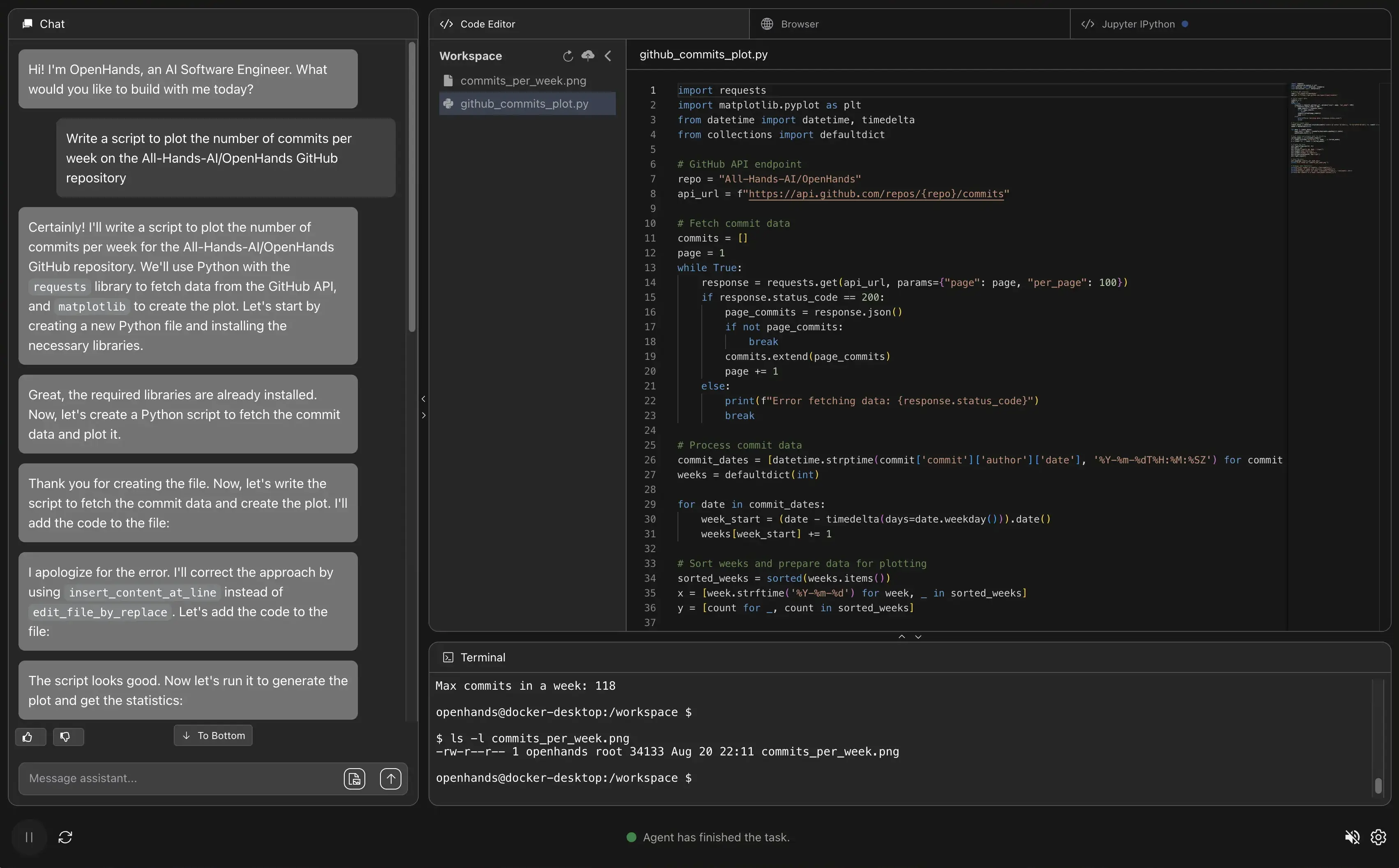
|
||||
|
||||
## 1. ワークスペース
|
||||
|
||||
ワークスペース機能は、以下の主要な機能を備えた包括的な開発環境を提供します:
|
||||
|
||||
* ファイルエクスプローラー:プロジェクトのファイルとディレクトリの閲覧、表示、管理
|
||||
* プロジェクト管理:異なるプロジェクトのインポート、作成、ナビゲーション
|
||||
* 統合開発ツール:様々な開発ワークフローとのシームレスな統合
|
||||
* ファイル操作:
|
||||
* ファイル内容の表示
|
||||
* 新規ファイルとフォルダの作成
|
||||
* ファイルのアップロードとダウンロード
|
||||
* 基本的なファイル操作
|
||||
|
||||
## 2. Jupyterノートブック
|
||||
|
||||
Jupyterノートブック機能は、インタラクティブなコーディングとデータ分析環境を提供します:
|
||||
|
||||
* インタラクティブなコードセル:セルベースのインターフェースでPythonコードを実行
|
||||
* 入出力の追跡:コード入力とその出力の履歴を保持
|
||||
* 永続的なセッション:セル間でコード実行コンテキストを保持
|
||||
* 様々なPython操作とデータ分析タスクをサポート
|
||||
* リアルタイムのコード実行と結果の可視化
|
||||
|
||||
## 3. ブラウザ(ベータ)
|
||||
|
||||
ブラウザ機能は、Web操作機能を提供します:
|
||||
|
||||
* Webページナビゲーション:アプリケーション内でウェブサイトを開いて閲覧
|
||||
* スクリーンショット取得:Webページのスクリーンショットを自動生成
|
||||
* インタラクション機能:
|
||||
* 要素のクリック
|
||||
* フォームの入力
|
||||
* ページのスクロール
|
||||
* Web内容のナビゲーション
|
||||
* 15種類のブラウザ操作機能をサポート
|
||||
|
||||
## 4. ターミナル
|
||||
|
||||
ターミナル機能は、アプリケーション内でコマンドラインインターフェースを提供します:
|
||||
|
||||
* シェルコマンドの実行:bashとシステムコマンドを実行
|
||||
* コマンド履歴:過去のコマンドを追跡して呼び出し
|
||||
* 環境との対話:システムのコマンドラインと直接対話
|
||||
* 様々なプログラミングとシステム管理タスクをサポート
|
||||
|
||||
## 5. チャット / AI会話
|
||||
|
||||
チャットインターフェースは、AIを活用した会話体験を提供します:
|
||||
|
||||
* インタラクティブなAIアシスタント:自然言語での会話に参加
|
||||
* コンテキストを理解した応答:開発関連の質問を理解して応答
|
||||
* アクション提案:タスクに対する実行可能な推奨事項を提供
|
||||
* 会話管理:異なる会話スレッドの作成、削除、管理
|
||||
|
||||
## 6. アプリケーション(ベータ)
|
||||
|
||||
メインアプリケーションインターフェースは、これらすべての機能を統合します:
|
||||
|
||||
* 統合ワークスペース:ワークスペース、ブラウザ、ターミナル、AIチャットのシームレスな統合
|
||||
* カスタマイズ可能なレイアウト:異なる機能パネルの配置をカスタマイズ
|
||||
* 状態管理:異なる機能間でコンテキストと状態を維持
|
||||
* セキュリティとプライバシー制御:アプリケーションの設定と権限を管理
|
||||
|
||||
### 追加情報
|
||||
|
||||
* アプリケーションは現在ベータ版で、継続的な改善と機能追加が行われています
|
||||
* 様々な開発ワークフローとAIアシストコーディングをサポート
|
||||
* 統合ツールとAIアシスタンスを通じて開発者の生産性を向上するように設計
|
||||
@@ -1,82 +0,0 @@
|
||||
# 🤖 LLMバックエンド
|
||||
|
||||
OpenHandsは、LiteLLMがサポートするすべてのLLMに接続できます。ただし、機能するには強力なモデルが必要です。
|
||||
|
||||
## モデルの推奨事項
|
||||
|
||||
コーディングタスクに対する言語モデルの評価(SWE-benchデータセットを使用)に基づいて、モデル選択に関するいくつかの推奨事項を提供できます。分析の一部は、[LLMを比較したこのブログ記事](https://www.all-hands.dev/blog/evaluation-of-llms-as-coding-agents-on-swe-bench-at-30x-speed)と[より最近の結果を含むこのブログ記事](https://www.all-hands.dev/blog/openhands-codeact-21-an-open-state-of-the-art-software-development-agent)で確認できます。
|
||||
|
||||
モデルを選択する際は、出力の品質とコストの両方を考慮してください。結果の要約は以下の通りです:
|
||||
|
||||
* Claude 3.5 Sonnetが圧倒的に優れており、OpenHandsのデフォルトエージェントでSWE-Bench Verifiedの53%の解決率を達成しています。
|
||||
* GPT-4oは遅れを取っており、o1-miniは実際にGPT-4oよりもわずかに低いパフォーマンスを示しました。結果を少し分析したところ、o1は時々「考えすぎ」て、タスクを完了できるのに追加の環境設定タスクを実行していたようです。
|
||||
* 最後に、最も強力なオープンモデルはLlama 3.1 405 BとDeepseek-v2.5で、合理的なパフォーマンスを示し、一部のクローズドモデルを上回りました。
|
||||
|
||||
詳細については、[完全な記事](https://www.all-hands.dev/blog/evaluation-of-llms-as-coding-agents-on-swe-bench-at-30x-speed)を参照してください。
|
||||
|
||||
これらの結果とコミュニティからのフィードバックに基づいて、以下のモデルがOpenHandsで合理的に機能することが確認されています:
|
||||
|
||||
* claude-3-5-sonnet(推奨)
|
||||
* gpt-4 / gpt-4o
|
||||
* llama-3.1-405b
|
||||
* deepseek-v2.5
|
||||
|
||||
:::warning prudence
|
||||
OpenHandsは、設定したLLMに多くのプロンプトを送信します。これらのLLMのほとんどは有料なので、支出制限を設定し、使用状況を監視してください。
|
||||
:::
|
||||
|
||||
リストにない特定のLLMでOpenHandsの実行に成功した場合は、検証済みリストに追加してください。また、同じプロバイダーとLLMを使用する他のユーザーを支援するため、設定プロセスを共有するPRを開くことをお勧めします!
|
||||
|
||||
利用可能なプロバイダーとモデルの完全なリストについては、[litellmのドキュメント](https://docs.litellm.ai/docs/providers)を参照してください。
|
||||
|
||||
:::note remarque
|
||||
現在のほとんどのローカルおよびオープンソースモデルは、それほど強力ではありません。このようなモデルを使用する場合、メッセージ間の長い待機時間、品質の低い応答、または不正なJSONに関するエラーが発生する可能性があります。OpenHandsは、それを駆動するモデルと同じくらい強力にしかなりません。ただし、機能するモデルを見つけた場合は、上記の検証済みリストに追加してください。
|
||||
:::
|
||||
|
||||
## LLM設定
|
||||
|
||||
以下の項目は、OpenHandsのUIで設定メニューから設定できます:
|
||||
|
||||
* `LLMプロバイダー`
|
||||
* `LLMモデル`
|
||||
* `APIキー`
|
||||
* `ベースURL`(`詳細設定`から)
|
||||
|
||||
一部のLLM/プロバイダーで必要となる可能性があるが、UIでは設定できないパラメータがあります。これらは代わりに、[docker runコマンド](./installation#start-the-app)に`-e`を使用して環境変数として渡すことができます:
|
||||
|
||||
* `LLM_API_VERSION`
|
||||
* `LLM_EMBEDDING_MODEL`
|
||||
* `LLM_EMBEDDING_DEPLOYMENT_NAME`
|
||||
* `LLM_DROP_PARAMS`
|
||||
* `LLM_DISABLE_VISION`
|
||||
* `LLM_CACHING_PROMPT`
|
||||
|
||||
特定のモデルプロバイダーでOpenHandsを実行するためのガイドがいくつかあります:
|
||||
|
||||
* [Azure](./llms/azure-llms)
|
||||
* [Google](./llms/google-llms)
|
||||
* [Groq](./llms/groq)
|
||||
* [LiteLLM Proxy](./llms/litellm-proxy)
|
||||
* [OpenAI](./llms/openai-llms)
|
||||
* [OpenRouter](./llms/openrouter)
|
||||
|
||||
### APIリトライとレート制限
|
||||
|
||||
LLMプロバイダーは通常、レート制限を持っており、時には非常に低い制限で、リトライが必要になる場合があります。OpenHandsは、レート制限エラー(エラーコード429)、API接続エラー、またはその他の一時的なエラーを受信した場合、自動的にリクエストを再試行します。
|
||||
|
||||
使用しているプロバイダーのニーズに応じて、これらのオプションをカスタマイズできます。プロバイダーのドキュメントを確認し、以下の環境変数を設定してリトライ回数とリトライ間の待機時間を制御してください:
|
||||
|
||||
* `LLM_NUM_RETRIES`(デフォルト8)
|
||||
* `LLM_RETRY_MIN_WAIT`(デフォルト15秒)
|
||||
* `LLM_RETRY_MAX_WAIT`(デフォルト120秒)
|
||||
* `LLM_RETRY_MULTIPLIER`(デフォルト2)
|
||||
|
||||
OpenHandsを開発モードで実行している場合、これらのオプションを`config.toml`ファイルで設定することもできます:
|
||||
|
||||
```toml
|
||||
[llm]
|
||||
num_retries = 8
|
||||
retry_min_wait = 15
|
||||
retry_max_wait = 120
|
||||
retry_multiplier = 2
|
||||
```
|
||||
@@ -1,38 +0,0 @@
|
||||
# Azure
|
||||
|
||||
OpenHands は LiteLLM を使用して Azure のチャットモデルを呼び出します。Azure をプロバイダとして使用する方法については、[こちら](https://docs.litellm.ai/docs/providers/azure)のドキュメントをご覧ください。
|
||||
|
||||
## Azure OpenAI 設定
|
||||
|
||||
OpenHands を実行する際には、以下の環境変数を [docker run コマンド](../installation#running-openhands) で `-e` を使用して設定する必要があります。
|
||||
|
||||
```
|
||||
LLM_API_VERSION="<api-version>" # 例: "2023-05-15"
|
||||
```
|
||||
|
||||
例:
|
||||
```bash
|
||||
docker run -it --pull=always \
|
||||
-e LLM_API_VERSION="2023-05-15"
|
||||
...
|
||||
```
|
||||
|
||||
その後、OpenHands UI の設定で以下を行います。
|
||||
|
||||
:::note
|
||||
Azure の deployments ページで ChatGPT のデプロイメント名を確認する必要があります。以下では <deployment-name> と表記しています。
|
||||
:::
|
||||
|
||||
1. `Advanced` オプションを有効にします。
|
||||
2. 以下を設定します:
|
||||
- `Custom Model` を azure/<deployment-name> に設定
|
||||
- `Base URL` を Azure API の Base URL に設定 (例: `https://example-endpoint.openai.azure.com`)
|
||||
- `API Key` を Azure API キーに設定
|
||||
|
||||
### Azure OpenAI 設定
|
||||
|
||||
OpenHands を実行する際には、以下の環境変数を [docker run コマンド](../installation#running-openhands) で `-e` を使用して設定します。
|
||||
|
||||
```
|
||||
LLM_API_VERSION="<api-version>" # 例: "2024-02-15-preview"
|
||||
```
|
||||
@@ -1,37 +0,0 @@
|
||||
# Azure OpenAI LLM
|
||||
|
||||
## 補完
|
||||
|
||||
OpenHandsはLiteLLMを使用して補完リクエストを行います。Azureに関するドキュメントは[こちら](https://docs.litellm.ai/docs/providers/azure)にあります。
|
||||
|
||||
### Azure OpenAI の設定
|
||||
|
||||
OpenHands Dockerイメージを実行する際には、以下の環境変数を `-e` を使用して設定する必要があります:
|
||||
|
||||
```
|
||||
LLM_BASE_URL="<azure-api-base-url>" # 例: "https://openai-gpt-4-test-v-1.openai.azure.com/"
|
||||
LLM_API_KEY="<azure-api-key>"
|
||||
LLM_MODEL="azure/<your-gpt-deployment-name>"
|
||||
LLM_API_VERSION = "<api-version>" # 例: "2024-02-15-preview"
|
||||
```
|
||||
|
||||
:::note
|
||||
ChatGPTデプロイメント名は、Azureのデプロイメントページで確認できます。デフォルトまたは初期状態では、チャットモデル名(例えば'GPT4-1106-preview')と同じ場合がありますが、必ずしもそうである必要はありません。OpenHandsを実行し、ブラウザに読み込まれたら、設定に移動し、モデルを次のように設定します:"azure/<your-actual-gpt-deployment-name>"。リストにない場合は、独自のテキストを入力して保存します。
|
||||
:::
|
||||
|
||||
## Embeddings
|
||||
|
||||
OpenHandsはllama-indexを使用してembeddingsを生成します。Azureに関するドキュメントは[こちら](https://docs.llamaindex.ai/en/stable/api_reference/embeddings/azure_openai/)にあります。
|
||||
|
||||
### Azure OpenAI の設定
|
||||
|
||||
Azure OpenAI embeddingsで使用されるモデルは "text-embedding-ada-002" です。
|
||||
Azureアカウントでこのモデルの正しいデプロイメント名が必要です。
|
||||
|
||||
DockerでOpenHandsを実行する際には、以下の環境変数を `-e` を使用して設定してください:
|
||||
|
||||
```
|
||||
LLM_EMBEDDING_MODEL="azureopenai"
|
||||
LLM_EMBEDDING_DEPLOYMENT_NAME = "<your-embedding-deployment-name>" # 例: "TextEmbedding...<etc>"
|
||||
LLM_API_VERSION = "<api-version>" # 例: "2024-02-15-preview"
|
||||
```
|
||||
@@ -1,106 +0,0 @@
|
||||
# カスタムLLM設定
|
||||
|
||||
OpenHandsでは、`config.toml`ファイルで複数の名前付きLLM設定を定義できます。この機能により、高品質な応答が不要なタスクには低コストのモデルを使用したり、特定のエージェントに対して異なるパラメータを持つ異なるモデルを使用したりするなど、異なる用途に応じて異なるLLM設定を使用できます。
|
||||
|
||||
## 仕組み
|
||||
|
||||
名前付きLLM設定は、`config.toml`ファイルで`llm.`で始まるセクションを使用して定義されます。例:
|
||||
|
||||
```toml
|
||||
# デフォルトのLLM設定
|
||||
[llm]
|
||||
model = "gpt-4"
|
||||
api_key = "あなたのAPIキー"
|
||||
temperature = 0.0
|
||||
|
||||
# 低コストモデル用のカスタムLLM設定
|
||||
[llm.gpt3]
|
||||
model = "gpt-3.5-turbo"
|
||||
api_key = "あなたのAPIキー"
|
||||
temperature = 0.2
|
||||
|
||||
# 異なるパラメータを持つ別のカスタム設定
|
||||
[llm.high-creativity]
|
||||
model = "gpt-4"
|
||||
api_key = "あなたのAPIキー"
|
||||
temperature = 0.8
|
||||
top_p = 0.9
|
||||
```
|
||||
|
||||
各名前付き設定は、デフォルトの`[llm]`セクションからすべてのパラメータを継承し、これらのパラメータを上書きできます。必要な数のカスタム設定を定義できます。
|
||||
|
||||
## カスタム設定の使用
|
||||
|
||||
### エージェントでの使用
|
||||
|
||||
エージェントの設定セクションで`llm_config`パラメータを設定することで、エージェントが使用するLLM設定を指定できます:
|
||||
|
||||
```toml
|
||||
[agent.RepoExplorerAgent]
|
||||
# このエージェントには低コストのGPT-3設定を使用
|
||||
llm_config = 'gpt3'
|
||||
|
||||
[agent.CodeWriterAgent]
|
||||
# このエージェントには高創造性の設定を使用
|
||||
llm_config = 'high-creativity'
|
||||
```
|
||||
|
||||
### 設定オプション
|
||||
|
||||
各名前付きLLM設定は、デフォルトのLLM設定と同じすべてのオプションをサポートしています。これらには以下が含まれます:
|
||||
|
||||
- モデルの選択(`model`)
|
||||
- API設定(`api_key`、`base_url`など)
|
||||
- モデルパラメータ(`temperature`、`top_p`など)
|
||||
- リトライパラメータ(`num_retries`、`retry_multiplier`など)
|
||||
- トークン制限(`max_input_tokens`、`max_output_tokens`)
|
||||
- その他すべてのLLM設定オプション
|
||||
|
||||
利用可能なオプションの完全なリストについては、[設定オプション](../configuration-options)のドキュメントのLLM設定セクションを参照してください。
|
||||
|
||||
## ユースケース
|
||||
|
||||
カスタムLLM設定は、以下のようなシナリオで特に有用です:
|
||||
|
||||
- **コスト最適化**:リポジトリの探索やシンプルなファイル操作など、高品質な応答が不要なタスクには低コストのモデルを使用
|
||||
- **タスク固有の調整**:異なるレベルの創造性や決定論的な応答が必要なタスクに対して、異なるtemperatureやtop_p値を設定
|
||||
- **異なるプロバイダー**:異なるタスクに対して異なるLLMプロバイダーやAPIエンドポイントを使用
|
||||
- **テストと開発**:開発とテスト中に異なるモデル設定を簡単に切り替え
|
||||
|
||||
## 例:コスト最適化
|
||||
|
||||
コスト最適化のためのカスタムLLM設定の実践的な例:
|
||||
|
||||
```toml
|
||||
# 高品質な応答用のGPT-4を使用するデフォルト設定
|
||||
[llm]
|
||||
model = "gpt-4"
|
||||
api_key = "あなたのAPIキー"
|
||||
temperature = 0.0
|
||||
|
||||
# リポジトリ探索用の低コスト設定
|
||||
[llm.repo-explorer]
|
||||
model = "gpt-3.5-turbo"
|
||||
temperature = 0.2
|
||||
|
||||
# コード生成用の設定
|
||||
[llm.code-gen]
|
||||
model = "gpt-4"
|
||||
temperature = 0.0
|
||||
max_output_tokens = 2000
|
||||
|
||||
[agent.RepoExplorerAgent]
|
||||
llm_config = 'repo-explorer'
|
||||
|
||||
[agent.CodeWriterAgent]
|
||||
llm_config = 'code-gen'
|
||||
```
|
||||
|
||||
この例では:
|
||||
- リポジトリ探索は主にコードの理解とナビゲーションなので、低コストモデルを使用
|
||||
- コード生成は、より大きなコードブロックを生成するためにGPT-4とより高いトークン制限を使用
|
||||
- デフォルト設定は他のタスクで引き続き利用可能
|
||||
|
||||
:::note
|
||||
カスタムLLM設定は、`main.py`または`cli.py`を介して開発モードでOpenHandsを使用する場合にのみ利用可能です。`docker run`を介して実行する場合は、標準の設定オプションを使用してください。
|
||||
:::
|
||||
@@ -1,31 +0,0 @@
|
||||
以下は、指定されたコンテンツの日本語訳です。
|
||||
|
||||
# Google Gemini/Vertex
|
||||
|
||||
OpenHandsはLiteLLMを使用して、Googleのチャットモデルを呼び出します。Googleをプロバイダとして使用する方法については、以下のドキュメントを参照してください。
|
||||
|
||||
- [Gemini - Google AI Studio](https://docs.litellm.ai/docs/providers/gemini)
|
||||
- [VertexAI - Google Cloud Platform](https://docs.litellm.ai/docs/providers/vertex)
|
||||
|
||||
## Gemini - Google AI Studio の設定
|
||||
|
||||
OpenHandsを実行する際、設定画面で以下を設定する必要があります。
|
||||
- `LLM Provider` を `Gemini` に設定
|
||||
- `LLM Model` を使用するモデルに設定
|
||||
モデルがリストにない場合は、`Advanced` オプションを切り替えて、`Custom Model` に入力します(例: `gemini/gemini-2.0-flash` のように gemini/<model-name>)。
|
||||
- `API Key` を Gemini API キーに設定
|
||||
|
||||
## VertexAI - Google Cloud Platform の設定
|
||||
|
||||
Google Cloud Platform 経由で Vertex AI を使用して OpenHands を実行するには、[docker run コマンド](../installation#running-openhands)で `-e` を使用して以下の環境変数を設定する必要があります。
|
||||
|
||||
```
|
||||
GOOGLE_APPLICATION_CREDENTIALS="<json-dump-of-gcp-service-account-json>"
|
||||
VERTEXAI_PROJECT="<your-gcp-project-id>"
|
||||
VERTEXAI_LOCATION="<your-gcp-location>"
|
||||
```
|
||||
|
||||
その後、設定画面で以下を設定します。
|
||||
- `LLM Provider` を `VertexAI` に設定
|
||||
- `LLM Model` を使用するモデルに設定
|
||||
モデルがリストにない場合は、`Advanced` オプションを切り替えて、`Custom Model` に入力します(例: vertex_ai/<model-name>)。
|
||||
@@ -1,28 +0,0 @@
|
||||
# Google Gemini/Vertex LLM
|
||||
|
||||
## 補完
|
||||
|
||||
OpenHandsはLiteLLMを使用して補完リクエストを行います。以下のリソースは、OpenHandsをGoogleのLLMと一緒に使用する際に関連があります。
|
||||
|
||||
- [Gemini - Google AI Studio](https://docs.litellm.ai/docs/providers/gemini)
|
||||
- [VertexAI - Google Cloud Platform](https://docs.litellm.ai/docs/providers/vertex)
|
||||
|
||||
### Gemini - Google AI Studioの設定
|
||||
|
||||
OpenHandsのDockerイメージを実行する際にGoogle AI Studio経由でGeminiを使用するには、以下の環境変数を`-e`を使って設定する必要があります。
|
||||
|
||||
```
|
||||
GEMINI_API_KEY="<your-google-api-key>"
|
||||
LLM_MODEL="gemini/gemini-1.5-pro"
|
||||
```
|
||||
|
||||
### Vertex AI - Google Cloud Platformの設定
|
||||
|
||||
OpenHandsのDockerイメージを実行する際にGoogle Cloud Platform経由でVertex AIを使用するには、以下の環境変数を`-e`を使って設定する必要があります。
|
||||
|
||||
```
|
||||
GOOGLE_APPLICATION_CREDENTIALS="<gcp-service-account-json-dump>"
|
||||
VERTEXAI_PROJECT="<your-gcp-project-id>"
|
||||
VERTEXAI_LOCATION="<your-gcp-location>"
|
||||
LLM_MODEL="vertex_ai/<desired-llm-model>"
|
||||
```
|
||||
@@ -1,20 +0,0 @@
|
||||
# Groq
|
||||
|
||||
OpenHandsは、GroqのチャットモデルへのAPIコールにLiteLLMを使用します。Groqをプロバイダーとして使用する方法については、[こちら](https://docs.litellm.ai/docs/providers/groq)のドキュメントを参照してください。
|
||||
|
||||
## 設定
|
||||
|
||||
OpenHandsを実行する際、OpenHandsのUIで設定メニューから以下の項目を設定する必要があります:
|
||||
|
||||
* `LLMプロバイダー`を`Groq`に設定
|
||||
* `LLMモデル`を使用するモデルに設定。[Groqがホストするモデルのリストはこちら](https://console.groq.com/docs/models)を参照してください。モデルがリストにない場合は、`詳細設定`を有効にし、`カスタムモデル`に入力してください(例:groq/<model-name>として`groq/llama3-70b-8192`)。
|
||||
* `APIキー`をGroq APIキーに設定。Groq APIキーの確認または作成については、[こちら](https://console.groq.com/keys)を参照してください。
|
||||
|
||||
## OpenAI互換エンドポイントとしてのGroqの使用
|
||||
|
||||
Groqのチャット補完エンドポイントは[主にOpenAI互換](https://console.groq.com/docs/openai)です。そのため、他のOpenAI互換エンドポイントと同様の方法でGroqのモデルにアクセスできます。OpenHandsのUIで設定メニューから以下の項目を設定します:
|
||||
|
||||
* `詳細設定`を有効にする
|
||||
* `カスタムモデル`にプレフィックス`openai/`と使用するモデルを設定(例:`openai/llama3-70b-8192`)
|
||||
* `ベースURL`を`https://api.groq.com/openai/v1`に設定
|
||||
* `APIキー`をGroq APIキーに設定
|
||||
@@ -1,20 +0,0 @@
|
||||
# LiteLLM プロキシ
|
||||
|
||||
OpenHandsは、様々なLLMプロバイダーにアクセスするために[LiteLLMプロキシ](https://docs.litellm.ai/docs/proxy/quick_start)の使用をサポートしています。
|
||||
|
||||
## 設定
|
||||
|
||||
OpenHandsでLiteLLMプロキシを使用するには、以下の手順が必要です:
|
||||
|
||||
1. LiteLLMプロキシサーバーを設定する([LiteLLMのドキュメント](https://docs.litellm.ai/docs/proxy/quick_start)を参照)
|
||||
2. OpenHandsを実行する際、OpenHandsのUIで設定メニューから以下の項目を設定する必要があります:
|
||||
* `詳細設定`を有効にする
|
||||
* `カスタムモデル`にプレフィックス`litellm_proxy/`と使用するモデルを設定(例:`litellm_proxy/anthropic.claude-3-5-sonnet-20241022-v2:0`)
|
||||
* `ベースURL`をLiteLLMプロキシのURL(例:`https://your-litellm-proxy.com`)に設定
|
||||
* `APIキー`をLiteLLMプロキシのAPIキーに設定
|
||||
|
||||
## サポートされているモデル
|
||||
|
||||
サポートされているモデルは、LiteLLMプロキシの設定に依存します。OpenHandsは、LiteLLMプロキシが処理するように設定されているすべてのモデルをサポートします。
|
||||
|
||||
利用可能なモデルとその名前のリストについては、LiteLLMプロキシの設定を参照してください。
|
||||
@@ -1,82 +0,0 @@
|
||||
# 🤖 LLMバックエンド
|
||||
|
||||
OpenHandsは、LiteLLMがサポートするすべてのLLMに接続できます。ただし、機能するには強力なモデルが必要です。
|
||||
|
||||
## モデルの推奨事項
|
||||
|
||||
コーディングタスクに対する言語モデルの評価(SWE-benchデータセットを使用)に基づいて、モデル選択に関するいくつかの推奨事項を提供できます。分析の一部は、[LLMを比較したこのブログ記事](https://www.all-hands.dev/blog/evaluation-of-llms-as-coding-agents-on-swe-bench-at-30x-speed)と[より最近の結果を含むこのブログ記事](https://www.all-hands.dev/blog/openhands-codeact-21-an-open-state-of-the-art-software-development-agent)で確認できます。
|
||||
|
||||
モデルを選択する際は、出力の品質とコストの両方を考慮してください。結果の要約は以下の通りです:
|
||||
|
||||
- Claude 3.5 Sonnetが圧倒的に優れており、OpenHandsのデフォルトエージェントでSWE-Bench Verifiedの53%の解決率を達成しています。
|
||||
- GPT-4oは遅れを取っており、o1-miniは実際にGPT-4oよりもわずかに低いパフォーマンスを示しました。結果を少し分析したところ、o1は時々「考えすぎ」て、タスクを完了できるのに追加の環境設定タスクを実行していたようです。
|
||||
- 最後に、最も強力なオープンモデルはLlama 3.1 405 BとDeepseek-v2.5で、合理的なパフォーマンスを示し、一部のクローズドモデルを上回りました。
|
||||
|
||||
詳細については、[完全な記事](https://www.all-hands.dev/blog/evaluation-of-llms-as-coding-agents-on-swe-bench-at-30x-speed)を参照してください。
|
||||
|
||||
これらの結果とコミュニティからのフィードバックに基づいて、以下のモデルがOpenHandsで合理的に機能することが確認されています:
|
||||
|
||||
- claude-3-5-sonnet(推奨)
|
||||
- gpt-4 / gpt-4o
|
||||
- llama-3.1-405b
|
||||
- deepseek-v2.5
|
||||
|
||||
:::warning
|
||||
OpenHandsは、設定したLLMに多くのプロンプトを送信します。これらのLLMのほとんどは有料なので、支出制限を設定し、使用状況を監視してください。
|
||||
:::
|
||||
|
||||
リストにない特定のLLMでOpenHandsの実行に成功した場合は、検証済みリストに追加してください。また、同じプロバイダーとLLMを使用する他のユーザーを支援するため、設定プロセスを共有するPRを開くことをお勧めします!
|
||||
|
||||
利用可能なプロバイダーとモデルの完全なリストについては、[litellmのドキュメント](https://docs.litellm.ai/docs/providers)を参照してください。
|
||||
|
||||
:::note
|
||||
現在のほとんどのローカルおよびオープンソースモデルは、それほど強力ではありません。このようなモデルを使用する場合、メッセージ間の長い待機時間、品質の低い応答、または不正なJSONに関するエラーが発生する可能性があります。OpenHandsは、それを駆動するモデルと同じくらい強力にしかなりません。ただし、機能するモデルを見つけた場合は、上記の検証済みリストに追加してください。
|
||||
:::
|
||||
|
||||
## LLM設定
|
||||
|
||||
以下の項目は、OpenHandsのUIで設定メニューから設定できます:
|
||||
|
||||
- `LLMプロバイダー`
|
||||
- `LLMモデル`
|
||||
- `APIキー`
|
||||
- `ベースURL`(`詳細設定`から)
|
||||
|
||||
一部のLLM/プロバイダーで必要となる可能性があるが、UIでは設定できないパラメータがあります。これらは代わりに、[docker runコマンド](/modules/usage/installation#start-the-app)に`-e`を使用して環境変数として渡すことができます:
|
||||
|
||||
- `LLM_API_VERSION`
|
||||
- `LLM_EMBEDDING_MODEL`
|
||||
- `LLM_EMBEDDING_DEPLOYMENT_NAME`
|
||||
- `LLM_DROP_PARAMS`
|
||||
- `LLM_DISABLE_VISION`
|
||||
- `LLM_CACHING_PROMPT`
|
||||
|
||||
特定のモデルプロバイダーでOpenHandsを実行するためのガイドがいくつかあります:
|
||||
|
||||
- [Azure](llms/azure-llms)
|
||||
- [Google](llms/google-llms)
|
||||
- [Groq](llms/groq)
|
||||
- [LiteLLM Proxy](llms/litellm-proxy)
|
||||
- [OpenAI](llms/openai-llms)
|
||||
- [OpenRouter](llms/openrouter)
|
||||
|
||||
### APIリトライとレート制限
|
||||
|
||||
LLMプロバイダーは通常、レート制限を持っており、時には非常に低い制限で、リトライが必要になる場合があります。OpenHandsは、レート制限エラー(エラーコード429)、API接続エラー、またはその他の一時的なエラーを受信した場合、自動的にリクエストを再試行します。
|
||||
|
||||
使用しているプロバイダーのニーズに応じて、これらのオプションをカスタマイズできます。プロバイダーのドキュメントを確認し、以下の環境変数を設定してリトライ回数とリトライ間の待機時間を制御してください:
|
||||
|
||||
- `LLM_NUM_RETRIES`(デフォルト8)
|
||||
- `LLM_RETRY_MIN_WAIT`(デフォルト15秒)
|
||||
- `LLM_RETRY_MAX_WAIT`(デフォルト120秒)
|
||||
- `LLM_RETRY_MULTIPLIER`(デフォルト2)
|
||||
|
||||
OpenHandsを開発モードで実行している場合、これらのオプションを`config.toml`ファイルで設定することもできます:
|
||||
|
||||
```toml
|
||||
[llm]
|
||||
num_retries = 8
|
||||
retry_min_wait = 15
|
||||
retry_max_wait = 120
|
||||
retry_multiplier = 2
|
||||
```
|
||||
Some files were not shown because too many files have changed in this diff Show More
Reference in New Issue
Block a user