mirror of
https://github.com/All-Hands-AI/OpenHands.git
synced 2026-04-29 03:00:45 -04:00
Compare commits
1 Commits
github-tok
...
fix-markdo
| Author | SHA1 | Date | |
|---|---|---|---|

|
81c5c204db |
1
.github/ISSUE_TEMPLATE/bug_template.yml
vendored
1
.github/ISSUE_TEMPLATE/bug_template.yml
vendored
@@ -30,7 +30,6 @@ body:
|
||||
description: How are you running OpenHands?
|
||||
options:
|
||||
- Docker command in README
|
||||
- GitHub resolver
|
||||
- Development workflow
|
||||
- app.all-hands.dev
|
||||
- Other
|
||||
|
||||
11
.github/dependabot.yml
vendored
11
.github/dependabot.yml
vendored
@@ -10,6 +10,12 @@ updates:
|
||||
pre-commit:
|
||||
patterns:
|
||||
- "pre-commit"
|
||||
llama:
|
||||
patterns:
|
||||
- "llama*"
|
||||
chromadb:
|
||||
patterns:
|
||||
- "chromadb"
|
||||
browsergym:
|
||||
patterns:
|
||||
- "browsergym*"
|
||||
@@ -64,8 +70,3 @@ updates:
|
||||
applies-to: "version-updates"
|
||||
patterns:
|
||||
- "*"
|
||||
|
||||
- package-ecosystem: "github-actions"
|
||||
directory: "/"
|
||||
schedule:
|
||||
interval: "weekly"
|
||||
|
||||
15
.github/pull_request_template.md
vendored
15
.github/pull_request_template.md
vendored
@@ -1,12 +1,11 @@
|
||||
- [ ] This change is worth documenting at https://docs.all-hands.dev/
|
||||
- [ ] Include this change in the Release Notes. If checked, you **must** provide an **end-user friendly** description for your change below
|
||||
**End-user friendly description of the problem this fixes or functionality that this introduces**
|
||||
|
||||
- [ ] Include this change in the Release Notes. If checked, you must provide an **end-user friendly** description for your change below
|
||||
|
||||
---
|
||||
**Give a summary of what the PR does, explaining any non-trivial design decisions**
|
||||
|
||||
**End-user friendly description of the problem this fixes or functionality that this introduces.**
|
||||
|
||||
|
||||
---
|
||||
**Give a summary of what the PR does, explaining any non-trivial design decisions.**
|
||||
|
||||
|
||||
---
|
||||
**Link of any specific issues this addresses.**
|
||||
**Link of any specific issues this addresses**
|
||||
|
||||
66
.github/scripts/check_version_consistency.py
vendored
66
.github/scripts/check_version_consistency.py
vendored
@@ -1,66 +0,0 @@
|
||||
#!/usr/bin/env python3
|
||||
import os
|
||||
import re
|
||||
import sys
|
||||
from typing import Set, Tuple
|
||||
|
||||
|
||||
def find_version_references(directory: str) -> Tuple[Set[str], Set[str]]:
|
||||
openhands_versions = set()
|
||||
runtime_versions = set()
|
||||
|
||||
version_pattern_openhands = re.compile(r'openhands:(\d{1})\.(\d{2})')
|
||||
version_pattern_runtime = re.compile(r'runtime:(\d{1})\.(\d{2})')
|
||||
|
||||
for root, _, files in os.walk(directory):
|
||||
# Skip .git directory
|
||||
if '.git' in root:
|
||||
continue
|
||||
|
||||
for file in files:
|
||||
if file.endswith(
|
||||
('.md', '.yml', '.yaml', '.txt', '.html', '.py', '.js', '.ts')
|
||||
):
|
||||
file_path = os.path.join(root, file)
|
||||
try:
|
||||
with open(file_path, 'r', encoding='utf-8') as f:
|
||||
content = f.read()
|
||||
|
||||
# Find all openhands version references
|
||||
matches = version_pattern_openhands.findall(content)
|
||||
openhands_versions.update(matches)
|
||||
|
||||
# Find all runtime version references
|
||||
matches = version_pattern_runtime.findall(content)
|
||||
runtime_versions.update(matches)
|
||||
except Exception as e:
|
||||
print(f'Error reading {file_path}: {e}', file=sys.stderr)
|
||||
|
||||
return openhands_versions, runtime_versions
|
||||
|
||||
|
||||
def main():
|
||||
repo_root = os.path.abspath(os.path.join(os.path.dirname(__file__), '..', '..'))
|
||||
openhands_versions, runtime_versions = find_version_references(repo_root)
|
||||
|
||||
exit_code = 0
|
||||
|
||||
if len(openhands_versions) > 1:
|
||||
print('Error: Multiple openhands versions found:', file=sys.stderr)
|
||||
print('Found versions:', sorted(openhands_versions), file=sys.stderr)
|
||||
exit_code = 1
|
||||
elif len(openhands_versions) == 0:
|
||||
print('Warning: No openhands version references found', file=sys.stderr)
|
||||
|
||||
if len(runtime_versions) > 1:
|
||||
print('Error: Multiple runtime versions found:', file=sys.stderr)
|
||||
print('Found versions:', sorted(runtime_versions), file=sys.stderr)
|
||||
exit_code = 1
|
||||
elif len(runtime_versions) == 0:
|
||||
print('Warning: No runtime version references found', file=sys.stderr)
|
||||
|
||||
sys.exit(exit_code)
|
||||
|
||||
|
||||
if __name__ == '__main__':
|
||||
main()
|
||||
22
.github/workflows/dummy-agent-test.yml
vendored
22
.github/workflows/dummy-agent-test.yml
vendored
@@ -19,15 +19,23 @@ jobs:
|
||||
runs-on: ubuntu-latest
|
||||
steps:
|
||||
- uses: actions/checkout@v4
|
||||
- name: Free Disk Space (Ubuntu)
|
||||
uses: jlumbroso/free-disk-space@main
|
||||
with:
|
||||
# this might remove tools that are actually needed,
|
||||
# if set to "true" but frees about 6 GB
|
||||
tool-cache: true
|
||||
# all of these default to true, but feel free to set to
|
||||
# "false" if necessary for your workflow
|
||||
android: true
|
||||
dotnet: true
|
||||
haskell: true
|
||||
large-packages: true
|
||||
docker-images: false
|
||||
swap-storage: true
|
||||
- name: Set up Docker Buildx
|
||||
id: buildx
|
||||
uses: docker/setup-buildx-action@v3
|
||||
- name: Install tmux
|
||||
run: sudo apt-get update && sudo apt-get install -y tmux
|
||||
- name: Setup Node.js
|
||||
uses: actions/setup-node@v4
|
||||
with:
|
||||
node-version: '22.x'
|
||||
- name: Install poetry via pipx
|
||||
run: pipx install poetry
|
||||
- name: Set up Python
|
||||
@@ -36,7 +44,7 @@ jobs:
|
||||
python-version: '3.12'
|
||||
cache: 'poetry'
|
||||
- name: Install Python dependencies using Poetry
|
||||
run: poetry install --without evaluation
|
||||
run: poetry install --without evaluation,llama-index
|
||||
- name: Build Environment
|
||||
run: make build
|
||||
- name: Run tests
|
||||
|
||||
4
.github/workflows/eval-runner.yml
vendored
4
.github/workflows/eval-runner.yml
vendored
@@ -29,8 +29,6 @@ jobs:
|
||||
- name: Checkout repository
|
||||
uses: actions/checkout@v4
|
||||
|
||||
- name: Install tmux
|
||||
run: sudo apt-get update && sudo apt-get install -y tmux
|
||||
- name: Install poetry via pipx
|
||||
run: pipx install poetry
|
||||
|
||||
@@ -131,7 +129,7 @@ jobs:
|
||||
|
||||
- name: Post to a Slack channel
|
||||
id: slack
|
||||
uses: slackapi/slack-github-action@v2.0.0
|
||||
uses: slackapi/slack-github-action@v1.27.0
|
||||
with:
|
||||
channel-id: 'C07SVQSCR6F'
|
||||
slack-message: "*Evaluation Trigger:* ${{ github.event_name == 'pull_request' && format('Pull Request (eval-this label on PR #{0})', github.event.pull_request.number) || github.event_name == 'schedule' && 'Daily Schedule' || format('Manual Trigger: {0}', github.event.inputs.reason) }}\n\nLink to summary: [here](https://github.com/${{ github.repository }}/issues/${{ github.event_name == 'pull_request' && github.event.pull_request.number || 4504 }}#issuecomment-${{ steps.create_comment.outputs.comment-id }})"
|
||||
|
||||
2
.github/workflows/fe-unit-tests.yml
vendored
2
.github/workflows/fe-unit-tests.yml
vendored
@@ -43,6 +43,6 @@ jobs:
|
||||
working-directory: ./frontend
|
||||
run: npm run test:coverage
|
||||
- name: Upload coverage to Codecov
|
||||
uses: codecov/codecov-action@v5
|
||||
uses: codecov/codecov-action@v4
|
||||
env:
|
||||
CODECOV_TOKEN: ${{ secrets.CODECOV_TOKEN }}
|
||||
|
||||
110
.github/workflows/ghcr-build.yml
vendored
110
.github/workflows/ghcr-build.yml
vendored
@@ -41,10 +41,22 @@ jobs:
|
||||
steps:
|
||||
- name: Checkout
|
||||
uses: actions/checkout@v4
|
||||
- name: Free Disk Space (Ubuntu)
|
||||
uses: jlumbroso/free-disk-space@main
|
||||
with:
|
||||
ref: ${{ github.event.pull_request.head.sha }}
|
||||
# this might remove tools that are actually needed,
|
||||
# if set to "true" but frees about 6 GB
|
||||
tool-cache: true
|
||||
# all of these default to true, but feel free to set to
|
||||
# "false" if necessary for your workflow
|
||||
android: true
|
||||
dotnet: true
|
||||
haskell: true
|
||||
large-packages: true
|
||||
docker-images: false
|
||||
swap-storage: true
|
||||
- name: Set up QEMU
|
||||
uses: docker/setup-qemu-action@v3.6.0
|
||||
uses: docker/setup-qemu-action@v3.0.0
|
||||
with:
|
||||
image: tonistiigi/binfmt:latest
|
||||
- name: Login to GHCR
|
||||
@@ -56,22 +68,25 @@ jobs:
|
||||
- name: Set up Docker Buildx
|
||||
id: buildx
|
||||
uses: docker/setup-buildx-action@v3
|
||||
- name: Lowercase Repository Owner
|
||||
run: |
|
||||
echo REPO_OWNER=$(echo ${{ github.repository_owner }} | tr '[:upper:]' '[:lower:]') >> $GITHUB_ENV
|
||||
- name: "Set up docker layer caching"
|
||||
uses: satackey/action-docker-layer-caching@v0.0.11
|
||||
continue-on-error: true
|
||||
- name: Build and push app image
|
||||
if: "!github.event.pull_request.head.repo.fork"
|
||||
run: |
|
||||
./containers/build.sh -i openhands -o ${{ env.REPO_OWNER }} --push
|
||||
./containers/build.sh -i openhands -o ${{ github.repository_owner }} --push
|
||||
- name: Build app image
|
||||
if: "github.event.pull_request.head.repo.fork"
|
||||
run: |
|
||||
./containers/build.sh -i openhands -o ${{ env.REPO_OWNER }} --load
|
||||
./containers/build.sh -i openhands -o ${{ github.repository_owner }} --load
|
||||
- name: Get hash in App Image
|
||||
id: get_hash_in_app_image
|
||||
run: |
|
||||
# Lowercase the repository owner
|
||||
export REPO_OWNER=${{ github.repository_owner }}
|
||||
REPO_OWNER=$(echo $REPO_OWNER | tr '[:upper:]' '[:lower:]')
|
||||
# Run the build script in the app image
|
||||
docker run -e SANDBOX_USER_ID=0 -v /var/run/docker.sock:/var/run/docker.sock ghcr.io/${{ env.REPO_OWNER }}/openhands:${{ env.RELEVANT_SHA }} /bin/bash -c "mkdir -p containers/runtime; python3 openhands/runtime/utils/runtime_build.py --base_image ${{ env.BASE_IMAGE_FOR_HASH_EQUIVALENCE_TEST }} --build_folder containers/runtime --force_rebuild" 2>&1 | tee docker-outputs.txt
|
||||
docker run -e SANDBOX_USER_ID=0 -v /var/run/docker.sock:/var/run/docker.sock ghcr.io/${REPO_OWNER}/openhands:${{ env.RELEVANT_SHA }} /bin/bash -c "mkdir -p containers/runtime; python3 openhands/runtime/utils/runtime_build.py --base_image ${{ env.BASE_IMAGE_FOR_HASH_EQUIVALENCE_TEST }} --build_folder containers/runtime --force_rebuild" 2>&1 | tee docker-outputs.txt
|
||||
# Get the hash from the build script
|
||||
hash_from_app_image=$(cat docker-outputs.txt | grep "Hash for docker build directory" | awk -F "): " '{print $2}' | uniq | head -n1)
|
||||
echo "hash_from_app_image=$hash_from_app_image" >> $GITHUB_OUTPUT
|
||||
@@ -92,10 +107,22 @@ jobs:
|
||||
steps:
|
||||
- name: Checkout
|
||||
uses: actions/checkout@v4
|
||||
- name: Free Disk Space (Ubuntu)
|
||||
uses: jlumbroso/free-disk-space@main
|
||||
with:
|
||||
ref: ${{ github.event.pull_request.head.sha }}
|
||||
# this might remove tools that are actually needed,
|
||||
# if set to "true" but frees about 6 GB
|
||||
tool-cache: true
|
||||
# all of these default to true, but feel free to set to
|
||||
# "false" if necessary for your workflow
|
||||
android: true
|
||||
dotnet: true
|
||||
haskell: true
|
||||
large-packages: true
|
||||
docker-images: false
|
||||
swap-storage: true
|
||||
- name: Set up QEMU
|
||||
uses: docker/setup-qemu-action@v3.6.0
|
||||
uses: docker/setup-qemu-action@v3.0.0
|
||||
with:
|
||||
image: tonistiigi/binfmt:latest
|
||||
- name: Login to GHCR
|
||||
@@ -126,19 +153,16 @@ jobs:
|
||||
run: make install-python-dependencies
|
||||
- name: Create source distribution and Dockerfile
|
||||
run: poetry run python3 openhands/runtime/utils/runtime_build.py --base_image ${{ matrix.base_image.image }} --build_folder containers/runtime --force_rebuild
|
||||
- name: Lowercase Repository Owner
|
||||
run: |
|
||||
echo REPO_OWNER=$(echo ${{ github.repository_owner }} | tr '[:upper:]' '[:lower:]') >> $GITHUB_ENV
|
||||
- name: Build and push runtime image ${{ matrix.base_image.image }}
|
||||
if: github.event.pull_request.head.repo.fork != true
|
||||
run: |
|
||||
./containers/build.sh -i runtime -o ${{ env.REPO_OWNER }} --push -t ${{ matrix.base_image.tag }}
|
||||
./containers/build.sh -i runtime -o ${{ github.repository_owner }} --push -t ${{ matrix.base_image.tag }}
|
||||
# Forked repos can't push to GHCR, so we need to upload the image as an artifact
|
||||
- name: Build runtime image ${{ matrix.base_image.image }} for fork
|
||||
if: github.event.pull_request.head.repo.fork
|
||||
uses: docker/build-push-action@v6
|
||||
with:
|
||||
tags: ghcr.io/${{ env.REPO_OWNER }}/runtime:${{ env.RELEVANT_SHA }}-${{ matrix.base_image.tag }}
|
||||
tags: ghcr.io/all-hands-ai/runtime:${{ env.RELEVANT_SHA }}-${{ matrix.base_image.tag }}
|
||||
outputs: type=docker,dest=/tmp/runtime-${{ matrix.base_image.tag }}.tar
|
||||
context: containers/runtime
|
||||
- name: Upload runtime image for fork
|
||||
@@ -158,8 +182,6 @@ jobs:
|
||||
base_image: ['nikolaik']
|
||||
steps:
|
||||
- uses: actions/checkout@v4
|
||||
with:
|
||||
ref: ${{ github.event.pull_request.head.sha }}
|
||||
- name: Cache Poetry dependencies
|
||||
uses: actions/cache@v4
|
||||
with:
|
||||
@@ -200,7 +222,7 @@ jobs:
|
||||
exit 1
|
||||
fi
|
||||
|
||||
# Run unit tests with the Docker runtime Docker images as root
|
||||
# Run unit tests with the EventStream runtime Docker images as root
|
||||
test_runtime_root:
|
||||
name: RT Unit Tests (Root)
|
||||
needs: [ghcr_build_runtime]
|
||||
@@ -211,6 +233,20 @@ jobs:
|
||||
base_image: ['nikolaik']
|
||||
steps:
|
||||
- uses: actions/checkout@v4
|
||||
- name: Free Disk Space (Ubuntu)
|
||||
uses: jlumbroso/free-disk-space@main
|
||||
with:
|
||||
# this might remove tools that are actually needed,
|
||||
# if set to "true" but frees about 6 GB
|
||||
tool-cache: true
|
||||
# all of these default to true, but feel free to set to
|
||||
# "false" if necessary for your workflow
|
||||
android: true
|
||||
dotnet: true
|
||||
haskell: true
|
||||
large-packages: true
|
||||
docker-images: false
|
||||
swap-storage: true
|
||||
- name: Set up Docker Buildx
|
||||
id: buildx
|
||||
uses: docker/setup-buildx-action@v3
|
||||
@@ -242,10 +278,7 @@ jobs:
|
||||
run: pipx install poetry
|
||||
- name: Install Python dependencies using Poetry
|
||||
run: make install-python-dependencies
|
||||
- name: Lowercase Repository Owner
|
||||
run: |
|
||||
echo REPO_OWNER=$(echo ${{ github.repository_owner }} | tr '[:upper:]' '[:lower:]') >> $GITHUB_ENV
|
||||
- name: Run docker runtime tests
|
||||
- name: Run runtime tests
|
||||
run: |
|
||||
# We install pytest-xdist in order to run tests across CPUs
|
||||
poetry run pip install pytest-xdist
|
||||
@@ -253,20 +286,21 @@ jobs:
|
||||
# Install to be able to retry on failures for flaky tests
|
||||
poetry run pip install pytest-rerunfailures
|
||||
|
||||
image_name=ghcr.io/${{ env.REPO_OWNER }}/runtime:${{ env.RELEVANT_SHA }}-${{ matrix.base_image }}
|
||||
image_name=ghcr.io/${{ github.repository_owner }}/runtime:${{ env.RELEVANT_SHA }}-${{ matrix.base_image }}
|
||||
image_name=$(echo $image_name | tr '[:upper:]' '[:lower:]')
|
||||
|
||||
TEST_RUNTIME=docker \
|
||||
TEST_RUNTIME=eventstream \
|
||||
SANDBOX_USER_ID=$(id -u) \
|
||||
SANDBOX_RUNTIME_CONTAINER_IMAGE=$image_name \
|
||||
TEST_IN_CI=true \
|
||||
RUN_AS_OPENHANDS=false \
|
||||
poetry run pytest -n 3 -raRs --reruns 2 --reruns-delay 5 --cov=openhands --cov-report=xml -s ./tests/runtime --ignore=tests/runtime/test_browsergym_envs.py
|
||||
- name: Upload coverage to Codecov
|
||||
uses: codecov/codecov-action@v5
|
||||
uses: codecov/codecov-action@v4
|
||||
env:
|
||||
CODECOV_TOKEN: ${{ secrets.CODECOV_TOKEN }}
|
||||
|
||||
# Run unit tests with the Docker runtime Docker images as openhands user
|
||||
# Run unit tests with the EventStream runtime Docker images as openhands user
|
||||
test_runtime_oh:
|
||||
name: RT Unit Tests (openhands)
|
||||
runs-on: ubuntu-latest
|
||||
@@ -276,6 +310,20 @@ jobs:
|
||||
base_image: ['nikolaik']
|
||||
steps:
|
||||
- uses: actions/checkout@v4
|
||||
- name: Free Disk Space (Ubuntu)
|
||||
uses: jlumbroso/free-disk-space@main
|
||||
with:
|
||||
# this might remove tools that are actually needed,
|
||||
# if set to "true" but frees about 6 GB
|
||||
tool-cache: true
|
||||
# all of these default to true, but feel free to set to
|
||||
# "false" if necessary for your workflow
|
||||
android: true
|
||||
dotnet: true
|
||||
haskell: true
|
||||
large-packages: true
|
||||
docker-images: false
|
||||
swap-storage: true
|
||||
- name: Set up Docker Buildx
|
||||
id: buildx
|
||||
uses: docker/setup-buildx-action@v3
|
||||
@@ -307,9 +355,6 @@ jobs:
|
||||
run: pipx install poetry
|
||||
- name: Install Python dependencies using Poetry
|
||||
run: make install-python-dependencies
|
||||
- name: Lowercase Repository Owner
|
||||
run: |
|
||||
echo REPO_OWNER=$(echo ${{ github.repository_owner }} | tr '[:upper:]' '[:lower:]') >> $GITHUB_ENV
|
||||
- name: Run runtime tests
|
||||
run: |
|
||||
# We install pytest-xdist in order to run tests across CPUs
|
||||
@@ -318,16 +363,17 @@ jobs:
|
||||
# Install to be able to retry on failures for flaky tests
|
||||
poetry run pip install pytest-rerunfailures
|
||||
|
||||
image_name=ghcr.io/${{ env.REPO_OWNER }}/runtime:${{ env.RELEVANT_SHA }}-${{ matrix.base_image }}
|
||||
image_name=ghcr.io/${{ github.repository_owner }}/runtime:${{ env.RELEVANT_SHA }}-${{ matrix.base_image }}
|
||||
image_name=$(echo $image_name | tr '[:upper:]' '[:lower:]')
|
||||
|
||||
TEST_RUNTIME=docker \
|
||||
TEST_RUNTIME=eventstream \
|
||||
SANDBOX_USER_ID=$(id -u) \
|
||||
SANDBOX_RUNTIME_CONTAINER_IMAGE=$image_name \
|
||||
TEST_IN_CI=true \
|
||||
RUN_AS_OPENHANDS=true \
|
||||
poetry run pytest -n 3 -raRs --reruns 2 --reruns-delay 5 --cov=openhands --cov-report=xml -s ./tests/runtime --ignore=tests/runtime/test_browsergym_envs.py
|
||||
- name: Upload coverage to Codecov
|
||||
uses: codecov/codecov-action@v5
|
||||
uses: codecov/codecov-action@v4
|
||||
env:
|
||||
CODECOV_TOKEN: ${{ secrets.CODECOV_TOKEN }}
|
||||
|
||||
|
||||
49
.github/workflows/integration-runner.yml
vendored
49
.github/workflows/integration-runner.yml
vendored
@@ -40,11 +40,6 @@ jobs:
|
||||
python-version: ${{ matrix.python-version }}
|
||||
cache: "poetry"
|
||||
|
||||
- name: Setup Node.js
|
||||
uses: actions/setup-node@v4
|
||||
with:
|
||||
node-version: '22.x'
|
||||
|
||||
- name: Comment on PR if 'integration-test' label is present
|
||||
if: github.event_name == 'pull_request' && github.event.label.name == 'integration-test'
|
||||
uses: KeisukeYamashita/create-comment@v1
|
||||
@@ -54,14 +49,13 @@ jobs:
|
||||
Hi! I started running the integration tests on your PR. You will receive a comment with the results shortly.
|
||||
|
||||
- name: Install Python dependencies using Poetry
|
||||
run: poetry install --without evaluation
|
||||
run: poetry install --without evaluation,llama-index
|
||||
|
||||
- name: Configure config.toml for testing with Haiku
|
||||
env:
|
||||
LLM_MODEL: "litellm_proxy/claude-3-5-haiku-20241022"
|
||||
LLM_API_KEY: ${{ secrets.LLM_API_KEY }}
|
||||
LLM_BASE_URL: ${{ secrets.LLM_BASE_URL }}
|
||||
MAX_ITERATIONS: 10
|
||||
run: |
|
||||
echo "[llm.eval]" > config.toml
|
||||
echo "model = \"$LLM_MODEL\"" >> config.toml
|
||||
@@ -76,7 +70,7 @@ jobs:
|
||||
env:
|
||||
SANDBOX_FORCE_REBUILD_RUNTIME: True
|
||||
run: |
|
||||
poetry run ./evaluation/integration_tests/scripts/run_infer.sh llm.eval HEAD CodeActAgent '' 10 $N_PROCESSES '' 'haiku_run'
|
||||
poetry run ./evaluation/integration_tests/scripts/run_infer.sh llm.eval HEAD CodeActAgent '' $N_PROCESSES '' 'haiku_run'
|
||||
|
||||
# get integration tests report
|
||||
REPORT_FILE_HAIKU=$(find evaluation/evaluation_outputs/outputs/integration_tests/CodeActAgent/*haiku*_maxiter_10_N* -name "report.md" -type f | head -n 1)
|
||||
@@ -94,7 +88,6 @@ jobs:
|
||||
LLM_MODEL: "litellm_proxy/deepseek-chat"
|
||||
LLM_API_KEY: ${{ secrets.LLM_API_KEY }}
|
||||
LLM_BASE_URL: ${{ secrets.LLM_BASE_URL }}
|
||||
MAX_ITERATIONS: 10
|
||||
run: |
|
||||
echo "[llm.eval]" > config.toml
|
||||
echo "model = \"$LLM_MODEL\"" >> config.toml
|
||||
@@ -106,7 +99,7 @@ jobs:
|
||||
env:
|
||||
SANDBOX_FORCE_REBUILD_RUNTIME: True
|
||||
run: |
|
||||
poetry run ./evaluation/integration_tests/scripts/run_infer.sh llm.eval HEAD CodeActAgent '' 10 $N_PROCESSES '' 'deepseek_run'
|
||||
poetry run ./evaluation/integration_tests/scripts/run_infer.sh llm.eval HEAD CodeActAgent '' $N_PROCESSES '' 'deepseek_run'
|
||||
|
||||
# get integration tests report
|
||||
REPORT_FILE_DEEPSEEK=$(find evaluation/evaluation_outputs/outputs/integration_tests/CodeActAgent/deepseek*_maxiter_10_N* -name "report.md" -type f | head -n 1)
|
||||
@@ -116,42 +109,11 @@ jobs:
|
||||
echo >> $GITHUB_ENV
|
||||
echo "EOF" >> $GITHUB_ENV
|
||||
|
||||
# -------------------------------------------------------------
|
||||
# Run VisualBrowsingAgent tests for DeepSeek, limited to t05 and t06
|
||||
- name: Wait a little bit (again)
|
||||
run: sleep 5
|
||||
|
||||
- name: Configure config.toml for testing VisualBrowsingAgent (DeepSeek)
|
||||
env:
|
||||
LLM_MODEL: "litellm_proxy/deepseek-chat"
|
||||
LLM_API_KEY: ${{ secrets.LLM_API_KEY }}
|
||||
LLM_BASE_URL: ${{ secrets.LLM_BASE_URL }}
|
||||
MAX_ITERATIONS: 15
|
||||
run: |
|
||||
echo "[llm.eval]" > config.toml
|
||||
echo "model = \"$LLM_MODEL\"" >> config.toml
|
||||
echo "api_key = \"$LLM_API_KEY\"" >> config.toml
|
||||
echo "base_url = \"$LLM_BASE_URL\"" >> config.toml
|
||||
echo "temperature = 0.0" >> config.toml
|
||||
- name: Run integration test evaluation for VisualBrowsingAgent (DeepSeek)
|
||||
env:
|
||||
SANDBOX_FORCE_REBUILD_RUNTIME: True
|
||||
run: |
|
||||
poetry run ./evaluation/integration_tests/scripts/run_infer.sh llm.eval HEAD VisualBrowsingAgent '' 15 $N_PROCESSES "t05_simple_browsing,t06_github_pr_browsing.py" 'visualbrowsing_deepseek_run'
|
||||
|
||||
# Find and export the visual browsing agent test results
|
||||
REPORT_FILE_VISUALBROWSING_DEEPSEEK=$(find evaluation/evaluation_outputs/outputs/integration_tests/VisualBrowsingAgent/deepseek*_maxiter_15_N* -name "report.md" -type f | head -n 1)
|
||||
echo "REPORT_FILE_VISUALBROWSING_DEEPSEEK: $REPORT_FILE_VISUALBROWSING_DEEPSEEK"
|
||||
echo "INTEGRATION_TEST_REPORT_VISUALBROWSING_DEEPSEEK<<EOF" >> $GITHUB_ENV
|
||||
cat $REPORT_FILE_VISUALBROWSING_DEEPSEEK >> $GITHUB_ENV
|
||||
echo >> $GITHUB_ENV
|
||||
echo "EOF" >> $GITHUB_ENV
|
||||
|
||||
- name: Create archive of evaluation outputs
|
||||
run: |
|
||||
TIMESTAMP=$(date +'%y-%m-%d-%H-%M')
|
||||
cd evaluation/evaluation_outputs/outputs # Change to the outputs directory
|
||||
tar -czvf ../../../integration_tests_${TIMESTAMP}.tar.gz integration_tests/CodeActAgent/* integration_tests/VisualBrowsingAgent/* # Only include the actual result directories
|
||||
tar -czvf ../../../integration_tests_${TIMESTAMP}.tar.gz integration_tests/CodeActAgent/* # Only include the actual result directories
|
||||
|
||||
- name: Upload evaluation results as artifact
|
||||
uses: actions/upload-artifact@v4
|
||||
@@ -193,7 +155,4 @@ jobs:
|
||||
DeepSeek LLM Test Results:
|
||||
${{ env.INTEGRATION_TEST_REPORT_DEEPSEEK }}
|
||||
---
|
||||
**Integration Tests Report VisualBrowsing (DeepSeek)**
|
||||
${{ env.INTEGRATION_TEST_REPORT_VISUALBROWSING_DEEPSEEK }}
|
||||
---
|
||||
Download testing outputs (includes both Haiku and DeepSeek results): [Download](${{ steps.upload_results_artifact.outputs.artifact-url }})
|
||||
|
||||
13
.github/workflows/lint.yml
vendored
13
.github/workflows/lint.yml
vendored
@@ -53,16 +53,3 @@ jobs:
|
||||
run: pip install pre-commit==3.7.0
|
||||
- name: Run pre-commit hooks
|
||||
run: pre-commit run --files openhands/**/* evaluation/**/* tests/**/* --show-diff-on-failure --config ./dev_config/python/.pre-commit-config.yaml
|
||||
|
||||
# Check version consistency across documentation
|
||||
check-version-consistency:
|
||||
name: Check version consistency
|
||||
runs-on: ubuntu-latest
|
||||
steps:
|
||||
- uses: actions/checkout@v4
|
||||
- name: Set up python
|
||||
uses: actions/setup-python@v5
|
||||
with:
|
||||
python-version: 3.12
|
||||
- name: Run version consistency check
|
||||
run: .github/scripts/check_version_consistency.py
|
||||
|
||||
212
.github/workflows/openhands-resolver.yml
vendored
212
.github/workflows/openhands-resolver.yml
vendored
@@ -20,10 +20,6 @@ on:
|
||||
required: false
|
||||
type: string
|
||||
default: "anthropic/claude-3-5-sonnet-20241022"
|
||||
LLM_API_VERSION:
|
||||
required: false
|
||||
type: string
|
||||
default: ""
|
||||
base_container_image:
|
||||
required: false
|
||||
type: string
|
||||
@@ -63,6 +59,7 @@ jobs:
|
||||
github.event_name == 'workflow_call' ||
|
||||
github.event.label.name == 'fix-me' ||
|
||||
github.event.label.name == 'fix-me-experimental' ||
|
||||
|
||||
(
|
||||
((github.event_name == 'issue_comment' || github.event_name == 'pull_request_review_comment') &&
|
||||
contains(github.event.comment.body, inputs.macro || '@openhands-agent') &&
|
||||
@@ -88,10 +85,8 @@ jobs:
|
||||
run: |
|
||||
python -m pip index versions openhands-ai > openhands_versions.txt
|
||||
OPENHANDS_VERSION=$(head -n 1 openhands_versions.txt | awk '{print $2}' | tr -d '()')
|
||||
|
||||
# Create a new requirements.txt locally within the workflow, ensuring no reference to the repo's file
|
||||
echo "openhands-ai==${OPENHANDS_VERSION}" > /tmp/requirements.txt
|
||||
cat /tmp/requirements.txt
|
||||
echo "openhands-ai==${OPENHANDS_VERSION}" >> requirements.txt
|
||||
cat requirements.txt
|
||||
|
||||
- name: Cache pip dependencies
|
||||
if: |
|
||||
@@ -106,24 +101,23 @@ jobs:
|
||||
contains(github.event.review.body, '@openhands-agent-exp')
|
||||
)
|
||||
)
|
||||
uses: actions/cache@v4
|
||||
uses: actions/cache@v3
|
||||
with:
|
||||
path: ${{ env.pythonLocation }}/lib/python3.12/site-packages/*
|
||||
key: ${{ runner.os }}-pip-openhands-resolver-${{ hashFiles('/tmp/requirements.txt') }}
|
||||
key: ${{ runner.os }}-pip-openhands-resolver-${{ hashFiles('requirements.txt') }}
|
||||
restore-keys: |
|
||||
${{ runner.os }}-pip-openhands-resolver-${{ hashFiles('/tmp/requirements.txt') }}
|
||||
${{ runner.os }}-pip-openhands-resolver-${{ hashFiles('requirements.txt') }}
|
||||
|
||||
- name: Check required environment variables
|
||||
env:
|
||||
LLM_MODEL: ${{ secrets.LLM_MODEL || inputs.LLM_MODEL }}
|
||||
LLM_API_KEY: ${{ secrets.LLM_API_KEY }}
|
||||
LLM_BASE_URL: ${{ secrets.LLM_BASE_URL }}
|
||||
LLM_API_VERSION: ${{ inputs.LLM_API_VERSION }}
|
||||
PAT_TOKEN: ${{ secrets.PAT_TOKEN }}
|
||||
PAT_USERNAME: ${{ secrets.PAT_USERNAME }}
|
||||
GITHUB_TOKEN: ${{ github.token }}
|
||||
run: |
|
||||
required_vars=("LLM_API_KEY")
|
||||
required_vars=("LLM_MODEL" "LLM_API_KEY")
|
||||
for var in "${required_vars[@]}"; do
|
||||
if [ -z "${!var}" ]; then
|
||||
echo "Error: Required environment variable $var is not set."
|
||||
@@ -132,33 +126,29 @@ jobs:
|
||||
done
|
||||
|
||||
# Check optional variables and warn about fallbacks
|
||||
if [ -z "$LLM_BASE_URL" ]; then
|
||||
echo "Warning: LLM_BASE_URL is not set, will use default API endpoint"
|
||||
fi
|
||||
|
||||
if [ -z "$PAT_TOKEN" ]; then
|
||||
echo "Warning: PAT_TOKEN is not set, falling back to GITHUB_TOKEN"
|
||||
fi
|
||||
|
||||
if [ -z "$LLM_BASE_URL" ]; then
|
||||
echo "Warning: LLM_BASE_URL is not set, will use default API endpoint"
|
||||
fi
|
||||
|
||||
if [ -z "$PAT_USERNAME" ]; then
|
||||
echo "Warning: PAT_USERNAME is not set, will use openhands-agent"
|
||||
fi
|
||||
|
||||
- name: Set environment variables
|
||||
run: |
|
||||
# Handle pull request events first
|
||||
if [ -n "${{ github.event.pull_request.number }}" ]; then
|
||||
if [ -n "${{ github.event.review.body }}" ]; then
|
||||
echo "ISSUE_NUMBER=${{ github.event.pull_request.number }}" >> $GITHUB_ENV
|
||||
echo "ISSUE_TYPE=pr" >> $GITHUB_ENV
|
||||
# Handle pull request review events
|
||||
elif [ -n "${{ github.event.review.body }}" ]; then
|
||||
echo "ISSUE_NUMBER=${{ github.event.pull_request.number }}" >> $GITHUB_ENV
|
||||
echo "ISSUE_TYPE=pr" >> $GITHUB_ENV
|
||||
# Handle issue comment events that reference a PR
|
||||
elif [ -n "${{ github.event.issue.pull_request }}" ]; then
|
||||
echo "ISSUE_NUMBER=${{ github.event.issue.number }}" >> $GITHUB_ENV
|
||||
echo "ISSUE_TYPE=pr" >> $GITHUB_ENV
|
||||
# Handle regular issue events
|
||||
elif [ -n "${{ github.event.pull_request.number }}" ]; then
|
||||
echo "ISSUE_NUMBER=${{ github.event.pull_request.number }}" >> $GITHUB_ENV
|
||||
echo "ISSUE_TYPE=pr" >> $GITHUB_ENV
|
||||
else
|
||||
echo "ISSUE_NUMBER=${{ github.event.issue.number }}" >> $GITHUB_ENV
|
||||
echo "ISSUE_TYPE=issue" >> $GITHUB_ENV
|
||||
@@ -175,7 +165,7 @@ jobs:
|
||||
echo "SANDBOX_ENV_BASE_CONTAINER_IMAGE=${{ inputs.base_container_image }}" >> $GITHUB_ENV
|
||||
|
||||
# Set branch variables
|
||||
echo "TARGET_BRANCH=${{ inputs.target_branch || 'main' }}" >> $GITHUB_ENV
|
||||
echo "TARGET_BRANCH=${{ inputs.target_branch }}" >> $GITHUB_ENV
|
||||
|
||||
- name: Comment on issue with start message
|
||||
uses: actions/github-script@v7
|
||||
@@ -191,50 +181,25 @@ jobs:
|
||||
});
|
||||
|
||||
- name: Install OpenHands
|
||||
id: install_openhands
|
||||
uses: actions/github-script@v7
|
||||
env:
|
||||
COMMENT_BODY: ${{ github.event.comment.body || '' }}
|
||||
REVIEW_BODY: ${{ github.event.review.body || '' }}
|
||||
LABEL_NAME: ${{ github.event.label.name || '' }}
|
||||
EVENT_NAME: ${{ github.event_name }}
|
||||
with:
|
||||
script: |
|
||||
const commentBody = process.env.COMMENT_BODY.trim();
|
||||
const reviewBody = process.env.REVIEW_BODY.trim();
|
||||
const labelName = process.env.LABEL_NAME.trim();
|
||||
const eventName = process.env.EVENT_NAME.trim();
|
||||
// Check conditions
|
||||
const isExperimentalLabel = labelName === "fix-me-experimental";
|
||||
const isIssueCommentExperimental =
|
||||
(eventName === "issue_comment" || eventName === "pull_request_review_comment") &&
|
||||
commentBody.includes("@openhands-agent-exp");
|
||||
const isReviewCommentExperimental =
|
||||
eventName === "pull_request_review" && reviewBody.includes("@openhands-agent-exp");
|
||||
|
||||
// Set output variable
|
||||
core.setOutput('isExperimental', isExperimentalLabel || isIssueCommentExperimental || isReviewCommentExperimental);
|
||||
|
||||
// Perform package installation
|
||||
if (isExperimentalLabel || isIssueCommentExperimental || isReviewCommentExperimental) {
|
||||
console.log("Installing experimental OpenHands...");
|
||||
await exec.exec("python -m pip install --upgrade pip");
|
||||
await exec.exec("pip install git+https://github.com/all-hands-ai/openhands.git");
|
||||
} else {
|
||||
console.log("Installing from requirements.txt...");
|
||||
await exec.exec("python -m pip install --upgrade pip");
|
||||
await exec.exec("pip install -r /tmp/requirements.txt");
|
||||
}
|
||||
run: |
|
||||
if [[ "${{ github.event.label.name }}" == "fix-me-experimental" ]] ||
|
||||
([[ "${{ github.event_name }}" == "issue_comment" || "${{ github.event_name }}" == "pull_request_review_comment" ]] &&
|
||||
[[ "${{ github.event.comment.body }}" == "@openhands-agent-exp"* ]]) ||
|
||||
([[ "${{ github.event_name }}" == "pull_request_review" ]] &&
|
||||
[[ "${{ github.event.review.body }}" == "@openhands-agent-exp"* ]]); then
|
||||
python -m pip install --upgrade pip
|
||||
pip install git+https://github.com/all-hands-ai/openhands.git
|
||||
else
|
||||
python -m pip install --upgrade -r requirements.txt
|
||||
fi
|
||||
|
||||
- name: Attempt to resolve issue
|
||||
env:
|
||||
GITHUB_TOKEN: ${{ secrets.PAT_TOKEN || github.token }}
|
||||
GITHUB_USERNAME: ${{ secrets.PAT_USERNAME || 'openhands-agent' }}
|
||||
GIT_USERNAME: ${{ secrets.PAT_USERNAME || 'openhands-agent' }}
|
||||
LLM_MODEL: ${{ secrets.LLM_MODEL || inputs.LLM_MODEL }}
|
||||
LLM_API_KEY: ${{ secrets.LLM_API_KEY }}
|
||||
LLM_BASE_URL: ${{ secrets.LLM_BASE_URL }}
|
||||
LLM_API_VERSION: ${{ inputs.LLM_API_VERSION }}
|
||||
PYTHONPATH: ""
|
||||
run: |
|
||||
cd /tmp && python -m openhands.resolver.resolve_issue \
|
||||
@@ -242,8 +207,7 @@ jobs:
|
||||
--issue-number ${{ env.ISSUE_NUMBER }} \
|
||||
--issue-type ${{ env.ISSUE_TYPE }} \
|
||||
--max-iterations ${{ env.MAX_ITERATIONS }} \
|
||||
--comment-id ${{ env.COMMENT_ID }} \
|
||||
--is-experimental ${{ steps.install_openhands.outputs.isExperimental }}
|
||||
--comment-id ${{ env.COMMENT_ID }}
|
||||
|
||||
- name: Check resolution result
|
||||
id: check_result
|
||||
@@ -267,17 +231,14 @@ jobs:
|
||||
env:
|
||||
GITHUB_TOKEN: ${{ secrets.PAT_TOKEN || github.token }}
|
||||
GITHUB_USERNAME: ${{ secrets.PAT_USERNAME || 'openhands-agent' }}
|
||||
GIT_USERNAME: ${{ secrets.PAT_USERNAME || 'openhands-agent' }}
|
||||
LLM_MODEL: ${{ secrets.LLM_MODEL || inputs.LLM_MODEL }}
|
||||
LLM_API_KEY: ${{ secrets.LLM_API_KEY }}
|
||||
LLM_BASE_URL: ${{ secrets.LLM_BASE_URL }}
|
||||
LLM_API_VERSION: ${{ inputs.LLM_API_VERSION }}
|
||||
PYTHONPATH: ""
|
||||
run: |
|
||||
if [ "${{ steps.check_result.outputs.RESOLUTION_SUCCESS }}" == "true" ]; then
|
||||
cd /tmp && python -m openhands.resolver.send_pull_request \
|
||||
--issue-number ${{ env.ISSUE_NUMBER }} \
|
||||
--target-branch ${{ env.TARGET_BRANCH }} \
|
||||
--pr-type draft \
|
||||
--reviewer ${{ github.actor }} | tee pr_result.txt && \
|
||||
grep "draft created" pr_result.txt | sed 's/.*\///g' > pr_number.txt
|
||||
@@ -289,58 +250,30 @@ jobs:
|
||||
grep "branch created" branch_result.txt | sed 's/.*\///g; s/.expand=1//g' > branch_name.txt
|
||||
fi
|
||||
|
||||
# Step leaves comment for when agent is invoked on PR
|
||||
- name: Analyze Push Logs (Updated PR or No Changes) # Skip comment if PR update was successful OR leave comment if the agent made no code changes
|
||||
uses: actions/github-script@v7
|
||||
if: always()
|
||||
env:
|
||||
AGENT_RESPONDED: ${{ env.AGENT_RESPONDED || 'false' }}
|
||||
with:
|
||||
github-token: ${{ secrets.PAT_TOKEN || github.token }}
|
||||
script: |
|
||||
const fs = require('fs');
|
||||
const issueNumber = ${{ env.ISSUE_NUMBER }};
|
||||
let logContent = '';
|
||||
|
||||
try {
|
||||
logContent = fs.readFileSync('/tmp/pr_result.txt', 'utf8').trim();
|
||||
} catch (error) {
|
||||
console.error('Error reading pr_result.txt file:', error);
|
||||
}
|
||||
|
||||
const noChangesMessage = `No changes to commit for issue #${issueNumber}. Skipping commit.`;
|
||||
|
||||
// Check logs from send_pull_request.py (pushes code to GitHub)
|
||||
if (logContent.includes("Updated pull request")) {
|
||||
console.log("Updated pull request found. Skipping comment.");
|
||||
process.env.AGENT_RESPONDED = 'true';
|
||||
} else if (logContent.includes(noChangesMessage)) {
|
||||
github.rest.issues.createComment({
|
||||
issue_number: issueNumber,
|
||||
owner: context.repo.owner,
|
||||
repo: context.repo.repo,
|
||||
body: `The workflow to fix this issue encountered an error. Openhands failed to create any code changes.`
|
||||
});
|
||||
process.env.AGENT_RESPONDED = 'true';
|
||||
}
|
||||
|
||||
# Step leaves comment for when agent is invoked on issue
|
||||
- name: Comment on issue # Comment link to either PR or branch created by agent
|
||||
- name: Comment on issue
|
||||
uses: actions/github-script@v7
|
||||
if: always() # Comment on issue even if the previous steps fail
|
||||
env:
|
||||
AGENT_RESPONDED: ${{ env.AGENT_RESPONDED || 'false' }}
|
||||
with:
|
||||
github-token: ${{ secrets.PAT_TOKEN || github.token }}
|
||||
script: |
|
||||
const fs = require('fs');
|
||||
const path = require('path');
|
||||
const issueNumber = ${{ env.ISSUE_NUMBER }};
|
||||
const success = ${{ steps.check_result.outputs.RESOLUTION_SUCCESS }};
|
||||
|
||||
let prNumber = '';
|
||||
let branchName = '';
|
||||
let resultExplanation = '';
|
||||
let logContent = '';
|
||||
const noChangesMessage = `No changes to commit for issue #${issueNumber}. Skipping commit.`;
|
||||
|
||||
try {
|
||||
if (success){
|
||||
logContent = fs.readFileSync('/tmp/pr_result.txt', 'utf8').trim();
|
||||
} else {
|
||||
logContent = fs.readFileSync('/tmp/branch_result.txt', 'utf8').trim();
|
||||
}
|
||||
} catch (error) {
|
||||
console.error('Error reading results file:', error);
|
||||
}
|
||||
|
||||
try {
|
||||
if (success) {
|
||||
@@ -352,63 +285,32 @@ jobs:
|
||||
console.error('Error reading file:', error);
|
||||
}
|
||||
|
||||
|
||||
try {
|
||||
if (!success){
|
||||
// Read result_explanation from JSON file for failed resolution
|
||||
const outputFilePath = path.resolve('/tmp/output/output.jsonl');
|
||||
if (fs.existsSync(outputFilePath)) {
|
||||
const outputContent = fs.readFileSync(outputFilePath, 'utf8');
|
||||
const jsonLines = outputContent.split('\n').filter(line => line.trim() !== '');
|
||||
|
||||
if (jsonLines.length > 0) {
|
||||
// First entry in JSON lines has the key 'result_explanation'
|
||||
const firstEntry = JSON.parse(jsonLines[0]);
|
||||
resultExplanation = firstEntry.result_explanation || '';
|
||||
}
|
||||
}
|
||||
}
|
||||
} catch (error){
|
||||
console.error('Error reading file:', error);
|
||||
}
|
||||
|
||||
// Check "success" log from resolver output
|
||||
if (success && prNumber) {
|
||||
if (logContent.includes(noChangesMessage)) {
|
||||
github.rest.issues.createComment({
|
||||
issue_number: issueNumber,
|
||||
owner: context.repo.owner,
|
||||
repo: context.repo.repo,
|
||||
body: `The workflow to fix this issue encountered an error. Openhands failed to create any code changes.`
|
||||
});
|
||||
} else if (success && prNumber) {
|
||||
github.rest.issues.createComment({
|
||||
issue_number: issueNumber,
|
||||
owner: context.repo.owner,
|
||||
repo: context.repo.repo,
|
||||
body: `A potential fix has been generated and a draft PR #${prNumber} has been created. Please review the changes.`
|
||||
});
|
||||
process.env.AGENT_RESPONDED = 'true';
|
||||
} else if (!success && branchName) {
|
||||
let commentBody = `An attempt was made to automatically fix this issue, but it was unsuccessful. A branch named '${branchName}' has been created with the attempted changes. You can view the branch [here](https://github.com/${context.repo.owner}/${context.repo.repo}/tree/${branchName}). Manual intervention may be required.`;
|
||||
|
||||
if (resultExplanation) {
|
||||
commentBody += `\n\nAdditional details about the failure:\n${resultExplanation}`;
|
||||
}
|
||||
|
||||
github.rest.issues.createComment({
|
||||
issue_number: issueNumber,
|
||||
owner: context.repo.owner,
|
||||
repo: context.repo.repo,
|
||||
body: commentBody
|
||||
body: `An attempt was made to automatically fix this issue, but it was unsuccessful. A branch named '${branchName}' has been created with the attempted changes. You can view the branch [here](https://github.com/${context.repo.owner}/${context.repo.repo}/tree/${branchName}). Manual intervention may be required.`
|
||||
});
|
||||
} else {
|
||||
github.rest.issues.createComment({
|
||||
issue_number: issueNumber,
|
||||
owner: context.repo.owner,
|
||||
repo: context.repo.repo,
|
||||
body: `The workflow to fix this issue encountered an error. Please check the [workflow logs](https://github.com/${context.repo.owner}/${context.repo.repo}/actions/runs/${context.runId}) for more information.`
|
||||
});
|
||||
process.env.AGENT_RESPONDED = 'true';
|
||||
}
|
||||
|
||||
# Leave error comment when both PR/Issue comment handling fail
|
||||
- name: Fallback Error Comment
|
||||
uses: actions/github-script@v7
|
||||
if: ${{ env.AGENT_RESPONDED == 'false' }} # Only run if no conditions were met in previous steps
|
||||
with:
|
||||
github-token: ${{ secrets.PAT_TOKEN || github.token }}
|
||||
script: |
|
||||
const issueNumber = ${{ env.ISSUE_NUMBER }};
|
||||
|
||||
github.rest.issues.createComment({
|
||||
issue_number: issueNumber,
|
||||
owner: context.repo.owner,
|
||||
repo: context.repo.repo,
|
||||
body: `The workflow to fix this issue encountered an error. Please check the [workflow logs](https://github.com/${context.repo.owner}/${context.repo.repo}/actions/runs/${context.runId}) for more information.`
|
||||
});
|
||||
|
||||
96
.github/workflows/py-unit-tests-mac.yml
vendored
Normal file
96
.github/workflows/py-unit-tests-mac.yml
vendored
Normal file
@@ -0,0 +1,96 @@
|
||||
# Workflow that runs python unit tests on mac
|
||||
name: Run Python Unit Tests Mac
|
||||
|
||||
# This job is flaky so only run it nightly
|
||||
on:
|
||||
schedule:
|
||||
- cron: '0 0 * * *'
|
||||
|
||||
jobs:
|
||||
# Run python unit tests on macOS
|
||||
test-on-macos:
|
||||
name: Python Unit Tests on macOS
|
||||
runs-on: macos-14
|
||||
env:
|
||||
INSTALL_DOCKER: '1' # Set to '0' to skip Docker installation
|
||||
strategy:
|
||||
matrix:
|
||||
python-version: ['3.12']
|
||||
steps:
|
||||
- uses: actions/checkout@v4
|
||||
- name: Set up Python ${{ matrix.python-version }}
|
||||
uses: actions/setup-python@v5
|
||||
with:
|
||||
python-version: ${{ matrix.python-version }}
|
||||
- name: Cache Poetry dependencies
|
||||
uses: actions/cache@v4
|
||||
with:
|
||||
path: |
|
||||
~/.cache/pypoetry
|
||||
~/.virtualenvs
|
||||
key: ${{ runner.os }}-poetry-${{ hashFiles('**/poetry.lock') }}
|
||||
restore-keys: |
|
||||
${{ runner.os }}-poetry-
|
||||
- name: Install poetry via pipx
|
||||
run: pipx install poetry
|
||||
- name: Install Python dependencies using Poetry
|
||||
run: poetry install --without evaluation,llama-index
|
||||
- name: Install & Start Docker
|
||||
if: env.INSTALL_DOCKER == '1'
|
||||
run: |
|
||||
INSTANCE_NAME="colima-${GITHUB_RUN_ID}"
|
||||
|
||||
# Uninstall colima to upgrade to the latest version
|
||||
if brew list colima &>/dev/null; then
|
||||
brew uninstall colima
|
||||
# unlinking colima dependency: go
|
||||
brew uninstall go@1.21
|
||||
fi
|
||||
rm -rf ~/.colima ~/.lima
|
||||
brew install --HEAD colima
|
||||
brew install docker
|
||||
|
||||
start_colima() {
|
||||
# Find a free port in the range 10000-20000
|
||||
RANDOM_PORT=$((RANDOM % 10001 + 10000))
|
||||
|
||||
# Original line:
|
||||
if ! colima start --network-address --arch x86_64 --cpu=1 --memory=1 --verbose --ssh-port $RANDOM_PORT; then
|
||||
echo "Failed to start Colima."
|
||||
return 1
|
||||
fi
|
||||
return 0
|
||||
}
|
||||
|
||||
# Attempt to start Colima for 5 total attempts:
|
||||
ATTEMPT_LIMIT=5
|
||||
for ((i=1; i<=ATTEMPT_LIMIT; i++)); do
|
||||
|
||||
if start_colima; then
|
||||
echo "Colima started successfully."
|
||||
break
|
||||
else
|
||||
colima stop -f
|
||||
sleep 10
|
||||
colima delete -f
|
||||
if [ $i -eq $ATTEMPT_LIMIT ]; then
|
||||
exit 1
|
||||
fi
|
||||
sleep 10
|
||||
fi
|
||||
done
|
||||
|
||||
# For testcontainers to find the Colima socket
|
||||
# https://github.com/abiosoft/colima/blob/main/docs/FAQ.md#cannot-connect-to-the-docker-daemon-at-unixvarrundockersock-is-the-docker-daemon-running
|
||||
sudo ln -sf $HOME/.colima/default/docker.sock /var/run/docker.sock
|
||||
- name: Build Environment
|
||||
run: make build
|
||||
- name: Set up Docker Buildx
|
||||
id: buildx
|
||||
uses: docker/setup-buildx-action@v3
|
||||
- name: Run Tests
|
||||
run: poetry run pytest --forked --cov=openhands --cov-report=xml ./tests/unit --ignore=tests/unit/test_memory.py
|
||||
- name: Upload coverage to Codecov
|
||||
uses: codecov/codecov-action@v4
|
||||
env:
|
||||
CODECOV_TOKEN: ${{ secrets.CODECOV_TOKEN }}
|
||||
12
.github/workflows/py-unit-tests.yml
vendored
12
.github/workflows/py-unit-tests.yml
vendored
@@ -30,12 +30,6 @@ jobs:
|
||||
- name: Set up Docker Buildx
|
||||
id: buildx
|
||||
uses: docker/setup-buildx-action@v3
|
||||
- name: Install tmux
|
||||
run: sudo apt-get update && sudo apt-get install -y tmux
|
||||
- name: Setup Node.js
|
||||
uses: actions/setup-node@v4
|
||||
with:
|
||||
node-version: '22.x'
|
||||
- name: Install poetry via pipx
|
||||
run: pipx install poetry
|
||||
- name: Set up Python
|
||||
@@ -44,12 +38,12 @@ jobs:
|
||||
python-version: ${{ matrix.python-version }}
|
||||
cache: 'poetry'
|
||||
- name: Install Python dependencies using Poetry
|
||||
run: poetry install --without evaluation
|
||||
run: poetry install --without evaluation,llama-index
|
||||
- name: Build Environment
|
||||
run: make build
|
||||
- name: Run Tests
|
||||
run: poetry run pytest --forked -n auto --cov=openhands --cov-report=xml -svv ./tests/unit
|
||||
run: poetry run pytest --forked -n auto --cov=openhands --cov-report=xml -svv ./tests/unit --ignore=tests/unit/test_memory.py
|
||||
- name: Upload coverage to Codecov
|
||||
uses: codecov/codecov-action@v5
|
||||
uses: codecov/codecov-action@v4
|
||||
env:
|
||||
CODECOV_TOKEN: ${{ secrets.CODECOV_TOKEN }}
|
||||
|
||||
2
.github/workflows/run-eval.yml
vendored
2
.github/workflows/run-eval.yml
vendored
@@ -14,7 +14,7 @@ jobs:
|
||||
|
||||
steps:
|
||||
- name: Checkout PR branch
|
||||
uses: actions/checkout@v4
|
||||
uses: actions/checkout@v3
|
||||
with:
|
||||
ref: ${{ github.head_ref }}
|
||||
|
||||
|
||||
1
.github/workflows/stale.yml
vendored
1
.github/workflows/stale.yml
vendored
@@ -19,4 +19,3 @@ jobs:
|
||||
close-issue-message: 'This issue was closed because it has been stalled for over 30 days with no activity.'
|
||||
close-pr-message: 'This PR was closed because it has been stalled for over 30 days with no activity.'
|
||||
days-before-close: 7
|
||||
operations-per-run: 150
|
||||
|
||||
@@ -1,172 +0,0 @@
|
||||
# OpenHands Glossary
|
||||
|
||||
### Agent
|
||||
The core AI entity in OpenHands that can perform software development tasks by interacting with tools, browsing the web, and modifying code.
|
||||
|
||||
#### Agent Controller
|
||||
A component that manages the agent's lifecycle, handles its state, and coordinates interactions between the agent and various tools.
|
||||
|
||||
#### Agent Delegation
|
||||
The ability of an agent to hand off specific tasks to other specialized agents for better task completion.
|
||||
|
||||
#### Agent Hub
|
||||
A central registry of different agent types and their capabilities, allowing for easy agent selection and instantiation.
|
||||
|
||||
#### Agent Skill
|
||||
A specific capability or function that an agent can perform, such as file manipulation, web browsing, or code editing.
|
||||
|
||||
#### Agent State
|
||||
The current context and status of an agent, including its memory, active tools, and ongoing tasks.
|
||||
|
||||
#### CodeAct Agent
|
||||
[A generalist agent in OpenHands](https://arxiv.org/abs/2407.16741) designed to perform tasks by editing and executing code.
|
||||
|
||||
### Browser
|
||||
A system for web-based interactions and tasks.
|
||||
|
||||
#### Browser Gym
|
||||
A testing and evaluation environment for browser-based agent interactions and tasks.
|
||||
|
||||
#### Web Browser Tool
|
||||
A tool that enables agents to interact with web pages and perform web-based tasks.
|
||||
|
||||
### Commands
|
||||
Terminal and execution related functionality.
|
||||
|
||||
#### Bash Session
|
||||
A persistent terminal session that maintains state and history for bash command execution.
|
||||
This uses tmux under the hood.
|
||||
|
||||
### Configuration
|
||||
System-wide settings and options.
|
||||
|
||||
#### Agent Configuration
|
||||
Settings that define an agent's behavior, capabilities, and limitations, including available tools and runtime settings.
|
||||
|
||||
#### Configuration Options
|
||||
Settings that control various aspects of OpenHands behavior, including runtime, security, and agent settings.
|
||||
|
||||
#### LLM Config
|
||||
Configuration settings for language models used by agents, including model selection and parameters.
|
||||
|
||||
#### LLM Draft Config
|
||||
Settings for draft mode operations with language models, typically used for faster, lower-quality responses.
|
||||
|
||||
#### Runtime Configuration
|
||||
Settings that define how the runtime environment should be set up and operated.
|
||||
|
||||
#### Security Options
|
||||
Configuration settings that control security features and restrictions.
|
||||
|
||||
### Conversation
|
||||
A sequence of interactions between a user and an agent, including messages, actions, and their results.
|
||||
|
||||
#### Conversation Info
|
||||
Metadata about a conversation, including its status, participants, and timeline.
|
||||
|
||||
#### Conversation Manager
|
||||
A component that handles the creation, storage, and retrieval of conversations.
|
||||
|
||||
#### Conversation Metadata
|
||||
Additional information about conversations, such as tags, timestamps, and related resources.
|
||||
|
||||
#### Conversation Status
|
||||
The current state of a conversation, including whether it's active, completed, or failed.
|
||||
|
||||
#### Conversation Store
|
||||
A storage system for maintaining conversation history and related data.
|
||||
|
||||
### Events
|
||||
|
||||
#### Event
|
||||
Every Conversation comprises a series of Events. Each Event is either an Action or an Observation.
|
||||
|
||||
#### Event Stream
|
||||
A continuous flow of events that represents the ongoing activities and interactions in the system.
|
||||
|
||||
#### Action
|
||||
A specific operation or command that an agent executes through available tools, such as running a command or editing a file.
|
||||
|
||||
#### Observation
|
||||
The response or result returned by a tool after an agent's action, providing feedback about the action's outcome.
|
||||
|
||||
### Interface
|
||||
Different ways to interact with OpenHands.
|
||||
|
||||
#### CLI Mode
|
||||
A command-line interface mode for interacting with OpenHands agents without a graphical interface.
|
||||
|
||||
#### GUI Mode
|
||||
A graphical user interface mode for interacting with OpenHands agents through a web interface.
|
||||
|
||||
#### Headless Mode
|
||||
A mode of operation where OpenHands runs without a user interface, suitable for automation and scripting.
|
||||
|
||||
### Agent Memory
|
||||
The system that decides which parts of the Event Stream (i.e. the conversation history) should be passed into each LLM prompt.
|
||||
|
||||
#### Memory Store
|
||||
A storage system for maintaining agent memory and context across sessions.
|
||||
|
||||
#### Condenser
|
||||
A component that processes and summarizes conversation history to maintain context while staying within token limits.
|
||||
|
||||
#### Truncation
|
||||
A very simple Condenser strategy. Reduces conversation history or content to stay within token limits.
|
||||
|
||||
### Microagent
|
||||
A specialized prompt that enhances OpenHands with domain-specific knowledge, repository-specific context, and task-specific workflows.
|
||||
|
||||
#### Microagent Registry
|
||||
A central repository of available microagents and their configurations.
|
||||
|
||||
#### Public Microagent
|
||||
A general-purpose microagent available to all OpenHands users, triggered by specific keywords.
|
||||
|
||||
#### Repository Microagent
|
||||
A type of microagent that provides repository-specific context and guidelines, stored in the `.openhands/microagents/` directory.
|
||||
|
||||
### Prompt
|
||||
Components for managing and processing prompts.
|
||||
|
||||
#### Prompt Caching
|
||||
A system for caching and reusing common prompts to improve performance.
|
||||
|
||||
#### Prompt Manager
|
||||
A component that handles the loading, processing, and management of prompts used by agents, including microagents.
|
||||
|
||||
#### Response Parsing
|
||||
The process of interpreting and structuring responses from language models and tools.
|
||||
|
||||
### Runtime
|
||||
The execution environment where agents perform their tasks, which can be local, remote, or containerized.
|
||||
|
||||
#### Action Execution Server
|
||||
A REST API that receives agent actions (e.g. bash commands, python code, browsing actions), executes them in the runtime environment, and returns the results.
|
||||
|
||||
#### Action Execution Client
|
||||
A component that handles the execution of actions in the runtime environment, managing the communication between the agent and the runtime.
|
||||
|
||||
#### Docker Runtime
|
||||
A containerized runtime environment that provides isolation and reproducibility for agent operations.
|
||||
|
||||
#### E2B Runtime
|
||||
A specialized runtime environment built on E2B for secure and isolated code execution.
|
||||
|
||||
#### Local Runtime
|
||||
A runtime environment that executes on the local machine, suitable for development and testing.
|
||||
|
||||
#### Modal Runtime
|
||||
A runtime environment built on Modal for scalable and distributed agent operations.
|
||||
|
||||
#### Remote Runtime
|
||||
A sandboxed environment that executes code and commands remotely, providing isolation and security for agent operations.
|
||||
|
||||
#### Runtime Builder
|
||||
A component that builds a Docker image for the Action Execution Server based on a user-specified base image.
|
||||
|
||||
### Security
|
||||
Security-related components and features.
|
||||
|
||||
#### Security Analyzer
|
||||
A component that checks agent actions for potential security risks.
|
||||
@@ -1,42 +0,0 @@
|
||||
---
|
||||
name: repo
|
||||
type: repo
|
||||
agent: CodeActAgent
|
||||
---
|
||||
This repository contains the code for OpenHands, an automated AI software engineer. It has a Python backend
|
||||
(in the `openhands` directory) and React frontend (in the `frontend` directory).
|
||||
|
||||
## General Setup:
|
||||
To set up the entire repo, including frontend and backend, run `make build`.
|
||||
You don't need to do this unless the user asks you to, or if you're trying to run the entire application.
|
||||
|
||||
Before pushing any changes, you should ensure that any lint errors or simple test errors have been fixed.
|
||||
|
||||
* If you've made changes to the backend, you should run `pre-commit run --all-files --config ./dev_config/python/.pre-commit-config.yaml`
|
||||
* If you've made changes to the frontend, you should run `cd frontend && npm run lint:fix && npm run build ; cd ..`
|
||||
|
||||
If either command fails, it may have automatically fixed some issues. You should fix any issues that weren't automatically fixed,
|
||||
then re-run the command to ensure it passes.
|
||||
|
||||
## Repository Structure
|
||||
Backend:
|
||||
- Located in the `openhands` directory
|
||||
- Testing:
|
||||
- All tests are in `tests/unit/test_*.py`
|
||||
- To test new code, run `poetry run pytest tests/unit/test_xxx.py` where `xxx` is the appropriate file for the current functionality
|
||||
- Write all tests with pytest
|
||||
|
||||
Frontend:
|
||||
- Located in the `frontend` directory
|
||||
- Prerequisites: A recent version of NodeJS / NPM
|
||||
- Setup: Run `npm install` in the frontend directory
|
||||
- Testing:
|
||||
- Run tests: `npm run test`
|
||||
- To run specific tests: `npm run test -- -t "TestName"`
|
||||
- Building:
|
||||
- Build for production: `npm run build`
|
||||
- Environment Variables:
|
||||
- Set in `frontend/.env` or as environment variables
|
||||
- Available variables: VITE_BACKEND_HOST, VITE_USE_TLS, VITE_INSECURE_SKIP_VERIFY, VITE_FRONTEND_PORT
|
||||
- Internationalization:
|
||||
- Generate i18n declaration file: `npm run make-i18n`
|
||||
28
.openhands_instructions
Normal file
28
.openhands_instructions
Normal file
@@ -0,0 +1,28 @@
|
||||
OpenHands is an automated AI software engineer. It is a repo with a Python backend
|
||||
(in the `openhands` directory) and TypeScript frontend (in the `frontend` directory).
|
||||
|
||||
General Setup:
|
||||
- To set up the entire repo, including frontend and backend, run `make build`
|
||||
- To run linting and type-checking before finishing the job, run `poetry run pre-commit run --all-files --config ./dev_config/python/.pre-commit-config.yaml`
|
||||
|
||||
Backend:
|
||||
- Located in the `openhands` directory
|
||||
- Testing:
|
||||
- All tests are in `tests/unit/test_*.py`
|
||||
- To test new code, run `poetry run pytest tests/unit/test_xxx.py` where `xxx` is the appropriate file for the current functionality
|
||||
- Write all tests with pytest
|
||||
|
||||
Frontend:
|
||||
- Located in the `frontend` directory
|
||||
- Prerequisites: A recent version of NodeJS / NPM
|
||||
- Setup: Run `npm install` in the frontend directory
|
||||
- Testing:
|
||||
- Run tests: `npm run test`
|
||||
- To run specific tests: `npm run test -- -t "TestName"`
|
||||
- Building:
|
||||
- Build for production: `npm run build`
|
||||
- Environment Variables:
|
||||
- Set in `frontend/.env` or as environment variables
|
||||
- Available variables: VITE_BACKEND_HOST, VITE_USE_TLS, VITE_INSECURE_SKIP_VERIFY, VITE_FRONTEND_PORT
|
||||
- Internationalization:
|
||||
- Generate i18n declaration file: `npm run make-i18n`
|
||||
55
CITATION.cff
55
CITATION.cff
@@ -1,55 +0,0 @@
|
||||
cff-version: 1.2.0
|
||||
message: "If you use this software, please cite it using the following metadata."
|
||||
title: "OpenHands: An Open Platform for AI Software Developers as Generalist Agents"
|
||||
authors:
|
||||
- family-names: Wang
|
||||
given-names: Xingyao
|
||||
- family-names: Li
|
||||
given-names: Boxuan
|
||||
- family-names: Song
|
||||
given-names: Yufan
|
||||
- family-names: Xu
|
||||
given-names: Frank F.
|
||||
- family-names: Tang
|
||||
given-names: Xiangru
|
||||
- family-names: Zhuge
|
||||
given-names: Mingchen
|
||||
- family-names: Pan
|
||||
given-names: Jiayi
|
||||
- family-names: Song
|
||||
given-names: Yueqi
|
||||
- family-names: Li
|
||||
given-names: Bowen
|
||||
- family-names: Singh
|
||||
given-names: Jaskirat
|
||||
- family-names: Tran
|
||||
given-names: Hoang H.
|
||||
- family-names: Li
|
||||
given-names: Fuqiang
|
||||
- family-names: Ma
|
||||
given-names: Ren
|
||||
- family-names: Zheng
|
||||
given-names: Mingzhang
|
||||
- family-names: Qian
|
||||
given-names: Bill
|
||||
- family-names: Shao
|
||||
given-names: Yanjun
|
||||
- family-names: Muennighoff
|
||||
given-names: Niklas
|
||||
- family-names: Zhang
|
||||
given-names: Yizhe
|
||||
- family-names: Hui
|
||||
given-names: Binyuan
|
||||
- family-names: Lin
|
||||
given-names: Junyang
|
||||
- family-names: Brennan
|
||||
given-names: Robert
|
||||
- family-names: Peng
|
||||
given-names: Hao
|
||||
- family-names: Ji
|
||||
given-names: Heng
|
||||
- family-names: Neubig
|
||||
given-names: Graham
|
||||
year: 2024
|
||||
doi: "10.48550/arXiv.2407.16741"
|
||||
url: "https://arxiv.org/abs/2407.16741"
|
||||
@@ -18,24 +18,24 @@ diverse, inclusive, and healthy community.
|
||||
Examples of behavior that contributes to a positive environment for our
|
||||
community include:
|
||||
|
||||
* Demonstrating empathy and kindness toward other people.
|
||||
* Being respectful of differing opinions, viewpoints, and experiences.
|
||||
* Giving and gracefully accepting constructive feedback.
|
||||
* Demonstrating empathy and kindness toward other people
|
||||
* Being respectful of differing opinions, viewpoints, and experiences
|
||||
* Giving and gracefully accepting constructive feedback
|
||||
* Accepting responsibility and apologizing to those affected by our mistakes,
|
||||
and learning from the experience.
|
||||
and learning from the experience
|
||||
* Focusing on what is best not just for us as individuals, but for the overall
|
||||
community.
|
||||
community
|
||||
|
||||
Examples of unacceptable behavior include:
|
||||
|
||||
* The use of sexualized language or imagery, and sexual attention or advances of
|
||||
any kind.
|
||||
* Trolling, insulting or derogatory comments, and personal or political attacks.
|
||||
* Public or private harassment.
|
||||
any kind
|
||||
* Trolling, insulting or derogatory comments, and personal or political attacks
|
||||
* Public or private harassment
|
||||
* Publishing others' private information, such as a physical or email address,
|
||||
without their explicit permission.
|
||||
without their explicit permission
|
||||
* Other conduct which could reasonably be considered inappropriate in a
|
||||
professional setting.
|
||||
professional setting
|
||||
|
||||
## Enforcement Responsibilities
|
||||
|
||||
@@ -61,7 +61,7 @@ representative at an online or offline event.
|
||||
|
||||
Instances of abusive, harassing, or otherwise unacceptable behavior may be
|
||||
reported to the community leaders responsible for enforcement at
|
||||
contact@all-hands.dev.
|
||||
contact@all-hands.dev
|
||||
All complaints will be reviewed and investigated promptly and fairly.
|
||||
|
||||
All community leaders are obligated to respect the privacy and security of the
|
||||
@@ -113,20 +113,6 @@ individual, or aggression toward or disparagement of classes of individuals.
|
||||
**Consequence**: A permanent ban from any sort of public interaction within the
|
||||
community.
|
||||
|
||||
### Slack and Discord Etiquettes
|
||||
|
||||
These Slack and Discord etiquette guidelines are designed to foster an inclusive, respectful, and productive environment for all community members. By following these best practices, we ensure effective communication and collaboration while minimizing disruptions. Let’s work together to build a supportive and welcoming community!
|
||||
|
||||
- Communicate respectfully and professionally, avoiding sarcasm or harsh language, and remember that tone can be difficult to interpret in text.
|
||||
- Use threads for specific discussions to keep channels organized and easier to follow.
|
||||
- Tag others only when their input is critical or urgent, and use @here, @channel or @everyone sparingly to minimize disruptions.
|
||||
- Be patient, as open-source contributors and maintainers often have other commitments and may need time to respond.
|
||||
- Post questions or discussions in the most relevant channel (e.g., for [slack - #general](https://app.slack.com/client/T06P212QSEA/C06P5NCGSFP) for general topics, [slack - #questions](https://openhands-ai.slack.com/archives/C06U8UTKSAD) for queries/questions, [discord - #general](https://discord.com/channels/1222935860639563850/1222935861386018885)).
|
||||
- When asking for help or raising issues, include necessary details like links, screenshots, or clear explanations to provide context.
|
||||
- Keep discussions in public channels whenever possible to allow others to benefit from the conversation, unless the matter is sensitive or private.
|
||||
- Always adhere to [our standards](https://github.com/All-Hands-AI/OpenHands/blob/main/CODE_OF_CONDUCT.md#our-standards) to ensure a welcoming and collaborative environment.
|
||||
- If you choose to mute a channel, consider setting up alerts for topics that still interest you to stay engaged. For Slack, Go to Settings → Notifications → My Keywords to add specific keywords that will notify you when mentioned. For example, if you're here for discussions about LLMs, mute the channel if it’s too busy, but set notifications to alert you only when “LLMs” appears in messages. Also for Discord, go to the channel notifications and choose the option that best describes your need.
|
||||
|
||||
## Attribution
|
||||
|
||||
This Code of Conduct is adapted from the [Contributor Covenant][homepage],
|
||||
|
||||
@@ -11,11 +11,11 @@ To understand the codebase, please refer to the README in each module:
|
||||
- [agenthub](./openhands/agenthub/README.md)
|
||||
- [server](./openhands/server/README.md)
|
||||
|
||||
## Setting up Your Development Environment
|
||||
## Setting up your development environment
|
||||
|
||||
We have a separate doc [Development.md](https://github.com/All-Hands-AI/OpenHands/blob/main/Development.md) that tells you how to set up a development workflow.
|
||||
|
||||
## How Can I Contribute?
|
||||
## How can I contribute?
|
||||
|
||||
There are many ways that you can contribute:
|
||||
|
||||
@@ -23,7 +23,7 @@ There are many ways that you can contribute:
|
||||
2. **Send feedback** after each session by [clicking the thumbs-up thumbs-down buttons](https://docs.all-hands.dev/modules/usage/feedback), so we can see where things are working and failing, and also build an open dataset for training code agents.
|
||||
3. **Improve the Codebase** by sending [PRs](#sending-pull-requests-to-openhands) (see details below). In particular, we have some [good first issues](https://github.com/All-Hands-AI/OpenHands/labels/good%20first%20issue) that may be ones to start on.
|
||||
|
||||
## What Can I Build?
|
||||
## What can I build?
|
||||
Here are a few ways you can help improve the codebase.
|
||||
|
||||
#### UI/UX
|
||||
@@ -35,7 +35,7 @@ of the application, please open an issue first, or better, join the #frontend ch
|
||||
to gather consensus from our design team first.
|
||||
|
||||
#### Improving the agent
|
||||
Our main agent is the CodeAct agent. You can [see its prompts here](https://github.com/All-Hands-AI/OpenHands/tree/main/openhands/agenthub/codeact_agent).
|
||||
Our main agent is the CodeAct agent. You can [see its prompts here](https://github.com/All-Hands-AI/OpenHands/tree/main/openhands/agenthub/codeact_agent)
|
||||
|
||||
Changes to these prompts, and to the underlying behavior in Python, can have a huge impact on user experience.
|
||||
You can try modifying the prompts to see how they change the behavior of the agent as you use the app
|
||||
@@ -63,7 +63,7 @@ At the moment, we have two kinds of tests: [`unit`](./tests/unit) and [`integrat
|
||||
## Sending Pull Requests to OpenHands
|
||||
|
||||
You'll need to fork our repository to send us a Pull Request. You can learn more
|
||||
about how to fork a GitHub repo and open a PR with your changes in [this article](https://medium.com/swlh/forks-and-pull-requests-how-to-contribute-to-github-repos-8843fac34ce8).
|
||||
about how to fork a GitHub repo and open a PR with your changes in [this article](https://medium.com/swlh/forks-and-pull-requests-how-to-contribute-to-github-repos-8843fac34ce8)
|
||||
|
||||
### Pull Request title
|
||||
As described [here](https://github.com/commitizen/conventional-commit-types/blob/master/index.json), a valid PR title should begin with one of the following prefixes:
|
||||
@@ -103,7 +103,7 @@ Further, if you see an issue you like, please leave a "thumbs-up" or a comment,
|
||||
|
||||
### Making Pull Requests
|
||||
|
||||
We're generally happy to consider all pull requests with the evaluation process varying based on the type of change:
|
||||
We're generally happy to consider all [PRs](https://github.com/All-Hands-AI/OpenHands/pulls), with the evaluation process varying based on the type of change:
|
||||
|
||||
#### For Small Improvements
|
||||
|
||||
|
||||
@@ -3,12 +3,12 @@ This guide is for people working on OpenHands and editing the source code.
|
||||
If you wish to contribute your changes, check out the [CONTRIBUTING.md](https://github.com/All-Hands-AI/OpenHands/blob/main/CONTRIBUTING.md) on how to clone and setup the project initially before moving on.
|
||||
Otherwise, you can clone the OpenHands project directly.
|
||||
|
||||
## Start the Server for Development
|
||||
## Start the server for development
|
||||
### 1. Requirements
|
||||
* Linux, Mac OS, or [WSL on Windows](https://learn.microsoft.com/en-us/windows/wsl/install) [Ubuntu >= 22.04]
|
||||
* Linux, Mac OS, or [WSL on Windows](https://learn.microsoft.com/en-us/windows/wsl/install) [Ubuntu <= 22.04]
|
||||
* [Docker](https://docs.docker.com/engine/install/) (For those on MacOS, make sure to allow the default Docker socket to be used from advanced settings!)
|
||||
* [Python](https://www.python.org/downloads/) = 3.12
|
||||
* [NodeJS](https://nodejs.org/en/download/package-manager) >= 20.x
|
||||
* [NodeJS](https://nodejs.org/en/download/package-manager) >= 18.17.1
|
||||
* [Poetry](https://python-poetry.org/docs/#installing-with-the-official-installer) >= 1.8
|
||||
* OS-specific dependencies:
|
||||
- Ubuntu: build-essential => `sudo apt-get install build-essential`
|
||||
@@ -58,7 +58,7 @@ See [our documentation](https://docs.all-hands.dev/modules/usage/llms) for recom
|
||||
|
||||
### 4. Running the application
|
||||
#### Option A: Run the Full Application
|
||||
Once the setup is complete, this command starts both the backend and frontend servers, allowing you to interact with OpenHands:
|
||||
Once the setup is complete, launching OpenHands is as simple as running a single command. This command starts both the backend and frontend servers seamlessly, allowing you to interact with OpenHands:
|
||||
```bash
|
||||
make run
|
||||
```
|
||||
@@ -75,11 +75,11 @@ make run
|
||||
```
|
||||
|
||||
### 6. LLM Debugging
|
||||
If you encounter any issues with the Language Model (LM) or you're simply curious, export DEBUG=1 in the environment and restart the backend.
|
||||
OpenHands will log the prompts and responses in the logs/llm/CURRENT_DATE directory, allowing you to identify the causes.
|
||||
If you encounter any issues with the Language Model (LM) or you're simply curious, you can inspect the actual LLM prompts and responses. To do so, export DEBUG=1 in the environment and restart the backend.
|
||||
OpenHands will then log the prompts and responses in the logs/llm/CURRENT_DATE directory, allowing you to identify the causes.
|
||||
|
||||
### 7. Help
|
||||
Need help or info on available targets and commands? Use the help command for all the guidance you need with OpenHands.
|
||||
Need assistance or information on available targets and commands? The help command provides all the necessary guidance to ensure a smooth experience with OpenHands.
|
||||
```bash
|
||||
make help
|
||||
```
|
||||
@@ -93,14 +93,14 @@ poetry run pytest ./tests/unit/test_*.py
|
||||
```
|
||||
|
||||
### 9. Add or update dependency
|
||||
1. Add your dependency in `pyproject.toml` or use `poetry add xxx`.
|
||||
2. Update the poetry.lock file via `poetry lock --no-update`.
|
||||
1. Add your dependency in `pyproject.toml` or use `poetry add xxx`
|
||||
2. Update the poetry.lock file via `poetry lock --no-update`
|
||||
|
||||
### 9. Use existing Docker image
|
||||
To reduce build time (e.g., if no changes were made to the client-runtime component), you can use an existing Docker container image by
|
||||
setting the SANDBOX_RUNTIME_CONTAINER_IMAGE environment variable to the desired Docker image.
|
||||
|
||||
Example: `export SANDBOX_RUNTIME_CONTAINER_IMAGE=ghcr.io/all-hands-ai/runtime:0.28-nikolaik`
|
||||
Example: `export SANDBOX_RUNTIME_CONTAINER_IMAGE=ghcr.io/all-hands-ai/runtime:0.15-nikolaik`
|
||||
|
||||
## Develop inside Docker container
|
||||
|
||||
@@ -110,7 +110,7 @@ TL;DR
|
||||
make docker-dev
|
||||
```
|
||||
|
||||
See more details [here](./containers/dev/README.md).
|
||||
See more details [here](./containers/dev/README.md)
|
||||
|
||||
If you are just interested in running `OpenHands` without installing all the required tools on your host.
|
||||
|
||||
|
||||
@@ -2,31 +2,24 @@
|
||||
These are the procedures and guidelines on how issues are triaged in this repo by the maintainers.
|
||||
|
||||
## General
|
||||
* All issues must be tagged with **enhancement**, **bug** or **troubleshooting/help**.
|
||||
* Issues may be tagged with what it relates to (**agent quality**, **frontend**, **resolver**, etc.).
|
||||
* Most issues must be tagged with **enhancement** or **bug**
|
||||
* Issues may be tagged with what it relates to (**backend**, **frontend**, **agent quality**, etc.)
|
||||
|
||||
## Severity
|
||||
* **Low**: Minor issues or affecting single user.
|
||||
* **Medium**: Affecting multiple users.
|
||||
* **High**: High visibility issues or affecting many users.
|
||||
* **Critical**: Affecting all users or potential security issues.
|
||||
|
||||
## Effort
|
||||
* Issues may be estimated with effort required (**small effort**, **medium effort**, **large effort**).
|
||||
* Issues may be estimated with effort required (**small effort**, **medium effort**, **large effort**)
|
||||
|
||||
## Difficulty
|
||||
* Issues with low implementation difficulty may be tagged with **good first issue**.
|
||||
* Issues with low implementation difficulty may be tagged with **good first issue**
|
||||
|
||||
## Not Enough Information
|
||||
* User is asked to provide more information (logs, how to reproduce, etc.) when the issue is not clear.
|
||||
* If an issue is unclear and the author does not provide more information or respond to a request,
|
||||
the issue may be closed as **not planned** (Usually after a week).
|
||||
* If an issue is unclear and the author does not provide more information or respond to a request, the issue may be closed as **not planned** (Usually after a week).
|
||||
|
||||
## Multiple Requests/Fixes in One Issue
|
||||
* These issues will be narrowed down to one request/fix so the issue is more easily tracked and fixed.
|
||||
* Issues may be broken down into multiple issues if required.
|
||||
|
||||
## Stale and Auto Closures
|
||||
* In order to keep a maintainable backlog, issues that have no activity within 30 days are automatically marked as **Stale**.
|
||||
* If issues marked as **Stale** continue to have no activity for 7 more days, they will automatically be closed as not planned.
|
||||
* Issues may be reopened by maintainers if deemed important.
|
||||
|
||||
41
Makefile
41
Makefile
@@ -1,4 +1,4 @@
|
||||
SHELL=/usr/bin/env bash
|
||||
SHELL=/bin/bash
|
||||
# Makefile for OpenHands project
|
||||
|
||||
# Variables
|
||||
@@ -81,10 +81,10 @@ check-nodejs:
|
||||
@if command -v node > /dev/null; then \
|
||||
NODE_VERSION=$(shell node --version | sed -E 's/v//g'); \
|
||||
IFS='.' read -r -a NODE_VERSION_ARRAY <<< "$$NODE_VERSION"; \
|
||||
if [ "$${NODE_VERSION_ARRAY[0]}" -ge 22 ]; then \
|
||||
if [ "$${NODE_VERSION_ARRAY[0]}" -gt 18 ] || ([ "$${NODE_VERSION_ARRAY[0]}" -eq 18 ] && [ "$${NODE_VERSION_ARRAY[1]}" -gt 17 ]) || ([ "$${NODE_VERSION_ARRAY[0]}" -eq 18 ] && [ "$${NODE_VERSION_ARRAY[1]}" -eq 17 ] && [ "$${NODE_VERSION_ARRAY[2]}" -ge 1 ]); then \
|
||||
echo "$(BLUE)Node.js $$NODE_VERSION is already installed.$(RESET)"; \
|
||||
else \
|
||||
echo "$(RED)Node.js 22.x or later is required. Please install Node.js 22.x or later to continue.$(RESET)"; \
|
||||
echo "$(RED)Node.js 18.17.1 or later is required. Please install Node.js 18.17.1 or later to continue.$(RESET)"; \
|
||||
exit 1; \
|
||||
fi; \
|
||||
else \
|
||||
@@ -106,7 +106,7 @@ check-poetry:
|
||||
@if command -v poetry > /dev/null; then \
|
||||
POETRY_VERSION=$(shell poetry --version 2>&1 | sed -E 's/Poetry \(version ([0-9]+\.[0-9]+\.[0-9]+)\)/\1/'); \
|
||||
IFS='.' read -r -a POETRY_VERSION_ARRAY <<< "$$POETRY_VERSION"; \
|
||||
if [ $${POETRY_VERSION_ARRAY[0]} -gt 1 ] || ([ $${POETRY_VERSION_ARRAY[0]} -eq 1 ] && [ $${POETRY_VERSION_ARRAY[1]} -ge 8 ]); then \
|
||||
if [ $${POETRY_VERSION_ARRAY[0]} -ge 1 ] && [ $${POETRY_VERSION_ARRAY[1]} -ge 8 ]; then \
|
||||
echo "$(BLUE)$(shell poetry --version) is already installed.$(RESET)"; \
|
||||
else \
|
||||
echo "$(RED)Poetry 1.8 or later is required. You can install poetry by running the following command, then adding Poetry to your PATH:"; \
|
||||
@@ -133,7 +133,7 @@ install-python-dependencies:
|
||||
export HNSWLIB_NO_NATIVE=1; \
|
||||
poetry run pip install chroma-hnswlib; \
|
||||
fi
|
||||
@poetry install
|
||||
@poetry install --without llama-index
|
||||
@if [ -f "/etc/manjaro-release" ]; then \
|
||||
echo "$(BLUE)Detected Manjaro Linux. Installing Playwright dependencies...$(RESET)"; \
|
||||
poetry run pip install playwright; \
|
||||
@@ -190,7 +190,7 @@ build-frontend:
|
||||
# Start backend
|
||||
start-backend:
|
||||
@echo "$(YELLOW)Starting backend...$(RESET)"
|
||||
@poetry run uvicorn openhands.server.listen:app --host $(BACKEND_HOST) --port $(BACKEND_PORT) --reload --reload-exclude "./workspace"
|
||||
@poetry run uvicorn openhands.server.listen:app --host $(BACKEND_HOST) --port $(BACKEND_PORT) --reload --reload-exclude "$(shell pwd)/workspace"
|
||||
|
||||
# Start frontend
|
||||
start-frontend:
|
||||
@@ -265,6 +265,35 @@ setup-config-prompts:
|
||||
@read -p "Enter your LLM base URL [mostly used for local LLMs, leave blank if not needed - example: http://localhost:5001/v1/]: " llm_base_url; \
|
||||
if [[ ! -z "$$llm_base_url" ]]; then echo "base_url=\"$$llm_base_url\"" >> $(CONFIG_FILE).tmp; fi
|
||||
|
||||
@echo "Enter your LLM Embedding Model"; \
|
||||
echo "Choices are:"; \
|
||||
echo " - openai"; \
|
||||
echo " - azureopenai"; \
|
||||
echo " - Embeddings available only with OllamaEmbedding:"; \
|
||||
echo " - llama2"; \
|
||||
echo " - mxbai-embed-large"; \
|
||||
echo " - nomic-embed-text"; \
|
||||
echo " - all-minilm"; \
|
||||
echo " - stable-code"; \
|
||||
echo " - bge-m3"; \
|
||||
echo " - bge-large"; \
|
||||
echo " - paraphrase-multilingual"; \
|
||||
echo " - snowflake-arctic-embed"; \
|
||||
echo " - Leave blank to default to 'BAAI/bge-small-en-v1.5' via huggingface"; \
|
||||
read -p "> " llm_embedding_model; \
|
||||
echo "embedding_model=\"$$llm_embedding_model\"" >> $(CONFIG_FILE).tmp; \
|
||||
if [ "$$llm_embedding_model" = "llama2" ] || [ "$$llm_embedding_model" = "mxbai-embed-large" ] || [ "$$llm_embedding_model" = "nomic-embed-text" ] || [ "$$llm_embedding_model" = "all-minilm" ] || [ "$$llm_embedding_model" = "stable-code" ]; then \
|
||||
read -p "Enter the local model URL for the embedding model (will set llm.embedding_base_url): " llm_embedding_base_url; \
|
||||
echo "embedding_base_url=\"$$llm_embedding_base_url\"" >> $(CONFIG_FILE).tmp; \
|
||||
elif [ "$$llm_embedding_model" = "azureopenai" ]; then \
|
||||
read -p "Enter the Azure endpoint URL (will overwrite llm.base_url): " llm_base_url; \
|
||||
echo "base_url=\"$$llm_base_url\"" >> $(CONFIG_FILE).tmp; \
|
||||
read -p "Enter the Azure LLM Embedding Deployment Name: " llm_embedding_deployment_name; \
|
||||
echo "embedding_deployment_name=\"$$llm_embedding_deployment_name\"" >> $(CONFIG_FILE).tmp; \
|
||||
read -p "Enter the Azure API Version: " llm_api_version; \
|
||||
echo "api_version=\"$$llm_api_version\"" >> $(CONFIG_FILE).tmp; \
|
||||
fi
|
||||
|
||||
|
||||
# Develop in container
|
||||
docker-dev:
|
||||
|
||||
31
README.md
31
README.md
@@ -12,7 +12,7 @@
|
||||
<a href="https://codecov.io/github/All-Hands-AI/OpenHands?branch=main"><img alt="CodeCov" src="https://img.shields.io/codecov/c/github/All-Hands-AI/OpenHands?style=for-the-badge&color=blue"></a>
|
||||
<a href="https://github.com/All-Hands-AI/OpenHands/blob/main/LICENSE"><img src="https://img.shields.io/github/license/All-Hands-AI/OpenHands?style=for-the-badge&color=blue" alt="MIT License"></a>
|
||||
<br/>
|
||||
<a href="https://join.slack.com/t/openhands-ai/shared_invite/zt-2ngejmfw6-9gW4APWOC9XUp1n~SiQ6iw"><img src="https://img.shields.io/badge/Slack-Join%20Us-red?logo=slack&logoColor=white&style=for-the-badge" alt="Join our Slack community"></a>
|
||||
<a href="https://join.slack.com/t/openhands-ai/shared_invite/zt-2vbfigwev-G03twSpXaErwzYVD4CFiBg"><img src="https://img.shields.io/badge/Slack-Join%20Us-red?logo=slack&logoColor=white&style=for-the-badge" alt="Join our Slack community"></a>
|
||||
<a href="https://discord.gg/ESHStjSjD4"><img src="https://img.shields.io/badge/Discord-Join%20Us-purple?logo=discord&logoColor=white&style=for-the-badge" alt="Join our Discord community"></a>
|
||||
<a href="https://github.com/All-Hands-AI/OpenHands/blob/main/CREDITS.md"><img src="https://img.shields.io/badge/Project-Credits-blue?style=for-the-badge&color=FFE165&logo=github&logoColor=white" alt="Credits"></a>
|
||||
<br/>
|
||||
@@ -39,21 +39,20 @@ Learn more at [docs.all-hands.dev](https://docs.all-hands.dev), or jump to the [
|
||||
## ⚡ Quick Start
|
||||
|
||||
The easiest way to run OpenHands is in Docker.
|
||||
See the [Running OpenHands](https://docs.all-hands.dev/modules/usage/installation) guide for
|
||||
See the [Installation](https://docs.all-hands.dev/modules/usage/installation) guide for
|
||||
system requirements and more information.
|
||||
|
||||
```bash
|
||||
docker pull docker.all-hands.dev/all-hands-ai/runtime:0.28-nikolaik
|
||||
docker pull docker.all-hands.dev/all-hands-ai/runtime:0.15-nikolaik
|
||||
|
||||
docker run -it --rm --pull=always \
|
||||
-e SANDBOX_RUNTIME_CONTAINER_IMAGE=docker.all-hands.dev/all-hands-ai/runtime:0.28-nikolaik \
|
||||
docker run -it --pull=always \
|
||||
-e SANDBOX_RUNTIME_CONTAINER_IMAGE=docker.all-hands.dev/all-hands-ai/runtime:0.15-nikolaik \
|
||||
-e LOG_ALL_EVENTS=true \
|
||||
-v /var/run/docker.sock:/var/run/docker.sock \
|
||||
-v ~/.openhands-state:/.openhands-state \
|
||||
-p 3000:3000 \
|
||||
--add-host host.docker.internal:host-gateway \
|
||||
--name openhands-app \
|
||||
docker.all-hands.dev/all-hands-ai/openhands:0.28
|
||||
docker.all-hands.dev/all-hands-ai/openhands:0.15
|
||||
```
|
||||
|
||||
You'll find OpenHands running at [http://localhost:3000](http://localhost:3000)!
|
||||
@@ -64,20 +63,12 @@ works best, but you have [many options](https://docs.all-hands.dev/modules/usage
|
||||
|
||||
---
|
||||
|
||||
You can also [connect OpenHands to your local filesystem](https://docs.all-hands.dev/modules/usage/runtimes#connecting-to-your-filesystem),
|
||||
You can also [connect OpenHands to your local filesystem](https://docs.all-hands.dev/modules/usage/runtimes),
|
||||
run OpenHands in a scriptable [headless mode](https://docs.all-hands.dev/modules/usage/how-to/headless-mode),
|
||||
interact with it via a [friendly CLI](https://docs.all-hands.dev/modules/usage/how-to/cli-mode),
|
||||
or run it on tagged issues with [a github action](https://docs.all-hands.dev/modules/usage/how-to/github-action).
|
||||
or run it on tagged issues with [a github action](https://github.com/All-Hands-AI/OpenHands/blob/main/openhands/resolver/README.md).
|
||||
|
||||
Visit [Running OpenHands](https://docs.all-hands.dev/modules/usage/installation) for more information and setup instructions.
|
||||
|
||||
> [!CAUTION]
|
||||
> OpenHands is meant to be run by a single user on their local workstation.
|
||||
> It is not appropriate for multi-tenant deployments where multiple users share the same instance. There is no built-in isolation or scalability.
|
||||
>
|
||||
> If you're interested in running OpenHands in a multi-tenant environment, please
|
||||
> [get in touch with us](https://docs.google.com/forms/d/e/1FAIpQLSet3VbGaz8z32gW9Wm-Grl4jpt5WgMXPgJ4EDPVmCETCBpJtQ/viewform)
|
||||
> for advanced deployment options.
|
||||
Visit [Installation](https://docs.all-hands.dev/modules/usage/installation) for more information and setup instructions.
|
||||
|
||||
If you want to modify the OpenHands source code, check out [Development.md](https://github.com/All-Hands-AI/OpenHands/blob/main/Development.md).
|
||||
|
||||
@@ -86,7 +77,7 @@ Having issues? The [Troubleshooting Guide](https://docs.all-hands.dev/modules/us
|
||||
## 📖 Documentation
|
||||
|
||||
To learn more about the project, and for tips on using OpenHands,
|
||||
check out our [documentation](https://docs.all-hands.dev/modules/usage/getting-started).
|
||||
**check out our [documentation](https://docs.all-hands.dev/modules/usage/getting-started)**.
|
||||
|
||||
There you'll find resources on how to use different LLM providers,
|
||||
troubleshooting resources, and advanced configuration options.
|
||||
@@ -96,7 +87,7 @@ troubleshooting resources, and advanced configuration options.
|
||||
OpenHands is a community-driven project, and we welcome contributions from everyone. We do most of our communication
|
||||
through Slack, so this is the best place to start, but we also are happy to have you contact us on Discord or Github:
|
||||
|
||||
- [Join our Slack workspace](https://join.slack.com/t/openhands-ai/shared_invite/zt-2ngejmfw6-9gW4APWOC9XUp1n~SiQ6iw) - Here we talk about research, architecture, and future development.
|
||||
- [Join our Slack workspace](https://join.slack.com/t/openhands-ai/shared_invite/zt-2vbfigwev-G03twSpXaErwzYVD4CFiBg) - Here we talk about research, architecture, and future development.
|
||||
- [Join our Discord server](https://discord.gg/ESHStjSjD4) - This is a community-run server for general discussion, questions, and feedback.
|
||||
- [Read or post Github Issues](https://github.com/All-Hands-AI/OpenHands/issues) - Check out the issues we're working on, or add your own ideas.
|
||||
|
||||
|
||||
3
build.sh
3
build.sh
@@ -1,4 +1,5 @@
|
||||
#!/usr/bin/env bash
|
||||
#!/bin/bash
|
||||
set -e
|
||||
|
||||
cp pyproject.toml poetry.lock openhands
|
||||
poetry build -v
|
||||
|
||||
@@ -1,4 +1,4 @@
|
||||
|
||||
#
|
||||
services:
|
||||
openhands:
|
||||
build:
|
||||
@@ -7,8 +7,8 @@ services:
|
||||
image: openhands:latest
|
||||
container_name: openhands-app-${DATE:-}
|
||||
environment:
|
||||
- SANDBOX_RUNTIME_CONTAINER_IMAGE=${SANDBOX_RUNTIME_CONTAINER_IMAGE:-docker.all-hands.dev/all-hands-ai/runtime:0.28-nikolaik}
|
||||
#- SANDBOX_USER_ID=${SANDBOX_USER_ID:-1234} # enable this only if you want a specific non-root sandbox user but you will have to manually adjust permissions of openhands-state for this user
|
||||
- SANDBOX_RUNTIME_CONTAINER_IMAGE=${SANDBOX_RUNTIME_CONTAINER_IMAGE:-ghcr.io/all-hands-ai/runtime:0.15-nikolaik}
|
||||
- SANDBOX_USER_ID=${SANDBOX_USER_ID:-1234}
|
||||
- WORKSPACE_MOUNT_PATH=${WORKSPACE_BASE:-$PWD/workspace}
|
||||
ports:
|
||||
- "3000:3000"
|
||||
@@ -16,7 +16,6 @@ services:
|
||||
- "host.docker.internal:host-gateway"
|
||||
volumes:
|
||||
- /var/run/docker.sock:/var/run/docker.sock
|
||||
- ~/.openhands-state:/.openhands-state
|
||||
- ${WORKSPACE_BASE:-$PWD/workspace}:/opt/workspace_base
|
||||
pull_policy: build
|
||||
stdin_open: true
|
||||
@@ -17,21 +17,12 @@
|
||||
#modal_api_token_id = ""
|
||||
#modal_api_token_secret = ""
|
||||
|
||||
# API key for Daytona
|
||||
#daytona_api_key = ""
|
||||
|
||||
# Daytona Target
|
||||
#daytona_target = ""
|
||||
|
||||
# Base path for the workspace
|
||||
workspace_base = "./workspace"
|
||||
|
||||
# Cache directory path
|
||||
#cache_dir = "/tmp/cache"
|
||||
|
||||
# Reasoning effort for o1 models (low, medium, high, or not set)
|
||||
#reasoning_effort = "medium"
|
||||
|
||||
# Debugging enabled
|
||||
#debug = false
|
||||
|
||||
@@ -43,12 +34,7 @@ workspace_base = "./workspace"
|
||||
|
||||
# Path to store trajectories, can be a folder or a file
|
||||
# If it's a folder, the session id will be used as the file name
|
||||
#save_trajectory_path="./trajectories"
|
||||
|
||||
# Path to replay a trajectory, must be a file path
|
||||
# If provided, trajectory will be loaded and replayed before the
|
||||
# agent responds to any user instruction
|
||||
#replay_trajectory_path = ""
|
||||
#trajectories_path="./trajectories"
|
||||
|
||||
# File store path
|
||||
#file_store_path = "/tmp/file_store"
|
||||
@@ -81,7 +67,7 @@ workspace_base = "./workspace"
|
||||
#run_as_openhands = true
|
||||
|
||||
# Runtime environment
|
||||
#runtime = "docker"
|
||||
#runtime = "eventstream"
|
||||
|
||||
# Name of the default agent
|
||||
#default_agent = "CodeActAgent"
|
||||
@@ -95,11 +81,6 @@ workspace_base = "./workspace"
|
||||
# List of allowed file extensions for uploads
|
||||
#file_uploads_allowed_extensions = [".*"]
|
||||
|
||||
# Whether to enable the default LLM summarizing condenser when no condenser is specified in config
|
||||
# When true, a LLMSummarizingCondenserConfig will be used as the default condenser
|
||||
# When false, a NoOpCondenserConfig (no summarization) will be used
|
||||
#enable_default_condenser = true
|
||||
|
||||
#################################### LLM #####################################
|
||||
# Configuration for LLM models (group name starts with 'llm')
|
||||
# use 'llm' for the default LLM config
|
||||
@@ -115,7 +96,7 @@ workspace_base = "./workspace"
|
||||
#aws_secret_access_key = ""
|
||||
|
||||
# API key to use (For Headless / CLI only - In Web this is overridden by Session Init)
|
||||
api_key = ""
|
||||
api_key = "your-api-key"
|
||||
|
||||
# API base URL (For Headless / CLI only - In Web this is overridden by Session Init)
|
||||
#base_url = ""
|
||||
@@ -132,6 +113,15 @@ api_key = ""
|
||||
# Custom LLM provider
|
||||
#custom_llm_provider = ""
|
||||
|
||||
# Embedding API base URL
|
||||
#embedding_base_url = ""
|
||||
|
||||
# Embedding deployment name
|
||||
#embedding_deployment_name = ""
|
||||
|
||||
# Embedding model to use
|
||||
embedding_model = "local"
|
||||
|
||||
# Maximum number of characters in an observation's content
|
||||
#max_message_chars = 10000
|
||||
|
||||
@@ -164,10 +154,6 @@ model = "gpt-4o"
|
||||
# Drop any unmapped (unsupported) params without causing an exception
|
||||
#drop_params = false
|
||||
|
||||
# Modify params for litellm to do transformations like adding a default message, when a message is empty.
|
||||
# Note: this setting is global, unlike drop_params, it cannot be overridden in each call to litellm.
|
||||
#modify_params = true
|
||||
|
||||
# Using the prompt caching feature if provided by the LLM and supported
|
||||
#caching_prompt = true
|
||||
|
||||
@@ -186,18 +172,8 @@ model = "gpt-4o"
|
||||
# If model is vision capable, this option allows to disable image processing (useful for cost reduction).
|
||||
#disable_vision = true
|
||||
|
||||
# Custom tokenizer to use for token counting
|
||||
# https://docs.litellm.ai/docs/completion/token_usage
|
||||
#custom_tokenizer = ""
|
||||
|
||||
# Whether to use native tool calling if supported by the model. Can be true, false, or None by default, which chooses the model's default behavior based on the evaluation.
|
||||
# ATTENTION: Based on evaluation, enabling native function calling may lead to worse results
|
||||
# in some scenarios. Use with caution and consider testing with your specific use case.
|
||||
# https://github.com/All-Hands-AI/OpenHands/pull/4711
|
||||
#native_tool_calling = None
|
||||
|
||||
[llm.gpt4o-mini]
|
||||
api_key = ""
|
||||
api_key = "your-api-key"
|
||||
model = "gpt-4o"
|
||||
|
||||
|
||||
@@ -208,15 +184,8 @@ model = "gpt-4o"
|
||||
# agent.CodeActAgent
|
||||
##############################################################################
|
||||
[agent]
|
||||
|
||||
# whether the browsing tool is enabled
|
||||
codeact_enable_browsing = true
|
||||
|
||||
# whether the LLM draft editor is enabled
|
||||
codeact_enable_llm_editor = false
|
||||
|
||||
# whether the IPython tool is enabled
|
||||
codeact_enable_jupyter = true
|
||||
# Name of the micro agent to use for this agent
|
||||
#micro_agent_name = ""
|
||||
|
||||
# Memory enabled
|
||||
#memory_enabled = false
|
||||
@@ -227,16 +196,6 @@ codeact_enable_jupyter = true
|
||||
# LLM config group to use
|
||||
#llm_config = 'your-llm-config-group'
|
||||
|
||||
# Whether to use prompt extension (e.g., microagent, repo/runtime info) at all
|
||||
#enable_prompt_extensions = true
|
||||
|
||||
# List of microagents to disable
|
||||
#disabled_microagents = []
|
||||
|
||||
# Whether history should be truncated to continue the session when hitting LLM context
|
||||
# length limit
|
||||
enable_history_truncation = true
|
||||
|
||||
[agent.RepoExplorerAgent]
|
||||
# Example: use a cheaper model for RepoExplorerAgent to reduce cost, especially
|
||||
# useful when an agent doesn't demand high quality but uses a lot of tokens
|
||||
@@ -287,69 +246,6 @@ llm_config = 'gpt3'
|
||||
# The security analyzer to use (For Headless / CLI only - In Web this is overridden by Session Init)
|
||||
#security_analyzer = ""
|
||||
|
||||
#################################### Condenser #################################
|
||||
# Condensers control how conversation history is managed and compressed when
|
||||
# the context grows too large. Each agent uses one condenser configuration.
|
||||
##############################################################################
|
||||
[condenser]
|
||||
# The type of condenser to use. Available options:
|
||||
# - "noop": No condensing, keeps full history (default)
|
||||
# - "observation_masking": Keeps full event structure but masks older observations
|
||||
# - "recent": Keeps only recent events and discards older ones
|
||||
# - "llm": Uses an LLM to summarize conversation history
|
||||
# - "amortized": Intelligently forgets older events while preserving important context
|
||||
# - "llm_attention": Uses an LLM to prioritize most relevant context
|
||||
type = "noop"
|
||||
|
||||
# Examples for each condenser type (uncomment and modify as needed):
|
||||
|
||||
# 1. NoOp Condenser - No additional settings needed
|
||||
#type = "noop"
|
||||
|
||||
# 2. Observation Masking Condenser
|
||||
#type = "observation_masking"
|
||||
# Number of most-recent events where observations will not be masked
|
||||
#attention_window = 100
|
||||
|
||||
# 3. Recent Events Condenser
|
||||
#type = "recent"
|
||||
# Number of initial events to always keep (typically includes task description)
|
||||
#keep_first = 1
|
||||
# Maximum number of events to keep in history
|
||||
#max_events = 100
|
||||
|
||||
# 4. LLM Summarizing Condenser
|
||||
#type = "llm"
|
||||
# Reference to an LLM config to use for summarization
|
||||
#llm_config = "condenser"
|
||||
# Number of initial events to always keep (typically includes task description)
|
||||
#keep_first = 1
|
||||
# Maximum size of history before triggering summarization
|
||||
#max_size = 100
|
||||
|
||||
# 5. Amortized Forgetting Condenser
|
||||
#type = "amortized"
|
||||
# Number of initial events to always keep (typically includes task description)
|
||||
#keep_first = 1
|
||||
# Maximum size of history before triggering forgetting
|
||||
#max_size = 100
|
||||
|
||||
# 6. LLM Attention Condenser
|
||||
#type = "llm_attention"
|
||||
# Reference to an LLM config to use for attention scoring
|
||||
#llm_config = "condenser"
|
||||
# Number of initial events to always keep (typically includes task description)
|
||||
#keep_first = 1
|
||||
# Maximum size of history before triggering attention mechanism
|
||||
#max_size = 100
|
||||
|
||||
# Example of a custom LLM configuration for condensers that require an LLM
|
||||
# If not provided, it falls back to the default LLM
|
||||
#[llm.condenser]
|
||||
#model = "gpt-4o"
|
||||
#temperature = 0.1
|
||||
#max_tokens = 1024
|
||||
|
||||
#################################### Eval ####################################
|
||||
# Configuration for the evaluation, please refer to the specific evaluation
|
||||
# plugin for the available options
|
||||
|
||||
@@ -26,7 +26,7 @@ RUN apt-get update -y \
|
||||
|
||||
COPY ./pyproject.toml ./poetry.lock ./
|
||||
RUN touch README.md
|
||||
RUN export POETRY_CACHE_DIR && poetry install --without evaluation --no-root && rm -rf $POETRY_CACHE_DIR
|
||||
RUN export POETRY_CACHE_DIR && poetry install --without evaluation,llama-index --no-root && rm -rf $POETRY_CACHE_DIR
|
||||
|
||||
FROM python:3.12.3-slim AS openhands-app
|
||||
|
||||
@@ -42,9 +42,6 @@ ENV USE_HOST_NETWORK=false
|
||||
ENV WORKSPACE_BASE=/opt/workspace_base
|
||||
ENV OPENHANDS_BUILD_VERSION=$OPENHANDS_BUILD_VERSION
|
||||
ENV SANDBOX_USER_ID=0
|
||||
ENV FILE_STORE=local
|
||||
ENV FILE_STORE_PATH=/.openhands-state
|
||||
RUN mkdir -p $FILE_STORE_PATH
|
||||
RUN mkdir -p $WORKSPACE_BASE
|
||||
|
||||
RUN apt-get update -y \
|
||||
@@ -71,7 +68,6 @@ ENV VIRTUAL_ENV=/app/.venv \
|
||||
COPY --chown=openhands:app --chmod=770 --from=backend-builder ${VIRTUAL_ENV} ${VIRTUAL_ENV}
|
||||
RUN playwright install --with-deps chromium
|
||||
|
||||
COPY --chown=openhands:app --chmod=770 ./microagents ./microagents
|
||||
COPY --chown=openhands:app --chmod=770 ./openhands ./openhands
|
||||
COPY --chown=openhands:app --chmod=777 ./openhands/runtime/plugins ./openhands/runtime/plugins
|
||||
COPY --chown=openhands:app --chmod=770 ./openhands/agenthub ./openhands/agenthub
|
||||
|
||||
@@ -1,4 +1,4 @@
|
||||
#!/usr/bin/env bash
|
||||
#!/bin/bash
|
||||
set -eo pipefail
|
||||
|
||||
# Initialize variables with default values
|
||||
|
||||
@@ -11,7 +11,7 @@ services:
|
||||
- BACKEND_HOST=${BACKEND_HOST:-"0.0.0.0"}
|
||||
- SANDBOX_API_HOSTNAME=host.docker.internal
|
||||
#
|
||||
- SANDBOX_RUNTIME_CONTAINER_IMAGE=${SANDBOX_RUNTIME_CONTAINER_IMAGE:-ghcr.io/all-hands-ai/runtime:0.28-nikolaik}
|
||||
- SANDBOX_RUNTIME_CONTAINER_IMAGE=${SANDBOX_RUNTIME_CONTAINER_IMAGE:-ghcr.io/all-hands-ai/runtime:0.15-nikolaik}
|
||||
- SANDBOX_USER_ID=${SANDBOX_USER_ID:-1234}
|
||||
- WORKSPACE_MOUNT_PATH=${WORKSPACE_BASE:-$PWD/workspace}
|
||||
ports:
|
||||
|
||||
@@ -1,4 +1,4 @@
|
||||
#!/usr/bin/env bash
|
||||
#!/bin/bash
|
||||
set -o pipefail
|
||||
|
||||
function get_docker() {
|
||||
|
||||
@@ -24,6 +24,3 @@ inline-quotes = "single"
|
||||
|
||||
[format]
|
||||
quote-style = "single"
|
||||
|
||||
[lint.flake8-bugbear]
|
||||
extend-immutable-calls = ["Depends", "fastapi.Depends", "fastapi.params.Depends"]
|
||||
|
||||
@@ -1,56 +0,0 @@
|
||||
# Documentation Style Guide
|
||||
|
||||
## General Writing Principles
|
||||
|
||||
- **Clarity & Conciseness**: Always prioritize clarity and brevity. Avoid unnecessary jargon or overly complex explanations.
|
||||
Keep sentences short and to the point.
|
||||
- **Gradual Complexity**: Start with the simplest, most basic setup, and then gradually introduce more advanced
|
||||
concepts and configurations.
|
||||
|
||||
## Formatting Guidelines
|
||||
|
||||
### Headers
|
||||
|
||||
Use **Title Case** for the first and second level headers.
|
||||
|
||||
Example:
|
||||
- **Basic Usage**
|
||||
- **Advanced Configuration Options**
|
||||
|
||||
### Lists
|
||||
|
||||
When listing items or options, use bullet points to enhance readability.
|
||||
|
||||
Example:
|
||||
- Option A
|
||||
- Option B
|
||||
- Option C
|
||||
|
||||
### Procedures
|
||||
|
||||
For instructions or processes that need to be followed in a specific order, use numbered steps.
|
||||
|
||||
Example:
|
||||
1. Step one: Do this.
|
||||
2. Step two: Complete this action.
|
||||
3. Step three: Verify the result.
|
||||
|
||||
### Code Blocks
|
||||
|
||||
* Use code blocks for multi-line inputs, outputs, commands and code samples.
|
||||
|
||||
Example:
|
||||
```bash
|
||||
docker run -it \
|
||||
-e THIS=this \
|
||||
-e THAT=that
|
||||
...
|
||||
```
|
||||
|
||||
### Referring to UI Elements
|
||||
|
||||
When referencing UI elements, use ``.
|
||||
|
||||
Example:
|
||||
1. Toggle the `Advanced` option
|
||||
2. Enter your model in the `Custom Model` textbox.
|
||||
@@ -1,21 +1,42 @@
|
||||
# 📚 Divers
|
||||
|
||||
|
||||
# À propos d'OpenHands
|
||||
|
||||
## Stratégie de recherche
|
||||
## ⭐️ Stratégie de recherche
|
||||
|
||||
La réplication complète d'applications de niveau production avec des LLM est une entreprise complexe. Notre stratégie implique :
|
||||
|
||||
1. **Recherche technique fondamentale :** Se concentrer sur la recherche fondamentale pour comprendre et améliorer les aspects techniques de la génération et de la gestion du code
|
||||
2. **Capacités spécialisées :** Améliorer l'efficacité des composants de base grâce à la curation des données, aux méthodes d'entraînement, et plus encore
|
||||
3. **Planification des tâches :** Développer des capacités pour la détection des bugs, la gestion des bases de code et l'optimisation
|
||||
1. **Recherche technique fondamentale :** Se concentrer sur la recherche fondamentale pour comprendre et améliorer les aspects techniques de la génération et de la gestion de code
|
||||
2. **Capacités spécialisées :** Améliorer l'efficacité des composants de base grâce à la curation de données, aux méthodes d'entraînement, etc.
|
||||
3. **Planification des tâches :** Développer des capacités de détection de bugs, de gestion de base de code et d'optimisation
|
||||
4. **Évaluation :** Établir des métriques d'évaluation complètes pour mieux comprendre et améliorer nos modèles
|
||||
|
||||
## Agent par défaut
|
||||
## 🚧 Agent par défaut
|
||||
|
||||
Notre Agent par défaut est actuellement le [CodeActAgent](agents), qui est capable de générer du code et de gérer des fichiers.
|
||||
|
||||
## Construit avec
|
||||
## 🤝 Comment contribuer
|
||||
|
||||
OpenHands est un projet communautaire et nous accueillons les contributions de tous. Que vous soyez développeur, chercheur ou simplement enthousiaste à l'idée de faire progresser le domaine de l'ingénierie logicielle avec l'IA, il existe de nombreuses façons de s'impliquer :
|
||||
|
||||
- **Contributions de code :** Aidez-nous à développer les fonctionnalités de base, l'interface frontend ou les solutions de sandboxing
|
||||
- **Recherche et évaluation :** Contribuez à notre compréhension des LLM dans l'ingénierie logicielle, participez à l'évaluation des modèles ou suggérez des améliorations
|
||||
- **Retours et tests :** Utilisez la boîte à outils OpenHands, signalez des bugs, suggérez des fonctionnalités ou donnez votre avis sur la facilité d'utilisation
|
||||
|
||||
Pour plus de détails, veuillez consulter [ce document](https://github.com/All-Hands-AI/OpenHands/blob/main/CONTRIBUTING.md).
|
||||
|
||||
## 🤖 Rejoignez notre communauté
|
||||
|
||||
Nous avons à la fois un espace de travail Slack pour la collaboration sur la construction d'OpenHands et un serveur Discord pour discuter de tout ce qui est lié, par exemple, à ce projet, LLM, agent, etc.
|
||||
|
||||
- [Espace de travail Slack](https://join.slack.com/t/openhands-ai/shared_invite/zt-2vbfigwev-G03twSpXaErwzYVD4CFiBg)
|
||||
- [Serveur Discord](https://discord.gg/ESHStjSjD4)
|
||||
|
||||
Si vous souhaitez contribuer, n'hésitez pas à rejoindre notre communauté. Simplifions ensemble l'ingénierie logicielle !
|
||||
|
||||
🐚 **Codez moins, faites plus avec OpenHands.**
|
||||
|
||||
[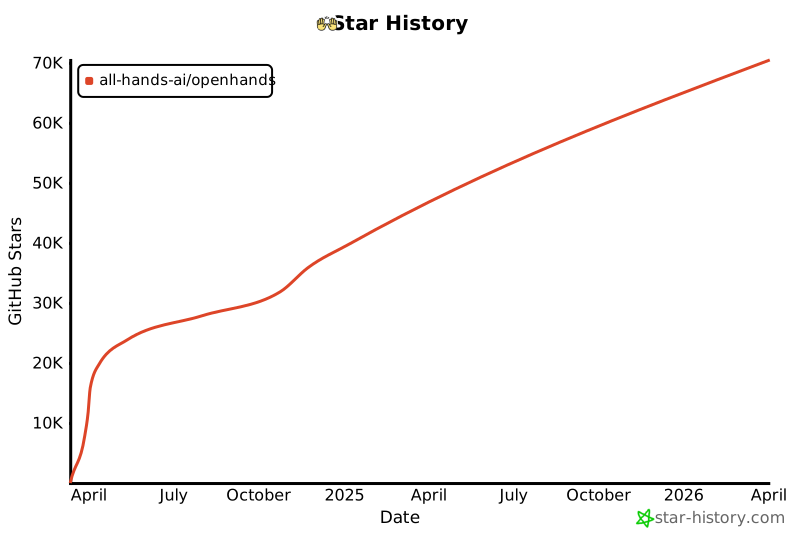](https://star-history.com/#All-Hands-AI/OpenHands&Date)
|
||||
|
||||
## 🛠️ Construit avec
|
||||
|
||||
OpenHands est construit en utilisant une combinaison de frameworks et de bibliothèques puissants, fournissant une base solide pour son développement. Voici les principales technologies utilisées dans le projet :
|
||||
|
||||
@@ -23,6 +44,6 @@ OpenHands est construit en utilisant une combinaison de frameworks et de bibliot
|
||||
|
||||
Veuillez noter que la sélection de ces technologies est en cours et que des technologies supplémentaires peuvent être ajoutées ou des technologies existantes peuvent être supprimées à mesure que le projet évolue. Nous nous efforçons d'adopter les outils les plus appropriés et les plus efficaces pour améliorer les capacités d'OpenHands.
|
||||
|
||||
## Licence
|
||||
## 📜 Licence
|
||||
|
||||
Distribué sous la [Licence](https://github.com/All-Hands-AI/OpenHands/blob/main/LICENSE) MIT.
|
||||
Distribué sous la licence MIT. Voir [notre licence](https://github.com/All-Hands-AI/OpenHands/blob/main/LICENSE) pour plus d'informations.
|
||||
|
||||
@@ -1,8 +1,8 @@
|
||||
|
||||
|
||||
# 📦 Runtime Docker
|
||||
# 📦 Runtime EventStream
|
||||
|
||||
Le Runtime Docker d'OpenHands est le composant principal qui permet l'exécution sécurisée et flexible des actions des agents d'IA.
|
||||
Le Runtime EventStream d'OpenHands est le composant principal qui permet l'exécution sécurisée et flexible des actions des agents d'IA.
|
||||
Il crée un environnement en bac à sable (sandbox) en utilisant Docker, où du code arbitraire peut être exécuté en toute sécurité sans risquer le système hôte.
|
||||
|
||||
## Pourquoi avons-nous besoin d'un runtime en bac à sable ?
|
||||
|
||||
@@ -1,389 +0,0 @@
|
||||
# Options de configuration
|
||||
|
||||
Ce guide détaille toutes les options de configuration disponibles pour OpenHands, vous aidant à personnaliser son comportement et à l'intégrer avec d'autres services.
|
||||
|
||||
:::note
|
||||
Si vous exécutez en [Mode GUI](https://docs.all-hands.dev/modules/usage/how-to/gui-mode), les paramètres disponibles dans l'interface utilisateur des paramètres auront toujours
|
||||
la priorité.
|
||||
:::
|
||||
|
||||
---
|
||||
|
||||
# Table des matières
|
||||
|
||||
1. [Configuration de base](#configuration-de-base)
|
||||
- [Clés API](#clés-api)
|
||||
- [Espace de travail](#espace-de-travail)
|
||||
- [Débogage et journalisation](#débogage-et-journalisation)
|
||||
- [Gestion des sessions](#gestion-des-sessions)
|
||||
- [Trajectoires](#trajectoires)
|
||||
- [Stockage de fichiers](#stockage-de-fichiers)
|
||||
- [Gestion des tâches](#gestion-des-tâches)
|
||||
- [Configuration du bac à sable](#configuration-du-bac-à-sable)
|
||||
- [Divers](#divers)
|
||||
2. [Configuration LLM](#configuration-llm)
|
||||
- [Informations d'identification AWS](#informations-didentification-aws)
|
||||
- [Configuration de l'API](#configuration-de-lapi)
|
||||
- [Fournisseur LLM personnalisé](#fournisseur-llm-personnalisé)
|
||||
- [Embeddings](#embeddings)
|
||||
- [Gestion des messages](#gestion-des-messages)
|
||||
- [Sélection du modèle](#sélection-du-modèle)
|
||||
- [Nouvelles tentatives](#nouvelles-tentatives)
|
||||
- [Options avancées](#options-avancées)
|
||||
3. [Configuration de l'agent](#configuration-de-lagent)
|
||||
- [Configuration du micro-agent](#configuration-du-micro-agent)
|
||||
- [Configuration de la mémoire](#configuration-de-la-mémoire)
|
||||
- [Configuration LLM](#configuration-llm-2)
|
||||
- [Configuration de l'espace d'action](#configuration-de-lespace-daction)
|
||||
- [Utilisation du micro-agent](#utilisation-du-micro-agent)
|
||||
4. [Configuration du bac à sable](#configuration-du-bac-à-sable-2)
|
||||
- [Exécution](#exécution)
|
||||
- [Image de conteneur](#image-de-conteneur)
|
||||
- [Mise en réseau](#mise-en-réseau)
|
||||
- [Linting et plugins](#linting-et-plugins)
|
||||
- [Dépendances et environnement](#dépendances-et-environnement)
|
||||
- [Évaluation](#évaluation)
|
||||
5. [Configuration de sécurité](#configuration-de-sécurité)
|
||||
- [Mode de confirmation](#mode-de-confirmation)
|
||||
- [Analyseur de sécurité](#analyseur-de-sécurité)
|
||||
|
||||
---
|
||||
|
||||
## Configuration de base
|
||||
|
||||
Les options de configuration de base sont définies dans la section `[core]` du fichier `config.toml`.
|
||||
|
||||
**Clés API**
|
||||
- `e2b_api_key`
|
||||
- Type : `str`
|
||||
- Valeur par défaut : `""`
|
||||
- Description : Clé API pour E2B
|
||||
|
||||
- `modal_api_token_id`
|
||||
- Type : `str`
|
||||
- Valeur par défaut : `""`
|
||||
- Description : ID du jeton API pour Modal
|
||||
|
||||
- `modal_api_token_secret`
|
||||
- Type : `str`
|
||||
- Valeur par défaut : `""`
|
||||
- Description : Secret du jeton API pour Modal
|
||||
|
||||
**Espace de travail**
|
||||
- `workspace_base`
|
||||
- Type : `str`
|
||||
- Valeur par défaut : `"./workspace"`
|
||||
- Description : Chemin de base pour l'espace de travail
|
||||
|
||||
- `cache_dir`
|
||||
- Type : `str`
|
||||
- Valeur par défaut : `"/tmp/cache"`
|
||||
- Description : Chemin du répertoire de cache
|
||||
|
||||
**Débogage et journalisation**
|
||||
- `debug`
|
||||
- Type : `bool`
|
||||
- Valeur par défaut : `false`
|
||||
- Description : Activer le débogage
|
||||
|
||||
- `disable_color`
|
||||
- Type : `bool`
|
||||
- Valeur par défaut : `false`
|
||||
- Description : Désactiver la couleur dans la sortie du terminal
|
||||
|
||||
**Trajectoires**
|
||||
- `save_trajectory_path`
|
||||
- Type : `str`
|
||||
- Valeur par défaut : `"./trajectories"`
|
||||
- Description : Chemin pour stocker les trajectoires (peut être un dossier ou un fichier). Si c'est un dossier, les trajectoires seront enregistrées dans un fichier nommé avec l'ID de session et l'extension .json, dans ce dossier.
|
||||
|
||||
**Stockage de fichiers**
|
||||
- `file_store_path`
|
||||
- Type : `str`
|
||||
- Valeur par défaut : `"/tmp/file_store"`
|
||||
- Description : Chemin de stockage des fichiers
|
||||
|
||||
- `file_store`
|
||||
- Type : `str`
|
||||
- Valeur par défaut : `"memory"`
|
||||
- Description : Type de stockage de fichiers
|
||||
|
||||
- `file_uploads_allowed_extensions`
|
||||
- Type : `list of str`
|
||||
- Valeur par défaut : `[".*"]`
|
||||
- Description : Liste des extensions de fichiers autorisées pour les téléchargements
|
||||
|
||||
- `file_uploads_max_file_size_mb`
|
||||
- Type : `int`
|
||||
- Valeur par défaut : `0`
|
||||
- Description : Taille maximale des fichiers pour les téléchargements, en mégaoctets
|
||||
|
||||
- `file_uploads_restrict_file_types`
|
||||
- Type : `bool`
|
||||
- Valeur par défaut : `false`
|
||||
- Description : Restreindre les types de fichiers pour les téléchargements de fichiers
|
||||
|
||||
- `file_uploads_allowed_extensions`
|
||||
- Type : `list of str`
|
||||
- Valeur par défaut : `[".*"]`
|
||||
- Description : Liste des extensions de fichiers autorisées pour les téléchargements
|
||||
|
||||
**Gestion des tâches**
|
||||
- `max_budget_per_task`
|
||||
- Type : `float`
|
||||
- Valeur par défaut : `0.0`
|
||||
- Description : Budget maximal par tâche (0.0 signifie aucune limite)
|
||||
|
||||
- `max_iterations`
|
||||
- Type : `int`
|
||||
- Valeur par défaut : `100`
|
||||
- Description : Nombre maximal d'itérations
|
||||
|
||||
**Configuration du bac à sable**
|
||||
- `workspace_mount_path_in_sandbox`
|
||||
- Type : `str`
|
||||
- Valeur par défaut : `"/workspace"`
|
||||
- Description : Chemin de montage de l'espace de travail dans le bac à sable
|
||||
|
||||
- `workspace_mount_path`
|
||||
- Type : `str`
|
||||
- Valeur par défaut : `""`
|
||||
- Description : Chemin de montage de l'espace de travail
|
||||
|
||||
- `workspace_mount_rewrite`
|
||||
- Type : `str`
|
||||
- Valeur par défaut : `""`
|
||||
- Description : Chemin pour réécrire le chemin de montage de l'espace de travail. Vous pouvez généralement ignorer cela, cela fait référence à des cas spéciaux d'exécution à l'intérieur d'un autre conteneur.
|
||||
|
||||
**Divers**
|
||||
- `run_as_openhands`
|
||||
- Type : `bool`
|
||||
- Valeur par défaut : `true`
|
||||
- Description : Exécuter en tant qu'OpenHands
|
||||
|
||||
- `runtime`
|
||||
- Type : `str`
|
||||
- Valeur par défaut : `"docker"`
|
||||
- Description : Environnement d'exécution
|
||||
|
||||
- `default_agent`
|
||||
- Type : `str`
|
||||
- Valeur par défaut : `"CodeActAgent"`
|
||||
- Description : Nom de l'agent par défaut
|
||||
|
||||
- `jwt_secret`
|
||||
- Type : `str`
|
||||
- Valeur par défaut : `uuid.uuid4().hex`
|
||||
- Description : Secret JWT pour l'authentification. Veuillez le définir sur votre propre valeur.
|
||||
|
||||
## Configuration LLM
|
||||
|
||||
Les options de configuration LLM (Large Language Model) sont définies dans la section `[llm]` du fichier `config.toml`.
|
||||
|
||||
Pour les utiliser avec la commande docker, passez `-e LLM_<option>`. Exemple : `-e LLM_NUM_RETRIES`.
|
||||
|
||||
:::note
|
||||
Pour les configurations de développement, vous pouvez également définir des configurations LLM personnalisées. Voir [Configurations LLM personnalisées](./llms/custom-llm-configs) pour plus de détails.
|
||||
:::
|
||||
|
||||
**Informations d'identification AWS**
|
||||
- `aws_access_key_id`
|
||||
- Type : `str`
|
||||
- Valeur par défaut : `""`
|
||||
- Description : ID de clé d'accès AWS
|
||||
|
||||
- `aws_region_name`
|
||||
- Type : `str`
|
||||
- Valeur par défaut : `""`
|
||||
- Description : Nom de la région AWS
|
||||
|
||||
- `aws_secret_access_key`
|
||||
- Type : `str`
|
||||
- Valeur par défaut : `""`
|
||||
- Description : Clé d'accès secrète AWS
|
||||
|
||||
**Configuration de l'API**
|
||||
- `api_key`
|
||||
- Type : `str`
|
||||
- Valeur par défaut : `None`
|
||||
- Description : Clé API à utiliser
|
||||
|
||||
- `base_url`
|
||||
- Type : `str`
|
||||
- Valeur par défaut : `""`
|
||||
- Description : URL de base de l'API
|
||||
|
||||
- `api_version`
|
||||
- Type : `str`
|
||||
- Valeur par défaut : `""`
|
||||
- Description : Version de l'API
|
||||
|
||||
- `input_cost_per_token`
|
||||
- Type : `float`
|
||||
- Valeur par défaut : `0.0`
|
||||
- Description : Coût par jeton d'entrée
|
||||
|
||||
- `output_cost_per_token`
|
||||
- Type : `float`
|
||||
- Valeur par défaut : `0.0`
|
||||
- Description : Coût par jeton de sortie
|
||||
|
||||
**Fournisseur LLM personnalisé**
|
||||
- `custom_llm_provider`
|
||||
- Type : `str`
|
||||
- Valeur par défaut : `""`
|
||||
- Description : Fournisseur LLM personnalisé
|
||||
|
||||
**Embeddings**
|
||||
- `embedding_base_url`
|
||||
- Type : `str`
|
||||
- Valeur par défaut : `""`
|
||||
- Description : URL de base de l'API d'embedding
|
||||
|
||||
- `embedding_deployment_name`
|
||||
- Type : `str`
|
||||
- Valeur par défaut : `""`
|
||||
- Description : Nom du déploiement d'embedding
|
||||
|
||||
- `embedding_model`
|
||||
- Type : `str`
|
||||
- Valeur par défaut : `"local"`
|
||||
- Description : Modèle d'embedding à utiliser
|
||||
|
||||
**Gestion des messages**
|
||||
- `max_message_chars`
|
||||
- Type : `int`
|
||||
- Valeur par défaut : `30000`
|
||||
- Description : Le nombre maximum approximatif de caractères dans le contenu d'un événement inclus dans l'invite au LLM. Les observations plus grandes sont tronquées.
|
||||
|
||||
- `max_input_tokens`
|
||||
- Type : `int`
|
||||
- Valeur par défaut : `0`
|
||||
- Description : Nombre maximal de jetons d'entrée
|
||||
|
||||
- `max_output_tokens`
|
||||
- Type : `int`
|
||||
- Valeur par défaut : `0`
|
||||
- Description : Nombre maximal de jetons de sortie
|
||||
|
||||
**Sélection du modèle**
|
||||
- `model`
|
||||
- Type : `str`
|
||||
- Valeur par défaut : `"claude-3-5-sonnet-20241022"`
|
||||
- Description : Modèle à utiliser
|
||||
|
||||
**Nouvelles tentatives**
|
||||
- `num_retries`
|
||||
- Type : `int`
|
||||
- Valeur par défaut : `8`
|
||||
- Description : Nombre de nouvelles tentatives à effectuer
|
||||
|
||||
- `retry_max_wait`
|
||||
- Type : `int`
|
||||
- Valeur par défaut : `120`
|
||||
- Description : Temps d'attente maximal (en secondes) entre les tentatives de nouvelle tentative
|
||||
|
||||
- `retry_min_wait`
|
||||
- Type : `int`
|
||||
- Valeur par défaut : `15`
|
||||
- Description : Temps d'attente minimal (en secondes) entre les tentatives de nouvelle tentative
|
||||
|
||||
- `retry_multiplier`
|
||||
- Type : `float`
|
||||
- Valeur par défaut : `2.0`
|
||||
- Description : Multiplicateur pour le calcul du backoff exponentiel
|
||||
|
||||
**Options avancées**
|
||||
- `drop_params`
|
||||
- Type : `bool`
|
||||
- Valeur par défaut : `false`
|
||||
- Description : Supprimer tous les paramètres non mappés (non pris en charge) sans provoquer d'exception
|
||||
|
||||
- `caching_prompt`
|
||||
- Type : `bool`
|
||||
- Valeur par défaut : `true`
|
||||
- Description : Utiliser la fonctionnalité de mise en cache des invites si elle est fournie par le LLM et prise en charge
|
||||
|
||||
- `ollama_base_url`
|
||||
- Type : `str`
|
||||
- Valeur par défaut : `""`
|
||||
- Description : URL de base pour l'API OLLAMA
|
||||
|
||||
- `temperature`
|
||||
- Type : `float`
|
||||
- Valeur par défaut : `0.0`
|
||||
- Description : Température pour l'API
|
||||
|
||||
- `timeout`
|
||||
- Type : `int`
|
||||
- Valeur par défaut : `0`
|
||||
- Description : Délai d'expiration pour l'API
|
||||
|
||||
- `top_p`
|
||||
- Type : `float`
|
||||
- Valeur par défaut : `1.0`
|
||||
- Description : Top p pour l'API
|
||||
|
||||
- `disable_vision`
|
||||
- Type : `bool`
|
||||
- Valeur par défaut : `None`
|
||||
- Description : Si le modèle est capable de vision, cette option permet de désactiver le traitement des images (utile pour réduire les coûts)
|
||||
|
||||
## Configuration de l'agent
|
||||
|
||||
Les options de configuration de l'agent sont définies dans les sections `[agent]` et `[agent.<agent_name>]` du fichier `config.toml`.
|
||||
|
||||
**Configuration de la mémoire**
|
||||
- `memory_enabled`
|
||||
- Type : `bool`
|
||||
- Valeur par défaut : `false`
|
||||
- Description : Si la mémoire à long terme (embeddings) est activée
|
||||
|
||||
- `memory_max_threads`
|
||||
- Type : `int`
|
||||
- Valeur par défaut : `3`
|
||||
- Description : Le nombre maximum de threads indexant en même temps pour les embeddings
|
||||
|
||||
**Configuration LLM**
|
||||
- `llm_config`
|
||||
- Type : `str`
|
||||
- Valeur par défaut : `'your-llm-config-group'`
|
||||
- Description : Le nom de la configuration LLM à utiliser
|
||||
|
||||
**Configuration de l'espace d'action**
|
||||
- `function_calling`
|
||||
- Type : `bool`
|
||||
- Valeur par défaut : `true`
|
||||
- Description : Si l'appel de fonction est activé
|
||||
|
||||
- `codeact_enable_browsing`
|
||||
- Type : `bool`
|
||||
- Valeur par défaut : `false`
|
||||
- Description : Si le délégué de navigation est activé dans l'espace d'action (fonctionne uniquement avec l'appel de fonction)
|
||||
|
||||
- `codeact_enable_llm_editor`
|
||||
- Type : `bool`
|
||||
- Valeur par défaut : `false`
|
||||
- Description : Si l'éditeur LLM est activé dans l'espace d'action (fonctionne uniquement avec l'appel de fonction)
|
||||
|
||||
**Utilisation du micro-agent**
|
||||
- `enable_prompt_extensions`
|
||||
- Type : `bool`
|
||||
- Valeur par défaut : `true`
|
||||
- Description : Indique si l'utilisation des micro-agents est activée ou non
|
||||
|
||||
- `disabled_microagents`
|
||||
- Type : `list of str`
|
||||
- Valeur par défaut : `None`
|
||||
- Description : Liste des micro-agents à désactiver
|
||||
|
||||
### Exécution
|
||||
- `timeout`
|
||||
- Type : `int`
|
||||
- Valeur par défaut : `120`
|
||||
- Description : Délai d'expiration du bac à sable, en secondes
|
||||
|
||||
- `user_id`
|
||||
- Type : `int`
|
||||
- Valeur par défaut : `1000`
|
||||
- Description : ID de l'utilisateur du bac à sable
|
||||
@@ -42,11 +42,10 @@ Créez un fichier ```config.toml``` dans le répertoire OpenHands et entrez ces
|
||||
[core]
|
||||
workspace_base="./workspace"
|
||||
run_as_openhands=true
|
||||
[sandbox]
|
||||
base_container_image="image_personnalisée"
|
||||
sandbox_base_container_image="image_personnalisée"
|
||||
```
|
||||
|
||||
> Assurez-vous que ```base_container_image``` est défini sur le nom de votre image personnalisée précédente.
|
||||
> Assurez-vous que ```sandbox_base_container_image``` est défini sur le nom de votre image personnalisée précédente.
|
||||
|
||||
## Exécution
|
||||
|
||||
@@ -83,17 +82,20 @@ dockerfile_content = (
|
||||
## Dépannage / Erreurs
|
||||
|
||||
### Erreur: ```useradd: UID 1000 est non unique```
|
||||
Si vous voyez cette erreur dans la sortie de la console, il s'agit du fait que OpenHands essaie de créer le utilisateur openhands dans le sandbox avec un ID d'utilisateur de 1000, cependant cet ID d'utilisateur est déjà utilisé dans l'image (pour une raison inconnue). Pour résoudre ce problème, changez la valeur du champ user_id dans le fichier config.toml en une valeur différente:
|
||||
Si vous voyez cette erreur dans la sortie de la console, il s'agit du fait que OpenHands essaie de créer le utilisateur openhands dans le sandbox avec un ID d'utilisateur de 1000, cependant cet ID d'utilisateur est déjà utilisé dans l'image (pour une raison inconnue). Pour résoudre ce problème, changez la valeur du champ sandbox_user_id dans le fichier config.toml en une valeur différente:
|
||||
|
||||
```toml
|
||||
[core]
|
||||
workspace_base="./workspace"
|
||||
run_as_openhands=true
|
||||
[sandbox]
|
||||
base_container_image="image_personnalisée"
|
||||
user_id="1001"
|
||||
sandbox_base_container_image="image_personnalisée"
|
||||
sandbox_user_id="1001"
|
||||
```
|
||||
|
||||
### Erreurs de port d'utilisation
|
||||
|
||||
Si vous voyez un message d'erreur indiquant que le port est utilisé ou indisponible, essayez de supprimer toutes les containers docker en cours d'exécution (exécutez `docker ps` et `docker rm` des containers concernés) puis ré-exécutez ```make run```
|
||||
|
||||
## Discuter
|
||||
|
||||
Pour d'autres problèmes ou questions rejoignez le [Slack](https://join.slack.com/t/opendevin/shared_invite/zt-2oikve2hu-UDxHeo8nsE69y6T7yFX_BA) ou le [Discord](https://discord.gg/ESHStjSjD4) et demandez!
|
||||
|
||||
@@ -5,7 +5,7 @@
|
||||
Vous avez donc [installé OpenHands](./installation) et avez
|
||||
[configuré votre LLM](./installation#setup). Et maintenant ?
|
||||
|
||||
OpenHands peut vous aider à aborder une grande variété de tâches d'ingénierie. Mais la technologie
|
||||
OpenHands peut vous aider à vous attaquer à une grande variété de tâches d'ingénierie. Mais la technologie
|
||||
est encore nouvelle, et nous sommes loin d'avoir des agents capables de prendre en charge des tâches
|
||||
d'ingénierie vastes et compliquées sans aucune aide. Il est donc important de se faire une idée de ce que l'agent
|
||||
fait bien, et où il pourrait avoir besoin d'un coup de main.
|
||||
@@ -16,7 +16,7 @@ La première chose que vous voudrez peut-être essayer est un simple exemple "he
|
||||
Cela peut être plus compliqué qu'il n'y paraît !
|
||||
|
||||
Essayez de demander à l'agent :
|
||||
> Veuillez écrire un script bash hello.sh qui affiche "hello world!"
|
||||
> Please write a bash script hello.sh that prints "hello world!"
|
||||
|
||||
Vous devriez constater que l'agent non seulement écrit le script, mais définit également les
|
||||
permissions correctes et exécute le script pour vérifier la sortie.
|
||||
@@ -24,12 +24,12 @@ permissions correctes et exécute le script pour vérifier la sortie.
|
||||
Vous pouvez continuer à demander à l'agent d'affiner votre code. C'est une excellente façon de
|
||||
travailler avec les agents. Commencez simplement, et itérez.
|
||||
|
||||
> Veuillez modifier hello.sh pour qu'il accepte un nom comme premier argument, mais par défaut "world"
|
||||
> Please modify hello.sh so that it accepts a name as the first argument, but defaults to "world"
|
||||
|
||||
Vous pouvez également travailler dans n'importe quel langage dont vous avez besoin, bien que l'agent puisse avoir besoin de passer du
|
||||
Vous pouvez également travailler dans n'importe quel langage dont vous avez besoin, bien que l'agent puisse avoir besoin de passer un peu de
|
||||
temps à configurer son environnement !
|
||||
|
||||
> Veuillez convertir hello.sh en un script Ruby, et l'exécuter
|
||||
> Please convert hello.sh to a Ruby script, and run it
|
||||
|
||||
## Construire à partir de zéro
|
||||
|
||||
@@ -41,18 +41,18 @@ aussi précis que possible sur ce que vous voulez, sur la pile technologique à
|
||||
|
||||
Par exemple, nous pourrions construire une application TODO :
|
||||
|
||||
> Veuillez créer une application basique de liste de tâches en React. Elle devrait être uniquement frontend, et tout l'état
|
||||
> devrait être conservé dans localStorage.
|
||||
> Please build a basic TODO list app in React. It should be frontend-only, and all state
|
||||
> should be kept in localStorage.
|
||||
|
||||
Nous pouvons continuer à itérer sur l'application une fois le squelette en place :
|
||||
|
||||
> Veuillez permettre d'ajouter une date d'échéance optionnelle à chaque tâche
|
||||
> Please allow adding an optional due date to every task
|
||||
|
||||
Tout comme avec le développement normal, il est bon de commiter et de pousser votre code fréquemment.
|
||||
De cette façon, vous pouvez toujours revenir à un ancien état si l'agent dévie.
|
||||
Vous pouvez demander à l'agent de commiter et de pousser pour vous :
|
||||
|
||||
> Veuillez commiter les changements et les pousser sur une nouvelle branche appelée "feature/due-dates"
|
||||
> Please commit the changes and push them to a new branch called "feature/due-dates"
|
||||
|
||||
|
||||
## Ajouter du nouveau code
|
||||
@@ -61,18 +61,18 @@ OpenHands peut également faire un excellent travail en ajoutant du nouveau code
|
||||
|
||||
Par exemple, vous pouvez demander à OpenHands d'ajouter une nouvelle action GitHub à votre projet
|
||||
qui analyse votre code. OpenHands peut jeter un coup d'œil à votre base de code pour voir quel langage
|
||||
il doit utiliser, mais ensuite il peut simplement déposer un nouveau fichier dans `./github/workflows/lint.yml`
|
||||
il doit utiliser, mais ensuite il peut simplement déposer un nouveau fichier dans `./github/workflows/lint.yml`.
|
||||
|
||||
> Veuillez ajouter une action GitHub qui analyse le code dans ce dépôt
|
||||
> Please add a GitHub action that lints the code in this repository
|
||||
|
||||
Certaines tâches peuvent nécessiter un peu plus de contexte. Bien qu'OpenHands puisse utiliser `ls` et `grep`
|
||||
pour rechercher dans votre base de code, fournir le contexte à l'avance lui permet d'aller plus vite,
|
||||
et plus précisément. Et cela vous coûtera moins de tokens !
|
||||
|
||||
> Veuillez modifier ./backend/api/routes.js pour ajouter une nouvelle route qui renvoie une liste de toutes les tâches
|
||||
> Please modify ./backend/api/routes.js to add a new route that returns a list of all tasks
|
||||
|
||||
> Veuillez ajouter un nouveau composant React qui affiche une liste de Widgets dans le répertoire ./frontend/components.
|
||||
> Il devrait utiliser le composant Widget existant.
|
||||
> Please add a new React component that displays a list of Widgets to the ./frontend/components
|
||||
> directory. It should use the existing Widget component.
|
||||
|
||||
## Refactoring
|
||||
|
||||
@@ -80,34 +80,34 @@ OpenHands est excellent pour refactoriser du code existant, surtout par petits m
|
||||
Vous ne voulez probablement pas essayer de réarchitecturer toute votre base de code, mais diviser
|
||||
les longs fichiers et fonctions, renommer les variables, etc. ont tendance à très bien fonctionner.
|
||||
|
||||
> Veuillez renommer toutes les variables à une lettre dans ./app.go
|
||||
> Please rename all the single-letter variables in ./app.go
|
||||
|
||||
> Veuillez diviser la fonction `build_and_deploy_widgets` en deux fonctions, `build_widgets` et `deploy_widgets` dans widget.php
|
||||
> Please break the function `build_and_deploy_widgets` into two functions, `build_widgets` and `deploy_widgets` in widget.php
|
||||
|
||||
> Veuillez diviser ./api/routes.js en fichiers séparés pour chaque route
|
||||
> Please break ./api/routes.js into separate files for each route
|
||||
|
||||
## Corrections de bugs
|
||||
|
||||
OpenHands peut également vous aider à traquer et corriger des bugs dans votre code. Mais, comme tout
|
||||
développeur le sait, la correction de bugs peut être extrêmement délicate, et souvent OpenHands aura besoin de plus de contexte.
|
||||
Cela aide si vous avez diagnostiqué le bug, mais que vous voulez qu'OpenHands comprenne la logique.
|
||||
Cela aide si vous avez diagnostiqué le bug, mais que vous voulez qu'OpenHands trouve la logique.
|
||||
|
||||
> Actuellement, le champ email dans le point de terminaison `/subscribe` rejette les domaines .io. Veuillez corriger cela.
|
||||
> Currently the email field in the `/subscribe` endpoint is rejecting .io domains. Please fix this.
|
||||
|
||||
> La fonction `search_widgets` dans ./app.py effectue une recherche sensible à la casse. Veuillez la rendre insensible à la casse.
|
||||
> The `search_widgets` function in ./app.py is doing a case-sensitive search. Please make it case-insensitive.
|
||||
|
||||
Il est souvent utile de faire du développement piloté par les tests lors de la correction de bugs avec un agent.
|
||||
Vous pouvez demander à l'agent d'écrire un nouveau test, puis d'itérer jusqu'à ce qu'il corrige le bug :
|
||||
|
||||
> La fonction `hello` plante sur la chaîne vide. Veuillez écrire un test qui reproduit ce bug, puis corrigez le code pour qu'il passe.
|
||||
> The `hello` function crashes on the empty string. Please write a test that reproduces this bug, then fix the code so it passes.
|
||||
|
||||
## Plus
|
||||
|
||||
OpenHands est capable d'aider sur à peu près n'importe quelle tâche de codage. Mais il faut de la pratique
|
||||
OpenHands est capable d'aider sur à peu près n'importe quelle tâche de codage. Mais il faut un peu de pratique
|
||||
pour en tirer le meilleur parti. N'oubliez pas de :
|
||||
* Garder vos tâches petites
|
||||
* Être aussi précis que possible
|
||||
* Fournir autant de contexte que possible
|
||||
* Commiter et pousser fréquemment
|
||||
|
||||
Voir [Bonnes pratiques de prompting](./prompting/prompting-best-practices) pour plus de conseils sur la façon de tirer le meilleur parti d'OpenHands.
|
||||
Voir [Bonnes pratiques de prompting](./prompting-best-practices) pour plus de conseils sur la façon de tirer le meilleur parti d'OpenHands.
|
||||
|
||||
@@ -28,17 +28,16 @@ Vous devrez vous assurer de définir votre modèle, votre clé API et d'autres p
|
||||
|
||||
Pour exécuter OpenHands en mode CLI avec Docker, suivez ces étapes :
|
||||
|
||||
1. Définissez `WORKSPACE_BASE` sur le répertoire que vous voulez qu'OpenHands modifie :
|
||||
1. Définissez `WORKSPACE_BASE` sur le répertoire que vous souhaitez qu'OpenHands modifie :
|
||||
|
||||
```bash
|
||||
WORKSPACE_BASE=$(pwd)/workspace
|
||||
```
|
||||
|
||||
2. Définissez `LLM_MODEL` sur le modèle que vous voulez utiliser :
|
||||
2. Définissez `LLM_MODEL` sur le modèle que vous souhaitez utiliser :
|
||||
|
||||
```bash
|
||||
LLM_MODEL="anthropic/claude-3-5-sonnet-20241022"
|
||||
|
||||
```
|
||||
|
||||
3. Définissez `LLM_API_KEY` sur votre clé API :
|
||||
@@ -52,7 +51,6 @@ LLM_API_KEY="sk_test_12345"
|
||||
```bash
|
||||
docker run -it \
|
||||
--pull=always \
|
||||
-e SANDBOX_RUNTIME_CONTAINER_IMAGE=docker.all-hands.dev/all-hands-ai/runtime:0.28-nikolaik \
|
||||
-e SANDBOX_USER_ID=$(id -u) \
|
||||
-e WORKSPACE_MOUNT_PATH=$WORKSPACE_BASE \
|
||||
-e LLM_API_KEY=$LLM_API_KEY \
|
||||
@@ -61,7 +59,7 @@ docker run -it \
|
||||
-v /var/run/docker.sock:/var/run/docker.sock \
|
||||
--add-host host.docker.internal:host-gateway \
|
||||
--name openhands-app-$(date +%Y%m%d%H%M%S) \
|
||||
docker.all-hands.dev/all-hands-ai/openhands:0.28 \
|
||||
ghcr.io/all-hands-ai/openhands:0.11 \
|
||||
python -m openhands.core.cli
|
||||
```
|
||||
|
||||
@@ -74,7 +72,7 @@ Voici quelques exemples de commandes CLI et leurs sorties attendues :
|
||||
### Exemple 1 : Tâche simple
|
||||
|
||||
```bash
|
||||
How can I help? >> Écrivez un script Python qui affiche "Hello, World!"
|
||||
Comment puis-je vous aider ? >> Écrivez un script Python qui affiche "Hello, World!"
|
||||
```
|
||||
|
||||
Sortie attendue :
|
||||
@@ -88,7 +86,7 @@ Sortie attendue :
|
||||
### Exemple 2 : Commande Bash
|
||||
|
||||
```bash
|
||||
How can I help? >> Créez un répertoire nommé "test_dir"
|
||||
Comment puis-je vous aider ? >> Créez un répertoire nommé "test_dir"
|
||||
```
|
||||
|
||||
Sortie attendue :
|
||||
@@ -102,7 +100,7 @@ Sortie attendue :
|
||||
### Exemple 3 : Gestion des erreurs
|
||||
|
||||
```bash
|
||||
How can I help? >> Supprimez un fichier inexistant
|
||||
Comment puis-je vous aider ? >> Supprimez un fichier inexistant
|
||||
```
|
||||
|
||||
Sortie attendue :
|
||||
|
||||
@@ -4,7 +4,7 @@
|
||||
|
||||
Le sandbox est l'endroit où l'agent effectue ses tâches. Au lieu d'exécuter des commandes directement sur votre ordinateur (ce qui pourrait être risqué), l'agent les exécute à l'intérieur d'un conteneur Docker.
|
||||
|
||||
Le sandbox OpenHands par défaut (`python-nodejs:python3.12-nodejs22` de [nikolaik/python-nodejs](https://hub.docker.com/r/nikolaik/python-nodejs)) est livré avec certains paquets installés tels que Python et Node.js mais peut nécessiter l'installation d'autres logiciels par défaut.
|
||||
Le sandbox OpenHands par défaut (`python-nodejs:python3.12-nodejs22` de [nikolaik/python-nodejs](https://hub.docker.com/r/nikolaik/python-nodejs)) est livré avec certains paquets installés tels que Python et Node.js, mais peut nécessiter l'installation d'autres logiciels par défaut.
|
||||
|
||||
Vous avez deux options pour la personnalisation :
|
||||
|
||||
@@ -36,7 +36,7 @@ Cela produira une nouvelle image appelée `custom-image`, qui sera disponible da
|
||||
|
||||
> Notez que dans la configuration décrite dans ce document, OpenHands s'exécutera en tant qu'utilisateur "openhands" à l'intérieur du sandbox et donc tous les paquets installés via le docker file devraient être disponibles pour tous les utilisateurs du système, pas seulement root.
|
||||
|
||||
## Utilisation du Workflow de Développement
|
||||
## Utiliser le Workflow de Développement
|
||||
|
||||
### Configuration
|
||||
|
||||
@@ -44,19 +44,40 @@ Tout d'abord, assurez-vous de pouvoir exécuter OpenHands en suivant les instruc
|
||||
|
||||
### Spécifier l'Image de Base du Sandbox
|
||||
|
||||
Dans le fichier `config.toml` dans le répertoire OpenHands, définissez `base_container_image` sur l'image que vous souhaitez utiliser. Cela peut être une image que vous avez déjà extraite ou une que vous avez construite :
|
||||
Dans le fichier `config.toml` dans le répertoire OpenHands, définissez `sandbox_base_container_image` sur l'image que vous souhaitez utiliser. Cela peut être une image que vous avez déjà extraite ou une que vous avez construite :
|
||||
|
||||
```bash
|
||||
[core]
|
||||
...
|
||||
[sandbox]
|
||||
base_container_image="custom-image"
|
||||
sandbox_base_container_image="custom-image"
|
||||
```
|
||||
|
||||
### Exécution
|
||||
### Exécuter
|
||||
|
||||
Exécutez OpenHands en exécutant ```make run``` dans le répertoire de niveau supérieur.
|
||||
|
||||
## Explication Technique
|
||||
|
||||
Veuillez vous référer à la [section image docker personnalisée de la documentation d'exécution](https://docs.all-hands.dev/modules/usage/architecture/runtime#advanced-how-openhands-builds-and-maintains-od-runtime-images) pour plus de détails.
|
||||
|
||||
## Dépannage / Erreurs
|
||||
|
||||
### Erreur : ```useradd: UID 1000 is not unique```
|
||||
|
||||
Si vous voyez cette erreur dans la sortie de la console, c'est parce qu'OpenHands essaie de créer l'utilisateur openhands dans le sandbox avec un UID de 1000, mais cet UID est déjà utilisé dans l'image (pour une raison quelconque). Pour corriger cela, changez le champ sandbox_user_id dans le fichier config.toml à une valeur différente :
|
||||
|
||||
```toml
|
||||
[core]
|
||||
workspace_base="./workspace"
|
||||
run_as_openhands=true
|
||||
sandbox_base_container_image="custom_image"
|
||||
sandbox_user_id="1001"
|
||||
```
|
||||
|
||||
### Erreurs d'utilisation de port
|
||||
|
||||
Si vous voyez une erreur concernant un port déjà utilisé ou indisponible, essayez de supprimer tous les conteneurs Docker en cours d'exécution (exécutez `docker ps` et `docker rm` sur les conteneurs pertinents) puis réexécutez ```make run```.
|
||||
|
||||
## Discuter
|
||||
|
||||
Pour d'autres problèmes ou questions, rejoignez le [Slack](https://join.slack.com/t/opendevin/shared_invite/zt-2oikve2hu-UDxHeo8nsE69y6T7yFX_BA) ou le [Discord](https://discord.gg/ESHStjSjD4) et demandez !
|
||||
|
||||
@@ -15,6 +15,7 @@ Voici un exemple de fichier de configuration que vous pouvez utiliser pour défi
|
||||
[llm]
|
||||
# IMPORTANT : ajoutez votre clé API ici et définissez le modèle que vous souhaitez évaluer
|
||||
model = "claude-3-5-sonnet-20241022"
|
||||
|
||||
api_key = "sk-XXX"
|
||||
|
||||
[llm.eval_gpt4_1106_preview_llm]
|
||||
@@ -114,7 +115,7 @@ Pour créer un workflow d'évaluation pour votre benchmark, suivez ces étapes :
|
||||
def get_config(instance: pd.Series, metadata: EvalMetadata) -> AppConfig:
|
||||
config = AppConfig(
|
||||
default_agent=metadata.agent_class,
|
||||
runtime='docker',
|
||||
runtime='eventstream',
|
||||
max_iterations=metadata.max_iterations,
|
||||
sandbox=SandboxConfig(
|
||||
base_container_image='your_container_image',
|
||||
@@ -190,7 +191,7 @@ En suivant cette structure, vous pouvez créer un workflow d'évaluation robuste
|
||||
|
||||
## Comprendre la `user_response_fn`
|
||||
|
||||
La `user_response_fn` est un composant crucial dans le workflow d'évaluation d'OpenHands. Elle simule l'interaction de l'utilisateur avec l'agent, permettant des réponses automatisées pendant le processus d'évaluation. Cette fonction est particulièrement utile lorsque vous voulez fournir des réponses cohérentes et prédéfinies aux requêtes ou actions de l'agent.
|
||||
La `user_response_fn` est un composant crucial dans le workflow d'évaluation d'OpenHands. Elle simule l'interaction de l'utilisateur avec l'agent, permettant des réponses automatisées pendant le processus d'évaluation. Cette fonction est particulièrement utile lorsque vous souhaitez fournir des réponses cohérentes et prédéfinies aux requêtes ou actions de l'agent.
|
||||
|
||||
|
||||
### Workflow et interaction
|
||||
@@ -241,7 +242,7 @@ Dans ce workflow :
|
||||
- Les actions non exécutables (généralement lorsque l'agent veut communiquer ou demander des clarifications) sont gérées par la `user_response_fn`
|
||||
- L'agent traite ensuite le feedback, qu'il s'agisse d'une Observation du Runtime ou d'une réponse simulée de la `user_response_fn`
|
||||
|
||||
Cette approche permet une gestion automatisée des actions concrètes et des interactions utilisateur simulées, ce qui la rend adaptée aux scénarios d'évaluation où vous voulez tester la capacité de l'agent à accomplir des tâches avec une intervention humaine minimale.
|
||||
Cette approche permet une gestion automatisée des actions concrètes et des interactions utilisateur simulées, ce qui la rend adaptée aux scénarios d'évaluation où vous souhaitez tester la capacité de l'agent à effectuer des tâches avec une intervention humaine minimale.
|
||||
|
||||
### Exemple d'implémentation
|
||||
|
||||
@@ -263,7 +264,7 @@ def codeact_user_response(state: State | None) -> str:
|
||||
if isinstance(event, MessageAction) and event.source == 'user'
|
||||
]
|
||||
if len(user_msgs) >= 2:
|
||||
# faire savoir à l'agent qu'il peut abandonner quand il a essayé 3 fois
|
||||
# faire savoir à l'agent qu'il peut abandonner lorsqu'il a essayé 3 fois
|
||||
return (
|
||||
msg
|
||||
+ 'Si vous voulez abandonner, exécutez : <execute_bash> exit </execute_bash>.\n'
|
||||
@@ -277,4 +278,4 @@ Cette fonction fait ce qui suit :
|
||||
2. Vérifie combien de fois l'agent a tenté de communiquer avec l'utilisateur
|
||||
3. Si l'agent a fait plusieurs tentatives, il lui donne la possibilité d'abandonner
|
||||
|
||||
En utilisant cette fonction, vous pouvez assurer un comportement cohérent sur plusieurs exécutions d'évaluation et empêcher l'agent de rester bloqué en attendant une entrée humaine.
|
||||
En utilisant cette fonction, vous pouvez garantir un comportement cohérent sur plusieurs exécutions d'évaluation et empêcher l'agent de rester bloqué en attendant une entrée humaine.
|
||||
|
||||
@@ -6,46 +6,12 @@ Ce guide explique comment utiliser l'Action GitHub OpenHands, à la fois dans le
|
||||
|
||||
## Utilisation de l'Action dans le dépôt OpenHands
|
||||
|
||||
Pour utiliser l'Action GitHub OpenHands dans un dépôt, vous pouvez :
|
||||
Pour utiliser l'Action GitHub OpenHands dans le dépôt OpenHands, un mainteneur OpenHands peut :
|
||||
|
||||
1. Créer un ticket dans le dépôt.
|
||||
2. Ajouter l'étiquette `fix-me` au ticket ou laisser un commentaire sur le ticket commençant par `@openhands-agent`.
|
||||
|
||||
L'action se déclenchera automatiquement et tentera de résoudre le ticket.
|
||||
1. Créer une issue dans le dépôt.
|
||||
2. Ajouter le label `fix-me` à l'issue.
|
||||
3. L'action se déclenchera automatiquement et tentera de résoudre l'issue.
|
||||
|
||||
## Installation de l'Action dans un nouveau dépôt
|
||||
|
||||
Pour installer l'Action GitHub OpenHands dans votre propre dépôt, suivez le [README pour le Resolver OpenHands](https://github.com/All-Hands-AI/OpenHands/blob/main/openhands/resolver/README.md).
|
||||
|
||||
## Conseils d'utilisation
|
||||
|
||||
### Résolution itérative
|
||||
|
||||
1. Créez un ticket dans le dépôt.
|
||||
2. Ajoutez l'étiquette `fix-me` au ticket, ou laissez un commentaire commençant par `@openhands-agent`
|
||||
3. Examinez la tentative de résolution du ticket en vérifiant la pull request
|
||||
4. Faites un suivi avec des commentaires via des commentaires généraux, des commentaires de revue ou des commentaires de fil en ligne
|
||||
5. Ajoutez l'étiquette `fix-me` à la pull request, ou adressez un commentaire spécifique en commençant par `@openhands-agent`
|
||||
|
||||
### Étiquette versus Macro
|
||||
|
||||
- Étiquette (`fix-me`) : Demande à OpenHands de traiter le ticket ou la pull request dans son **intégralité**.
|
||||
- Macro (`@openhands-agent`) : Demande à OpenHands de ne considérer que la description du ticket/de la pull request et **le commentaire spécifique**.
|
||||
|
||||
## Paramètres avancés
|
||||
|
||||
### Ajouter des paramètres de dépôt personnalisés
|
||||
|
||||
Vous pouvez fournir des instructions personnalisées pour OpenHands en suivant le [README pour le resolver](https://github.com/All-Hands-AI/OpenHands/blob/main/openhands/resolver/README.md#providing-custom-instructions).
|
||||
|
||||
### Configurations personnalisées
|
||||
|
||||
Le resolver Github vérifiera automatiquement les [secrets de dépôt](https://docs.github.com/en/actions/security-for-github-actions/security-guides/using-secrets-in-github-actions?tool=webui#creating-secrets-for-a-repository) ou les [variables de dépôt](https://docs.github.com/en/actions/writing-workflows/choosing-what-your-workflow-does/store-information-in-variables#creating-configuration-variables-for-a-repository) valides pour personnaliser son comportement.
|
||||
Les options de personnalisation que vous pouvez définir sont :
|
||||
|
||||
| **Nom de l'attribut** | **Type** | **Objectif** | **Exemple** |
|
||||
|----------------------------------| -------- |-------------------------------------------------------------------------------------------------------------|------------------------------------------------------|
|
||||
| `LLM_MODEL` | Variable | Définir le LLM à utiliser avec OpenHands | `LLM_MODEL="anthropic/claude-3-5-sonnet-20241022"` |
|
||||
| `OPENHANDS_MAX_ITER` | Variable | Définir la limite maximale pour les itérations de l'agent | `OPENHANDS_MAX_ITER=10` |
|
||||
| `OPENHANDS_MACRO` | Variable | Personnaliser la macro par défaut pour invoquer le resolver | `OPENHANDS_MACRO=@resolveit` |
|
||||
| `OPENHANDS_BASE_CONTAINER_IMAGE` | Variable | Sandbox personnalisé ([en savoir plus](https://docs.all-hands.dev/modules/usage/how-to/custom-sandbox-guide))| `OPENHANDS_BASE_CONTAINER_IMAGE="custom_image"` |
|
||||
Pour installer l'Action GitHub OpenHands dans votre propre dépôt, suivez les [instructions dans le dépôt OpenHands Resolver](https://github.com/All-Hands-AI/OpenHands/blob/main/openhands/resolver/README.md).
|
||||
|
||||
@@ -8,7 +8,7 @@ OpenHands fournit un mode Interface Graphique (GUI) convivial pour interagir ave
|
||||
|
||||
## Installation et Configuration
|
||||
|
||||
1. Suivez les instructions du guide [Installation](../installation) pour installer OpenHands.
|
||||
1. Suivez les instructions du guide d'[Installation](../installation) pour installer OpenHands.
|
||||
|
||||
2. Après avoir exécuté la commande, accédez à OpenHands à l'adresse [http://localhost:3000](http://localhost:3000).
|
||||
|
||||
@@ -21,107 +21,33 @@ OpenHands fournit un mode Interface Graphique (GUI) convivial pour interagir ave
|
||||
3. Entrez la `Clé API` correspondante pour le fournisseur choisi.
|
||||
4. Cliquez sur "Enregistrer" pour appliquer les paramètres.
|
||||
|
||||
### Configuration du Jeton GitHub
|
||||
|
||||
OpenHands exporte automatiquement un `GITHUB_TOKEN` vers l'environnement shell s'il est disponible. Cela peut se produire de deux manières :
|
||||
|
||||
1. **Localement (OSS)** : L'utilisateur saisit directement son jeton GitHub
|
||||
2. **En ligne (SaaS)** : Le jeton est obtenu via l'authentification OAuth GitHub
|
||||
|
||||
#### Configuration d'un Jeton GitHub Local
|
||||
|
||||
1. **Générer un Personal Access Token (PAT)** :
|
||||
- Allez dans Paramètres GitHub > Paramètres développeur > Personal Access Tokens > Tokens (classique)
|
||||
- Cliquez sur "Générer un nouveau jeton (classique)"
|
||||
- Portées requises :
|
||||
- `repo` (Contrôle total des dépôts privés)
|
||||
- `workflow` (Mettre à jour les workflows GitHub Action)
|
||||
- `read:org` (Lire les données de l'organisation)
|
||||
|
||||
2. **Entrer le Jeton dans OpenHands** :
|
||||
- Cliquez sur le bouton Paramètres (icône d'engrenage) en haut à droite
|
||||
- Accédez à la section "GitHub"
|
||||
- Collez votre jeton dans le champ "Jeton GitHub"
|
||||
- Cliquez sur "Enregistrer" pour appliquer les modifications
|
||||
|
||||
#### Politiques de Jetons Organisationnels
|
||||
|
||||
Si vous travaillez avec des dépôts organisationnels, une configuration supplémentaire peut être nécessaire :
|
||||
|
||||
1. **Vérifier les Exigences de l'Organisation** :
|
||||
- Les administrateurs de l'organisation peuvent appliquer des politiques de jetons spécifiques
|
||||
- Certaines organisations exigent que les jetons soient créés avec SSO activé
|
||||
- Consultez les [paramètres de politique de jetons](https://docs.github.com/en/organizations/managing-programmatic-access-to-your-organization/setting-a-personal-access-token-policy-for-your-organization) de votre organisation
|
||||
|
||||
2. **Vérifier l'Accès à l'Organisation** :
|
||||
- Allez dans les paramètres de votre jeton sur GitHub
|
||||
- Recherchez l'organisation sous "Accès à l'organisation"
|
||||
- Si nécessaire, cliquez sur "Activer SSO" à côté de votre organisation
|
||||
- Terminez le processus d'autorisation SSO
|
||||
|
||||
#### Authentification OAuth (Mode En Ligne)
|
||||
|
||||
Lorsque vous utilisez OpenHands en mode en ligne, le flux OAuth GitHub :
|
||||
|
||||
1. Demande les autorisations suivantes :
|
||||
- Accès au dépôt (lecture/écriture)
|
||||
- Gestion des workflows
|
||||
- Accès en lecture à l'organisation
|
||||
|
||||
2. Étapes d'authentification :
|
||||
- Cliquez sur "Se connecter avec GitHub" lorsque vous y êtes invité
|
||||
- Examinez les autorisations demandées
|
||||
- Autorisez OpenHands à accéder à votre compte GitHub
|
||||
- Si vous utilisez une organisation, autorisez l'accès à l'organisation si vous y êtes invité
|
||||
|
||||
#### Dépannage
|
||||
|
||||
Problèmes courants et solutions :
|
||||
|
||||
1. **Jeton Non Reconnu** :
|
||||
- Assurez-vous que le jeton est correctement enregistré dans les paramètres
|
||||
- Vérifiez que le jeton n'a pas expiré
|
||||
- Vérifiez que le jeton a les portées requises
|
||||
- Essayez de régénérer le jeton
|
||||
|
||||
2. **Accès à l'Organisation Refusé** :
|
||||
- Vérifiez si SSO est requis mais non activé
|
||||
- Vérifiez l'appartenance à l'organisation
|
||||
- Contactez l'administrateur de l'organisation si les politiques de jetons bloquent l'accès
|
||||
|
||||
3. **Vérifier que le Jeton Fonctionne** :
|
||||
- L'application affichera une coche verte si le jeton est valide
|
||||
- Essayez d'accéder à un dépôt pour confirmer les autorisations
|
||||
- Vérifiez la console du navigateur pour tout message d'erreur
|
||||
- Utilisez le bouton "Tester la connexion" dans les paramètres s'il est disponible
|
||||
|
||||
### Paramètres Avancés
|
||||
|
||||
1. Basculez sur `Options Avancées` pour accéder aux paramètres supplémentaires.
|
||||
2. Utilisez la zone de texte `Modèle Personnalisé` pour saisir manuellement un modèle s'il ne figure pas dans la liste.
|
||||
3. Spécifiez une `URL de Base` si requis par votre fournisseur LLM.
|
||||
1. Activez `Options Avancées` pour accéder aux paramètres supplémentaires.
|
||||
2. Utilisez la zone de texte `Modèle Personnalisé` pour entrer manuellement un modèle s'il n'est pas dans la liste.
|
||||
3. Spécifiez une `URL de Base` si requise par votre fournisseur LLM.
|
||||
|
||||
### Interface Principale
|
||||
|
||||
L'interface principale se compose de plusieurs composants clés :
|
||||
L'interface principale se compose de plusieurs éléments clés :
|
||||
|
||||
1. **Fenêtre de Chat** : La zone centrale où vous pouvez voir l'historique de conversation avec l'assistant IA.
|
||||
2. **Zone de Saisie** : Située en bas de l'écran, utilisez-la pour taper vos messages ou commandes à l'IA.
|
||||
3. **Bouton Envoyer** : Cliquez dessus pour envoyer votre message à l'IA.
|
||||
4. **Bouton Paramètres** : Une icône d'engrenage qui ouvre la fenêtre modale des paramètres, vous permettant d'ajuster votre configuration à tout moment.
|
||||
5. **Panneau Espace de Travail** : Affiche les fichiers et dossiers de votre espace de travail, vous permettant de naviguer et de visualiser les fichiers, ou les commandes passées de l'agent ou l'historique de navigation web.
|
||||
5. **Panneau Espace de Travail** : Affiche les fichiers et dossiers de votre espace de travail, vous permettant de naviguer et visualiser les fichiers, ou l'historique des commandes passées de l'agent ou de navigation web.
|
||||
|
||||
### Interagir avec l'IA
|
||||
|
||||
1. Tapez votre question, demande ou description de tâche dans la zone de saisie.
|
||||
2. Cliquez sur le bouton d'envoi ou appuyez sur Entrée pour soumettre votre message.
|
||||
1. Tapez votre question, requête ou description de tâche dans la zone de saisie.
|
||||
2. Cliquez sur le bouton envoyer ou appuyez sur Entrée pour soumettre votre message.
|
||||
3. L'IA traitera votre saisie et fournira une réponse dans la fenêtre de chat.
|
||||
4. Vous pouvez poursuivre la conversation en posant des questions de suivi ou en fournissant des informations supplémentaires.
|
||||
|
||||
## Conseils pour une Utilisation Efficace
|
||||
|
||||
1. Soyez précis dans vos demandes pour obtenir les réponses les plus précises et utiles, comme décrit dans les [meilleures pratiques d'incitation](../prompting/prompting-best-practices).
|
||||
1. Soyez spécifique dans vos requêtes pour obtenir les réponses les plus précises et utiles, comme décrit dans les [meilleures pratiques d'invite](../prompting-best-practices).
|
||||
2. Utilisez le panneau d'espace de travail pour explorer la structure de votre projet.
|
||||
3. Utilisez l'un des modèles recommandés, comme décrit dans la section [LLMs](usage/llms/llms.md).
|
||||
|
||||
N'oubliez pas que le mode Interface Graphique d'OpenHands est conçu pour rendre votre interaction avec l'assistant IA aussi fluide et intuitive que possible. N'hésitez pas à explorer ses fonctionnalités pour maximiser votre productivité.
|
||||
N'oubliez pas, le mode Interface Graphique d'OpenHands est conçu pour rendre votre interaction avec l'assistant IA aussi fluide et intuitive que possible. N'hésitez pas à explorer ses fonctionnalités pour maximiser votre productivité.
|
||||
|
||||
@@ -5,7 +5,7 @@
|
||||
Vous pouvez exécuter OpenHands avec une seule commande, sans démarrer l'application web.
|
||||
Cela facilite l'écriture de scripts et l'automatisation des tâches avec OpenHands.
|
||||
|
||||
Ceci est différent du [Mode CLI](cli-mode), qui est interactif et mieux adapté au développement actif.
|
||||
Ceci est différent du [Mode CLI](cli-mode), qui est interactif et plus adapté au développement actif.
|
||||
|
||||
## Avec Python
|
||||
|
||||
@@ -32,7 +32,6 @@ WORKSPACE_BASE=$(pwd)/workspace
|
||||
|
||||
```bash
|
||||
LLM_MODEL="anthropic/claude-3-5-sonnet-20241022"
|
||||
|
||||
```
|
||||
|
||||
3. Définissez `LLM_API_KEY` sur votre clé API :
|
||||
@@ -46,16 +45,14 @@ LLM_API_KEY="sk_test_12345"
|
||||
```bash
|
||||
docker run -it \
|
||||
--pull=always \
|
||||
-e SANDBOX_RUNTIME_CONTAINER_IMAGE=docker.all-hands.dev/all-hands-ai/runtime:0.28-nikolaik \
|
||||
-e SANDBOX_USER_ID=$(id -u) \
|
||||
-e WORKSPACE_MOUNT_PATH=$WORKSPACE_BASE \
|
||||
-e LLM_API_KEY=$LLM_API_KEY \
|
||||
-e LLM_MODEL=$LLM_MODEL \
|
||||
-e LOG_ALL_EVENTS=true \
|
||||
-v $WORKSPACE_BASE:/opt/workspace_base \
|
||||
-v /var/run/docker.sock:/var/run/docker.sock \
|
||||
--add-host host.docker.internal:host-gateway \
|
||||
--name openhands-app-$(date +%Y%m%d%H%M%S) \
|
||||
docker.all-hands.dev/all-hands-ai/openhands:0.28 \
|
||||
python -m openhands.core.main -t "write a bash script that prints hi" --no-auto-continue
|
||||
ghcr.io/all-hands-ai/openhands:0.11 \
|
||||
python -m openhands.core.main -t "write a bash script that prints hi"
|
||||
```
|
||||
|
||||
@@ -0,0 +1,338 @@
|
||||
|
||||
|
||||
# Kubernetes
|
||||
|
||||
Il existe différentes façons d'exécuter OpenHands sur Kubernetes ou OpenShift. Ce guide présente une façon possible :
|
||||
1. Créer un PV "en tant qu'administrateur du cluster" pour mapper les données workspace_base et le répertoire docker au pod via le nœud worker
|
||||
2. Créer un PVC pour pouvoir monter ces PV sur le pod
|
||||
3. Créer un pod qui contient deux conteneurs : les conteneurs OpenHands et Sandbox
|
||||
|
||||
## Étapes détaillées pour l'exemple ci-dessus
|
||||
|
||||
> Remarque : Assurez-vous d'être connecté au cluster avec le compte approprié pour chaque étape. La création de PV nécessite un administrateur de cluster !
|
||||
|
||||
> Assurez-vous d'avoir les autorisations de lecture/écriture sur le hostPath utilisé ci-dessous (c'est-à-dire /tmp/workspace)
|
||||
|
||||
1. Créer le PV :
|
||||
Le fichier yaml d'exemple ci-dessous peut être utilisé par un administrateur de cluster pour créer le PV.
|
||||
- workspace-pv.yaml
|
||||
|
||||
```yamlfile
|
||||
apiVersion: v1
|
||||
kind: PersistentVolume
|
||||
metadata:
|
||||
name: workspace-pv
|
||||
spec:
|
||||
capacity:
|
||||
storage: 2Gi
|
||||
accessModes:
|
||||
- ReadWriteOnce
|
||||
persistentVolumeReclaimPolicy: Retain
|
||||
hostPath:
|
||||
path: /tmp/workspace
|
||||
```
|
||||
|
||||
```bash
|
||||
# appliquer le fichier yaml
|
||||
$ oc create -f workspace-pv.yaml
|
||||
persistentvolume/workspace-pv created
|
||||
|
||||
# vérifier :
|
||||
$ oc get pv
|
||||
NAME CAPACITY ACCESS MODES RECLAIM POLICY STATUS CLAIM STORAGECLASS REASON AGE
|
||||
workspace-pv 2Gi RWO Retain Available 7m23s
|
||||
```
|
||||
|
||||
- docker-pv.yaml
|
||||
|
||||
```yamlfile
|
||||
apiVersion: v1
|
||||
kind: PersistentVolume
|
||||
metadata:
|
||||
name: docker-pv
|
||||
spec:
|
||||
capacity:
|
||||
storage: 2Gi
|
||||
accessModes:
|
||||
- ReadWriteOnce
|
||||
persistentVolumeReclaimPolicy: Retain
|
||||
hostPath:
|
||||
path: /var/run/docker.sock
|
||||
```
|
||||
|
||||
```bash
|
||||
# appliquer le fichier yaml
|
||||
$ oc create -f docker-pv.yaml
|
||||
persistentvolume/docker-pv created
|
||||
|
||||
# vérifier :
|
||||
oc get pv
|
||||
NAME CAPACITY ACCESS MODES RECLAIM POLICY STATUS CLAIM STORAGECLASS REASON AGE
|
||||
docker-pv 2Gi RWO Retain Available 6m55s
|
||||
workspace-pv 2Gi RWO Retain Available 7m23s
|
||||
```
|
||||
|
||||
2. Créer le PVC :
|
||||
Exemple de fichier yaml PVC ci-dessous :
|
||||
|
||||
- workspace-pvc.yaml
|
||||
|
||||
```yamlfile
|
||||
apiVersion: v1
|
||||
kind: PersistentVolumeClaim
|
||||
metadata:
|
||||
name: workspace-pvc
|
||||
spec:
|
||||
accessModes:
|
||||
- ReadWriteOnce
|
||||
resources:
|
||||
requests:
|
||||
storage: 1Gi
|
||||
```
|
||||
|
||||
```bash
|
||||
# créer le pvc
|
||||
$ oc create -f workspace-pvc.yaml
|
||||
persistentvolumeclaim/workspace-pvc created
|
||||
|
||||
# vérifier
|
||||
$ oc get pvc
|
||||
NAME STATUS VOLUME CAPACITY ACCESS MODES STORAGECLASS AGE
|
||||
workspace-pvc Pending hcloud-volumes 4s
|
||||
|
||||
$ oc get events
|
||||
LAST SEEN TYPE REASON OBJECT MESSAGE
|
||||
8s Normal WaitForFirstConsumer persistentvolumeclaim/workspace-pvc waiting for first consumer to be created before binding
|
||||
```
|
||||
|
||||
- docker-pvc.yaml
|
||||
|
||||
```yamlfile
|
||||
apiVersion: v1
|
||||
kind: PersistentVolumeClaim
|
||||
metadata:
|
||||
name: docker-pvc
|
||||
spec:
|
||||
accessModes:
|
||||
- ReadWriteOnce
|
||||
resources:
|
||||
requests:
|
||||
storage: 1Gi
|
||||
```
|
||||
|
||||
```bash
|
||||
# créer le pvc
|
||||
$ oc create -f docker-pvc.yaml
|
||||
persistentvolumeclaim/docker-pvc created
|
||||
|
||||
# vérifier
|
||||
$ oc get pvc
|
||||
NAME STATUS VOLUME CAPACITY ACCESS MODES STORAGECLASS AGE
|
||||
docker-pvc Pending hcloud-volumes 4s
|
||||
workspace-pvc Pending hcloud-volumes 2m53s
|
||||
|
||||
$ oc get events
|
||||
LAST SEEN TYPE REASON OBJECT MESSAGE
|
||||
10s Normal WaitForFirstConsumer persistentvolumeclaim/docker-pvc waiting for first consumer to be created before binding
|
||||
10s Normal WaitForFirstConsumer persistentvolumeclaim/workspace-pvc waiting for first consumer to be created before binding
|
||||
```
|
||||
|
||||
3. Créer le fichier yaml du pod :
|
||||
Exemple de fichier yaml de pod ci-dessous :
|
||||
|
||||
- pod.yaml
|
||||
|
||||
```yamlfile
|
||||
apiVersion: v1
|
||||
kind: Pod
|
||||
metadata:
|
||||
name: openhands-app-2024
|
||||
labels:
|
||||
app: openhands-app-2024
|
||||
spec:
|
||||
containers:
|
||||
- name: openhands-app-2024
|
||||
image: ghcr.io/all-hands-ai/openhands:main
|
||||
env:
|
||||
- name: SANDBOX_USER_ID
|
||||
value: "1000"
|
||||
- name: WORKSPACE_MOUNT_PATH
|
||||
value: "/opt/workspace_base"
|
||||
volumeMounts:
|
||||
- name: workspace-volume
|
||||
mountPath: /opt/workspace_base
|
||||
- name: docker-sock
|
||||
mountPath: /var/run/docker.sock
|
||||
ports:
|
||||
- containerPort: 3000
|
||||
- name: openhands-sandbox-2024
|
||||
image: ghcr.io/all-hands-ai/sandbox:main
|
||||
ports:
|
||||
- containerPort: 51963
|
||||
command: ["/usr/sbin/sshd", "-D", "-p 51963", "-o", "PermitRootLogin=yes"]
|
||||
volumes:
|
||||
- name: workspace-volume
|
||||
persistentVolumeClaim:
|
||||
claimName: workspace-pvc
|
||||
- name: docker-sock
|
||||
persistentVolumeClaim:
|
||||
claimName: docker-pvc
|
||||
```
|
||||
|
||||
|
||||
```bash
|
||||
# créer le pod
|
||||
$ oc create -f pod.yaml
|
||||
W0716 11:22:07.776271 107626 warnings.go:70] would violate PodSecurity "restricted:v1.24": allowPrivilegeEscalation != false (containers "openhands-app-2024", "openhands-sandbox-2024" must set securityContext.allowPrivilegeEscalation=false), unrestricted capabilities (containers "openhands-app-2024", "openhands-sandbox-2024" must set securityContext.capabilities.drop=["ALL"]), runAsNonRoot != true (pod or containers "openhands-app-2024", "openhands-sandbox-2024" must set securityContext.runAsNonRoot=true), seccompProfile (pod or containers "openhands-app-2024", "openhands-sandbox-2024" must set securityContext.seccompProfile.type to "RuntimeDefault" or "Localhost")
|
||||
pod/openhands-app-2024 created
|
||||
|
||||
# L'avertissement ci-dessus peut être ignoré pour l'instant car nous ne modifierons pas les restrictions SCC.
|
||||
|
||||
# vérifier
|
||||
$ oc get pods
|
||||
NAME READY STATUS RESTARTS AGE
|
||||
openhands-app-2024 0/2 Pending 0 5s
|
||||
|
||||
$ oc get pods
|
||||
NAME READY STATUS RESTARTS AGE
|
||||
openhands-app-2024 0/2 ContainerCreating 0 15s
|
||||
|
||||
$ oc get events
|
||||
LAST SEEN TYPE REASON OBJECT MESSAGE
|
||||
38s Normal WaitForFirstConsumer persistentvolumeclaim/docker-pvc waiting for first consumer to be created before binding
|
||||
23s Normal ExternalProvisioning persistentvolumeclaim/docker-pvc waiting for a volume to be created, either by external provisioner "csi.hetzner.cloud" or manually created by system administrator
|
||||
27s Normal Provisioning persistentvolumeclaim/docker-pvc External provisioner is provisioning volume for claim "openhands/docker-pvc"
|
||||
17s Normal ProvisioningSucceeded persistentvolumeclaim/docker-pvc Successfully provisioned volume pvc-2b1d223a-1c8f-4990-8e3d-68061a9ae252
|
||||
16s Normal Scheduled pod/openhands-app-2024 Successfully assigned All-Hands-AI/OpenHands-app-2024 to worker1.hub.internal.blakane.com
|
||||
9s Normal SuccessfulAttachVolume pod/openhands-app-2024 AttachVolume.Attach succeeded for volume "pvc-2b1d223a-1c8f-4990-8e3d-68061a9ae252"
|
||||
9s Normal SuccessfulAttachVolume pod/openhands-app-2024 AttachVolume.Attach succeeded for volume "pvc-31f15b25-faad-4665-a25f-201a530379af"
|
||||
6s Normal AddedInterface pod/openhands-app-2024 Add eth0 [10.128.2.48/23] from openshift-sdn
|
||||
6s Normal Pulled pod/openhands-app-2024 Container image "ghcr.io/all-hands-ai/openhands:main" already present on machine
|
||||
6s Normal Created pod/openhands-app-2024 Created container openhands-app-2024
|
||||
6s Normal Started pod/openhands-app-2024 Started container openhands-app-2024
|
||||
6s Normal Pulled pod/openhands-app-2024 Container image "ghcr.io/all-hands-ai/sandbox:main" already present on machine
|
||||
5s Normal Created pod/openhands-app-2024 Created container openhands-sandbox-2024
|
||||
5s Normal Started pod/openhands-app-2024 Started container openhands-sandbox-2024
|
||||
83s Normal WaitForFirstConsumer persistentvolumeclaim/workspace-pvc waiting for first consumer to be created before binding
|
||||
27s Normal Provisioning persistentvolumeclaim/workspace-pvc External provisioner is provisioning volume for claim "openhands/workspace-pvc"
|
||||
17s Normal ProvisioningSucceeded persistentvolumeclaim/workspace-pvc Successfully provisioned volume pvc-31f15b25-faad-4665-a25f-201a530379af
|
||||
|
||||
$ oc get pods
|
||||
NAME READY STATUS RESTARTS AGE
|
||||
openhands-app-2024 2/2 Running 0 23s
|
||||
|
||||
$ oc get pvc
|
||||
NAME STATUS VOLUME CAPACITY ACCESS MODES STORAGECLASS AGE
|
||||
docker-pvc Bound pvc-2b1d223a-1c8f-4990-8e3d-68061a9ae252 10Gi RWO hcloud-volumes 10m
|
||||
workspace-pvc Bound pvc-31f15b25-faad-4665-a25f-201a530379af 10Gi RWO hcloud-volumes 13m
|
||||
|
||||
```
|
||||
|
||||
4. Créer un service NodePort.
|
||||
Exemple de commande de création de service ci-dessous :
|
||||
|
||||
```bash
|
||||
# créer le service de type NodePort
|
||||
$ oc create svc nodeport openhands-app-2024 --tcp=3000:3000
|
||||
service/openhands-app-2024 created
|
||||
|
||||
# vérifier
|
||||
|
||||
$ oc get svc
|
||||
NAME TYPE CLUSTER-IP EXTERNAL-IP PORT(S) AGE
|
||||
openhands-app-2024 NodePort 172.30.225.42 <none> 3000:30495/TCP 4s
|
||||
|
||||
$ oc describe svc openhands-app-2024
|
||||
Name: openhands-app-2024
|
||||
Namespace: openhands
|
||||
Labels: app=openhands-app-2024
|
||||
Annotations: <none>
|
||||
Selector: app=openhands-app-2024
|
||||
Type: NodePort
|
||||
IP Family Policy: SingleStack
|
||||
IP Families: IPv4
|
||||
IP: 172.30.225.42
|
||||
IPs: 172.30.225.42
|
||||
Port: 3000-3000 3000/TCP
|
||||
TargetPort: 3000/TCP
|
||||
NodePort: 3000-3000 30495/TCP
|
||||
Endpoints: 10.128.2.48:3000
|
||||
Session Affinity: None
|
||||
External Traffic Policy: Cluster
|
||||
Events: <none>
|
||||
```
|
||||
|
||||
6. Se connecter à l'interface utilisateur d'OpenHands, configurer l'Agent, puis tester :
|
||||
|
||||

|
||||
|
||||
|
||||
|
||||
## Déploiement d'Openhands sur GCP GKE
|
||||
|
||||
**Avertissement** : ce déploiement accorde à l'application OpenHands l'accès au socket docker de Kubernetes, ce qui crée un risque de sécurité. Utilisez à vos propres risques.
|
||||
1- Créer une politique pour l'accès privilégié
|
||||
2- Créer des informations d'identification gke (facultatif)
|
||||
3- Créer le déploiement openhands
|
||||
4- Commandes de vérification et d'accès à l'interface utilisateur
|
||||
5- Dépanner le pod pour vérifier le conteneur interne
|
||||
|
||||
1. créer une politique pour l'accès privilégié
|
||||
```bash
|
||||
apiVersion: rbac.authorization.k8s.io/v1
|
||||
kind: ClusterRole
|
||||
metadata:
|
||||
name: privileged-role
|
||||
rules:
|
||||
- apiGroups: [""]
|
||||
resources: ["pods"]
|
||||
verbs: ["create", "get", "list", "watch", "delete"]
|
||||
- apiGroups: ["apps"]
|
||||
resources: ["deployments"]
|
||||
verbs: ["create", "get", "list", "watch", "delete"]
|
||||
- apiGroups: [""]
|
||||
resources: ["pods/exec"]
|
||||
verbs: ["create"]
|
||||
- apiGroups: [""]
|
||||
resources: ["pods/log"]
|
||||
verbs: ["get"]
|
||||
---
|
||||
apiVersion: rbac.authorization.k8s.io/v1
|
||||
kind: ClusterRoleBinding
|
||||
metadata:
|
||||
name: privileged-role-binding
|
||||
roleRef:
|
||||
apiGroup: rbac.authorization.k8s.io
|
||||
kind: ClusterRole
|
||||
name: privileged-role
|
||||
subjects:
|
||||
- kind: ServiceAccount
|
||||
name: default # Remplacez par le nom de votre compte de service
|
||||
namespace: default
|
||||
```
|
||||
2. créer des informations d'identification gke (facultatif)
|
||||
```bash
|
||||
kubectl create secret generic google-cloud-key \
|
||||
--from-file=key.json=/path/to/your/google-cloud-key.json
|
||||
```
|
||||
3. créer le déploiement openhands
|
||||
## comme cela est testé pour le nœud worker unique, si vous en avez plusieurs, spécifiez l'indicateur pour le worker unique
|
||||
|
||||
```bash
|
||||
kind: Deployment
|
||||
metadata:
|
||||
name: openhands-app-2024
|
||||
labels:
|
||||
app: openhands-app-2024
|
||||
spec:
|
||||
replicas: 1 # Vous pouvez augmenter ce nombre pour plusieurs réplicas
|
||||
selector:
|
||||
matchLabels:
|
||||
app: openhands-app-2024
|
||||
template:
|
||||
metadata:
|
||||
labels:
|
||||
app: openhands-app-2024
|
||||
spec:
|
||||
containers:
|
||||
-
|
||||
@@ -1,18 +0,0 @@
|
||||
|
||||
|
||||
# Persistance des données de session
|
||||
|
||||
Avec l'installation standard, les données de session sont stockées en mémoire. Actuellement, si le service OpenHands est redémarré,
|
||||
les sessions précédentes deviennent invalides (un nouveau secret est généré) et ne sont donc pas récupérables.
|
||||
|
||||
## Comment persister les données de session
|
||||
|
||||
### Workflow de développement
|
||||
Dans le fichier `config.toml`, spécifiez ce qui suit :
|
||||
```
|
||||
[core]
|
||||
...
|
||||
file_store="local"
|
||||
file_store_path="/absolute/path/to/openhands/cache/directory"
|
||||
jwt_secret="secretpass"
|
||||
```
|
||||
@@ -2,7 +2,7 @@
|
||||
|
||||
# Installation
|
||||
|
||||
## Configuration système requise
|
||||
## Configuration requise
|
||||
|
||||
* Docker version 26.0.0+ ou Docker Desktop 4.31.0+.
|
||||
* Vous devez utiliser Linux ou Mac OS.
|
||||
@@ -10,31 +10,39 @@
|
||||
|
||||
## Démarrer l'application
|
||||
|
||||
La façon la plus simple d'exécuter OpenHands est avec Docker.
|
||||
La façon la plus simple d'exécuter OpenHands est avec Docker. Vous pouvez modifier `WORKSPACE_BASE` ci-dessous pour pointer OpenHands vers
|
||||
du code existant que vous souhaitez modifier.
|
||||
|
||||
```bash
|
||||
docker pull docker.all-hands.dev/all-hands-ai/runtime:0.28-nikolaik
|
||||
export WORKSPACE_BASE=$(pwd)/workspace
|
||||
|
||||
docker run -it --rm --pull=always \
|
||||
-e SANDBOX_RUNTIME_CONTAINER_IMAGE=docker.all-hands.dev/all-hands-ai/runtime:0.28-nikolaik \
|
||||
-e LOG_ALL_EVENTS=true \
|
||||
docker pull ghcr.io/all-hands-ai/runtime:0.11-nikolaik
|
||||
|
||||
docker run -it --pull=always \
|
||||
-e SANDBOX_RUNTIME_CONTAINER_IMAGE=ghcr.io/all-hands-ai/runtime:0.11-nikolaik \
|
||||
-e SANDBOX_USER_ID=$(id -u) \
|
||||
-e WORKSPACE_MOUNT_PATH=$WORKSPACE_BASE \
|
||||
-v $WORKSPACE_BASE:/opt/workspace_base \
|
||||
-v /var/run/docker.sock:/var/run/docker.sock \
|
||||
-p 3000:3000 \
|
||||
--add-host host.docker.internal:host-gateway \
|
||||
--name openhands-app \
|
||||
docker.all-hands.dev/all-hands-ai/openhands:0.28
|
||||
--name openhands-app-$(date +%Y%m%d%H%M%S) \
|
||||
ghcr.io/all-hands-ai/openhands:0.11
|
||||
```
|
||||
|
||||
Vous pouvez également exécuter OpenHands en mode [headless scriptable](https://docs.all-hands.dev/modules/usage/how-to/headless-mode), en tant que [CLI interactive](https://docs.all-hands.dev/modules/usage/how-to/cli-mode), ou en utilisant l'[Action GitHub OpenHands](https://docs.all-hands.dev/modules/usage/how-to/github-action).
|
||||
Vous pouvez également exécuter OpenHands en mode [headless scriptable](https://docs.all-hands.dev/modules/usage/how-to/headless-mode), comme un [CLI interactif](https://docs.all-hands.dev/modules/usage/how-to/cli-mode), ou en utilisant l'[Action GitHub OpenHands](https://docs.all-hands.dev/modules/usage/how-to/github-action).
|
||||
|
||||
## Configuration
|
||||
|
||||
Après avoir exécuté la commande ci-dessus, vous trouverez OpenHands en cours d'exécution à l'adresse [http://localhost:3000](http://localhost:3000).
|
||||
|
||||
Au lancement d'OpenHands, vous verrez une fenêtre modale de paramètres. Vous **devez** sélectionner un `Fournisseur LLM` et un `Modèle LLM`, et entrer une `Clé API` correspondante.
|
||||
Ces paramètres peuvent être modifiés à tout moment en sélectionnant le bouton `Paramètres` (icône d'engrenage) dans l'interface utilisateur.
|
||||
L'agent aura accès au dossier `./workspace` pour effectuer son travail. Vous pouvez copier du code existant ici, ou modifier `WORKSPACE_BASE` dans la
|
||||
commande pour pointer vers un dossier existant.
|
||||
|
||||
Si le `Modèle LLM` requis n'existe pas dans la liste, vous pouvez activer les `Options avancées` et l'entrer manuellement avec le préfixe correct
|
||||
Au lancement d'OpenHands, vous verrez une fenêtre modale de paramètres. Vous **devez** sélectionner un `Fournisseur LLM` et un `Modèle LLM` et entrer une `Clé API` correspondante.
|
||||
Ceux-ci peuvent être modifiés à tout moment en sélectionnant le bouton `Paramètres` (icône d'engrenage) dans l'interface utilisateur.
|
||||
|
||||
Si le `Modèle LLM` requis n'existe pas dans la liste, vous pouvez activer les `Options avancées` et le saisir manuellement avec le préfixe correct
|
||||
dans la zone de texte `Modèle personnalisé`.
|
||||
Les `Options avancées` vous permettent également de spécifier une `URL de base` si nécessaire.
|
||||
|
||||
@@ -46,11 +54,11 @@ Les `Options avancées` vous permettent également de spécifier une `URL de bas
|
||||
## Versions
|
||||
|
||||
La commande ci-dessus récupère la version stable la plus récente d'OpenHands. Vous avez également d'autres options :
|
||||
- Pour une version spécifique, utilisez `docker.all-hands.dev/all-hands-ai/openhands:$VERSION`, en remplaçant $VERSION par le numéro de version.
|
||||
- Nous utilisons semver et publions des tags majeurs, mineurs et de patch. Ainsi, `0.9` pointera automatiquement vers la dernière version `0.9.x`, et `0` pointera vers la dernière version `0.x.x`.
|
||||
- Pour la version de développement la plus à jour, vous pouvez utiliser `docker.all-hands.dev/all-hands-ai/openhands:main`. Cette version est instable et n'est recommandée qu'à des fins de test ou de développement.
|
||||
- Pour une version spécifique, utilisez `ghcr.io/all-hands-ai/openhands:$VERSION`, en remplaçant $VERSION par le numéro de version.
|
||||
- Nous utilisons semver et publions des tags majeurs, mineurs et de correctifs. Ainsi, `0.9` pointera automatiquement vers la dernière version `0.9.x`, et `0` pointera vers la dernière version `0.x.x`.
|
||||
- Pour la version de développement la plus à jour, vous pouvez utiliser `ghcr.io/all-hands-ai/openhands:main`. Cette version est instable et n'est recommandée qu'à des fins de test ou de développement.
|
||||
|
||||
Vous pouvez choisir le tag qui convient le mieux à vos besoins en fonction des exigences de stabilité et des fonctionnalités souhaitées.
|
||||
Vous pouvez choisir le tag qui correspond le mieux à vos besoins en fonction des exigences de stabilité et des fonctionnalités souhaitées.
|
||||
|
||||
Pour le workflow de développement, consultez [Development.md](https://github.com/All-Hands-AI/OpenHands/blob/main/Development.md).
|
||||
|
||||
|
||||
@@ -42,7 +42,7 @@ Explorez le code source d'OpenHands sur [GitHub](https://github.com/All-Hands-AI
|
||||
/>
|
||||
</a>
|
||||
<br></br>
|
||||
<a href="https://join.slack.com/t/openhands-ai/shared_invite/zt-2ngejmfw6-9gW4APWOC9XUp1n~SiQ6iw">
|
||||
<a href="https://join.slack.com/t/opendevin/shared_invite/zt-2oikve2hu-UDxHeo8nsE69y6T7yFX_BA">
|
||||
<img
|
||||
src="https://img.shields.io/badge/Slack-Join%20Us-red?logo=slack&logoColor=white&style=for-the-badge"
|
||||
alt="Join our Slack community"
|
||||
|
||||
@@ -1,106 +0,0 @@
|
||||
# Configurations LLM personnalisées
|
||||
|
||||
OpenHands permet de définir plusieurs configurations LLM nommées dans votre fichier `config.toml`. Cette fonctionnalité vous permet d'utiliser différentes configurations LLM pour différents usages, comme utiliser un modèle moins coûteux pour les tâches qui ne nécessitent pas de réponses de haute qualité, ou utiliser différents modèles avec différents paramètres pour des agents spécifiques.
|
||||
|
||||
## Comment ça fonctionne
|
||||
|
||||
Les configurations LLM nommées sont définies dans le fichier `config.toml` en utilisant des sections qui commencent par `llm.`. Par exemple :
|
||||
|
||||
```toml
|
||||
# Configuration LLM par défaut
|
||||
[llm]
|
||||
model = "gpt-4"
|
||||
api_key = "votre-clé-api"
|
||||
temperature = 0.0
|
||||
|
||||
# Configuration LLM personnalisée pour un modèle moins coûteux
|
||||
[llm.gpt3]
|
||||
model = "gpt-3.5-turbo"
|
||||
api_key = "votre-clé-api"
|
||||
temperature = 0.2
|
||||
|
||||
# Une autre configuration personnalisée avec des paramètres différents
|
||||
[llm.haute-creativite]
|
||||
model = "gpt-4"
|
||||
api_key = "votre-clé-api"
|
||||
temperature = 0.8
|
||||
top_p = 0.9
|
||||
```
|
||||
|
||||
Chaque configuration nommée hérite de tous les paramètres de la section `[llm]` par défaut et peut remplacer n'importe lequel de ces paramètres. Vous pouvez définir autant de configurations personnalisées que nécessaire.
|
||||
|
||||
## Utilisation des configurations personnalisées
|
||||
|
||||
### Avec les agents
|
||||
|
||||
Vous pouvez spécifier quelle configuration LLM un agent doit utiliser en définissant le paramètre `llm_config` dans la section de configuration de l'agent :
|
||||
|
||||
```toml
|
||||
[agent.RepoExplorerAgent]
|
||||
# Utiliser la configuration GPT-3 moins coûteuse pour cet agent
|
||||
llm_config = 'gpt3'
|
||||
|
||||
[agent.CodeWriterAgent]
|
||||
# Utiliser la configuration haute créativité pour cet agent
|
||||
llm_config = 'haute-creativite'
|
||||
```
|
||||
|
||||
### Options de configuration
|
||||
|
||||
Chaque configuration LLM nommée prend en charge toutes les mêmes options que la configuration LLM par défaut. Celles-ci incluent :
|
||||
|
||||
- Sélection du modèle (`model`)
|
||||
- Configuration de l'API (`api_key`, `base_url`, etc.)
|
||||
- Paramètres du modèle (`temperature`, `top_p`, etc.)
|
||||
- Paramètres de nouvelle tentative (`num_retries`, `retry_multiplier`, etc.)
|
||||
- Limites de jetons (`max_input_tokens`, `max_output_tokens`)
|
||||
- Et toutes les autres options de configuration LLM
|
||||
|
||||
Pour une liste complète des options disponibles, consultez la section Configuration LLM dans la documentation des [Options de configuration](../configuration-options).
|
||||
|
||||
## Cas d'utilisation
|
||||
|
||||
Les configurations LLM personnalisées sont particulièrement utiles dans plusieurs scénarios :
|
||||
|
||||
- **Optimisation des coûts** : Utiliser des modèles moins coûteux pour les tâches qui ne nécessitent pas de réponses de haute qualité, comme l'exploration de dépôt ou les opérations simples sur les fichiers.
|
||||
- **Réglage spécifique aux tâches** : Configurer différentes valeurs de température et de top_p pour les tâches qui nécessitent différents niveaux de créativité ou de déterminisme.
|
||||
- **Différents fournisseurs** : Utiliser différents fournisseurs LLM ou points d'accès API pour différentes tâches.
|
||||
- **Tests et développement** : Basculer facilement entre différentes configurations de modèles pendant le développement et les tests.
|
||||
|
||||
## Exemple : Optimisation des coûts
|
||||
|
||||
Un exemple pratique d'utilisation des configurations LLM personnalisées pour optimiser les coûts :
|
||||
|
||||
```toml
|
||||
# Configuration par défaut utilisant GPT-4 pour des réponses de haute qualité
|
||||
[llm]
|
||||
model = "gpt-4"
|
||||
api_key = "votre-clé-api"
|
||||
temperature = 0.0
|
||||
|
||||
# Configuration moins coûteuse pour l'exploration de dépôt
|
||||
[llm.repo-explorer]
|
||||
model = "gpt-3.5-turbo"
|
||||
temperature = 0.2
|
||||
|
||||
# Configuration pour la génération de code
|
||||
[llm.code-gen]
|
||||
model = "gpt-4"
|
||||
temperature = 0.0
|
||||
max_output_tokens = 2000
|
||||
|
||||
[agent.RepoExplorerAgent]
|
||||
llm_config = 'repo-explorer'
|
||||
|
||||
[agent.CodeWriterAgent]
|
||||
llm_config = 'code-gen'
|
||||
```
|
||||
|
||||
Dans cet exemple :
|
||||
- L'exploration de dépôt utilise un modèle moins coûteux car il s'agit principalement de comprendre et de naviguer dans le code
|
||||
- La génération de code utilise GPT-4 avec une limite de jetons plus élevée pour générer des blocs de code plus importants
|
||||
- La configuration par défaut reste disponible pour les autres tâches
|
||||
|
||||
:::note
|
||||
Les configurations LLM personnalisées ne sont disponibles que lors de l'utilisation d'OpenHands en mode développement, via `main.py` ou `cli.py`. Lors de l'exécution via `docker run`, veuillez utiliser les options de configuration standard.
|
||||
:::
|
||||
@@ -1,22 +0,0 @@
|
||||
|
||||
|
||||
# Proxy LiteLLM
|
||||
|
||||
OpenHands prend en charge l'utilisation du [proxy LiteLLM](https://docs.litellm.ai/docs/proxy/quick_start) pour accéder à divers fournisseurs de LLM.
|
||||
|
||||
## Configuration
|
||||
|
||||
Pour utiliser le proxy LiteLLM avec OpenHands, vous devez :
|
||||
|
||||
1. Configurer un serveur proxy LiteLLM (voir la [documentation LiteLLM](https://docs.litellm.ai/docs/proxy/quick_start))
|
||||
2. Lors de l'exécution d'OpenHands, vous devrez définir les éléments suivants dans l'interface utilisateur d'OpenHands via les paramètres :
|
||||
* Activer les `Options avancées`
|
||||
* `Custom Model` au préfixe `litellm_proxy/` + le modèle que vous utiliserez (par exemple, `litellm_proxy/anthropic.claude-3-5-sonnet-20241022-v2:0`)
|
||||
* `Base URL` à l'URL de votre proxy LiteLLM (par exemple, `https://your-litellm-proxy.com`)
|
||||
* `API Key` à votre clé API du proxy LiteLLM
|
||||
|
||||
## Modèles pris en charge
|
||||
|
||||
Les modèles pris en charge dépendent de la configuration de votre proxy LiteLLM. OpenHands prend en charge tous les modèles que votre proxy LiteLLM est configuré pour gérer.
|
||||
|
||||
Reportez-vous à la configuration de votre proxy LiteLLM pour obtenir la liste des modèles disponibles et leurs noms.
|
||||
@@ -2,17 +2,17 @@
|
||||
|
||||
# 🤖 Backends LLM
|
||||
|
||||
OpenHands peut se connecter à n'importe quel LLM supporté par LiteLLM. Cependant, il nécessite un modèle puissant pour fonctionner.
|
||||
OpenHands peut se connecter à n'importe quel LLM pris en charge par LiteLLM. Cependant, il nécessite un modèle puissant pour fonctionner.
|
||||
|
||||
## Recommandations de modèles
|
||||
|
||||
Sur la base de nos évaluations des modèles de langage pour les tâches de codage (en utilisant le jeu de données SWE-bench), nous pouvons fournir quelques recommandations pour la sélection des modèles. Certaines analyses peuvent être trouvées dans [cet article de blog comparant les LLM](https://www.all-hands.dev/blog/evaluation-of-llms-as-coding-agents-on-swe-bench-at-30x-speed) et [cet article de blog avec des résultats plus récents](https://www.all-hands.dev/blog/openhands-codeact-21-an-open-state-of-the-art-software-development-agent).
|
||||
Sur la base d'une évaluation récente des modèles de langage pour les tâches de codage (en utilisant le jeu de données SWE-bench), nous pouvons fournir quelques recommandations pour la sélection des modèles. L'analyse complète se trouve dans [cet article de blog](https://www.all-hands.dev/blog/evaluation-of-llms-as-coding-agents-on-swe-bench-at-30x-speed).
|
||||
|
||||
Lors du choix d'un modèle, considérez à la fois la qualité des sorties et les coûts associés. Voici un résumé des résultats :
|
||||
Lors du choix d'un modèle, tenez compte à la fois de la qualité des sorties et des coûts associés. Voici un résumé des résultats :
|
||||
|
||||
- Claude 3.5 Sonnet est le meilleur de loin, atteignant un taux de résolution de 53% sur SWE-Bench Verified avec l'agent par défaut dans OpenHands.
|
||||
- GPT-4o est à la traîne, et o1-mini a en fait obtenu des performances légèrement inférieures à celles de GPT-4o. Nous avons analysé les résultats un peu, et brièvement, il semblait que o1 "réfléchissait trop" parfois, effectuant des tâches de configuration d'environnement supplémentaires alors qu'il aurait pu simplement aller de l'avant et terminer la tâche.
|
||||
- Enfin, les modèles ouverts les plus puissants étaient Llama 3.1 405 B et deepseek-v2.5, et ils ont obtenu des performances raisonnables, surpassant même certains des modèles fermés.
|
||||
- Claude 3.5 Sonnet est le meilleur d'une bonne marge, atteignant un taux de résolution de 27% avec l'agent par défaut dans OpenHands.
|
||||
- GPT-4o est à la traîne, et o1-mini a en fait obtenu des résultats légèrement inférieurs à ceux de GPT-4o. Nous avons analysé les résultats un peu, et brièvement, il semblait que o1 "réfléchissait trop" parfois, effectuant des tâches de configuration d'environnement supplémentaires alors qu'il aurait pu simplement aller de l'avant et terminer la tâche.
|
||||
- Enfin, les modèles ouverts les plus puissants étaient Llama 3.1 405 B et deepseek-v2.5, et ils ont obtenu des résultats raisonnables, surpassant même certains des modèles fermés.
|
||||
|
||||
Veuillez vous référer à [l'article complet](https://www.all-hands.dev/blog/evaluation-of-llms-as-coding-agents-on-swe-bench-at-30x-speed) pour plus de détails.
|
||||
|
||||
@@ -32,7 +32,7 @@ Si vous avez réussi à exécuter OpenHands avec des LLM spécifiques qui ne fig
|
||||
Pour une liste complète des fournisseurs et des modèles disponibles, veuillez consulter la [documentation litellm](https://docs.litellm.ai/docs/providers).
|
||||
|
||||
:::note
|
||||
La plupart des modèles locaux et open source actuels ne sont pas aussi puissants. Lors de l'utilisation de tels modèles, vous pouvez constater de longs temps d'attente entre les messages, des réponses médiocres ou des erreurs concernant du JSON mal formé. OpenHands ne peut être aussi puissant que les modèles qui le pilotent. Cependant, si vous en trouvez qui fonctionnent, veuillez les ajouter à la liste vérifiée ci-dessus.
|
||||
La plupart des modèles locaux et open source actuels ne sont pas aussi puissants. Lorsque vous utilisez de tels modèles, vous pouvez constater de longs temps d'attente entre les messages, des réponses médiocres ou des erreurs concernant du JSON malformé. OpenHands ne peut être aussi puissant que les modèles qui le pilotent. Cependant, si vous en trouvez qui fonctionnent, veuillez les ajouter à la liste vérifiée ci-dessus.
|
||||
:::
|
||||
|
||||
## Configuration LLM
|
||||
@@ -44,7 +44,7 @@ Les éléments suivants peuvent être définis dans l'interface utilisateur d'Op
|
||||
- `Clé API`
|
||||
- `URL de base` (via `Paramètres avancés`)
|
||||
|
||||
Il existe certains paramètres qui peuvent être nécessaires pour certains LLM/fournisseurs et qui ne peuvent pas être définis via l'interface utilisateur. Au lieu de cela, ils peuvent être définis via des variables d'environnement passées à la [commande docker run](/modules/usage/installation#start-the-app) en utilisant `-e` :
|
||||
Certains paramètres peuvent être nécessaires pour certains LLM/fournisseurs qui ne peuvent pas être définis via l'interface utilisateur. Au lieu de cela, ceux-ci peuvent être définis via des variables d'environnement passées à la [commande docker run](/modules/usage/installation#start-the-app) en utilisant `-e` :
|
||||
|
||||
- `LLM_API_VERSION`
|
||||
- `LLM_EMBEDDING_MODEL`
|
||||
@@ -58,7 +58,6 @@ Nous avons quelques guides pour exécuter OpenHands avec des fournisseurs de mod
|
||||
- [Azure](llms/azure-llms)
|
||||
- [Google](llms/google-llms)
|
||||
- [Groq](llms/groq)
|
||||
- [LiteLLM Proxy](llms/litellm-proxy)
|
||||
- [OpenAI](llms/openai-llms)
|
||||
- [OpenRouter](llms/openrouter)
|
||||
|
||||
|
||||
@@ -9,11 +9,11 @@ Lors de l'utilisation d'un LLM local, OpenHands peut avoir des fonctionnalités
|
||||
Assurez-vous que le serveur Ollama est opérationnel.
|
||||
Pour des instructions détaillées sur le démarrage, référez-vous à [ici](https://github.com/ollama/ollama).
|
||||
|
||||
Ce guide suppose que vous avez démarré ollama avec `ollama serve`. Si vous exécutez ollama différemment (par exemple dans docker), les instructions peuvent nécessiter des modifications. Veuillez noter que si vous utilisez WSL, la configuration par défaut d'ollama bloque les requêtes provenant des conteneurs docker. Voir [ici](#configuring-ollama-service-wsl-fr).
|
||||
Ce guide suppose que vous avez démarré ollama avec `ollama serve`. Si vous exécutez ollama différemment (par exemple, à l'intérieur de docker), les instructions peuvent nécessiter des modifications. Veuillez noter que si vous utilisez WSL, la configuration par défaut d'ollama bloque les requêtes provenant des conteneurs docker. Voir [ici](#configuring-ollama-service-wsl-fr).
|
||||
|
||||
## Récupérer les modèles
|
||||
|
||||
Les noms des modèles Ollama peuvent être trouvés [ici](https://ollama.com/library). Pour un petit exemple, vous pouvez utiliser le modèle `codellama:7b`. Les modèles plus gros auront généralement de meilleures performances.
|
||||
Les noms des modèles Ollama peuvent être trouvés [ici](https://ollama.com/library). Pour un petit exemple, vous pouvez utiliser le modèle `codellama:7b`. Les modèles plus grands auront généralement de meilleures performances.
|
||||
|
||||
```bash
|
||||
ollama pull codellama:7b
|
||||
@@ -36,29 +36,46 @@ Utilisez les instructions [ici](../getting-started) pour démarrer OpenHands en
|
||||
Mais lorsque vous exécutez `docker run`, vous devrez ajouter quelques arguments supplémentaires :
|
||||
|
||||
```bash
|
||||
docker run # ...
|
||||
--add-host host.docker.internal:host-gateway \
|
||||
-e LLM_OLLAMA_BASE_URL="http://host.docker.internal:11434" \
|
||||
# ...
|
||||
--add-host host.docker.internal:host-gateway \
|
||||
-e LLM_OLLAMA_BASE_URL="http://host.docker.internal:11434" \
|
||||
```
|
||||
|
||||
LLM_OLLAMA_BASE_URL est optionnel. Si vous le définissez, il sera utilisé pour afficher
|
||||
les modèles installés disponibles dans l'interface utilisateur.
|
||||
LLM_OLLAMA_BASE_URL est facultatif. Si vous le définissez, il sera utilisé pour afficher les modèles installés disponibles dans l'interface utilisateur.
|
||||
|
||||
Exemple :
|
||||
|
||||
```bash
|
||||
# Le répertoire que vous voulez qu'OpenHands modifie. DOIT être un chemin absolu !
|
||||
export WORKSPACE_BASE=$(pwd)/workspace
|
||||
|
||||
docker run \
|
||||
-it \
|
||||
--pull=always \
|
||||
--add-host host.docker.internal:host-gateway \
|
||||
-e SANDBOX_USER_ID=$(id -u) \
|
||||
-e LLM_OLLAMA_BASE_URL="http://host.docker.internal:11434" \
|
||||
-e WORKSPACE_MOUNT_PATH=$WORKSPACE_BASE \
|
||||
-v $WORKSPACE_BASE:/opt/workspace_base \
|
||||
-v /var/run/docker.sock:/var/run/docker.sock \
|
||||
-p 3000:3000 \
|
||||
ghcr.io/all-hands-ai/openhands:main
|
||||
```
|
||||
|
||||
Vous devriez maintenant pouvoir vous connecter à `http://localhost:3000/`
|
||||
|
||||
### Configurer l'application Web
|
||||
|
||||
Lors de l'exécution d'`openhands`, vous devrez définir les éléments suivants dans l'interface utilisateur d'OpenHands via les paramètres :
|
||||
- le modèle à "ollama/<nom-du-modèle>"
|
||||
- l'URL de base à `http://host.docker.internal:11434`
|
||||
- la clé API est optionnelle, vous pouvez utiliser n'importe quelle chaîne, comme `ollama`.
|
||||
- la clé API est facultative, vous pouvez utiliser n'importe quelle chaîne, comme `ollama`.
|
||||
|
||||
|
||||
## Exécuter OpenHands en mode développement
|
||||
|
||||
### Compiler à partir du code source
|
||||
### Construire à partir de la source
|
||||
|
||||
Utilisez les instructions dans [Development.md](https://github.com/All-Hands-AI/OpenHands/blob/main/Development.md) pour compiler OpenHands.
|
||||
Utilisez les instructions dans [Development.md](https://github.com/All-Hands-AI/OpenHands/blob/main/Development.md) pour construire OpenHands.
|
||||
Assurez-vous que `config.toml` est présent en exécutant `make setup-config` qui en créera un pour vous. Dans `config.toml`, entrez ce qui suit :
|
||||
|
||||
```
|
||||
@@ -77,7 +94,7 @@ Terminé ! Vous pouvez maintenant démarrer OpenHands avec : `make run`. Vous de
|
||||
|
||||
Dans l'interface utilisateur d'OpenHands, cliquez sur la roue des paramètres dans le coin inférieur gauche.
|
||||
Ensuite, dans le champ `Model`, entrez `ollama/codellama:7b`, ou le nom du modèle que vous avez récupéré précédemment.
|
||||
S'il n'apparaît pas dans la liste déroulante, activez `Advanced Settings` et tapez-le. Veuillez noter : vous avez besoin du nom du modèle tel qu'il est listé par `ollama list`, avec le préfixe `ollama/`.
|
||||
S'il n'apparaît pas dans le menu déroulant, activez `Advanced Settings` et tapez-le. Veuillez noter : vous avez besoin du nom du modèle tel qu'il est listé par `ollama list`, avec le préfixe `ollama/`.
|
||||
|
||||
Dans le champ API Key, entrez `ollama` ou n'importe quelle valeur, puisque vous n'avez pas besoin d'une clé particulière.
|
||||
|
||||
@@ -87,24 +104,24 @@ Et maintenant vous êtes prêt à démarrer !
|
||||
|
||||
## Configurer le service ollama (WSL) {#configuring-ollama-service-wsl-fr}
|
||||
|
||||
La configuration par défaut d'ollama dans WSL ne sert que localhost. Cela signifie que vous ne pouvez pas y accéder depuis un conteneur docker. Par ex. cela ne fonctionnera pas avec OpenHands. Testons d'abord qu'ollama fonctionne correctement.
|
||||
La configuration par défaut pour ollama dans WSL ne sert que localhost. Cela signifie que vous ne pouvez pas y accéder depuis un conteneur docker. Par ex. cela ne fonctionnera pas avec OpenHands. Testons d'abord qu'ollama fonctionne correctement.
|
||||
|
||||
```bash
|
||||
ollama list # obtenir la liste des modèles installés
|
||||
curl http://localhost:11434/api/generate -d '{"model":"[NOM]","prompt":"hi"}'
|
||||
#ex. curl http://localhost:11434/api/generate -d '{"model":"codellama:7b","prompt":"hi"}'
|
||||
#ex. curl http://localhost:11434/api/generate -d '{"model":"codellama","prompt":"hi"}' #le tag est optionnel s'il n'y en a qu'un
|
||||
#ex. curl http://localhost:11434/api/generate -d '{"model":"codellama","prompt":"hi"}' #le tag est facultatif s'il n'y en a qu'un seul
|
||||
```
|
||||
|
||||
Une fois cela fait, testez qu'il autorise les requêtes "extérieures", comme celles provenant d'un conteneur docker.
|
||||
|
||||
```bash
|
||||
docker ps # obtenir la liste des conteneurs docker en cours d'exécution, pour un test plus précis choisissez le conteneur sandbox OpenHands.
|
||||
docker ps # obtenir la liste des conteneurs docker en cours d'exécution, pour un test plus précis, choisissez le conteneur sandbox OpenHands.
|
||||
docker exec [ID CONTENEUR] curl http://host.docker.internal:11434/api/generate -d '{"model":"[NOM]","prompt":"hi"}'
|
||||
#ex. docker exec cd9cc82f7a11 curl http://host.docker.internal:11434/api/generate -d '{"model":"codellama","prompt":"hi"}'
|
||||
```
|
||||
|
||||
## Résoudre le problème
|
||||
## Le réparer
|
||||
|
||||
Maintenant, faisons en sorte que cela fonctionne. Modifiez /etc/systemd/system/ollama.service avec des privilèges sudo. (Le chemin peut varier selon la distribution Linux)
|
||||
|
||||
@@ -118,14 +135,14 @@ ou
|
||||
sudo nano /etc/systemd/system/ollama.service
|
||||
```
|
||||
|
||||
Dans le bloc [Service], ajoutez ces lignes
|
||||
Dans le crochet [Service], ajoutez ces lignes
|
||||
|
||||
```
|
||||
Environment="OLLAMA_HOST=0.0.0.0:11434"
|
||||
Environment="OLLAMA_ORIGINS=*"
|
||||
```
|
||||
|
||||
Ensuite, sauvegardez, rechargez la configuration et redémarrez le service.
|
||||
Ensuite, enregistrez, rechargez la configuration et redémarrez le service.
|
||||
|
||||
```bash
|
||||
sudo systemctl daemon-reload
|
||||
@@ -136,7 +153,7 @@ Enfin, testez qu'ollama est accessible depuis le conteneur
|
||||
|
||||
```bash
|
||||
ollama list # obtenir la liste des modèles installés
|
||||
docker ps # obtenir la liste des conteneurs docker en cours d'exécution, pour un test plus précis choisissez le conteneur sandbox OpenHands.
|
||||
docker ps # obtenir la liste des conteneurs docker en cours d'exécution, pour un test plus précis, choisissez le conteneur sandbox OpenHands.
|
||||
docker exec [ID CONTENEUR] curl http://host.docker.internal:11434/api/generate -d '{"model":"[NOM]","prompt":"hi"}'
|
||||
```
|
||||
|
||||
@@ -147,7 +164,7 @@ docker exec [ID CONTENEUR] curl http://host.docker.internal:11434/api/generate -
|
||||
1. Ouvrez LM Studio
|
||||
2. Allez dans l'onglet Serveur local.
|
||||
3. Cliquez sur le bouton "Démarrer le serveur".
|
||||
4. Sélectionnez le modèle que vous souhaitez utiliser dans la liste déroulante.
|
||||
4. Sélectionnez le modèle que vous souhaitez utiliser dans le menu déroulant.
|
||||
|
||||
|
||||
Définissez les configurations suivantes :
|
||||
@@ -160,11 +177,18 @@ CUSTOM_LLM_PROVIDER="openai"
|
||||
### Docker
|
||||
|
||||
```bash
|
||||
docker run # ...
|
||||
docker run \
|
||||
-it \
|
||||
--pull=always \
|
||||
-e SANDBOX_USER_ID=$(id -u) \
|
||||
-e LLM_MODEL="openai/lmstudio" \
|
||||
-e LLM_BASE_URL="http://host.docker.internal:1234/v1" \
|
||||
-e CUSTOM_LLM_PROVIDER="openai" \
|
||||
# ...
|
||||
-e WORKSPACE_MOUNT_PATH=$WORKSPACE_BASE \
|
||||
-v $WORKSPACE_BASE:/opt/workspace_base \
|
||||
-v /var/run/docker.sock:/var/run/docker.sock \
|
||||
-p 3000:3000 \
|
||||
ghcr.io/all-hands-ai/openhands:main
|
||||
```
|
||||
|
||||
Vous devriez maintenant pouvoir vous connecter à `http://localhost:3000/`
|
||||
@@ -185,7 +209,7 @@ Terminé ! Vous pouvez maintenant démarrer OpenHands avec : `make run` sans Doc
|
||||
|
||||
# Note
|
||||
|
||||
Pour WSL, exécutez les commandes suivantes dans cmd pour configurer le mode réseau en miroir :
|
||||
Pour WSL, exécutez les commandes suivantes dans cmd pour configurer le mode réseau en mode miroir :
|
||||
|
||||
```
|
||||
python -c "print('[wsl2]\nnetworkingMode=mirrored',file=open(r'%UserProfile%\.wslconfig','w'))"
|
||||
|
||||
@@ -1,66 +0,0 @@
|
||||
|
||||
|
||||
# Personnalisation du comportement de l'agent
|
||||
|
||||
OpenHands peut être personnalisé pour fonctionner plus efficacement avec des dépôts spécifiques en fournissant un contexte et des directives propres à chaque dépôt. Cette section explique comment optimiser OpenHands pour votre projet.
|
||||
|
||||
## Configuration du dépôt
|
||||
|
||||
Vous pouvez personnaliser le comportement d'OpenHands pour votre dépôt en créant un répertoire `.openhands` à la racine de votre dépôt. Au minimum, il doit contenir le fichier `.openhands/microagents/repo.md`, qui comprend les instructions qui seront données à l'agent chaque fois qu'il travaillera avec ce dépôt.
|
||||
|
||||
Nous vous suggérons d'inclure les informations suivantes :
|
||||
1. **Aperçu du dépôt** : Une brève description de l'objectif et de l'architecture de votre projet
|
||||
2. **Structure des répertoires** : Les répertoires clés et leurs objectifs
|
||||
3. **Directives de développement** : Les normes et pratiques de codage spécifiques au projet
|
||||
4. **Exigences de test** : Comment exécuter les tests et quels types de tests sont requis
|
||||
5. **Instructions de configuration** : Les étapes nécessaires pour construire et exécuter le projet
|
||||
|
||||
### Exemple de configuration de dépôt
|
||||
Exemple de fichier `.openhands/microagents/repo.md` :
|
||||
```
|
||||
Repository: MonProjet
|
||||
Description: Une application web pour la gestion des tâches
|
||||
|
||||
Structure des répertoires :
|
||||
- src/ : Code principal de l'application
|
||||
- tests/ : Fichiers de test
|
||||
- docs/ : Documentation
|
||||
|
||||
Configuration :
|
||||
- Exécutez `npm install` pour installer les dépendances
|
||||
- Utilisez `npm run dev` pour le développement
|
||||
- Exécutez `npm test` pour les tests
|
||||
|
||||
Directives :
|
||||
- Suivez la configuration ESLint
|
||||
- Écrivez des tests pour toutes les nouvelles fonctionnalités
|
||||
- Utilisez TypeScript pour le nouveau code
|
||||
```
|
||||
|
||||
### Personnalisation des prompts
|
||||
|
||||
Lorsque vous travaillez avec un dépôt personnalisé :
|
||||
|
||||
1. **Référencez les normes du projet** : Mentionnez les normes ou les modèles de codage spécifiques utilisés dans votre projet
|
||||
2. **Incluez le contexte** : Faites référence à la documentation pertinente ou aux implémentations existantes
|
||||
3. **Spécifiez les exigences de test** : Incluez les exigences de test spécifiques au projet dans vos prompts
|
||||
|
||||
Exemple de prompt personnalisé :
|
||||
```
|
||||
Ajoutez une nouvelle fonctionnalité d'achèvement des tâches à src/components/TaskList.tsx en suivant nos modèles de composants existants.
|
||||
Incluez des tests unitaires dans tests/components/ et mettez à jour la documentation dans docs/features/.
|
||||
Le composant doit utiliser notre style partagé de src/styles/components.
|
||||
```
|
||||
|
||||
### Meilleures pratiques pour la personnalisation du dépôt
|
||||
|
||||
1. **Gardez les instructions à jour** : Mettez régulièrement à jour votre répertoire `.openhands` au fur et à mesure de l'évolution de votre projet
|
||||
2. **Soyez spécifique** : Incluez des chemins, des modèles et des exigences spécifiques à votre projet
|
||||
3. **Documentez les dépendances** : Énumérez tous les outils et dépendances nécessaires au développement
|
||||
4. **Incluez des exemples** : Fournissez des exemples de bons modèles de code de votre projet
|
||||
5. **Spécifiez les conventions** : Documentez les conventions de nommage, l'organisation des fichiers et les préférences de style de code
|
||||
|
||||
En personnalisant OpenHands pour votre dépôt, vous obtiendrez des résultats plus précis et cohérents qui s'alignent sur les normes et les exigences de votre projet.
|
||||
|
||||
## Autres microagents
|
||||
Vous pouvez créer d'autres instructions dans le répertoire `.openhands/microagents/` qui seront envoyées à l'agent si un mot-clé particulier est trouvé, comme `test`, `frontend` ou `migration`. Voir [Microagents](microagents.md) pour plus d'informations.
|
||||
@@ -1,215 +0,0 @@
|
||||
|
||||
|
||||
# Micro-Agents
|
||||
|
||||
OpenHands utilise des micro-agents spécialisés pour gérer efficacement des tâches et des contextes spécifiques. Ces micro-agents sont de petits composants ciblés qui fournissent un comportement et des connaissances spécialisés pour des scénarios particuliers.
|
||||
|
||||
## Aperçu
|
||||
|
||||
Les micro-agents sont définis dans des fichiers markdown sous le répertoire `openhands/agenthub/codeact_agent/micro/`. Chaque micro-agent est configuré avec :
|
||||
|
||||
- Un nom unique
|
||||
- Le type d'agent (généralement CodeActAgent)
|
||||
- Des mots-clés déclencheurs qui activent l'agent
|
||||
- Des instructions et des capacités spécifiques
|
||||
|
||||
## Micro-Agents Disponibles
|
||||
|
||||
### Agent GitHub
|
||||
**Fichier** : `github.md`
|
||||
**Déclencheurs** : `github`, `git`
|
||||
|
||||
L'agent GitHub se spécialise dans les interactions avec l'API GitHub et la gestion des dépôts. Il :
|
||||
- A accès à un `GITHUB_TOKEN` pour l'authentification API
|
||||
- Suit des directives strictes pour les interactions avec les dépôts
|
||||
- Gère les branches et les pull requests
|
||||
- Utilise l'API GitHub au lieu des interactions avec le navigateur web
|
||||
|
||||
Fonctionnalités clés :
|
||||
- Protection des branches (empêche les push directs vers main/master)
|
||||
- Création automatisée de PR
|
||||
- Gestion de la configuration Git
|
||||
- Approche API-first pour les opérations GitHub
|
||||
|
||||
### Agent NPM
|
||||
**Fichier** : `npm.md`
|
||||
**Déclencheurs** : `npm`
|
||||
|
||||
Se spécialise dans la gestion des packages npm avec un focus spécifique sur :
|
||||
- Les opérations shell non interactives
|
||||
- La gestion automatisée des confirmations en utilisant la commande Unix 'yes'
|
||||
- L'automatisation de l'installation des packages
|
||||
|
||||
### Micro-Agents Personnalisés
|
||||
|
||||
Vous pouvez créer vos propres micro-agents en ajoutant de nouveaux fichiers markdown dans le répertoire des micro-agents. Chaque fichier doit suivre cette structure :
|
||||
|
||||
```markdown
|
||||
---
|
||||
name: nom_de_l_agent
|
||||
agent: CodeActAgent
|
||||
triggers:
|
||||
- mot_declencheur1
|
||||
- mot_declencheur2
|
||||
---
|
||||
|
||||
Instructions et capacités pour le micro-agent...
|
||||
```
|
||||
|
||||
## Bonnes Pratiques
|
||||
|
||||
Lorsque vous travaillez avec des micro-agents :
|
||||
|
||||
1. **Utilisez les déclencheurs appropriés** : Assurez-vous que vos commandes incluent les mots-clés déclencheurs pertinents pour activer le bon micro-agent
|
||||
2. **Suivez les directives de l'agent** : Chaque agent a des instructions et des limitations spécifiques - respectez-les pour des résultats optimaux
|
||||
3. **Approche API-First** : Lorsque c'est possible, utilisez les endpoints d'API plutôt que les interfaces web
|
||||
4. **Automatisation conviviale** : Concevez des commandes qui fonctionnent bien dans des environnements non interactifs
|
||||
|
||||
## Intégration
|
||||
|
||||
Les micro-agents sont automatiquement intégrés dans le workflow d'OpenHands. Ils :
|
||||
- Surveillent les commandes entrantes pour détecter leurs mots-clés déclencheurs
|
||||
- S'activent lorsque des déclencheurs pertinents sont détectés
|
||||
- Appliquent leurs connaissances et capacités spécialisées
|
||||
- Suivent leurs directives et restrictions spécifiques
|
||||
|
||||
## Exemple d'utilisation
|
||||
|
||||
```bash
|
||||
# Exemple d'agent GitHub
|
||||
git checkout -b feature-branch
|
||||
git commit -m "Add new feature"
|
||||
git push origin feature-branch
|
||||
|
||||
# Exemple d'agent NPM
|
||||
yes | npm install package-name
|
||||
```
|
||||
|
||||
Pour plus d'informations sur des agents spécifiques, reportez-vous à leurs fichiers de documentation individuels dans le répertoire des micro-agents.
|
||||
|
||||
## Contribuer un Micro-Agent
|
||||
|
||||
Pour contribuer un nouveau micro-agent à OpenHands, suivez ces directives :
|
||||
|
||||
### 1. Planification de votre Micro-Agent
|
||||
|
||||
Avant de créer un micro-agent, considérez :
|
||||
- Quel problème ou cas d'utilisation spécifique va-t-il adresser ?
|
||||
- Quelles capacités ou connaissances uniques devrait-il avoir ?
|
||||
- Quels mots-clés déclencheurs ont du sens pour l'activer ?
|
||||
- Quelles contraintes ou directives devrait-il suivre ?
|
||||
|
||||
### 2. Structure du fichier
|
||||
|
||||
Créez un nouveau fichier markdown dans `openhands/agenthub/codeact_agent/micro/` avec un nom descriptif (par ex., `docker.md` pour un agent axé sur Docker).
|
||||
|
||||
### 3. Composants requis
|
||||
|
||||
Votre fichier de micro-agent doit inclure :
|
||||
|
||||
1. **Front Matter** : Métadonnées YAML au début du fichier :
|
||||
```markdown
|
||||
---
|
||||
name: nom_de_votre_agent
|
||||
agent: CodeActAgent
|
||||
triggers:
|
||||
- mot_declencheur1
|
||||
- mot_declencheur2
|
||||
---
|
||||
```
|
||||
|
||||
2. **Instructions** : Directives claires et spécifiques pour le comportement de l'agent :
|
||||
```markdown
|
||||
Vous êtes responsable de [tâche/domaine spécifique].
|
||||
|
||||
Responsabilités clés :
|
||||
1. [Responsabilité 1]
|
||||
2. [Responsabilité 2]
|
||||
|
||||
Directives :
|
||||
- [Directive 1]
|
||||
- [Directive 2]
|
||||
|
||||
Exemples d'utilisation :
|
||||
[Exemple 1]
|
||||
[Exemple 2]
|
||||
```
|
||||
|
||||
### 4. Bonnes pratiques pour le développement de Micro-Agents
|
||||
|
||||
1. **Portée claire** : Gardez l'agent concentré sur un domaine ou une tâche spécifique
|
||||
2. **Instructions explicites** : Fournissez des directives claires et sans ambiguïté
|
||||
3. **Exemples utiles** : Incluez des exemples pratiques de cas d'utilisation courants
|
||||
4. **Sécurité d'abord** : Incluez les avertissements et contraintes nécessaires
|
||||
5. **Conscience de l'intégration** : Considérez comment l'agent interagit avec les autres composants
|
||||
|
||||
### 5. Tester votre Micro-Agent
|
||||
|
||||
Avant de soumettre :
|
||||
1. Testez l'agent avec divers prompts
|
||||
2. Vérifiez que les mots-clés déclencheurs activent correctement l'agent
|
||||
3. Assurez-vous que les instructions sont claires et complètes
|
||||
4. Vérifiez les conflits potentiels avec les agents existants
|
||||
|
||||
### 6. Exemple d'implémentation
|
||||
|
||||
Voici un modèle pour un nouveau micro-agent :
|
||||
|
||||
```markdown
|
||||
---
|
||||
name: docker
|
||||
agent: CodeActAgent
|
||||
triggers:
|
||||
- docker
|
||||
- conteneur
|
||||
---
|
||||
|
||||
Vous êtes responsable de la gestion des conteneurs Docker et de la création de Dockerfiles.
|
||||
|
||||
Responsabilités clés :
|
||||
1. Créer et modifier des Dockerfiles
|
||||
2. Gérer le cycle de vie des conteneurs
|
||||
3. Gérer les configurations Docker Compose
|
||||
|
||||
Directives :
|
||||
- Utilisez toujours des images de base officielles lorsque possible
|
||||
- Incluez les considérations de sécurité nécessaires
|
||||
- Suivez les bonnes pratiques Docker pour l'optimisation des couches
|
||||
|
||||
Exemples :
|
||||
1. Créer un Dockerfile :
|
||||
```dockerfile
|
||||
FROM node:18-alpine
|
||||
WORKDIR /app
|
||||
COPY package*.json ./
|
||||
RUN npm install
|
||||
COPY . .
|
||||
CMD ["npm", "start"]
|
||||
```
|
||||
|
||||
2. Utilisation de Docker Compose :
|
||||
```yaml
|
||||
version: '3'
|
||||
services:
|
||||
web:
|
||||
build: .
|
||||
ports:
|
||||
- "3000:3000"
|
||||
```
|
||||
|
||||
N'oubliez pas de :
|
||||
- Valider la syntaxe du Dockerfile
|
||||
- Vérifier les vulnérabilités de sécurité
|
||||
- Optimiser le temps de build et la taille de l'image
|
||||
```
|
||||
|
||||
### 7. Processus de soumission
|
||||
|
||||
1. Créez votre fichier de micro-agent dans le bon répertoire
|
||||
2. Testez minutieusement
|
||||
3. Soumettez une pull request avec :
|
||||
- Le nouveau fichier de micro-agent
|
||||
- La documentation mise à jour si nécessaire
|
||||
- La description du but et des capacités de l'agent
|
||||
|
||||
N'oubliez pas que les micro-agents sont un moyen puissant d'étendre les capacités d'OpenHands dans des domaines spécifiques. Des agents bien conçus peuvent améliorer significativement la capacité du système à gérer des tâches spécialisées.
|
||||
@@ -1,43 +0,0 @@
|
||||
|
||||
|
||||
# Meilleures pratiques pour les prompts
|
||||
|
||||
Lorsque vous travaillez avec le développeur de logiciels OpenHands AI, il est crucial de fournir des prompts clairs et efficaces. Ce guide décrit les meilleures pratiques pour créer des prompts qui produiront les réponses les plus précises et les plus utiles.
|
||||
|
||||
## Caractéristiques des bons prompts
|
||||
|
||||
Les bons prompts sont :
|
||||
|
||||
1. **Concrets** : Ils expliquent exactement quelle fonctionnalité doit être ajoutée ou quelle erreur doit être corrigée.
|
||||
2. **Spécifiques à l'emplacement** : Si connu, ils expliquent les emplacements dans la base de code qui doivent être modifiés.
|
||||
3. **Correctement dimensionnés** : Ils doivent avoir la taille d'une seule fonctionnalité, ne dépassant généralement pas 100 lignes de code.
|
||||
|
||||
## Exemples
|
||||
|
||||
### Exemples de bons prompts
|
||||
|
||||
1. "Ajoutez une fonction `calculate_average` dans `utils/math_operations.py` qui prend une liste de nombres en entrée et renvoie leur moyenne."
|
||||
|
||||
2. "Corrigez le TypeError dans `frontend/src/components/UserProfile.tsx` se produisant à la ligne 42. L'erreur suggère que nous essayons d'accéder à une propriété de undefined."
|
||||
|
||||
3. "Implémentez la validation des entrées pour le champ email dans le formulaire d'inscription. Mettez à jour `frontend/src/components/RegistrationForm.tsx` pour vérifier si l'email est dans un format valide avant la soumission."
|
||||
|
||||
### Exemples de mauvais prompts
|
||||
|
||||
1. "Améliorez le code." (Trop vague, pas concret)
|
||||
|
||||
2. "Réécrivez tout le backend pour utiliser un framework différent." (Pas correctement dimensionné)
|
||||
|
||||
3. "Il y a un bug quelque part dans l'authentification des utilisateurs. Pouvez-vous le trouver et le corriger ?" (Manque de spécificité et d'informations de localisation)
|
||||
|
||||
## Conseils pour des prompts efficaces
|
||||
|
||||
1. Soyez aussi précis que possible sur le résultat souhaité ou le problème à résoudre.
|
||||
2. Fournissez du contexte, y compris les chemins de fichiers et les numéros de ligne pertinents si disponibles.
|
||||
3. Décomposez les grandes tâches en prompts plus petits et gérables.
|
||||
4. Incluez tous les messages d'erreur ou logs pertinents.
|
||||
5. Spécifiez le langage de programmation ou le framework s'il n'est pas évident d'après le contexte.
|
||||
|
||||
N'oubliez pas, plus votre prompt est précis et informatif, mieux l'IA pourra vous aider à développer ou à modifier le logiciel OpenHands.
|
||||
|
||||
Voir [Démarrer avec OpenHands](../getting-started) pour plus d'exemples de prompts utiles.
|
||||
@@ -1,78 +0,0 @@
|
||||
|
||||
|
||||
# Configuration d'exécution
|
||||
|
||||
Un Runtime est un environnement où l'agent OpenHands peut modifier des fichiers et exécuter des commandes.
|
||||
|
||||
Par défaut, OpenHands utilise un runtime basé sur Docker, s'exécutant sur votre ordinateur local. Cela signifie que vous n'avez à payer que pour le LLM que vous utilisez, et votre code n'est envoyé qu'au LLM.
|
||||
|
||||
Nous prenons également en charge les runtimes "distants", qui sont généralement gérés par des tiers. Ils peuvent simplifier la configuration et la rendre plus évolutive, en particulier si vous exécutez de nombreuses conversations OpenHands en parallèle (par exemple pour faire de l'évaluation).
|
||||
|
||||
## Runtime Docker
|
||||
C'est le Runtime par défaut qui est utilisé lorsque vous démarrez OpenHands. Vous remarquerez peut-être que certains flags sont passés à `docker run` pour rendre cela possible :
|
||||
|
||||
```
|
||||
docker run # ...
|
||||
-e SANDBOX_RUNTIME_CONTAINER_IMAGE=docker.all-hands.dev/all-hands-ai/runtime:0.28-nikolaik \
|
||||
-v /var/run/docker.sock:/var/run/docker.sock \
|
||||
# ...
|
||||
```
|
||||
|
||||
Le `SANDBOX_RUNTIME_CONTAINER_IMAGE` de nikolaik est une image de runtime pré-construite qui contient notre serveur Runtime, ainsi que quelques utilitaires de base pour Python et NodeJS. Vous pouvez également [construire votre propre image de runtime](how-to/custom-sandbox-guide).
|
||||
|
||||
### Connexion à votre système de fichiers
|
||||
Une fonctionnalité utile ici est la possibilité de se connecter à votre système de fichiers local.
|
||||
|
||||
Pour monter votre système de fichiers dans le runtime, définissez d'abord WORKSPACE_BASE :
|
||||
```bash
|
||||
export WORKSPACE_BASE=/chemin/vers/votre/code
|
||||
|
||||
# Exemple Linux et Mac
|
||||
# export WORKSPACE_BASE=$HOME/OpenHands
|
||||
# Définira $WORKSPACE_BASE sur /home/<username>/OpenHands
|
||||
#
|
||||
# Exemple WSL sur Windows
|
||||
# export WORKSPACE_BASE=/mnt/c/dev/OpenHands
|
||||
# Définira $WORKSPACE_BASE sur C:\dev\OpenHands
|
||||
```
|
||||
|
||||
puis ajoutez les options suivantes à la commande `docker run` :
|
||||
|
||||
```bash
|
||||
docker run # ...
|
||||
-e SANDBOX_USER_ID=$(id -u) \
|
||||
-e WORKSPACE_MOUNT_PATH=$WORKSPACE_BASE \
|
||||
-v $WORKSPACE_BASE:/opt/workspace_base \
|
||||
# ...
|
||||
```
|
||||
|
||||
Attention ! Rien n'empêche l'agent OpenHands de supprimer ou de modifier les fichiers montés dans son espace de travail.
|
||||
|
||||
Cette configuration peut causer des problèmes de permissions de fichiers (d'où la variable `SANDBOX_USER_ID`) mais semble bien fonctionner sur la plupart des systèmes.
|
||||
|
||||
## Runtime All Hands
|
||||
Le Runtime All Hands est actuellement en version bêta. Vous pouvez demander l'accès en rejoignant le canal #remote-runtime-limited-beta sur Slack ([voir le README](https://github.com/All-Hands-AI/OpenHands?tab=readme-ov-file#-join-our-community) pour une invitation).
|
||||
|
||||
Pour utiliser le Runtime All Hands, définissez les variables d'environnement suivantes lors du démarrage d'OpenHands :
|
||||
|
||||
```bash
|
||||
docker run # ...
|
||||
-e RUNTIME=remote \
|
||||
-e SANDBOX_REMOTE_RUNTIME_API_URL="https://runtime.app.all-hands.dev" \
|
||||
-e SANDBOX_API_KEY="votre-clé-api-all-hands" \
|
||||
-e SANDBOX_KEEP_RUNTIME_ALIVE="true" \
|
||||
# ...
|
||||
```
|
||||
|
||||
## Runtime Modal
|
||||
Nos partenaires de [Modal](https://modal.com/) ont également fourni un runtime pour OpenHands.
|
||||
|
||||
Pour utiliser le Runtime Modal, créez un compte, puis [créez une clé API.](https://modal.com/settings)
|
||||
|
||||
Vous devrez ensuite définir les variables d'environnement suivantes lors du démarrage d'OpenHands :
|
||||
```bash
|
||||
docker run # ...
|
||||
-e RUNTIME=modal \
|
||||
-e MODAL_API_TOKEN_ID="votre-id" \
|
||||
-e MODAL_API_TOKEN_SECRET="votre-secret" \
|
||||
```
|
||||
@@ -2,45 +2,149 @@
|
||||
|
||||
# 🚧 Dépannage
|
||||
|
||||
Il y a certains messages d'erreur qui sont fréquemment signalés par les utilisateurs.
|
||||
Nous allons essayer de rendre le processus d'installation plus facile, mais pour l'instant vous pouvez rechercher votre message d'erreur ci-dessous et voir s'il y a des solutions de contournement.
|
||||
Si vous trouvez plus d'informations ou une solution de contournement pour l'un de ces problèmes, veuillez ouvrir une *PR* pour ajouter des détails à ce fichier.
|
||||
|
||||
:::tip
|
||||
OpenHands ne prend en charge Windows que via WSL. Veuillez vous assurer d'exécuter toutes les commandes dans votre terminal WSL.
|
||||
OpenHands ne prend en charge Windows que via [WSL](https://learn.microsoft.com/en-us/windows/wsl/install).
|
||||
Veuillez vous assurer d'exécuter toutes les commandes à l'intérieur de votre terminal WSL.
|
||||
:::
|
||||
|
||||
### Échec du lancement du client docker
|
||||
## Problèmes courants
|
||||
|
||||
**Description**
|
||||
* [Impossible de se connecter à Docker](#impossible-de-se-connecter-à-docker)
|
||||
* [404 Ressource introuvable](#404-ressource-introuvable)
|
||||
* [`make build` bloqué sur les installations de paquets](#make-build-bloqué-sur-les-installations-de-paquets)
|
||||
* [Les sessions ne sont pas restaurées](#les-sessions-ne-sont-pas-restaurées)
|
||||
|
||||
Lors de l'exécution d'OpenHands, l'erreur suivante est observée :
|
||||
```
|
||||
Launch docker client failed. Please make sure you have installed docker and started docker desktop/daemon.
|
||||
### Impossible de se connecter à Docker
|
||||
|
||||
[GitHub Issue](https://github.com/All-Hands-AI/OpenHands/issues/1226)
|
||||
|
||||
**Symptômes**
|
||||
|
||||
```bash
|
||||
Error creating controller. Please check Docker is running and visit `https://docs.all-hands.dev/modules/usage/troubleshooting` for more debugging information.
|
||||
```
|
||||
|
||||
**Résolution**
|
||||
```bash
|
||||
docker.errors.DockerException: Error while fetching server API version: ('Connection aborted.', FileNotFoundError(2, 'No such file or directory'))
|
||||
```
|
||||
|
||||
**Détails**
|
||||
|
||||
OpenHands utilise un conteneur Docker pour faire son travail en toute sécurité, sans risquer de casser votre machine.
|
||||
|
||||
**Solutions de contournement**
|
||||
|
||||
* Exécutez `docker ps` pour vous assurer que docker est en cours d'exécution
|
||||
* Assurez-vous que vous n'avez pas besoin de `sudo` pour exécuter docker [voir ici](https://www.baeldung.com/linux/docker-run-without-sudo)
|
||||
* Si vous êtes sur un Mac, vérifiez les [exigences d'autorisation](https://docs.docker.com/desktop/mac/permission-requirements/) et en particulier envisagez d'activer `Allow the default Docker socket to be used` sous `Settings > Advanced` dans Docker Desktop.
|
||||
* De plus, mettez à niveau votre Docker vers la dernière version sous `Check for Updates`
|
||||
|
||||
Essayez ces étapes dans l'ordre :
|
||||
* Vérifiez que `docker` est en cours d'exécution sur votre système. Vous devriez pouvoir exécuter `docker ps` dans le terminal avec succès.
|
||||
* Si vous utilisez Docker Desktop, assurez-vous que `Settings > Advanced > Allow the default Docker socket to be used` est activé.
|
||||
* Selon votre configuration, vous devrez peut-être activer `Settings > Resources > Network > Enable host networking` dans Docker Desktop.
|
||||
* Réinstallez Docker Desktop.
|
||||
---
|
||||
### `404 Ressource introuvable`
|
||||
|
||||
# Spécifique au flux de travail de développement
|
||||
### Erreur lors de la construction de l'image docker du runtime
|
||||
**Symptômes**
|
||||
|
||||
**Description**
|
||||
|
||||
Les tentatives de démarrage d'une nouvelle session échouent et des erreurs contenant des termes comme les suivants apparaissent dans les logs :
|
||||
```
|
||||
debian-security bookworm-security
|
||||
InRelease At least one invalid signature was encountered.
|
||||
```python
|
||||
Traceback (most recent call last):
|
||||
File "/app/.venv/lib/python3.12/site-packages/litellm/llms/openai.py", line 414, in completion
|
||||
raise e
|
||||
File "/app/.venv/lib/python3.12/site-packages/litellm/llms/openai.py", line 373, in completion
|
||||
response = openai_client.chat.completions.create(**data, timeout=timeout) # type: ignore
|
||||
^^^^^^^^^^^^^^^^^^^^^^^^^^^^^^^^^^^^^^^^^^^^^^^^^^^^^^^^^^^^^^
|
||||
File "/app/.venv/lib/python3.12/site-packages/openai/_utils/_utils.py", line 277, in wrapper
|
||||
return func(*args, **kwargs)
|
||||
^^^^^^^^^^^^^^^^^^^^^
|
||||
File "/app/.venv/lib/python3.12/site-packages/openai/resources/chat/completions.py", line 579, in create
|
||||
return self._post(
|
||||
^^^^^^^^^^^
|
||||
File "/app/.venv/lib/python3.12/site-packages/openai/_base_client.py", line 1232, in post
|
||||
return cast(ResponseT, self.request(cast_to, opts, stream=stream, stream_cls=stream_cls))
|
||||
^^^^^^^^^^^^^^^^^^^^^^^^^^^^^^^^^^^^^^^^^^^^^^^^^^^^^^^^^^^^^^^^^
|
||||
File "/app/.venv/lib/python3.12/site-packages/openai/_base_client.py", line 921, in request
|
||||
return self._request(
|
||||
^^^^^^^^^^^^^^
|
||||
File "/app/.venv/lib/python3.12/site-packages/openai/_base_client.py", line 1012, in _request
|
||||
raise self._make_status_error_from_response(err.response) from None
|
||||
openai.NotFoundError: Error code: 404 - {'error': {'code': '404', 'message': 'Resource not found'}}
|
||||
```
|
||||
|
||||
Cela semble se produire lorsque le hash d'une bibliothèque externe existante change et que votre instance docker locale a
|
||||
mis en cache une version précédente. Pour contourner ce problème, veuillez essayer ce qui suit :
|
||||
**Détails**
|
||||
|
||||
* Arrêtez tous les conteneurs dont le nom a le préfixe `openhands-runtime-` :
|
||||
`docker ps --filter name=openhands-runtime- --filter status=running -aq | xargs docker stop`
|
||||
* Supprimez tous les conteneurs dont le nom a le préfixe `openhands-runtime-` :
|
||||
`docker rmi $(docker images --filter name=openhands-runtime- -q --no-trunc)`
|
||||
* Arrêtez et supprimez tous les conteneurs / images dont le nom a le préfixe `openhands-runtime-`
|
||||
* Nettoyez les conteneurs / images : `docker container prune -f && docker image prune -f`
|
||||
Cela se produit lorsque LiteLLM (notre bibliothèque pour se connecter à différents fournisseurs de LLM) ne peut pas trouver le point de terminaison d'API auquel vous essayez de vous connecter. Le plus souvent, cela se produit pour les utilisateurs d'Azure ou d'ollama.
|
||||
|
||||
**Solutions de contournement**
|
||||
|
||||
* Vérifiez que vous avez correctement défini `LLM_BASE_URL`
|
||||
* Vérifiez que le modèle est correctement défini, en fonction de la [documentation de LiteLLM](https://docs.litellm.ai/docs/providers)
|
||||
* Si vous exécutez dans l'interface utilisateur, assurez-vous de définir le `model` dans la fenêtre modale des paramètres
|
||||
* Si vous exécutez en mode headless (via main.py), assurez-vous de définir `LLM_MODEL` dans votre env/config
|
||||
* Assurez-vous d'avoir suivi toutes les instructions spéciales pour votre fournisseur de LLM
|
||||
* [Azure](/modules/usage/llms/azure-llms)
|
||||
* [Google](/modules/usage/llms/google-llms)
|
||||
* Assurez-vous que votre clé API est correcte
|
||||
* Voyez si vous pouvez vous connecter au LLM en utilisant `curl`
|
||||
* Essayez de [vous connecter directement via LiteLLM](https://github.com/BerriAI/litellm) pour tester votre configuration
|
||||
|
||||
---
|
||||
### `make build` bloqué sur les installations de paquets
|
||||
|
||||
**Symptômes**
|
||||
|
||||
L'installation des paquets est bloquée sur `Pending...` sans aucun message d'erreur :
|
||||
|
||||
```bash
|
||||
Package operations: 286 installs, 0 updates, 0 removals
|
||||
|
||||
- Installing certifi (2024.2.2): Pending...
|
||||
- Installing h11 (0.14.0): Pending...
|
||||
- Installing idna (3.7): Pending...
|
||||
- Installing sniffio (1.3.1): Pending...
|
||||
- Installing typing-extensions (4.11.0): Pending...
|
||||
```
|
||||
|
||||
**Détails**
|
||||
|
||||
Dans de rares cas, `make build` peut sembler se bloquer sur les installations de paquets sans aucun message d'erreur.
|
||||
|
||||
**Solutions de contournement**
|
||||
|
||||
L'installateur de paquets Poetry peut manquer un paramètre de configuration pour savoir où rechercher les informations d'identification (keyring).
|
||||
|
||||
Vérifiez d'abord avec `env` si une valeur pour `PYTHON_KEYRING_BACKEND` existe.
|
||||
Si ce n'est pas le cas, exécutez la commande ci-dessous pour la définir sur une valeur connue et réessayez la construction :
|
||||
|
||||
```bash
|
||||
export PYTHON_KEYRING_BACKEND=keyring.backends.null.Keyring
|
||||
```
|
||||
|
||||
---
|
||||
### Les sessions ne sont pas restaurées
|
||||
|
||||
**Symptômes**
|
||||
|
||||
OpenHands demande généralement s'il faut reprendre ou démarrer une nouvelle session lors de l'ouverture de l'interface utilisateur.
|
||||
Mais cliquer sur "Reprendre" démarre quand même un nouveau chat.
|
||||
|
||||
**Détails**
|
||||
|
||||
Avec une installation standard à ce jour, les données de session sont stockées en mémoire.
|
||||
Actuellement, si le service OpenHands est redémarré, les sessions précédentes deviennent invalides (un nouveau secret est généré) et donc non récupérables.
|
||||
|
||||
**Solutions de contournement**
|
||||
|
||||
* Modifiez la configuration pour rendre les sessions persistantes en éditant le fichier `config.toml` (dans le dossier racine d'OpenHands) en spécifiant un `file_store` et un `file_store_path` absolu :
|
||||
|
||||
```toml
|
||||
file_store="local"
|
||||
file_store_path="/absolute/path/to/openhands/cache/directory"
|
||||
```
|
||||
|
||||
* Ajoutez un secret jwt fixe dans votre .bashrc, comme ci-dessous, afin que les ID de session précédents restent acceptés.
|
||||
|
||||
```bash
|
||||
EXPORT JWT_SECRET=A_CONST_VALUE
|
||||
```
|
||||
|
||||
@@ -1,26 +1,49 @@
|
||||
# 关于 OpenHands
|
||||
# 📚 其他
|
||||
|
||||
## 研究策略
|
||||
## ⭐️ 研究策略
|
||||
|
||||
使用 LLM 实现生产级应用的完全复制是一项复杂的工作。我们的策略包括:
|
||||
使用大语言模型完全复制生产级应用程序是一项复杂的工作。我们的策略包括:
|
||||
|
||||
1. **核心技术研究:** 专注于基础研究,以理解和改进代码生成和处理的技术方面
|
||||
2. **专业能力:** 通过数据整理、训练方法等提高核心组件的效率
|
||||
3. **任务规划:** 开发 bug 检测、代码库管理和优化的能力
|
||||
2. **专业能力:** 通过数据管理、训练方法等提高核心组件的效率
|
||||
3. **任务规划:** 开发错误检测、代码库管理和优化的能力
|
||||
4. **评估:** 建立全面的评估指标,以更好地理解和改进我们的模型
|
||||
|
||||
## 默认 Agent
|
||||
## 🚧 默认代理
|
||||
|
||||
我们当前的默认 Agent 是 [CodeActAgent](agents),它能够生成代码并处理文件。
|
||||
我们当前的默认代理是 [CodeActAgent](agents),它能够生成代码并处理文件。
|
||||
|
||||
## 构建技术
|
||||
## 🤝 如何贡献
|
||||
|
||||
OpenHands 是一个社区驱动的项目,我们欢迎每个人的贡献。无论你是开发人员、研究人员,还是只是对用 AI 推进软件工程领域感兴趣,都有很多方式可以参与:
|
||||
|
||||
- **代码贡献:** 帮助我们开发核心功能、前端界面或沙盒解决方案
|
||||
- **研究和评估:** 为我们对大语言模型在软件工程中的应用的理解做出贡献,参与模型评估或提出改进建议
|
||||
- **反馈和测试:** 使用 OpenHands 工具集,报告错误,提出功能建议或提供可用性反馈
|
||||
|
||||
有关详细信息,请查看[此文档](https://github.com/All-Hands-AI/OpenHands/blob/main/CONTRIBUTING.md)。
|
||||
|
||||
## 🤖 加入我们的社区
|
||||
|
||||
我们有 Slack 工作区用于协作构建 OpenHands,也有 Discord 服务器用于讨论任何相关的内容,例如此项目、大语言模型、代理等。
|
||||
|
||||
- [Slack 工作区](https://join.slack.com/t/openhands-ai/shared_invite/zt-2vbfigwev-G03twSpXaErwzYVD4CFiBg)
|
||||
- [Discord 服务器](https://discord.gg/ESHStjSjD4)
|
||||
|
||||
如果你想做出贡献,欢迎加入我们的社区。让我们一起简化软件工程!
|
||||
|
||||
🐚 **用 OpenHands 写更少的代码,做更多的事。**
|
||||
|
||||
[](https://star-history.com/#All-Hands-AI/OpenHands&Date)
|
||||
|
||||
## 🛠️ 构建技术
|
||||
|
||||
OpenHands 使用强大的框架和库组合构建,为其开发提供了坚实的基础。以下是项目中使用的关键技术:
|
||||
|
||||
       
|
||||
|
||||
请注意,这些技术的选择正在进行中,随着项目的发展,可能会添加其他技术或删除现有技术。我们努力采用最合适和最有效的工具来增强 OpenHands 的能力。
|
||||
请注意,这些技术的选择正在进行中,随着项目的发展,可能会添加其他技术或删除现有技术。我们努力采用最合适和最有效的工具来增强 OpenHands 的功能。
|
||||
|
||||
## 许可证
|
||||
## 📜 许可证
|
||||
|
||||
根据 MIT [许可证](https://github.com/All-Hands-AI/OpenHands/blob/main/LICENSE) 分发。
|
||||
根据 MIT 许可证分发。有关更多信息,请参阅[我们的许可证](https://github.com/All-Hands-AI/OpenHands/blob/main/LICENSE)。
|
||||
|
||||
@@ -1,8 +1,8 @@
|
||||
以下是翻译后的内容:
|
||||
|
||||
# 📦 Docker 运行时
|
||||
# 📦 EventStream 运行时
|
||||
|
||||
OpenHands Docker 运行时是实现 AI 代理操作安全灵活执行的核心组件。
|
||||
OpenHands EventStream 运行时是实现 AI 代理操作安全灵活执行的核心组件。
|
||||
它使用 Docker 创建一个沙盒环境,可以安全地运行任意代码而不会危及主机系统。
|
||||
|
||||
## 为什么我们需要沙盒运行时?
|
||||
|
||||
@@ -1,378 +0,0 @@
|
||||
# 配置选项
|
||||
|
||||
本指南详细介绍了 OpenHands 的所有可用配置选项,帮助您自定义其行为并与其他服务集成。
|
||||
|
||||
:::note
|
||||
如果您在 [GUI 模式](https://docs.all-hands.dev/modules/usage/how-to/gui-mode) 下运行,Settings UI 中的可用设置将始终优先。
|
||||
:::
|
||||
|
||||
---
|
||||
|
||||
# 目录
|
||||
|
||||
1. [核心配置](#核心配置)
|
||||
- [API Keys](#api-keys)
|
||||
- [工作区](#工作区)
|
||||
- [调试和日志记录](#调试和日志记录)
|
||||
- [会话管理](#会话管理)
|
||||
- [轨迹](#轨迹)
|
||||
- [文件存储](#文件存储)
|
||||
- [任务管理](#任务管理)
|
||||
- [沙箱配置](#沙箱配置)
|
||||
- [其他](#其他)
|
||||
2. [LLM 配置](#llm-配置)
|
||||
- [AWS 凭证](#aws-凭证)
|
||||
- [API 配置](#api-配置)
|
||||
- [自定义 LLM Provider](#自定义-llm-provider)
|
||||
- [Embeddings](#embeddings)
|
||||
- [消息处理](#消息处理)
|
||||
- [模型选择](#模型选择)
|
||||
- [重试](#重试)
|
||||
- [高级选项](#高级选项)
|
||||
3. [Agent 配置](#agent-配置)
|
||||
- [Microagent 配置](#microagent-配置)
|
||||
- [内存配置](#内存配置)
|
||||
- [LLM 配置](#llm-配置-2)
|
||||
- [ActionSpace 配置](#actionspace-配置)
|
||||
- [Microagent 使用](#microagent-使用)
|
||||
4. [沙箱配置](#沙箱配置-2)
|
||||
- [执行](#执行)
|
||||
- [容器镜像](#容器镜像)
|
||||
- [网络](#网络)
|
||||
- [Linting 和插件](#linting-和插件)
|
||||
- [依赖和环境](#依赖和环境)
|
||||
- [评估](#评估)
|
||||
5. [安全配置](#安全配置)
|
||||
- [确认模式](#确认模式)
|
||||
- [安全分析器](#安全分析器)
|
||||
|
||||
---
|
||||
|
||||
## 核心配置
|
||||
|
||||
核心配置选项在 `config.toml` 文件的 `[core]` 部分中定义。
|
||||
|
||||
**API Keys**
|
||||
- `e2b_api_key`
|
||||
- 类型: `str`
|
||||
- 默认值: `""`
|
||||
- 描述: E2B 的 API key
|
||||
|
||||
- `modal_api_token_id`
|
||||
- 类型: `str`
|
||||
- 默认值: `""`
|
||||
- 描述: Modal 的 API token ID
|
||||
|
||||
- `modal_api_token_secret`
|
||||
- 类型: `str`
|
||||
- 默认值: `""`
|
||||
- 描述: Modal 的 API token secret
|
||||
|
||||
**工作区**
|
||||
- `workspace_base`
|
||||
- 类型: `str`
|
||||
- 默认值: `"./workspace"`
|
||||
- 描述: 工作区的基础路径
|
||||
|
||||
- `cache_dir`
|
||||
- 类型: `str`
|
||||
- 默认值: `"/tmp/cache"`
|
||||
- 描述: 缓存目录路径
|
||||
|
||||
**调试和日志记录**
|
||||
- `debug`
|
||||
- 类型: `bool`
|
||||
- 默认值: `false`
|
||||
- 描述: 启用调试
|
||||
|
||||
- `disable_color`
|
||||
- 类型: `bool`
|
||||
- 默认值: `false`
|
||||
- 描述: 禁用终端输出中的颜色
|
||||
|
||||
**轨迹**
|
||||
- `save_trajectory_path`
|
||||
- 类型: `str`
|
||||
- 默认值: `"./trajectories"`
|
||||
- 描述: 存储轨迹的路径(可以是文件夹或文件)。如果是文件夹,轨迹将保存在该文件夹中以会话 ID 命名的 .json 文件中。
|
||||
|
||||
**文件存储**
|
||||
- `file_store_path`
|
||||
- 类型: `str`
|
||||
- 默认值: `"/tmp/file_store"`
|
||||
- 描述: 文件存储路径
|
||||
|
||||
- `file_store`
|
||||
- 类型: `str`
|
||||
- 默认值: `"memory"`
|
||||
- 描述: 文件存储类型
|
||||
|
||||
- `file_uploads_allowed_extensions`
|
||||
- 类型: `list of str`
|
||||
- 默认值: `[".*"]`
|
||||
- 描述: 允许上传的文件扩展名列表
|
||||
|
||||
- `file_uploads_max_file_size_mb`
|
||||
- 类型: `int`
|
||||
- 默认值: `0`
|
||||
- 描述: 上传文件的最大文件大小,以 MB 为单位
|
||||
|
||||
- `file_uploads_restrict_file_types`
|
||||
- 类型: `bool`
|
||||
- 默认值: `false`
|
||||
- 描述: 限制文件上传的文件类型
|
||||
|
||||
- `file_uploads_allowed_extensions`
|
||||
- 类型: `list of str`
|
||||
- 默认值: `[".*"]`
|
||||
- 描述: 允许上传的文件扩展名列表
|
||||
|
||||
**任务管理**
|
||||
- `max_budget_per_task`
|
||||
- 类型: `float`
|
||||
- 默认值: `0.0`
|
||||
- 描述: 每个任务的最大预算(0.0 表示无限制)
|
||||
|
||||
- `max_iterations`
|
||||
- 类型: `int`
|
||||
- 默认值: `100`
|
||||
- 描述: 最大迭代次数
|
||||
|
||||
**沙箱配置**
|
||||
- `workspace_mount_path_in_sandbox`
|
||||
- 类型: `str`
|
||||
- 默认值: `"/workspace"`
|
||||
- 描述: 在沙箱中挂载工作区的路径
|
||||
|
||||
- `workspace_mount_path`
|
||||
- 类型: `str`
|
||||
- 默认值: `""`
|
||||
- 描述: 挂载工作区的路径
|
||||
|
||||
- `workspace_mount_rewrite`
|
||||
- 类型: `str`
|
||||
- 默认值: `""`
|
||||
- 描述: 重写工作区挂载路径的路径。通常可以忽略这个,它指的是在另一个容器内运行的特殊情况。
|
||||
|
||||
**其他**
|
||||
- `run_as_openhands`
|
||||
- 类型: `bool`
|
||||
- 默认值: `true`
|
||||
- 描述: 以 OpenHands 身份运行
|
||||
|
||||
- `runtime`
|
||||
- 类型: `str`
|
||||
- 默认值: `"docker"`
|
||||
- 描述: 运行时环境
|
||||
|
||||
- `default_agent`
|
||||
- 类型: `str`
|
||||
- 默认值: `"CodeActAgent"`
|
||||
- 描述: 默认 agent 的名称
|
||||
|
||||
- `jwt_secret`
|
||||
- 类型: `str`
|
||||
- 默认值: `uuid.uuid4().hex`
|
||||
- 描述: 用于身份验证的 JWT 密钥。请将其设置为您自己的值。
|
||||
|
||||
## LLM 配置
|
||||
|
||||
LLM(大语言模型)配置选项在 `config.toml` 文件的 `[llm]` 部分中定义。
|
||||
|
||||
要在 docker 命令中使用这些选项,请传入 `-e LLM_<option>`。例如: `-e LLM_NUM_RETRIES`。
|
||||
|
||||
**AWS 凭证**
|
||||
- `aws_access_key_id`
|
||||
- 类型: `str`
|
||||
- 默认值: `""`
|
||||
- 描述: AWS access key ID
|
||||
|
||||
- `aws_region_name`
|
||||
- 类型: `str`
|
||||
- 默认值: `""`
|
||||
- 描述: AWS region name
|
||||
|
||||
- `aws_secret_access_key`
|
||||
- 类型: `str`
|
||||
- 默认值: `""`
|
||||
- 描述: AWS secret access key
|
||||
|
||||
**API 配置**
|
||||
- `api_key`
|
||||
- 类型: `str`
|
||||
- 默认值: `None`
|
||||
- 描述: 要使用的 API key
|
||||
|
||||
- `base_url`
|
||||
- 类型: `str`
|
||||
- 默认值: `""`
|
||||
- 描述: API 基础 URL
|
||||
|
||||
- `api_version`
|
||||
- 类型: `str`
|
||||
- 默认值: `""`
|
||||
- 描述: API 版本
|
||||
|
||||
- `input_cost_per_token`
|
||||
- 类型: `float`
|
||||
- 默认值: `0.0`
|
||||
- 描述: 每个输入 token 的成本
|
||||
|
||||
- `output_cost_per_token`
|
||||
- 类型: `float`
|
||||
- 默认值: `0.0`
|
||||
- 描述: 每个输出 token 的成本
|
||||
|
||||
**自定义 LLM Provider**
|
||||
- `custom_llm_provider`
|
||||
- 类型: `str`
|
||||
- 默认值: `""`
|
||||
- 描述: 自定义 LLM provider
|
||||
|
||||
**Embeddings**
|
||||
- `embedding_base_url`
|
||||
- 类型: `str`
|
||||
- 默认值: `""`
|
||||
- 描述: Embedding API 基础 URL
|
||||
|
||||
- `embedding_deployment_name`
|
||||
- 类型: `str`
|
||||
- 默认值: `""`
|
||||
- 描述: Embedding 部署名称
|
||||
|
||||
- `embedding_model`
|
||||
- 类型: `str`
|
||||
- 默认值: `"local"`
|
||||
- 描述: 要使用的 Embedding 模型
|
||||
|
||||
**消息处理**
|
||||
- `max_message_chars`
|
||||
- 类型: `int`
|
||||
- 默认值: `30000`
|
||||
- 描述: 包含在提示 LLM 的事件内容中的最大字符数(近似值)。较大的观察结果会被截断。
|
||||
|
||||
- `max_input_tokens`
|
||||
- 类型: `int`
|
||||
- 默认值: `0`
|
||||
- 描述: 最大输入 token 数
|
||||
|
||||
- `max_output_tokens`
|
||||
- 类型: `int`
|
||||
- 默认值: `0`
|
||||
- 描述: 最大输出 token 数
|
||||
|
||||
**模型选择**
|
||||
- `model`
|
||||
- 类型: `str`
|
||||
- 默认值: `"claude-3-5-sonnet-20241022"`
|
||||
- 描述: 要使用的模型
|
||||
|
||||
**重试**
|
||||
- `num_retries`
|
||||
- 类型: `int`
|
||||
- 默认值: `8`
|
||||
- 描述: 尝试重试的次数
|
||||
|
||||
- `retry_max_wait`
|
||||
- 类型: `int`
|
||||
- 默认值: `120`
|
||||
- 描述: 重试尝试之间的最大等待时间(秒)
|
||||
|
||||
- `retry_min_wait`
|
||||
- 类型: `int`
|
||||
- 默认值: `15`
|
||||
- 描述: 重试尝试之间的最小等待时间(秒)
|
||||
|
||||
- `retry_multiplier`
|
||||
- 类型: `float`
|
||||
- 默认值: `2.0`
|
||||
- 描述: 指数退避计算的乘数
|
||||
|
||||
**高级选项**
|
||||
- `drop_params`
|
||||
- 类型: `bool`
|
||||
- 默认值: `false`
|
||||
- 描述: 丢弃任何未映射(不支持)的参数,而不会引发异常
|
||||
|
||||
- `caching_prompt`
|
||||
- 类型: `bool`
|
||||
- 默认值: `true`
|
||||
- 描述: 如果 LLM 提供并支持,则使用提示缓存功能
|
||||
|
||||
- `ollama_base_url`
|
||||
- 类型: `str`
|
||||
- 默认值: `""`
|
||||
- 描述: OLLAMA API 的基础 URL
|
||||
|
||||
- `temperature`
|
||||
- 类型: `float`
|
||||
- 默认值: `0.0`
|
||||
- 描述: API 的 temperature
|
||||
|
||||
- `timeout`
|
||||
- 类型: `int`
|
||||
- 默认值: `0`
|
||||
- 描述: API 的超时时间
|
||||
|
||||
- `top_p`
|
||||
- 类型: `float`
|
||||
- 默认值: `1.0`
|
||||
- 描述: API 的 top p
|
||||
|
||||
- `disable_vision`
|
||||
- 类型: `bool`
|
||||
- 默认值: `None`
|
||||
- 描述: 如果模型支持视觉,此选项允许禁用图像处理(对于降低成本很有用)
|
||||
|
||||
## Agent 配置
|
||||
|
||||
Agent 配置选项在 `config.toml` 文件的 `[agent]` 和 `[agent.<agent_name>]` 部分中定义。
|
||||
|
||||
**内存配置**
|
||||
- `memory_enabled`
|
||||
- 类型: `bool`
|
||||
- 默认值: `false`
|
||||
- 描述: 是否启用长期记忆(embeddings)
|
||||
|
||||
- `memory_max_threads`
|
||||
- 类型: `int`
|
||||
- 默认值: `3`
|
||||
- 描述: 同时为 embeddings 编制索引的最大线程数
|
||||
|
||||
**LLM 配置**
|
||||
- `llm_config`
|
||||
- 类型: `str`
|
||||
- 默认值: `'your-llm-config-group'`
|
||||
- 描述: 要使用的 LLM 配置的名称
|
||||
|
||||
**ActionSpace 配置**
|
||||
- `function_calling`
|
||||
- 类型: `bool`
|
||||
- 默认值: `true`
|
||||
- 描述: 是否启用函数调用
|
||||
|
||||
- `codeact_enable_browsing`
|
||||
- 类型: `bool`
|
||||
- 默认值: `false`
|
||||
- 描述: 是否在 action space 中启用浏览代理(仅适用于函数调用)
|
||||
|
||||
- `codeact_enable_llm_editor`
|
||||
- 类型: `bool`
|
||||
- 默认值: `false`
|
||||
- 描述: 是否在 action space 中启用 LLM 编辑器(仅适用于函数调用)
|
||||
|
||||
- `codeact_enable_jupyter`
|
||||
- 类型: `bool`
|
||||
- 默认值: `false`
|
||||
- 描述: 是否在 action space 中启用 Jupyter
|
||||
|
||||
**Microagent 使用**
|
||||
- `enable_prompt_extensions`
|
||||
- 类型: `bool`
|
||||
- 默认值: `true`
|
||||
- 描述: 是否使用 microagents
|
||||
|
||||
- `disabled_microagents`
|
||||
- 类型: `list of str`
|
||||
- 默认值: `None`
|
||||
- 描述: 要禁用
|
||||
@@ -58,11 +58,10 @@ docker build -t custom_image .
|
||||
[core]
|
||||
workspace_base="./workspace"
|
||||
run_as_openhands=true
|
||||
[sandbox]
|
||||
base_container_image="custom_image"
|
||||
sandbox_base_container_image="custom_image"
|
||||
```
|
||||
|
||||
对于 `base_container_image` 的值, 您可以选择以下任意一项:
|
||||
对于 `sandbox_base_container_image` 的值, 您可以选择以下任意一项:
|
||||
1. 在上一步中您构建的自定义镜像的名称(例如,`“custom_image”`)
|
||||
2. 从 Docker Hub 拉取的镜像(例如,`“node:20”`,如果你需要一个预装 `Node.js` 的沙箱环境)
|
||||
|
||||
@@ -84,17 +83,20 @@ base_container_image="custom_image"
|
||||
|
||||
### 错误:```useradd: UID 1000 is not unique```
|
||||
|
||||
如果在控制台输出中看到此错误,说明 OpenHands 尝试在沙箱中以 UID 1000 创建 openhands 用户,但该 UID 已经被映像中的其他部分使用(不知何故)。要解决这个问题,请更改 config.toml 文件中的 user_id 字段为不同的值:
|
||||
如果在控制台输出中看到此错误,说明 OpenHands 尝试在沙箱中以 UID 1000 创建 openhands 用户,但该 UID 已经被映像中的其他部分使用(不知何故)。要解决这个问题,请更改 config.toml 文件中的 sandbox_user_id 字段为不同的值:
|
||||
|
||||
```
|
||||
[core]
|
||||
workspace_base="./workspace"
|
||||
run_as_openhands=true
|
||||
[sandbox]
|
||||
base_container_image="custom_image"
|
||||
user_id="1001"
|
||||
sandbox_base_container_image="custom_image"
|
||||
sandbox_user_id="1001"
|
||||
```
|
||||
|
||||
### 端口使用错误
|
||||
|
||||
如果您遇到端口被占用或不可用的错误提示,可以尝试先用`docker ps`命令列出所有运行中的 Docker 容器,然后使用`docker rm`命令删除相关容器,最后再重新执行```make run```命令。
|
||||
|
||||
## 讨论
|
||||
|
||||
对于其他问题或疑问,请加入 [Slack](https://join.slack.com/t/opendevin/shared_invite/zt-2oikve2hu-UDxHeo8nsE69y6T7yFX_BA) 或 [Discord](https://discord.gg/ESHStjSjD4) 提问!
|
||||
|
||||
@@ -1,111 +1,86 @@
|
||||
# OpenHands 入门指南
|
||||
|
||||
您已经[安装了 OpenHands](./installation)并且
|
||||
[设置了您的 LLM](./installation#setup)。接下来呢?
|
||||
你已经[安装了 OpenHands](./installation)并且[设置了你的 LLM](./installation#setup)。接下来呢?
|
||||
|
||||
OpenHands 可以帮助您处理各种工程任务。但这项技术
|
||||
仍然很新,我们还有很长的路要走,才能拥有无需任何指导就能承担大型、复杂
|
||||
工程任务的智能体。因此,了解智能体擅长什么,以及
|
||||
它可能需要什么帮助非常重要。
|
||||
OpenHands 可以帮助你处理各种各样的工程任务。但这项技术仍然很新,我们还有很长的路要走,才能拥有无需任何指导就能承担大型、复杂工程任务的智能体。因此,了解智能体擅长什么,以及可能需要什么帮助非常重要。
|
||||
|
||||
## Hello World
|
||||
|
||||
您可能想尝试的第一件事是一个简单的 "hello world" 示例。
|
||||
这可能比听起来更复杂!
|
||||
你可能想尝试的第一件事是一个简单的 "hello world" 示例。这听起来可能比实际操作更复杂!
|
||||
|
||||
尝试提示智能体:
|
||||
> 请编写一个 bash 脚本 hello.sh,打印 "hello world!"
|
||||
|
||||
您应该看到,智能体不仅编写了脚本,还设置了正确的
|
||||
权限并运行脚本以检查输出。
|
||||
你会发现,智能体不仅编写了脚本,还设置了正确的权限并运行脚本来检查输出。
|
||||
|
||||
您可以继续提示智能体优化您的代码。这是一个很好的
|
||||
与智能体合作的方式。从简单开始,然后迭代。
|
||||
你可以继续提示智能体优化你的代码。这是一个与智能体合作的好方法。从简单开始,然后迭代。
|
||||
|
||||
> 请修改 hello.sh,使其接受一个名称作为第一个参数,但默认为 "world"
|
||||
|
||||
您还可以使用任何需要的语言,尽管智能体可能需要花一些
|
||||
时间来设置它的环境!
|
||||
你也可以使用任何你需要的语言,尽管智能体可能需要花一些时间来设置环境!
|
||||
|
||||
> 请将 hello.sh 转换为 Ruby 脚本,并运行它
|
||||
|
||||
## 从头开始构建
|
||||
|
||||
智能体在 "绿地" 任务(不需要
|
||||
任何关于现有代码库的上下文的任务)方面表现得非常出色,它们可以直接从头开始。
|
||||
智能体在 "绿地" 任务(不需要任何关于现有代码库的上下文的任务)上表现得非常出色,它们可以从头开始。
|
||||
|
||||
最好从一个简单的任务开始,然后迭代它。最好也要
|
||||
尽可能具体地说明您想要什么,技术栈应该是什么,等等。
|
||||
最好从一个简单的任务开始,然后迭代它。同时也最好尽可能具体地说明你想要什么,技术栈应该是什么等等。
|
||||
|
||||
例如,我们可以构建一个 TODO 应用:
|
||||
|
||||
> 请在 React 中构建一个基本的 TODO 列表应用。它应该只有前端,所有状态
|
||||
> 应该保存在 localStorage 中。
|
||||
> 请用 React 构建一个基本的 TODO 列表应用。它应该只有前端,所有状态都应该保存在 localStorage 中。
|
||||
|
||||
一旦骨架搭建好,我们就可以继续迭代应用:
|
||||
|
||||
> 请允许为每个任务添加一个可选的截止日期
|
||||
|
||||
就像正常开发一样,经常提交和推送代码是很好的做法。
|
||||
这样,如果智能体偏离轨道,您总是可以恢复到旧的状态。
|
||||
您可以要求智能体为您提交和推送:
|
||||
|
||||
> 请提交更改并将其推送到名为 "feature/due-dates" 的新分支
|
||||
就像普通开发一样,经常提交和推送代码是一个好习惯。这样,如果智能体偏离了轨道,你总是可以恢复到旧的状态。你可以让智能体为你提交和推送:
|
||||
|
||||
> 请提交更改并将其推送到一个名为 "feature/due-dates" 的新分支
|
||||
|
||||
## 添加新代码
|
||||
|
||||
OpenHands 还可以很好地将新代码添加到现有代码库中。
|
||||
OpenHands 也可以很好地向现有代码库添加新代码。
|
||||
|
||||
例如,您可以要求 OpenHands 向您的项目添加一个新的 GitHub action
|
||||
来检查您的代码。OpenHands 可能会查看您的代码库以确定应该使用什么语言,
|
||||
但随后它可以直接将一个新文件放入 `./github/workflows/lint.yml`
|
||||
例如,你可以要求 OpenHands 向你的项目添加一个新的 GitHub action,用于检查你的代码。OpenHands 可能会查看你的代码库,看看它应该使用什么语言,然后它可以直接将一个新文件放入 `./github/workflows/lint.yml`
|
||||
|
||||
> 请添加一个 GitHub action 来检查此仓库中的代码
|
||||
|
||||
某些任务可能需要更多上下文。虽然 OpenHands 可以使用 `ls` 和 `grep`
|
||||
在您的代码库中搜索,但提前提供上下文可以让它移动得更快、
|
||||
更准确。而且这会让您花费更少的 token!
|
||||
有些任务可能需要更多的上下文。虽然 OpenHands 可以使用 `ls` 和 `grep` 来搜索你的代码库,但提前提供上下文可以让它移动得更快、更准确。而且这会让你花费更少的 tokens!
|
||||
|
||||
> 请修改 ./backend/api/routes.js 以添加一个新路由,返回所有任务的列表
|
||||
|
||||
> 请在 ./frontend/components 目录中添加一个新的 React 组件,用于显示 Widget 列表。
|
||||
> 它应该使用现有的 Widget 组件。
|
||||
> 请在 ./frontend/components 目录中添加一个新的 React 组件,用于显示 Widgets 列表。它应该使用现有的 Widget 组件。
|
||||
|
||||
## 重构
|
||||
|
||||
OpenHands 在重构现有代码方面表现出色,尤其是在小块中。
|
||||
您可能不想尝试重新构建整个代码库,但拆分
|
||||
长文件和函数、重命名变量等往往效果很好。
|
||||
OpenHands 在重构现有代码方面做得很好,尤其是小块的重构。你可能不想尝试重新设计整个代码库,但拆分长文件和函数、重命名变量等往往效果很好。
|
||||
|
||||
> 请重命名 ./app.go 中的所有单字母变量
|
||||
> 请重命名 ./app.go 中所有单字母变量
|
||||
|
||||
> 请将 widget.php 中的函数 `build_and_deploy_widgets` 拆分为两个函数:`build_widgets` 和 `deploy_widgets`
|
||||
> 请在 widget.php 中将函数 `build_and_deploy_widgets` 拆分为两个函数:`build_widgets` 和 `deploy_widgets`
|
||||
|
||||
> 请将 ./api/routes.js 拆分为每个路由的单独文件
|
||||
|
||||
## Bug 修复
|
||||
|
||||
OpenHands 还可以帮助您跟踪和修复代码中的错误。但是,任何
|
||||
开发人员都知道,修复错误可能非常棘手,通常 OpenHands 需要更多上下文。
|
||||
如果您已经诊断出错误,但希望 OpenHands 找出逻辑,这会有所帮助。
|
||||
OpenHands 还可以帮助你跟踪和修复代码中的 bug。但是,正如任何开发人员都知道的那样,修复 bug 可能非常棘手,OpenHands 通常需要更多的上下文。如果你已经诊断出了 bug,但希望 OpenHands 来解决逻辑问题,这会有所帮助。
|
||||
|
||||
> 目前 `/subscribe` 端点中的电子邮件字段拒绝 .io 域名。请修复这个问题。
|
||||
> 目前 `/subscribe` 端点中的 email 字段正在拒绝 .io 域名。请修复这个问题。
|
||||
|
||||
> ./app.py 中的 `search_widgets` 函数正在执行区分大小写的搜索。请使其不区分大小写。
|
||||
|
||||
在使用智能体进行错误修复时,进行测试驱动开发通常很有帮助。
|
||||
您可以要求智能体编写一个新测试,然后迭代直到修复错误:
|
||||
在使用智能体修复 bug 时,进行测试驱动开发通常很有帮助。你可以要求智能体编写一个新的测试,然后迭代直到它修复了 bug:
|
||||
|
||||
> `hello` 函数在空字符串上崩溃。请编写一个测试来重现此错误,然后修复代码以通过测试。
|
||||
> `hello` 函数在空字符串上崩溃。请编写一个测试来重现这个 bug,然后修复代码,使其通过测试。
|
||||
|
||||
## 更多
|
||||
|
||||
OpenHands 能够在几乎任何编码任务上提供帮助。但需要一些练习
|
||||
才能充分利用它。请记住:
|
||||
OpenHands 能够在几乎任何编码任务上提供帮助。但是需要一些练习才能充分利用它。请记住:
|
||||
* 保持任务简单
|
||||
* 尽可能具体
|
||||
* 提供尽可能多的上下文
|
||||
* 经常提交和推送
|
||||
|
||||
有关如何充分利用 OpenHands 的更多提示,请参阅[提示最佳实践](./prompting/prompting-best-practices)。
|
||||
有关如何充分利用 OpenHands 的更多提示,请参阅[提示最佳实践](./prompting-best-practices)。
|
||||
|
||||
@@ -50,7 +50,6 @@ LLM_API_KEY="sk_test_12345"
|
||||
```bash
|
||||
docker run -it \
|
||||
--pull=always \
|
||||
-e SANDBOX_RUNTIME_CONTAINER_IMAGE=docker.all-hands.dev/all-hands-ai/runtime:0.28-nikolaik \
|
||||
-e SANDBOX_USER_ID=$(id -u) \
|
||||
-e WORKSPACE_MOUNT_PATH=$WORKSPACE_BASE \
|
||||
-e LLM_API_KEY=$LLM_API_KEY \
|
||||
@@ -59,17 +58,17 @@ docker run -it \
|
||||
-v /var/run/docker.sock:/var/run/docker.sock \
|
||||
--add-host host.docker.internal:host-gateway \
|
||||
--name openhands-app-$(date +%Y%m%d%H%M%S) \
|
||||
docker.all-hands.dev/all-hands-ai/openhands:0.28 \
|
||||
ghcr.io/all-hands-ai/openhands:0.11 \
|
||||
python -m openhands.core.cli
|
||||
```
|
||||
|
||||
该命令将在 Docker 中启动一个交互式会话,你可以在其中输入任务并接收来自 OpenHands 的响应。
|
||||
|
||||
## CLI 命令和预期输出示例
|
||||
## 命令行命令和预期输出示例
|
||||
|
||||
以下是一些 CLI 命令及其预期输出的示例:
|
||||
以下是一些命令行命令及其预期输出的示例:
|
||||
|
||||
### 示例 1:简单任务
|
||||
### 示例 1: 简单任务
|
||||
|
||||
```bash
|
||||
How can I help? >> Write a Python script that prints "Hello, World!"
|
||||
@@ -78,12 +77,12 @@ How can I help? >> Write a Python script that prints "Hello, World!"
|
||||
预期输出:
|
||||
|
||||
```bash
|
||||
🤖 当然!这是一个打印 "Hello, World!" 的 Python 脚本:
|
||||
🤖 Sure! Here is a Python script that prints "Hello, World!":
|
||||
|
||||
❯ print("Hello, World!")
|
||||
```
|
||||
|
||||
### 示例 2:Bash 命令
|
||||
### 示例 2: Bash 命令
|
||||
|
||||
```bash
|
||||
How can I help? >> Create a directory named "test_dir"
|
||||
@@ -92,12 +91,12 @@ How can I help? >> Create a directory named "test_dir"
|
||||
预期输出:
|
||||
|
||||
```bash
|
||||
🤖 创建一个名为 "test_dir" 的目录:
|
||||
🤖 Creating a directory named "test_dir":
|
||||
|
||||
❯ mkdir test_dir
|
||||
```
|
||||
|
||||
### 示例 3:错误处理
|
||||
### 示例 3: 错误处理
|
||||
|
||||
```bash
|
||||
How can I help? >> Delete a non-existent file
|
||||
@@ -106,5 +105,5 @@ How can I help? >> Delete a non-existent file
|
||||
预期输出:
|
||||
|
||||
```bash
|
||||
🤖 发生错误。请重试。
|
||||
🤖 An error occurred. Please try again.
|
||||
```
|
||||
|
||||
@@ -2,7 +2,7 @@
|
||||
|
||||
沙箱是代理执行任务的地方。代理不是直接在你的计算机上运行命令(这可能有风险),而是在 Docker 容器内运行。
|
||||
|
||||
默认的 OpenHands 沙箱(`python-nodejs:python3.12-nodejs22`,来自 [nikolaik/python-nodejs](https://hub.docker.com/r/nikolaik/python-nodejs))预装了一些软件包,如 Python 和 Node.js,但可能需要默认安装其他软件。
|
||||
默认的 OpenHands 沙箱(来自 [nikolaik/python-nodejs](https://hub.docker.com/r/nikolaik/python-nodejs) 的 `python-nodejs:python3.12-nodejs22`)预装了一些软件包,如 Python 和 Node.js,但可能需要默认安装其他软件。
|
||||
|
||||
你有两个自定义选项:
|
||||
|
||||
@@ -38,17 +38,16 @@ docker build -t custom-image .
|
||||
|
||||
### 设置
|
||||
|
||||
首先,按照 [Development.md](https://github.com/All-Hands-AI/OpenHands/blob/main/Development.md) 中的说明,确保你可以运行 OpenHands。
|
||||
首先,按照 [Development.md](https://github.com/All-Hands-AI/OpenHands/blob/main/Development.md) 中的说明确保你可以运行 OpenHands。
|
||||
|
||||
### 指定基础沙箱镜像
|
||||
|
||||
在 OpenHands 目录中的 `config.toml` 文件中,将 `base_container_image` 设置为你要使用的镜像。这可以是你已经拉取的镜像或你构建的镜像:
|
||||
在 OpenHands 目录中的 `config.toml` 文件中,将 `sandbox_base_container_image` 设置为你要使用的镜像。这可以是你已经拉取的镜像或你构建的镜像:
|
||||
|
||||
```bash
|
||||
[core]
|
||||
...
|
||||
[sandbox]
|
||||
base_container_image="custom-image"
|
||||
sandbox_base_container_image="custom-image"
|
||||
```
|
||||
|
||||
### 运行
|
||||
@@ -58,3 +57,25 @@ base_container_image="custom-image"
|
||||
## 技术解释
|
||||
|
||||
请参阅[运行时文档的自定义 docker 镜像部分](https://docs.all-hands.dev/modules/usage/architecture/runtime#advanced-how-openhands-builds-and-maintains-od-runtime-images)以获取更多详细信息。
|
||||
|
||||
## 故障排除/错误
|
||||
|
||||
### 错误:```useradd: UID 1000 is not unique```
|
||||
|
||||
如果你在控制台输出中看到此错误,是因为 OpenHands 试图在沙箱中创建 UID 为 1000 的 openhands 用户,但此 UID 已在镜像中使用(出于某种原因)。要解决此问题,请将 config.toml 文件中的 sandbox_user_id 字段更改为其他值:
|
||||
|
||||
```toml
|
||||
[core]
|
||||
workspace_base="./workspace"
|
||||
run_as_openhands=true
|
||||
sandbox_base_container_image="custom_image"
|
||||
sandbox_user_id="1001"
|
||||
```
|
||||
|
||||
### 端口使用错误
|
||||
|
||||
如果你看到有关端口正在使用或不可用的错误,请尝试删除所有正在运行的 Docker 容器(运行 `docker ps` 和 `docker rm` 相关容器),然后重新运行 ```make run```。
|
||||
|
||||
## 讨论
|
||||
|
||||
对于其他问题或疑问,请加入 [Slack](https://join.slack.com/t/opendevin/shared_invite/zt-2oikve2hu-UDxHeo8nsE69y6T7yFX_BA) 或 [Discord](https://discord.gg/ESHStjSjD4) 并提问!
|
||||
|
||||
@@ -58,7 +58,7 @@ poetry run python ./openhands/core/main.py \
|
||||
|
||||
## OpenHands 如何工作
|
||||
|
||||
OpenHands 的主要入口点在 `openhands/core/main.py` 中。以下是它的简化工作流程:
|
||||
OpenHands 的主要入口点在 `openhands/core/main.py` 中。以下是它工作原理的简化流程:
|
||||
|
||||
1. 解析命令行参数并加载配置
|
||||
2. 使用 `create_runtime()` 创建运行时环境
|
||||
@@ -112,7 +112,7 @@ OpenHands 的主要入口点在 `openhands/core/main.py` 中。以下是它的
|
||||
def get_config(instance: pd.Series, metadata: EvalMetadata) -> AppConfig:
|
||||
config = AppConfig(
|
||||
default_agent=metadata.agent_class,
|
||||
runtime='docker',
|
||||
runtime='eventstream',
|
||||
max_iterations=metadata.max_iterations,
|
||||
sandbox=SandboxConfig(
|
||||
base_container_image='your_container_image',
|
||||
@@ -261,7 +261,7 @@ def codeact_user_response(state: State | None) -> str:
|
||||
if isinstance(event, MessageAction) and event.source == 'user'
|
||||
]
|
||||
if len(user_msgs) >= 2:
|
||||
# 当代理已尝试 3 次时,让它知道可以放弃
|
||||
# 让代理知道它在尝试 3 次后可以放弃
|
||||
return (
|
||||
msg
|
||||
+ 'If you want to give up, run: <execute_bash> exit </execute_bash>.\n'
|
||||
|
||||
@@ -1,49 +1,15 @@
|
||||
# 在 OpenHands 仓库中使用 GitHub Action
|
||||
# 使用 OpenHands GitHub Action
|
||||
|
||||
本指南解释了如何在 OpenHands 仓库内以及你自己的项目中使用 OpenHands GitHub Action。
|
||||
|
||||
## 在 OpenHands 仓库中使用 Action
|
||||
|
||||
要在仓库中使用 OpenHands GitHub Action,你可以:
|
||||
要在 OpenHands 仓库中使用 OpenHands GitHub Action,OpenHands 维护者可以:
|
||||
|
||||
1. 在仓库中创建一个 issue。
|
||||
2. 为 issue 添加 `fix-me` 标签,或在 issue 中留下以 `@openhands-agent` 开头的评论。
|
||||
|
||||
该 action 将自动触发并尝试解决该 issue。
|
||||
2. 为该 issue 添加 `fix-me` 标签。
|
||||
3. Action 将自动触发并尝试解决该 issue。
|
||||
|
||||
## 在新仓库中安装 Action
|
||||
|
||||
要在你自己的仓库中安装 OpenHands GitHub Action,请按照 [OpenHands Resolver 的 README](https://github.com/All-Hands-AI/OpenHands/blob/main/openhands/resolver/README.md) 进行操作。
|
||||
|
||||
## 使用技巧
|
||||
|
||||
### 迭代解决
|
||||
|
||||
1. 在仓库中创建一个 issue。
|
||||
2. 为 issue 添加 `fix-me` 标签,或留下以 `@openhands-agent` 开头的评论。
|
||||
3. 通过检查 pull request 来审查解决 issue 的尝试。
|
||||
4. 通过一般评论、审查评论或内联线程评论提供反馈。
|
||||
5. 为 pull request 添加 `fix-me` 标签,或通过以 `@openhands-agent` 开头来解决特定的评论。
|
||||
|
||||
### 标签与宏
|
||||
|
||||
- 标签(`fix-me`):请求 OpenHands 解决**整个** issue 或 pull request。
|
||||
- 宏(`@openhands-agent`):请求 OpenHands 仅考虑 issue/pull request 描述和**特定评论**。
|
||||
|
||||
## 高级设置
|
||||
|
||||
### 添加自定义仓库设置
|
||||
|
||||
你可以按照 [resolver 的 README](https://github.com/All-Hands-AI/OpenHands/blob/main/openhands/resolver/README.md#providing-custom-instructions) 为 OpenHands 提供自定义指令。
|
||||
|
||||
### 自定义配置
|
||||
|
||||
Github resolver 将自动检查有效的 [仓库机密](https://docs.github.com/en/actions/security-for-github-actions/security-guides/using-secrets-in-github-actions?tool=webui#creating-secrets-for-a-repository) 或 [仓库变量](https://docs.github.com/en/actions/writing-workflows/choosing-what-your-workflow-does/store-information-in-variables#creating-configuration-variables-for-a-repository) 以自定义其行为。
|
||||
你可以设置的自定义选项有:
|
||||
|
||||
| **属性名称** | **类型** | **用途** | **示例** |
|
||||
|----------------------------------| -------- |-------------------------------------------------------------------------------------------|------------------------------------------------------|
|
||||
| `LLM_MODEL` | Variable | 设置与 OpenHands 一起使用的 LLM | `LLM_MODEL="anthropic/claude-3-5-sonnet-20241022"` |
|
||||
| `OPENHANDS_MAX_ITER` | Variable | 设置代理迭代的最大限制 | `OPENHANDS_MAX_ITER=10` |
|
||||
| `OPENHANDS_MACRO` | Variable | 自定义用于调用 resolver 的默认宏 | `OPENHANDS_MACRO=@resolveit` |
|
||||
| `OPENHANDS_BASE_CONTAINER_IMAGE` | Variable | 自定义沙箱 ([了解更多](https://docs.all-hands.dev/modules/usage/how-to/custom-sandbox-guide)) | `OPENHANDS_BASE_CONTAINER_IMAGE="custom_image"` |
|
||||
要在你自己的仓库中安装 OpenHands GitHub Action,请按照 [OpenHands Resolver 仓库中的说明](https://github.com/All-Hands-AI/OpenHands/blob/main/openhands/resolver/README.md) 进行操作。
|
||||
|
||||
@@ -1,125 +1,53 @@
|
||||
# GUI 模式
|
||||
以下是翻译后的内容:
|
||||
|
||||
# 图形用户界面模式
|
||||
|
||||
## 简介
|
||||
|
||||
OpenHands 提供了一个用户友好的图形用户界面(GUI)模式,用于与 AI 助手交互。这种模式提供了一种直观的方式来设置环境、管理设置和与 AI 通信。
|
||||
OpenHands 提供了一个用户友好的图形用户界面 (GUI) 模式,用于与 AI 助手进行交互。该模式提供了一种直观的方式来设置环境、管理设置以及与 AI 进行通信。
|
||||
|
||||
## 安装和设置
|
||||
|
||||
1. 按照[安装](../installation)指南中的说明安装 OpenHands。
|
||||
|
||||
2. 运行命令后,通过 [http://localhost:3000](http://localhost:3000) 访问 OpenHands。
|
||||
2. 运行命令后,通过 [http://localhost:3000](http://localhost:3000) 访问 OpenHands。
|
||||
|
||||
## 与 GUI 交互
|
||||
|
||||
### 初始设置
|
||||
|
||||
1. 首次启动时,您将看到一个设置模态框。
|
||||
2. 从下拉菜单中选择 `LLM Provider` 和 `LLM Model`。
|
||||
3. 输入所选提供商对应的 `API Key`。
|
||||
1. 首次启动时,您将看到一个设置模态框。
|
||||
2. 从下拉菜单中选择一个 `LLM Provider` 和 `LLM Model`。
|
||||
3. 输入您选择的提供商对应的 `API Key`。
|
||||
4. 点击"保存"应用设置。
|
||||
|
||||
### GitHub Token 设置
|
||||
|
||||
如果可用,OpenHands 会自动将 `GITHUB_TOKEN` 导出到 shell 环境中。这可以通过两种方式实现:
|
||||
|
||||
1. **本地(OSS)**:用户直接输入他们的 GitHub token
|
||||
2. **在线(SaaS)**:通过 GitHub OAuth 身份验证获取 token
|
||||
|
||||
#### 设置本地 GitHub Token
|
||||
|
||||
1. **生成个人访问令牌(PAT)**:
|
||||
- 转到 GitHub 设置 > 开发者设置 > 个人访问令牌 > 令牌(经典)
|
||||
- 点击"生成新令牌(经典)"
|
||||
- 所需范围:
|
||||
- `repo`(完全控制私有仓库)
|
||||
- `workflow`(更新 GitHub Action 工作流)
|
||||
- `read:org`(读取组织数据)
|
||||
|
||||
2. **在 OpenHands 中输入令牌**:
|
||||
- 点击右上角的设置按钮(齿轮图标)
|
||||
- 导航到"GitHub"部分
|
||||
- 将令牌粘贴到"GitHub Token"字段中
|
||||
- 点击"保存"应用更改
|
||||
|
||||
#### 组织令牌策略
|
||||
|
||||
如果您使用组织仓库,可能需要额外的设置:
|
||||
|
||||
1. **检查组织要求**:
|
||||
- 组织管理员可能会强制执行特定的令牌策略
|
||||
- 某些组织要求使用启用 SSO 的令牌
|
||||
- 查看您组织的[令牌策略设置](https://docs.github.com/en/organizations/managing-programmatic-access-to-your-organization/setting-a-personal-access-token-policy-for-your-organization)
|
||||
|
||||
2. **验证组织访问权限**:
|
||||
- 转到 GitHub 上的令牌设置
|
||||
- 在"组织访问"下查找组织
|
||||
- 如果需要,点击组织旁边的"启用 SSO"
|
||||
- 完成 SSO 授权过程
|
||||
|
||||
#### OAuth 身份验证(在线模式)
|
||||
|
||||
在在线模式下使用 OpenHands 时,GitHub OAuth 流程:
|
||||
|
||||
1. 请求以下权限:
|
||||
- 仓库访问(读/写)
|
||||
- 工作流管理
|
||||
- 组织读取访问
|
||||
|
||||
2. 身份验证步骤:
|
||||
- 出现提示时,点击"使用 GitHub 登录"
|
||||
- 查看请求的权限
|
||||
- 授权 OpenHands 访问您的 GitHub 帐户
|
||||
- 如果使用组织,在出现提示时授权组织访问
|
||||
|
||||
#### 故障排除
|
||||
|
||||
常见问题和解决方案:
|
||||
|
||||
1. **令牌无法识别**:
|
||||
- 确保令牌已正确保存在设置中
|
||||
- 检查令牌是否已过期
|
||||
- 验证令牌是否具有所需的范围
|
||||
- 尝试重新生成令牌
|
||||
|
||||
2. **组织访问被拒绝**:
|
||||
- 检查是否需要但未启用 SSO
|
||||
- 验证组织成员资格
|
||||
- 如果令牌策略阻止访问,请联系组织管理员
|
||||
|
||||
3. **验证令牌是否有效**:
|
||||
- 如果令牌有效,应用程序将显示绿色复选标记
|
||||
- 尝试访问仓库以确认权限
|
||||
- 检查浏览器控制台中是否有任何错误消息
|
||||
- 如果可用,使用设置中的"测试连接"按钮
|
||||
|
||||
### 高级设置
|
||||
|
||||
1. 切换`高级选项`以访问其他设置。
|
||||
2. 如果列表中没有所需的模型,使用`自定义模型`文本框手动输入模型。
|
||||
3. 如果您的 LLM 提供商需要,请指定`基本 URL`。
|
||||
1. 切换 `Advanced Options` 以访问其他设置。
|
||||
2. 如果列表中没有您需要的模型,请使用 `Custom Model` 文本框手动输入模型。
|
||||
3. 如果您的 LLM 提供商需要,请指定一个 `Base URL`。
|
||||
|
||||
### 主界面
|
||||
|
||||
主界面由几个关键组件组成:
|
||||
主界面由几个关键组件组成:
|
||||
|
||||
1. **聊天窗口**:中央区域,您可以在其中查看与 AI 助手的对话历史记录。
|
||||
2. **输入框**:位于屏幕底部,用于输入您要发送给 AI 的消息或命令。
|
||||
3. **发送按钮**:点击此按钮将消息发送给 AI。
|
||||
4. **设置按钮**:打开设置模态框的齿轮图标,允许您随时调整配置。
|
||||
5. **工作区面板**:显示工作区中的文件和文件夹,允许您导航和查看文件,或查看代理的过去命令或网页浏览历史记录。
|
||||
1. **聊天窗口**:您可以查看与 AI 助手的对话历史记录的中心区域。
|
||||
2. **输入框**:位于屏幕底部,用于输入您要发送给 AI 的消息或命令。
|
||||
3. **发送按钮**:点击此按钮将您的消息发送给 AI。
|
||||
4. **设置按钮**:打开设置模态框的齿轮图标,允许您随时调整配置。
|
||||
5. **工作区面板**:显示工作区中的文件和文件夹,允许您导航和查看文件,或查看代理的过去命令或网页浏览历史记录。
|
||||
|
||||
### 与 AI 交互
|
||||
|
||||
1. 在输入框中输入您的问题、请求或任务描述。
|
||||
2. 点击发送按钮或按 Enter 键提交消息。
|
||||
2. 点击发送按钮或按回车键提交您的消息。
|
||||
3. AI 将处理您的输入并在聊天窗口中提供响应。
|
||||
4. 您可以通过询问后续问题或提供额外信息来继续对话。
|
||||
|
||||
## 有效使用的提示
|
||||
|
||||
1. 在请求中要具体,以获得最准确和最有帮助的响应,如[提示最佳实践](../prompting/prompting-best-practices)中所述。
|
||||
2. 使用工作区面板探索项目结构。
|
||||
1. 在您的请求中要具体,以获得最准确和最有帮助的响应,如[提示最佳实践](../prompting-best-practices)中所述。
|
||||
2. 使用工作区面板探索您的项目结构。
|
||||
3. 使用[LLMs 部分](usage/llms/llms.md)中描述的推荐模型之一。
|
||||
|
||||
请记住,OpenHands 的 GUI 模式旨在使您与 AI 助手的交互尽可能流畅和直观。不要犹豫探索其功能以最大限度地提高您的工作效率。
|
||||
请记住,OpenHands 的 GUI 模式旨在使您与 AI 助手的交互尽可能流畅和直观。不要犹豫探索其功能以最大限度地提高您的工作效率。
|
||||
|
||||
@@ -47,16 +47,14 @@ LLM_API_KEY="sk_test_12345"
|
||||
```bash
|
||||
docker run -it \
|
||||
--pull=always \
|
||||
-e SANDBOX_RUNTIME_CONTAINER_IMAGE=docker.all-hands.dev/all-hands-ai/runtime:0.28-nikolaik \
|
||||
-e SANDBOX_USER_ID=$(id -u) \
|
||||
-e WORKSPACE_MOUNT_PATH=$WORKSPACE_BASE \
|
||||
-e LLM_API_KEY=$LLM_API_KEY \
|
||||
-e LLM_MODEL=$LLM_MODEL \
|
||||
-e LOG_ALL_EVENTS=true \
|
||||
-v $WORKSPACE_BASE:/opt/workspace_base \
|
||||
-v /var/run/docker.sock:/var/run/docker.sock \
|
||||
--add-host host.docker.internal:host-gateway \
|
||||
--name openhands-app-$(date +%Y%m%d%H%M%S) \
|
||||
docker.all-hands.dev/all-hands-ai/openhands:0.28 \
|
||||
python -m openhands.core.main -t "write a bash script that prints hi" --no-auto-continue
|
||||
ghcr.io/all-hands-ai/openhands:0.11 \
|
||||
python -m openhands.core.main -t "write a bash script that prints hi"
|
||||
```
|
||||
|
||||
@@ -0,0 +1,343 @@
|
||||
以下是翻译后的内容:
|
||||
|
||||
# Kubernetes
|
||||
|
||||
在 Kubernetes 或 OpenShift 上运行 OpenHands 有不同的方式。本指南介绍了一种可能的方式:
|
||||
1. 作为集群管理员,创建一个 PV 将 workspace_base 数据和 docker 目录映射到 worker 节点上的 pod
|
||||
2. 创建一个 PVC 以便将这些 PV 挂载到 pod
|
||||
3. 创建一个包含两个容器的 pod:OpenHands 和 Sandbox 容器
|
||||
|
||||
## 上述示例的详细步骤
|
||||
|
||||
> 注意:确保首先使用适当的帐户登录到集群以执行每个步骤。创建 PV 需要集群管理员权限!
|
||||
|
||||
> 确保你对下面使用的 hostPath(即 /tmp/workspace)有读写权限
|
||||
|
||||
1. 创建 PV:
|
||||
集群管理员可以使用下面的示例 yaml 文件创建 PV。
|
||||
- workspace-pv.yaml
|
||||
|
||||
```yamlfile
|
||||
apiVersion: v1
|
||||
kind: PersistentVolume
|
||||
metadata:
|
||||
name: workspace-pv
|
||||
spec:
|
||||
capacity:
|
||||
storage: 2Gi
|
||||
accessModes:
|
||||
- ReadWriteOnce
|
||||
persistentVolumeReclaimPolicy: Retain
|
||||
hostPath:
|
||||
path: /tmp/workspace
|
||||
```
|
||||
|
||||
```bash
|
||||
# 应用 yaml 文件
|
||||
$ oc create -f workspace-pv.yaml
|
||||
persistentvolume/workspace-pv created
|
||||
|
||||
# 查看:
|
||||
$ oc get pv
|
||||
NAME CAPACITY ACCESS MODES RECLAIM POLICY STATUS CLAIM STORAGECLASS REASON AGE
|
||||
workspace-pv 2Gi RWO Retain Available 7m23s
|
||||
```
|
||||
|
||||
- docker-pv.yaml
|
||||
|
||||
```yamlfile
|
||||
apiVersion: v1
|
||||
kind: PersistentVolume
|
||||
metadata:
|
||||
name: docker-pv
|
||||
spec:
|
||||
capacity:
|
||||
storage: 2Gi
|
||||
accessModes:
|
||||
- ReadWriteOnce
|
||||
persistentVolumeReclaimPolicy: Retain
|
||||
hostPath:
|
||||
path: /var/run/docker.sock
|
||||
```
|
||||
|
||||
```bash
|
||||
# 应用 yaml 文件
|
||||
$ oc create -f docker-pv.yaml
|
||||
persistentvolume/docker-pv created
|
||||
|
||||
# 查看:
|
||||
oc get pv
|
||||
NAME CAPACITY ACCESS MODES RECLAIM POLICY STATUS CLAIM STORAGECLASS REASON AGE
|
||||
docker-pv 2Gi RWO Retain Available 6m55s
|
||||
workspace-pv 2Gi RWO Retain Available 7m23s
|
||||
```
|
||||
|
||||
2. 创建 PVC:
|
||||
下面是示例 PVC yaml 文件:
|
||||
|
||||
- workspace-pvc.yaml
|
||||
|
||||
```yamlfile
|
||||
apiVersion: v1
|
||||
kind: PersistentVolumeClaim
|
||||
metadata:
|
||||
name: workspace-pvc
|
||||
spec:
|
||||
accessModes:
|
||||
- ReadWriteOnce
|
||||
resources:
|
||||
requests:
|
||||
storage: 1Gi
|
||||
```
|
||||
|
||||
```bash
|
||||
# 创建 pvc
|
||||
$ oc create -f workspace-pvc.yaml
|
||||
persistentvolumeclaim/workspace-pvc created
|
||||
|
||||
# 查看
|
||||
$ oc get pvc
|
||||
NAME STATUS VOLUME CAPACITY ACCESS MODES STORAGECLASS AGE
|
||||
workspace-pvc Pending hcloud-volumes 4s
|
||||
|
||||
$ oc get events
|
||||
LAST SEEN TYPE REASON OBJECT MESSAGE
|
||||
8s Normal WaitForFirstConsumer persistentvolumeclaim/workspace-pvc waiting for first consumer to be created before binding
|
||||
```
|
||||
|
||||
- docker-pvc.yaml
|
||||
|
||||
```yamlfile
|
||||
apiVersion: v1
|
||||
kind: PersistentVolumeClaim
|
||||
metadata:
|
||||
name: docker-pvc
|
||||
spec:
|
||||
accessModes:
|
||||
- ReadWriteOnce
|
||||
resources:
|
||||
requests:
|
||||
storage: 1Gi
|
||||
```
|
||||
|
||||
```bash
|
||||
# 创建 pvc
|
||||
$ oc create -f docker-pvc.yaml
|
||||
persistentvolumeclaim/docker-pvc created
|
||||
|
||||
# 查看
|
||||
$ oc get pvc
|
||||
NAME STATUS VOLUME CAPACITY ACCESS MODES STORAGECLASS AGE
|
||||
docker-pvc Pending hcloud-volumes 4s
|
||||
workspace-pvc Pending hcloud-volumes 2m53s
|
||||
|
||||
$ oc get events
|
||||
LAST SEEN TYPE REASON OBJECT MESSAGE
|
||||
10s Normal WaitForFirstConsumer persistentvolumeclaim/docker-pvc waiting for first consumer to be created before binding
|
||||
10s Normal WaitForFirstConsumer persistentvolumeclaim/workspace-pvc waiting for first consumer to be created before binding
|
||||
```
|
||||
|
||||
3. 创建 pod yaml 文件:
|
||||
下面是示例 pod yaml 文件:
|
||||
|
||||
- pod.yaml
|
||||
|
||||
```yamlfile
|
||||
apiVersion: v1
|
||||
kind: Pod
|
||||
metadata:
|
||||
name: openhands-app-2024
|
||||
labels:
|
||||
app: openhands-app-2024
|
||||
spec:
|
||||
containers:
|
||||
- name: openhands-app-2024
|
||||
image: ghcr.io/all-hands-ai/openhands:main
|
||||
env:
|
||||
- name: SANDBOX_USER_ID
|
||||
value: "1000"
|
||||
- name: WORKSPACE_MOUNT_PATH
|
||||
value: "/opt/workspace_base"
|
||||
volumeMounts:
|
||||
- name: workspace-volume
|
||||
mountPath: /opt/workspace_base
|
||||
- name: docker-sock
|
||||
mountPath: /var/run/docker.sock
|
||||
ports:
|
||||
- containerPort: 3000
|
||||
- name: openhands-sandbox-2024
|
||||
image: ghcr.io/all-hands-ai/sandbox:main
|
||||
ports:
|
||||
- containerPort: 51963
|
||||
command: ["/usr/sbin/sshd", "-D", "-p 51963", "-o", "PermitRootLogin=yes"]
|
||||
volumes:
|
||||
- name: workspace-volume
|
||||
persistentVolumeClaim:
|
||||
claimName: workspace-pvc
|
||||
- name: docker-sock
|
||||
persistentVolumeClaim:
|
||||
claimName: docker-pvc
|
||||
```
|
||||
|
||||
|
||||
```bash
|
||||
# 创建 pod
|
||||
$ oc create -f pod.yaml
|
||||
W0716 11:22:07.776271 107626 warnings.go:70] would violate PodSecurity "restricted:v1.24": allowPrivilegeEscalation != false (containers "openhands-app-2024", "openhands-sandbox-2024" must set securityContext.allowPrivilegeEscalation=false), unrestricted capabilities (containers "openhands-app-2024", "openhands-sandbox-2024" must set securityContext.capabilities.drop=["ALL"]), runAsNonRoot != true (pod or containers "openhands-app-2024", "openhands-sandbox-2024" must set securityContext.runAsNonRoot=true), seccompProfile (pod or containers "openhands-app-2024", "openhands-sandbox-2024" must set securityContext.seccompProfile.type to "RuntimeDefault" or "Localhost")
|
||||
pod/openhands-app-2024 created
|
||||
|
||||
# 上面的警告可以暂时忽略,因为我们不会修改 SCC 限制。
|
||||
|
||||
# 查看
|
||||
$ oc get pods
|
||||
NAME READY STATUS RESTARTS AGE
|
||||
openhands-app-2024 0/2 Pending 0 5s
|
||||
|
||||
$ oc get pods
|
||||
NAME READY STATUS RESTARTS AGE
|
||||
openhands-app-2024 0/2 ContainerCreating 0 15s
|
||||
|
||||
$ oc get events
|
||||
LAST SEEN TYPE REASON OBJECT MESSAGE
|
||||
38s Normal WaitForFirstConsumer persistentvolumeclaim/docker-pvc waiting for first consumer to be created before binding
|
||||
23s Normal ExternalProvisioning persistentvolumeclaim/docker-pvc waiting for a volume to be created, either by external provisioner "csi.hetzner.cloud" or manually created by system administrator
|
||||
27s Normal Provisioning persistentvolumeclaim/docker-pvc External provisioner is provisioning volume for claim "openhands/docker-pvc"
|
||||
17s Normal ProvisioningSucceeded persistentvolumeclaim/docker-pvc Successfully provisioned volume pvc-2b1d223a-1c8f-4990-8e3d-68061a9ae252
|
||||
16s Normal Scheduled pod/openhands-app-2024 Successfully assigned All-Hands-AI/OpenHands-app-2024 to worker1.hub.internal.blakane.com
|
||||
9s Normal SuccessfulAttachVolume pod/openhands-app-2024 AttachVolume.Attach succeeded for volume "pvc-2b1d223a-1c8f-4990-8e3d-68061a9ae252"
|
||||
9s Normal SuccessfulAttachVolume pod/openhands-app-2024 AttachVolume.Attach succeeded for volume "pvc-31f15b25-faad-4665-a25f-201a530379af"
|
||||
6s Normal AddedInterface pod/openhands-app-2024 Add eth0 [10.128.2.48/23] from openshift-sdn
|
||||
6s Normal Pulled pod/openhands-app-2024 Container image "ghcr.io/all-hands-ai/openhands:main" already present on machine
|
||||
6s Normal Created pod/openhands-app-2024 Created container openhands-app-2024
|
||||
6s Normal Started pod/openhands-app-2024 Started container openhands-app-2024
|
||||
6s Normal Pulled pod/openhands-app-2024 Container image "ghcr.io/all-hands-ai/sandbox:main" already present on machine
|
||||
5s Normal Created pod/openhands-app-2024 Created container openhands-sandbox-2024
|
||||
5s Normal Started pod/openhands-app-2024 Started container openhands-sandbox-2024
|
||||
83s Normal WaitForFirstConsumer persistentvolumeclaim/workspace-pvc waiting for first consumer to be created before binding
|
||||
27s Normal Provisioning persistentvolumeclaim/workspace-pvc External provisioner is provisioning volume for claim "openhands/workspace-pvc"
|
||||
17s Normal ProvisioningSucceeded persistentvolumeclaim/workspace-pvc Successfully provisioned volume pvc-31f15b25-faad-4665-a25f-201a530379af
|
||||
|
||||
$ oc get pods
|
||||
NAME READY STATUS RESTARTS AGE
|
||||
openhands-app-2024 2/2 Running 0 23s
|
||||
|
||||
$ oc get pvc
|
||||
NAME STATUS VOLUME CAPACITY ACCESS MODES STORAGECLASS AGE
|
||||
docker-pvc Bound pvc-2b1d223a-1c8f-4990-8e3d-68061a9ae252 10Gi RWO hcloud-volumes 10m
|
||||
workspace-pvc Bound pvc-31f15b25-faad-4665-a25f-201a530379af 10Gi RWO hcloud-volumes 13m
|
||||
|
||||
```
|
||||
|
||||
4. 创建一个 NodePort 服务。
|
||||
下面是示例服务创建命令:
|
||||
|
||||
```bash
|
||||
# 创建 NodePort 类型的服务
|
||||
$ oc create svc nodeport openhands-app-2024 --tcp=3000:3000
|
||||
service/openhands-app-2024 created
|
||||
|
||||
# 查看
|
||||
|
||||
$ oc get svc
|
||||
NAME TYPE CLUSTER-IP EXTERNAL-IP PORT(S) AGE
|
||||
openhands-app-2024 NodePort 172.30.225.42 <none> 3000:30495/TCP 4s
|
||||
|
||||
$ oc describe svc openhands-app-2024
|
||||
Name: openhands-app-2024
|
||||
Namespace: openhands
|
||||
Labels: app=openhands-app-2024
|
||||
Annotations: <none>
|
||||
Selector: app=openhands-app-2024
|
||||
Type: NodePort
|
||||
IP Family Policy: SingleStack
|
||||
IP Families: IPv4
|
||||
IP: 172.30.225.42
|
||||
IPs: 172.30.225.42
|
||||
Port: 3000-3000 3000/TCP
|
||||
TargetPort: 3000/TCP
|
||||
NodePort: 3000-3000 30495/TCP
|
||||
Endpoints: 10.128.2.48:3000
|
||||
Session Affinity: None
|
||||
External Traffic Policy: Cluster
|
||||
Events: <none>
|
||||
```
|
||||
|
||||
6. 连接到 OpenHands UI,配置 Agent,然后测试:
|
||||
|
||||

|
||||
|
||||
|
||||
|
||||
## GCP GKE OpenHands 部署
|
||||
|
||||
**警告**:此部署授予 OpenHands 应用程序访问 Kubernetes docker socket 的权限,这会带来安全风险。请自行决定是否使用。
|
||||
1- 创建特权访问策略
|
||||
2- 创建 gke 凭证(可选)
|
||||
3- 创建 openhands 部署
|
||||
4- 验证和 UI 访问命令
|
||||
5- 排查 pod 以验证内部容器
|
||||
|
||||
1. 创建特权访问策略
|
||||
```bash
|
||||
apiVersion: rbac.authorization.k8s.io/v1
|
||||
kind: ClusterRole
|
||||
metadata:
|
||||
name: privileged-role
|
||||
rules:
|
||||
- apiGroups: [""]
|
||||
resources: ["pods"]
|
||||
verbs: ["create", "get", "list", "watch", "delete"]
|
||||
- apiGroups: ["apps"]
|
||||
resources: ["deployments"]
|
||||
verbs: ["create", "get", "list", "watch", "delete"]
|
||||
- apiGroups: [""]
|
||||
resources: ["pods/exec"]
|
||||
verbs: ["create"]
|
||||
- apiGroups: [""]
|
||||
resources: ["pods/log"]
|
||||
verbs: ["get"]
|
||||
---
|
||||
apiVersion: rbac.authorization.k8s.io/v1
|
||||
kind: ClusterRoleBinding
|
||||
metadata:
|
||||
name: privileged-role-binding
|
||||
roleRef:
|
||||
apiGroup: rbac.authorization.k8s.io
|
||||
kind: ClusterRole
|
||||
name: privileged-role
|
||||
subjects:
|
||||
- kind: ServiceAccount
|
||||
name: default # 更改为你的服务帐户名称
|
||||
namespace: default
|
||||
```
|
||||
2. 创建 gke 凭证(可选)
|
||||
```bash
|
||||
kubectl create secret generic google-cloud-key \
|
||||
--from-file=key.json=/path/to/your/google-cloud-key.json
|
||||
```
|
||||
3. 创建 openhands 部署
|
||||
## 由于这是针对单个工作节点进行测试的,如果你有多个节点,请指定单个工作节点的标志
|
||||
|
||||
```bash
|
||||
kind: Deployment
|
||||
metadata:
|
||||
name: openhands-app-2024
|
||||
labels:
|
||||
app: openhands-app-2024
|
||||
spec:
|
||||
replicas: 1 # 你可以增加这个数字以获得多个副本
|
||||
selector:
|
||||
matchLabels:
|
||||
app: openhands-app-2024
|
||||
template:
|
||||
metadata:
|
||||
labels:
|
||||
app: openhands-app-2024
|
||||
spec:
|
||||
containers:
|
||||
- name: openhands-app-2024
|
||||
image: ghcr.io/all-hands-ai/openhands:main
|
||||
env:
|
||||
- name: SANDBOX_USER_ID
|
||||
value: "1000"
|
||||
- name: SANDBOX_API
|
||||
@@ -1,17 +0,0 @@
|
||||
以下是翻译后的内容:
|
||||
|
||||
# 持久化会话数据
|
||||
|
||||
使用标准安装,会话数据存储在内存中。目前,如果 OpenHands 服务重新启动,之前的会话将失效(生成新的密钥),因此无法恢复。
|
||||
|
||||
## 如何持久化会话数据
|
||||
|
||||
### 开发工作流
|
||||
在 `config.toml` 文件中,指定以下内容:
|
||||
```
|
||||
[core]
|
||||
...
|
||||
file_store="local"
|
||||
file_store_path="/absolute/path/to/openhands/cache/directory"
|
||||
jwt_secret="secretpass"
|
||||
```
|
||||
@@ -8,32 +8,36 @@
|
||||
|
||||
## 启动应用
|
||||
|
||||
在 Docker 中运行 OpenHands 是最简单的方式。
|
||||
在 Docker 中运行 OpenHands 是最简单的方式。你可以将下面的 `WORKSPACE_BASE` 更改为指向你想要修改的现有代码。
|
||||
|
||||
```bash
|
||||
docker pull docker.all-hands.dev/all-hands-ai/runtime:0.28-nikolaik
|
||||
export WORKSPACE_BASE=$(pwd)/workspace
|
||||
|
||||
docker run -it --rm --pull=always \
|
||||
-e SANDBOX_RUNTIME_CONTAINER_IMAGE=docker.all-hands.dev/all-hands-ai/runtime:0.28-nikolaik \
|
||||
-e LOG_ALL_EVENTS=true \
|
||||
docker pull ghcr.io/all-hands-ai/runtime:0.11-nikolaik
|
||||
|
||||
docker run -it --pull=always \
|
||||
-e SANDBOX_RUNTIME_CONTAINER_IMAGE=ghcr.io/all-hands-ai/runtime:0.11-nikolaik \
|
||||
-e SANDBOX_USER_ID=$(id -u) \
|
||||
-e WORKSPACE_MOUNT_PATH=$WORKSPACE_BASE \
|
||||
-v $WORKSPACE_BASE:/opt/workspace_base \
|
||||
-v /var/run/docker.sock:/var/run/docker.sock \
|
||||
-p 3000:3000 \
|
||||
--add-host host.docker.internal:host-gateway \
|
||||
--name openhands-app \
|
||||
docker.all-hands.dev/all-hands-ai/openhands:0.28
|
||||
--name openhands-app-$(date +%Y%m%d%H%M%S) \
|
||||
ghcr.io/all-hands-ai/openhands:0.11
|
||||
```
|
||||
|
||||
你也可以在可脚本化的[无头模式](https://docs.all-hands.dev/modules/usage/how-to/headless-mode)下运行 OpenHands,作为[交互式 CLI](https://docs.all-hands.dev/modules/usage/how-to/cli-mode),或使用 [OpenHands GitHub Action](https://docs.all-hands.dev/modules/usage/how-to/github-action)。
|
||||
|
||||
## 设置
|
||||
|
||||
运行上述命令后,你可以在 [http://localhost:3000](http://localhost:3000) 找到正在运行的 OpenHands。
|
||||
运行上面的命令后,你会发现 OpenHands 运行在 [http://localhost:3000](http://localhost:3000)。
|
||||
|
||||
启动 OpenHands 后,你会看到一个设置模态框。你**必须**选择一个 `LLM Provider` 和 `LLM Model`,并输入相应的 `API Key`。
|
||||
这些设置可以随时通过选择 UI 中的 `Settings` 按钮(齿轮图标)进行更改。
|
||||
代理将可以访问 `./workspace` 文件夹来完成其工作。你可以将现有代码复制到这里,或在命令中更改 `WORKSPACE_BASE` 以指向现有文件夹。
|
||||
|
||||
如果所需的 `LLM Model` 不在列表中,你可以切换 `Advanced Options`,并在 `Custom Model` 文本框中使用正确的前缀手动输入。
|
||||
`Advanced Options` 还允许你在需要时指定 `Base URL`。
|
||||
启动 OpenHands 后,你会看到一个设置模态框。你**必须**选择一个 `LLM Provider` 和 `LLM Model`,并输入相应的 `API Key`。这些可以随时通过在 UI 中选择 `Settings` 按钮(齿轮图标)来更改。
|
||||
|
||||
如果所需的 `LLM Model` 不存在于列表中,你可以切换 `Advanced Options`,并在 `Custom Model` 文本框中使用正确的前缀手动输入它。`Advanced Options` 还允许你在需要时指定 `Base URL`。
|
||||
|
||||
<div style={{ display: 'flex', justifyContent: 'center', gap: '20px' }}>
|
||||
<img src="/img/settings-screenshot.png" alt="settings-modal" width="340" />
|
||||
@@ -42,10 +46,10 @@ docker run -it --rm --pull=always \
|
||||
|
||||
## 版本
|
||||
|
||||
上述命令拉取最新的 OpenHands 稳定版本。你还有其他选择:
|
||||
- 对于特定版本,使用 `docker.all-hands.dev/all-hands-ai/openhands:$VERSION`,将 $VERSION 替换为版本号。
|
||||
- 我们使用语义化版本,并发布主要版本、次要版本和补丁标签。因此,`0.9` 将自动指向最新的 `0.9.x` 版本,而 `0` 将指向最新的 `0.x.x` 版本。
|
||||
- 对于最新的开发版本,你可以使用 `docker.all-hands.dev/all-hands-ai/openhands:main`。此版本不稳定,仅建议用于测试或开发目的。
|
||||
上面的命令拉取最新的 OpenHands 稳定版本。你还有其他选择:
|
||||
- 对于特定版本,使用 `ghcr.io/all-hands-ai/openhands:$VERSION`,将 $VERSION 替换为版本号。
|
||||
- 我们使用语义化版本,并发布主要、次要和补丁标签。因此,`0.9` 将自动指向最新的 `0.9.x` 版本,而 `0` 将指向最新的 `0.x.x` 版本。
|
||||
- 对于最新的开发版本,你可以使用 `ghcr.io/all-hands-ai/openhands:main`。此版本不稳定,仅建议用于测试或开发目的。
|
||||
|
||||
你可以根据稳定性要求和所需功能选择最适合你需求的标签。
|
||||
|
||||
|
||||
@@ -42,7 +42,7 @@ OpenHands 是一个**自主 AI 软件工程师**,能够执行复杂的工程
|
||||
/>
|
||||
</a>
|
||||
<br></br>
|
||||
<a href="https://join.slack.com/t/openhands-ai/shared_invite/zt-2ngejmfw6-9gW4APWOC9XUp1n~SiQ6iw">
|
||||
<a href="https://join.slack.com/t/opendevin/shared_invite/zt-2oikve2hu-UDxHeo8nsE69y6T7yFX_BA">
|
||||
<img
|
||||
src="https://img.shields.io/badge/Slack-Join%20Us-red?logo=slack&logoColor=white&style=for-the-badge"
|
||||
alt="Join our Slack community"
|
||||
|
||||
@@ -1,22 +0,0 @@
|
||||
以下是翻译后的内容:
|
||||
|
||||
# LiteLLM 代理
|
||||
|
||||
OpenHands 支持使用 [LiteLLM 代理](https://docs.litellm.ai/docs/proxy/quick_start)来访问各种 LLM 提供商。
|
||||
|
||||
## 配置
|
||||
|
||||
要在 OpenHands 中使用 LiteLLM 代理,你需要:
|
||||
|
||||
1. 设置一个 LiteLLM 代理服务器(参见 [LiteLLM 文档](https://docs.litellm.ai/docs/proxy/quick_start))
|
||||
2. 运行 OpenHands 时,你需要在 OpenHands UI 的设置中设置以下内容:
|
||||
* 启用`高级选项`
|
||||
* 将`自定义模型`设置为前缀 `litellm_proxy/` + 你将使用的模型(例如 `litellm_proxy/anthropic.claude-3-5-sonnet-20241022-v2:0`)
|
||||
* 将`Base URL`设置为你的 LiteLLM 代理 URL(例如 `https://your-litellm-proxy.com`)
|
||||
* 将`API Key`设置为你的 LiteLLM 代理 API 密钥
|
||||
|
||||
## 支持的模型
|
||||
|
||||
支持的模型取决于你的 LiteLLM 代理配置。OpenHands 支持你的 LiteLLM 代理配置的任何模型。
|
||||
|
||||
有关可用模型及其名称的列表,请参阅你的 LiteLLM 代理配置。
|
||||
@@ -4,17 +4,17 @@ OpenHands 可以连接到 LiteLLM 支持的任何 LLM。但是,它需要一个
|
||||
|
||||
## 模型推荐
|
||||
|
||||
根据我们对编码任务语言模型的评估(使用 SWE-bench 数据集),我们可以为模型选择提供一些建议。一些分析可以在[这篇比较 LLM 的博客文章](https://www.all-hands.dev/blog/evaluation-of-llms-as-coding-agents-on-swe-bench-at-30x-speed)和[这篇包含一些最新结果的博客文章](https://www.all-hands.dev/blog/openhands-codeact-21-an-open-state-of-the-art-software-development-agent)中找到。
|
||||
基于最近对编码任务的语言模型评估(使用 SWE-bench 数据集),我们可以为模型选择提供一些建议。完整的分析可以在[这篇博客文章](https://www.all-hands.dev/blog/evaluation-of-llms-as-coding-agents-on-swe-bench-at-30x-speed)中找到。
|
||||
|
||||
在选择模型时,要同时考虑输出质量和相关成本。以下是调查结果的总结:
|
||||
在选择模型时,需要同时考虑输出质量和相关成本。以下是调查结果的总结:
|
||||
|
||||
- Claude 3.5 Sonnet 是目前最好的,在 SWE-Bench Verified 上使用 OpenHands 中的默认代理可以达到 53% 的解决率。
|
||||
- GPT-4o 落后于 Claude,而 o1-mini 的表现甚至比 GPT-4o 还要差一些。我们进行了一些分析,简单来说,o1 有时会"想得太多",在可以直接完成任务的情况下执行额外的环境配置任务。
|
||||
- Claude 3.5 Sonnet 是目前最好的,在 OpenHands 中使用默认 agent 可以达到 27% 的解决率。
|
||||
- GPT-4o 落后一些,而 o1-mini 的表现甚至比 GPT-4o 还要差一些。我们进行了一些分析,简单来说,o1 有时会"过度思考",在可以直接完成任务的情况下执行额外的环境配置任务。
|
||||
- 最后,最强大的开放模型是 Llama 3.1 405 B 和 deepseek-v2.5,它们表现得相当不错,甚至超过了一些封闭模型。
|
||||
|
||||
请参阅[完整文章](https://www.all-hands.dev/blog/evaluation-of-llms-as-coding-agents-on-swe-bench-at-30x-speed)了解更多详情。
|
||||
请参阅[完整文章](https://www.all-hands.dev/blog/evaluation-of-llms-as-coding-agents-on-swe-bench-at-30x-speed)以获取更多详细信息。
|
||||
|
||||
根据这些发现和社区反馈,以下模型已经验证可以与 OpenHands 很好地配合使用:
|
||||
基于这些发现和社区反馈,以下模型已经验证可以与 OpenHands 很好地配合使用:
|
||||
|
||||
- claude-3-5-sonnet(推荐)
|
||||
- gpt-4 / gpt-4o
|
||||
@@ -22,7 +22,7 @@ OpenHands 可以连接到 LiteLLM 支持的任何 LLM。但是,它需要一个
|
||||
- deepseek-v2.5
|
||||
|
||||
:::warning
|
||||
OpenHands 将向您配置的 LLM 发出许多提示。这些 LLM 中的大多数都需要付费,因此请务必设置支出限制并监控使用情况。
|
||||
OpenHands 将向您配置的 LLM 发出许多提示。这些 LLM 中的大多数都需要付费,因此请确保设置支出限制并监控使用情况。
|
||||
:::
|
||||
|
||||
如果您已经成功地使用特定的未列出的 LLM 运行 OpenHands,请将它们添加到已验证列表中。我们也鼓励您提交 PR 分享您的设置过程,以帮助其他使用相同提供商和 LLM 的人!
|
||||
@@ -42,7 +42,7 @@ OpenHands 将向您配置的 LLM 发出许多提示。这些 LLM 中的大多数
|
||||
- `API Key`
|
||||
- `Base URL`(通过`Advanced Settings`)
|
||||
|
||||
有些设置可能对某些 LLM/提供商是必需的,但无法通过 UI 设置。相反,可以通过传递给 [docker run 命令](/modules/usage/installation#start-the-app)的环境变量使用 `-e` 来设置这些变量:
|
||||
有些设置可能对某些 LLM/提供商是必需的,但无法通过 UI 设置。相反,可以使用 `-e` 通过传递给 [docker run 命令](/modules/usage/installation#start-the-app)的环境变量来设置这些选项:
|
||||
|
||||
- `LLM_API_VERSION`
|
||||
- `LLM_EMBEDDING_MODEL`
|
||||
@@ -56,15 +56,14 @@ OpenHands 将向您配置的 LLM 发出许多提示。这些 LLM 中的大多数
|
||||
- [Azure](llms/azure-llms)
|
||||
- [Google](llms/google-llms)
|
||||
- [Groq](llms/groq)
|
||||
- [LiteLLM Proxy](llms/litellm-proxy)
|
||||
- [OpenAI](llms/openai-llms)
|
||||
- [OpenRouter](llms/openrouter)
|
||||
|
||||
### API 重试和速率限制
|
||||
|
||||
LLM 提供商通常有速率限制,有时非常低,可能需要重试。如果 OpenHands 收到速率限制错误(429 错误代码)、API 连接错误或其他瞬时错误,它将自动重试请求。
|
||||
LLM 提供商通常有速率限制,有时非常低,可能需要重试。如果收到速率限制错误(429 错误代码)、API 连接错误或其他瞬时错误,OpenHands 将自动重试请求。
|
||||
|
||||
您可以根据使用的提供商的需要自定义这些选项。查看他们的文档,并设置以下环境变量来控制重试次数和重试之间的时间:
|
||||
您可以根据正在使用的提供商的需要自定义这些选项。查看他们的文档,并设置以下环境变量来控制重试次数和重试之间的时间:
|
||||
|
||||
- `LLM_NUM_RETRIES`(默认为 8)
|
||||
- `LLM_RETRY_MIN_WAIT`(默认为 15 秒)
|
||||
|
||||
@@ -5,13 +5,13 @@
|
||||
:::
|
||||
|
||||
确保你已经启动并运行了 Ollama 服务器。
|
||||
有关详细的启动说明,请参考[此处](https://github.com/ollama/ollama)。
|
||||
详细的启动说明,请参考[这里](https://github.com/ollama/ollama)。
|
||||
|
||||
本指南假设你已经使用 `ollama serve` 启动了 ollama。如果你以不同的方式运行 ollama(例如在 docker 内),则可能需要修改说明。请注意,如果你正在运行 WSL,默认的 ollama 配置会阻止来自 docker 容器的请求。请参阅[此处](#configuring-ollama-service-wsl-zh)。
|
||||
本指南假设你已经使用 `ollama serve` 启动了 ollama。如果你以不同的方式运行 ollama(例如在 docker 内),则可能需要修改说明。请注意,如果你正在运行 WSL,默认的 ollama 配置会阻止来自 docker 容器的请求。请参阅[这里](#configuring-ollama-service-wsl-zh)。
|
||||
|
||||
## 拉取模型
|
||||
|
||||
Ollama 模型名称可以在[此处](https://ollama.com/library)找到。对于一个小示例,你可以使用
|
||||
Ollama 模型名称可以在[这里](https://ollama.com/library)找到。对于一个小例子,你可以使用
|
||||
`codellama:7b` 模型。更大的模型通常会有更好的表现。
|
||||
|
||||
```bash
|
||||
@@ -31,19 +31,36 @@ starcoder2:latest f67ae0f64584 1.7 GB 19 hours ago
|
||||
## 使用 Docker 运行 OpenHands
|
||||
|
||||
### 启动 OpenHands
|
||||
使用[此处](../getting-started)的说明使用 Docker 启动 OpenHands。
|
||||
使用[这里](../getting-started)的说明,使用 Docker 启动 OpenHands。
|
||||
但在运行 `docker run` 时,你需要添加一些额外的参数:
|
||||
|
||||
```bash
|
||||
docker run # ...
|
||||
--add-host host.docker.internal:host-gateway \
|
||||
-e LLM_OLLAMA_BASE_URL="http://host.docker.internal:11434" \
|
||||
# ...
|
||||
--add-host host.docker.internal:host-gateway \
|
||||
-e LLM_OLLAMA_BASE_URL="http://host.docker.internal:11434" \
|
||||
```
|
||||
|
||||
LLM_OLLAMA_BASE_URL 是可选的。如果设置了它,它将用于在 UI 中显示
|
||||
可用的已安装模型。
|
||||
LLM_OLLAMA_BASE_URL 是可选的。如果设置了,它将用于在 UI 中显示可用的已安装模型。
|
||||
|
||||
示例:
|
||||
|
||||
```bash
|
||||
# 你希望 OpenHands 修改的目录。必须是绝对路径!
|
||||
export WORKSPACE_BASE=$(pwd)/workspace
|
||||
|
||||
docker run \
|
||||
-it \
|
||||
--pull=always \
|
||||
--add-host host.docker.internal:host-gateway \
|
||||
-e SANDBOX_USER_ID=$(id -u) \
|
||||
-e LLM_OLLAMA_BASE_URL="http://host.docker.internal:11434" \
|
||||
-e WORKSPACE_MOUNT_PATH=$WORKSPACE_BASE \
|
||||
-v $WORKSPACE_BASE:/opt/workspace_base \
|
||||
-v /var/run/docker.sock:/var/run/docker.sock \
|
||||
-p 3000:3000 \
|
||||
ghcr.io/all-hands-ai/openhands:main
|
||||
```
|
||||
|
||||
现在你应该可以连接到 `http://localhost:3000/` 了。
|
||||
|
||||
### 配置 Web 应用程序
|
||||
|
||||
@@ -57,7 +74,7 @@ LLM_OLLAMA_BASE_URL 是可选的。如果设置了它,它将用于在 UI 中
|
||||
|
||||
### 从源代码构建
|
||||
|
||||
使用 [Development.md](https://github.com/All-Hands-AI/OpenHands/blob/main/Development.md) 中的说明构建 OpenHands。
|
||||
使用 [Development.md](https://github.com/All-Hands-AI/OpenHands/blob/main/Development.md) 中的说明来构建 OpenHands。
|
||||
通过运行 `make setup-config` 确保 `config.toml` 存在,它将为你创建一个。在 `config.toml` 中,输入以下内容:
|
||||
|
||||
```
|
||||
@@ -70,13 +87,13 @@ ollama_base_url="http://localhost:11434"
|
||||
|
||||
```
|
||||
|
||||
完成!现在你可以通过 `make run` 启动 OpenHands。你现在应该能够连接到 `http://localhost:3000/`
|
||||
完成!现在你可以通过 `make run` 启动 OpenHands。你现在应该可以连接到 `http://localhost:3000/` 了。
|
||||
|
||||
### 配置 Web 应用程序
|
||||
|
||||
在 OpenHands UI 中,点击左下角的设置齿轮。
|
||||
然后在 `Model` 输入框中,输入 `ollama/codellama:7b`,或者你之前拉取的模型名称。
|
||||
如果它没有出现在下拉列表中,启用 `Advanced Settings` 并输入它。请注意:你需要 `ollama list` 列出的模型名称,带有 `ollama/` 前缀。
|
||||
如果它没有出现在下拉菜单中,启用 `Advanced Settings` 并输入。请注意:你需要 `ollama list` 列出的模型名称,带有 `ollama/` 前缀。
|
||||
|
||||
在 API Key 字段中,输入 `ollama` 或任何值,因为你不需要特定的密钥。
|
||||
|
||||
@@ -84,7 +101,7 @@ ollama_base_url="http://localhost:11434"
|
||||
|
||||
现在你已经准备好了!
|
||||
|
||||
## 配置 ollama 服务(WSL) {#configuring-ollama-service-wsl-zh}
|
||||
## 配置 ollama 服务(WSL){#configuring-ollama-service-wsl-zh}
|
||||
|
||||
WSL 中 ollama 的默认配置只服务于 localhost。这意味着你无法从 docker 容器中访问它。例如,它不能与 OpenHands 一起工作。首先让我们测试 ollama 是否正确运行。
|
||||
|
||||
@@ -98,7 +115,7 @@ curl http://localhost:11434/api/generate -d '{"model":"[NAME]","prompt":"hi"}'
|
||||
完成后,测试它是否允许"外部"请求,例如来自 docker 容器内部的请求。
|
||||
|
||||
```bash
|
||||
docker ps # 获取正在运行的 docker 容器列表,为了最准确的测试,选择 OpenHands 沙盒容器。
|
||||
docker ps # 获取正在运行的 docker 容器列表,为了最准确的测试,选择 OpenHands 沙箱容器。
|
||||
docker exec [CONTAINER ID] curl http://host.docker.internal:11434/api/generate -d '{"model":"[NAME]","prompt":"hi"}'
|
||||
#例如 docker exec cd9cc82f7a11 curl http://host.docker.internal:11434/api/generate -d '{"model":"codellama","prompt":"hi"}'
|
||||
```
|
||||
@@ -135,7 +152,7 @@ sudo systemctl restart ollama
|
||||
|
||||
```bash
|
||||
ollama list # 获取已安装模型的列表
|
||||
docker ps # 获取正在运行的 docker 容器列表,为了最准确的测试,选择 OpenHands 沙盒容器。
|
||||
docker ps # 获取正在运行的 docker 容器列表,为了最准确的测试,选择 OpenHands 沙箱容器。
|
||||
docker exec [CONTAINER ID] curl http://host.docker.internal:11434/api/generate -d '{"model":"[NAME]","prompt":"hi"}'
|
||||
```
|
||||
|
||||
@@ -146,7 +163,7 @@ docker exec [CONTAINER ID] curl http://host.docker.internal:11434/api/generate -
|
||||
1. 打开 LM Studio
|
||||
2. 转到 Local Server 选项卡。
|
||||
3. 点击 "Start Server" 按钮。
|
||||
4. 从下拉列表中选择要使用的模型。
|
||||
4. 从下拉菜单中选择要使用的模型。
|
||||
|
||||
|
||||
设置以下配置:
|
||||
@@ -159,14 +176,21 @@ CUSTOM_LLM_PROVIDER="openai"
|
||||
### Docker
|
||||
|
||||
```bash
|
||||
docker run # ...
|
||||
docker run \
|
||||
-it \
|
||||
--pull=always \
|
||||
-e SANDBOX_USER_ID=$(id -u) \
|
||||
-e LLM_MODEL="openai/lmstudio" \
|
||||
-e LLM_BASE_URL="http://host.docker.internal:1234/v1" \
|
||||
-e CUSTOM_LLM_PROVIDER="openai" \
|
||||
# ...
|
||||
-e WORKSPACE_MOUNT_PATH=$WORKSPACE_BASE \
|
||||
-v $WORKSPACE_BASE:/opt/workspace_base \
|
||||
-v /var/run/docker.sock:/var/run/docker.sock \
|
||||
-p 3000:3000 \
|
||||
ghcr.io/all-hands-ai/openhands:main
|
||||
```
|
||||
|
||||
你现在应该能够连接到 `http://localhost:3000/`
|
||||
现在你应该可以连接到 `http://localhost:3000/` 了。
|
||||
|
||||
在开发环境中,你可以在 `config.toml` 文件中设置以下配置:
|
||||
|
||||
@@ -180,7 +204,7 @@ base_url="http://localhost:1234/v1"
|
||||
custom_llm_provider="openai"
|
||||
```
|
||||
|
||||
完成!现在你可以通过 `make run` 启动 OpenHands,无需 Docker。你现在应该能够连接到 `http://localhost:3000/`
|
||||
完成!现在你可以通过 `make run` 启动 OpenHands,无需 Docker。你现在应该可以连接到 `http://localhost:3000/` 了。
|
||||
|
||||
# 注意
|
||||
|
||||
|
||||
@@ -1,64 +0,0 @@
|
||||
# 自定义代理行为
|
||||
|
||||
OpenHands 可以通过提供特定仓库的上下文和指南来进行自定义,以更有效地处理特定仓库。本节将解释如何为你的项目优化 OpenHands。
|
||||
|
||||
## 仓库配置
|
||||
|
||||
你可以通过在仓库根目录下创建 `.openhands` 目录来自定义 OpenHands 在你的仓库中的行为。至少,它应该包含文件 `.openhands/microagents/repo.md`,其中包括每次代理处理此仓库时都会提供给代理的指令。
|
||||
|
||||
我们建议包括以下信息:
|
||||
1. **仓库概述**:简要描述你的项目的目的和架构
|
||||
2. **目录结构**:关键目录及其用途
|
||||
3. **开发指南**:项目特定的编码标准和实践
|
||||
4. **测试要求**:如何运行测试以及需要哪些类型的测试
|
||||
5. **设置说明**:构建和运行项目所需的步骤
|
||||
|
||||
### 仓库配置示例
|
||||
`.openhands/microagents/repo.md` 文件示例:
|
||||
```
|
||||
Repository: MyProject
|
||||
Description: A web application for task management
|
||||
|
||||
Directory Structure:
|
||||
- src/: Main application code
|
||||
- tests/: Test files
|
||||
- docs/: Documentation
|
||||
|
||||
Setup:
|
||||
- Run `npm install` to install dependencies
|
||||
- Use `npm run dev` for development
|
||||
- Run `npm test` for testing
|
||||
|
||||
Guidelines:
|
||||
- Follow ESLint configuration
|
||||
- Write tests for all new features
|
||||
- Use TypeScript for new code
|
||||
```
|
||||
|
||||
### 自定义提示
|
||||
|
||||
在处理自定义仓库时:
|
||||
|
||||
1. **参考项目标准**:提及你的项目中使用的特定编码标准或模式
|
||||
2. **包括上下文**:参考相关文档或现有实现
|
||||
3. **指定测试要求**:在提示中包括项目特定的测试要求
|
||||
|
||||
自定义提示示例:
|
||||
```
|
||||
Add a new task completion feature to src/components/TaskList.tsx following our existing component patterns.
|
||||
Include unit tests in tests/components/ and update the documentation in docs/features/.
|
||||
The component should use our shared styling from src/styles/components.
|
||||
```
|
||||
|
||||
### 仓库自定义的最佳实践
|
||||
|
||||
1. **保持说明更新**:随着项目的发展,定期更新你的 `.openhands` 目录
|
||||
2. **要具体**:包括特定于你的项目的具体路径、模式和要求
|
||||
3. **记录依赖项**:列出开发所需的所有工具和依赖项
|
||||
4. **包括示例**:提供项目中良好代码模式的示例
|
||||
5. **指定约定**:记录命名约定、文件组织和代码风格偏好
|
||||
|
||||
通过为你的仓库自定义 OpenHands,你将获得更准确、更一致的结果,这些结果符合你的项目标准和要求。
|
||||
|
||||
## 其他微代理
|
||||
你可以在 `.openhands/microagents/` 目录中创建其他指令,如果找到特定关键字,如 `test`、`frontend` 或 `migration`,这些指令将发送给代理。有关更多信息,请参阅 [Microagents](microagents.md)。
|
||||
@@ -1,213 +0,0 @@
|
||||
# 微代理
|
||||
|
||||
OpenHands 使用专门的微代理来高效处理特定任务和上下文。这些微代理是小型、专注的组件,为特定场景提供专门的行为和知识。
|
||||
|
||||
## 概述
|
||||
|
||||
微代理在 `openhands/agenthub/codeact_agent/micro/` 目录下的 Markdown 文件中定义。每个微代理都配置有:
|
||||
|
||||
- 唯一的名称
|
||||
- 代理类型(通常是 CodeActAgent)
|
||||
- 触发代理的关键词
|
||||
- 具体的指令和功能
|
||||
|
||||
## 可用的微代理
|
||||
|
||||
### GitHub 代理
|
||||
**文件**:`github.md`
|
||||
**触发词**:`github`、`git`
|
||||
|
||||
GitHub 代理专门用于 GitHub API 交互和仓库管理。它:
|
||||
- 可以访问用于 API 身份验证的 `GITHUB_TOKEN`
|
||||
- 遵循严格的仓库交互准则
|
||||
- 处理分支管理和拉取请求
|
||||
- 使用 GitHub API 而不是网页浏览器交互
|
||||
|
||||
主要特点:
|
||||
- 分支保护(防止直接推送到 main/master)
|
||||
- 自动创建 PR
|
||||
- Git 配置管理
|
||||
- 以 API 为先的 GitHub 操作方式
|
||||
|
||||
### NPM 代理
|
||||
**文件**:`npm.md`
|
||||
**触发词**:`npm`
|
||||
|
||||
专门处理 npm 包管理,特别关注:
|
||||
- 非交互式 shell 操作
|
||||
- 使用 Unix 'yes' 命令自动处理确认
|
||||
- 包安装自动化
|
||||
|
||||
### 自定义微代理
|
||||
|
||||
你可以通过在微代理目录中添加新的 Markdown 文件来创建自己的微代理。每个文件应遵循以下结构:
|
||||
|
||||
```markdown
|
||||
---
|
||||
name: agent_name
|
||||
agent: CodeActAgent
|
||||
triggers:
|
||||
- trigger_word1
|
||||
- trigger_word2
|
||||
---
|
||||
|
||||
微代理的指令和功能...
|
||||
```
|
||||
|
||||
## 最佳实践
|
||||
|
||||
使用微代理时:
|
||||
|
||||
1. **使用适当的触发词**:确保你的命令包含相关的触发词以激活正确的微代理
|
||||
2. **遵循代理准则**:每个代理都有特定的指令和限制 - 遵守这些准则以获得最佳结果
|
||||
3. **API 优先方法**:如果可用,使用 API 端点而不是网页界面
|
||||
4. **自动化友好**:设计适合非交互式环境的命令
|
||||
|
||||
## 集成
|
||||
|
||||
微代理自动集成到 OpenHands 的工作流程中。它们:
|
||||
- 监视传入的命令是否包含触发词
|
||||
- 在检测到相关触发词时激活
|
||||
- 应用其专门的知识和能力
|
||||
- 遵循其特定的准则和限制
|
||||
|
||||
## 使用示例
|
||||
|
||||
```bash
|
||||
# GitHub 代理示例
|
||||
git checkout -b feature-branch
|
||||
git commit -m "Add new feature"
|
||||
git push origin feature-branch
|
||||
|
||||
# NPM 代理示例
|
||||
yes | npm install package-name
|
||||
```
|
||||
|
||||
有关特定代理的更多信息,请参阅微代理目录中的各个文档文件。
|
||||
|
||||
## 贡献微代理
|
||||
|
||||
要为 OpenHands 贡献新的微代理,请遵循以下准则:
|
||||
|
||||
### 1. 规划你的微代理
|
||||
|
||||
在创建微代理之前,请考虑:
|
||||
- 它将解决什么具体问题或用例?
|
||||
- 它应该具有什么独特的能力或知识?
|
||||
- 什么触发词适合激活它?
|
||||
- 它应该遵循什么约束或准则?
|
||||
|
||||
### 2. 文件结构
|
||||
|
||||
在 `openhands/agenthub/codeact_agent/micro/` 中创建一个新的 Markdown 文件,文件名要有描述性(例如,`docker.md` 用于专注于 Docker 的代理)。
|
||||
|
||||
### 3. 必需组件
|
||||
|
||||
你的微代理文件必须包括:
|
||||
|
||||
1. **Front Matter**:文件开头的 YAML 元数据:
|
||||
```markdown
|
||||
---
|
||||
name: your_agent_name
|
||||
agent: CodeActAgent
|
||||
triggers:
|
||||
- trigger_word1
|
||||
- trigger_word2
|
||||
---
|
||||
```
|
||||
|
||||
2. **指令**:明确、具体的代理行为准则:
|
||||
```markdown
|
||||
你负责 [特定任务/领域]。
|
||||
|
||||
主要职责:
|
||||
1. [职责 1]
|
||||
2. [职责 2]
|
||||
|
||||
准则:
|
||||
- [准则 1]
|
||||
- [准则 2]
|
||||
|
||||
使用示例:
|
||||
[示例 1]
|
||||
[示例 2]
|
||||
```
|
||||
|
||||
### 4. 微代理开发的最佳实践
|
||||
|
||||
1. **明确范围**:让代理专注于特定领域或任务
|
||||
2. **明确指令**:提供清晰、明确的指引
|
||||
3. **有用的示例**:包括常见用例的实际示例
|
||||
4. **安全第一**:包括必要的警告和约束
|
||||
5. **集成意识**:考虑代理如何与其他组件交互
|
||||
|
||||
### 5. 测试你的微代理
|
||||
|
||||
在提交之前:
|
||||
1. 用各种提示测试代理
|
||||
2. 验证触发词是否正确激活代理
|
||||
3. 确保指令清晰全面
|
||||
4. 检查与现有代理的潜在冲突
|
||||
|
||||
### 6. 示例实现
|
||||
|
||||
这是一个新微代理的模板:
|
||||
|
||||
```markdown
|
||||
---
|
||||
name: docker
|
||||
agent: CodeActAgent
|
||||
triggers:
|
||||
- docker
|
||||
- container
|
||||
---
|
||||
|
||||
你负责 Docker 容器管理和 Dockerfile 创建。
|
||||
|
||||
主要职责:
|
||||
1. 创建和修改 Dockerfile
|
||||
2. 管理容器生命周期
|
||||
3. 处理 Docker Compose 配置
|
||||
|
||||
准则:
|
||||
- 尽可能使用官方基础镜像
|
||||
- 包括必要的安全考虑
|
||||
- 遵循 Docker 最佳实践进行层优化
|
||||
|
||||
示例:
|
||||
1. 创建 Dockerfile:
|
||||
```dockerfile
|
||||
FROM node:18-alpine
|
||||
WORKDIR /app
|
||||
COPY package*.json ./
|
||||
RUN npm install
|
||||
COPY . .
|
||||
CMD ["npm", "start"]
|
||||
```
|
||||
|
||||
2. Docker Compose 用法:
|
||||
```yaml
|
||||
version: '3'
|
||||
services:
|
||||
web:
|
||||
build: .
|
||||
ports:
|
||||
- "3000:3000"
|
||||
```
|
||||
|
||||
记住要:
|
||||
- 验证 Dockerfile 语法
|
||||
- 检查安全漏洞
|
||||
- 优化构建时间和镜像大小
|
||||
```
|
||||
|
||||
### 7. 提交流程
|
||||
|
||||
1. 在正确的目录中创建你的微代理文件
|
||||
2. 全面测试
|
||||
3. 提交包含以下内容的拉取请求:
|
||||
- 新的微代理文件
|
||||
- 更新文档(如果需要)
|
||||
- 代理的目的和功能说明
|
||||
|
||||
请记住,微代理是在特定领域扩展 OpenHands 功能的强大方式。设计良好的代理可以显著提高系统处理专门任务的能力。
|
||||
@@ -1,43 +0,0 @@
|
||||
以下是翻译后的内容:
|
||||
|
||||
# 提示最佳实践
|
||||
|
||||
在使用 OpenHands AI 软件开发者时,提供清晰有效的提示至关重要。本指南概述了创建提示的最佳实践,以产生最准确和最有用的响应。
|
||||
|
||||
## 好的提示的特点
|
||||
|
||||
好的提示应该:
|
||||
|
||||
1. **具体**: 它们准确解释应该添加什么功能或需要修复什么错误。
|
||||
2. **位置特定**: 如果已知,它们解释了应该修改代码库中的哪些位置。
|
||||
3. **适当范围**: 它们应该是单个功能的大小,通常不超过100行代码。
|
||||
|
||||
## 示例
|
||||
|
||||
### 好的提示示例
|
||||
|
||||
1. "在 `utils/math_operations.py` 中添加一个函数 `calculate_average`,它接受一个数字列表作为输入并返回它们的平均值。"
|
||||
|
||||
2. "修复 `frontend/src/components/UserProfile.tsx` 第42行发生的 TypeError。错误表明我们试图访问 undefined 的属性。"
|
||||
|
||||
3. "为注册表单中的电子邮件字段实现输入验证。更新 `frontend/src/components/RegistrationForm.tsx` 以在提交之前检查电子邮件是否为有效格式。"
|
||||
|
||||
### 不好的提示示例
|
||||
|
||||
1. "让代码变得更好。"(太模糊,不具体)
|
||||
|
||||
2. "用不同的框架重写整个后端。"(范围不合适)
|
||||
|
||||
3. "用户身份验证中有一个错误。你能找到并修复它吗?"(缺乏具体性和位置信息)
|
||||
|
||||
## 有效提示的技巧
|
||||
|
||||
1. 尽可能具体地说明所需的结果或要解决的问题。
|
||||
2. 提供上下文,包括相关的文件路径和行号(如果可用)。
|
||||
3. 将大型任务分解为更小、更易管理的提示。
|
||||
4. 包括任何相关的错误消息或日志。
|
||||
5. 如果从上下文中不明显,请指定编程语言或框架。
|
||||
|
||||
请记住,您的提示越精确和信息量大,AI 就越能帮助您开发或修改 OpenHands 软件。
|
||||
|
||||
有关更多有用提示的示例,请参阅[OpenHands 入门](../getting-started)。
|
||||
@@ -1,76 +0,0 @@
|
||||
# 运行时配置
|
||||
|
||||
运行时是 OpenHands 代理可以编辑文件和运行命令的环境。
|
||||
|
||||
默认情况下,OpenHands 使用基于 Docker 的运行时,在您的本地计算机上运行。这意味着您只需要为使用的 LLM 付费,并且您的代码只会发送到 LLM。
|
||||
|
||||
我们还支持"远程"运行时,通常由第三方管理。它们可以使设置更简单、更具可扩展性,特别是当您并行运行多个 OpenHands 对话时(例如进行评估)。
|
||||
|
||||
## Docker 运行时
|
||||
这是启动 OpenHands 时使用的默认运行时。您可能会注意到传递给 `docker run` 的一些标志使这成为可能:
|
||||
|
||||
```
|
||||
docker run # ...
|
||||
-e SANDBOX_RUNTIME_CONTAINER_IMAGE=docker.all-hands.dev/all-hands-ai/runtime:0.28-nikolaik \
|
||||
-v /var/run/docker.sock:/var/run/docker.sock \
|
||||
# ...
|
||||
```
|
||||
|
||||
来自 nikolaik 的 `SANDBOX_RUNTIME_CONTAINER_IMAGE` 是一个预构建的运行时镜像,其中包含我们的运行时服务器,以及一些用于 Python 和 NodeJS 的基本实用程序。您也可以[构建自己的运行时镜像](how-to/custom-sandbox-guide)。
|
||||
|
||||
### 连接到您的文件系统
|
||||
这里一个有用的功能是能够连接到您的本地文件系统。
|
||||
|
||||
要将文件系统挂载到运行时,首先设置 WORKSPACE_BASE:
|
||||
```bash
|
||||
export WORKSPACE_BASE=/path/to/your/code
|
||||
|
||||
# Linux 和 Mac 示例
|
||||
# export WORKSPACE_BASE=$HOME/OpenHands
|
||||
# 将 $WORKSPACE_BASE 设置为 /home/<username>/OpenHands
|
||||
#
|
||||
# Windows 上的 WSL 示例
|
||||
# export WORKSPACE_BASE=/mnt/c/dev/OpenHands
|
||||
# 将 $WORKSPACE_BASE 设置为 C:\dev\OpenHands
|
||||
```
|
||||
|
||||
然后将以下选项添加到 `docker run` 命令中:
|
||||
|
||||
```bash
|
||||
docker run # ...
|
||||
-e SANDBOX_USER_ID=$(id -u) \
|
||||
-e WORKSPACE_MOUNT_PATH=$WORKSPACE_BASE \
|
||||
-v $WORKSPACE_BASE:/opt/workspace_base \
|
||||
# ...
|
||||
```
|
||||
|
||||
请小心!没有任何措施可以阻止 OpenHands 代理删除或修改挂载到其工作区的任何文件。
|
||||
|
||||
此设置可能会导致一些文件权限问题(因此有 `SANDBOX_USER_ID` 变量),但似乎在大多数系统上都能很好地工作。
|
||||
|
||||
## All Hands 运行时
|
||||
All Hands 运行时目前处于测试阶段。您可以通过加入 Slack 上的 #remote-runtime-limited-beta 频道来请求访问权限([请参阅自述文件](https://github.com/All-Hands-AI/OpenHands?tab=readme-ov-file#-join-our-community)以获取邀请)。
|
||||
|
||||
要使用 All Hands 运行时,请在启动 OpenHands 时设置以下环境变量:
|
||||
|
||||
```bash
|
||||
docker run # ...
|
||||
-e RUNTIME=remote \
|
||||
-e SANDBOX_REMOTE_RUNTIME_API_URL="https://runtime.app.all-hands.dev" \
|
||||
-e SANDBOX_API_KEY="your-all-hands-api-key" \
|
||||
-e SANDBOX_KEEP_RUNTIME_ALIVE="true" \
|
||||
# ...
|
||||
```
|
||||
|
||||
## Modal 运行时
|
||||
我们在 [Modal](https://modal.com/) 的合作伙伴也为 OpenHands 提供了一个运行时。
|
||||
|
||||
要使用 Modal 运行时,请创建一个帐户,然后[创建一个 API 密钥](https://modal.com/settings)。
|
||||
|
||||
然后,您需要在启动 OpenHands 时设置以下环境变量:
|
||||
```bash
|
||||
docker run # ...
|
||||
-e RUNTIME=modal \
|
||||
-e MODAL_API_TOKEN_ID="your-id" \
|
||||
-e MODAL_API_TOKEN_SECRET="your-secret" \
|
||||
```
|
||||
@@ -1,43 +1,148 @@
|
||||
以下是翻译后的内容:
|
||||
|
||||
# 🚧 故障排除
|
||||
|
||||
有一些错误信息经常被用户报告。我们会尽量让安装过程更简单,但目前您可以在下面查找您的错误信息,看看是否有任何解决方法。如果您找到了更多关于这些问题的信息或解决方法,请提交一个 *PR* 来添加详细信息到这个文件。
|
||||
|
||||
:::tip
|
||||
OpenHands 仅通过 WSL 支持 Windows。请确保在 WSL 终端内运行所有命令。
|
||||
OpenHands 仅通过 [WSL](https://learn.microsoft.com/en-us/windows/wsl/install) 支持 Windows。
|
||||
请确保在您的 WSL 终端内运行所有命令。
|
||||
:::
|
||||
|
||||
### 启动 Docker 客户端失败
|
||||
## 常见问题
|
||||
|
||||
**描述**
|
||||
* [无法连接到 Docker](#unable-to-connect-to-docker)
|
||||
* [404 资源未找到](#404-resource-not-found)
|
||||
* [`make build` 在安装包时卡住](#make-build-getting-stuck-on-package-installations)
|
||||
* [会话没有恢复](#sessions-are-not-restored)
|
||||
|
||||
运行 OpenHands 时,出现以下错误:
|
||||
```
|
||||
Launch docker client failed. Please make sure you have installed docker and started docker desktop/daemon.
|
||||
### 无法连接到 Docker
|
||||
|
||||
[GitHub Issue](https://github.com/All-Hands-AI/OpenHands/issues/1226)
|
||||
|
||||
**症状**
|
||||
|
||||
```bash
|
||||
Error creating controller. Please check Docker is running and visit `https://docs.all-hands.dev/modules/usage/troubleshooting` for more debugging information.
|
||||
```
|
||||
|
||||
**解决方案**
|
||||
```bash
|
||||
docker.errors.DockerException: Error while fetching server API version: ('Connection aborted.', FileNotFoundError(2, 'No such file or directory'))
|
||||
```
|
||||
|
||||
**详情**
|
||||
|
||||
OpenHands 使用 Docker 容器来安全地工作,而不会潜在地破坏您的机器。
|
||||
|
||||
**解决方法**
|
||||
|
||||
* 运行 `docker ps` 以确保 docker 正在运行
|
||||
* 确保您不需要 `sudo` 来运行 docker [参见此处](https://www.baeldung.com/linux/docker-run-without-sudo)
|
||||
* 如果您在 Mac 上,请检查 [权限要求](https://docs.docker.com/desktop/mac/permission-requirements/),特别是考虑在 Docker Desktop 的 `Settings > Advanced` 下启用 `Allow the default Docker socket to be used`。
|
||||
* 此外,在 `Check for Updates` 下将您的 Docker 升级到最新版本
|
||||
|
||||
请按顺序尝试以下步骤:
|
||||
* 确认 `docker` 正在您的系统上运行。您应该能够在终端中成功运行 `docker ps`。
|
||||
* 如果使用 Docker Desktop,请确保 `Settings > Advanced > Allow the default Docker socket to be used` 已启用。
|
||||
* 根据您的配置,您可能需要在 Docker Desktop 中启用 `Settings > Resources > Network > Enable host networking`。
|
||||
* 重新安装 Docker Desktop。
|
||||
---
|
||||
### `404 资源未找到`
|
||||
|
||||
# 开发工作流程特定问题
|
||||
### 构建运行时 Docker 镜像时出错
|
||||
**症状**
|
||||
|
||||
**描述**
|
||||
|
||||
尝试启动新会话失败,并且日志中出现以下术语的错误:
|
||||
```
|
||||
debian-security bookworm-security
|
||||
InRelease At least one invalid signature was encountered.
|
||||
```python
|
||||
Traceback (most recent call last):
|
||||
File "/app/.venv/lib/python3.12/site-packages/litellm/llms/openai.py", line 414, in completion
|
||||
raise e
|
||||
File "/app/.venv/lib/python3.12/site-packages/litellm/llms/openai.py", line 373, in completion
|
||||
response = openai_client.chat.completions.create(**data, timeout=timeout) # type: ignore
|
||||
^^^^^^^^^^^^^^^^^^^^^^^^^^^^^^^^^^^^^^^^^^^^^^^^^^^^^^^^^^^^^^
|
||||
File "/app/.venv/lib/python3.12/site-packages/openai/_utils/_utils.py", line 277, in wrapper
|
||||
return func(*args, **kwargs)
|
||||
^^^^^^^^^^^^^^^^^^^^^
|
||||
File "/app/.venv/lib/python3.12/site-packages/openai/resources/chat/completions.py", line 579, in create
|
||||
return self._post(
|
||||
^^^^^^^^^^^
|
||||
File "/app/.venv/lib/python3.12/site-packages/openai/_base_client.py", line 1232, in post
|
||||
return cast(ResponseT, self.request(cast_to, opts, stream=stream, stream_cls=stream_cls))
|
||||
^^^^^^^^^^^^^^^^^^^^^^^^^^^^^^^^^^^^^^^^^^^^^^^^^^^^^^^^^^^^^^^^^
|
||||
File "/app/.venv/lib/python3.12/site-packages/openai/_base_client.py", line 921, in request
|
||||
return self._request(
|
||||
^^^^^^^^^^^^^^
|
||||
File "/app/.venv/lib/python3.12/site-packages/openai/_base_client.py", line 1012, in _request
|
||||
raise self._make_status_error_from_response(err.response) from None
|
||||
openai.NotFoundError: Error code: 404 - {'error': {'code': '404', 'message': 'Resource not found'}}
|
||||
```
|
||||
|
||||
当现有外部库的哈希值发生变化且本地 Docker 实例缓存了先前版本时,似乎会发生这种情况。要解决此问题,请尝试以下操作:
|
||||
**详情**
|
||||
|
||||
* 停止名称以 `openhands-runtime-` 为前缀的任何容器:
|
||||
`docker ps --filter name=openhands-runtime- --filter status=running -aq | xargs docker stop`
|
||||
* 删除名称以 `openhands-runtime-` 为前缀的任何容器:
|
||||
`docker rmi $(docker images --filter name=openhands-runtime- -q --no-trunc)`
|
||||
* 停止并删除名称以 `openhands-runtime-` 为前缀的任何容器/镜像
|
||||
* 清理容器/镜像:`docker container prune -f && docker image prune -f`
|
||||
当 LiteLLM(我们用于连接不同 LLM 提供商的库)找不到您尝试连接的 API 端点时,就会发生这种情况。这种情况最常发生在 Azure 或 ollama 用户身上。
|
||||
|
||||
**解决方法**
|
||||
|
||||
* 检查您是否正确设置了 `LLM_BASE_URL`
|
||||
* 根据 [LiteLLM 文档](https://docs.litellm.ai/docs/providers) 检查模型是否设置正确
|
||||
* 如果您在 UI 内运行,请确保在设置模态框中设置 `model`
|
||||
* 如果您在无头模式下运行(通过 main.py),请确保在您的 env/config 中设置 `LLM_MODEL`
|
||||
* 确保您已遵循 LLM 提供商的任何特殊说明
|
||||
* [Azure](/modules/usage/llms/azure-llms)
|
||||
* [Google](/modules/usage/llms/google-llms)
|
||||
* 确保您的 API 密钥正确
|
||||
* 看看您是否可以使用 `curl` 连接到 LLM
|
||||
* 尝试 [直接通过 LiteLLM 连接](https://github.com/BerriAI/litellm) 以测试您的设置
|
||||
|
||||
---
|
||||
### `make build` 在安装包时卡住
|
||||
|
||||
**症状**
|
||||
|
||||
包安装在 `Pending...` 处卡住,没有任何错误信息:
|
||||
|
||||
```bash
|
||||
Package operations: 286 installs, 0 updates, 0 removals
|
||||
|
||||
- Installing certifi (2024.2.2): Pending...
|
||||
- Installing h11 (0.14.0): Pending...
|
||||
- Installing idna (3.7): Pending...
|
||||
- Installing sniffio (1.3.1): Pending...
|
||||
- Installing typing-extensions (4.11.0): Pending...
|
||||
```
|
||||
|
||||
**详情**
|
||||
|
||||
在极少数情况下,`make build` 可能会在安装包时看似卡住,没有任何错误信息。
|
||||
|
||||
**解决方法**
|
||||
|
||||
包安装程序 Poetry 可能缺少一个配置设置,用于查找凭据的位置(keyring)。
|
||||
|
||||
首先用 `env` 检查是否存在 `PYTHON_KEYRING_BACKEND` 的值。
|
||||
如果没有,运行下面的命令将其设置为一个已知值,然后重试构建:
|
||||
|
||||
```bash
|
||||
export PYTHON_KEYRING_BACKEND=keyring.backends.null.Keyring
|
||||
```
|
||||
|
||||
---
|
||||
### 会话没有恢复
|
||||
|
||||
**症状**
|
||||
|
||||
OpenHands 通常在打开 UI 时询问是恢复还是开始新会话。
|
||||
但是点击"恢复"仍然会开始一个全新的聊天。
|
||||
|
||||
**详情**
|
||||
|
||||
截至目前,使用标准安装,会话数据存储在内存中。
|
||||
目前,如果 OpenHands 的服务重新启动,之前的会话会变得无效(生成一个新的密钥),因此无法恢复。
|
||||
|
||||
**解决方法**
|
||||
|
||||
* 通过编辑 `config.toml` 文件(在 OpenHands 的根文件夹中)来更改配置,使会话持久化,指定一个 `file_store` 和一个绝对的 `file_store_path`:
|
||||
|
||||
```toml
|
||||
file_store="local"
|
||||
file_store_path="/absolute/path/to/openhands/cache/directory"
|
||||
```
|
||||
|
||||
* 在您的 .bashrc 中添加一个固定的 jwt 密钥,如下所示,这样之前的会话 id 应该可以保持被接受。
|
||||
|
||||
```bash
|
||||
EXPORT JWT_SECRET=A_CONST_VALUE
|
||||
```
|
||||
|
||||
@@ -4,9 +4,10 @@
|
||||
|
||||
Achieving full replication of production-grade applications with LLMs is a complex endeavor. Our strategy involves:
|
||||
|
||||
- **Core Technical Research:** Focusing on foundational research to understand and improve the technical aspects of code generation and handling.
|
||||
- **Task Planning:** Developing capabilities for bug detection, codebase management, and optimization.
|
||||
- **Evaluation:** Establishing comprehensive evaluation metrics to better understand and improve our agents.
|
||||
1. **Core Technical Research:** Focusing on foundational research to understand and improve the technical aspects of code generation and handling
|
||||
2. **Specialist Abilities:** Enhancing the effectiveness of core components through data curation, training methods, and more
|
||||
3. **Task Planning:** Developing capabilities for bug detection, codebase management, and optimization
|
||||
4. **Evaluation:** Establishing comprehensive evaluation metrics to better understand and improve our models
|
||||
|
||||
## Default Agent
|
||||
|
||||
@@ -14,14 +15,11 @@ Our default Agent is currently the [CodeActAgent](agents), which is capable of g
|
||||
|
||||
## Built With
|
||||
|
||||
OpenHands is built using a combination of powerful frameworks and libraries, providing a robust foundation for its
|
||||
development. Here are the key technologies used in the project:
|
||||
OpenHands is built using a combination of powerful frameworks and libraries, providing a robust foundation for its development. Here are the key technologies used in the project:
|
||||
|
||||
       
|
||||
|
||||
Please note that the selection of these technologies is in progress, and additional technologies may be added or
|
||||
existing ones may be removed as the project evolves. We strive to adopt the most suitable and efficient tools to
|
||||
enhance the capabilities of OpenHands.
|
||||
Please note that the selection of these technologies is in progress, and additional technologies may be added or existing ones may be removed as the project evolves. We strive to adopt the most suitable and efficient tools to enhance the capabilities of OpenHands.
|
||||
|
||||
## License
|
||||
|
||||
|
||||
@@ -1,6 +1,6 @@
|
||||
# 📦 Docker Runtime
|
||||
# 📦 EventStream Runtime
|
||||
|
||||
The OpenHands Docker Runtime is the core component that enables secure and flexible execution of AI agent's action.
|
||||
The OpenHands EventStream Runtime is the core component that enables secure and flexible execution of AI agent's action.
|
||||
It creates a sandboxed environment using Docker, where arbitrary code can be run safely without risking the host system.
|
||||
|
||||
## Why do we need a sandboxed runtime?
|
||||
@@ -54,13 +54,14 @@ graph TD
|
||||
6. Action Execution: The runtime client receives actions from the backend, executes them in the sandboxed environment, and sends back observations
|
||||
7. Observation Return: The action execution server sends execution results back to the OpenHands backend as observations
|
||||
|
||||
The role of the client:
|
||||
|
||||
The role of the client:
|
||||
- It acts as an intermediary between the OpenHands backend and the sandboxed environment
|
||||
- It executes various types of actions (shell commands, file operations, Python code, etc.) safely within the container
|
||||
- It manages the state of the sandboxed environment, including the current working directory and loaded plugins
|
||||
- It formats and returns observations to the backend, ensuring a consistent interface for processing results
|
||||
|
||||
|
||||
## How OpenHands builds and maintains OH Runtime images
|
||||
|
||||
OpenHands' approach to building and managing runtime images ensures efficiency, consistency, and flexibility in creating and maintaining Docker images for both production and development environments.
|
||||
@@ -77,15 +78,16 @@ Tags may be in one of 2 formats:
|
||||
- **Source Tag**: `oh_v{openhands_version}_{16_digit_lock_hash}_{16_digit_source_hash}`
|
||||
(e.g.: `oh_v0.9.9_1234567890abcdef_1234567890abcdef`)
|
||||
|
||||
|
||||
#### Source Tag - Most Specific
|
||||
|
||||
This is the first 16 digits of the MD5 of the directory hash for the source directory. This gives a hash
|
||||
for only the openhands source
|
||||
|
||||
|
||||
#### Lock Tag
|
||||
|
||||
This hash is built from the first 16 digits of the MD5 of:
|
||||
|
||||
- The name of the base image upon which the image was built (e.g.: `nikolaik/python-nodejs:python3.12-nodejs22`)
|
||||
- The content of the `pyproject.toml` included in the image.
|
||||
- The content of the `poetry.lock` included in the image.
|
||||
|
||||
@@ -1,33 +0,0 @@
|
||||
# Cloud GitHub Resolver
|
||||
|
||||
The GitHub Resolver automates code fixes and provides intelligent assistance for your repositories.
|
||||
|
||||
## Setup
|
||||
|
||||
The Cloud GitHub Resolver is available automatically when you
|
||||
[grant OpenHands Cloud repository access](./openhands-cloud.md#adding-repositories).
|
||||
|
||||
## Usage
|
||||
|
||||
After granting OpenHands Cloud repository access, you can use the Cloud GitHub Resolver on the issues and pull requests
|
||||
on the repository.
|
||||
|
||||
### Issues
|
||||
|
||||
On your repository, label an issue with `openhands`. OpenHands will:
|
||||
1. Comment on the issue to let you know it is working on it.
|
||||
- You can click on the link to track the progress on OpenHands Cloud.
|
||||
2. Open a pull request if it determines that the issue has been successfully resolved.
|
||||
3. Comment on the issue with a summary of the performed tasks and a link to the pull request.
|
||||
|
||||
|
||||
### Pull Requests
|
||||
|
||||
To get OpenHands to work on pull requests, use `@openhands` in top level or inline comments to:
|
||||
- Ask questions
|
||||
- Request updates
|
||||
- Get code explanations
|
||||
|
||||
OpenHands will:
|
||||
1. Comment on the PR to let you know it is working on it.
|
||||
2. Perform the task.
|
||||
@@ -1,45 +0,0 @@
|
||||
# Openhands Cloud
|
||||
|
||||
OpenHands Cloud is the cloud hosted version of OpenHands by All Hands AI.
|
||||
|
||||
## Accessing OpenHands Cloud
|
||||
|
||||
Currently, users are being admitted to access OpenHands Cloud in waves. To sign up,
|
||||
[join the waitlist](https://www.all-hands.dev/join-waitlist). Once you are approved, you will get an email with
|
||||
instructions on how to access it.
|
||||
|
||||
## Getting Started
|
||||
|
||||
After visiting OpenHands Cloud, you will be asked to connect with your GitHub account:
|
||||
1. After reading and accepting the terms of service, click `Connect to GitHub`.
|
||||
2. Review the permissions requested by OpenHands and then click `Authorize OpenHands AI`.
|
||||
- OpenHands will require some permissions from your GitHub account. To read more about these permissions,
|
||||
you can click the `Learn more` link on the GitHub authorize page.
|
||||
|
||||
## Repository Access
|
||||
|
||||
### Adding Repository Access
|
||||
|
||||
You can grant OpenHands specific repository access:
|
||||
1. Click the `Select a GitHub project` dropdown, select `Add more repositories...`.
|
||||
2. Select the organization, then choose the specific repositories to grant OpenHands access to.
|
||||
- Openhands requests short-lived tokens (8-hour expiry) with these permissions:
|
||||
- Actions: Read and write
|
||||
- Administration: Read-only
|
||||
- Commit statuses: Read and write
|
||||
- Contents: Read and write
|
||||
- Issues: Read and write
|
||||
- Metadata: Read-only
|
||||
- Pull requests: Read and write
|
||||
- Webhooks: Read and write
|
||||
- Workflows: Read and write
|
||||
- Repository access for a user is granted based on:
|
||||
- Granted permission for the repository.
|
||||
- User's GitHub permissions (owner/collaborator).
|
||||
3. Click on `Install & Authorize`.
|
||||
|
||||
### Modifying Repository Access
|
||||
|
||||
You can modify repository access at any time by:
|
||||
* Using the same `Select a GitHub project > Add more repositories` workflow, or
|
||||
* Visiting the Settings page and selecting `Configure GitHub Repositories` under the `GitHub Settings` section.
|
||||
@@ -7,11 +7,53 @@ If you are running in [GUI Mode](https://docs.all-hands.dev/modules/usage/how-to
|
||||
take precedence.
|
||||
:::
|
||||
|
||||
---
|
||||
|
||||
# Table of Contents
|
||||
|
||||
1. [Core Configuration](#core-configuration)
|
||||
- [API Keys](#api-keys)
|
||||
- [Workspace](#workspace)
|
||||
- [Debugging and Logging](#debugging-and-logging)
|
||||
- [Session Management](#session-management)
|
||||
- [Trajectories](#trajectories)
|
||||
- [File Store](#file-store)
|
||||
- [Task Management](#task-management)
|
||||
- [Sandbox Configuration](#sandbox-configuration)
|
||||
- [Miscellaneous](#miscellaneous)
|
||||
2. [LLM Configuration](#llm-configuration)
|
||||
- [AWS Credentials](#aws-credentials)
|
||||
- [API Configuration](#api-configuration)
|
||||
- [Custom LLM Provider](#custom-llm-provider)
|
||||
- [Embeddings](#embeddings)
|
||||
- [Message Handling](#message-handling)
|
||||
- [Model Selection](#model-selection)
|
||||
- [Retrying](#retrying)
|
||||
- [Advanced Options](#advanced-options)
|
||||
3. [Agent Configuration](#agent-configuration)
|
||||
- [Microagent Configuration](#microagent-configuration)
|
||||
- [Memory Configuration](#memory-configuration)
|
||||
- [LLM Configuration](#llm-configuration-2)
|
||||
- [ActionSpace Configuration](#actionspace-configuration)
|
||||
- [Microagent Usage](#microagent-usage)
|
||||
4. [Sandbox Configuration](#sandbox-configuration-2)
|
||||
- [Execution](#execution)
|
||||
- [Container Image](#container-image)
|
||||
- [Networking](#networking)
|
||||
- [Linting and Plugins](#linting-and-plugins)
|
||||
- [Dependencies and Environment](#dependencies-and-environment)
|
||||
- [Evaluation](#evaluation)
|
||||
5. [Security Configuration](#security-configuration)
|
||||
- [Confirmation Mode](#confirmation-mode)
|
||||
- [Security Analyzer](#security-analyzer)
|
||||
|
||||
---
|
||||
|
||||
## Core Configuration
|
||||
|
||||
The core configuration options are defined in the `[core]` section of the `config.toml` file.
|
||||
|
||||
### API Keys
|
||||
**API Keys**
|
||||
- `e2b_api_key`
|
||||
- Type: `str`
|
||||
- Default: `""`
|
||||
@@ -27,7 +69,7 @@ The core configuration options are defined in the `[core]` section of the `confi
|
||||
- Default: `""`
|
||||
- Description: API token secret for Modal
|
||||
|
||||
### Workspace
|
||||
**Workspace**
|
||||
- `workspace_base`
|
||||
- Type: `str`
|
||||
- Default: `"./workspace"`
|
||||
@@ -38,7 +80,7 @@ The core configuration options are defined in the `[core]` section of the `confi
|
||||
- Default: `"/tmp/cache"`
|
||||
- Description: Cache directory path
|
||||
|
||||
### Debugging and Logging
|
||||
**Debugging and Logging**
|
||||
- `debug`
|
||||
- Type: `bool`
|
||||
- Default: `false`
|
||||
@@ -49,18 +91,13 @@ The core configuration options are defined in the `[core]` section of the `confi
|
||||
- Default: `false`
|
||||
- Description: Disable color in terminal output
|
||||
|
||||
### Trajectories
|
||||
- `save_trajectory_path`
|
||||
**Trajectories**
|
||||
- `trajectories_path`
|
||||
- Type: `str`
|
||||
- Default: `"./trajectories"`
|
||||
- Description: Path to store trajectories (can be a folder or a file). If it's a folder, the trajectories will be saved in a file named with the session id name and .json extension, in that folder.
|
||||
|
||||
- `replay_trajectory_path`
|
||||
- Type: `str`
|
||||
- Default: `""`
|
||||
- Description: Path to load a trajectory and replay. If given, must be a path to the trajectory file in JSON format. The actions in the trajectory file would be replayed first before any user instruction is executed.
|
||||
|
||||
### File Store
|
||||
**File Store**
|
||||
- `file_store_path`
|
||||
- Type: `str`
|
||||
- Default: `"/tmp/file_store"`
|
||||
@@ -91,7 +128,7 @@ The core configuration options are defined in the `[core]` section of the `confi
|
||||
- Default: `[".*"]`
|
||||
- Description: List of allowed file extensions for uploads
|
||||
|
||||
### Task Management
|
||||
**Task Management**
|
||||
- `max_budget_per_task`
|
||||
- Type: `float`
|
||||
- Default: `0.0`
|
||||
@@ -102,7 +139,7 @@ The core configuration options are defined in the `[core]` section of the `confi
|
||||
- Default: `100`
|
||||
- Description: Maximum number of iterations
|
||||
|
||||
### Sandbox Configuration
|
||||
**Sandbox Configuration**
|
||||
- `workspace_mount_path_in_sandbox`
|
||||
- Type: `str`
|
||||
- Default: `"/workspace"`
|
||||
@@ -118,7 +155,7 @@ The core configuration options are defined in the `[core]` section of the `confi
|
||||
- Default: `""`
|
||||
- Description: Path to rewrite the workspace mount path to. You can usually ignore this, it refers to special cases of running inside another container.
|
||||
|
||||
### Miscellaneous
|
||||
**Miscellaneous**
|
||||
- `run_as_openhands`
|
||||
- Type: `bool`
|
||||
- Default: `true`
|
||||
@@ -126,7 +163,7 @@ The core configuration options are defined in the `[core]` section of the `confi
|
||||
|
||||
- `runtime`
|
||||
- Type: `str`
|
||||
- Default: `"docker"`
|
||||
- Default: `"eventstream"`
|
||||
- Description: Runtime environment
|
||||
|
||||
- `default_agent`
|
||||
@@ -145,10 +182,6 @@ The LLM (Large Language Model) configuration options are defined in the `[llm]`
|
||||
|
||||
To use these with the docker command, pass in `-e LLM_<option>`. Example: `-e LLM_NUM_RETRIES`.
|
||||
|
||||
:::note
|
||||
For development setups, you can also define custom named LLM configurations. See [Custom LLM Configurations](./llms/custom-llm-configs) for details.
|
||||
:::
|
||||
|
||||
**AWS Credentials**
|
||||
- `aws_access_key_id`
|
||||
- Type: `str`
|
||||
@@ -165,7 +198,7 @@ For development setups, you can also define custom named LLM configurations. See
|
||||
- Default: `""`
|
||||
- Description: AWS secret access key
|
||||
|
||||
### API Configuration
|
||||
**API Configuration**
|
||||
- `api_key`
|
||||
- Type: `str`
|
||||
- Default: `None`
|
||||
@@ -191,14 +224,29 @@ For development setups, you can also define custom named LLM configurations. See
|
||||
- Default: `0.0`
|
||||
- Description: Cost per output token
|
||||
|
||||
### Custom LLM Provider
|
||||
**Custom LLM Provider**
|
||||
- `custom_llm_provider`
|
||||
- Type: `str`
|
||||
- Default: `""`
|
||||
- Description: Custom LLM provider
|
||||
|
||||
**Embeddings**
|
||||
- `embedding_base_url`
|
||||
- Type: `str`
|
||||
- Default: `""`
|
||||
- Description: Embedding API base URL
|
||||
|
||||
### Message Handling
|
||||
- `embedding_deployment_name`
|
||||
- Type: `str`
|
||||
- Default: `""`
|
||||
- Description: Embedding deployment name
|
||||
|
||||
- `embedding_model`
|
||||
- Type: `str`
|
||||
- Default: `"local"`
|
||||
- Description: Embedding model to use
|
||||
|
||||
**Message Handling**
|
||||
- `max_message_chars`
|
||||
- Type: `int`
|
||||
- Default: `30000`
|
||||
@@ -214,13 +262,13 @@ For development setups, you can also define custom named LLM configurations. See
|
||||
- Default: `0`
|
||||
- Description: Maximum number of output tokens
|
||||
|
||||
### Model Selection
|
||||
**Model Selection**
|
||||
- `model`
|
||||
- Type: `str`
|
||||
- Default: `"claude-3-5-sonnet-20241022"`
|
||||
- Description: Model to use
|
||||
|
||||
### Retrying
|
||||
**Retrying**
|
||||
- `num_retries`
|
||||
- Type: `int`
|
||||
- Default: `8`
|
||||
@@ -241,7 +289,7 @@ For development setups, you can also define custom named LLM configurations. See
|
||||
- Default: `2.0`
|
||||
- Description: Multiplier for exponential backoff calculation
|
||||
|
||||
### Advanced Options
|
||||
**Advanced Options**
|
||||
- `drop_params`
|
||||
- Type: `bool`
|
||||
- Default: `false`
|
||||
@@ -281,13 +329,30 @@ For development setups, you can also define custom named LLM configurations. See
|
||||
|
||||
The agent configuration options are defined in the `[agent]` and `[agent.<agent_name>]` sections of the `config.toml` file.
|
||||
|
||||
### LLM Configuration
|
||||
**Microagent Configuration**
|
||||
- `micro_agent_name`
|
||||
- Type: `str`
|
||||
- Default: `""`
|
||||
- Description: Name of the micro agent to use for this agent
|
||||
|
||||
**Memory Configuration**
|
||||
- `memory_enabled`
|
||||
- Type: `bool`
|
||||
- Default: `false`
|
||||
- Description: Whether long-term memory (embeddings) is enabled
|
||||
|
||||
- `memory_max_threads`
|
||||
- Type: `int`
|
||||
- Default: `3`
|
||||
- Description: The maximum number of threads indexing at the same time for embeddings
|
||||
|
||||
**LLM Configuration**
|
||||
- `llm_config`
|
||||
- Type: `str`
|
||||
- Default: `'your-llm-config-group'`
|
||||
- Description: The name of the LLM config to use
|
||||
|
||||
### ActionSpace Configuration
|
||||
**ActionSpace Configuration**
|
||||
- `function_calling`
|
||||
- Type: `bool`
|
||||
- Default: `true`
|
||||
@@ -308,13 +373,8 @@ The agent configuration options are defined in the `[agent]` and `[agent.<agent_
|
||||
- Default: `false`
|
||||
- Description: Whether Jupyter is enabled in the action space
|
||||
|
||||
- `enable_history_truncation`
|
||||
- Type: `bool`
|
||||
- Default: `true`
|
||||
- Description: Whether history should be truncated to continue the session when hitting LLM context length limit
|
||||
|
||||
### Microagent Usage
|
||||
- `enable_prompt_extensions`
|
||||
**Microagent Usage**
|
||||
- `use_microagents`
|
||||
- Type: `bool`
|
||||
- Default: `true`
|
||||
- Description: Whether to use microagents at all
|
||||
@@ -330,7 +390,7 @@ The sandbox configuration options are defined in the `[sandbox]` section of the
|
||||
|
||||
To use these with the docker command, pass in `-e SANDBOX_<option>`. Example: `-e SANDBOX_TIMEOUT`.
|
||||
|
||||
### Execution
|
||||
**Execution**
|
||||
- `timeout`
|
||||
- Type: `int`
|
||||
- Default: `120`
|
||||
@@ -341,24 +401,19 @@ To use these with the docker command, pass in `-e SANDBOX_<option>`. Example: `-
|
||||
- Default: `1000`
|
||||
- Description: Sandbox user ID
|
||||
|
||||
### Container Image
|
||||
**Container Image**
|
||||
- `base_container_image`
|
||||
- Type: `str`
|
||||
- Default: `"nikolaik/python-nodejs:python3.12-nodejs22"`
|
||||
- Description: Container image to use for the sandbox
|
||||
|
||||
### Networking
|
||||
**Networking**
|
||||
- `use_host_network`
|
||||
- Type: `bool`
|
||||
- Default: `false`
|
||||
- Description: Use host network
|
||||
|
||||
- `runtime_binding_address`
|
||||
- Type: `str`
|
||||
- Default: `0.0.0.0`
|
||||
- Description: The binding address for the runtime ports. It specifies which network interface on the host machine Docker should bind the runtime ports to.
|
||||
|
||||
### Linting and Plugins
|
||||
**Linting and Plugins**
|
||||
- `enable_auto_lint`
|
||||
- Type: `bool`
|
||||
- Default: `false`
|
||||
@@ -369,7 +424,7 @@ To use these with the docker command, pass in `-e SANDBOX_<option>`. Example: `-
|
||||
- Default: `true`
|
||||
- Description: Whether to initialize plugins
|
||||
|
||||
### Dependencies and Environment
|
||||
**Dependencies and Environment**
|
||||
- `runtime_extra_deps`
|
||||
- Type: `str`
|
||||
- Default: `""`
|
||||
@@ -380,7 +435,7 @@ To use these with the docker command, pass in `-e SANDBOX_<option>`. Example: `-
|
||||
- Default: `{}`
|
||||
- Description: Environment variables to set at the launch of the runtime
|
||||
|
||||
### Evaluation
|
||||
**Evaluation**
|
||||
- `browsergym_eval_env`
|
||||
- Type: `str`
|
||||
- Default: `""`
|
||||
@@ -392,13 +447,13 @@ The security configuration options are defined in the `[security]` section of th
|
||||
|
||||
To use these with the docker command, pass in `-e SECURITY_<option>`. Example: `-e SECURITY_CONFIRMATION_MODE`.
|
||||
|
||||
### Confirmation Mode
|
||||
**Confirmation Mode**
|
||||
- `confirmation_mode`
|
||||
- Type: `bool`
|
||||
- Default: `false`
|
||||
- Description: Enable confirmation mode
|
||||
|
||||
### Security Analyzer
|
||||
**Security Analyzer**
|
||||
- `security_analyzer`
|
||||
- Type: `str`
|
||||
- Default: `""`
|
||||
|
||||
@@ -1,14 +1,10 @@
|
||||
# ✅ Providing Feedback
|
||||
|
||||
When using OpenHands, you will encounter cases where things work well, and others where they don't. We encourage you to
|
||||
provide feedback when you use OpenHands to help give feedback to the development team, and perhaps more importantly,
|
||||
create an open corpus of coding agent training examples -- Share-OpenHands!
|
||||
When using OpenHands, you will encounter cases where things work well, and others where they don't. We encourage you to provide feedback when you use OpenHands to help give feedback to the development team, and perhaps more importantly, create an open corpus of coding agent training examples -- Share-OpenHands!
|
||||
|
||||
## 📝 How to Provide Feedback
|
||||
|
||||
Providing feedback is easy! When you are using OpenHands, you can press the thumbs-up or thumbs-down button at any point
|
||||
during your interaction. You will be prompted to provide your email address
|
||||
(e.g. so we can contact you if we want to ask any follow-up questions), and you can choose whether you want to provide feedback publicly or privately.
|
||||
Providing feedback is easy! When you are using OpenHands, you can press the thumbs-up or thumbs-down button at any point during your interaction. You will be prompted to provide your email address (e.g. so we can contact you if we want to ask any follow-up questions), and you can choose whether you want to provide feedback publicly or privately.
|
||||
|
||||
<iframe width="560" height="315" src="https://www.youtube.com/embed/5rFx-StMVV0?si=svo7xzp6LhGK_GXr" title="YouTube video player" frameborder="0" allow="accelerometer; autoplay; clipboard-write; encrypted-media; gyroscope; picture-in-picture; web-share" referrerpolicy="strict-origin-when-cross-origin" allowfullscreen></iframe>
|
||||
|
||||
@@ -18,11 +14,8 @@ during your interaction. You will be prompted to provide your email address
|
||||
|
||||
When you submit data, you can submit it either publicly or privately.
|
||||
|
||||
- **Public** data will be distributed under the MIT License, like OpenHands itself, and can be used by the community to
|
||||
train and test models. Obviously, feedback that you can make public will be more valuable for the community as a whole,
|
||||
so when you are not dealing with sensitive information, we would encourage you to choose this option!
|
||||
- **Private** data will be made available to the OpenHands team for the purpose of improving OpenHands.
|
||||
However, a link with a unique ID will still be created that you can share publicly with others.
|
||||
* **Public** data will be distributed under the MIT License, like OpenHands itself, and can be used by the community to train and test models. Obviously, feedback that you can make public will be more valuable for the community as a whole, so when you are not dealing with sensitive information, we would encourage you to choose this option!
|
||||
* **Private** data will only be shared with the OpenHands team for the purpose of improving OpenHands.
|
||||
|
||||
### Who collects and stores the data?
|
||||
|
||||
@@ -34,17 +27,13 @@ The public data will be released when we hit fixed milestones, such as 1,000 pub
|
||||
At this time, we will follow the following release process:
|
||||
|
||||
1. All people who contributed public feedback will receive an email describing the data release and being given an opportunity to opt out.
|
||||
2. The person or people in charge of the data release will perform quality control of the data, removing low-quality feedback,
|
||||
removing email submitter email addresses, and attempting to remove any sensitive information.
|
||||
3. The data will be released publicly under the MIT license through commonly used sites such as GitHub or Hugging Face.
|
||||
2. The person or people in charge of the data release will perform quality control of the data, removing low-quality feedback, removing email submitter email addresses, and attempting to remove any sensitive information.
|
||||
3. The data will be released publicly under the MIT license through commonly used sites such as github or Hugging Face.
|
||||
|
||||
### What if I want my data deleted?
|
||||
|
||||
For data on the All Hands AI servers, we are happy to delete it at request:
|
||||
|
||||
**One Piece of Data:** If you want one piece of data deleted, we will shortly be adding a mechanism to delete pieces of
|
||||
data using the link and password that is displayed on the interface when you submit data.
|
||||
**One Piece of Data:** If you want one piece of data deleted, we will shortly be adding a mechanism to delete pieces of data using the link and password that is displayed on the interface when you submit data.
|
||||
|
||||
**All Data:** If you would like all pieces of your data deleted, or you do not have the ID and password that you
|
||||
received when submitting the data, please contact `contact@all-hands.dev` from the email address that you registered
|
||||
when you originally submitted the data.
|
||||
**All Data:** If you would like all pieces of your data deleted, or you do not have the ID and password that you received when submitting the data, please contact `contact@all-hands.dev` from the email address that you registered when you originally submitted the data.
|
||||
|
||||
@@ -1,6 +1,6 @@
|
||||
# Getting Started with OpenHands
|
||||
|
||||
So you've [run OpenHands](./installation) and have
|
||||
So you've [installed OpenHands](./installation) and have
|
||||
[set up your LLM](./installation#setup). Now what?
|
||||
|
||||
OpenHands can help you tackle a wide variety of engineering tasks. But the technology
|
||||
@@ -44,7 +44,7 @@ For example, we might build a TODO app:
|
||||
|
||||
We can keep iterating on the app once the skeleton is there:
|
||||
|
||||
> Please allow adding an optional due date to every task.
|
||||
> Please allow adding an optional due date to every task
|
||||
|
||||
Just like with normal development, it's good to commit and push your code frequently.
|
||||
This way you can always revert back to an old state if the agent goes off track.
|
||||
@@ -59,15 +59,15 @@ OpenHands can also do a great job adding new code to an existing code base.
|
||||
|
||||
For example, you can ask OpenHands to add a new GitHub action to your project
|
||||
which lints your code. OpenHands may take a peek at your codebase to see what language
|
||||
it should use and then drop a new file into `./github/workflows/lint.yml`.
|
||||
it should use, but then it can just drop a new file into `./github/workflows/lint.yml`
|
||||
|
||||
> Please add a GitHub action that lints the code in this repository.
|
||||
> Please add a GitHub action that lints the code in this repository
|
||||
|
||||
Some tasks might require a bit more context. While OpenHands can use `ls` and `grep`
|
||||
to search through your codebase, providing context up front allows it to move faster,
|
||||
and more accurately. And it'll cost you fewer tokens!
|
||||
|
||||
> Please modify ./backend/api/routes.js to add a new route that returns a list of all tasks.
|
||||
> Please modify ./backend/api/routes.js to add a new route that returns a list of all tasks
|
||||
|
||||
> Please add a new React component that displays a list of Widgets to the ./frontend/components
|
||||
> directory. It should use the existing Widget component.
|
||||
@@ -78,15 +78,15 @@ OpenHands does great at refactoring existing code, especially in small chunks.
|
||||
You probably don't want to try rearchitecting your whole codebase, but breaking up
|
||||
long files and functions, renaming variables, etc. tend to work very well.
|
||||
|
||||
> Please rename all the single-letter variables in ./app.go.
|
||||
> Please rename all the single-letter variables in ./app.go
|
||||
|
||||
> Please break the function `build_and_deploy_widgets` into two functions, `build_widgets` and `deploy_widgets` in widget.php.
|
||||
> Please break the function `build_and_deploy_widgets` into two functions, `build_widgets` and `deploy_widgets` in widget.php
|
||||
|
||||
> Please break ./api/routes.js into separate files for each route.
|
||||
> Please break ./api/routes.js into separate files for each route
|
||||
|
||||
## Bug Fixes
|
||||
|
||||
OpenHands can also help you track down and fix bugs in your code. But as any
|
||||
OpenHands can also help you track down and fix bugs in your code. But, as any
|
||||
developer knows, bug fixing can be extremely tricky, and often OpenHands will need more context.
|
||||
It helps if you've diagnosed the bug, but want OpenHands to figure out the logic.
|
||||
|
||||
@@ -94,18 +94,18 @@ It helps if you've diagnosed the bug, but want OpenHands to figure out the logic
|
||||
|
||||
> The `search_widgets` function in ./app.py is doing a case-sensitive search. Please make it case-insensitive.
|
||||
|
||||
It often helps to do test-driven development when bug fixing with an agent.
|
||||
It often helps to do test-driven development when bugfixing with an agent.
|
||||
You can ask the agent to write a new test, and then iterate until it fixes the bug:
|
||||
|
||||
> The `hello` function crashes on the empty string. Please write a test that reproduces this bug, then fix the code so it passes.
|
||||
|
||||
## More
|
||||
|
||||
OpenHands is capable of helping out on just about any coding task but it takes some practice
|
||||
OpenHands is capable of helping out on just about any coding task. But it takes some practice
|
||||
to get the most out of it. Remember to:
|
||||
* Keep your tasks small.
|
||||
* Be as specific as possible.
|
||||
* Provide as much context as possible.
|
||||
* Commit and push frequently.
|
||||
* Keep your tasks small
|
||||
* Be as specific as possible
|
||||
* Provide as much context as possible
|
||||
* Commit and push frequently
|
||||
|
||||
See [Prompting Best Practices](./prompting/prompting-best-practices) for more tips on how to get the most out of OpenHands.
|
||||
See [Prompting Best Practices](./prompting-best-practices) for more tips on how to get the most out of OpenHands.
|
||||
|
||||
@@ -6,9 +6,10 @@ This mode is different from the [headless mode](headless-mode), which is non-int
|
||||
|
||||
## With Python
|
||||
|
||||
To start an interactive OpenHands session via the command line:
|
||||
To start an interactive OpenHands session via the command line, follow these steps:
|
||||
|
||||
1. Ensure you have followed the [Development setup instructions](https://github.com/All-Hands-AI/OpenHands/blob/main/Development.md).
|
||||
|
||||
2. Run the following command:
|
||||
|
||||
```bash
|
||||
@@ -20,32 +21,45 @@ This command will start an interactive session where you can input tasks and rec
|
||||
You'll need to be sure to set your model, API key, and other settings via environment variables
|
||||
[or the `config.toml` file](https://github.com/All-Hands-AI/OpenHands/blob/main/config.template.toml).
|
||||
|
||||
|
||||
## With Docker
|
||||
|
||||
To run OpenHands in CLI mode with Docker:
|
||||
To run OpenHands in CLI mode with Docker, follow these steps:
|
||||
|
||||
1. Set the following environmental variables in your terminal:
|
||||
1. Set `WORKSPACE_BASE` to the directory you want OpenHands to edit:
|
||||
|
||||
- `WORKSPACE_BASE` to the directory you want OpenHands to edit (Ex: `export WORKSPACE_BASE=$(pwd)/workspace`).
|
||||
- `LLM_MODEL` to the model to use (Ex: `export LLM_MODEL="anthropic/claude-3-5-sonnet-20241022"`).
|
||||
- `LLM_API_KEY` to the API key (Ex: `export LLM_API_KEY="sk_test_12345"`).
|
||||
```bash
|
||||
WORKSPACE_BASE=$(pwd)/workspace
|
||||
```
|
||||
|
||||
2. Run the following Docker command:
|
||||
2. Set `LLM_MODEL` to the model you want to use:
|
||||
|
||||
```bash
|
||||
LLM_MODEL="anthropic/claude-3-5-sonnet-20241022"
|
||||
|
||||
```
|
||||
|
||||
3. Set `LLM_API_KEY` to your API key:
|
||||
|
||||
```bash
|
||||
LLM_API_KEY="sk_test_12345"
|
||||
```
|
||||
|
||||
4. Run the following Docker command:
|
||||
|
||||
```bash
|
||||
docker run -it \
|
||||
--pull=always \
|
||||
-e SANDBOX_RUNTIME_CONTAINER_IMAGE=docker.all-hands.dev/all-hands-ai/runtime:0.28-nikolaik \
|
||||
-e SANDBOX_RUNTIME_CONTAINER_IMAGE=docker.all-hands.dev/all-hands-ai/runtime:0.15-nikolaik \
|
||||
-e SANDBOX_USER_ID=$(id -u) \
|
||||
-e WORKSPACE_MOUNT_PATH=$WORKSPACE_BASE \
|
||||
-e LLM_API_KEY=$LLM_API_KEY \
|
||||
-e LLM_MODEL=$LLM_MODEL \
|
||||
-v $WORKSPACE_BASE:/opt/workspace_base \
|
||||
-v /var/run/docker.sock:/var/run/docker.sock \
|
||||
-v ~/.openhands-state:/.openhands-state \
|
||||
--add-host host.docker.internal:host-gateway \
|
||||
--name openhands-app-$(date +%Y%m%d%H%M%S) \
|
||||
docker.all-hands.dev/all-hands-ai/openhands:0.28 \
|
||||
docker.all-hands.dev/all-hands-ai/openhands:0.15 \
|
||||
python -m openhands.core.cli
|
||||
```
|
||||
|
||||
@@ -58,7 +72,7 @@ Here are some examples of CLI commands and their expected outputs:
|
||||
### Example 1: Simple Task
|
||||
|
||||
```bash
|
||||
>> Write a Python script that prints "Hello, World!"
|
||||
How can I help? >> Write a Python script that prints "Hello, World!"
|
||||
```
|
||||
|
||||
Expected Output:
|
||||
@@ -72,7 +86,7 @@ Expected Output:
|
||||
### Example 2: Bash Command
|
||||
|
||||
```bash
|
||||
>> Create a directory named "test_dir"
|
||||
How can I help? >> Create a directory named "test_dir"
|
||||
```
|
||||
|
||||
Expected Output:
|
||||
@@ -86,7 +100,7 @@ Expected Output:
|
||||
### Example 3: Error Handling
|
||||
|
||||
```bash
|
||||
>> Delete a non-existent file
|
||||
How can I help? >> Delete a non-existent file
|
||||
```
|
||||
|
||||
Expected Output:
|
||||
|
||||
@@ -9,8 +9,8 @@ as python and Node.js but may need other software installed by default.
|
||||
|
||||
You have two options for customization:
|
||||
|
||||
- Use an existing image with the required software.
|
||||
- Create your own custom Docker image.
|
||||
1. Use an existing image with the required software.
|
||||
2. Create your own custom Docker image.
|
||||
|
||||
If you choose the first option, you can skip the `Create Your Docker Image` section.
|
||||
|
||||
@@ -18,21 +18,15 @@ If you choose the first option, you can skip the `Create Your Docker Image` sect
|
||||
|
||||
To create a custom Docker image, it must be Debian based.
|
||||
|
||||
For example, if you want OpenHands to have `ruby` installed, you could create a `Dockerfile` with the following content:
|
||||
For example, if you want OpenHands to have `ruby` installed, create a `Dockerfile` with the following content:
|
||||
|
||||
```dockerfile
|
||||
FROM nikolaik/python-nodejs:python3.12-nodejs22
|
||||
FROM debian:latest
|
||||
|
||||
# Install required packages
|
||||
RUN apt-get update && apt-get install -y ruby
|
||||
```
|
||||
|
||||
Or you could use a Ruby-specific base image:
|
||||
|
||||
```dockerfile
|
||||
FROM ruby:latest
|
||||
```
|
||||
|
||||
Save this file in a folder. Then, build your Docker image (e.g., named custom-image) by navigating to the folder in
|
||||
the terminal and running::
|
||||
```bash
|
||||
@@ -41,16 +35,8 @@ docker build -t custom-image .
|
||||
|
||||
This will produce a new image called `custom-image`, which will be available in Docker.
|
||||
|
||||
## Using the Docker Command
|
||||
|
||||
When running OpenHands using [the docker command](/modules/usage/installation#start-the-app), replace
|
||||
`-e SANDBOX_RUNTIME_CONTAINER_IMAGE=...` with `-e SANDBOX_BASE_CONTAINER_IMAGE=<custom image name>`:
|
||||
|
||||
```commandline
|
||||
docker run -it --rm --pull=always \
|
||||
-e SANDBOX_BASE_CONTAINER_IMAGE=custom-image \
|
||||
...
|
||||
```
|
||||
> Note that in the configuration described in this document, OpenHands will run as user "openhands" inside the
|
||||
> sandbox and thus all packages installed via the docker file should be available to all users on the system, not just root.
|
||||
|
||||
## Using the Development Workflow
|
||||
|
||||
@@ -60,38 +46,19 @@ First, ensure you can run OpenHands by following the instructions in [Developmen
|
||||
|
||||
### Specify the Base Sandbox Image
|
||||
|
||||
In the `config.toml` file within the OpenHands directory, set the `base_container_image` to the image you want to use.
|
||||
In the `config.toml` file within the OpenHands directory, set the `sandbox_base_container_image` to the image you want to use.
|
||||
This can be an image you’ve already pulled or one you’ve built:
|
||||
|
||||
```bash
|
||||
[core]
|
||||
...
|
||||
[sandbox]
|
||||
base_container_image="custom-image"
|
||||
```
|
||||
|
||||
### Additional Configuration Options
|
||||
|
||||
The `config.toml` file supports several other options for customizing your sandbox:
|
||||
|
||||
```toml
|
||||
[core]
|
||||
# Install additional dependencies when the runtime is built
|
||||
# Can contain any valid shell commands
|
||||
# If you need the path to the Python interpreter in any of these commands, you can use the $OH_INTERPRETER_PATH variable
|
||||
runtime_extra_deps = """
|
||||
pip install numpy pandas
|
||||
apt-get update && apt-get install -y ffmpeg
|
||||
"""
|
||||
|
||||
# Set environment variables for the runtime
|
||||
# Useful for configuration that needs to be available at runtime
|
||||
runtime_startup_env_vars = { DATABASE_URL = "postgresql://user:pass@localhost/db" }
|
||||
|
||||
# Specify platform for multi-architecture builds (e.g., "linux/amd64" or "linux/arm64")
|
||||
platform = "linux/amd64"
|
||||
sandbox_base_container_image="custom-image"
|
||||
```
|
||||
|
||||
### Run
|
||||
|
||||
Run OpenHands by running ```make run``` in the top level directory.
|
||||
|
||||
## Technical Explanation
|
||||
|
||||
Please refer to [custom docker image section of the runtime documentation](https://docs.all-hands.dev/modules/usage/architecture/runtime#advanced-how-openhands-builds-and-maintains-od-runtime-images) for more details.
|
||||
|
||||
@@ -112,7 +112,7 @@ To create an evaluation workflow for your benchmark, follow these steps:
|
||||
def get_config(instance: pd.Series, metadata: EvalMetadata) -> AppConfig:
|
||||
config = AppConfig(
|
||||
default_agent=metadata.agent_class,
|
||||
runtime='docker',
|
||||
runtime='eventstream',
|
||||
max_iterations=metadata.max_iterations,
|
||||
sandbox=SandboxConfig(
|
||||
base_container_image='your_container_image',
|
||||
|
||||
@@ -21,10 +21,10 @@ the [README for the OpenHands Resolver](https://github.com/All-Hands-AI/OpenHand
|
||||
### Iterative resolution
|
||||
|
||||
1. Create an issue in the repository.
|
||||
2. Add the `fix-me` label to the issue, or leave a comment starting with `@openhands-agent`.
|
||||
3. Review the attempt to resolve the issue by checking the pull request.
|
||||
4. Follow up with feedback through general comments, review comments, or inline thread comments.
|
||||
5. Add the `fix-me` label to the pull request, or address a specific comment by starting with `@openhands-agent`.
|
||||
2. Add the `fix-me` label to the issue, or leave a comment starting with `@openhands-agent`
|
||||
3. Review the attempt to resolve the issue by checking the pull request
|
||||
4. Follow up with feedback through general comments, review comments, or inline thread comments
|
||||
5. Add the `fix-me` label to the pull request, or address a specific comment by starting with `@openhands-agent`
|
||||
|
||||
### Label versus Macro
|
||||
|
||||
@@ -39,13 +39,66 @@ You can provide custom directions for OpenHands by following the [README for the
|
||||
|
||||
### Custom configurations
|
||||
|
||||
GitHub resolver will automatically check for valid [repository secrets](https://docs.github.com/en/actions/security-for-github-actions/security-guides/using-secrets-in-github-actions?tool=webui#creating-secrets-for-a-repository) or [repository variables](https://docs.github.com/en/actions/writing-workflows/choosing-what-your-workflow-does/store-information-in-variables#creating-configuration-variables-for-a-repository) to customize its behavior.
|
||||
The customization options you can set are:
|
||||
Github resolver will automatically check for valid [repository secrets](https://docs.github.com/en/actions/security-for-github-actions/security-guides/using-secrets-in-github-actions?tool=webui#creating-secrets-for-a-repository) or [repository variables](https://docs.github.com/en/actions/writing-workflows/choosing-what-your-workflow-does/store-information-in-variables#creating-configuration-variables-for-a-repository) to customize its behavior. The customization options you can set are:
|
||||
|
||||
| **Attribute name** | **Type** | **Purpose** | **Example** |
|
||||
| -------------------------------- | -------- | --------------------------------------------------------------------------------------------------- | -------------------------------------------------- |
|
||||
| `LLM_MODEL` | Variable | Set the LLM to use with OpenHands | `LLM_MODEL="anthropic/claude-3-5-sonnet-20241022"` |
|
||||
| `OPENHANDS_MAX_ITER` | Variable | Set max limit for agent iterations | `OPENHANDS_MAX_ITER=10` |
|
||||
| `OPENHANDS_MACRO` | Variable | Customize default macro for invoking the resolver | `OPENHANDS_MACRO=@resolveit` |
|
||||
| `OPENHANDS_BASE_CONTAINER_IMAGE` | Variable | Custom Sandbox ([learn more](https://docs.all-hands.dev/modules/usage/how-to/custom-sandbox-guide)) | `OPENHANDS_BASE_CONTAINER_IMAGE="custom_image"` |
|
||||
| `TARGET_BRANCH` | Variable | Merge to branch other than `main` | `TARGET_BRANCH="dev"` |
|
||||
| **Attribute name** | **Type** | **Purpose** | **Example** |
|
||||
| -------------------------------- | -------- | --------------------------------------------------------------------------------------------------- | ----------------------------------------------- |
|
||||
| `OPENHANDS_MAX_ITER` | Variable | Set max limit for agent iterations | `OPENHANDS_MAX_ITER=10` |
|
||||
| `OPENHANDS_MACRO` | Variable | Customize default macro for invoking the resolver | `OPENHANDS_MACRO=@resolveit` |
|
||||
| `OPENHANDS_BASE_CONTAINER_IMAGE` | Variable | Custom Sandbox ([learn more](https://docs.all-hands.dev/modules/usage/how-to/custom-sandbox-guide)) | `OPENHANDS_BASE_CONTAINER_IMAGE="custom_image"` |
|
||||
|
||||
## Writing Effective .openhands_instructions Files
|
||||
|
||||
The `.openhands_instructions` file is a file that you can put in the root directory of your repository to guide OpenHands in understanding and working with your repository effectively. Here are key tips for writing high-quality instructions:
|
||||
|
||||
### Core Principles
|
||||
|
||||
1. **Concise but Informative**: Provide a clear, focused overview of the repository that emphasizes the most common actions OpenHands will need to perform.
|
||||
|
||||
2. **Repository Structure**: Explain the key directories and their purposes, especially highlighting where different types of code (e.g., frontend, backend) are located.
|
||||
|
||||
3. **Development Workflows**: Document the essential commands for:
|
||||
|
||||
- Building and setting up the project
|
||||
- Running tests
|
||||
- Linting and code quality checks
|
||||
- Any environment-specific requirements
|
||||
|
||||
4. **Testing Guidelines**: Specify:
|
||||
- Where tests are located
|
||||
- How to run specific test suites
|
||||
- Any testing conventions or requirements
|
||||
|
||||
### Example Structure
|
||||
|
||||
```markdown
|
||||
# Repository Overview
|
||||
|
||||
[Brief description of the project]
|
||||
|
||||
## General Setup
|
||||
|
||||
- Main build command
|
||||
- Development environment setup
|
||||
- Pre-commit checks
|
||||
|
||||
## Backend
|
||||
|
||||
- Location and structure
|
||||
- Testing instructions
|
||||
- Environment requirements
|
||||
|
||||
## Frontend
|
||||
|
||||
- Setup prerequisites
|
||||
- Build and test commands
|
||||
- Environment variables
|
||||
|
||||
## Additional Guidelines
|
||||
|
||||
- Code style requirements
|
||||
- Special considerations
|
||||
- Common workflows
|
||||
```
|
||||
|
||||
For a real-world example, refer to the [OpenHands repository's .openhands_instructions](https://github.com/All-Hands-AI/OpenHands/blob/main/.openhands_instructions).
|
||||
|
||||
@@ -1,114 +1,125 @@
|
||||
# GUI Mode
|
||||
|
||||
OpenHands provides a Graphical User Interface (GUI) mode for interacting with the AI assistant.
|
||||
## Introduction
|
||||
|
||||
OpenHands provides a user-friendly Graphical User Interface (GUI) mode for interacting with the AI assistant. This mode offers an intuitive way to set up the environment, manage settings, and communicate with the AI.
|
||||
|
||||
## Installation and Setup
|
||||
|
||||
1. Follow the instructions in the [Installation](../installation) guide to install OpenHands.
|
||||
|
||||
2. After running the command, access OpenHands at [http://localhost:3000](http://localhost:3000).
|
||||
|
||||
## Interacting with the GUI
|
||||
|
||||
### Initial Setup
|
||||
|
||||
1. Upon first launch, you'll see a settings page.
|
||||
2. Select an `LLM Provider` and `LLM Model` from the dropdown menus. If the required model does not exist in the list,
|
||||
toggle `Advanced` options and enter it with the correct prefix in the `Custom Model` text box.
|
||||
1. Upon first launch, you'll see a settings modal.
|
||||
2. Select an `LLM Provider` and `LLM Model` from the dropdown menus.
|
||||
3. Enter the corresponding `API Key` for your chosen provider.
|
||||
4. Click `Save Changes` to apply the settings.
|
||||
4. Click "Save" to apply the settings.
|
||||
|
||||
### GitHub Token Setup
|
||||
|
||||
OpenHands automatically exports a `GITHUB_TOKEN` to the shell environment if it is available. This can happen in two ways:
|
||||
|
||||
- **Local Installation**: The user directly inputs their GitHub token.
|
||||
<details>
|
||||
<summary>Setting Up a GitHub Token</summary>
|
||||
1. **Generate a Personal Access Token (PAT)**:
|
||||
- On GitHub, go to Settings > Developer Settings > Personal Access Tokens > Tokens (classic).
|
||||
- Click `Generate new token (classic)`.
|
||||
1. **Locally (OSS)**: The user directly inputs their GitHub token
|
||||
2. **Online (SaaS)**: The token is obtained through GitHub OAuth authentication
|
||||
|
||||
#### Setting Up a Local GitHub Token
|
||||
|
||||
1. **Generate a Personal Access Token (PAT)**:
|
||||
- Go to GitHub Settings > Developer Settings > Personal Access Tokens > Tokens (classic)
|
||||
- Click "Generate new token (classic)"
|
||||
- Required scopes:
|
||||
- `repo` (Full control of private repositories)
|
||||
2. **Enter Token in OpenHands**:
|
||||
- Click the Settings button (gear icon).
|
||||
- Navigate to the `GitHub Settings` section.
|
||||
- Paste your token in the `GitHub Token` field.
|
||||
- Click `Save Changes` to apply the changes.
|
||||
</details>
|
||||
- `workflow` (Update GitHub Action workflows)
|
||||
- `read:org` (Read organization data)
|
||||
|
||||
<details>
|
||||
<summary>Organizational Token Policies</summary>
|
||||
2. **Enter Token in OpenHands**:
|
||||
- Click the Settings button (gear icon) in the top right
|
||||
- Navigate to the "GitHub" section
|
||||
- Paste your token in the "GitHub Token" field
|
||||
- Click "Save" to apply the changes
|
||||
|
||||
If you're working with organizational repositories, additional setup may be required:
|
||||
#### Organizational Token Policies
|
||||
|
||||
1. **Check Organization Requirements**:
|
||||
- Organization admins may enforce specific token policies.
|
||||
- Some organizations require tokens to be created with SSO enabled.
|
||||
- Review your organization's [token policy settings](https://docs.github.com/en/organizations/managing-programmatic-access-to-your-organization/setting-a-personal-access-token-policy-for-your-organization).
|
||||
2. **Verify Organization Access**:
|
||||
- Go to your token settings on GitHub.
|
||||
- Look for the organization under `Organization access`.
|
||||
- If required, click `Enable SSO` next to your organization.
|
||||
- Complete the SSO authorization process.
|
||||
</details>
|
||||
If you're working with organizational repositories, additional setup may be required:
|
||||
|
||||
<details>
|
||||
<summary>Troubleshooting</summary>
|
||||
1. **Check Organization Requirements**:
|
||||
- Organization admins may enforce specific token policies
|
||||
- Some organizations require tokens to be created with SSO enabled
|
||||
- Review your organization's [token policy settings](https://docs.github.com/en/organizations/managing-programmatic-access-to-your-organization/setting-a-personal-access-token-policy-for-your-organization)
|
||||
|
||||
Common issues and solutions:
|
||||
2. **Verify Organization Access**:
|
||||
- Go to your token settings on GitHub
|
||||
- Look for the organization under "Organization access"
|
||||
- If required, click "Enable SSO" next to your organization
|
||||
- Complete the SSO authorization process
|
||||
|
||||
- **Token Not Recognized**:
|
||||
- Ensure the token is properly saved in settings.
|
||||
- Check that the token hasn't expired.
|
||||
- Verify the token has the required scopes.
|
||||
- Try regenerating the token.
|
||||
#### OAuth Authentication (Online Mode)
|
||||
|
||||
- **Organization Access Denied**:
|
||||
- Check if SSO is required but not enabled.
|
||||
- Verify organization membership.
|
||||
- Contact organization admin if token policies are blocking access.
|
||||
When using OpenHands in online mode, the GitHub OAuth flow:
|
||||
|
||||
- **Verifying Token Works**:
|
||||
- The app will show a green checkmark if the token is valid.
|
||||
- Try accessing a repository to confirm permissions.
|
||||
- Check the browser console for any error messages.
|
||||
</details>
|
||||
|
||||
- **OpenHands Cloud**: The token is obtained through GitHub OAuth authentication.
|
||||
|
||||
<details>
|
||||
<summary>OAuth Authentication</summary>
|
||||
|
||||
When using OpenHands Cloud, the GitHub OAuth flow requests the following permissions:
|
||||
1. Requests the following permissions:
|
||||
- Repository access (read/write)
|
||||
- Workflow management
|
||||
- Organization read access
|
||||
|
||||
To authenticate OpenHands:
|
||||
- Click `Sign in with GitHub` when prompted.
|
||||
- Review the requested permissions.
|
||||
- Authorize OpenHands to access your GitHub account.
|
||||
- If using an organization, authorize organization access if prompted.
|
||||
</details>
|
||||
2. Authentication steps:
|
||||
- Click "Sign in with GitHub" when prompted
|
||||
- Review the requested permissions
|
||||
- Authorize OpenHands to access your GitHub account
|
||||
- If using an organization, authorize organization access if prompted
|
||||
|
||||
#### Troubleshooting
|
||||
|
||||
Common issues and solutions:
|
||||
|
||||
1. **Token Not Recognized**:
|
||||
- Ensure the token is properly saved in settings
|
||||
- Check that the token hasn't expired
|
||||
- Verify the token has the required scopes
|
||||
- Try regenerating the token
|
||||
|
||||
2. **Organization Access Denied**:
|
||||
- Check if SSO is required but not enabled
|
||||
- Verify organization membership
|
||||
- Contact organization admin if token policies are blocking access
|
||||
|
||||
3. **Verifying Token Works**:
|
||||
- The app will show a green checkmark if the token is valid
|
||||
- Try accessing a repository to confirm permissions
|
||||
- Check the browser console for any error messages
|
||||
- Use the "Test Connection" button in settings if available
|
||||
|
||||
### Advanced Settings
|
||||
|
||||
1. Inside the Settings page, toggle `Advanced` options to access additional settings.
|
||||
1. Toggle `Advanced Options` to access additional settings.
|
||||
2. Use the `Custom Model` text box to manually enter a model if it's not in the list.
|
||||
3. Specify a `Base URL` if required by your LLM provider.
|
||||
|
||||
### Main Interface
|
||||
|
||||
The main interface consists of several key components:
|
||||
|
||||
1. **Chat Window**: The central area where you can view the conversation history with the AI assistant.
|
||||
2. **Input Box**: Located at the bottom of the screen, use this to type your messages or commands to the AI.
|
||||
3. **Send Button**: Click this to send your message to the AI.
|
||||
4. **Settings Button**: A gear icon that opens the settings modal, allowing you to adjust your configuration at any time.
|
||||
5. **Workspace Panel**: Displays the files and folders in your workspace, allowing you to navigate and view files, or the agent's past commands or web browsing history.
|
||||
|
||||
### Interacting with the AI
|
||||
|
||||
1. Type your prompt in the input box.
|
||||
1. Type your question, request, or task description in the input box.
|
||||
2. Click the send button or press Enter to submit your message.
|
||||
3. The AI will process your input and provide a response in the chat window.
|
||||
4. You can continue the conversation by asking follow-up questions or providing additional information.
|
||||
|
||||
## Tips for Effective Use
|
||||
|
||||
- Be specific in your requests to get the most accurate and helpful responses, as described in the [prompting best practices](../prompting/prompting-best-practices).
|
||||
- Use the workspace panel to explore your project structure.
|
||||
- Use one of the recommended models, as described in the [LLMs section](usage/llms/llms.md).
|
||||
1. Be specific in your requests to get the most accurate and helpful responses, as described in the [prompting best practices](../prompting-best-practices).
|
||||
2. Use the workspace panel to explore your project structure.
|
||||
3. Use one of the recommended models, as described in the [LLMs section](usage/llms/llms.md).
|
||||
|
||||
Remember, the GUI mode of OpenHands is designed to make your interaction with the AI assistant as smooth and intuitive
|
||||
as possible. Don't hesitate to explore its features to maximize your productivity.
|
||||
Remember, the GUI mode of OpenHands is designed to make your interaction with the AI assistant as smooth and intuitive as possible. Don't hesitate to explore its features to maximize your productivity.
|
||||
|
||||
@@ -7,9 +7,10 @@ This is different from [CLI Mode](cli-mode), which is interactive, and better fo
|
||||
|
||||
## With Python
|
||||
|
||||
To run OpenHands in headless mode with Python:
|
||||
1. Ensure you have followed the [Development setup instructions](https://github.com/All-Hands-AI/OpenHands/blob/main/Development.md).
|
||||
2. Run the following command:
|
||||
To run OpenHands in headless mode with Python,
|
||||
[follow the Development setup instructions](https://github.com/All-Hands-AI/OpenHands/blob/main/Development.md),
|
||||
and then run:
|
||||
|
||||
```bash
|
||||
poetry run python -m openhands.core.main -t "write a bash script that prints hi"
|
||||
```
|
||||
@@ -19,20 +20,31 @@ You'll need to be sure to set your model, API key, and other settings via enviro
|
||||
|
||||
## With Docker
|
||||
|
||||
To run OpenHands in Headless mode with Docker:
|
||||
1. Set `WORKSPACE_BASE` to the directory you want OpenHands to edit:
|
||||
|
||||
1. Set the following environmental variables in your terminal:
|
||||
```bash
|
||||
WORKSPACE_BASE=$(pwd)/workspace
|
||||
```
|
||||
|
||||
- `WORKSPACE_BASE` to the directory you want OpenHands to edit (Ex: `export WORKSPACE_BASE=$(pwd)/workspace`).
|
||||
- `LLM_MODEL` to the model to use (Ex: `export LLM_MODEL="anthropic/claude-3-5-sonnet-20241022"`).
|
||||
- `LLM_API_KEY` to the API key (Ex: `export LLM_API_KEY="sk_test_12345"`).
|
||||
2. Set `LLM_MODEL` to the model you want to use:
|
||||
|
||||
2. Run the following Docker command:
|
||||
```bash
|
||||
LLM_MODEL="anthropic/claude-3-5-sonnet-20241022"
|
||||
|
||||
```
|
||||
|
||||
3. Set `LLM_API_KEY` to your API key:
|
||||
|
||||
```bash
|
||||
LLM_API_KEY="sk_test_12345"
|
||||
```
|
||||
|
||||
4. Run the following Docker command:
|
||||
|
||||
```bash
|
||||
docker run -it \
|
||||
--pull=always \
|
||||
-e SANDBOX_RUNTIME_CONTAINER_IMAGE=docker.all-hands.dev/all-hands-ai/runtime:0.28-nikolaik \
|
||||
-e SANDBOX_RUNTIME_CONTAINER_IMAGE=docker.all-hands.dev/all-hands-ai/runtime:0.15-nikolaik \
|
||||
-e SANDBOX_USER_ID=$(id -u) \
|
||||
-e WORKSPACE_MOUNT_PATH=$WORKSPACE_BASE \
|
||||
-e LLM_API_KEY=$LLM_API_KEY \
|
||||
@@ -40,17 +52,8 @@ docker run -it \
|
||||
-e LOG_ALL_EVENTS=true \
|
||||
-v $WORKSPACE_BASE:/opt/workspace_base \
|
||||
-v /var/run/docker.sock:/var/run/docker.sock \
|
||||
-v ~/.openhands-state:/.openhands-state \
|
||||
--add-host host.docker.internal:host-gateway \
|
||||
--name openhands-app-$(date +%Y%m%d%H%M%S) \
|
||||
docker.all-hands.dev/all-hands-ai/openhands:0.28 \
|
||||
python -m openhands.core.main -t "write a bash script that prints hi"
|
||||
docker.all-hands.dev/all-hands-ai/openhands:0.15 \
|
||||
python -m openhands.core.main -t "write a bash script that prints hi" --no-auto-continue
|
||||
```
|
||||
|
||||
## Advanced Headless Configurations
|
||||
|
||||
To view all available configuration options for headless mode, run the Python command with the `--help` flag.
|
||||
|
||||
### Additional Logs
|
||||
|
||||
For the headless mode to log all the agent actions, in the terminal run: `export LOG_ALL_EVENTS=true`
|
||||
|
||||
429
docs/modules/usage/how-to/openshift-example.md
Normal file
429
docs/modules/usage/how-to/openshift-example.md
Normal file
@@ -0,0 +1,429 @@
|
||||
# Kubernetes
|
||||
|
||||
There are different ways you might run OpenHands on Kubernetes or OpenShift. This guide goes through one possible way:
|
||||
1. Create a PV "as a cluster admin" to map workspace_base data and docker directory to the pod through the worker node
|
||||
2. Create a PVC to be able to mount those PVs to the pod
|
||||
3. Create a pod which contains two containers; the OpenHands and Sandbox containers
|
||||
|
||||
## Detailed Steps for the Example Above
|
||||
|
||||
> Note: Make sure you are logged in to the cluster first with the proper account for each step. PV creation requires cluster administrator!
|
||||
|
||||
> Make sure you have read/write permissions on the hostPath used below (i.e. /tmp/workspace)
|
||||
|
||||
1. Create the PV:
|
||||
Sample yaml file below can be used by a cluster admin to create the PV.
|
||||
- workspace-pv.yaml
|
||||
|
||||
```yamlfile
|
||||
apiVersion: v1
|
||||
kind: PersistentVolume
|
||||
metadata:
|
||||
name: workspace-pv
|
||||
spec:
|
||||
capacity:
|
||||
storage: 2Gi
|
||||
accessModes:
|
||||
- ReadWriteOnce
|
||||
persistentVolumeReclaimPolicy: Retain
|
||||
hostPath:
|
||||
path: /tmp/workspace
|
||||
```
|
||||
|
||||
```bash
|
||||
# apply yaml file
|
||||
$ oc create -f workspace-pv.yaml
|
||||
persistentvolume/workspace-pv created
|
||||
|
||||
# review:
|
||||
$ oc get pv
|
||||
NAME CAPACITY ACCESS MODES RECLAIM POLICY STATUS CLAIM STORAGECLASS REASON AGE
|
||||
workspace-pv 2Gi RWO Retain Available 7m23s
|
||||
```
|
||||
|
||||
- docker-pv.yaml
|
||||
|
||||
```yamlfile
|
||||
apiVersion: v1
|
||||
kind: PersistentVolume
|
||||
metadata:
|
||||
name: docker-pv
|
||||
spec:
|
||||
capacity:
|
||||
storage: 2Gi
|
||||
accessModes:
|
||||
- ReadWriteOnce
|
||||
persistentVolumeReclaimPolicy: Retain
|
||||
hostPath:
|
||||
path: /var/run/docker.sock
|
||||
```
|
||||
|
||||
```bash
|
||||
# apply yaml file
|
||||
$ oc create -f docker-pv.yaml
|
||||
persistentvolume/docker-pv created
|
||||
|
||||
# review:
|
||||
oc get pv
|
||||
NAME CAPACITY ACCESS MODES RECLAIM POLICY STATUS CLAIM STORAGECLASS REASON AGE
|
||||
docker-pv 2Gi RWO Retain Available 6m55s
|
||||
workspace-pv 2Gi RWO Retain Available 7m23s
|
||||
```
|
||||
|
||||
2. Create the PVC:
|
||||
Sample PVC yaml file below:
|
||||
|
||||
- workspace-pvc.yaml
|
||||
|
||||
```yamlfile
|
||||
apiVersion: v1
|
||||
kind: PersistentVolumeClaim
|
||||
metadata:
|
||||
name: workspace-pvc
|
||||
spec:
|
||||
accessModes:
|
||||
- ReadWriteOnce
|
||||
resources:
|
||||
requests:
|
||||
storage: 1Gi
|
||||
```
|
||||
|
||||
```bash
|
||||
# create the pvc
|
||||
$ oc create -f workspace-pvc.yaml
|
||||
persistentvolumeclaim/workspace-pvc created
|
||||
|
||||
# review
|
||||
$ oc get pvc
|
||||
NAME STATUS VOLUME CAPACITY ACCESS MODES STORAGECLASS AGE
|
||||
workspace-pvc Pending hcloud-volumes 4s
|
||||
|
||||
$ oc get events
|
||||
LAST SEEN TYPE REASON OBJECT MESSAGE
|
||||
8s Normal WaitForFirstConsumer persistentvolumeclaim/workspace-pvc waiting for first consumer to be created before binding
|
||||
```
|
||||
|
||||
- docker-pvc.yaml
|
||||
|
||||
```yamlfile
|
||||
apiVersion: v1
|
||||
kind: PersistentVolumeClaim
|
||||
metadata:
|
||||
name: docker-pvc
|
||||
spec:
|
||||
accessModes:
|
||||
- ReadWriteOnce
|
||||
resources:
|
||||
requests:
|
||||
storage: 1Gi
|
||||
```
|
||||
|
||||
```bash
|
||||
# create pvc
|
||||
$ oc create -f docker-pvc.yaml
|
||||
persistentvolumeclaim/docker-pvc created
|
||||
|
||||
# review
|
||||
$ oc get pvc
|
||||
NAME STATUS VOLUME CAPACITY ACCESS MODES STORAGECLASS AGE
|
||||
docker-pvc Pending hcloud-volumes 4s
|
||||
workspace-pvc Pending hcloud-volumes 2m53s
|
||||
|
||||
$ oc get events
|
||||
LAST SEEN TYPE REASON OBJECT MESSAGE
|
||||
10s Normal WaitForFirstConsumer persistentvolumeclaim/docker-pvc waiting for first consumer to be created before binding
|
||||
10s Normal WaitForFirstConsumer persistentvolumeclaim/workspace-pvc waiting for first consumer to be created before binding
|
||||
```
|
||||
|
||||
3. Create the pod yaml file:
|
||||
Sample pod yaml file below:
|
||||
|
||||
- pod.yaml
|
||||
|
||||
```yamlfile
|
||||
apiVersion: v1
|
||||
kind: Pod
|
||||
metadata:
|
||||
name: openhands-app-2024
|
||||
labels:
|
||||
app: openhands-app-2024
|
||||
spec:
|
||||
containers:
|
||||
- name: openhands-app-2024
|
||||
image: docker.all-hands.dev/all-hands-ai/openhands:main
|
||||
env:
|
||||
- name: SANDBOX_USER_ID
|
||||
value: "1000"
|
||||
- name: WORKSPACE_MOUNT_PATH
|
||||
value: "/opt/workspace_base"
|
||||
volumeMounts:
|
||||
- name: workspace-volume
|
||||
mountPath: /opt/workspace_base
|
||||
- name: docker-sock
|
||||
mountPath: /var/run/docker.sock
|
||||
ports:
|
||||
- containerPort: 3000
|
||||
- name: openhands-sandbox-2024
|
||||
image: docker.all-hands.dev/all-hands-ai/runtime:main
|
||||
ports:
|
||||
- containerPort: 51963
|
||||
command: ["/usr/sbin/sshd", "-D", "-p 51963", "-o", "PermitRootLogin=yes"]
|
||||
volumes:
|
||||
- name: workspace-volume
|
||||
persistentVolumeClaim:
|
||||
claimName: workspace-pvc
|
||||
- name: docker-sock
|
||||
persistentVolumeClaim:
|
||||
claimName: docker-pvc
|
||||
```
|
||||
|
||||
|
||||
```bash
|
||||
# create the pod
|
||||
$ oc create -f pod.yaml
|
||||
W0716 11:22:07.776271 107626 warnings.go:70] would violate PodSecurity "restricted:v1.24": allowPrivilegeEscalation != false (containers "openhands-app-2024", "openhands-sandbox-2024" must set securityContext.allowPrivilegeEscalation=false), unrestricted capabilities (containers "openhands-app-2024", "openhands-sandbox-2024" must set securityContext.capabilities.drop=["ALL"]), runAsNonRoot != true (pod or containers "openhands-app-2024", "openhands-sandbox-2024" must set securityContext.runAsNonRoot=true), seccompProfile (pod or containers "openhands-app-2024", "openhands-sandbox-2024" must set securityContext.seccompProfile.type to "RuntimeDefault" or "Localhost")
|
||||
pod/openhands-app-2024 created
|
||||
|
||||
# Above warning can be ignored for now as we will not modify SCC restrictions.
|
||||
|
||||
# review
|
||||
$ oc get pods
|
||||
NAME READY STATUS RESTARTS AGE
|
||||
openhands-app-2024 0/2 Pending 0 5s
|
||||
|
||||
$ oc get pods
|
||||
NAME READY STATUS RESTARTS AGE
|
||||
openhands-app-2024 0/2 ContainerCreating 0 15s
|
||||
|
||||
$ oc get events
|
||||
LAST SEEN TYPE REASON OBJECT MESSAGE
|
||||
38s Normal WaitForFirstConsumer persistentvolumeclaim/docker-pvc waiting for first consumer to be created before binding
|
||||
23s Normal ExternalProvisioning persistentvolumeclaim/docker-pvc waiting for a volume to be created, either by external provisioner "csi.hetzner.cloud" or manually created by system administrator
|
||||
27s Normal Provisioning persistentvolumeclaim/docker-pvc External provisioner is provisioning volume for claim "openhands/docker-pvc"
|
||||
17s Normal ProvisioningSucceeded persistentvolumeclaim/docker-pvc Successfully provisioned volume pvc-2b1d223a-1c8f-4990-8e3d-68061a9ae252
|
||||
16s Normal Scheduled pod/openhands-app-2024 Successfully assigned All-Hands-AI/OpenHands-app-2024 to worker1.hub.internal.blakane.com
|
||||
9s Normal SuccessfulAttachVolume pod/openhands-app-2024 AttachVolume.Attach succeeded for volume "pvc-2b1d223a-1c8f-4990-8e3d-68061a9ae252"
|
||||
9s Normal SuccessfulAttachVolume pod/openhands-app-2024 AttachVolume.Attach succeeded for volume "pvc-31f15b25-faad-4665-a25f-201a530379af"
|
||||
6s Normal AddedInterface pod/openhands-app-2024 Add eth0 [10.128.2.48/23] from openshift-sdn
|
||||
6s Normal Pulled pod/openhands-app-2024 Container image "docker.all-hands.dev/all-hands-ai/openhands:main" already present on machine
|
||||
6s Normal Created pod/openhands-app-2024 Created container openhands-app-2024
|
||||
6s Normal Started pod/openhands-app-2024 Started container openhands-app-2024
|
||||
6s Normal Pulled pod/openhands-app-2024 Container image "docker.all-hands.dev/all-hands-ai/sandbox:main" already present on machine
|
||||
5s Normal Created pod/openhands-app-2024 Created container openhands-sandbox-2024
|
||||
5s Normal Started pod/openhands-app-2024 Started container openhands-sandbox-2024
|
||||
83s Normal WaitForFirstConsumer persistentvolumeclaim/workspace-pvc waiting for first consumer to be created before binding
|
||||
27s Normal Provisioning persistentvolumeclaim/workspace-pvc External provisioner is provisioning volume for claim "openhands/workspace-pvc"
|
||||
17s Normal ProvisioningSucceeded persistentvolumeclaim/workspace-pvc Successfully provisioned volume pvc-31f15b25-faad-4665-a25f-201a530379af
|
||||
|
||||
$ oc get pods
|
||||
NAME READY STATUS RESTARTS AGE
|
||||
openhands-app-2024 2/2 Running 0 23s
|
||||
|
||||
$ oc get pvc
|
||||
NAME STATUS VOLUME CAPACITY ACCESS MODES STORAGECLASS AGE
|
||||
docker-pvc Bound pvc-2b1d223a-1c8f-4990-8e3d-68061a9ae252 10Gi RWO hcloud-volumes 10m
|
||||
workspace-pvc Bound pvc-31f15b25-faad-4665-a25f-201a530379af 10Gi RWO hcloud-volumes 13m
|
||||
|
||||
```
|
||||
|
||||
4. Create a NodePort service.
|
||||
Sample service creation command below:
|
||||
|
||||
```bash
|
||||
# create the service of type NodePort
|
||||
$ oc create svc nodeport openhands-app-2024 --tcp=3000:3000
|
||||
service/openhands-app-2024 created
|
||||
|
||||
# review
|
||||
|
||||
$ oc get svc
|
||||
NAME TYPE CLUSTER-IP EXTERNAL-IP PORT(S) AGE
|
||||
openhands-app-2024 NodePort 172.30.225.42 <none> 3000:30495/TCP 4s
|
||||
|
||||
$ oc describe svc openhands-app-2024
|
||||
Name: openhands-app-2024
|
||||
Namespace: openhands
|
||||
Labels: app=openhands-app-2024
|
||||
Annotations: <none>
|
||||
Selector: app=openhands-app-2024
|
||||
Type: NodePort
|
||||
IP Family Policy: SingleStack
|
||||
IP Families: IPv4
|
||||
IP: 172.30.225.42
|
||||
IPs: 172.30.225.42
|
||||
Port: 3000-3000 3000/TCP
|
||||
TargetPort: 3000/TCP
|
||||
NodePort: 3000-3000 30495/TCP
|
||||
Endpoints: 10.128.2.48:3000
|
||||
Session Affinity: None
|
||||
External Traffic Policy: Cluster
|
||||
Events: <none>
|
||||
```
|
||||
|
||||
6. Connect to OpenHands UI, configure the Agent, then test:
|
||||
|
||||

|
||||
|
||||
|
||||
|
||||
## GCP GKE Openhands deployment
|
||||
|
||||
**Warning**: this deployment grants the OpenHands application access to the Kubernetes docker socket, which creates security risk. Use at your own discretion.
|
||||
1- Create policy for privillege access
|
||||
2- Create gke credentials(optional)
|
||||
3- Create openhands deployment
|
||||
4- Verification and ui access commands
|
||||
5- Tshoot pod to verify the internal container
|
||||
|
||||
1. create policy for privillege access
|
||||
```bash
|
||||
apiVersion: rbac.authorization.k8s.io/v1
|
||||
kind: ClusterRole
|
||||
metadata:
|
||||
name: privileged-role
|
||||
rules:
|
||||
- apiGroups: [""]
|
||||
resources: ["pods"]
|
||||
verbs: ["create", "get", "list", "watch", "delete"]
|
||||
- apiGroups: ["apps"]
|
||||
resources: ["deployments"]
|
||||
verbs: ["create", "get", "list", "watch", "delete"]
|
||||
- apiGroups: [""]
|
||||
resources: ["pods/exec"]
|
||||
verbs: ["create"]
|
||||
- apiGroups: [""]
|
||||
resources: ["pods/log"]
|
||||
verbs: ["get"]
|
||||
---
|
||||
apiVersion: rbac.authorization.k8s.io/v1
|
||||
kind: ClusterRoleBinding
|
||||
metadata:
|
||||
name: privileged-role-binding
|
||||
roleRef:
|
||||
apiGroup: rbac.authorization.k8s.io
|
||||
kind: ClusterRole
|
||||
name: privileged-role
|
||||
subjects:
|
||||
- kind: ServiceAccount
|
||||
name: default # Change to your service account name
|
||||
namespace: default
|
||||
```
|
||||
2. create gke credentials(optional)
|
||||
```bash
|
||||
kubectl create secret generic google-cloud-key \
|
||||
--from-file=key.json=/path/to/your/google-cloud-key.json
|
||||
```
|
||||
3. create openhands deployment
|
||||
## as this is tested for the single worker node if you have multiple specify the flag for the single worker
|
||||
|
||||
```bash
|
||||
kind: Deployment
|
||||
metadata:
|
||||
name: openhands-app-2024
|
||||
labels:
|
||||
app: openhands-app-2024
|
||||
spec:
|
||||
replicas: 1 # You can increase this number for multiple replicas
|
||||
selector:
|
||||
matchLabels:
|
||||
app: openhands-app-2024
|
||||
template:
|
||||
metadata:
|
||||
labels:
|
||||
app: openhands-app-2024
|
||||
spec:
|
||||
containers:
|
||||
- name: openhands-app-2024
|
||||
image: docker.all-hands.dev/all-hands-ai/openhands:main
|
||||
env:
|
||||
- name: SANDBOX_USER_ID
|
||||
value: "1000"
|
||||
- name: SANDBOX_API_HOSTNAME
|
||||
value: '10.164.0.4'
|
||||
- name: WORKSPACE_MOUNT_PATH
|
||||
value: "/tmp/workspace_base"
|
||||
- name: GOOGLE_APPLICATION_CREDENTIALS
|
||||
value: "/tmp/workspace_base/google-cloud-key.json"
|
||||
volumeMounts:
|
||||
- name: workspace-volume
|
||||
mountPath: /tmp/workspace_base
|
||||
- name: docker-sock
|
||||
mountPath: /var/run/docker.sock
|
||||
- name: google-credentials
|
||||
mountPath: "/tmp/workspace_base/google-cloud-key.json"
|
||||
securityContext:
|
||||
privileged: true # Add this to allow privileged access
|
||||
ports:
|
||||
- containerPort: 3000
|
||||
- name: openhands-sandbox-2024
|
||||
image: docker.all-hands.dev/all-hands-ai/runtime:main
|
||||
# securityContext:
|
||||
# privileged: true # Add this to allow privileged access
|
||||
ports:
|
||||
- containerPort: 51963
|
||||
command: ["/usr/sbin/sshd", "-D", "-p 51963", "-o", "PermitRootLogin=yes"]
|
||||
volumes:
|
||||
#- name: workspace-volume
|
||||
# persistentVolumeClaim:
|
||||
# claimName: workspace-pvc
|
||||
- name: workspace-volume
|
||||
emptyDir: {}
|
||||
- name: docker-sock
|
||||
hostPath:
|
||||
path: /var/run/docker.sock # Use host's Docker socket
|
||||
type: Socket
|
||||
- name: google-credentials
|
||||
secret:
|
||||
secretName: google-cloud-key
|
||||
---
|
||||
apiVersion: v1
|
||||
kind: Service
|
||||
metadata:
|
||||
name: openhands-app-2024-svc
|
||||
spec:
|
||||
selector:
|
||||
app: openhands-app-2024
|
||||
ports:
|
||||
- name: http
|
||||
protocol: TCP
|
||||
port: 80
|
||||
targetPort: 3000
|
||||
- name: ssh
|
||||
protocol: TCP
|
||||
port: 51963
|
||||
targetPort: 51963
|
||||
type: LoadBalancer
|
||||
```
|
||||
|
||||
5. Tshoot pod to verify the internal container
|
||||
### if you want to know more regarding the internal container runtime use below mention pod deployment use kubectl exec -it to enter into container and you can check the contaienr run time using normal docker commands like "docker ps -a"
|
||||
|
||||
```bash
|
||||
apiVersion: apps/v1
|
||||
kind: Deployment
|
||||
metadata:
|
||||
name: docker-in-docker
|
||||
spec:
|
||||
replicas: 1
|
||||
selector:
|
||||
matchLabels:
|
||||
app: docker-in-docker
|
||||
template:
|
||||
metadata:
|
||||
labels:
|
||||
app: docker-in-docker
|
||||
spec:
|
||||
containers:
|
||||
- name: dind
|
||||
image: docker:20.10-dind
|
||||
securityContext:
|
||||
privileged: true
|
||||
volumeMounts:
|
||||
- name: docker-sock
|
||||
mountPath: /var/run/docker.sock
|
||||
volumes:
|
||||
- name: docker-sock
|
||||
hostPath:
|
||||
path: /var/run/docker.sock
|
||||
type: Socket
|
||||
```
|
||||
16
docs/modules/usage/how-to/persist-session-data.md
Normal file
16
docs/modules/usage/how-to/persist-session-data.md
Normal file
@@ -0,0 +1,16 @@
|
||||
# Persisting Session Data
|
||||
|
||||
Using the standard installation, the session data is stored in memory. Currently, if OpenHands' service is restarted,
|
||||
previous sessions become invalid (a new secret is generated) and thus not recoverable.
|
||||
|
||||
## How to Persist Session Data
|
||||
|
||||
### Development Workflow
|
||||
In the `config.toml` file, specify the following:
|
||||
```
|
||||
[core]
|
||||
...
|
||||
file_store="local"
|
||||
file_store_path="/absolute/path/to/openhands/cache/directory"
|
||||
jwt_secret="secretpass"
|
||||
```
|
||||
@@ -1,101 +1,52 @@
|
||||
# Running OpenHands
|
||||
# Installation
|
||||
|
||||
## System Requirements
|
||||
|
||||
- MacOS with [Docker Desktop support](https://docs.docker.com/desktop/setup/install/mac-install/#system-requirements)
|
||||
- Linux
|
||||
- Windows with [WSL](https://learn.microsoft.com/en-us/windows/wsl/install) and [Docker Desktop support](https://docs.docker.com/desktop/setup/install/windows-install/#system-requirements)
|
||||
* Docker version 26.0.0+ or Docker Desktop 4.31.0+.
|
||||
* You must be using Linux or Mac OS.
|
||||
* If you are on Windows, you must use [WSL](https://learn.microsoft.com/en-us/windows/wsl/install).
|
||||
|
||||
A system with a modern processor and a minimum of **4GB RAM** is recommended to run OpenHands.
|
||||
|
||||
## Prerequisites
|
||||
|
||||
<details>
|
||||
<summary>MacOS</summary>
|
||||
|
||||
**Docker Desktop**
|
||||
|
||||
1. [Install Docker Desktop on Mac](https://docs.docker.com/desktop/setup/install/mac-install).
|
||||
2. Open Docker Desktop, go to `Settings > Advanced` and ensure `Allow the default Docker socket to be used` is enabled.
|
||||
</details>
|
||||
|
||||
<details>
|
||||
<summary>Linux</summary>
|
||||
|
||||
:::note
|
||||
Tested with Ubuntu 22.04.
|
||||
:::
|
||||
|
||||
**Docker Desktop**
|
||||
|
||||
1. [Install Docker Desktop on Linux](https://docs.docker.com/desktop/setup/install/linux/).
|
||||
|
||||
</details>
|
||||
|
||||
<details>
|
||||
<summary>Windows</summary>
|
||||
|
||||
**WSL**
|
||||
|
||||
1. [Install WSL](https://learn.microsoft.com/en-us/windows/wsl/install).
|
||||
2. Run `wsl --version` in powershell and confirm `Default Version: 2`.
|
||||
|
||||
**Docker Desktop**
|
||||
|
||||
1. [Install Docker Desktop on Windows](https://docs.docker.com/desktop/setup/install/windows-install).
|
||||
2. Open Docker Desktop, go to `Settings` and confirm the following:
|
||||
- General: `Use the WSL 2 based engine` is enabled.
|
||||
- Resources > WSL Integration: `Enable integration with my default WSL distro` is enabled.
|
||||
|
||||
:::note
|
||||
The docker command below to start the app must be run inside the WSL terminal.
|
||||
:::
|
||||
|
||||
</details>
|
||||
|
||||
## Start the App
|
||||
## Start the app
|
||||
|
||||
The easiest way to run OpenHands is in Docker.
|
||||
|
||||
```bash
|
||||
docker pull docker.all-hands.dev/all-hands-ai/runtime:0.28-nikolaik
|
||||
docker pull docker.all-hands.dev/all-hands-ai/runtime:0.15-nikolaik
|
||||
|
||||
docker run -it --rm --pull=always \
|
||||
-e SANDBOX_RUNTIME_CONTAINER_IMAGE=docker.all-hands.dev/all-hands-ai/runtime:0.28-nikolaik \
|
||||
-e SANDBOX_RUNTIME_CONTAINER_IMAGE=docker.all-hands.dev/all-hands-ai/runtime:0.15-nikolaik \
|
||||
-e LOG_ALL_EVENTS=true \
|
||||
-v /var/run/docker.sock:/var/run/docker.sock \
|
||||
-v ~/.openhands-state:/.openhands-state \
|
||||
-p 3000:3000 \
|
||||
--add-host host.docker.internal:host-gateway \
|
||||
--name openhands-app \
|
||||
docker.all-hands.dev/all-hands-ai/openhands:0.28
|
||||
docker.all-hands.dev/all-hands-ai/openhands:0.15
|
||||
```
|
||||
|
||||
You'll find OpenHands running at http://localhost:3000!
|
||||
|
||||
You can also [connect OpenHands to your local filesystem](https://docs.all-hands.dev/modules/usage/runtimes#connecting-to-your-filesystem),
|
||||
run OpenHands in a scriptable [headless mode](https://docs.all-hands.dev/modules/usage/how-to/headless-mode),
|
||||
interact with it via a [friendly CLI](https://docs.all-hands.dev/modules/usage/how-to/cli-mode),
|
||||
or run it on tagged issues with [a GitHub action](https://docs.all-hands.dev/modules/usage/how-to/github-action).
|
||||
You can also run OpenHands in a scriptable [headless mode](https://docs.all-hands.dev/modules/usage/how-to/headless-mode), as an [interactive CLI](https://docs.all-hands.dev/modules/usage/how-to/cli-mode), or using the [OpenHands GitHub Action](https://docs.all-hands.dev/modules/usage/how-to/github-action).
|
||||
|
||||
## Setup
|
||||
|
||||
Upon launching OpenHands, you'll see a Settings page. You **must** select an `LLM Provider` and `LLM Model` and enter a corresponding `API Key`.
|
||||
After running the command above, you'll find OpenHands running at [http://localhost:3000](http://localhost:3000).
|
||||
|
||||
Upon launching OpenHands, you'll see a settings modal. You **must** select an `LLM Provider` and `LLM Model` and enter a corresponding `API Key`.
|
||||
These can be changed at any time by selecting the `Settings` button (gear icon) in the UI.
|
||||
|
||||
If the required model does not exist in the list, you can toggle `Advanced` options and manually enter it with the correct prefix
|
||||
If the required `LLM Model` does not exist in the list, you can toggle `Advanced Options` and manually enter it with the correct prefix
|
||||
in the `Custom Model` text box.
|
||||
The `Advanced` options also allow you to specify a `Base URL` if required.
|
||||
The `Advanced Options` also allow you to specify a `Base URL` if required.
|
||||
|
||||
Now you're ready to [get started with OpenHands](./getting-started).
|
||||
<div style={{ display: 'flex', justifyContent: 'center', gap: '20px' }}>
|
||||
<img src="/img/settings-screenshot.png" alt="settings-modal" width="340" />
|
||||
<img src="/img/settings-advanced.png" alt="settings-modal" width="335" />
|
||||
</div>
|
||||
|
||||
## Versions
|
||||
|
||||
The [docker command above](./installation#start-the-app) pulls the most recent stable release of OpenHands. You have other options as well:
|
||||
- For a specific release, replace $VERSION in `openhands:$VERSION` and `runtime:$VERSION`, with the version number.
|
||||
We use SemVer so `0.9` will automatically point to the latest `0.9.x` release, and `0` will point to the latest `0.x.x` release.
|
||||
- For the most up-to-date development version, replace $VERSION in `openhands:$VERSION` and `runtime:$VERSION`, with `main`.
|
||||
This version is unstable and is recommended for testing or development purposes only.
|
||||
The command above pulls the most recent stable release of OpenHands. You have other options as well:
|
||||
- For a specific release, use `docker.all-hands.dev/all-hands-ai/openhands:$VERSION`, replacing $VERSION with the version number.
|
||||
- We use semver, and release major, minor, and patch tags. So `0.9` will automatically point to the latest `0.9.x` release, and `0` will point to the latest `0.x.x` release.
|
||||
- For the most up-to-date development version, you can use `docker.all-hands.dev/all-hands-ai/openhands:main`. This version is unstable and is recommended for testing or development purposes only.
|
||||
|
||||
You can choose the tag that best suits your needs based on stability requirements and desired features.
|
||||
|
||||
|
||||
@@ -18,24 +18,29 @@ docker run -it --pull=always \
|
||||
...
|
||||
```
|
||||
|
||||
Then in the OpenHands UI Settings:
|
||||
Then set the following in the OpenHands UI through the Settings:
|
||||
|
||||
:::note
|
||||
You will need your ChatGPT deployment name which can be found on the deployments page in Azure. This is referenced as
|
||||
<deployment-name> below.
|
||||
:::
|
||||
|
||||
1. Enable `Advanced` options
|
||||
2. Set the following:
|
||||
- `Custom Model` to azure/<deployment-name>
|
||||
- `Base URL` to your Azure API Base URL (e.g. `https://example-endpoint.openai.azure.com`)
|
||||
- `API Key` to your Azure API key
|
||||
* Enable `Advanced Options`
|
||||
* `Custom Model` to azure/<deployment-name>
|
||||
* `Base URL` to your Azure API Base URL (e.g. `https://example-endpoint.openai.azure.com`)
|
||||
* `API Key` to your Azure API key
|
||||
|
||||
## Embeddings
|
||||
|
||||
OpenHands uses llama-index for embeddings. You can find their documentation on Azure [here](https://docs.llamaindex.ai/en/stable/api_reference/embeddings/azure_openai/).
|
||||
|
||||
### Azure OpenAI Configuration
|
||||
|
||||
When running OpenHands, set the following environment variable using `-e` in the
|
||||
When running OpenHands, set the following environment variables using `-e` in the
|
||||
[docker run command](/modules/usage/installation#start-the-app):
|
||||
|
||||
```
|
||||
LLM_EMBEDDING_MODEL="azureopenai"
|
||||
LLM_EMBEDDING_DEPLOYMENT_NAME="<your-embedding-deployment-name>" # e.g. "TextEmbedding...<etc>"
|
||||
LLM_API_VERSION="<api-version>" # e.g. "2024-02-15-preview"
|
||||
```
|
||||
|
||||
@@ -1,136 +0,0 @@
|
||||
# Custom LLM Configurations
|
||||
|
||||
OpenHands supports defining multiple named LLM configurations in your `config.toml` file. This feature allows you to use different LLM configurations for different purposes, such as using a cheaper model for tasks that don't require high-quality responses, or using different models with different parameters for specific agents.
|
||||
|
||||
## How It Works
|
||||
|
||||
Named LLM configurations are defined in the `config.toml` file using sections that start with `llm.`. For example:
|
||||
|
||||
```toml
|
||||
# Default LLM configuration
|
||||
[llm]
|
||||
model = "gpt-4"
|
||||
api_key = "your-api-key"
|
||||
temperature = 0.0
|
||||
|
||||
# Custom LLM configuration for a cheaper model
|
||||
[llm.gpt3]
|
||||
model = "gpt-3.5-turbo"
|
||||
api_key = "your-api-key"
|
||||
temperature = 0.2
|
||||
|
||||
# Another custom configuration with different parameters
|
||||
[llm.high-creativity]
|
||||
model = "gpt-4"
|
||||
api_key = "your-api-key"
|
||||
temperature = 0.8
|
||||
top_p = 0.9
|
||||
```
|
||||
|
||||
Each named configuration inherits all settings from the default `[llm]` section and can override any of those settings. You can define as many custom configurations as needed.
|
||||
|
||||
## Using Custom Configurations
|
||||
|
||||
### With Agents
|
||||
|
||||
You can specify which LLM configuration an agent should use by setting the `llm_config` parameter in the agent's configuration section:
|
||||
|
||||
```toml
|
||||
[agent.RepoExplorerAgent]
|
||||
# Use the cheaper GPT-3 configuration for this agent
|
||||
llm_config = 'gpt3'
|
||||
|
||||
[agent.CodeWriterAgent]
|
||||
# Use the high creativity configuration for this agent
|
||||
llm_config = 'high-creativity'
|
||||
```
|
||||
|
||||
### Configuration Options
|
||||
|
||||
Each named LLM configuration supports all the same options as the default LLM configuration. These include:
|
||||
|
||||
- Model selection (`model`)
|
||||
- API configuration (`api_key`, `base_url`, etc.)
|
||||
- Model parameters (`temperature`, `top_p`, etc.)
|
||||
- Retry settings (`num_retries`, `retry_multiplier`, etc.)
|
||||
- Token limits (`max_input_tokens`, `max_output_tokens`)
|
||||
- And all other LLM configuration options
|
||||
|
||||
For a complete list of available options, see the LLM Configuration section in the [Configuration Options](../configuration-options) documentation.
|
||||
|
||||
## Use Cases
|
||||
|
||||
Custom LLM configurations are particularly useful in several scenarios:
|
||||
|
||||
- **Cost Optimization**: Use cheaper models for tasks that don't require high-quality responses, like repository exploration or simple file operations.
|
||||
- **Task-Specific Tuning**: Configure different temperature and top_p values for tasks that require different levels of creativity or determinism.
|
||||
- **Different Providers**: Use different LLM providers or API endpoints for different tasks.
|
||||
- **Testing and Development**: Easily switch between different model configurations during development and testing.
|
||||
|
||||
## Example: Cost Optimization
|
||||
|
||||
A practical example of using custom LLM configurations to optimize costs:
|
||||
|
||||
```toml
|
||||
# Default configuration using GPT-4 for high-quality responses
|
||||
[llm]
|
||||
model = "gpt-4"
|
||||
api_key = "your-api-key"
|
||||
temperature = 0.0
|
||||
|
||||
# Cheaper configuration for repository exploration
|
||||
[llm.repo-explorer]
|
||||
model = "gpt-3.5-turbo"
|
||||
temperature = 0.2
|
||||
|
||||
# Configuration for code generation
|
||||
[llm.code-gen]
|
||||
model = "gpt-4"
|
||||
temperature = 0.0
|
||||
max_output_tokens = 2000
|
||||
|
||||
[agent.RepoExplorerAgent]
|
||||
llm_config = 'repo-explorer'
|
||||
|
||||
[agent.CodeWriterAgent]
|
||||
llm_config = 'code-gen'
|
||||
```
|
||||
|
||||
In this example:
|
||||
- Repository exploration uses a cheaper model since it mainly involves understanding and navigating code
|
||||
- Code generation uses GPT-4 with a higher token limit for generating larger code blocks
|
||||
- The default configuration remains available for other tasks
|
||||
|
||||
# Custom Configurations with Reserved Names
|
||||
|
||||
OpenHands can use custom LLM configurations named with reserved names, for specific use cases. If you specify the model and other settings under the reserved names, then OpenHands will load and them for a specific purpose. As of now, one such configuration is implemented: draft editor.
|
||||
|
||||
## Draft Editor Configuration
|
||||
|
||||
The `draft_editor` configuration is a group of settings you can provide, to specify the model to use for preliminary drafting of code edits, for any tasks that involve editing and refining code. You need to provide it under the section `[llm.draft_editor]`.
|
||||
|
||||
For example, you can define in `config.toml` a draft editor like this:
|
||||
|
||||
```toml
|
||||
[llm.draft_editor]
|
||||
model = "gpt-4"
|
||||
temperature = 0.2
|
||||
top_p = 0.95
|
||||
presence_penalty = 0.0
|
||||
frequency_penalty = 0.0
|
||||
```
|
||||
|
||||
This configuration:
|
||||
- Uses GPT-4 for high-quality edits and suggestions
|
||||
- Sets a low temperature (0.2) to maintain consistency while allowing some flexibility
|
||||
- Uses a high top_p value (0.95) to consider a wide range of token options
|
||||
- Disables presence and frequency penalties to maintain focus on the specific edits needed
|
||||
|
||||
Use this configuration when you want to let an LLM draft edits before making them. In general, it may be useful to:
|
||||
- Review and suggest code improvements
|
||||
- Refine existing content while maintaining its core meaning
|
||||
- Make precise, focused changes to code or text
|
||||
|
||||
:::note
|
||||
Custom LLM configurations are only available when using OpenHands in development mode, via `main.py` or `cli.py`. When running via `docker run`, please use the standard configuration options.
|
||||
:::
|
||||
Some files were not shown because too many files have changed in this diff Show More
Reference in New Issue
Block a user