mirror of
https://github.com/directus/directus.git
synced 2026-01-29 16:28:02 -05:00
 7164194357
* Add "Asia Pacific, Singapore" to regions

* Add missing region to "Create Standard Project" section

* Add regions table comparision

* Adjustments

* resolved image issue, proofread, and another tweak

Co-authored-by: Eron Powell <erondpowell@gmail.com>
Co-authored-by: Eron Donevan Powell <62306630+erondpowell@users.noreply.github.com>
248 lines
11 KiB
Markdown
248 lines
11 KiB
Markdown
# Cloud Projects
|
|
|
|
> Cloud Projects are individual instances of Directus, managed within a Team. Community, Standard and Enterprise tier
|
|
> Projects are available, with each offering different options for infrastructure, configuration and professional
|
|
> services.
|
|
|
|
[[toc]]
|
|
|
|
A Cloud Project is a Directus Instance, the [Infrastructure](/cloud/glossary/#infrastructure) it runs on, and all of its
|
|
[data and file assets](/cloud/glossary/#asset-storage). All Cloud Projects come [quota-free](/cloud/glossary/#quotas)
|
|
and include all [Cloud Exclusives](/cloud/glossary/#cloud-exclusives). See
|
|
[Support Options](/cloud/glossary/#support-options) to find out how to get help on your Project.
|
|
|
|
There are three different Project tiers on Directus Cloud: [Community](#create-a-community-project),
|
|
[Standard](#create-a-standard-project), and [Enterprise](#create-an-enterprise-project). A side-by-side comparison of
|
|
what's included in each tier can be found on the [Pricing page](https://directus.io/pricing/).
|
|
|
|
See the [Overview](/cloud/overview) to learn how Accounts, Teams and Projects interrelate.
|
|
|
|
## View a Team's Projects
|
|
|
|

|
|
|
|
All of a Team's Projects are listed on the Projects Page. For each Project, the following information and shortcuts are
|
|
provided. On Project creation, the provisioning progress will be displayed until fully complete. The icon on the far
|
|
left indicates whether it's online, [offline](/cloud/glossary/#system-status) or [paused](#resume-a-community-project).
|
|
Next to that icon are the Project Name and Project Slug. On the right, you'll see the Project tier, followed by
|
|
shortcuts, which allow you to <span mi icon>edit</span> edit and <span mi icon>launch</span> access the Project. To view
|
|
a Team's Projects:
|
|
|
|
1. Open the Team Menu in the Dashboard Header and select the desired Team.
|
|
2. Click **"Projects"**.
|
|
|
|
## Create a Community Project
|
|
|
|

|
|
|
|
The Community tier offers a completely free Directus Project, perfect for spinning up hobby projects, trying out
|
|
Directus Cloud, testing a proof-of-concept or performing any other non-production activity. Community Projects come with
|
|
the following configurations:
|
|
|
|
- **Project Name** — Custom. _This can be changed at any time with no impact on the Project_.
|
|
- **Project URL** — Random URL: `aa3i82.directus.app`. _This cannot be changed_.
|
|
- [Datacenter Region](/cloud/glossary/#datacenter-regions) — `United States, East`.
|
|
- [Node Type](/cloud/glossary/#node-types) — Community Node.
|
|
- [Load Balancing](/cloud/glossary/#load-balancing) — One Active Node.
|
|
- **Starting Template** — Create an Empty Project or a Demo Project with dummy data.
|
|
|
|
Note that [Auto-Scaling](/cloud/glossary/#auto-scaling)is not available with the Community tier.
|
|
|
|
To create a Community Project:
|
|
|
|
1. Open the Team Menu in the Dashboard Header and select the desired Team.
|
|
2. Click **"Projects"**.
|
|
3. Click **"Create Project"**.
|
|
4. Set the Project Name.
|
|
5. Select the Community tier.
|
|
6. Scroll to the bottom of the screen and choose a Starting Template.
|
|
7. Click **"Create Project"**.
|
|
|
|
:::tip Project Name
|
|
|
|
The Project Name displays within Directus Cloud. This can be changed at any time and is purely for organizational
|
|
purposes. It has no impact on the Project itself.
|
|
|
|
:::
|
|
|
|
:::tip Standard Tier
|
|
|
|
Need a production-ready Project that can scale as needed?\
|
|
Create a [Standard Project](#create-a-standard-project).
|
|
|
|
:::
|
|
|
|
## Create a Standard Project
|
|
|
|

|
|
|
|
The Standard tier is perfect for most production-ready use cases. Standard tier Projects come with custom URLs, daily
|
|
[backups](/cloud/glossary/#backups) and higher-powered Nodes. In addition, Node configuration can be scaled up and down
|
|
as needed.
|
|
|
|
Standard Projects come with the following configuration options:
|
|
|
|
- **Project Name** — Custom. _This can be changed at any time with no impact on the Project_.
|
|
- **Project URL** — Custom URL: `your-custom-url.directus.app`. _This cannot be changed_.
|
|
- [Datacenter Region](/cloud/glossary/#datacenter-regions) — `United States, East`, `Europe, Frankfurt` or
|
|
`Asia Pacific, Singapore`.
|
|
- [Node Type](/cloud/glossary/#node-types) — General Purpose or Performance Tier Nodes.
|
|
- [Load Balancing](/cloud/glossary/#load-balancing) — 1-6 Active Nodes.
|
|
- [Auto-Scaling](/cloud/glossary/#auto-scaling) — 0-5 Standby Nodes.
|
|
|
|
To create a Standard Project:
|
|
|
|
1. Open the Team Menu in the Dashboard Header and select the desired Team.
|
|
2. Click **"Projects"**.
|
|
3. Click the Team you wish to create a Project under.
|
|
4. Click **"Create Project"**.
|
|
5. Set the Project Name as desired.
|
|
6. Select the Standard tier.
|
|
7. Set the configuration options as desired.
|
|
8. Click **"Proceed to Checkout"**. You will be taken to a checkout page.
|
|
9. Enter payment information and hit **"Subscribe"**.
|
|
|
|
:::tip Enterprise Tier
|
|
|
|
Need even more power, scale, customization and support?\
|
|
Upgrade to an [Enterprise Project](#create-an-enterprise-project).
|
|
|
|
:::
|
|
|
|
## Create an Enterprise Project
|
|
|
|
Enterprise tier offers power and scale to meet any Project's needs and offers 19
|
|
[Datacenter regions](/cloud/glossary/#datacenter-regions), upgraded [support options](/cloud/glossary/#support-options),
|
|
and much more.
|
|
|
|
:::tip Ready to go Enterprise?
|
|
|
|
[Contact Sales](https://directus.io/contact/)
|
|
|
|
:::
|
|
|
|
## Access a Project
|
|
|
|
<video alt="Access a Project" loop muted controls autoplay>
|
|
<source src="https://cdn.directus.io/docs/v9/cloud/projects/projects-20220329A/access-a-project-20220329A.mp4" type="video/mp4">
|
|
</video>
|
|
|
|
At some point, you will want to log in and access the actual managed Project. You can go the Project's URL directly, or
|
|
you can access it from within the Cloud Dashboard two different ways. To access a Project from the Cloud Dashboard:
|
|
|
|
1. Open the Team Menu in the Dashboard Header and click the desired Team.
|
|
2. Click **"Projects"** to enter the Projects page.\
|
|
From here, there are two ways to access a Project:
|
|
|
|
#### From the Projects Page
|
|
|
|
3. Click <span mi icon>launch</span> on the desired Project. Your Project login page will open in a new tab.
|
|
|
|
#### From Project Monitor Page
|
|
|
|
3. Click a Project to enter its Project Monitor page.
|
|
4. Click **"Open Project"**. Your Project login page will open in a new tab.
|
|
|
|
## Monitor a Project
|
|
|
|
<video alt="Project Monitor Page" loop muted controls autoplay>
|
|
<source src="https://cdn.directus.io/docs/v9/cloud/glossary/glossary-20220322A/monitor-a-project-20220322A.mp4" type="video/mp4">
|
|
</video>
|
|
|
|
Graphs on the Project Monitor page display daily Project information over the last month. The four graphs on this page
|
|
may help inform your decisions around configuring Nodes.
|
|
|
|
- **Combined Node Usage**\
|
|
Total load placed on all Nodes. If CPU or memory are overloaded, the Node could crash! High usage is a sign that it's time
|
|
to scale up.
|
|
- **Horizontal Scaling**\
|
|
Number of Standby Nodes activated. If one or more Standy Nodes are frequently activated, it may be time to add more Active
|
|
Nodes.
|
|
- **API Requests**\
|
|
Number of API requests. This provides basic insight into traffic cycles, including overall volatility. If there are huge
|
|
spikes in traffic, it may be wise to configure more Standby Nodes.
|
|
- **API Bandwidth**\
|
|
The read/write bandwidth. If bandwidth is high, it may be beneficial to vertically scale with Performance Tier or Enterprise
|
|
Nodes, to better manage a larger volume of data.
|
|
|
|
To access the Project Monitor Page:
|
|
|
|
1. Open the Team Menu in the Dashboard Header and click the desired Team.
|
|
2. Click **"Projects"** to enter the Projects page.
|
|
3. Click the Project to enter the Project Monitor page.
|
|
|
|
## Manage a Community Project
|
|
|
|

|
|
|
|
On Community Projects, the only option available is to change the Project's Name. To manage a Community Project:
|
|
|
|
1. Open the Team Menu in the Dashboard Header and click the desired Team.
|
|
2. Click **"Projects"** to enter the Projects page.
|
|
3. Click the Project to enter the Project Monitor page.
|
|
4. Click **"Edit"** to enter the Project Details page.
|
|
5. Change Project Name as desired.
|
|
6. Click **"Update Project"**.
|
|
|
|
## Manage a Standard Project
|
|
|
|

|
|
|
|
On Standard Projects, it's possible to change the Project Name as well as reconfigure the
|
|
[Node Type](/cloud/glossary/#node-types), number of [Active Nodes](/cloud/glossary/#active-nodes) and number of
|
|
[Standby Nodes](/cloud/glossary/#standby-nodes).
|
|
|
|
1. Open the Team Menu in the Dashboard Header and click the desired Team.
|
|
2. Click **"Projects"** to enter the Projects page.
|
|
3. Click the Project to enter the Project Monitor page.
|
|
4. Click **"Edit"** to enter the Project Details page.
|
|
5. Make changes as desired.
|
|
6. Click **"Update Project"**.
|
|
|
|
## Manage an Enterprise Project
|
|
|
|
Each Enterprise Project is customized, so it can't be managed from the Cloud Dashboard. The Project will be managed in
|
|
tandem with the Directus Core Team.
|
|
|
|
:::tip Ready to go Enterprise?
|
|
|
|
[Contact Sales](https://directus.io/contact/)
|
|
|
|
:::
|
|
|
|
## Resume a Community Project
|
|
|
|
|
|
|
|
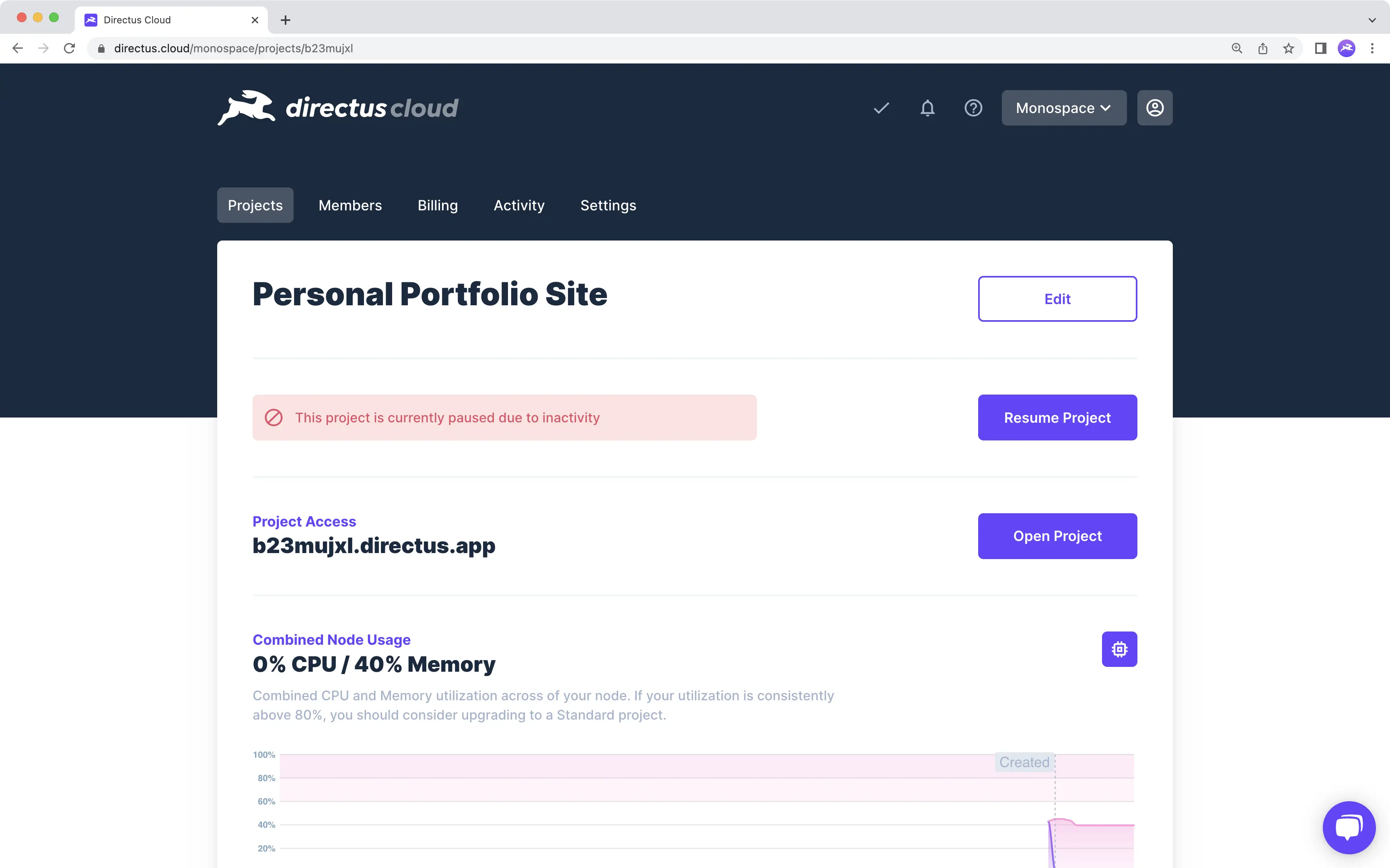
If there is no app activity for 3 days on a Community Project, the [Infrastructure](/cloud/glossary/#infrastructure)
|
|
gets paused. Projects that remain paused for a certain duration will be automatically deleted (see details in
|
|
[Cloud Policies](https://directus.io/cloud-policies/#)). To avoid deletion, you have to manually resume the Project
|
|
within the Cloud Dashboard, because requests to the app will not resume the Project. To resume a paused Community
|
|
Project:
|
|
|
|
1. Open the Team Menu in the Dashboard Header and click the desired Team.
|
|
2. Click **"Projects"** to enter the Projects page.
|
|
3. Click the paused Project to enter the Project Monitor page.
|
|
4. Click **"Resume Project"**.
|
|
|
|
## Destroy a Project
|
|
|
|

|
|
|
|
Destroying a Directus Cloud Project completely removes all its data, assets, settings and users from the platform. To
|
|
destroy a Directus Cloud Project, follow these steps:
|
|
|
|
1. Open the Team Menu in the Dashboard Header and click the desired Team.
|
|
2. Click **"Projects"** to enter the Projects page.
|
|
3. Click the Project you wish to delete.
|
|
4. Scroll to the bottom of the page and toggle <span mi icon dngr>local_fire_department</span>.
|
|
5. Type in the Project Name.
|
|
6. Click **"Destroy Project"**.
|
|
|
|
:::tip
|
|
|
|
This action will break any external apps connecting to the Project's API or linking to Project files, and is permanent
|
|
and irreversible. **Directus Cloud is not responsible for data or files lost due to this action!**
|
|
|
|
:::
|