mirror of
https://github.com/directus/directus.git
synced 2026-01-29 10:48:29 -05:00

208 lines
9.4 KiB
Markdown
208 lines
9.4 KiB
Markdown
---
|
|
description:
|
|
A Trigger initiates a Flow on some internal or external event, such as an in-app activity, incoming webhook, cron job,
|
|
execution of Operation(s) from other Flows, and beyond!
|
|
readTime: 3 min read
|
|
---
|
|
|
|
# Triggers
|
|
|
|
> A trigger defines the event that starts your flow. This could be from an internal or external activity, such as
|
|
> changes to data, logins, errors, incoming webhooks, cron jobs, operations from other flows, or even the click of a
|
|
> button within the Data Studio.
|
|
|
|
:::tip Before You Begin
|
|
|
|
Please be sure to read the overview documentation on [Flows](/configuration/flows).
|
|
|
|
:::
|
|
|
|
## Event Hook
|
|
|
|
|
|
|
|
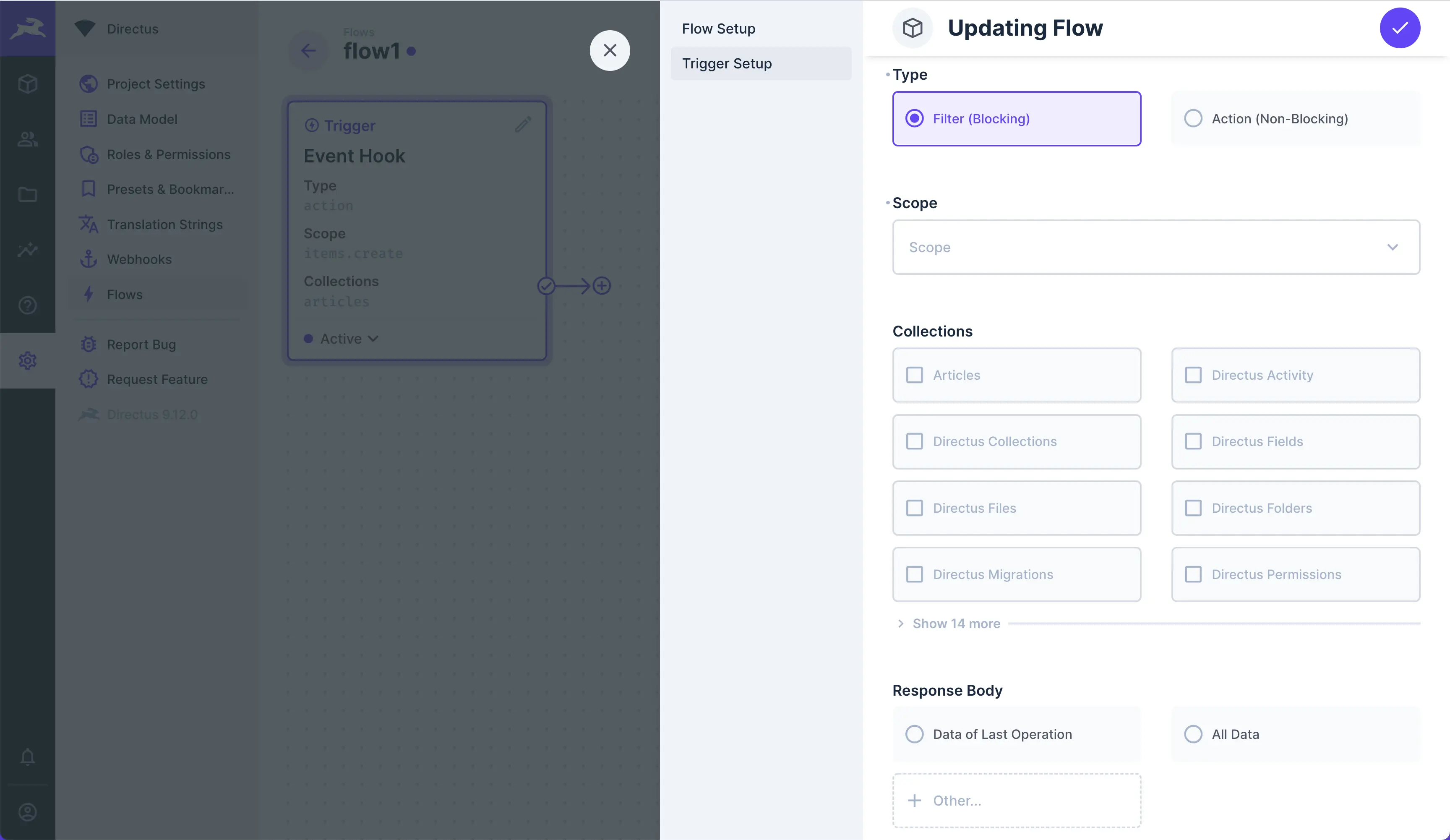
Event Hooks are triggered by events within the platform. The logic is based on [Custom API Hooks](/extensions/hooks).
|
|
Any data generated by the event will be nested in the `$trigger`.
|
|
|
|
- **Type** — Choose the type of event hook:
|
|
- [Filter (Blocking)](#filters) — This pauses the transaction and passes the `payload` to your flow, allowing you to
|
|
validate or transform `payload` or even prevent the event transaction.
|
|
- [Action (Non-Blocking)](#actions) — Actions do not block the event. A non-blocking action is mostly useful for
|
|
completing tasks in response to an event, without modifying the event or slowing the API.
|
|
- **Scope** — Set the types of events that trip this trigger.
|
|
- **Collections** — Set the collections _whose events_ trip this trigger.
|
|
- **Response Body** — This is optional. Its also only for **Filter (Blocking)** events. Defines data to replace the
|
|
event's original `payload`. Choose to return:
|
|
- **Data of Last Operation** — Replaces event `payload` with value from `$last`.
|
|
- **All Data** — Replaces event `payload` with the entire data chain.
|
|
- **Other** — Replaces event `payload` with value from an `<operationKey>`.
|
|
|
|
::: tip Events with Multiple Items
|
|
|
|
If you create items in a single request, the Flow will trigger once for each and every item. If you create three items,
|
|
the flow runs three separate times. On each run, just one item will be in the payload.
|
|
|
|
:::
|
|
|
|
### Filters
|
|
|
|
<!--  -->
|
|
|
|
A Filter will halt the event transaction, copy the event `payload` into the flow, let the whole flow run,
|
|
**_optionally_** replace the original `payload` by configuring **Response Body**, then resume the event's transaction to
|
|
the database.
|
|
|
|
For example, let's say you configure the scope to be `item.create`.
|
|
|
|
- A request to create an item is sent to Directus.
|
|
- The create item event halts.
|
|
- The event's `payload` is copied into the `$trigger` of the flow.
|
|
- The flow runs.
|
|
- _Optional:_ If you defined a **Response Body**, this replaces the event's `payload`.
|
|
- The event transaction is committed or cancelled, based on your flow's logic.
|
|
|
|
:::tip Response Body
|
|
|
|
If no **Response Body** is configured, the original payload will not be modified, but you'd still have the ability to
|
|
cancel the transaction.
|
|
|
|
:::
|
|
|
|
:::tip Cancelling Transactions
|
|
|
|
To completely cancel a transaction, you'll need to throw an error within a
|
|
[script operation](/configuration/flows/operations.md#script) or end the flow on a
|
|
[failure path](/configuration/flows#control-flow).
|
|
|
|
:::
|
|
|
|
### Actions
|
|
|
|
<!--  -->
|
|
|
|
An Action lets the event commit its transaction to the database without waiting for the flow to finish. Therefore,
|
|
Actions give you a more performant API, but you have no ability to validate or transform the payload before the
|
|
transaction is committed to the database. However, a copy of the `payload` is still added into `$trigger` to use as
|
|
desired.
|
|
|
|
For example, let's imagine once more that you configure the scope to be `item.create`.
|
|
|
|
- A request to create an item is sent to Directus.
|
|
- The create item event is transacted.
|
|
- The event's `payload` is copied into the `$trigger` of the flow.
|
|
- The flow runs.
|
|
|
|
To recap, Filters let you modify the original `payload` of an event but block the API until the flow finishes. Actions
|
|
still provide the `payload` to the flow, but don't let you modify it before transaction; so you get a faster API but no
|
|
control over the event transaction.
|
|
|
|
## Webhook
|
|
|
|

|
|
|
|
Triggers on an incoming HTTP request to: `/flows/trigger/:this-webhook-trigger-id` which you can copy from the webhook
|
|
trigger panel.
|
|
|
|
- **Method** — Choose whether the flow will be triggered by a `GET` or `POST` request from the dropdown.
|
|
- **Asynchronous** — Toggle whether or not the trigger responds asynchronously.
|
|
- **Response Body** — Optional. Defines data to return as a response. Choose to return:
|
|
- **Data of Last Operation** — Responds with value from `$last`.
|
|
- **All Data** — Responds with the entire data chain.
|
|
- **Other** — Responds with value from an `<operationKey>`.
|
|
|
|
:::tip Response Body
|
|
|
|
If no data is defined in **Response Body**, the response is empty.
|
|
|
|
:::
|
|
|
|
:::tip Asynchronous
|
|
|
|
If **Asynchronous** is enabled, the flows system will immediately resolve/respond to the request without returning a
|
|
**Response Body**, which frees up the API immediately. If it is disabled, the flows system will wait for the flow to
|
|
finish and return whatever value is in **Response Body**. This slows the API, but lets you send data.
|
|
|
|
:::
|
|
|
|
## Schedule (CRON)
|
|
|
|

|
|
|
|
This trigger enables you to create data at scheduled intervals, via
|
|
[6-point cron job syntax](https://github.com/node-cron/node-cron#cron-syntax).
|
|
|
|
- **Interval** — Set the cron job interval to schedule when the flow triggers.
|
|
|
|
**Syntax Explanation**
|
|
|
|
```
|
|
┌────────────── second (0-59)
|
|
│ ┌──────────── minute (0-59)
|
|
│ │ ┌────────── hour (0-23)
|
|
│ │ │ ┌──────── day of month (1-31)
|
|
│ │ │ │ ┌────── month (1-12)
|
|
│ │ │ │ │ ┌──── day of week (0-7)
|
|
│ │ │ │ │ │
|
|
│ │ │ │ │ │
|
|
* * * * * *
|
|
```
|
|
|
|
## Another Flow
|
|
|
|

|
|
|
|
This trigger executes by the [trigger flow](/configuration/flows/operations#another-flow) operation, allowing you to
|
|
chain flows.
|
|
|
|
- **Response Body** — Optional. Defines data to return and append under the `<operationKey>` of
|
|
[trigger flow](/configuration/flows/operations#another-flow) operation that tripped the trigger. Choose to return:
|
|
- **Data of Last Operation** — Responds with value from `$last`.
|
|
- **All Data** — Responds with the entire data chain.
|
|
- **Other** — Responds with value from an `<operationKey>`.
|
|
|
|
:::tip Flows for-loops
|
|
|
|
If you pass an array to this trigger, it will run once for each item in the array.
|
|
|
|
:::
|
|
|
|
## Manual
|
|
|
|

|
|
|
|
This Trigger starts your flow on a manual click of a button within the Data Studio. When you use this trigger, a
|
|
**Flows** menu containing a button will appear in the sidebar of the specified collection page(s) and/or its item pages.
|
|
|
|
The manual trigger must take in item ID(s) before you can click it. So on the collection page, the button will be
|
|
_grayed out_ until you select some number of items. From the item page, the current item's ID is passed in
|
|
automatically. These item IDs are passed in to `$trigger`.
|
|
|
|
- **Collections** — Choose the Collection(s) to add the button to.
|
|
- **Location** — Choose to display the button on the [Item Page](/app/content.md#item-page),
|
|
[Collection Page](/app/content.md#collection-page), or both.
|
|
- **Asynchronous** — Toggle whether the Flow executes asynchronously. If enabled, you can immediately trigger the flow
|
|
again. If not, you must wait for the flow to complete to use it again.
|
|
- **Collection Page (Requires Selection)** — Toggle whether a selection is required in the Collection Page to trigger.
|
|
- **Require Confirmation** - Toggle whether a confirmation dialog will be shown before the flow is executed.
|
|
|
|
After the operation runs, a toast notification will appear in your [sidebar](/app/overview.md#4-sidebar) indicating
|
|
whether the flow ran successfully.
|
|
|
|
### Confirmation Dialog
|
|
|
|

|
|
|
|
If enabled, a confirmation dialog will be shown in a modal before the flow is executed. There are further options to set
|
|
up a confirmation dialog.
|
|
|
|
- **Confirmation Description** - Text shown at the top of the modal.
|
|
- **Confirmation Input Fields** - Set up one or more inputs to be filled by users before executing the flow.
|
|
|
|

|
|
|
|
Each input field can have its own data type, interface, and display options. Some convenience options are also provided
|
|
to immediately alter the user input (such as trimming whitespace and slugifying text).
|
|
|
|
Data provided by users when triggering a manual flow with a confirmation dialog will be accessible in `$trigger.body` in
|
|
the data chain.
|