mirror of
https://github.com/directus/directus.git
synced 2026-02-08 00:35:10 -05:00
 1bc7da6967
* .gitignored package-lock.json that was created in the docs subfolder

* tweaked color names, except the ones in in vue files

* converted terminal screencaps into markdown

* updated images in 'Content'

* updated user-directory images

* updated media in file-library

* moved picsto cloud in reference>files

* updated images in config > datamodels > relationships

* updated primary colors in app-overview.svg

* updated insights images

* swapped quickstart-guide media and touched up copy

* Update last colors, remove linting from docs temporarily

* Fix theme color

* Update homepage header image

Co-authored-by: rijkvanzanten <rijkvanzanten@me.com>
56 lines
2.4 KiB
Markdown
56 lines
2.4 KiB
Markdown
# User Directory
|
|
|
|
> [Users](/getting-started/glossary#users) are the individual accounts for logging in to the App. Each user belongs to a
|
|
> [Role](/getting-started/glossary#roles) which defines its [Permissions](/getting-started/glossary#permissions). The
|
|
> User Directory shows all users within the project, each with their own customizable profile page.
|
|
|
|
[[toc]]
|
|
|
|
## Browsing Users
|
|
|
|
|
|
|
|
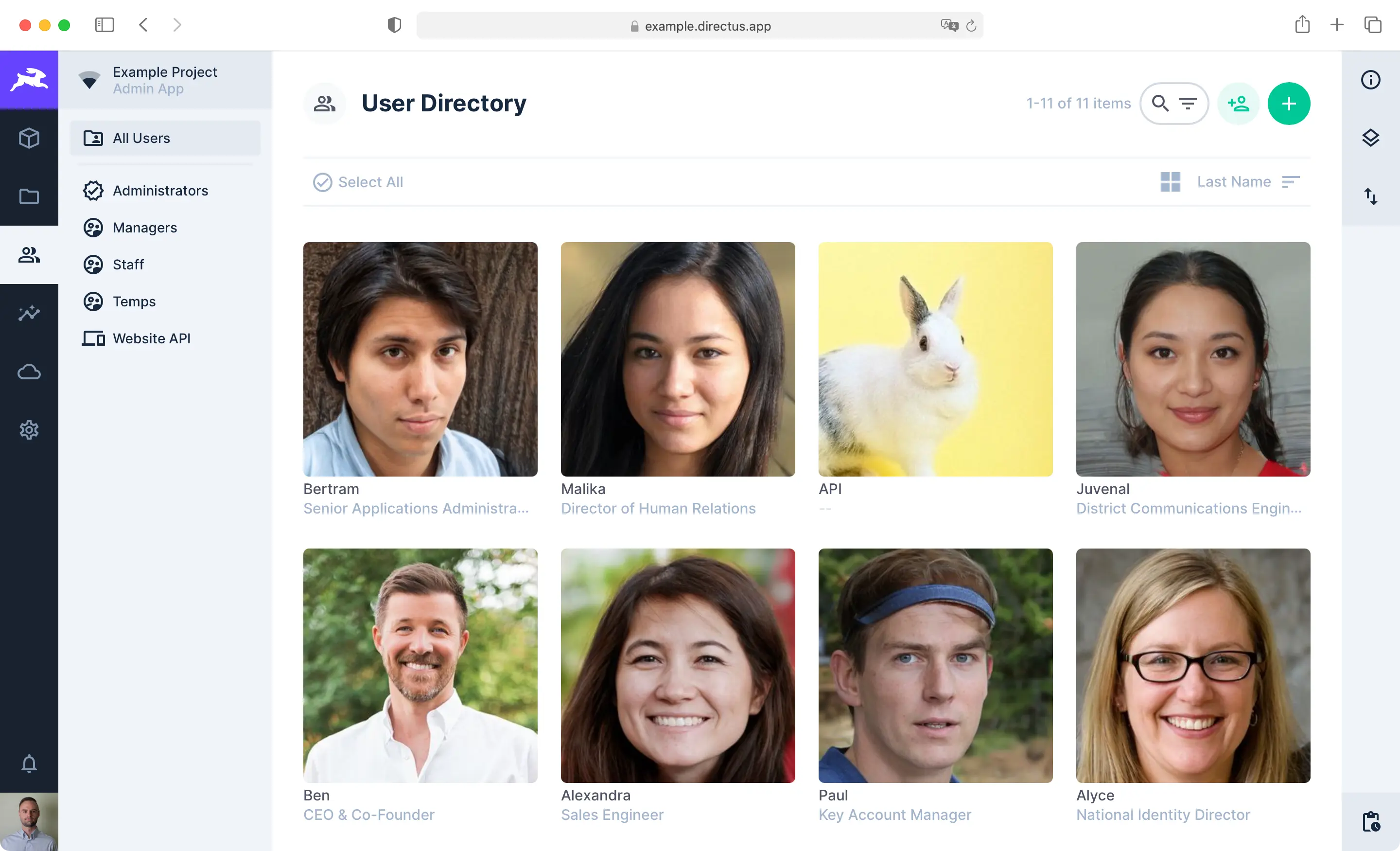
Lists all users of the project, with a navigation that allows quick access to the different role groups. This page has
|
|
the same functionality as other [Content Pages](/app/content-collections/).
|
|
|
|
## Viewing a User
|
|
|
|
|
|
|
|
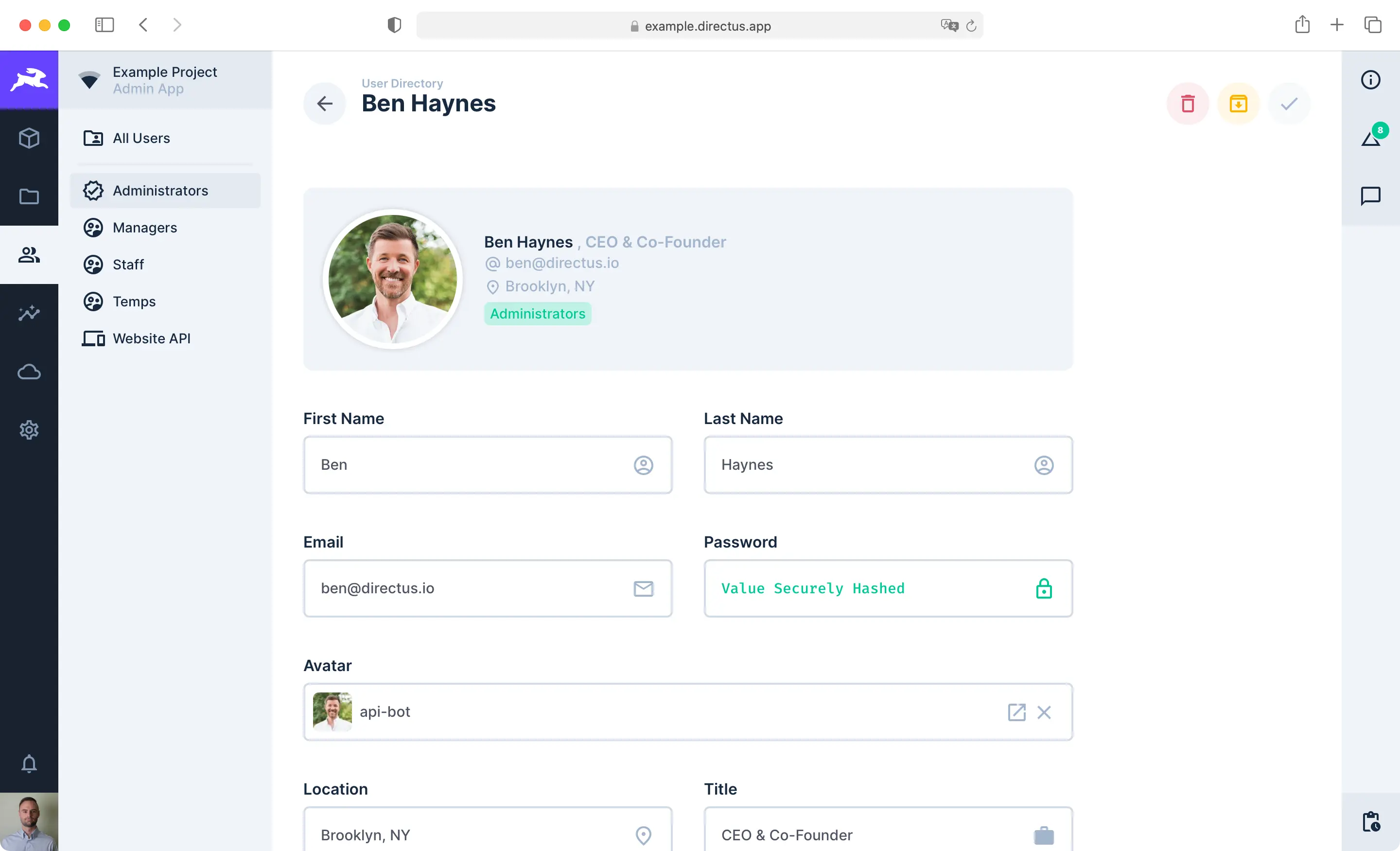
Users are referenced throughout the app, often for accountability purposes. Hovering over a user in this context will
|
|
provide a popover for basic information, and clicking that popover will navigate you to a readonly view of that user's
|
|
profile page.
|
|
|
|
## Editing a User
|
|
|
|
You can access your profile page from the User Directory or by clicking the User Menu in the
|
|
[Module Bar](/app/overview/#_1-module-bar). The profile page has the same features and functionality as the
|
|
[Item Page](/app/content-items/). Administrators can customize the fields on this page, but the following are available
|
|
by default.
|
|
|
|
- **First Name** — The given name
|
|
- **Last Name** — The family/surname
|
|
- **Email** — A unique email address
|
|
- **Password** — A hashed system password
|
|
- **Avatar** — An image to represent the user
|
|
- **Location** — The city, country, office, or branch name
|
|
- **Title** — The professional staff title
|
|
- **Description** — A freeform text description
|
|
- **Tags** — Keywords for searchability
|
|
- **Language** — The preferred App language/locale
|
|
- **Theme** — Light or Dark mode (or based on system preferences)
|
|
- **Multi-Factor Authentication** — Configuration for MFA
|
|
- **Email Notifications** - Receive emails for notifications
|
|
|
|
The sidebar's info component also includes the following readonly details:
|
|
|
|
- **User Key** — The primary key of the user
|
|
- **Last Page** — The last App page accessed by the user
|
|
- **Last Access** — The timestamp of the user's last App or API action
|
|
|
|
::: tip System Fields
|
|
|
|
Administrators have access to additional system fields.
|
|
|
|
:::
|