
gspt


In a very experimental stage.
Please Note
- You will need Spotify Premium.
- "gspt" uses the Web API from Spotify, which doesn't handle streaming itself. So you'll need either an official Spotify client open or a lighter weight alternative such as spotifyd.
- Images are rendered using the X child windows. Currently there is no support for Wayland.
Setup
Installing
$ git clone https://github.com/aditya-K2/gspt.git # Cloning
$ cd gspt
$ go build -v # Building
$ sudo install -D gspt -t "/usr/bin/" # Installing

# You can merge them into a one liner
$ git clone https://github.com/aditya-K2/gspt && cd gspt && GOFLAGS="-buildmode=pie -trimpath -mod=readonly -modcacherw" go build -v && sudo install -D gspt -t "/usr/bin/"
Afer Installation Steps
-
Generate an API Key from Spotify Dashboard
If you want to use Spotify's API to create applications that interact with their music streaming service, you will need an API key. Here's how you can generate one from the Spotify Dashboard:
-
Go to the Spotify Developer Dashboard and log in with your Spotify account credentials.
-
Click on the "Create an App" button to create a new application.
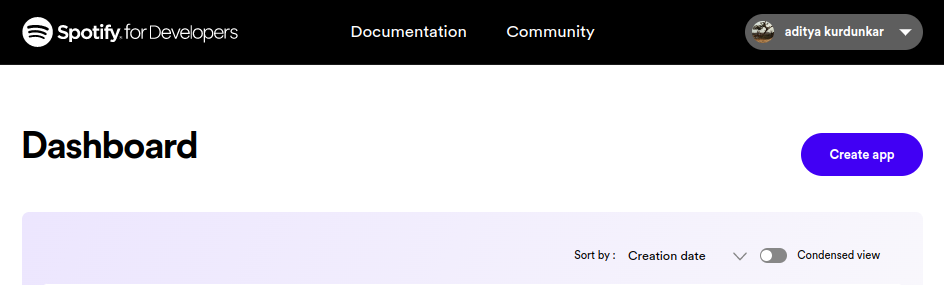
-
Give your application a name and description, and agree to the terms of service. In the
Redirect URIsection addhttp://localhost:8080/callbackas a callback URL. This is necessary for the OAuth 2.0 authentication flow to work. Click on "Create" to proceed.
-
On the next page, you'll see the details of your newly created application. In the Settings Look for the section labeled "Client ID" and click on the "Show Client Secret" button. You will now see your Client ID and Client Secret. You will need both of these to use the Spotify API in "gspt"


-
Using the Generated Credentials
- Set the following environment variables from the credentials you generated.
$ export SPOTIFY_ID= # client id
$ export SPOTIFY_SECRET= # client secret
- After this you can just run
gspt. And follow the link that it generates, and Login.
$ gspt
Default Key Mappings
dOpen the device menu to choose a device from1,2,3Switch between the viewsenter- Select an entry?SearchvToggle Visual Mode (Only works in some views)aAdd to Playlist (Only works in some views)ctrl-pStart playing the entry under the cursor in some views (PlaylistNavigator, Albums, etc.)oOpen the Current Track's AlbumOOpen the Current Track's Artistctrl-oOpen the Current Context (Album/Artist/Playlist)
Command-line Parameters
Usage of ./gspt:
  -c string
        Specify The Directory to check for config.yml file. (default "$XDG_CONFIG_HOME/gspt")
  -hide-image
        Do not display the cover art image.
  -rounded-corners
        Enable Rounded Corners
Configuration
The configuration is done through $XDG_CONFIG_HOME/gspt/config.yml
or the path to the folder provided by the -c flag before starting the app.
See Command-line Parameters
Also, Configuration is live updated when you make a change except for the Key Mappings.
Config Parameters
# Parameter followed by default values
# For the default configuration used by gspt please see:
# https://github.com/aditya-K2/gspt/blob/master/extras/CONFIG.md

# Path to where the cached images should be stored.
cache_dir: $XDG_CACHE_HOME

# The amount of milliseconds after which the cover art should be redrawn if there is a event.
redraw_interval: 500

# Do not display the cover art image.
hide_image: false

# Enable Rounded Corners
rounded_corners: false

# Image Drawing related parameters. See next section for an in-detail explanation.
additional_padding_x : 0
additional_padding_y : 0
image_width_extra_x  : 0
image_width_extra_y  : 0

---

# Color configuration has the following api
colors:
    entity:
        fg: # foreground (Can be Hex value or a color name)
        bg: # background (Can be Hex value or a color name)
        bold: # true/false (boolean)
        italic: # true/false (boolean)

# for e.g
colors:
    artist:
        fg: "#ff0000"
        bg: black # Background will be ignored in most cases. (Terminals default background color is used)
        bold: false
        italic: true

# For the default colors used for the "entities" please see:
# https://github.com/aditya-K2/gspt/blob/master/extras/CONFIG.md
# Available color names (i.e. pink, green, etc.) can be seen here:
# https://github.com/gdamore/tcell/blob/main/color.go#L845

---

# Key mappings has the following API
mappings:
    view:
    function: key_mapping

# for e.g
mappings:
    recently_played_view:
        open_entry: "ctrl-p"

# For the default mappings for each view please see:
# https://github.com/aditya-K2/gspt/blob/master/extras/CONFIG.md
Image Rendering Related Parameters
The position of the image without any configuration may vary in different terminals due to font or terminal padding. The app tries to calculate the position based on rows and columns and font width of you terminal but the exact position can't be defined. Therefore, it is recommended to define extra padding and your own image width ratio in the config file. Additional Padding can be positive or negative and can be used to move the image up, down, left, or right. Extra Image width can be adjusted by defining the extra width to be added or subtracted from the original image width.
The additional_padding_x and additional_padding_y
configuration parameters allow you to add extra padding to the placement of
the image within the terminal window. This additional padding can be set to
positive or negative values, which will shift the position of the image
accordingly.
Note that the additional_padding_x parameter affects the
horizontal placement of the image, with negative values shifting the image
to the right and positive values shifting it to the left. Similarly, the
additional_padding_y parameter affects the vertical placement
of the image, with negative values shifting the image up and positive
values shifting it down.
To adjust the additional_padding_x and
additional_padding_y parameters, simply modify the
configuration file according to your needs. Keep in mind that adding too
much padding may cause the image to overlap with other terminal content,
while adding too little padding may cause the image to be cut off.
Experiment with different values until you find the perfect placement
for your image.
Additional Padding

By default, the app assumes that the image preview box has no font or
terminal padding or margin, so the image will be rendered at different
positions in different terminals. To ensure that the image fits
perfectly within the preview box, you can add extra width to the image
using the image_width_extra_x and
image_width_extra_y configuration parameters. These
parameters can be set to positive or negative values to increase or
decrease the size of the image, respectively. To add extra width to the
image, the app takes into account the font width specified by the
variables.
To adjust the image_width_extra_x and
image_width_extra_y parameters, simply modify the
configuration file according to your needs. Note that these parameters
act like a chunk that is either added or subtracted from the original
image width. Therefore, if the image is flowing outside the preview
box, you may need to adjust the parameters to increase or decrease the
chunk size until the image fits perfectly within the box.
Extra Image Width

Configuring Additional Padding and Image Width.
Please read about Image Rendering Related Parameters first.
Let's say upon opening "gspt" for the first time and your image is rendered this way.

Here, the image is placed too high, so we will start by adding
additional_padding_y so that it will be moved down.
The configuration becomes:
additional_padding_y: 36 # you will need to use trial and error
and the image appears like this:

Now the image overflows the image box, we need to decrease the image's width, hence
will change image_width_extra_y first
image_width_extra_y : -16

Now the image overflows from the left side, hence we will change additional_padding_x
to move the image to the right
additional_padding_x: 6

The last thing we will do is to decrease the image_width_extra_x so that it will
be placed correctly in the box
image_width_extra_x : -8

Which looks perfect. 🎉
Roadmap
- Multiple Image rendering backends
- Sixel
- tview Images
- Kitty Images
- Rounded Corners
- Customisable UI
- Wayland Support for Image rendering
- Queue Support
- Windows Support
- Key Mappings